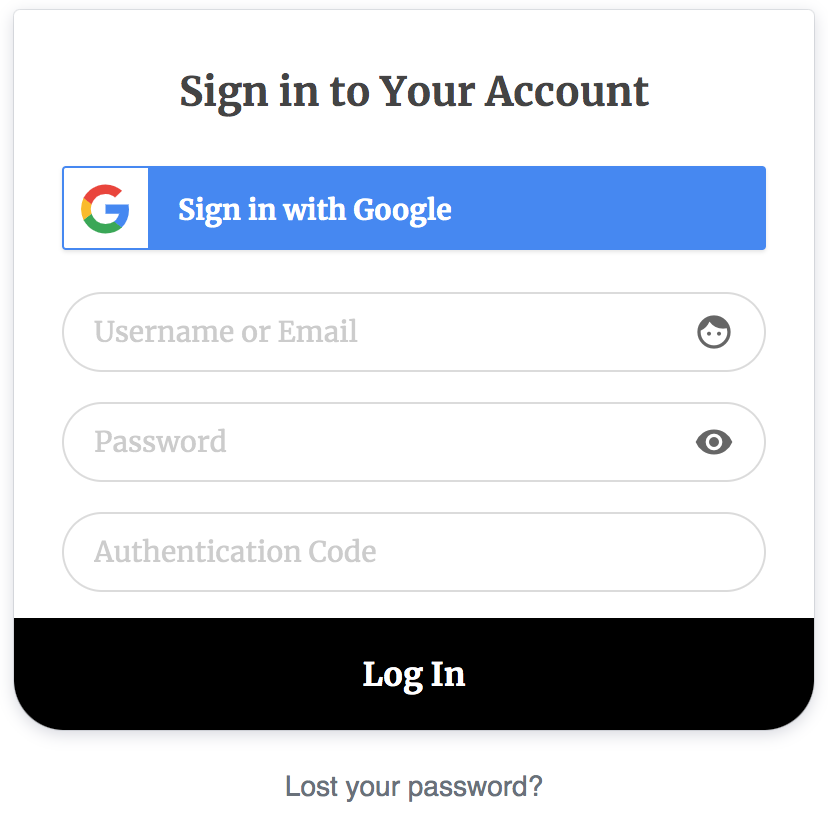
When you add Two-Factor Authentication to your WordPress site, users will need to enter their username and password like normal and then a time-based one-time code (TOTP password) from their authenticator application, such as e.g Google Authenticator, Authy, Microsoft Authenticator, 1Password, LastPass, Okta Verify, Duo Security.
With WordPress 2FA enabled, your website is protected against password leaks, automated password guessing, and brute-force attacks.
Setup from My Account Page
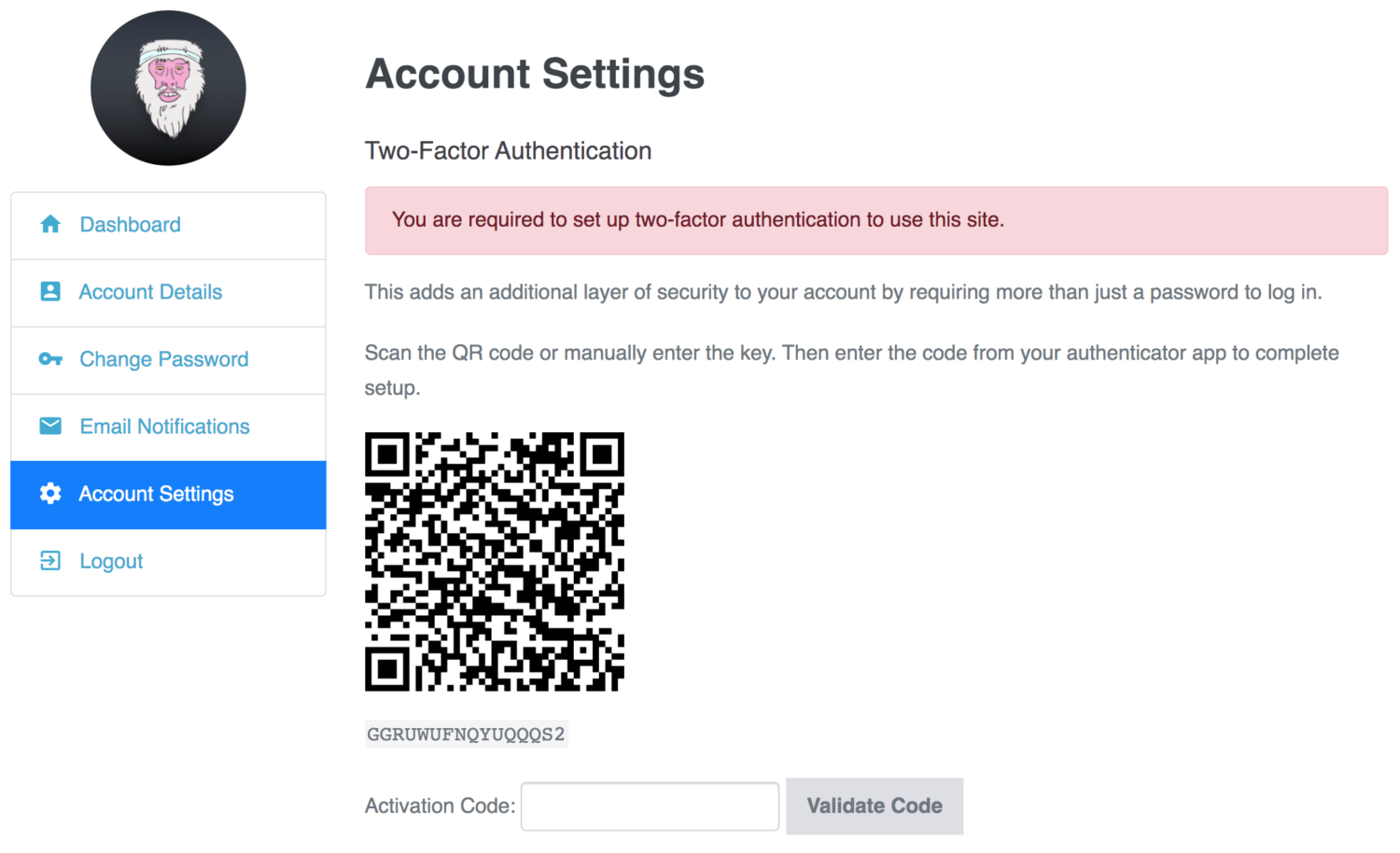
If the Two-Factor authentication addon is enabled, the setup section is added to the My Account page where registered WordPress users can configure 2FA for their accounts.
Want to set up a custom user 2FA configuration page, use the shortcode [profilepress-2fa-setup].
WordPress 2FA Setup from Profile Page
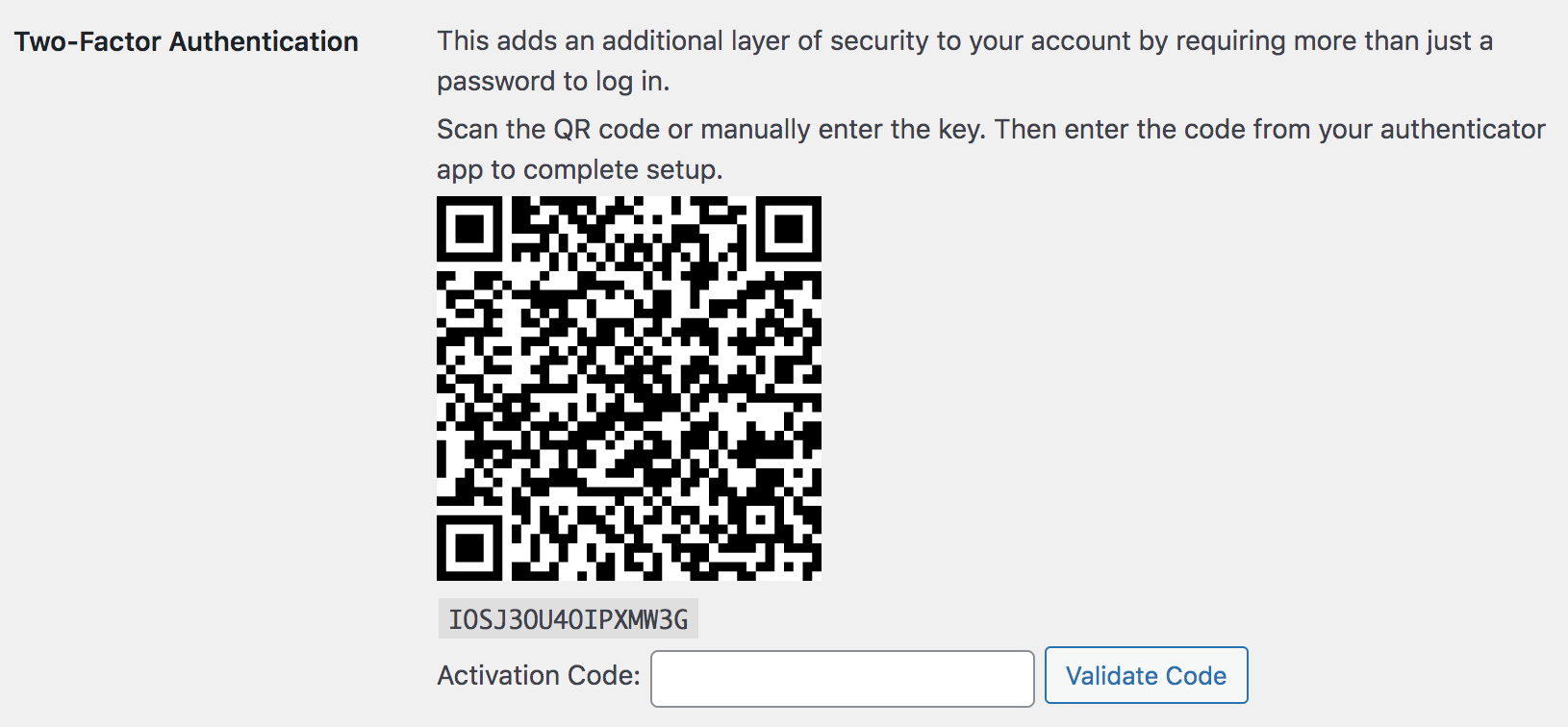
Your WordPress site users can also configure Two Factor Authentication for their account through the user profile page in the WP admin dashboard.
Recovery Codes Generation
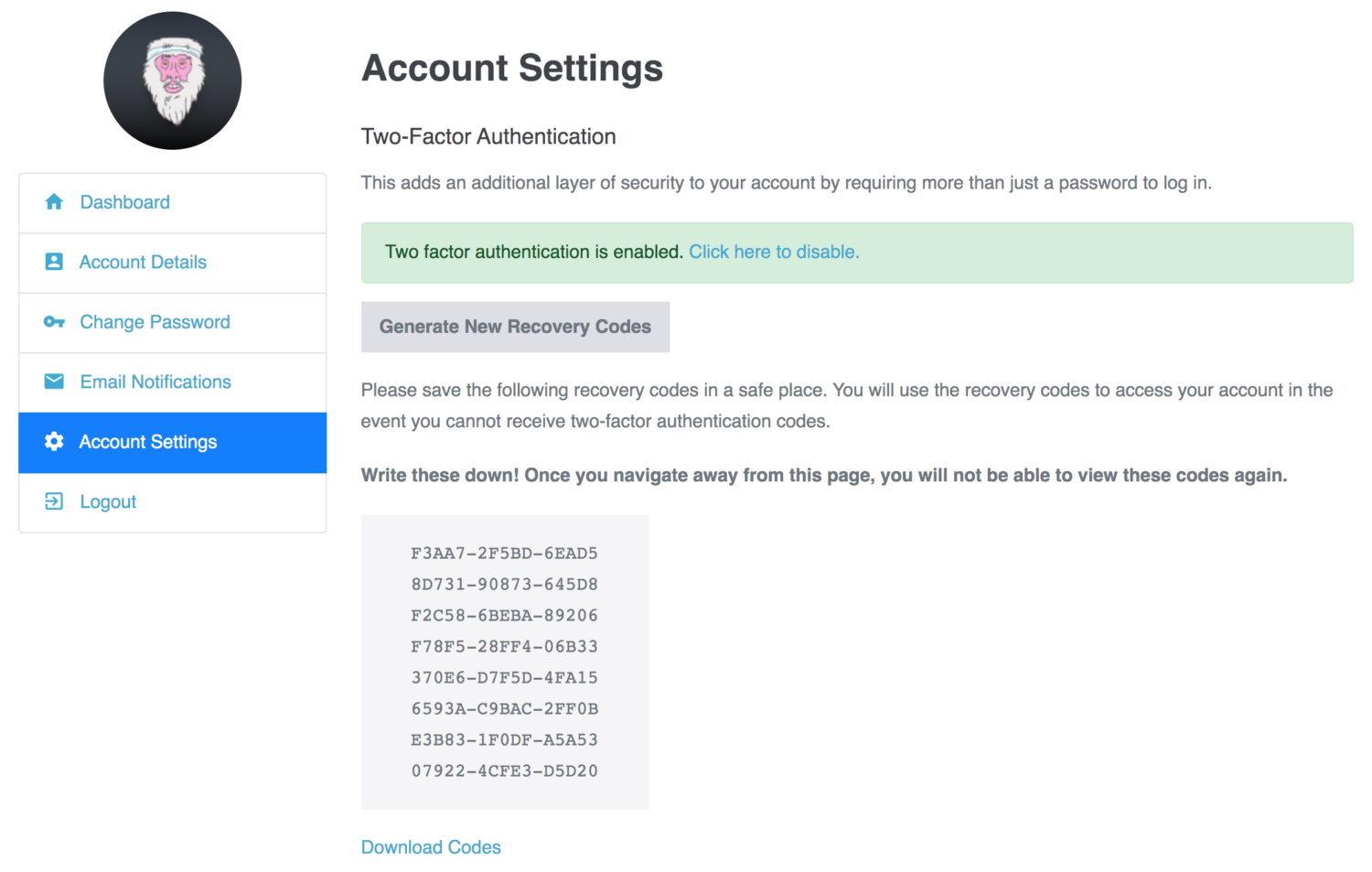
With our WordPress 2FA feature, users can generate backup or recovery codes that they can use as an authentication code to regain access to their WordPress account if they are locked out.
Disable 2FA for Locked Out Users
If a user gets locked out of their WordPress account perhaps because they lost their phone or mistakenly deleted their authenticator application, admins can disable 2FA for them from the user edit screen in the dashboard.
Easy WordPress 2FA Setup
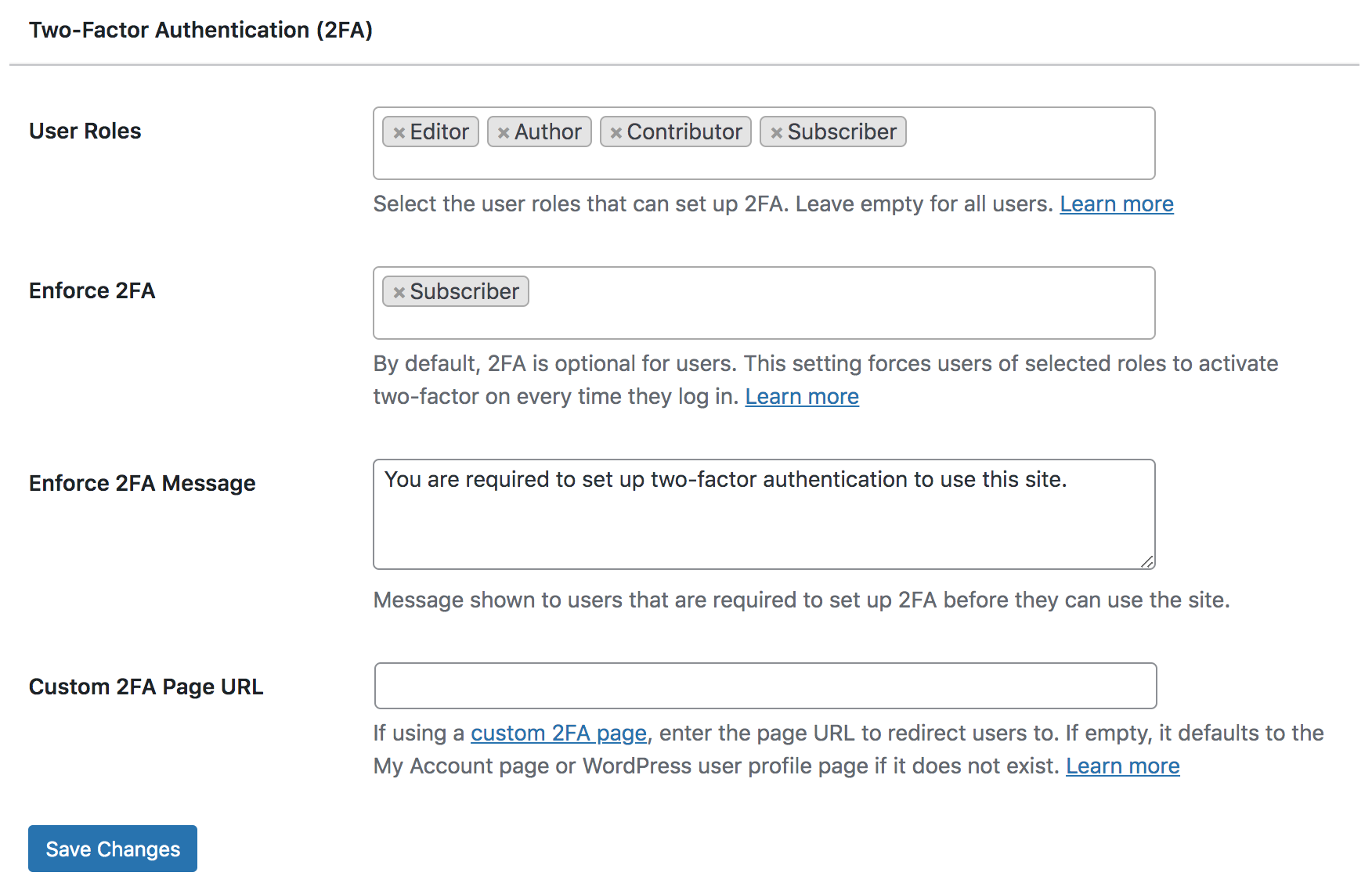
You can select the user roles that can set up Two-Factor Authentication for their accounts in WordPress, enforce 2FA on users of select roles and customize the message shown to users that haven’t configured Two Factor.
Get ProfilePress with
all Addons Today!
ProfilePress is the best two-factor authentication (2FA) plugin for WordPress. It is user-friendly and enhances the protection of your website and data for both you and your users.