
How to Fix the WordPress Login Redirect Loop
Do you want to know how to fix the WordPress login redirect loop?
WordPress login redirect loop issues can be incredibly frustrating, especially when you need quick access to your dashboard, and nothing seems to work. You enter your login details, click the button, and instead of gaining access, you’re sent right back to the same login page. It feels like you’re stuck in a cycle with no clear explanation of what went wrong.
In this guide, you’ll learn exactly how to fix the WordPress login redirect loop. We’ll cover the most common causes and provide proven solutions to get you back into your dashboard quickly and safely.
What Is a WordPress Login Redirect Loop?
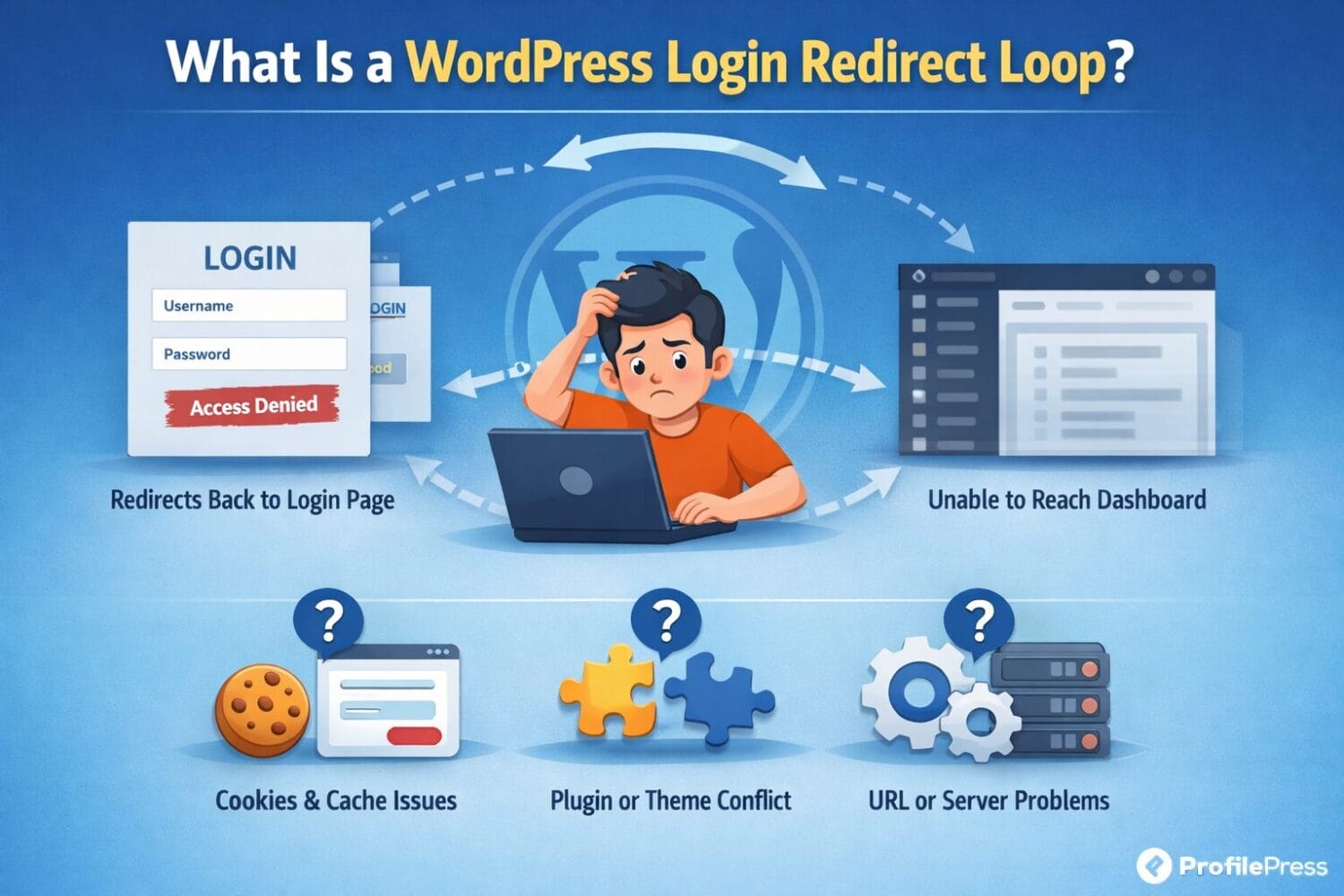
A WordPress login redirect loop, also known as a WordPress login loop, is an issue where you try to log into your website, but instead of accessing the dashboard, you’re repeatedly sent back to the login page.
No matter how many times you enter your correct username and password, WordPress keeps redirecting you in a continuous cycle without granting access.
Under normal circumstances, when you log in to WordPress, the system verifies your credentials and creates a session using cookies stored in your browser. These cookies confirm that you’re authenticated and allow you to move from the login page to your admin dashboard seamlessly. However, when something interrupts this process, WordPress fails to recognize your login session, and that’s when the redirect loop happens.
In the next section, we’ll look at the common causes of the WordPress login redirect loop.
Common Causes of WordPress Login Redirect Loop
1. Cookies and Cache Issues: This is one of the most common causes of the WordPress login redirect loop, and it usually stems from problems with browser cookies or cached data.
When you log in, WordPress stores cookies in your browser to keep you authenticated. If these cookies become corrupted or outdated, your browser may fail to communicate properly with your website. As a result, WordPress doesn’t recognize your login session and keeps redirecting you back to the login page.
Cached files can also cause similar issues. Your browser might be loading an older version of your site, which conflicts with your current login data.
That’s why clearing your browser cache and cookies is often the first and easiest fix.
2. Plugin Conflicts: Plugins extend the functionality of your WordPress site, but they can sometimes interfere with each other or with WordPress itself.
Security plugins, caching, and login-related plugins are often involved in redirect loop issues. For example, a security plugin might block login attempts it considers suspicious, while a caching plugin might serve outdated login pages.
If two plugins attempt to control login behavior simultaneously, conflicts can occur, leading to the WordPress login redirect loop.
3. Theme Conflicts: While less common than plugin issues, your theme can also be responsible. A poorly coded or outdated theme may interfere with WordPress functions, including login sessions. This is especially true if the theme includes custom login features or redirects.
4. Incorrect Site URL Settings: WordPress relies on two settings: the WordPress Address (URL) and the Site Address (URL). If these URLs don’t match or are misconfigured, WordPress may be unable to verify your login session, preventing you from accessing your dashboard.
For instance, a mismatch can occur if one URL uses “http” while the other uses “https,” or if one includes “www” and the other doesn’t. When this happens, your login cookies may fail to function properly, often resulting in the frustrating login redirect loop.
5. Corrupt .htaccess File: The “.htaccess” file controls how your website handles redirects and permalinks.
If this file becomes corrupted or contains incorrect rules, it can interfere with WordPress’s processing of login requests. Instead of redirecting you to the dashboard after login, it may repeatedly redirect you back to the login page.
This type of issue often occurs after modifying permalinks or installing certain plugins.
6. Server or Hosting Configuration Issues: Your hosting environment also plays a role in how WordPress handles sessions and redirects.
Server misconfigurations, incorrect PHP settings, or session handling issues can prevent WordPress from maintaining a proper login state. In such cases, even if everything on your site looks fine, the server may be the root cause of the problem.
7. Browser Extensions Interference: Sometimes, the issue isn’t even on your website. Certain browser extensions, especially those related to privacy, security, or ad blocking, can interfere with cookies and scripts required for login. When this happens, WordPress may not be able to maintain your session, resulting in a redirect loop.
Proven Ways to Fix the WordPress Login Redirect Loop
Now that you understand why WordPress may trap you in a login redirect loop, it’s time to tackle the issue.
The following ten solutions address the most common causes, from simple browser problems to plugin conflicts and configuration errors. Work through them one by one until your login works properly again.
Fix 1: Clear Browser Cookies and Cache
When dealing with the WordPress login redirect loop, clearing your browser cookies and cache should always be the first step. It’s quick, easy, and, in many cases, it resolves the issue immediately without requiring any technical changes to your website.
Why This Fix Works
When you log into WordPress, your browser stores cookies to keep you authenticated. These cookies act like a temporary pass that tells WordPress you’ve already logged in. Alongside cookies, your browser also caches your site to help it load faster.
However, if these cookies or cached files become outdated, corrupted, or mismatched with your current site settings, they can interfere with the login process. Instead of allowing access, WordPress fails to recognize your session and sends you back to the login page, causing the redirect loop.
Clearing your cookies and cache removes these outdated files and forces your browser to load a fresh version of your site.
How to Clear Cookies and Cache
The steps may vary slightly by your web browser, but the process is generally similar.
For Google Chrome
- Click the three-dot menu in the top-right corner
- Go to Settings
- Select Privacy and Security
- Click Clear browsing data
- Choose Cookies and other site data, and Cached images and files
- Select the time range (choose “All time” for best results)
- Click Clear data
For Microsoft Edge
- Click the three-dot menu
- Go to Settings
- Select Privacy, search, and services
- Under “Clear browsing data,” click Choose what to clear
- Select cookies and cached data
- Click Clear now
For Mozilla Firefox
- Click the menu icon
- Go to Settings
- Select Privacy & Security
- Scroll to Cookies and Site Data
- Click Clear Data
Quick Alternative: Use Incognito Mode
If you don’t want to clear your entire browsing data, you can try logging in using an incognito or private browsing window.
This mode disables stored cookies and cache by default, allowing you to test whether they’re causing the problem. If you can log in successfully in incognito mode, then your regular browser data is likely the issue.
When to Move to the Next Fix
If you’ve cleared your cookies and cache and the WordPress login redirect loop still persists, don’t worry. This means the issue is likely coming from your website rather than your browser.
In that case, move on to the next fix, where we’ll look at how plugin conflicts can cause the problem and how to resolve them.
Fix 2: Deactivate All Plugins
If clearing your browser cookies and cache didn’t fix the issue, the next step is to check for plugin conflicts.
Plugins are among the most common causes of the WordPress login redirect loop, especially those that handle security, caching, redirects, or user authentication.
The challenge is that when you’re stuck in a login loop, you can’t access your WordPress dashboard to deactivate plugins the usual way. That’s why you’ll need to disable them manually.
How to Deactivate All Plugins Without Access to Dashboard
Since you can’t log in, you’ll need to use FTP or your hosting file manager.
Method 1: Using FTP (File Transfer Protocol)
- Connect to your website using an FTP client (like FileZilla)
- Navigate to the “wp-content” folder
- Locate the folder named “plugins.”
- Rename it to something like “plugins_old.”
Once you do this, WordPress will automatically deactivate all plugins. Now, try logging into your site again.
Method 2: Using Hosting File Manager
If you don’t use FTP, you can do the same from your hosting control panel:
- Log in to your hosting account
- Open the File Manager
- Navigate to “public_html/wp-content/”
- Find the “plugins” folder
- Rename it to “plugins_old.”
Then attempt to log in again.
What to Do If This Fix Works
If you’re able to log in after renaming the plugins folder, it confirms that one (or more) of your plugins is causing the WordPress login redirect loop.
Now you need to identify the specific plugin responsible.
Follow these steps:
- Rename the folder back to “plugins.”
- Log in to your WordPress dashboard
- Go to Plugins > Installed Plugins
- Activate plugins one at a time
- After each activation, log out and try logging in again
Once the issue returns, the last plugin you activated is likely the cause.
When to Move to the Next Fix
If deactivating all plugins does not resolve the WordPress login redirect loop, then plugins are not the cause. In that case, move on to the next fix, where we’ll check whether your theme is causing the issue.
Fix 3: Switch to Default Theme
If deactivating plugins didn’t resolve the issue, the next thing to check is your theme. Although themes are mainly responsible for design and layout, they can sometimes interfere with core WordPress functions, including the login process.
Switching to a default WordPress theme helps you quickly determine whether your current theme is causing the WordPress login redirect loop.
How to Switch to a Default Theme Without Dashboard Access
Since you’re unable to log in, you’ll need to do this manually using FTP or your hosting file manager.
Method 1: Using FTP
- Connect to your website using an FTP client
- Navigate to the “wp-content/themes/” directory
- Locate your active theme folder
- Rename it (for example, “yourtheme_old”)
Once you rename the active theme folder, WordPress will automatically switch to a default theme (if one is installed).
Method 2: Using Hosting File Manager
- Log in to your hosting account
- Open File Manager
- Go to “public_html/wp-content/themes/”
- Find your active theme folder
- Rename it
After doing this, try logging into your WordPress dashboard again.
What If No Default Theme Is Installed?
In some cases, your site may not have a default WordPress theme installed. If that happens, WordPress won’t be able to switch themes automatically.
To fix this:
- Download a default theme like “Twenty Twenty-Four” from the WordPress website
- Upload it to the “wp-content/themes/” directory using FTP or File Manager
- Then, rename your current theme folder again
WordPress should now fall back to the newly uploaded default theme.
What to Do If This Fix Works
If you’re able to log in after switching themes, then it’s clear that your theme is causing the WordPress login redirect loop. This usually happens when the theme is outdated, poorly coded, or not fully compatible with your current WordPress version. In some cases, built-in features like custom login pages or redirects may also interfere with the normal login process.
To resolve this, start by updating your theme to the latest version and confirming that it’s compatible with your current WordPress installation. You should also review any theme-specific settings related to login or redirects and disable them if necessary.
If the issue continues, it’s a good idea to reach out to the theme developer for support or consider switching to a more reliable and well-maintained theme to avoid future problems.
When to Move to the Next Fix
If switching to a default theme does not resolve the issue, then your theme is not the cause. At this point, you should move on to the next fix, where we’ll check your WordPress URL settings.
Fix 4: Update Site URL
If the previous fixes didn’t resolve the issue, the next thing to check is your site URL settings. Incorrect or mismatched URLs are a very common cause of the WordPress login redirect loop, and they can prevent WordPress from properly verifying your login session.
Why This Fix Works
WordPress relies on two important settings:
- WordPress Address (URL)
- Site Address (URL)
These URLs tell WordPress where your site is located and how it should handle requests. If there’s a mismatch between them, or if they don’t match your actual website address, WordPress may fail to recognize your login session.
For example, problems can occur if:
- One URL uses http while the other uses https
- One includes www, and the other does not
When this happens, login cookies don’t work properly, and WordPress keeps redirecting you back to the login page.
How to Fix Site URL Using wp-config.php
The quickest way to fix this is by editing your “wp-config.php” file.
To do this, start by connecting to your website using FTP or by opening the File Manager in your hosting account. Once you’re in your site’s root directory, locate the “wp-config.php” file. This file contains important configuration settings for your WordPress site.
Next, open the “wp-config.php” file and add the following lines of code:
define("WP_HOME","https://yourwebsite.com");
define("WP_SITEURL", "https://yourwebsite.com");
Make sure you replace “https://yourwebsite.com” with your actual website URL. It’s important that the URL is correct and matches how your site is accessed, including the use of https if your site has an SSL certificate.
After making these changes, save the file and upload it back to your server via FTP. Once that’s done, go back to your login page and try logging in again to see if the issue has been resolved.
How to Fix Site URL via Database
If the issue persists, you may need to update the URLs directly in your database.
To do this, log in to your hosting control panel and open phpMyAdmin. From there, select the database that is connected to your WordPress site. If you’re not sure which one it is, you can check your “wp-config.php” file to confirm the database name.
Once you’ve selected the correct database, look for the table named “wp_options”. This table stores important settings for your site, including your website URL. Inside the table, locate the rows labeled “siteurl” and “home”.
Next, edit both values to match your correct website URL. It’s important that both fields are identical, as any mismatch can cause login or redirect issues.
Finally, make sure the URL format is correct. If your site uses SSL, the address should start with “https”. After saving your changes, try logging into your site again to see if the issue has been resolved.
When to Move to the Next Fix
If updating your site URL does not resolve the WordPress login redirect loop, then the issue likely lies elsewhere.
In the next section, we’ll look at how a corrupted “.htaccess” file can cause redirect problems and how to fix it.
Fix 5: Regenerate .htaccess File
The .htaccess file plays an important role in how your website handles URLs, redirects, and permalinks. When it becomes corrupted or contains incorrect rules, it can interfere with the login process and cause repeated redirects, leading to the WordPress login redirect loop.
In many cases, this issue occurs after changing permalink settings, installing certain plugins, or making manual edits to the file. The good news is that you can easily fix this by regenerating the .htaccess file and allowing WordPress to create a fresh version.
How to Regenerate the .htaccess File
Since you don’t have access to your WordPress dashboard, you’ll need to regenerate the .htaccess file manually.
To do this, start by accessing your website files. You can do this by connecting to your site using FTP or by opening the File Manager in your hosting control panel. Once you’re in, navigate to your root directory, which is usually named public_html. This is where your main WordPress files are stored.
Next, locate the .htaccess file in that directory. If you don’t see it right away, don’t panic. The file is often hidden by default, so you may need to enable the option to view hidden files in your FTP client or File Manager settings.
Once you’ve found the file, rename it to something like “.htaccess_old”. This step disables the current file without permanently deleting it, which means you can always restore it later if needed. Renaming is safer than deleting, especially if you’re not sure what changes were previously made to the file.
After renaming the file, go back to your WordPress login page and try logging in again. In many cases, removing the faulty .htaccess file is enough to stop the redirect loop and restore access to your dashboard.
If you’re able to log in successfully, the final step is to generate a new .htaccess file.
To do this, go to Settings > Permalinks in your dashboard, then click the Save Changes button without making any changes. This prompts WordPress to automatically create a fresh .htaccess file with the correct default settings.
When to Move to the Next Fix
If regenerating the .htaccess file doesn’t resolve the WordPress login redirect loop, the issue may not be related to your site’s rewrite rules.
In the next section, we’ll look at how browser extensions can interfere with login sessions and what you can do to fix that.
Fix 6: Disable Browser Extensions
If you’ve tried the previous fixes and the WordPress login redirect loop still persists, the issue might not be coming from your website at all.
In some cases, your browser extensions, especially those related to privacy, security, or ad blocking, can block or modify cookies and scripts that WordPress relies on during the login process.
Common types of extensions that can cause this issue include:
- Ad blockers
- Privacy protection tools
- Script blockers
- VPN or proxy extensions
- Cookie management extensions
Disabling these extensions temporarily helps you determine whether they’re causing the problem.
How to Disable Browser Extensions
The steps may vary slightly by browser, but the general process is similar.
For Google Chrome
- Click the three-dot menu in the top-right corner
- Go to Extensions > Manage Extensions
- Toggle off all extensions
For Microsoft Edge
- Click the three-dot menu
- Go to Extensions
- Disable all installed extensions
For Mozilla Firefox
- Click the menu icon
- Go to Add-ons and Themes
- Select Extensions
- Disable all extensions
After disabling your extensions, go back to your WordPress login page and try logging in again. If you can log in successfully, one of your extensions was causing the issue. If the problem persists, extensions are not the cause, and you can move on to the next fix.
Fix 7: Contact Hosting Support
If you’ve tried all the previous fixes and the WordPress login redirect loop still persists, contact your hosting provider’s support team.
Hosting providers have access to server-level settings and logs that are not available to you, which makes them well-positioned to diagnose more complex problems.
Before reaching out, gather important details about your site. This includes your WordPress site URL and a clear description of the login issue. You should also list the steps you’ve already taken, such as clearing your cache, disabling plugins, and checking your .htaccess file.
After the support team has made changes, try logging in again to ensure the redirect loop is resolved. If the issue is fixed, ask them for a summary of the steps they took. This can help you understand what went wrong and prevent similar problems in the future.
Frequently Asked Questions About WordPress Login Redirect Loop
Q1. What is a WordPress login redirect loop?
A WordPress login redirect loop happens when you try to log in to your dashboard, but instead of gaining access, you are repeatedly redirected back to the login page. This usually means WordPress is unable to properly verify your session or store login data.
Q2. Does clearing the browser cache fix the login redirect loop?
In many cases, yes. Cached data or corrupted cookies in your browser can prevent proper login. Clearing your cache and cookies ensures your browser loads the latest version of your site and processes login sessions correctly.
Q3. Is it safe to enable debug mode on a live site?
Debug mode should only be enabled temporarily for troubleshooting. While it helps identify errors, leaving it active on a live site can expose sensitive information. Always disable it after resolving the issue.
Q4. Can hosting issues cause a login redirect loop?
Yes, server-related issues such as incorrect PHP settings, session handling problems, or database errors can cause login loops. In such cases, contacting your hosting provider is often the best solution.
Q5. How can I prevent the login redirect loop from happening again?
To prevent this issue, keep your WordPress site updated, avoid installing unnecessary plugins, regularly clear cache, maintain proper file permissions, and use reliable hosting. Regular backups also help you recover quickly if something goes wrong.
That’s how to fix WordPress login redirect loop
This guide has shown you how to identify the common causes of WordPress login redirect loops and how to fix them, including clearing your browser cache and disabling conflicting plugins.
By addressing each potential cause methodically, you can quickly and safely regain access to your WordPress dashboard.
Preventing this issue from happening again is just as important as fixing it. Keep your WordPress installation, themes, and plugins up to date, use reliable hosting, and perform regular backups.