
“New sign-in on Windows. Was this you?”
You’ve probably received an email like that from Google, Microsoft, Apple, or your bank. It’s one of the most effective account security features ever built. It costs the user nothing, takes a second to read, and catches stolen passwords right when they’re first used.
Yet most WordPress sites, including membership sites, online courses, WooCommerce stores, and communities with thousands of accounts, never send them.
In this guide, you’ll learn what new device login alerts are, why they work better than “every login” notifications, how they decide what counts as a new device, and how to send them to your WordPress users with the ProfilePress plugin.
What Is a New Device Login Alert?
A new device login alert is an email sent to a user when their account is signed in from a browser or device it hasn’t been used on before. A login from the phone or laptop they use every day stays silent. A login from somewhere unfamiliar triggers the email.
The email usually includes:
- When the login happened
- The device and browser, such as “Firefox on Windows”
- The IP address
- A quick way to secure the account if it wasn’t them
The idea is simple: the account owner is the best person to recognize their own logins. You can’t tell whether Jane really bought a new laptop. Jane can tell in a second.
Why New Device Alerts Beat “Every Login” Emails
The obvious approach is to email users every time they log in. It sounds safer, but in practice it usually makes things worse.
The alert fatigue problem
Imagine a member who logs in to your course site every day. With every-login emails, they get 30 nearly identical “New login to your account” messages a month. By the end of the first week, they’re filtering them, deleting them unread, or reporting them as spam. When an attacker finally logs in, that alert gets ignored along with the rest.
Security teams call this alert fatigue: when warnings fire too often, people stop paying attention to all of them.
Rare alerts get read
New device alerts avoid that problem. A typical user sees one only when they actually sign in somewhere new, which might happen a few times a year. Because the email is rare, it gets read. And because it’s rare, a surprise one really means something.
Better for deliverability
Sending fewer, more meaningful emails also helps your email reputation. Lots of repetitive automated emails that users ignore or mark as spam can hurt the delivery of your other emails, such as password resets, receipts, and course updates.
That’s why ProfilePress defaults to sending login notifications for new devices.
How ProfilePress Detects a New Device
A new device alert is only as good as its detection. Too sensitive, and it becomes another noisy every-login email. Too loose, and it misses real intrusions. ProfilePress balances this with two independent signals.
Signal 1: A device cookie
When a user logs in, ProfilePress gives that browser a random device identifier stored in a secure, HTTP-only cookie that lasts up to two years. The identifier is hashed before it’s saved to the user’s account, and it contains no personal information. It simply lets the site recognize the same browser next time.
Signal 2: IP address and browser together
People clear their cookies, and some browsers clear them automatically. To avoid a false alarm every time that happens, ProfilePress also stores a hashed fingerprint of the IP address combined with the browser’s user agent. If a login comes from the same network and browser as a known device, it’s still recognized, even without the cookie.
When a login counts as “new”
A login is flagged as a new device only when neither signal matches any device the account has used before. ProfilePress remembers up to 20 recent devices per user, most recently used first.
There’s one more rule: the very first login ProfilePress records for an account is never treated as new. It simply becomes that account’s first known device. That means existing members don’t all get a flood of alerts the day you turn the feature on.
What triggers an alert in practice
- Triggers an alert: logging in on a new laptop, a friend’s computer, a new phone, a different browser on the same computer, or a private browsing window on an unfamiliar network.
- Usually doesn’t: logging in again on the same browser, or logging in from the same browser on the same network after clearing cookies.
A private or incognito window on a new network has no cookies and a new IP-and-browser combination, so it counts as a new device. That’s the behavior you want, because it’s also what an attacker using a fresh browser looks like.
How to Set Up New Device Login Alerts in WordPress
Setup takes about two minutes.
Step 1: Install ProfilePress
Install and activate ProfilePress from Plugins > Add New. New device detection is included in the free plugin from version 4.17.6. ProfilePress starts recording logins and learning each user’s devices as soon as it’s active.
Step 2: Enable the Login Notification Email
Go to ProfilePress > Settings > Emails and click Login Notification Email. Tick Enable.
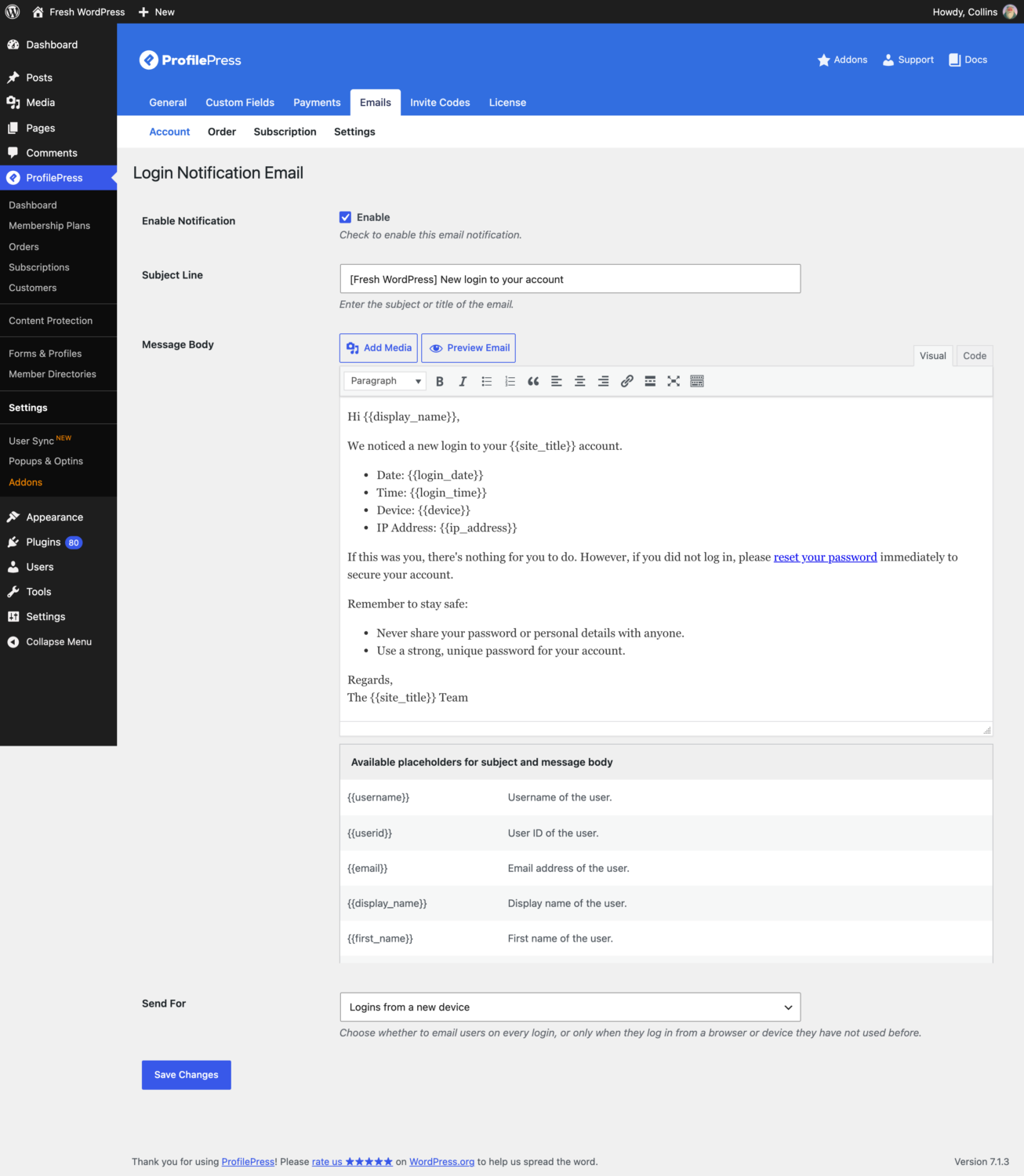
Step 3: Keep “Send For” on New Device
At the bottom of the page, make sure Send For is set to Logins from a new device. It’s the default, so you don’t need to change anything on a new setup.

Step 4: Save
Click Save Changes. That’s it. The next time any user signs in from a device their account hasn’t seen, they’ll receive an email like this:
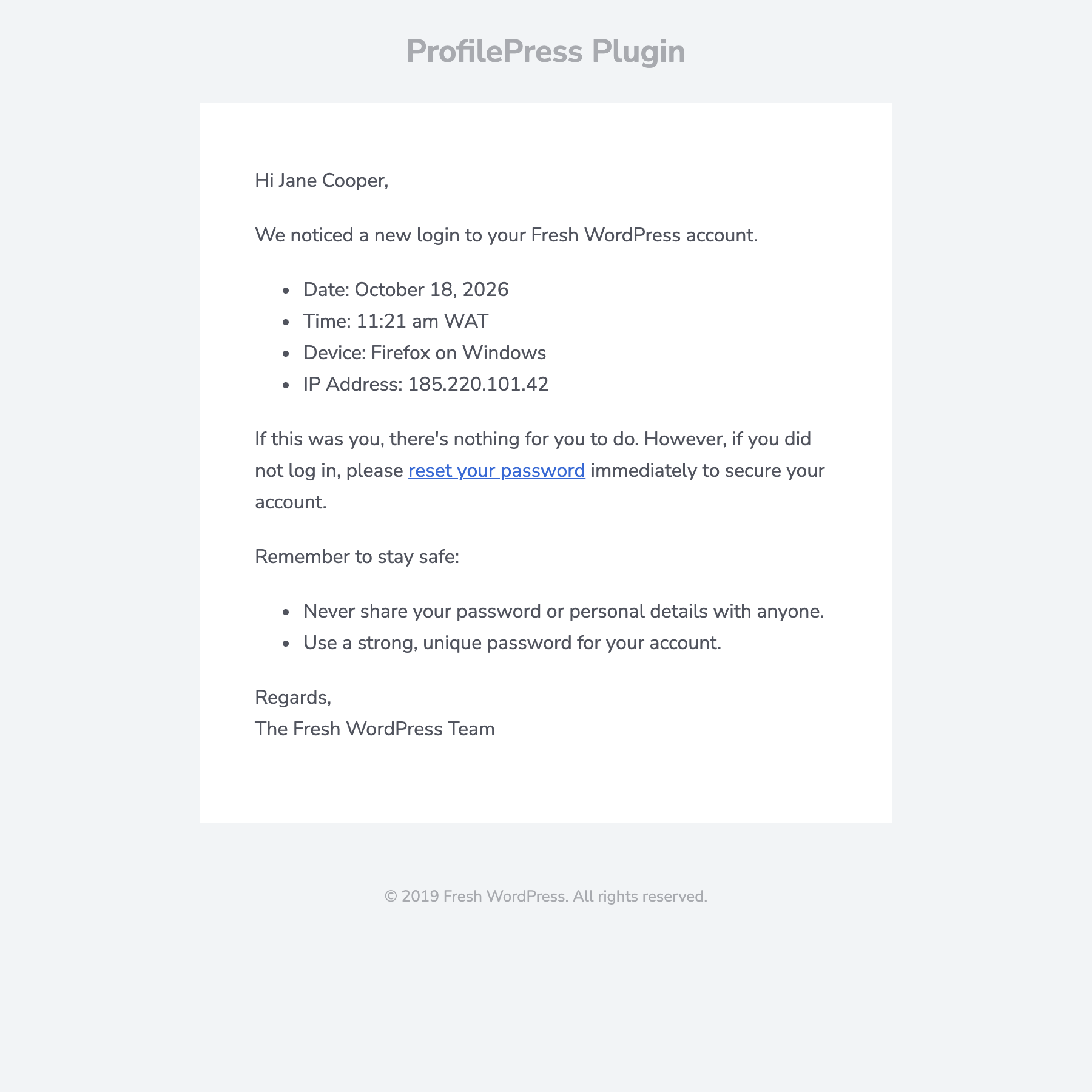
You can change the subject line and message to match your site’s voice. See our full guide to customizing the WordPress login notification email for the complete list of placeholders and some example templates.
The Login Activity Tab: Where Users Follow Up
An alert tells the user something happened. The next question is “what else has happened?” ProfilePress answers that with the Login Activity tab on the My Account page.
It lists the account’s recent logins, including the date, device, and IP address. Any login that came from a new device is labeled (new device), so users can match the email they received to the entry in their history.
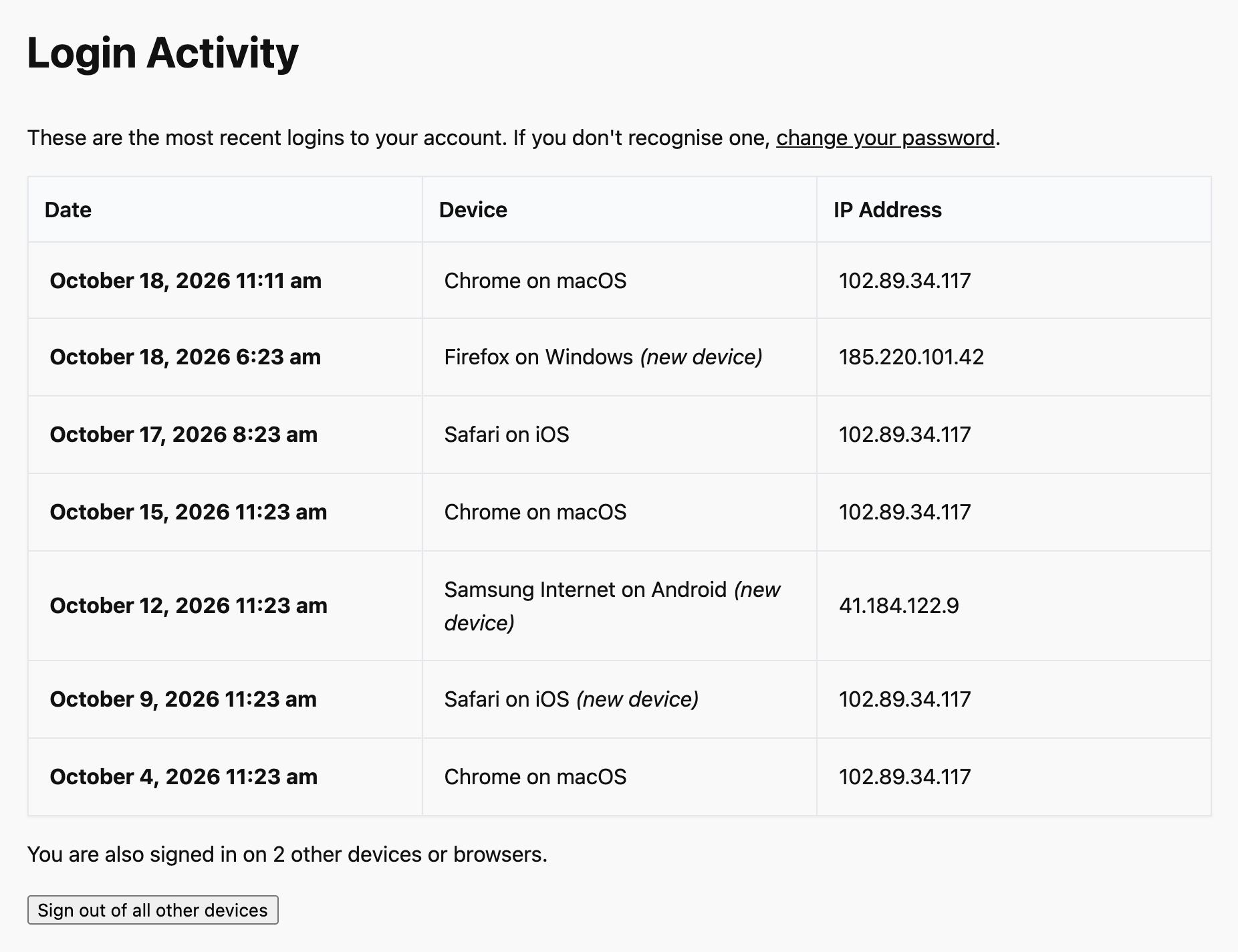
If the account is also signed in elsewhere, the tab shows how many other devices or browsers are active, with a Sign out of all other devices button. One click ends every other session immediately, which kicks out an intruder who is still logged in.
What Users Should Do When They Get an Alert
It’s worth putting a short version of this in your help center or FAQ, so users know exactly what to do:
- Check the details. Did you just sign in on that device at that time? New phone, work computer, a new browser? If yes, you don’t need to do anything.
- If it wasn’t you, sign out everywhere else. Open My Account > Login Activity and click Sign out of all other devices.
- Change your password. Use the reset link in the email or the Change Password tab. Pick a password you don’t use anywhere else.
- Check your account details. Make sure your email address and profile haven’t been changed.
- Contact support if anything looks wrong, such as orders you didn’t place or settings you didn’t change.
Tuning New Device Detection (For Developers)
The defaults suit most sites, but ProfilePress includes filters for edge cases. Add these to your theme’s functions.php or a code snippets plugin.
Remember more devices per user
If your users regularly switch between many devices, such as staff using shared computers or families with several tablets, raise the number of remembered devices from 20:
add_filter('ppress_login_activity_max_known_devices', function () {
    return 50;
});
Only alert privileged accounts
To send new device alerts only to administrators, editors, and shop managers:
add_filter('ppress_login_notification_email_enabled', function ($enabled, $user) {
    return $enabled && array_intersect(['administrator', 'editor', 'shop_manager'], (array) $user->roles);
}, 10, 2);
Common Questions About New Device Alerts
Will my existing members all get an alert when I turn this on?
No. The first login ProfilePress records for an account sets that account’s first known device and doesn’t trigger an alert. After that, only genuinely unfamiliar devices do.
What about users on VPNs or mobile networks with changing IPs?
Because the device cookie is checked first, a user on the same browser is recognized even when their IP address changes. A changing IP alone doesn’t trigger an alert.
Is any device data sent to a third party?
No. Device identifiers and fingerprints are hashed and stored in the user’s account on your own server. Login history is included in WordPress’s personal data export and erase tools, which helps with GDPR requests.
Does this replace two-factor authentication?
No. They do different jobs. Two-factor authentication tries to stop an attacker from logging in. A new device alert tells the user when someone logs in anyway, or when they log in on a new device themselves. For admin accounts, use both.
Give Your Users the Alert They Already Expect
Your users already trust “new sign-in” emails from the biggest platforms they use. Adding the same protection to your WordPress site takes a couple of minutes and no ongoing work, and it catches compromised accounts that failed-login protection never sees.
Get ProfilePress, enable the Login Notification Email, and leave Send For on Logins from a new device. To learn more about everything ProfilePress records, read our guide on how to track user login activity in WordPress.