
Do you want to set up email notifications in WordPress that email your users after every login?
If someone signs in to your account on Google, your bank, or Netflix from a new laptop, you usually get an email within seconds. It says when the login happened, which device it came from, and what to do if it wasn’t you. It’s one of the simplest and most effective account security features there is.
WordPress doesn’t do this out of the box. A user’s account can be accessed with a leaked or shared password, and nobody finds out, not the user and not you.
In this tutorial, you will learn how to send an email notification when a user logs in to WordPress, using the ProfilePress plugin. We’ll cover setup, choosing between “new device” and “every login” alerts, customizing the email with placeholders, and limiting alerts to specific user roles.
Why Send Login Notification Emails in WordPress?
A WordPress login notification email turns every account owner into part of your security team. You can’t personally review every login on a site with thousands of members, but each member can instantly tell whether a login was theirs.
- Fast detection of stolen passwords. People reuse passwords across sites. When another site is breached, attackers try those credentials everywhere, including your site. A login email tells the real owner straight away.
- Clear next steps. The email can link straight to your password reset page, so a worried user can secure their account on your WordPress site in under a minute.
- Discourages account sharing. When a member’s friend logs in with their details, the member gets an email about it. That small reminder makes casual password sharing less attractive.
- Professional trust. Users expect these emails from big platforms. Seeing them from your WordPress site signals that you take security seriously.
What’s in the ProfilePress Login Notification Email
Here’s what the email looks like with the default template:
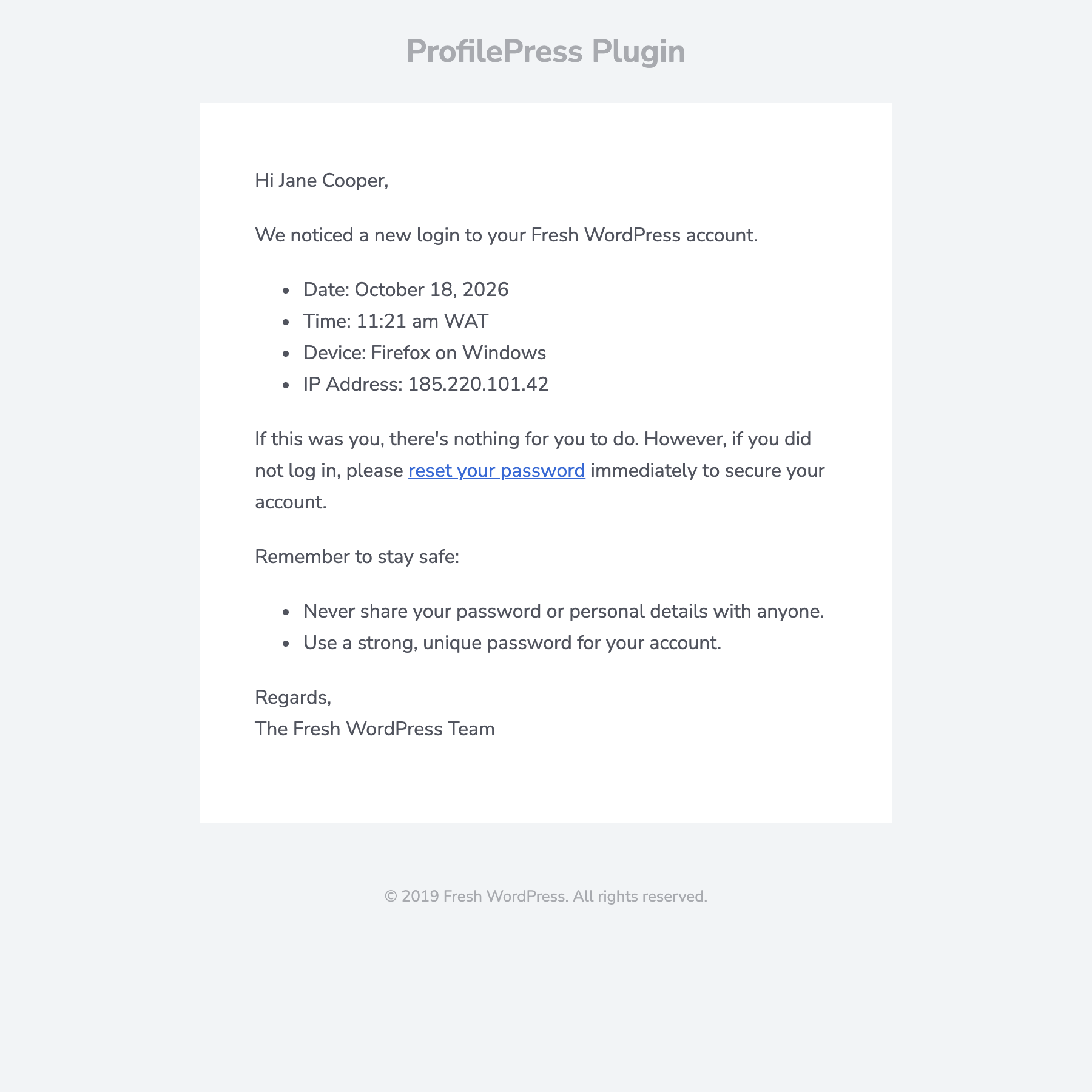
It tells the WordPress user:
- The date and time of the login, in your site’s timezone.
- The device, written as a readable label like “Firefox on Windows” or “Safari on iOS”.
- The IP address the login came from.
- A reset your password link for when the login wasn’t them.
- Short reminders about keeping their account safe.
The email goes to the user whose account was accessed, so the person best placed to recognize the login gets the alert.
How to Set Up Login Notification Emails in WordPress
Follow the steps below to set up login email notifications so users of your WordPress website are notified whenever there is a login to their account.
Step 1: Install ProfilePress
Go to Plugins > Add New in your WordPress dashboard, search for “ProfilePress”, then install and activate it. The login notification email is available in ProfilePress 4.17.6 and later, including the free version.
Step 2: Open the Login Notification Email Settings
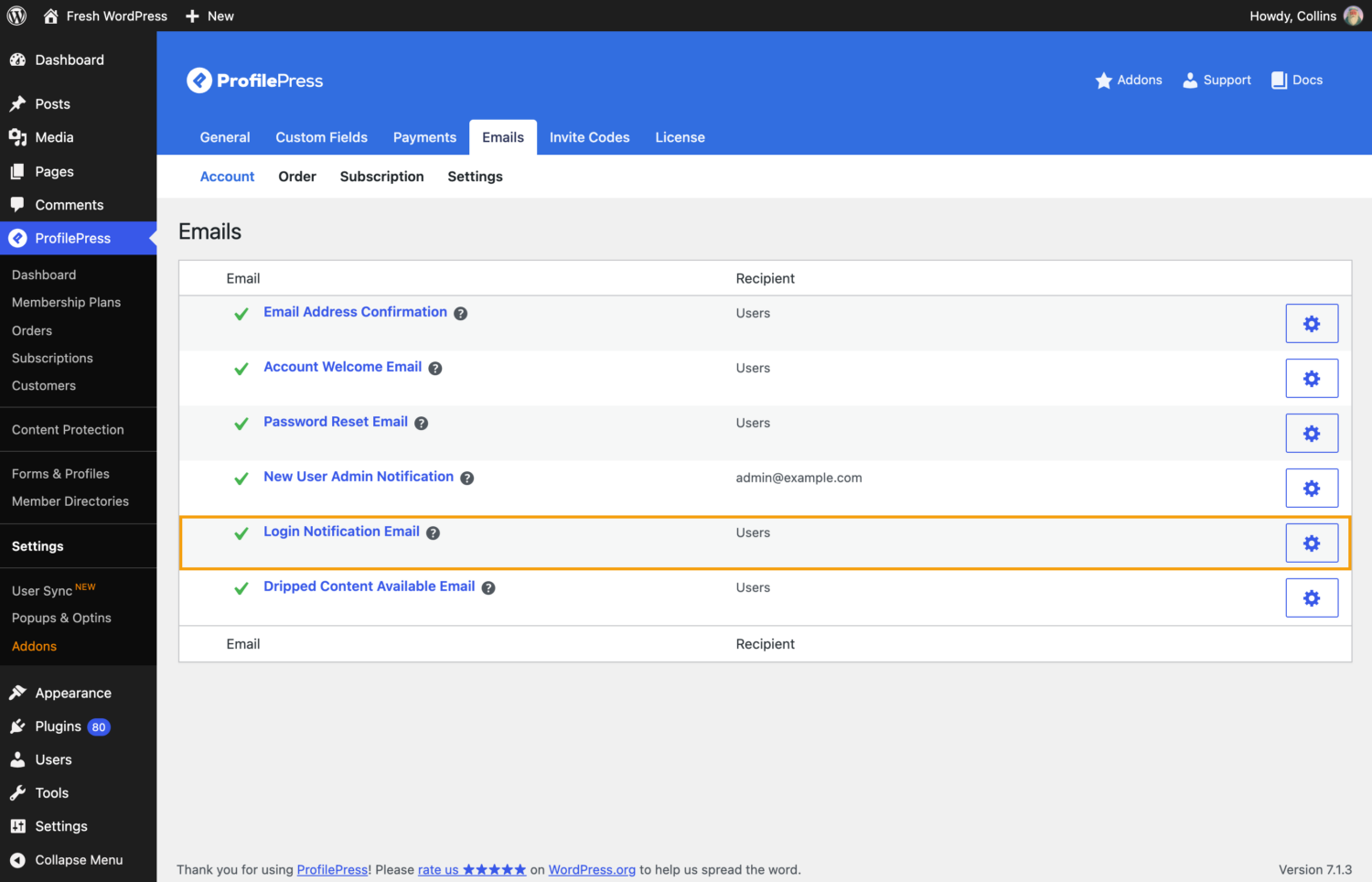
Navigate to ProfilePress > Settings > Emails. Under the Account tab, you’ll see every account email ProfilePress sends. Click Login Notification Email or the gear icon next to it.
Step 3: Enable the Email Notification
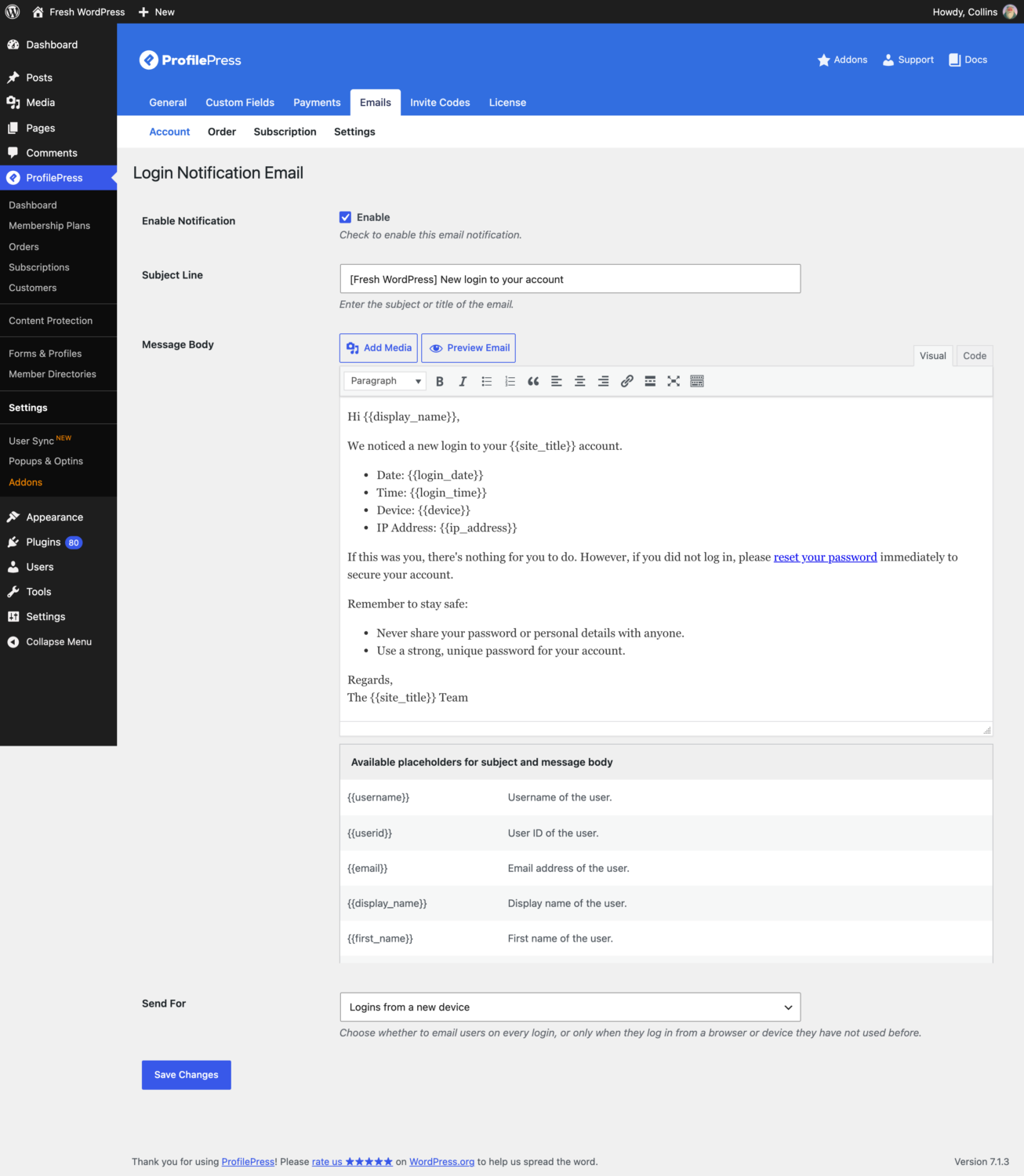
Tick the Enable checkbox. The WordPress login notification email is off by default, so nothing is sent until you switch it on.
Step 4: Choose When the Email Is Sent
Scroll to the Send For setting at the bottom of the page. You have two options:

- Logins from a new device (default): the email is sent only when the user logs in from a browser or device they haven’t used before.
- Every login: the email is sent each time the user logs in, wherever they log in from.
For most sites, Logins from a new device is the right choice. People who get an email every time they log in from their own laptop quickly learn to ignore them. Then the one email that matters gets ignored too. New device alerts stay rare, so users actually read them.
Every login makes sense for small, high-value sites, such as a handful of admin or finance accounts where every sign-in deserves attention.
Curious how ProfilePress decides what counts as a new device? We explain it in our guide to new device login alerts in WordPress.
Step 5: Save Your Changes
Click Save Changes. From now on, users will get an email when they log in according to the rule you chose. You can click Preview Email above the message editor to see exactly how the email will look before it goes out.
How to Customize the Login Notification Email
The default subject is [Your Site Name] New login to your account, and the default message works well for most sites. You can still edit both to match your brand and tone.
Available Placeholders
Placeholders are swapped for real values when the email is sent. You can use them in both the subject line and the message body:
| Placeholder | What it shows |
|---|---|
{{display_name}} |
The user’s display name |
{{first_name}} / {{last_name}} |
The user’s first and last name |
{{username}} |
The user’s username |
{{email}} |
The user’s email address |
{{userid}} |
The user’s ID |
{{site_title}} |
Your website’s name |
{{login_date}} |
Date of the login, in your site’s date format |
{{login_time}} |
Time of the login, with your timezone |
{{device}} |
Browser and operating system, e.g. “Chrome on Windows” |
{{ip_address}} |
IP address of the login |
{{user_agent}} |
The full browser user agent string |
{{password_reset_link}} |
URL of your password reset page |
{{login_link}} |
URL of your login page |
{{field_key}} |
Any custom field or user meta value; replace “field_key” with the field’s key |
Example: A Friendlier Subject Line
Instead of the default subject, you could use:
{{first_name}}, was this you? New sign-in to {{site_title}}Personal subject lines like this tend to get opened. For a security email, getting it opened is the whole point.
Example: A Shorter Message Body
If you prefer a short message, try something like this in the message editor:
Hi {{first_name}},

Your {{site_title}} account was just accessed from {{device}} ({{ip_address}}) on {{login_date}} at {{login_time}}.

Not you? Reset your password now: {{password_reset_link}}

Then visit your account's Login Activity page and click "Sign out of all other devices".
Tips for Writing a Good Login Alert
- Keep the facts at the top. Date, time, device, and IP are what users scan for.
- Always include a clear action. The password reset link is the most important part of the email.
- Don’t sound alarming. Most alerts will be legitimate logins. “If this was you, there’s nothing for you to do” reassures people without hiding the warning.
- Mention the Login Activity tab. It lets users review all their recent logins and sign out of every other device in one click.
Customize the Email Design
Login notifications use the same email template as your other ProfilePress emails, so they match your welcome, password reset, and order emails. Under ProfilePress > Settings > Emails > Settings, you can set your sender name and address, add your logo, and adjust the template.
Send Login Notifications Only to Certain User Roles
On some WordPress sites, you may only want login alerts for privileged accounts, such as administrators, editors and shop managers, because those are the accounts attackers want most. ProfilePress has a filter for exactly this. Add the snippet below to your theme’s functions.php file or a code snippets plugin:
add_filter('ppress_login_notification_email_enabled', function ($enabled, $user) {
    return $enabled && array_intersect(['administrator', 'editor', 'shop_manager'], (array) $user->roles);
}, 10, 2);
With this in place, login notifications are only sent from WordPress to users with one of the listed roles, and only while the email is enabled in settings. Edit the list of roles to suit your site.
Does It Work with All Login Methods?
Yes. ProfilePress sends the notification on WordPress’s standard login event, so it works whether users sign in on the default wp-login.php page, a ProfilePress login form, or any other login form that uses WordPress’s built-in login process.
Make Sure Your Emails Get Delivered
A login alert is only useful if it reaches the inbox. Many web hosts send WordPress email in a way that spam filters distrust. If your users report missing ProfilePress emails, set up an SMTP plugin with a proper email sending service and configure SPF, DKIM, and DMARC for your domain. Your password reset and welcome emails will benefit too.
Login Notification Email FAQ
Can I get notified as the admin when a user logs in?
The ProfilePress login notification email goes to the account owner, which is the person who can tell whether the login was really them. If you want a running record of logins as an admin, use the Last Login column snippet in our guide on how to track user login activity in WordPress.
Will users get an email the first time they log in?
Not with the default “Logins from a new device” setting. ProfilePress records the first WordPress login for an account as that account’s first known device, so it isn’t treated as new. Only later logins from unfamiliar devices trigger an email.
What happens if a user clears their browser cookies?
ProfilePress also recognizes a device by its IP address and browser together, so logging in again from the same network and browser after clearing cookies usually won’t trigger a new device alert.
Is the login notification email free?
Yes. It’s included in the free version of ProfilePress, along with the Login Activity tab on the My Account page.
Wrapping Up
Login notification emails are one of the cheapest security wins you can give your users. Setup takes a few minutes, they cost nothing, and they catch the one thing failed-login protection can’t: an attacker who already has the right password.
Install ProfilePress, go to Settings > Emails > Login Notification Email, tick Enable, and your users will know about every new device that signs in to their account.