
How to Track User Login Activity in WordPress (Step-by-Step Guide)
Do you want to set up user login activity in your WordPress website?
Most WordPress security advice focuses on failed logins: brute-force attacks, lockouts, and blocked IPs. That matters, but it leaves out the logins that actually get in.
When someone signs in with a stolen or shared password, WordPress sees a valid username and password and lets them through. Nothing looks wrong unless someone is watching. That is why tracking successful login activity is just as important as blocking failed ones.
When you can see when each account was used, from which device, and from which IP address, a strange login stands out right away, whether the person checking is you or the account owner.
In this guide, you will learn what WordPress records about logins out of the box (very little), what a useful login activity log should include, and how to set up login activity tracking on your WordPress site with ProfilePress, step by step.
Why You Should Track User Login Activity in WordPress
A login activity log answers one simple question: who signed in to this account, when, and from where? That answer is useful in more ways than you might expect.
- Spotting compromised accounts early. If a member who always logs in from Chrome on a Mac suddenly signs in from Firefox on Windows in another country, that is worth a closer look. The sooner it is noticed, the less damage an attacker can do.
- Catching account sharing. On membership, course, and subscription sites, one paid account used by five people is lost revenue. Login history makes the pattern visible. We cover this in detail in our guide to detecting account sharing on WordPress membership sites.
- Giving users confidence. Banks, Google, and most SaaS apps let you review your recent sign-ins. Your members expect the same from your site, and seeing it builds trust.
- Faster support. When a user says “I can’t log in” or “someone changed my details”, a login history gives you and them facts to work from instead of guesses.
What WordPress Tracks About Logins by Default
Out of the box, WordPress does not keep a login history. The Users screen has no “Last login” column, and the dashboard keeps no record of past sign-ins.
WordPress does keep session tokens for every logged-in user. Each token stores the IP address, browser user agent, login time, and expiry of an active session. But these tokens only cover active sessions; they disappear when the user logs out or the session expires, and WordPress gives regular users no screen to view them.
So if you want real login history, you need a plugin.
What a Useful Login Activity Log Should Include
Before choosing a user login activity plugin, it helps to know what information makes a login log useful instead of noise:
- Date and time of each login, in your site’s timezone.
- Device, shown in plain language such as “Chrome on macOS” or “Safari on iOS” rather than a raw user agent string.
- IP address, so unfamiliar networks and locations stand out.
- New device detection, so a login from a browser the account has never used is flagged automatically.
- A way to act on it, such as signing out of other devices or resetting the password straight away.
- Privacy compliance, because IP addresses are personal data under GDPR and similar laws. The data should be exportable and erasable on request.
ProfilePress covers all of these.
Tracking User Login Activity in WordPress with ProfilePress
ProfilePress is a powerful WordPress membership and user profile plugin. Starting with version 4.17.6, it records every successful login in WordPress and shows each user their own login history in a Login Activity tab on the My Account page. It also adds a login notification email that alerts users when their account is accessed from a new device.
Step 1: Install and Activate ProfilePress
In your WordPress dashboard, go to Plugins > Add New, search for “ProfilePress”, then install and activate it. If you already use ProfilePress, make sure you are on version 4.17.6 or later.
Login tracking starts as soon as the plugin is active. There is nothing to switch on. Every successful login that goes through WordPress’s standard login process is recorded, whether the user signs in on wp-login.php, a ProfilePress login form or another plugin’s login form.
Step 2: Set Up the My Account Page
The login history lives in the ProfilePress My Account page. If you ran the ProfilePress setup wizard, this page already exists. If not, create a new page, add the [profilepress-my-account] shortcode, then go to ProfilePress > Settings > General and select it as the My Account Page.
The My Account page gives logged-in users one place to manage their profile, change their password, view orders and subscriptions, and now review their login activity.
Step 3: Review the Login Activity Tab
When a user on your WordPress website opens their My Account page, they will see a new Login Activity tab in the navigation menu. It lists their most recent logins with three columns:
- Date: when the login happened, in your site’s date and time format.
- Device: the browser and operating system, for example “Chrome on macOS” or “Samsung Internet on Android”.
- IP Address: the IP address the login came from.
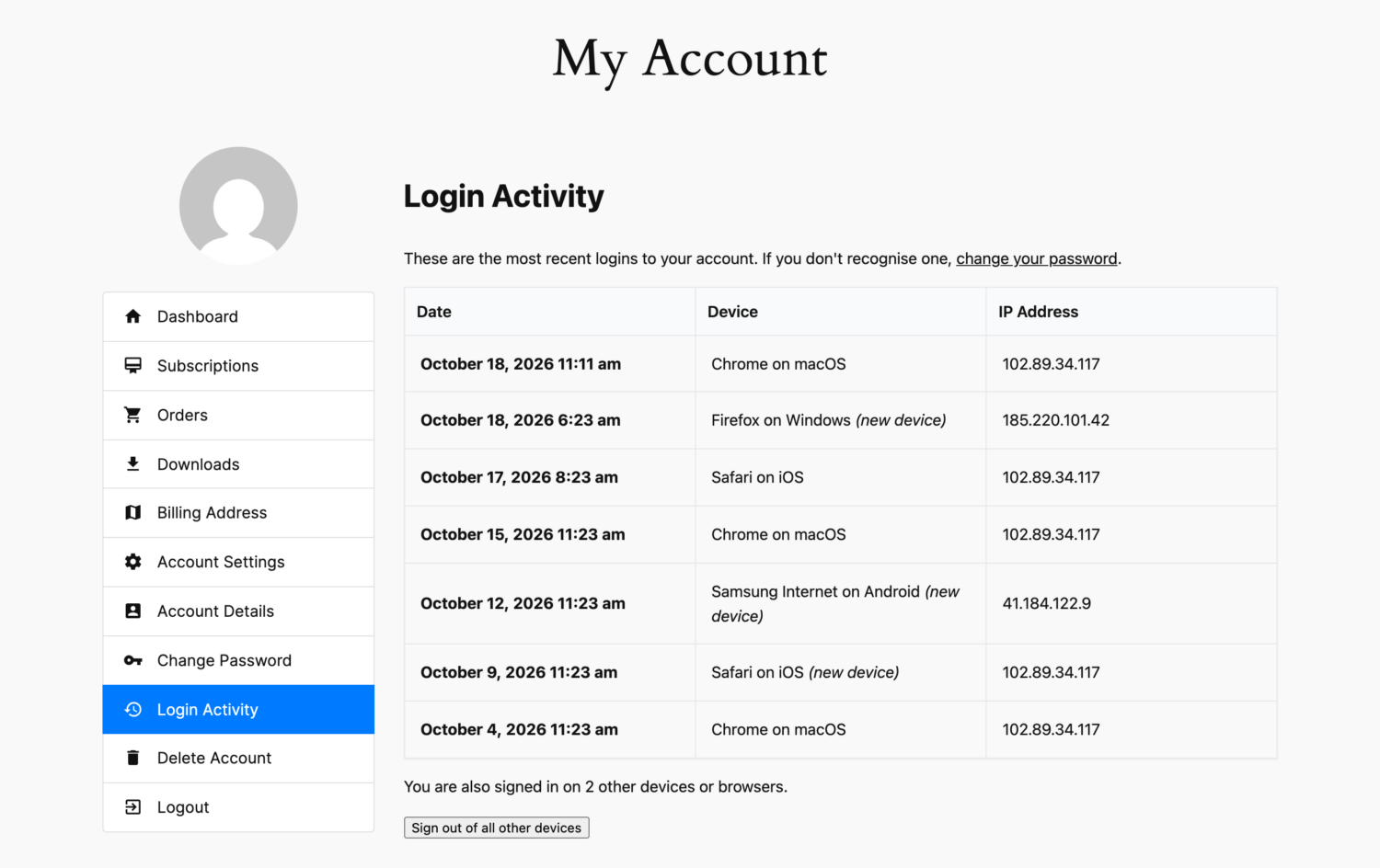
WordPress labels logins from a browser or device the account has never used before as (new device), so they stand out at a glance. Above the table, users get a direct link to change their password if they see a login they don’t recognize.
Step 4: Sign Out of All Other Devices
Seeing a suspicious login is only half the job. Users also need a way to act on it. If the account is signed in anywhere else, the Login Activity tab shows how many other devices or browsers are active and offers a Sign out of all other devices button.
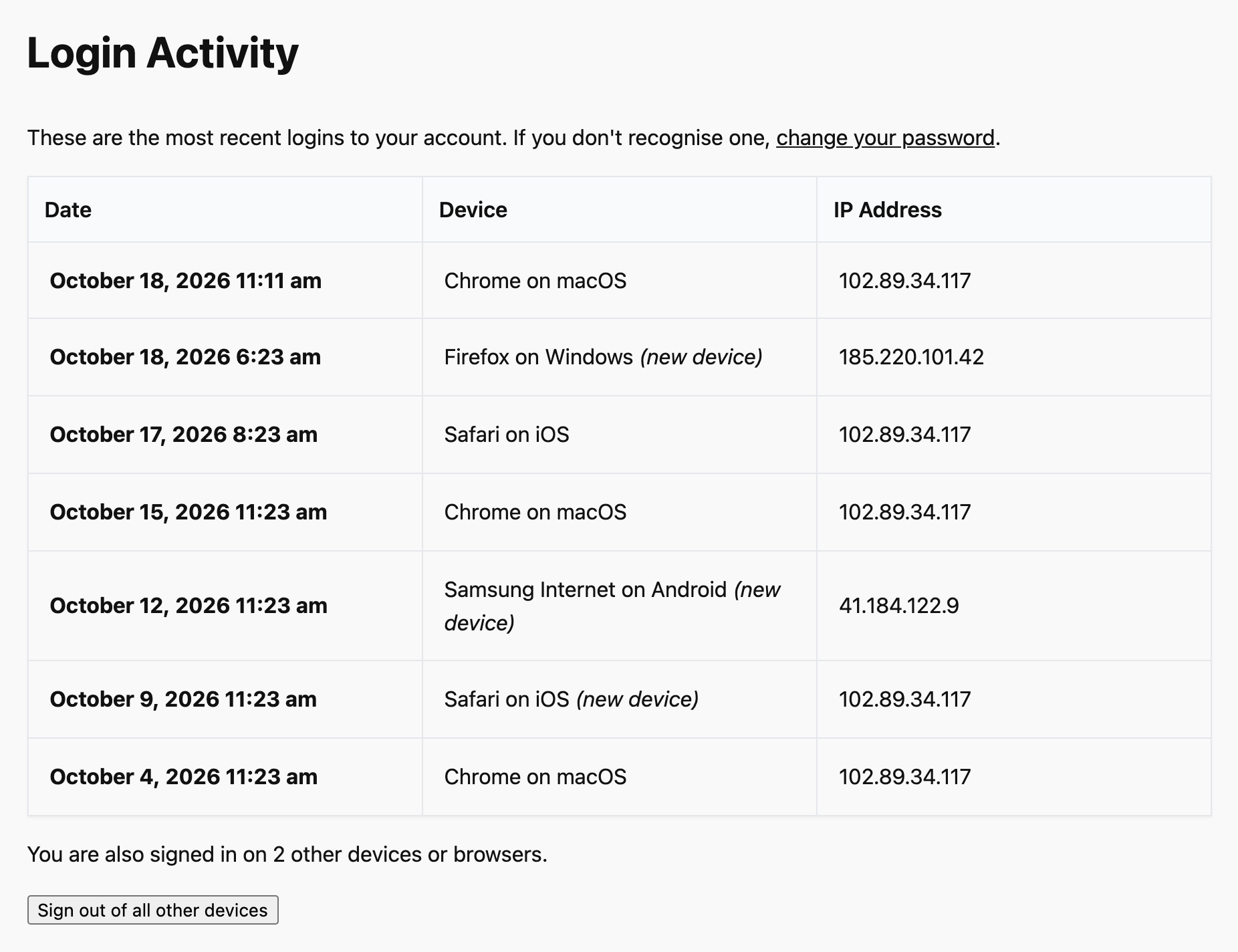
One click ends every other session on the account while keeping the user logged in on the device they are using. They see a confirmation message straight away.
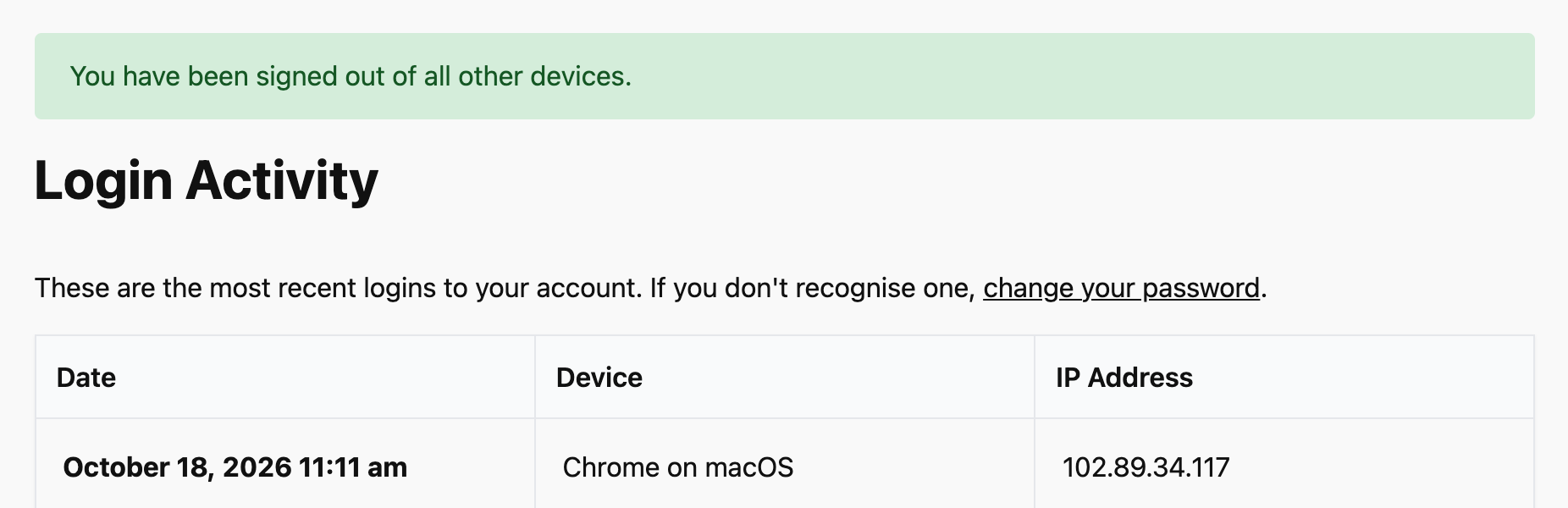
The recommended response to a login you don’t recognize is to sign out of all other devices, then change your password. That locks out anyone who has the old password.
Step 5: Turn On Login Notification Emails in WordPress
A login history works when people check it. A login notification email works even when they don’t. ProfilePress can email users whenever they access their account from a new device in WordPress, or on every login if you prefer.
Go to ProfilePress > Settings > Emails, open Login Notification Email, tick Enable, and save. The email is off by default so existing sites don’t start sending emails unexpectedly.
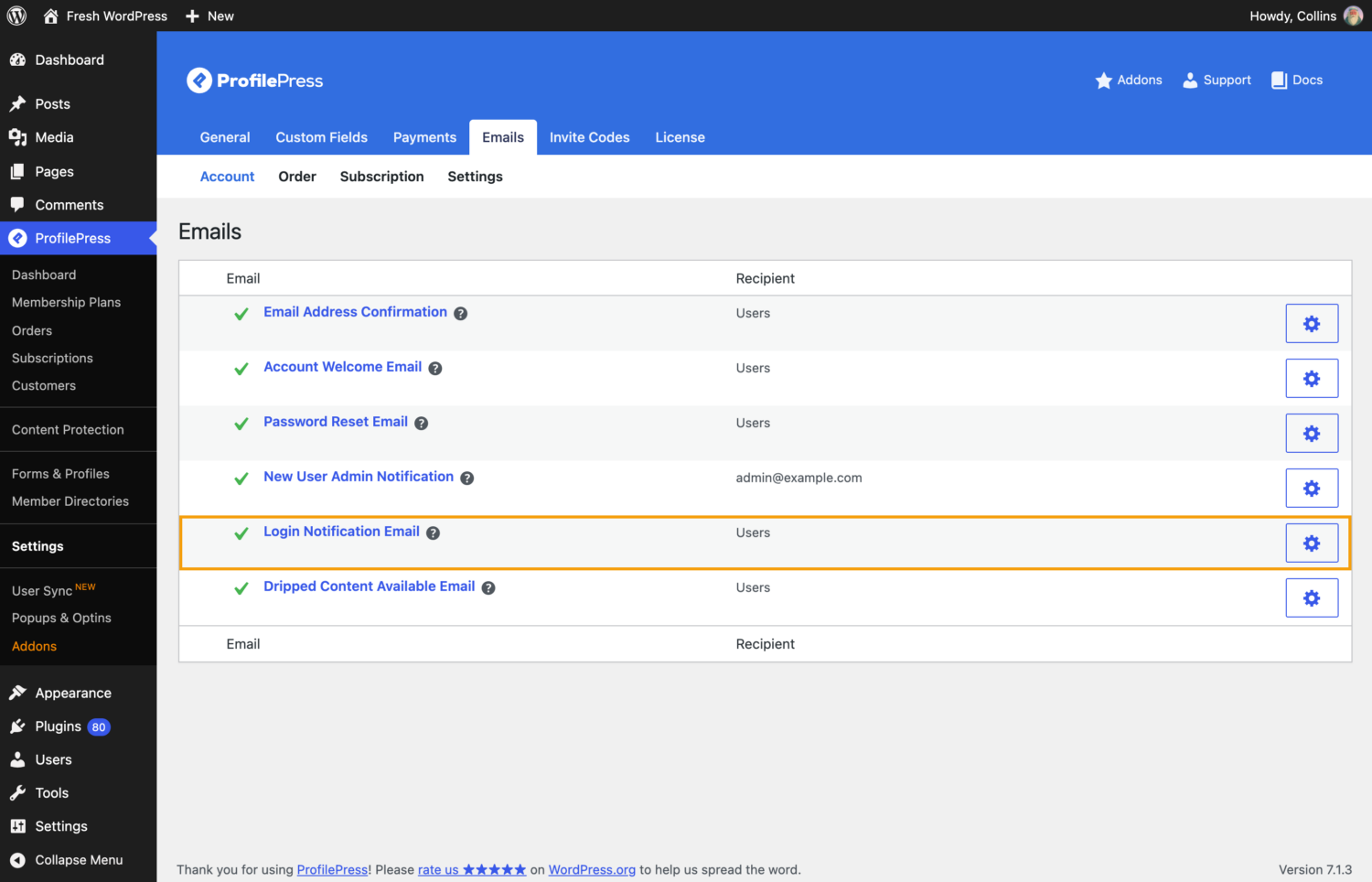
The email includes the login date, time, device, and IP address, plus a link to reset the password. We walk through every setting, placeholder, and customization in our guide on how to send a login notification email in WordPress.
How ProfilePress Recognizes a New Device
“New device” detection only helps if it is accurate. If it flags every login as new, people stop reading the emails. If it misses real new devices, it gives a false sense of safety.
ProfilePress uses two signals:
- A device cookie. On login to WordPress, the browser gets a random, long-lived identifier (stored as a secure, HTTP-only cookie). Future logins from that browser are recognized as the same device.
- An IP and browser fingerprint. If the user clears their cookies, a login from the same IP address and the same browser is still treated as a known device. That avoids false alarms after routine cookie clearing.
A login is marked as a new device only when neither signal matches. The very first login ProfilePress records for an account establishes its first known device, so it is never flagged as new. ProfilePress remembers up to 20 recent devices per user.
For a deeper look at how new device alerts work and why they beat “every login” emails for most sites, read our guide to new device login alerts in WordPress.
Login Activity and Privacy (GDPR)
IP addresses and device details are personal data, so how a plugin stores and handles them matters. ProfilePress keeps login activity in each user’s own profile data on your server. It is not sent to any third-party service.
Login activity is also registered with WordPress’s built-in privacy tools:
- Tools > Export Personal Data includes each recorded login (date, IP address, and browser) in the user’s data export.
- Tools > Erase Personal Data deletes the user’s login history and known devices.
By default, ProfilePress keeps only the 10 most recent logins per user. That keeps the data you hold to a minimum, which is good practice under GDPR. Remember to mention login tracking in your privacy policy.
Customizing Login Activity Tracking (For Developers)
ProfilePress includes filters for adjusting its behavior. Add these snippets to your theme’s functions.php file or a code snippets plugin.
Keep more login history
To keep the last 25 logins instead of 10:
add_filter('ppress_login_activity_max_entries', function () {
    return 25;
});
Add a “Last Login” column to the WordPress Users screen
The Login Activity tab is built for users to review their own account. If you also want admins to see each user’s most recent login at a glance, this snippet adds a Last Login column to Users > All Users, showing the date, device, and IP address:
add_filter('manage_users_columns', function ($columns) {
    $columns['ppress_last_login'] = 'Last Login';
    return $columns;
});

add_filter('manage_users_custom_column', function ($output, $column, $user_id) {
    if ($column !== 'ppress_last_login') return $output;

    $activity = \ProfilePress\Core\Classes\LoginActivity::get_login_activity($user_id);

    if (empty($activity)) return '—';

    $last = $activity[0];

    return sprintf(
        '%s<br><small>%s · %s</small>',
        esc_html(wp_date(get_option('date_format') . ' ' . get_option('time_format'), $last['time'])),
        esc_html(ppress_user_agent_label($last['user_agent'])),
        esc_html($last['ip'])
    );
}, 10, 3);
Best Practices for Monitoring Login Activity
Tracking logins is the start. These habits get the most out of it:
- Turn on new device alerts. Most users of your WordPress website will never open a Login Activity tab unless something prompts them. An email for each new device is that prompt.
- Tell users what to do. The default ProfilePress notification email already links to the password reset page. Add a line to your help docs explaining the Login Activity tab and the Sign out of all other devices button.
- Combine tracking with prevention. ProfilePress also rate-limits repeated failed logins, registrations, and password reset requests from the same IP address. Add strong passwords and two-factor authentication for admin accounts, and you have layers that catch what slips through.
- Stop account sharing where it matters. On paid membership sites, consider turning on Disable Concurrent Logins under ProfilePress > Settings > General > Login so one account can’t be active from several places at once.
- Pair it with an audit log if you need one. ProfilePress tracks logins per user. If you also need a record of every admin action, such as post edits, plugin changes, and settings updates, an activity log plugin covers that. See our comparison of WordPress login activity plugins.
Frequently Asked Questions
How do I see who logged in to my WordPress site?
WordPress doesn’t keep a login history by default. With ProfilePress installed, each user can see their recent logins in the Login Activity tab of the My Account page, and you can add a Last Login column to the Users screen with the snippet above.
Does login activity tracking slow down my site?
No. ProfilePress records a small entry only when a user logs in, and stores the data in user meta rather than a separate log table that grows forever. It adds no work to normal page views.
Is login activity tracking free?
Yes. The Login Activity tab, new device detection, the Sign out of all other devices button, and the login notification email are all part of the free ProfilePress plugin.
Can users delete their login history?
Users can ask you to erase their data, and the WordPress Erase Personal Data tool removes their login history and known devices along with their other personal data.
Start Tracking Login Activity Today
Failed WordPress login protection keeps attackers out. Login activity tracking tells you when one got in anyway. With ProfilePress you get both: rate limiting for failed attempts, plus a Login Activity tab, new device detection, login notification emails, and one-click sign-out of other devices.
Get ProfilePress and give your users a clear view of every login to their account, provide paid memberships, content protection, and more.