
Do you want to control how your affiliates’ referral links look, how much they earn per sale, and who can join your affiliate program?
Every affiliate program runs on a handful of rules. How long does an affiliate get credit after a click? Is commission a percentage or a fixed amount? Can anyone apply? Getting these rules right keeps your affiliates happy and protects your margins.
The ProfilePress Affiliates addon ships with sensible defaults, so you can launch without touching a thing. When you are ready to fine-tune, every rule lives on a single settings screen.
In this article, you will learn what every option on the Affiliates settings screen does, its default value, and when you might want to change it.
Note: This feature requires ProfilePress Pro with the Affiliates addon. Learn how to set it up.
Where to Find the Affiliate Settings
To open the settings, go to ProfilePress → Settings → Affiliates → Settings. You need administrator access to see and change this screen.
The screen is titled Affiliate Settings and is grouped into four sections: Referral Links, Commissions, Affiliate Program and Email Notifications. On/off options are checkboxes labeled Enable. After you make a change, click Save Changes.
Settings apply to new visits and new orders. Existing referrals keep the amount they were given, so changing a rate today never rewrites what an affiliate earned last month.
How Settings Work Together
Here is how the settings fit together in a real sale.
Imagine Jane Cooper is one of your affiliates and her affiliate ID is 12. With the defaults, her referral link is https://yoursite.com/?ref=12. A visitor clicks it on Monday. Because Cookie Expiration is 30, Jane gets credit if that visitor buys any time in the next 30 days. On Thursday the visitor buys a $100 membership. With a Default Rate of 20 and a Default Rate Type of Percentage (%), Jane earns a $20 referral.
Once Jane’s unpaid earnings reach the Minimum Payout of 50, she is included the next time you create payouts. If the order had been refunded before you paid her, Reject on Refund would have rejected that referral automatically. Every number in that story comes from the settings below.
Referral Links Settings
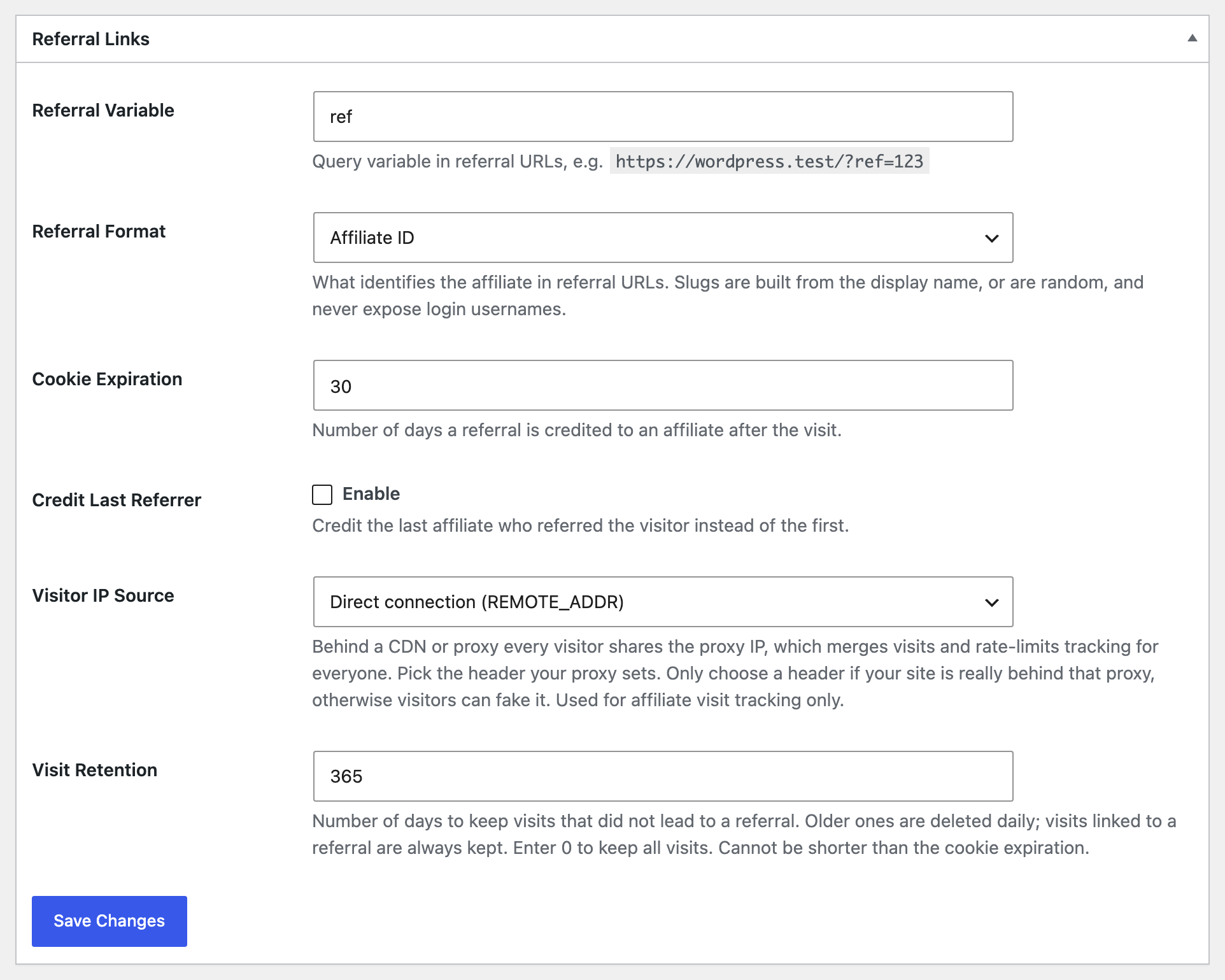
These settings control the link affiliates share, how long a referral is credited, and how visits are recorded.
| Option | Default | What it does |
|---|---|---|
| Referral Variable | ref |
The query parameter in the referral link. With the default, the link is https://yoursite.com/?ref=123. |
| Referral Format | Affiliate ID | What identifies the affiliate in the link: Affiliate ID or Affiliate slug. |
| Cookie Expiration | 30 | Number of days a referral stays credited after the visit. |
| Credit Last Referrer | Off | Credit the most recent affiliate instead of the first one. |
| Visitor IP Source | Direct connection | Which header holds the real visitor IP behind a proxy or CDN. |
| Visit Retention | 365 | Days to keep visits that did not lead to a referral. Enter 0 to keep every visit. |
Referral Variable
The Referral Variable is the name used in the link. With the default of ref, links look like https://yoursite.com/?ref=123. If you change it to partner, the same link becomes https://yoursite.com/?partner=123. The field shows an example link below it so you can check the result.
Use lowercase letters, numbers, dashes or underscores. WordPress reserves some names for its own use, such as p, page, s, cat and tag, and these are refused. If you enter one, you see an error asking you to choose another name and the settings are not saved.
Referral Format
The Referral Format decides what identifies the affiliate in the link:
- Affiliate ID: uses the affiliate’s number, for example
?ref=123. This is the default. - Affiliate slug: uses a short slug, for example
?ref=jane-partner.
Slugs look friendlier in videos or podcasts. Slugs come from the display name, or are random, and never expose login usernames.
Note: Pick a format early and stick with it. If you change the Referral Variable or Referral Format after affiliates have started sharing links, their old links stop being recognized.
Cookie Expiration
Cookie Expiration is the number of days a referral stays credited after the visit. A customer who buys within this window is credited to the affiliate. The default is 30 days.
A longer window suits products people think about before buying, such as an annual membership. With the default, a visitor who buys on day 31 is not credited to Jane.
Credit Last Referrer
Sometimes a visitor clicks links from more than one affiliate before buying. By default, the first affiliate keeps the credit. Turn on Credit Last Referrer to credit the most recent affiliate instead.
For example, a visitor clicks Jane Cooper’s link on Monday and then Tom Hardy’s link on Wednesday, then buys on Friday. With Credit Last Referrer off, Jane earns the commission. With it on, Tom does.
Visitor IP Source
Each visit is logged with the visitor’s IP address. Behind a CDN or proxy, every visitor can appear to share one IP address. That merges visits and makes the tracking rate limit stop working for everyone. If your site sits behind one, choose the header your proxy sets:
- Cloudflare (CF-Connecting-IP): for Cloudflare.
- X-Real-IP or X-Forwarded-For: for many reverse proxies and load balancers.
- True-Client-IP: for Akamai and Cloudflare Enterprise.
The default is Direct connection, which is correct for sites that are not behind a proxy.
Note: Only choose a header if your site really sits behind that proxy. Otherwise, a visitor can fake the header. This setting affects affiliate tracking only.
Visit Retention
Clicks on referral links are logged as visits, and over time they pile up. Visit Retention sets the number of days to keep visits that did not lead to a referral. Older ones are deleted each day. Visits linked to a referral are always kept. Enter 0 to keep every visit.
A visit can still turn into a sale until its cookie expires, so visit retention can’t be shorter than the cookie expiration. For example, with Cookie Expiration at 30, a Visit Retention of 14 is refused with an error message and the settings are not saved. Enter 30 or more, or 0.
Tip: You can read more about cookies, visits, and coupon tracking in How Affiliate Referral Tracking Works in ProfilePress.
Commissions Settings
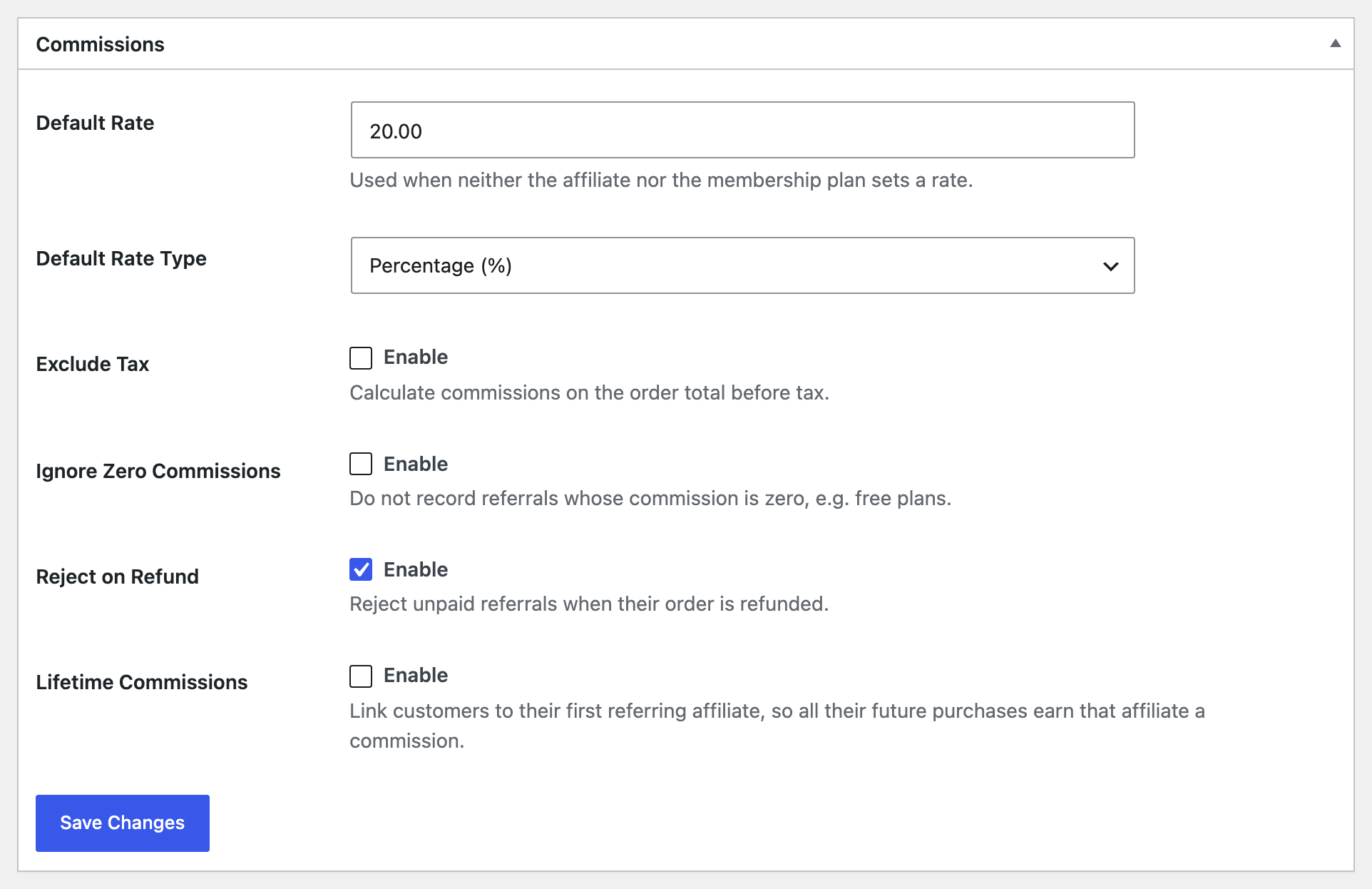
These settings decide how much an affiliate earns on each sale.
| Option | Default | What it does |
|---|---|---|
| Default Rate | 20 | The commission used when neither the affiliate nor the membership plan sets a rate. |
| Default Rate Type | Percentage (%) | Percentage (%) pays a share of the order. Flat amount pays a fixed amount per referral. |
| Exclude Tax | Off | Calculate commission on the order total before tax. |
| Ignore Zero Commissions | Off | Do not record a referral when its commission is zero. |
| Reject on Refund | On | When an order is refunded, reject its unpaid referral. |
| Lifetime Commissions | Off | Link a customer to the affiliate who first referred them. |
Default Rate and Default Rate Type
The Default Rate is the commission used when neither the affiliate nor the membership plan sets a rate. It works together with the Default Rate Type:
- Percentage (%): pays a share of the order. With a rate of 20, a $100 order earns $20 and a $250 order earns $50.
- Flat amount: pays a fixed amount per referral. With a rate of 20, every referred order earns $20, whatever its total.
A percentage rate can’t be more than 100. If you enter more, you see an error, and the settings are not saved. A flat amount is capped at the amount the customer paid, so a $30 flat rate on a $25 order earns $25. Orders with a total of zero never earn commission, even with a flat rate.
The rate an affiliate actually earns follows this order: the affiliate’s own rate, then the plan’s rate, then the default rate above. For example, if Jane Cooper has her own rate of 30%, she earns 30% even though the default is 20%. Read How to Set Up Affiliate Commissions and Manage Referrals in ProfilePress for the full rules, and How to Manage Affiliates in ProfilePress to set a rate for one affiliate.
Exclude Tax
Turn on Exclude Tax to calculate commission on the order total before tax. For example, on a $100 order plus $20 tax, a 20% commission is $20 with Exclude Tax on, rather than $24.
Ignore Zero Commissions
When Ignore Zero Commissions is on, a referral isn’t recorded when its commission is zero, for example on a free plan.
Reject on Refund
Reject on Refund is on by default. When an order is refunded, its unpaid referral is rejected, so you don’t pay commission on money you gave back. Paid referrals are never reversed.
Lifetime Commissions
Turn on Lifetime Commissions to link a customer to the affiliate who first referred them. Every later purchase by that customer earns the same affiliate a commission, even without a cookie.
For example, Jane Cooper refers a customer who buys in January. In June, the same customer comes back on their own and buys a second plan. With Lifetime Commissions on, Jane earns commission on the June order too.
Affiliate Program Settings
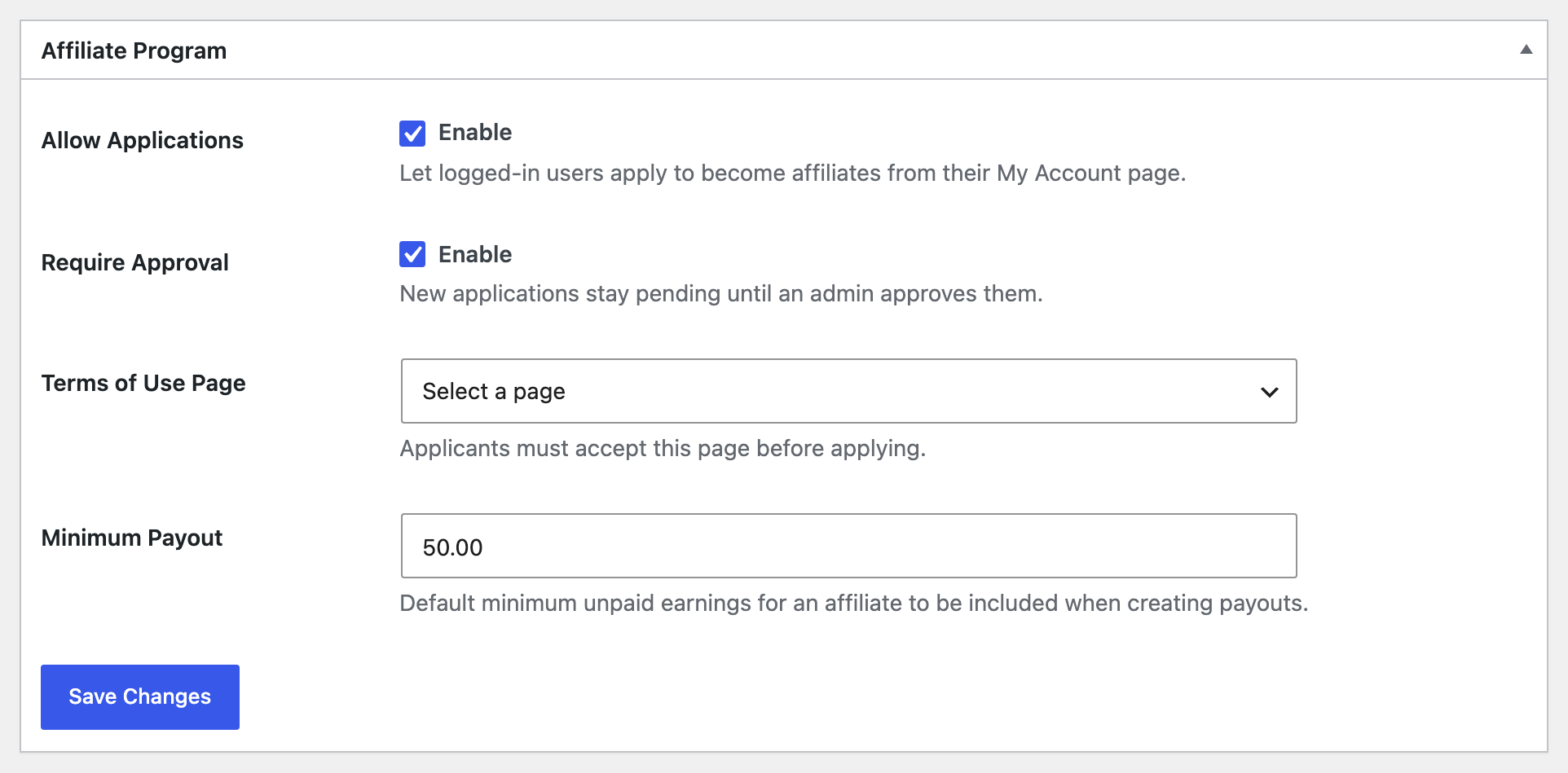
These settings control how people become affiliates and how they’re paid.
| Option | Default | What it does |
|---|---|---|
| Allow Applications | On | Logged-in users can apply to become affiliates from the Affiliate tab in My Account. |
| Require Approval | On | New applications stay pending until an admin approves them. |
| Terms of Use Page | None | A published page applicants must tick before they apply. |
| Minimum Payout | 50 | The least unpaid earnings an affiliate needs before they’re included when creating a payout. |
Allow Applications
With Allow Applications on, logged-in users can apply to become affiliates from the Affiliate tab in My Account. Turn it off if you want a private, invite-only program. You can still add affiliates yourself from ProfilePress → Settings → Affiliates → Affiliates.
Require Approval
With Require Approval on, new applications stay pending until an admin approves them. Turn this off and applicants become active straight away, so they can start sharing their referral link at once.
Keeping approval on lets you check who is promoting your brand before they earn anything. When Require Approval is on, you approve each application from the Affiliates section. How to Manage Affiliates in ProfilePress explains how.
Terms of Use Page
If you have rules for your affiliates, such as no paid ads on your brand name or no coupon-site listings, publish them on a page and choose it in Terms of Use Page. Applicants must then tick to accept it before they apply. The list shows your published pages. Leave it set to Select a page to skip the checkbox.
Minimum Payout
Minimum Payout is the least unpaid earnings an affiliate needs before they’re included when creating a payout. The default is 50. Set 0 to include everyone. You can change it for a single payout on the New Payout screen.
For example, Jane Cooper has $65 in unpaid earnings and Tom Hardy has $35. When you create payouts with the default minimum of 50, Jane is included and Tom waits until he reaches $50.
Note: With the default of 50, a new payout lists nobody until affiliates reach $50. This is intended, but it can confuse you the first time. Lower the value to test payouts. See How to Pay Your Affiliates in WordPress with ProfilePress for the full payout process.
Email Notifications
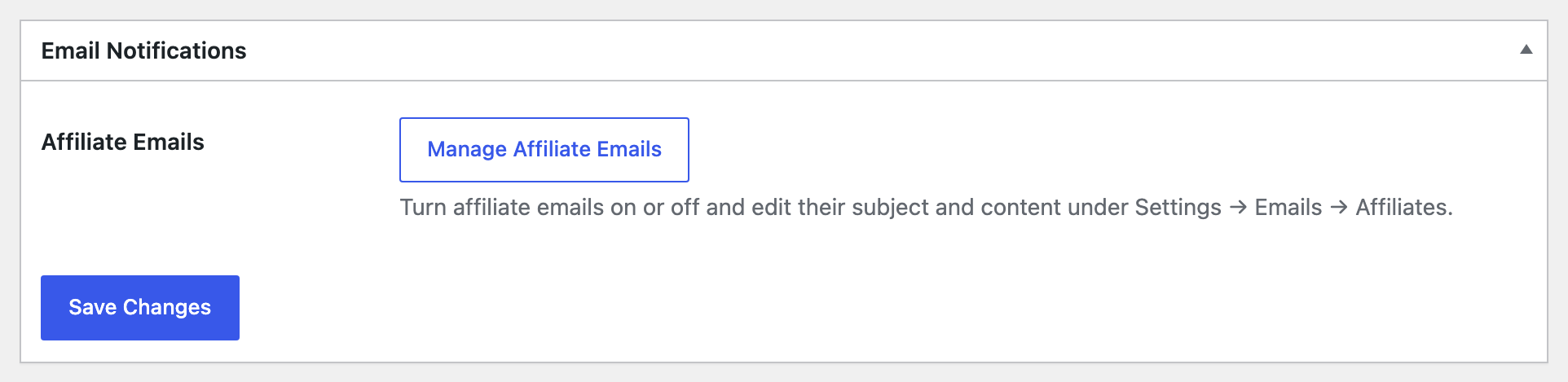
Affiliate emails are enabled and edited alongside the other ProfilePress emails. Click Manage Affiliate Emails, or go to Settings → Emails → Affiliates. There, you can turn each email on or off and edit its subject and content. There are six emails:
- New Affiliate Application: sent to the admin when someone applies.
- Affiliate Application Received: sent to the applicant when their application is waiting for approval.
- Affiliate Application Approved: sent when an affiliate’s account is approved, or straight after applying when approval isn’t required.
- Affiliate Application Rejected: sent when an application is rejected.
- New Referral Earned: sent to the affiliate when a referred order is completed and its commission becomes payable.
- Affiliate Payout Sent: sent to the affiliate when their payout is marked as paid.
See How Affiliates Use the Affiliate Area in My Account for when each one is sent.
Frequently Asked Questions
Q: What happens to referrals if I change the commission rate? A: Only new referrals use the new rate. Referrals already created keep their amount.
Q: Should I keep visits forever? A: Usually no. Visits that never converted take space and don’t help reporting after a year. Set Visit Retention to 0 only if you need the full history. Visits linked to a referral are always kept, whatever you choose.
Q: Why does my new payout list nobody? A: No affiliate has reached the Minimum Payout yet. The default is 50. Lower it in the settings, or change it for that one payout on the New Payout screen.
Q: Can I pay some affiliates more than others? A: Yes. The Default Rate applies only when neither the affiliate nor the membership plan has its own rate. Set a rate on the affiliate’s edit screen to override it for that person.
Q: Why won’t my settings save? A: Check the error message at the top of the screen. Common causes are a reserved Referral Variable such as page, a percentage Default Rate above 100, or a Visit Retention shorter than the Cookie Expiration.
Q: Can I run an invite-only affiliate program? A: Yes. Turn off Allow Applications and add affiliates yourself from ProfilePress → Settings → Affiliates → Affiliates.
Q: Does Reject on Refund take back money I’ve already paid? A: No. Only unpaid referrals are rejected. Paid referrals are never reversed.
For Developers
The Affiliates addon has a filter that relates directly to these settings:
ppress_affiliates_visit_retention_days: changes the number of days unconverted visits are kept. It receives the Visit Retention value. Return0to keep visits forever.
The full list of hooks is in the Affiliates Developer Reference: Filters, Actions and the Visit Endpoint.
We hope this article helped you learn how to configure your affiliate program settings in ProfilePress.
Get ProfilePress and the Affiliates addon today to run an affiliate program with rules that fit your business.