
Do you want other people to promote your WordPress membership site and get paid only when they bring you a paying member?
An affiliate program does exactly that. Bloggers, YouTubers, customers, and partners share a link to your site. When someone they send buys a membership or a digital product, they earn a commission. You only pay for sales that actually happen, which makes affiliates one of the most cost-effective ways to grow a membership business.
Until now, running an affiliate program on a ProfilePress site meant installing a separate plugin such as AffiliateWP or SliceWP and connecting it.
The ProfilePress Affiliates addon builds the whole program into ProfilePress: referral links, visit tracking, commissions, payouts, banners, and an affiliate area in My Account.
In this article, you will learn how the Affiliates addon works, how to activate it, and how to launch your affiliate program in WordPress.
What Is an Affiliate Program?
An affiliate program is a partnership between you and the people who promote you. Each affiliate gets a unique referral link, such as https://yoursite.com/?ref=12. When a visitor clicks that link, your site remembers which affiliate sent them. If the visitor buys a membership plan, the sale is credited to that affiliate, and they earn a commission, for example, 20% of the order.
Common use cases include:
- Customer referral programs: reward happy members for recommending your site to friends and colleagues.
- Influencer and blogger partnerships: give creators in your niche a commission for every member they send.
- Course and coaching launches: recruit partners to promote a launch and pay them per enrollment.
- Agency and reseller deals: credit partners who bring clients to your memberships.
How the Affiliates Addon Works
Every affiliate sale goes through the same five stages, from the first click to the money in the affiliate’s account.
- Click: a visitor opens an affiliate’s referral link. A tracking cookie is saved in their browser for the number of days set in Cookie Expiration (30 days by default), so the affiliate still gets credit if the visitor comes back and buys later.
- Visit: the visit is logged, so you and the affiliate can see how many people came through each link and which of them bought.
- Purchase: the visitor buys a membership plan. ProfilePress credits the sale to the affiliate through the tracking cookie, or through a coupon code assigned to the affiliate.
- Referral: a referral is created with the status Pending. Once the order is completed, the referral becomes Unpaid, which means the affiliate has earned it and you owe it.
- Payout: when you are ready to pay, you group unpaid referrals into a payout, download a PayPal mass payment file, pay the affiliate, and mark the payout as paid. The referrals then become Paid.
If an order is refunded before you pay the affiliate, its referral is rejected automatically when Reject on Refund is turned on, which it is by default. Referrals you have already paid are never reversed.
Affiliates follow all of this from their own Affiliate tab in My Account, where they find their referral links, earnings, visits, banners, and payouts.
Activating the Affiliates Addon
First, make sure you’ve installed and activated the ProfilePress Pro plugin on your WordPress site with an active license. Next, go to ProfilePress → Addons and activate the Affiliates addon.
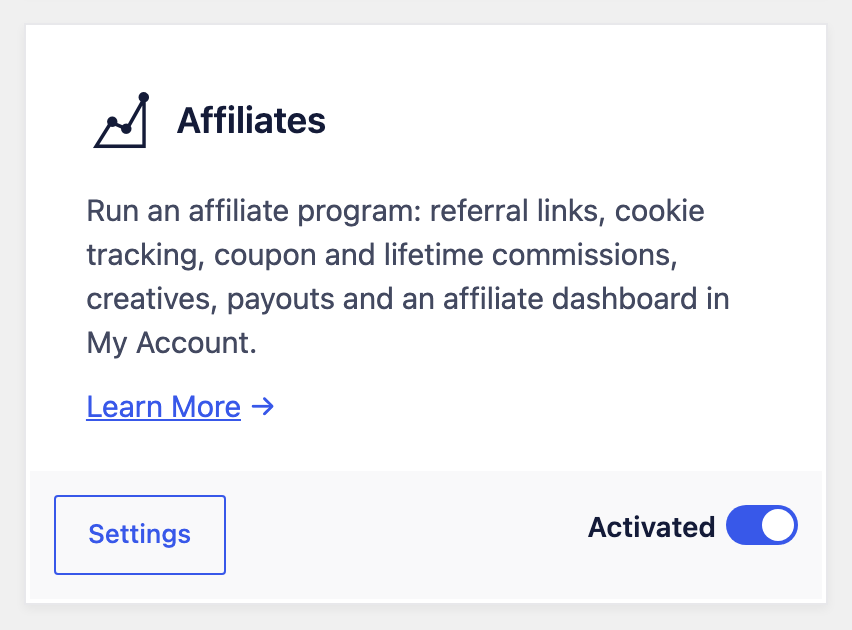
Activating the addon sets up everything it needs to store affiliates, visits, referrals, and payouts. A new Affiliates tab then appears under ProfilePress → Settings. It is where you manage affiliates, referrals, visits, payouts, creatives, and the program settings.
Note: Affiliates earn commission on ProfilePress orders, so you need at least one paid membership plan before your program can generate referrals.
Launching Your Affiliate Program in WordPress
The default settings are designed to work for most sites, so you can launch quickly and fine-tune later. Follow the steps below.
Step 1: Set your commission rate
Go to ProfilePress → Settings → Affiliates → Settings and find the Commissions section. The Default Rate is 20, and the Default Rate Type is Percentage (%), so an affiliate earns 20% of every order they refer. Change the rate to whatever suits your margins, or switch the type to Flat amount to pay a fixed sum per sale.
You can give individual affiliates and individual membership plans their own rates later. How to Set Up Affiliate Commissions and Manage Referrals in ProfilePress explains how the rates combine.
Step 2: Check how referral links are built
In the Referral Links section of the same screen, two settings decide what affiliate links look like:
- Referral Variable: the name used in the link. The default is
ref, giving links such as?ref=12. - Referral Format: whether the link uses the affiliate’s ID (
?ref=12) or their affiliate slug (?ref=jane-cooper). The default is Affiliate ID.
Keep the defaults unless you have a reason to change them. If you change them after affiliates have started sharing links, their old links stop being recognized.
Step 3: Let people apply
In the Affiliate Program section, keep Allow Applications and Require Approval turned on. Logged-in users can then apply from the Affiliate tab in My Account, and each application waits for you to approve it.
If you have terms for your affiliates, choose your terms page in Terms of Use Page. Applicants must then agree to it before they can apply.
Click Save Changes.
Step 4: Add your first affiliate in WordPress
You don’t have to wait for affiliate applications for your WordPress ecommerce and membership websites.
To add someone you already work with, go to ProfilePress → Settings → Affiliates → Affiliates and click Add Affiliate.
- In User, enter the person’s username or email address. They need a user account on your site.
- Set Status to Active.
- Leave Commission Rate empty to use your default rate, or enter a rate just for this affiliate.
Click Add Affiliate.
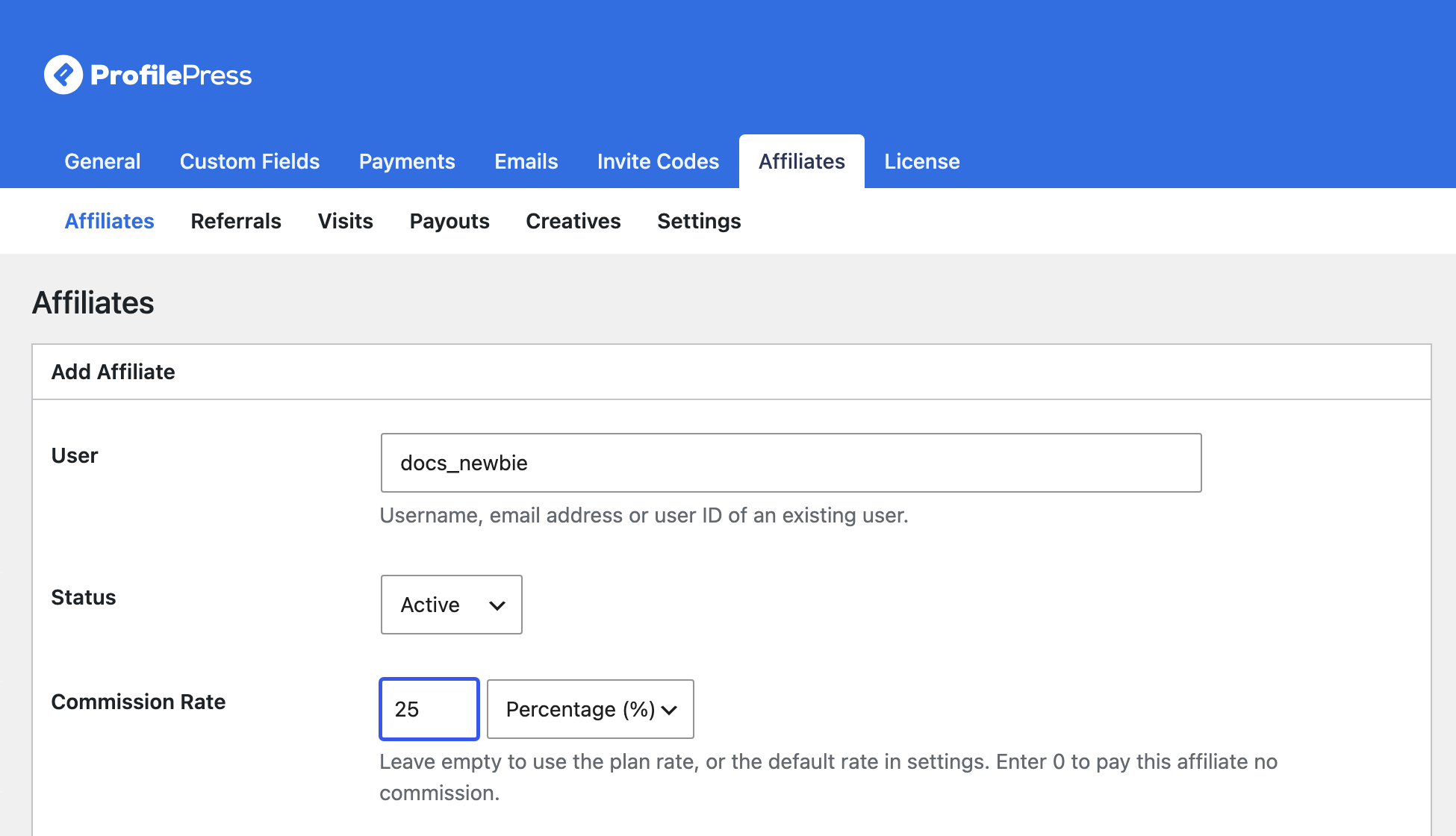
The affiliate can now find their referral link in My Account → Affiliate. How to Manage Affiliates in ProfilePress covers applications, approvals, coupons, and every other option on this form.
Step 5: Test the referral link
Open a private or incognito browser window and visit your site with the affiliate’s link, for example https://yoursite.com/?ref=12, where 12 is the affiliate’s ID. Then go back to ProfilePress → Settings → Affiliates → Visits. Your test visit should be listed against the affiliate.
When a real customer buys through the link, the sale appears under Referrals as Pending, and becomes Unpaid once the order is completed.
Tip: Testing in a private window matters. An affiliate never earns commission on their own purchases, and your normal browser may already carry a tracking cookie from earlier testing.
Before You Launch: Turn Off AffiliateWP and SliceWP Integrations
If your site uses the ProfilePress AffiliateWP or SliceWP integration, switch it off before you rely on the Affiliates addon. If both are active, one sale could earn a commission in both systems, and you could end up paying twice.
While either integration is active, the Affiliates screens show a warning as a reminder. Go to ProfilePress → Addons, deactivate the AffiliateWP or SliceWP addon, and the warning goes away.
Note: The Affiliates addon doesn’t import affiliates, referrals, or payouts from AffiliateWP or SliceWP. If you are moving over, add your existing affiliates in ProfilePress and ask them to share their new referral links.
Frequently Asked Questions
Q: Do affiliates need a tracking cookie to earn commission?
A: No. You can assign a ProfilePress coupon to an affiliate. Any order that uses that coupon is credited to the affiliate, even if the customer never clicked their link. See How to Manage Affiliates in ProfilePress.
Q: Can affiliates see their own earnings?
A: Yes. Every active affiliate has an Affiliate tab in My Account with a dashboard, referral link generator, referrals, visits, banners, payouts, and payment settings. See How Affiliates Use the Affiliate Area in My Account.
Q: Do affiliates earn commission on subscription renewals?
A: No. Commission is paid on the order that came through the affiliate, not on later renewal payments.
Q: Does tracking work if my site uses page caching or a CDN?
A: Yes. Referral visits are recorded by a small script in the visitor’s browser, so cached pages are tracked correctly. See How Affiliate Referral Tracking Works in ProfilePress.
Q: How do I pay my affiliates?
A: From Affiliates → Payouts, you create payouts for affiliates who have reached your minimum payout, download a PayPal mass payment CSV, and mark the payouts as paid. See How to Pay Your Affiliates in WordPress with ProfilePress.
Q: Who can earn commission on their own purchases?
A: Nobody. Self-referrals are blocked, so an affiliate who buys through their own link or coupon doesn’t earn commission on that order.
We hope this article helped you learn how to start an affiliate program on your WordPress membership site with ProfilePress.
Get ProfilePress to get the Affiliates addon today to turn your members, partners, and fans into a sales team that only gets paid when you do.