
Do you want to know exactly how ProfilePress decides which affiliate earns the credit for a sale?
Tracking is the heart of any affiliate program. It is how a sale is linked to the affiliate who sent the visitor. When tracking works well, affiliates trust your program because every customer they send is credited to them. When it doesn’t, affiliates lose commissions they earned, and you lose their goodwill.
Understanding tracking also helps you answer questions affiliates will ask, such as “why didn’t my click show up?” or “who gets the sale if a customer clicks two links?”. It also helps you set up your site correctly if it sits behind a page cache or a CDN such as Cloudflare.
In this article, you will learn how referral links are built, what happens when a visitor clicks one, what is logged as a visit, how ProfilePress decides which affiliate gets a sale, and how tracking works behind a cache, CDN, or proxy.
Note: This feature requires ProfilePress Pro with the Affiliates addon. Learn how to set it up.
Before you start, make sure you have at least one active affiliate. See How to Manage Affiliates in ProfilePress to add one.
What Is a Referral Link?
A referral link is a normal link to your site with an extra parameter that identifies the affiliate. With the default settings, it looks like this:
https://yoursite.com/?ref=12
Two settings decide what the link looks like. You’ll find both under ProfilePress → Settings → Affiliates → Settings, in the Referral Links section.
- Referral Variable: the name of the parameter. The default is
ref. It can only contain lowercase letters, numbers, dashes, and underscores. Names that WordPress or a plugin already uses in URLs are refused, because they change which page loads. That covers WordPress’s own names, such asp,page,s,cat,wandpost_type, and names added by plugins, such as the My Account tab nameaffiliate. - Referral Format: what the value in the link is. Affiliate ID uses the affiliate’s number (
12). Affiliate slug uses a short name (jane-partner). Slugs come from the affiliate’s display name, or are random when the display name is their login or an email address. Login names are never used, so they aren’t exposed in links.
For example, if you set Referral Variable to partner and Referral Format to Affiliate slug, the same affiliate’s link becomes https://yoursite.com/?partner=jane-partner.
Note: If you change either setting after affiliates have started sharing links, their old links stop being recognized. Pick your format before launch and leave it alone.
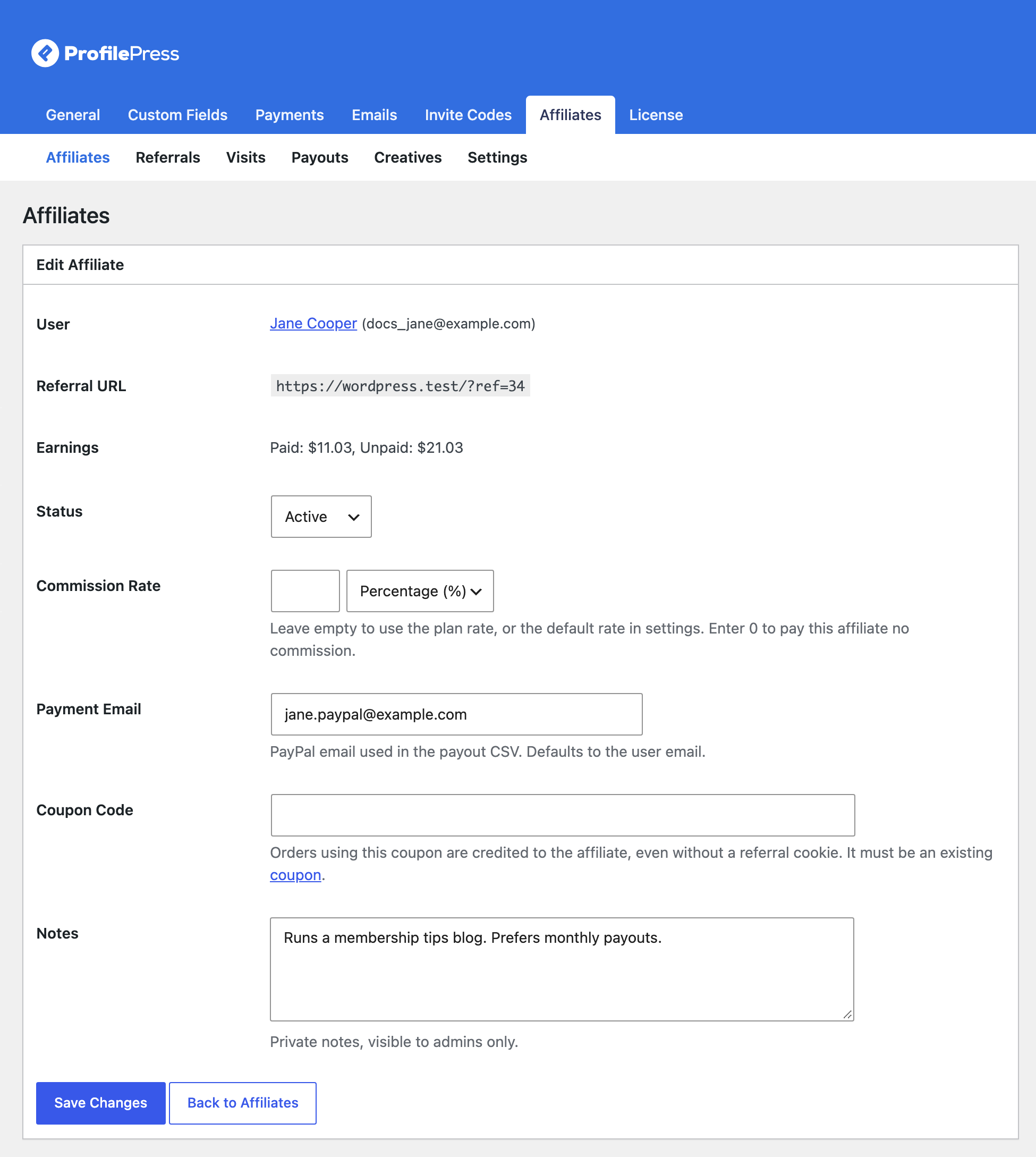
Affiliates don’t have to send people to your home page. They can link to any page on your site from their My Account area, such as a pricing page or a blog post. The link generator refuses pages on other sites. You can also see an affiliate’s referral URL on their Edit Affiliate screen.
How Referral Tracking Works
Here is what happens behind the scenes, from the moment a visitor clicks an affiliate’s link.
Step 1: The visitor lands on your site
The visitor opens a URL that contains the referral parameter, for example https://yoursite.com/pricing/?ref=12.
Step 2: The tracking script checks the URL
A small script runs on the page. It does nothing at all unless the referral parameter is in the URL, so normal visitors aren’t affected.
Step 3: The visit is sent to your site
When the script finds the parameter, it sends the landing address to your site. The request is a single POST to /wp-json/ppress/v1/affiliates/visit. If the browser shares the page the visitor came from, that referring address is sent too.
Step 4: Your site checks the affiliate and logs a visit
Your site checks that the affiliate is Active, logs a visit, and returns the affiliate ID. An unknown or inactive affiliate gets an error response, and no cookie is set.
Step 5: Tracking cookies are saved
Two cookies are set for the number of days in Cookie Expiration (30 by default):
ppress_aff: holds the affiliate ID.ppress_aff_visit: holds the visit ID.
The cookies are marked Secure on HTTPS sites. Cookie Expiration must be at least 1 day.
Thanks to the cookie, the affiliate still gets credit if the visitor leaves and comes back to buy later. For example, with the default 30 days, a visitor who clicks a link on March 1 and buys on March 20 is still credited to that affiliate. A visitor who buys on April 15, without clicking a link again, is not.
Understanding Visits
Every logged click becomes a visit. You can see them all under ProfilePress → Settings → Affiliates → Visits.
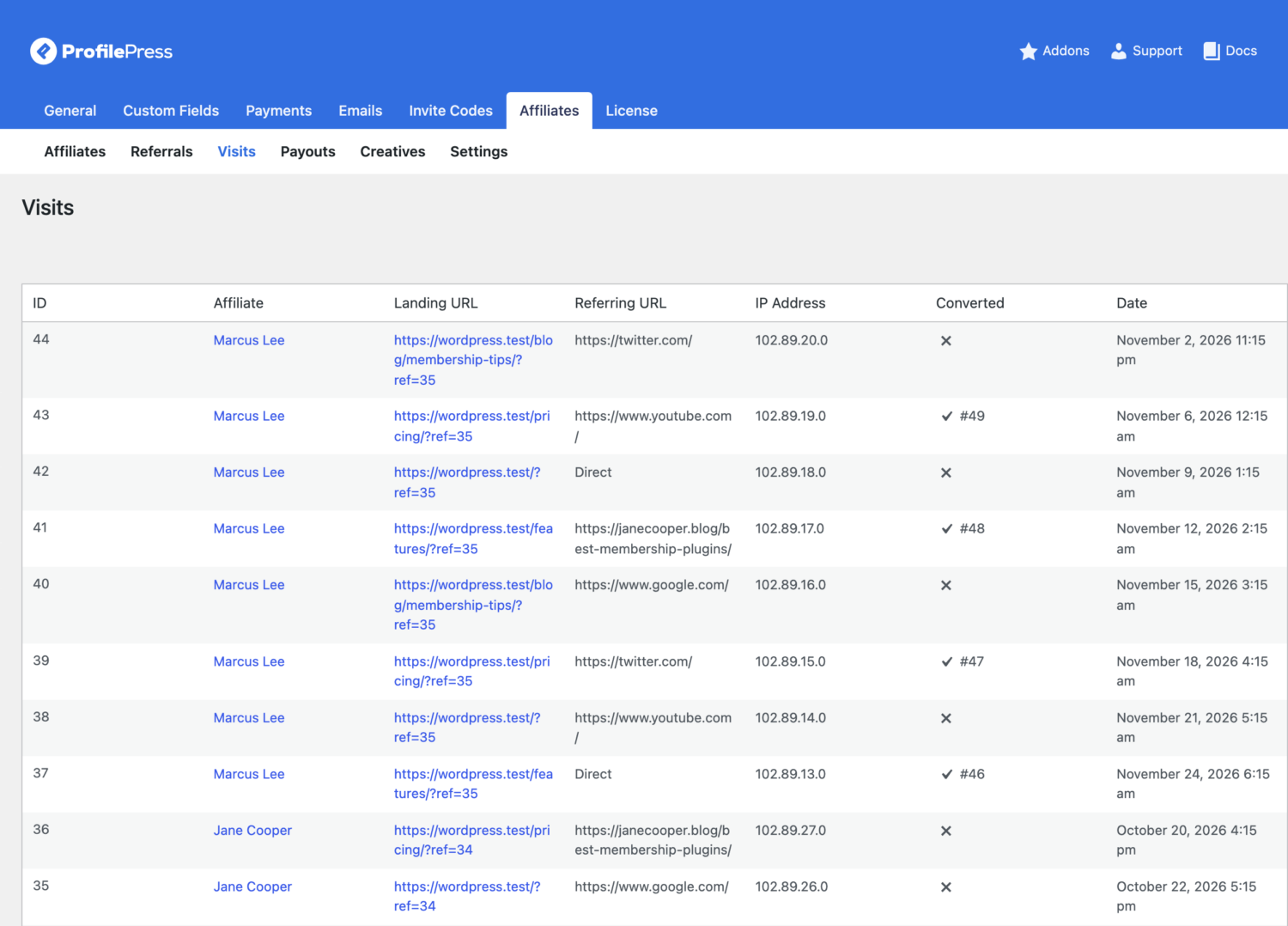
Each logged visit has:
- Affiliate: the affiliate whose link was clicked.
- Landing URL: the page on your site where the visitor arrived.
- Referring URL: the page the visitor came from, if the browser sent one. Visits with no referring page show Direct.
- IP Address: the masked IP address of the visitor.
- Converted: the referral the visit became, if any.
- Date: when the visit happened.
The admin sees the full referring address. Affiliates see only the referring site’s domain, so they can tell where their traffic comes from without seeing the full addresses.
Duplicate Visits
Repeat visits are not logged again. The same visitor (IP address plus browser) landing on the same page with the same affiliate within 30 minutes counts once. Visitors behind one shared IP, such as an office, are kept separate because the browser is part of the check.
Reloading the landing page, or using the back and forward buttons, does not add a visit. This keeps your visit counts honest, so an affiliate’s conversion rate reflects real people rather than page refreshes.
Visit Retention
Visits that never led to a sale are deleted after the number of days in Visit Retention (365 by default). Visits linked to a referral are kept. Cleanup runs once a day and is part of ProfilePress’s daily job.
Enter 0 to keep all visits forever. Visit Retention can’t be shorter than Cookie Expiration, because a visit can still turn into a sale until its cookie expires. If you try to save a shorter value, ProfilePress shows an error. See Affiliates Settings.
Masked IP Addresses
By default, the stored IP address is masked: the last part of an IPv4 address is zeroed, and the last 80 bits of an IPv6 address are zeroed. For example, 203.0.113.45 is stored as 203.0.113.0. This keeps visits useful for reporting while limiting personal data. Duplicate checks still use the full address for a moment, but it is not stored.
Full addresses can be stored for fraud reviews with a developer filter. See the For Developers section below.
How ProfilePress Decides Which Affiliate Gets the Sale
When an order is created, ProfilePress checks these in order and stops at the first match:
- Affiliate coupon: if the order uses a coupon assigned to an active affiliate, that affiliate is credited, even if the visitor has a different affiliate’s cookie. Coupon credit doesn’t need a cookie. Coupons are linked to the affiliate by the coupon itself, not its code, so renaming the coupon keeps crediting the same affiliate. Deleting the coupon ends the link.
- Lifetime customer: if Lifetime Commissions is on and the customer was first referred by an active affiliate, that affiliate is credited again. This needs no cookie.
- Cookie: if the visitor has a
ppress_affcookie for an active affiliate, that affiliate is credited.
If none of these match, the order has no referral.
A cookie only counts if its visit belongs to the same affiliate and hasn’t already been used for a sale.
Note: Orders you create yourself in the WordPress admin aren’t credited through a cookie. Otherwise, a tracking cookie in your own browser could credit an affiliate for an order you entered by hand. Coupon and lifetime credit still apply to these orders.
Here is a worked example. Sarah clicks affiliate Jane’s link, then a week later buys a plan using a coupon that belongs to affiliate Mark. Mark gets the sale because the coupon is checked first. If Sarah had bought without a coupon, Jane would have been credited through her cookie.
When a Visitor Clicks Two Affiliates’ Links
When a visitor follows one affiliate’s link and then another’s, what happens depends on Credit Last Referrer:
- Off (default): the first affiliate keeps the credit while their cookie is still valid and their account is active. The second link doesn’t log a new visit or replace the cookie.
- On: the most recent affiliate’s link replaces the cookie, and that affiliate gets the sale.
If the first affiliate has since been deactivated, deleted, or rejected, their cookie no longer counts, so the new affiliate gets the sale.
Which option is right for you? Leaving it off rewards the affiliate who introduced the customer to your site. Turning it on rewards the affiliate who finally convinced them to buy. Both are common; just tell your affiliates which rule you use.
Self-Referrals
An affiliate can’t earn commission on their own purchase. The check matches the customer’s WordPress account, or, if that fails, their email address. The order is still completed; it just has no referral.
Tip: When you test your program, use a private browser window and a customer account that isn’t an affiliate. Otherwise, your test order is treated as a self-referral, and no referral appears.
Tracking with Page Caching and CDNs
Page caches and CDNs often serve a saved copy of a page, and they may drop unknown query strings such as ?ref=. To keep tracking working in these cases:
- The script loads on every page: it is deferred so it doesn’t slow the page down. It sends a request only when the referral parameter is in the URL. Because the visit is recorded from the visitor’s browser, a cached page is tracked correctly.
- The request isn’t cached: the tracking request is sent with no-cache headers, so a cache should not store it.
If a cache removes the parameter before the request reaches the site, no visit is logged for that click. Check that your cache keeps query strings such as ?ref=.
Visits Behind a Proxy or CDN
Behind Cloudflare or another proxy, the server sees the proxy’s address rather than the visitor’s. Without a fix, every visitor looks like one visitor, which merges visits and can stop tracking for everyone because of the rate limit.
To fix this, go to ProfilePress → Settings → Affiliates → Settings and set Visitor IP Source in the Referral Links section to the header your proxy sends. The options are:
- Direct connection (REMOTE_ADDR): the default. Use it when your site isn’t behind a proxy.
- Cloudflare (CF-Connecting-IP): for sites behind Cloudflare.
- X-Real-IP: for proxies that send this header.
- X-Forwarded-For: for proxies and load balancers that send this header. When it holds a chain of addresses, the first one is used.
- True-Client-IP (Akamai, Cloudflare Enterprise): for those services.
Choose a header only if your site really sits behind that proxy, because a visitor could otherwise fake the header. This setting is used for affiliate visit tracking only. See How to Configure Your Affiliate Program Settings in ProfilePress for more on each option.
Rate Limiting
Tracking requests are rate-limited per visitor address. Too many requests from one address are refused with a rate-limit error, so one machine can’t flood the visits table.
How Tracking Stays Secure
- Only your own pages: landings are only logged when the URL is on your site. Other sites are rejected.
- Cookies are checked: affiliate and visit cookies are only trusted when they match an active affiliate and a real visit.
- Normal affiliate behavior: cookies can be set by anyone who visits an affiliate’s link. This is how affiliate programs work in general, and it’s the same in AffiliateWP and SliceWP.
Frequently Asked Questions
Q: I clicked my link, but no visit appears. Why? A: Check that the affiliate is Active, that the link uses the right referral variable, and that the page isn’t served from a cache that strips ?ref=. Also check that you’re not clicking from the same browser and address within 30 minutes of an earlier visit.
Q: A customer bought with a coupon but has another affiliate’s cookie. Who gets the sale? A: The coupon wins. The coupon’s affiliate gets the sale.
Q: Do visits work if JavaScript is turned off? A: No. The visit is logged by the script. Coupon and lifetime credit still work without it, but the cookie can’t be set.
Q: Why are some visits shown with no referral? A: They didn’t lead to a sale. They’re deleted after the Visit Retention period, unless you set it to 0.
Q: How long does an affiliate get credit after a click? A: For the number of days in Cookie Expiration, which is 30 by default. Coupon and lifetime credit don’t depend on the cookie, so they don’t expire.
Q: Can affiliates link to any page, not just my home page? A: Yes. Affiliates can build a link to any page on your site from their My Account area. Links to other sites are refused. See How Affiliates Use the Affiliate Area in My Account.
Q: My site is behind Cloudflare and all visits show the same IP address. What do I do? A: Set Visitor IP Source to Cloudflare (CF-Connecting-IP). Otherwise, every visitor looks like one visitor, and the rate limit can stop tracking for everyone.
For Developers
By default, visitors’ IP addresses are masked before they are stored. To store visitors’ full IP addresses, for example for fraud reviews, return false from the ppress_affiliates_anonymize_visit_ip filter:
add_filter( 'ppress_affiliates_anonymize_visit_ip', '__return_false' );
For all hooks and filters in the addon, see the Affiliates Developer Reference: Filters, Actions and the Visit Endpoint.
We hope this article helped you learn how affiliate referral tracking works in ProfilePress and how to keep it accurate on your site.
Purchase the Affiliates addon today to give your affiliates tracking they can trust, so every customer they send is credited to them.