
Do you want to review affiliate applications, approve the right partners, and give your best affiliates their own commission rates or coupon codes?
An affiliate program is only as good as the people in it. As your program grows, you will get applications from bloggers, customers, and partners. Some will be a great fit, and some won’t. You will also want to reward top performers with a better rate, pause affiliates who break your rules, and tidy up accounts that are no longer active.
The ProfilePress Affiliates addon gives you one screen to do all of this. Every affiliate is a regular WordPress user on your site, so there is no separate account system to manage.
In this article, you will learn how applications arrive, what each affiliate status means, how to approve, edit, and remove affiliates, and how commission rates and coupons work for individual affiliates.
Note: This feature requires ProfilePress Pro with the Affiliates addon. Learn how to set it up.
What Is an Affiliate in ProfilePress?
An affiliate is an existing WordPress user who has been given an affiliate account. Each user can be an affiliate only once. Affiliates get their own referral link, can earn commission on the sales they bring in, and can follow their earnings from the Affiliate tab in My Account.
You need administrator access to manage affiliates. You will find them under ProfilePress → Settings → Affiliates → Affiliates.
The list shows one row per affiliate, with these columns:
- Affiliate: the user’s display name and email address.
- ID: the affiliate ID, which appears in referral links when the Referral Format is Affiliate ID.
- Rate: the affiliate’s own commission rate, or Default if they use the plan or default rate.
- Paid Earnings and Unpaid Earnings: what you have paid them and what you still owe.
- Referrals and Visits: how many sales and clicks they have brought in. Click either number to see the full list.
- Status: the affiliate’s current status.
How Affiliate Applications Work
There are two ways to get affiliates. People can apply themselves, or you can add them yourself. Let’s start with applications.
Logged-in users can apply from the Affiliate tab in their My Account page. The application asks for a payment email and, if you’ve set one, requires them to accept your terms page.
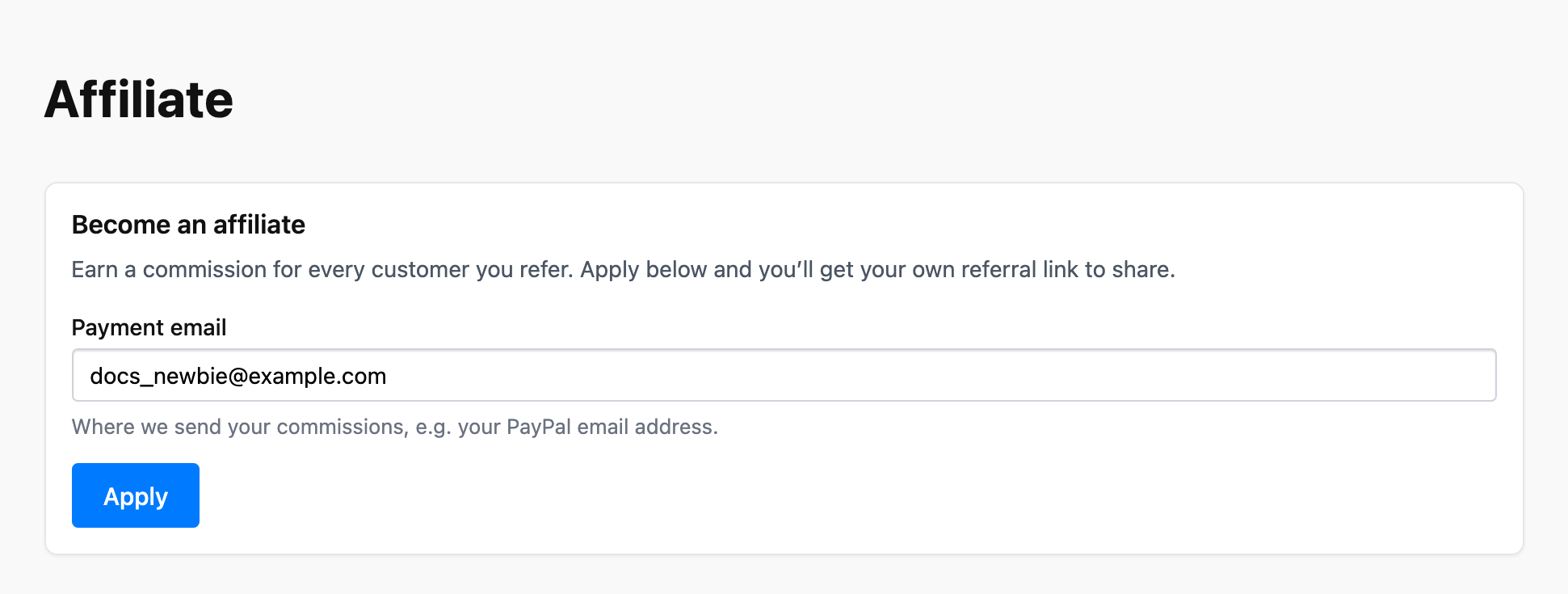
When someone applies, the affiliate is created with the status Pending. You are emailed when an application arrives, and the applicant is emailed that it was received.
If Require Approval is off in the settings, applicants are made Active straight away and can use their referral link at once. In that case, they receive the approval email right after applying.
For example, Jane Cooper, a fitness blogger, applies on Monday. With the default settings, her account shows as Pending in your affiliates list, you receive a New Affiliate Application email, and Jane receives an email confirming you received her application. She can’t earn anything yet.
You control whether applications are open, whether they need approval, and which terms page applicants must accept in How to Configure Your Affiliate Program Settings in ProfilePress.
Understanding Affiliate Statuses
Every affiliate has one of four statuses. The status decides whether they can earn commission.
| Status | Meaning | Earns commission? |
|---|---|---|
| Active | Approved and able to earn. | Yes |
| Pending | Applied and waiting for approval. | No |
| Inactive | Paused by an admin. Can be reactivated. | No |
| Rejected | Application declined. | No |
In plain terms:
- Active: the affiliate is approved. Their referral link records visits and credits sales.
- Pending: the person has applied and is waiting for you to decide.
- Inactive: you have paused the affiliate. They keep their history, and you can reactivate them at any time.
- Rejected: you declined the application.
Changing an affiliate’s status does not remove referrals that were already earned. If you pause Jane Cooper while she has $40 in unpaid referrals, that $40 remains on record, and you can still pay it.
How to Approve, Reject, Activate and Deactivate Affiliates
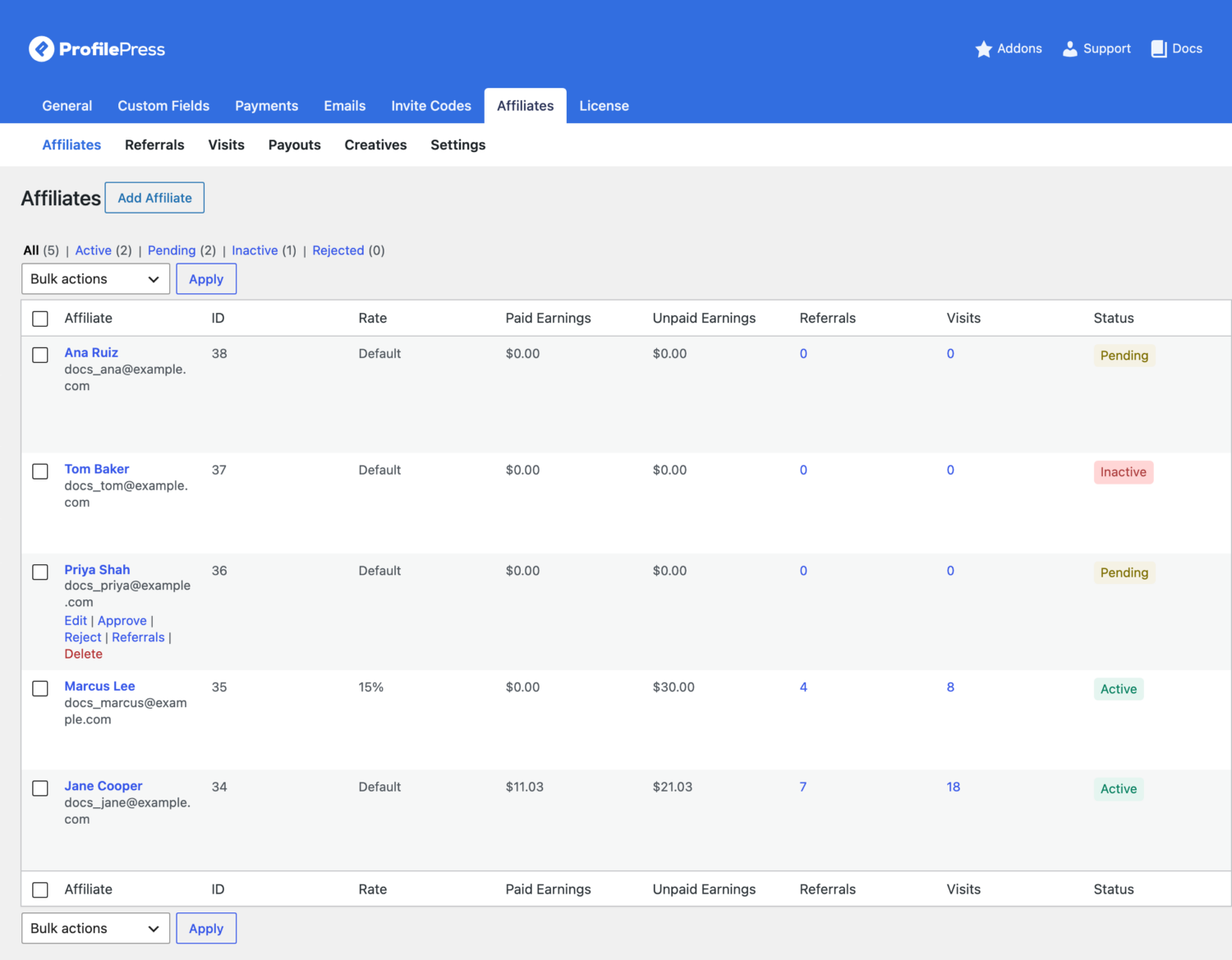
Hover over an affiliate’s row to see its links. Each row has links for the actions that apply to its current status:
- Approve: on a pending affiliate, makes it Active and emails them the approval, with their referral link.
- Reject: on a pending affiliate, declines the application and emails them.
- Activate: on an inactive or rejected affiliate, makes it Active again.
- Deactivate: on an active affiliate, pauses it. Their visits and referral links stop earning, but existing referrals are kept.
Every row also has Edit, Referrals, and Delete links. Referrals opens the referrals list filtered to that affiliate.
After a status change, you see the message “Affiliate status updated.”
Tip: Before approving someone, open their website or social profiles and check that they fit your brand. It is much easier to reject an application than to deal with an affiliate who promotes you in ways you don’t like.
Using Bulk Actions
When several applications arrive at once, you don’t have to handle them one by one. Tick one or more rows, choose an action from the Bulk actions menu, and click Apply. The menu offers:
- Approve / Activate
- Reject
- Deactivate
- Delete
Bulk actions do the same thing as the row links and send the same emails. Afterward, you see a summary, for example, “5 affiliates approved or activated.” Affiliates that already had the status you chose are skipped, and the summary tells you how many.
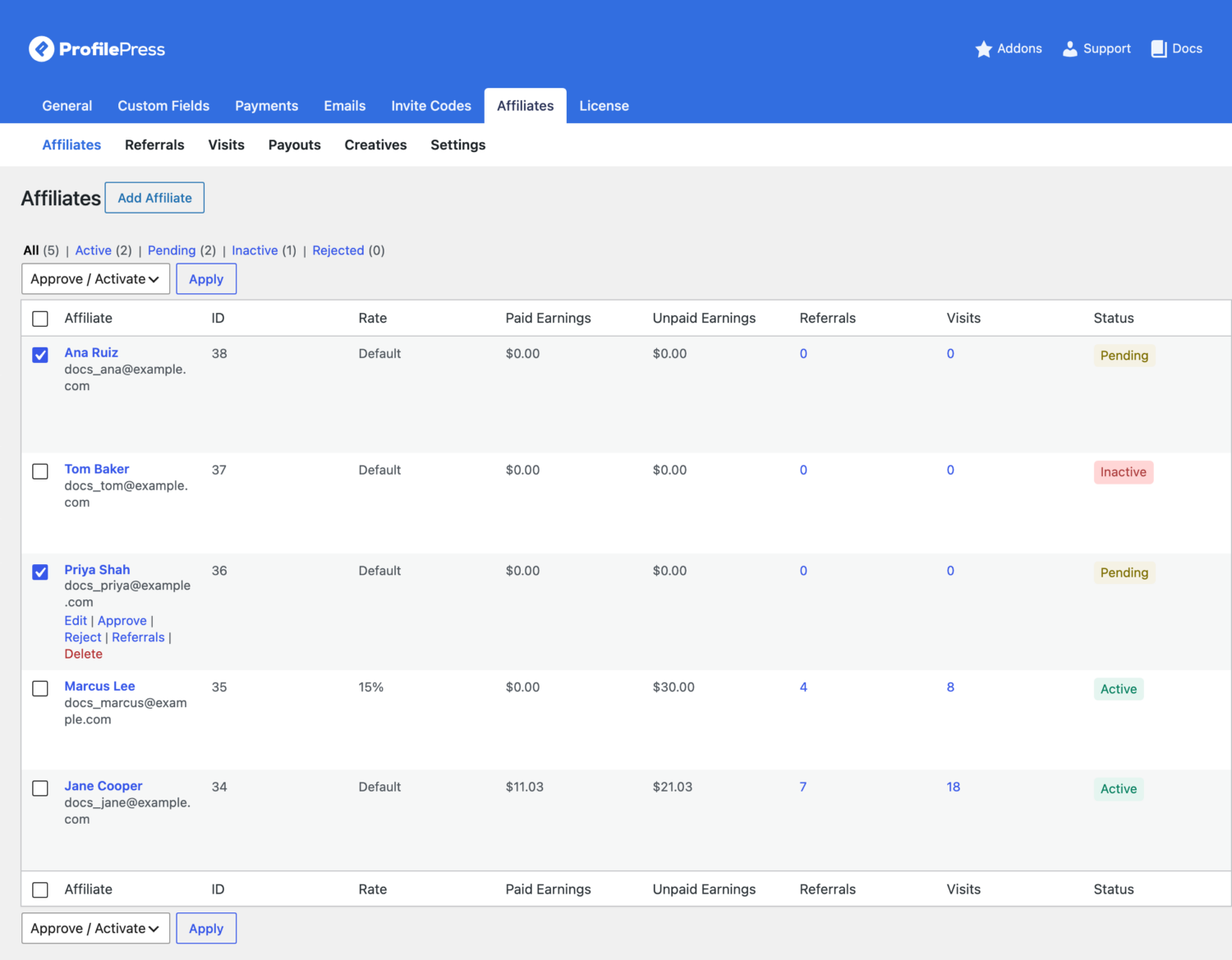
If you press Apply with no rows ticked, nothing happens.
When you choose Delete, you are asked to confirm first, because the affiliates’ referrals and visits are deleted too.
How to Add or Edit an Affiliate
You don’t have to wait for people to apply. If you already work with someone, such as a partner or a loyal customer, you can make them an affiliate yourself.
Step 1: Open the affiliate form
To add an affiliate, click Add Affiliate at the top of the affiliates list. To edit one, use the Edit link under the affiliate’s row, or click their name.
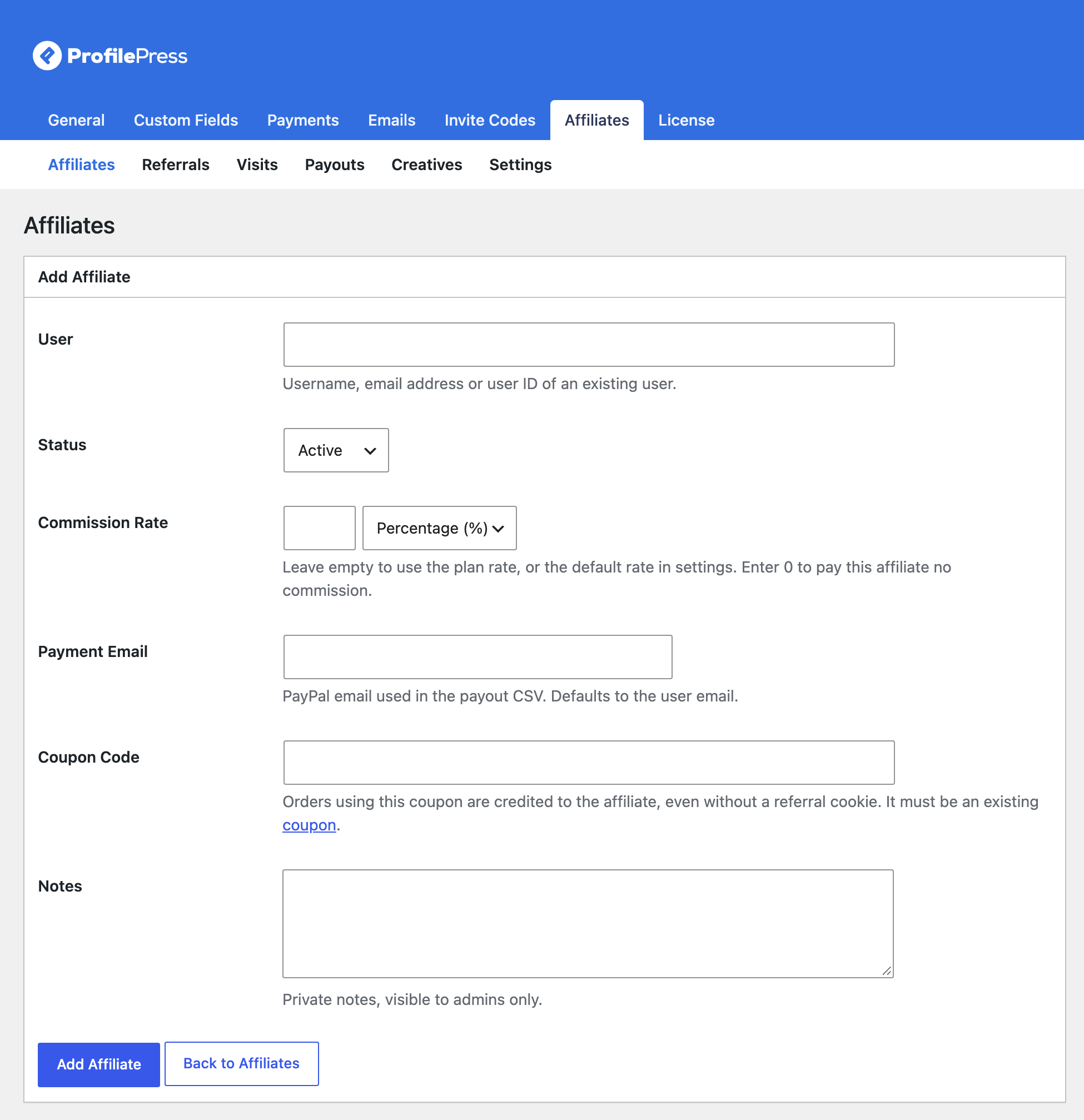
Step 2: Fill in the fields
| Field | What to enter | Default |
|---|---|---|
| User | A username, email address, or user ID of an existing user. Required. | None |
| Status | Active, Pending, Inactive, or Rejected. | Active for a new affiliate |
| Commission Rate | A number, such as 15. Leave it empty to use the plan rate or the default rate. Enter 0 to pay this affiliate nothing. |
Empty (uses the default) |
| Rate type | Percentage (%) or Flat amount. | Percentage (%) |
| Payment Email | The PayPal email used in payout files. | If empty, the user’s account email is used when a payout is created. |
| Coupon Code | An existing ProfilePress coupon. Orders that use it are credited to this affiliate. | None |
| Notes | Private notes for admins. Visible only in the admin. HTML is removed when saved. | Empty |
Here is what each field is for:
- User: the person who becomes the affiliate. They must already have a user account on your site. If no account matches, you see “No user matches that username, email or ID.” If the user is already an affiliate, you see “This user is already an affiliate.”
- Status: usually Active, so the affiliate can start earning straight away.
- Commission Rate: a rate just for this affiliate, with the rate type next to it. More on this below.
- Payment Email: where you send their PayPal payouts. If you enter an address, it must be a valid email.
- Coupon Code: a coupon that credits this affiliate when a customer uses it. More on this below.
- Notes: anything you want to remember, such as “Agreed 25% for the spring launch.”
For example, to add Jane Cooper with a 25% rate, enter her email address in User, keep Status as Active, enter 25 in Commission Rate with Percentage (%) selected, and leave Payment Email empty so her account email is used.
Step 3: Save the affiliate
Click Add Affiliate for a new affiliate, or Save Changes when editing. You see the message “Affiliate saved.” If something is wrong, an error explains what to fix, and the form keeps what you entered.
When you edit an existing affiliate, the form also shows their Referral URL and their Earnings, split into paid and unpaid amounts. This is handy when an affiliate asks you for their link or how much you owe them. Click Back to Affiliates to return to the list.
Note: Affiliates you add yourself don’t receive the application emails. Let them know they have been added and that they can find their referral link in My Account → Affiliate.
Setting a Custom Commission Rate
Each affiliate can have their own rate that overrides your plan and default rates. This is the easiest way to reward top performers.
Commission Rate: Empty Versus 0
These two values mean different things:
- Empty: means “use the next level”. The plan’s rate applies if it has one; otherwise, the default rate in the settings.
- 0: means no commission for this affiliate, even if the plan or default would pay one.
For example, your Default Rate is 20%. Jane Cooper’s Commission Rate is empty, so she earns 20% on a $100 order, which is $20. Tom Hardy’s rate is 30, so he earns $30 on the same order. A partner whose rate is 0 earns nothing, whatever the plan or default rate says.
A percentage above 100 is refused. A flat amount can’t be negative.
In the affiliates list, the Rate column shows Default for affiliates with an empty rate, so you can see at a glance who has a custom rate.
Commission rules, including how the plan rate is used, are in How to Set Up Affiliate Commissions and Manage Referrals in ProfilePress.
Assigning a Coupon Code to an Affiliate
Coupons are a great fit for affiliates who promote you on podcasts, videos, or in print, where people can’t click a link. Give the affiliate a coupon, and they get credit whenever a customer uses it.
A coupon credits its affiliate even when the visitor has no referral cookie. The coupon must already exist in ProfilePress, so create it under your coupons first. If you enter a code that doesn’t exist, you see an error.
The link is stored by the coupon’s ID, not its code:
- Renamed coupon: the affiliate keeps the coupon. The form shows the new code.
- Deleted coupon: the affiliate stops earning through it. The form shows a warning. If you later create a new coupon with the same code, it does not credit the affiliate.
- Coupon already in use: a coupon can belong to only one affiliate. Saving a coupon that another affiliate uses shows an error.
When a customer uses an affiliate’s coupon and also has another affiliate’s cookie, the coupon wins. For example, a visitor clicks Tom Hardy’s link, then hears Jane Cooper’s podcast and checks out with her coupon JANE10. Jane gets the commission. See How Affiliate Referral Tracking Works in ProfilePress.
How to Delete an Affiliate
Click Delete and confirm. Delete is refused if the affiliate has any paid referrals or any payouts. The message says to deactivate them instead, which keeps the money history intact.
Deleting also removes the affiliate’s referrals, visits, and customer links, including unpaid ones. Pay any unpaid referrals before you delete, so the money is not lost from your records.
Tip: In most cases, Deactivate is the better choice. It stops new earnings immediately, keeps the full history, and lets you reactivate the affiliate later.
When a WordPress User Is Deleted
Deleting a WordPress user also handles their affiliate record:
- Unpaid referrals: if the affiliate has unpaid referrals, the affiliate is deactivated, so the money owed stays on record.
- No unpaid referrals: the affiliate record is deleted, unless it has paid referrals or payouts. In that case, it is deactivated instead.
After paying or rejecting any unpaid referrals, you can delete the deactivated affiliate if it has no paid history.
Frequently Asked Questions
Q: Why can’t I delete an affiliate? A: They have paid referrals or payouts. Deactivate them instead, which stops new earnings and keeps the history.
Q: An affiliate says their link doesn’t work. What should I check? A: Check that their status is Active. Pending, inactive, and rejected affiliates’ links don’t record visits or credit sales. You can copy their correct link from the Referral URL row on their edit screen.
Q: Can an affiliate be a customer and an affiliate at the same time? A: Yes. Affiliates can also buy memberships. Self-referrals are refused, so an affiliate doesn’t earn commission on their own purchase.
Q: Can I see an affiliate’s referrals? A: Yes. Open the Referrals section and filter by affiliate, or click the Referrals link under the affiliate’s row.
Q: Can I make someone an affiliate without them applying? A: Yes. Click Add Affiliate, enter their username, email address, or user ID, and save. They need a user account on your site first.
Q: What happens to unpaid earnings when I deactivate an affiliate? A: They stay on record. Changing an affiliate’s status does not remove referrals that were already earned, so you can still pay them.
Q: Can two affiliates share the same coupon? A: No. A coupon can belong to only one affiliate. Create a separate coupon for each affiliate.
For Developers
These hooks fire as you manage affiliates:
ppress_affiliates_affiliate_created: fires when an affiliate is created, from the admin or from an application. It receives the affiliate ID and status.ppress_affiliates_application_submitted: fires when someone applies from My Account.ppress_affiliates_affiliate_status_changed: fires when an affiliate’s status changes. It receives the affiliate, the previous status, and the new status.ppress_affiliates_affiliate_deleted: fires after an affiliate is deleted.ppress_affiliates_referral_slug: filters the slug created for a new affiliate. The slug is used in referral links when the Referral Format is Affiliate slug.
The full list is in the Affiliates Developer Reference: Filters, Actions and the Visit Endpoint.
We hope this article helped you learn how to manage affiliates in ProfilePress.
Purchase the Affiliates addon today to build a team of partners who promote your membership site and get paid only when they bring you sales.