
How to Let Members Pause Their Subscriptions in WordPress
Do you want to give members a way to pause their subscription instead of canceling on your WordPress membership website?
Members often cancel because they need a break, not because they want to leave: a holiday, a busy season, or a tight month. Letting them pause instead keeps them as members on your WordPress membership site and brings them back automatically.
In this article, you will learn how to let members pause their subscriptions on your WordPress website with our Subscription Pausing addon, set limits on pausing, and manage paused subscriptions as an admin.
How Subscription Pausing Works
When a member pauses their subscription:
- They aren’t charged while the subscription is paused.
- They keep access until the end of the billing period they already paid for.
- They lose access to members-only content after that, until they resume their subscription.
- The subscription resumes automatically on the date they chose. Billing restarts and access returns.
Members can also resume their susbcription/membership early whenever they like.
Requirements
Pausing is available in our ProfilePress ecommerce and membership plugin for subscriptions that are:
Active and recurring. Trials can’t be paused until they convert to Active. One-time and lifetime subscriptions can’t be paused.
Paid through Stripe, PayPal, Razorpay, or Paddle. Pauses happen at the payment gateway too, so members are never charged while paused.
Note: Razorpay subscriptions can be paused after their first renewal payment. Until then, members see “Pausing becomes available after your first renewal payment.”
Activating the Subscription Pausing Addon
To allow users to pause their subscriptions on your WordPress website, make sure you’ve installed and activated the ProfilePress plugin on your WordPress site.
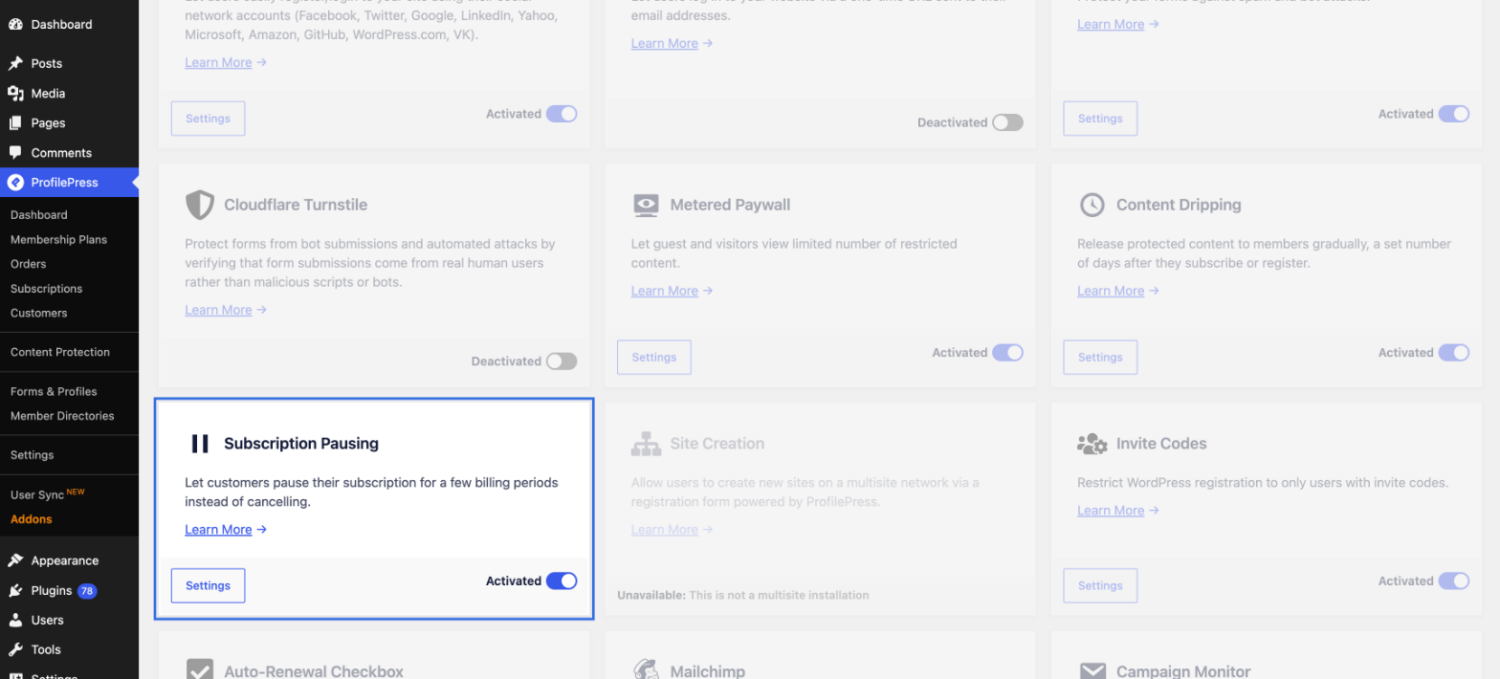
Next, go to ProfilePress → Addons and activate the Subscription Pausing addon.
Setting Up Your Payment Gateway Webhooks
ProfilePress uses webhooks to keep paused subscriptions in WordPress in sync with your payment gateway. If you set up your gateway’s webhook before activating Subscription Pausing, add these events to it:
| Gateway | Webhook events to add |
|---|---|
| Stripe | No changes needed. |
| PayPal | BILLING.SUBSCRIPTION.SUSPENDED. BILLING.SUBSCRIPTION.ACTIVATED should already be there. |
| Razorpay | subscription.paused and subscription.resumed. See Setting Up Razorpay. |
| Paddle | subscription.paused and subscription.resumed. See Setting Up Paddle. |
If Paddle or Razorpay is enabled, ProfilePress shows a reminder notice in your WordPress dashboard until you dismiss it.
Configuring Subscription Pausing
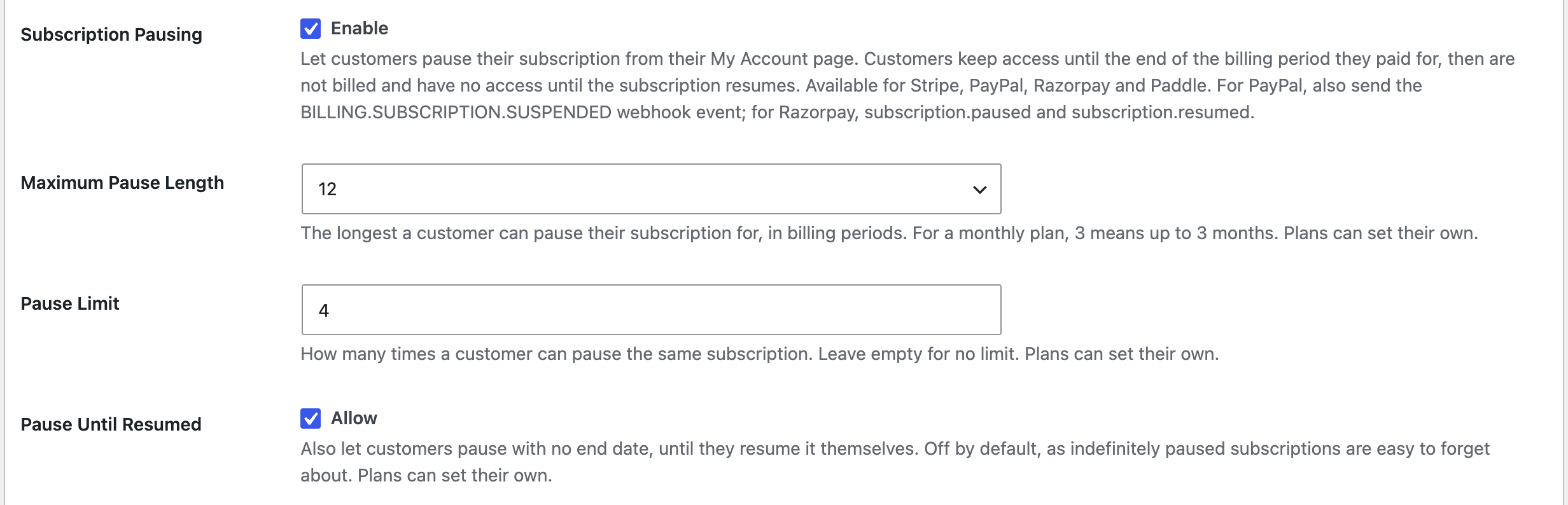
Go to ProfilePress → Settings → Payments. The pausing settings are right after Disable Auto-renewal.
| Setting | Description |
|---|---|
| Subscription Pausing | Tick Enable to let members pause their subscriptions from their My Account page. Off by default. |
| Maximum Pause Length | The longest a member can pause for, in billing periods, from 1 to 12. For a monthly plan, 3 means up to 3 months. Default: 3. |
| Pause Limit | How many times a member can pause the same subscription. Leave empty for no limit. |
| Pause Until Resumed | Tick Allow to also let members pause with no end date, until they resume it themselves. Off by default, since open-ended pauses are easy to forget. |
Click Save Changes.
Setting different rules for each plan
You can set pausing rules for each membership plan. Go to ProfilePress → Membership Plans, edit a recurring plan, and find Subscription Pausing in the Subscription Settings box.
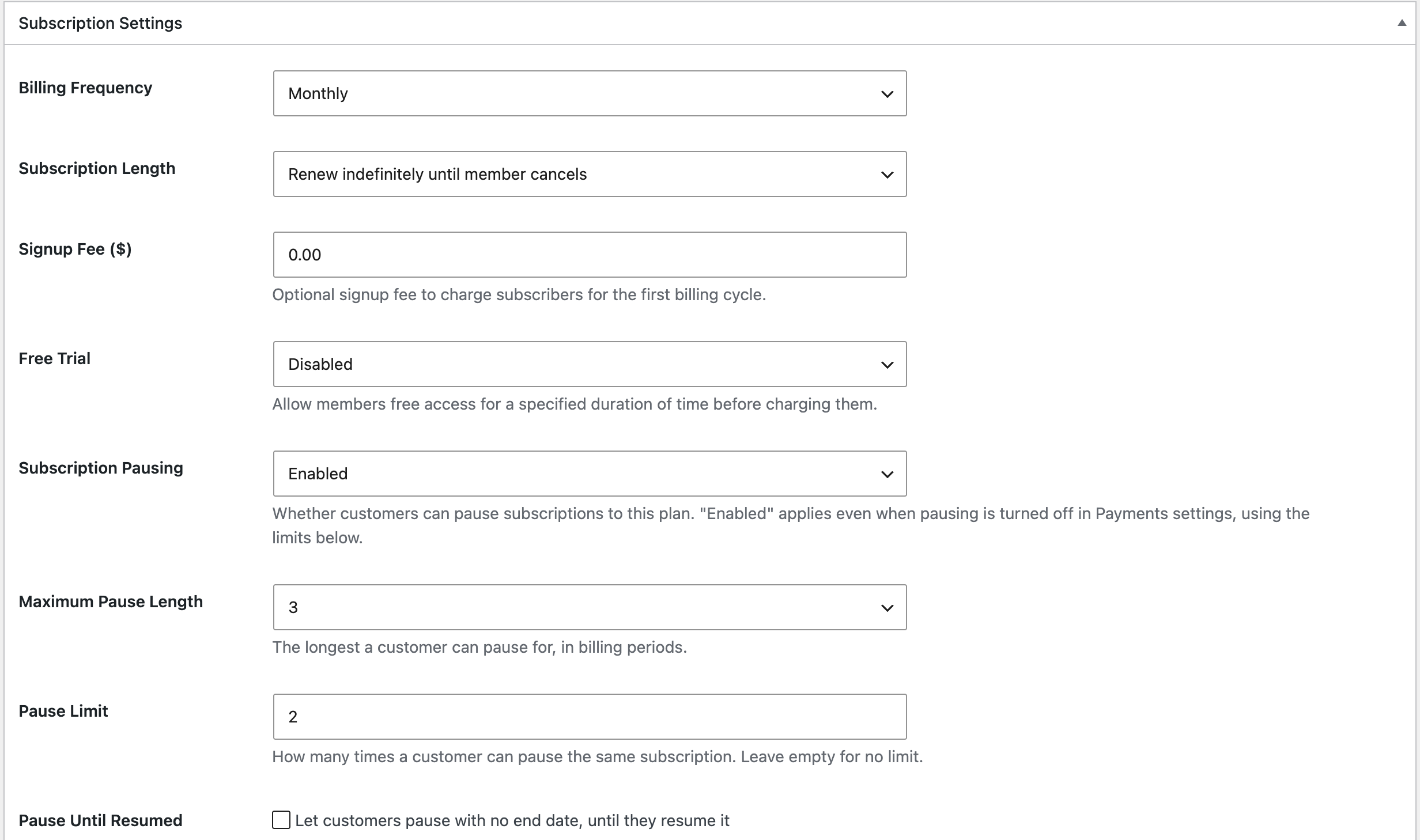
- Use global setting: the plan follows the settings in Settings → Payments. This is the default.
- Enabled: members on this plan can pause, using the plan’s own Maximum Pause Length, Pause Limit, and Pause Until Resumed settings. This works even if pausing is turned off in Settings → Payments.
- Disabled: members on this plan can’t pause.
For example, you could let members of your WordPress site on your monthly plan pause up to twice, for up to 3 months each time, and turn pausing off for a discounted plan.
Pausing a Subscription as a Member
When pausing is available, members see a Pause row when they view their subscription in My Account → Subscriptions.
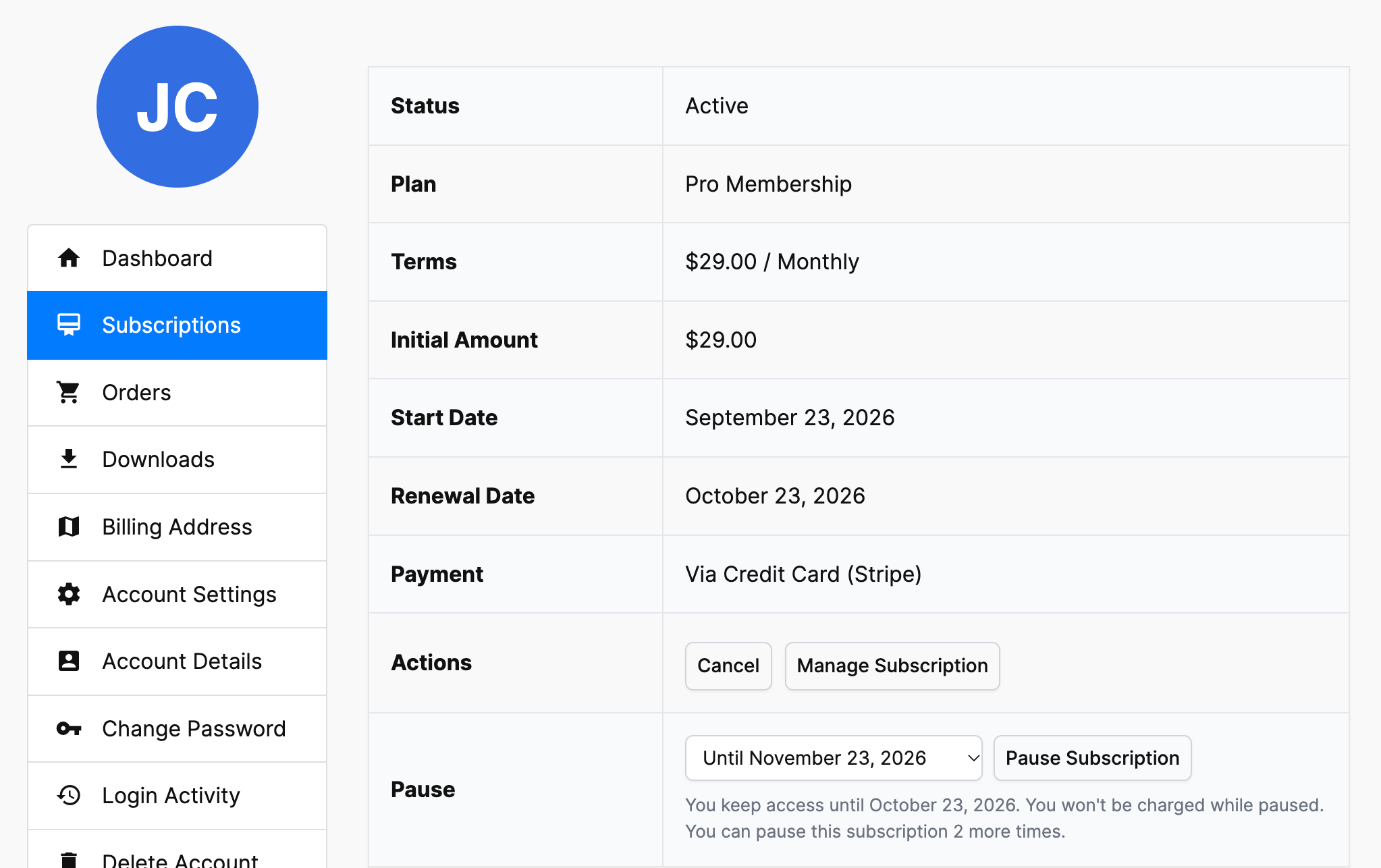
- The member chooses how long to pause for. Each option shows the date the pause ends, for example, “Until November 23, 2026”. The dates follow the subscription’s renewal date. If Pause Until Resumed is allowed, there’s also an Until I resume it option.
- They click Pause Subscription.
- A confirmation tells them when the pause ends and how long they keep access. They confirm to pause.
The note under the form tells members how long they keep access, and how many pauses they have left if you’ve set a pause limit.
What a paused subscription looks like
After pausing, the subscription’s status is Paused, and a Resumes On row shows when it resumes.
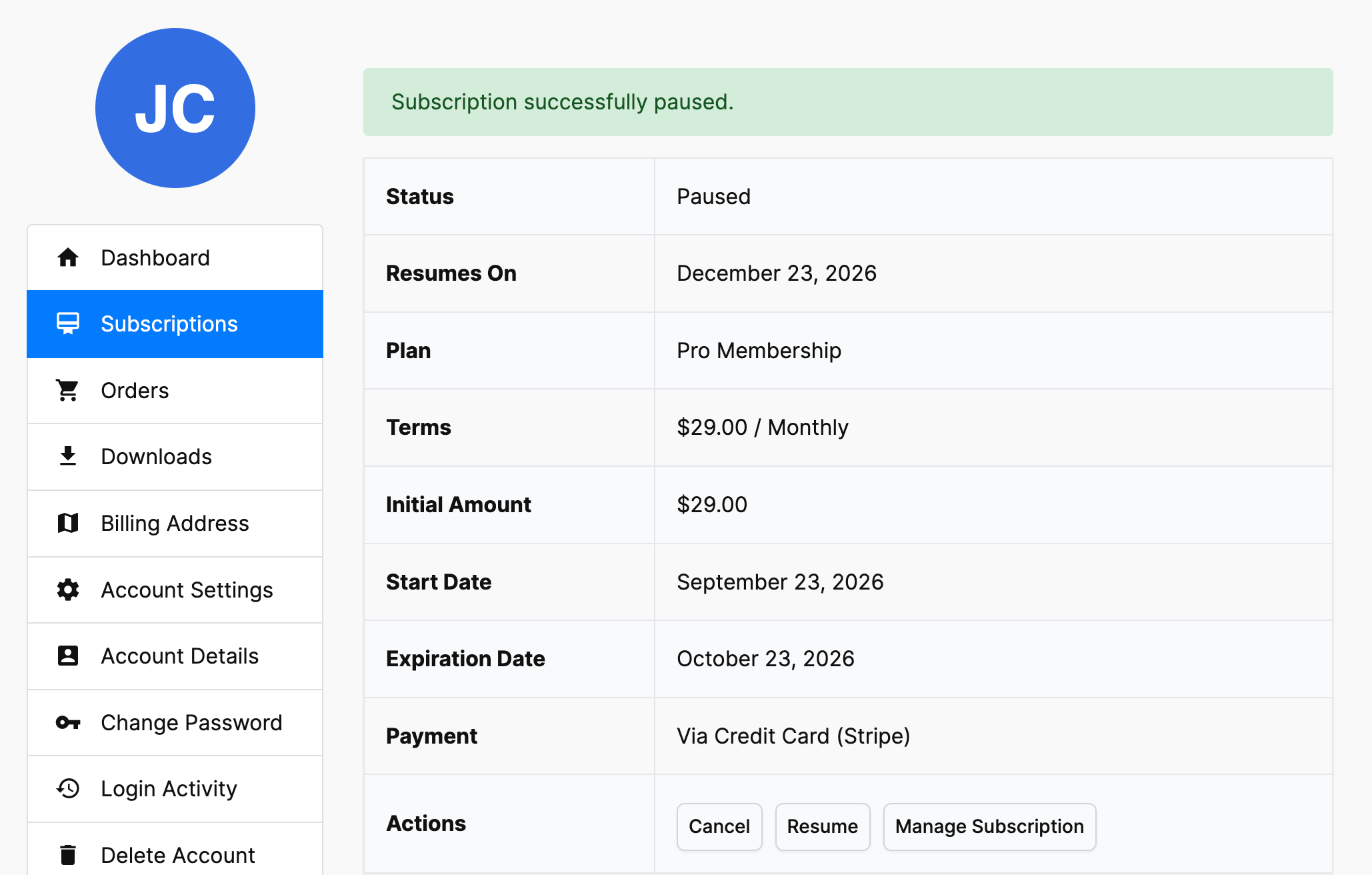
- The renewal date is now labeled Expiration Date: the end of the period the member paid for.
- The Resume and Cancel actions are available. Change Plan and Resubscribe are hidden while paused.
- Members can cancel a paused subscription at any time.
Resuming early
Members can click Resume to come back before the pause ends:
- During the paid period: the subscription becomes Active straight away, and billing continues from the date they paid until. They aren’t charged early.
- After the paid period: billing restarts right away. With Stripe, the member is charged immediately. If the payment fails, the subscription stays paused. With PayPal, Razorpay, and Paddle, the subscription shows Resuming, and access returns as soon as the gateway confirms the payment.
Note: Members can’t resume a pause that an admin made. They see “This subscription was paused by us. Please contact us if you would like to resume it.”
Managing Paused Subscriptions as an Admin
As an admin of your WordPress site, you can manage paused subscriptions and memberships in ProfilePress.
Pausing a member’s subscription
- Go to ProfilePress → Subscriptions and edit the subscription.
- Change Status to Paused.
- In the Subscription Pausing box, choose how long to pause for in Pause for: until a date up to 12 billing periods ahead, or Until resumed.
- Click Save Subscription.
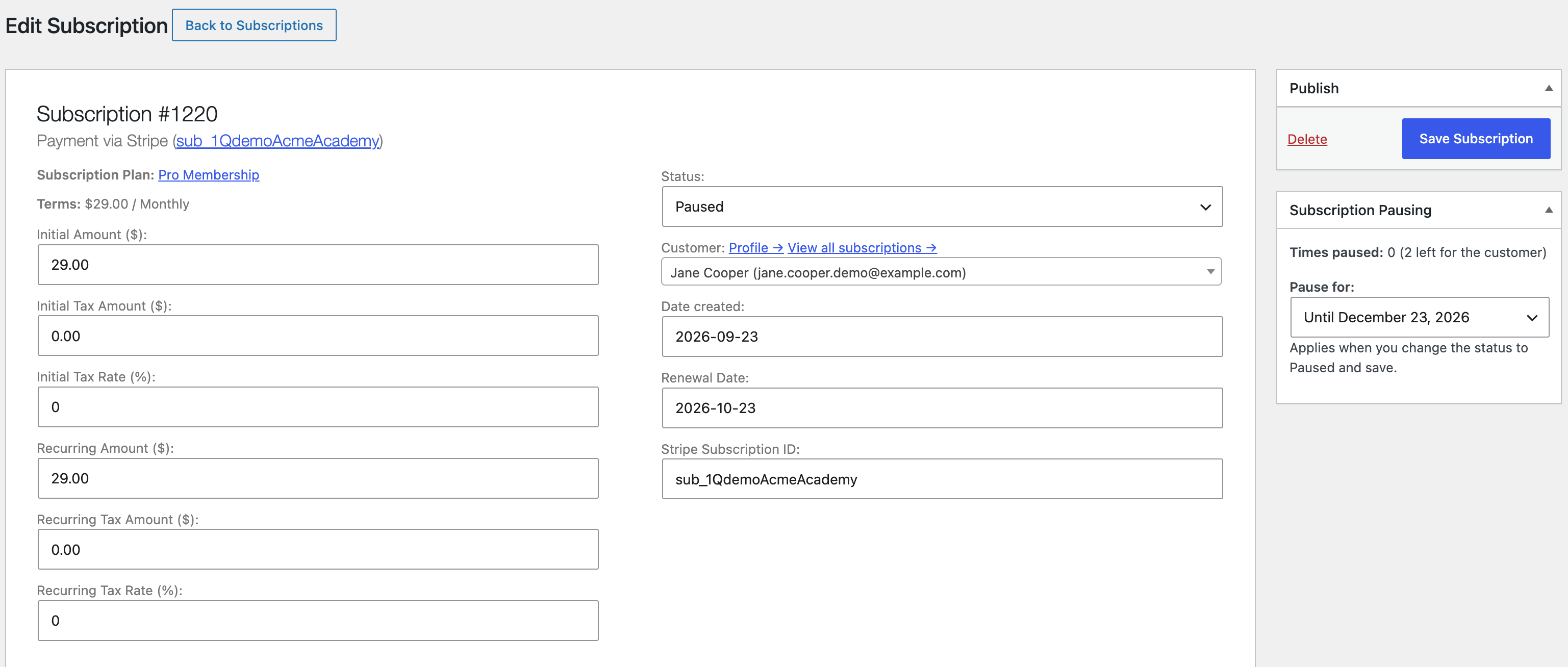
The subscription is also paused at the payment gateway. Your pause limits and settings don’t apply to admins, but only active, recurring subscriptions can be paused.
Note: Subscriptions without a payment gateway subscription ID, such as manually created ones, are paused in ProfilePress only.
Viewing pause details
The Subscription Pausing box on a paused subscription shows:
- Paused on: when it was paused.
- Paused by: the member, an admin, or the payment gateway (for pauses made in the gateway’s dashboard).
- Resumes on: when the pause ends.
- Access until: when the member’s paid access ends.
- Times paused: how many times this subscription has been paused, and how many pauses the member has left if there’s a limit.
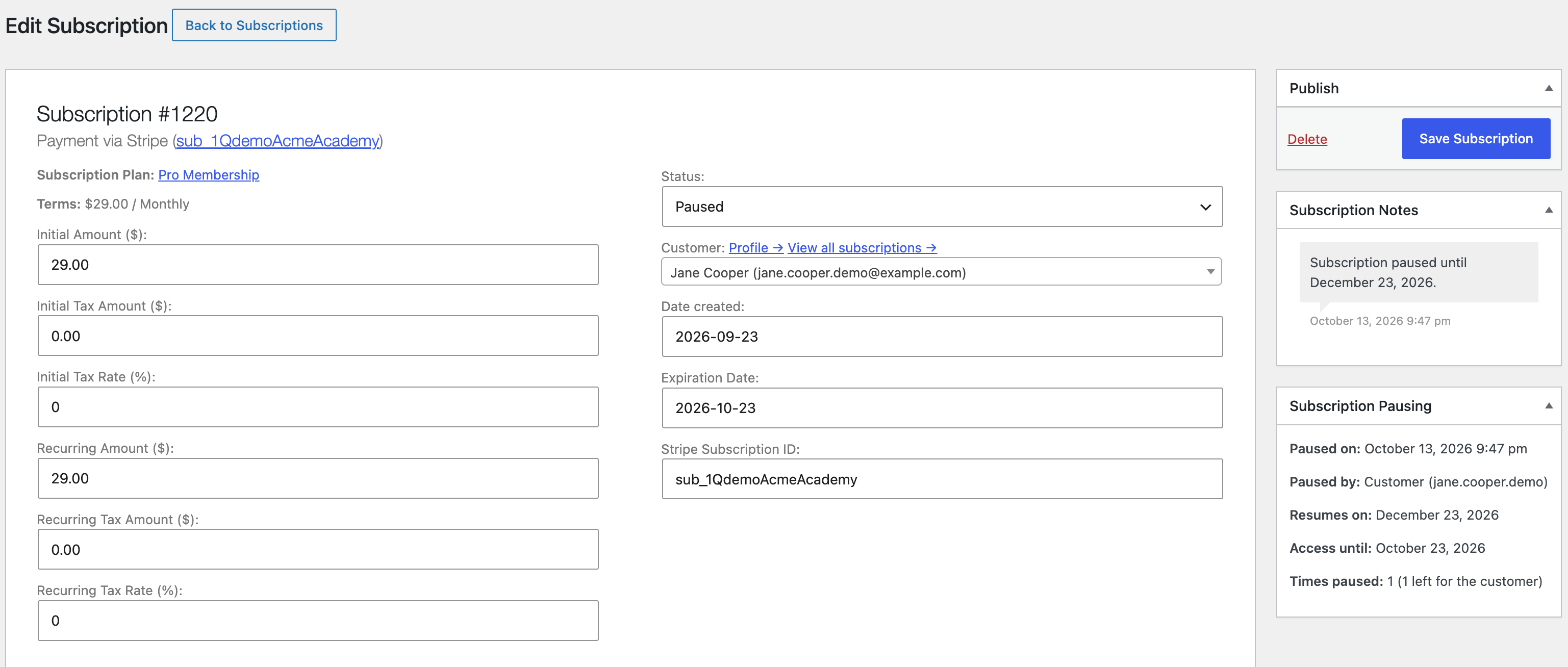
Every pause counts toward the total, including pauses by an admin or made in the gateway, but only members are held to the pause limit.
Resuming a subscription
To resume a paused subscription in WordPress, change its Status back to Active and click Save Subscription. The subscription is also resumed in the payment gateway.
If a subscription shows Resuming (billing has restarted but the payment hasn’t been confirmed yet), setting it to Active restores the member’s access straight away.
Subscription Pausing Emails
Subscription Pausing adds two emails that are sent by your membership website powered by WordPress.
Find them in ProfilePress → Settings → Emails → Subscription.
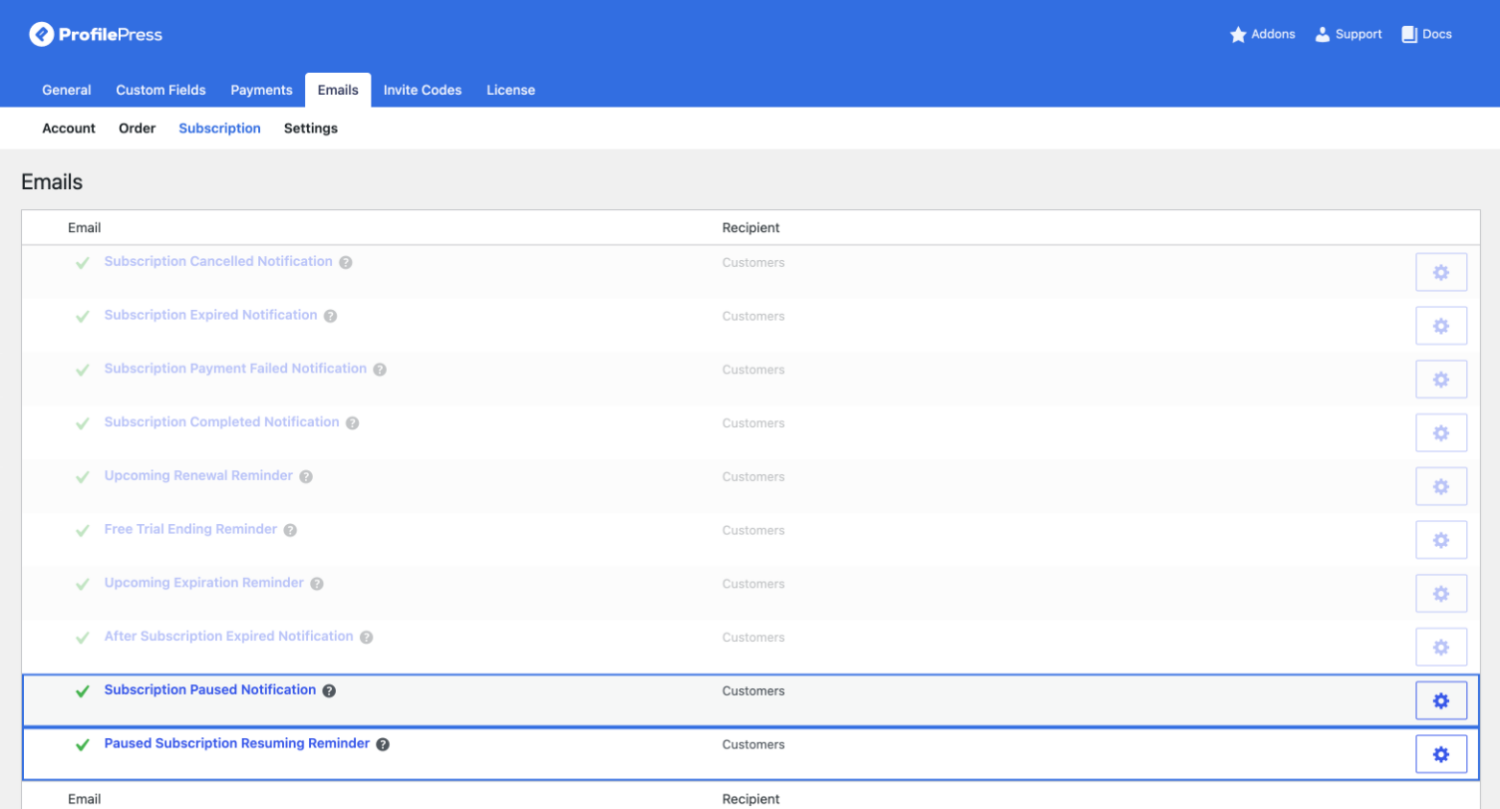
- Subscription Paused Notification: sent when a subscription is paused on your WordPress site, whether by the member, an admin, or in the payment gateway.
- Paused Subscription Resuming Reminder: sent a few days before a pause ends, so billing doesn’t take the member by surprise. It isn’t sent for pauses with no end date.
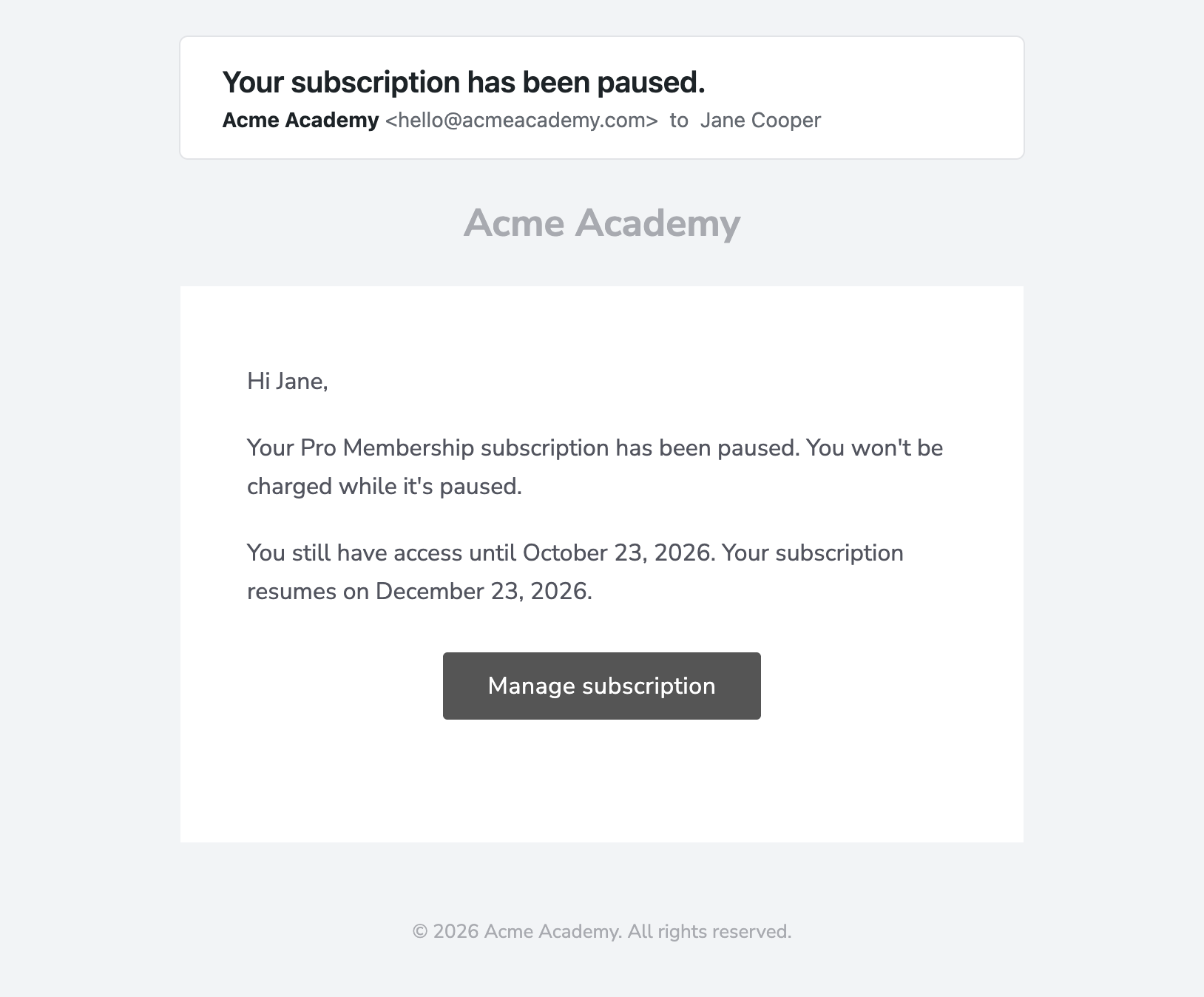
Click an email to change its subject and message, or to turn it off. The resuming reminder also has a Reminder Days setting: how many days before the pause ends to send it. Default: 3.
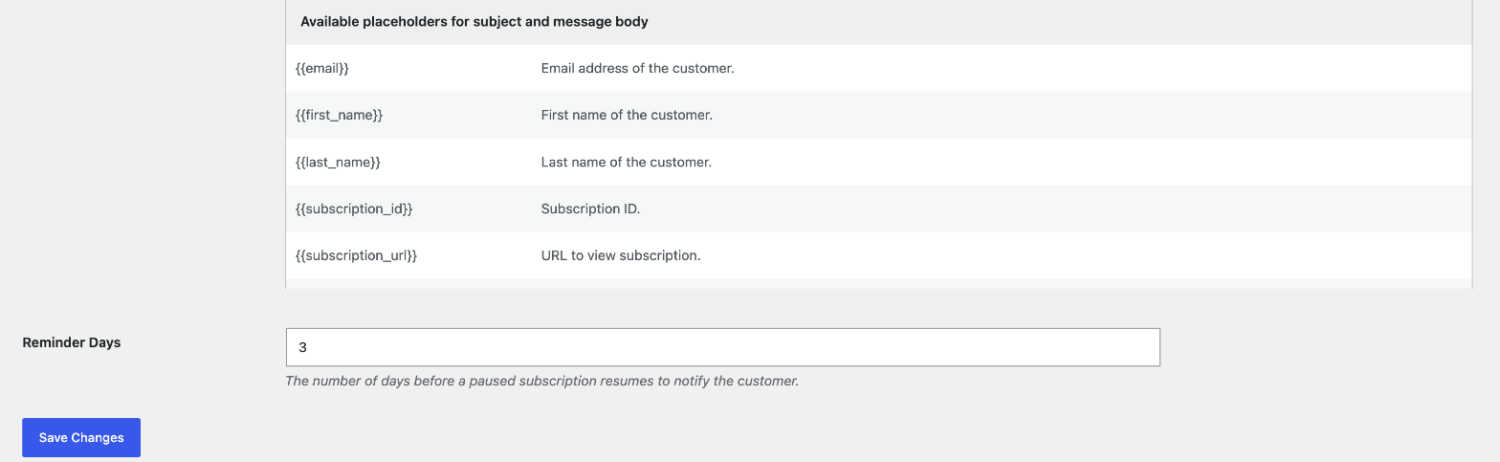
Both emails support the standard subscription email placeholders, plus:
| Placeholder | Replaced with |
|---|---|
{{pause_end_date}} |
When the pause ends, e.g., “on November 30, 2026”, or “when you resume it” for a pause with no end date. |
{{access_until}} |
The date the member keeps access until: the end of the period they already paid for. |
How Each Payment Gateway Handles Pausing
| Gateway | While paused | When the pause ends |
|---|---|---|
| Stripe | Payment collection is paused, so no invoices are charged. | Stripe resumes billing one day before the pause end date, so the renewal invoice is charged on time. |
| PayPal | The subscription is suspended in PayPal. | ProfilePress reactivates it in PayPal one day before the pause end date. |
| Razorpay | The subscription is paused in Razorpay. | ProfilePress resumes it in Razorpay one day before the pause end date. The next charge is on the next scheduled billing date. |
| Paddle | A pause is scheduled in Paddle from the next billing date. | Paddle resumes the subscription on the pause end date. |
Pauses and resumes made directly in a gateway are synced back to ProfilePress through webhooks. That includes the Stripe dashboard and the Stripe customer portal, if you’ve enabled pausing in your portal settings. If a webhook is ever missed, a daily check resumes subscriptions whose pause has ended.
Frequently Asked Questions
Q: Do members keep access while their subscription is paused? A: Yes, until the end of the billing period they already paid for. After that, they have no access to members-only content until the subscription resumes.
Q: Are members charged while paused? A: No. Billing is paused at the payment gateway, and restarts when the subscription resumes.
Q: Can members pause a free trial? A: No. The Pause option appears once the trial has converted to an active subscription.
Q: Can members cancel a paused subscription? A: Yes. The Cancel action stays available while paused.
Q: Why is Stripe’s resume date one day before the date in ProfilePress? A: That’s deliberate. Stripe stops pausing payment collection a day early, so the renewal invoice created when the pause ends is charged rather than skipped.
Q: Which payment gateways support pausing? A: Stripe, PayPal, Razorpay, and Paddle. Subscriptions paid through other gateways, such as bank transfer, Mollie, or Paystack, don’t show the Pause option.
For Developers
Subscription Pausing provides these hooks:
| Hook | Type | Description |
|---|---|---|
ppress_subscription_paused |
Action | Runs when a subscription is paused. Receives the subscription and the pause end timestamp (null for no end date). |
ppress_subscription_resumed |
Action | Runs when a paused subscription becomes active again. Receives the subscription. |
ppress_subscription_resume_pending |
Action | Runs when billing restarts but the payment hasn’t been confirmed yet. Receives the subscription. |
ppress_subscription_can_pause |
Filter | Whether a member can pause a subscription. |
ppress_subscription_pause_rules |
Filter | The pausing rules for a subscription: enabled, max_periods, limit and allow_indefinite. |
ppress_stripe_pause_collection_args |
Filter | The pause_collection arguments sent to Stripe. |
For example, to let members on plan 5 pause for up to 6 billing periods:
add_filter('ppress_subscription_pause_rules', function ($rules, $subscription) {
 if ((int) $subscription->plan_id === 5) {
 $rules['max_periods'] = 6;
 }
 return $rules;
}, 10, 2);
Purchase the Subscription Pausing addon today to turn would-be cancellations into returning members on your WordPress membership website.