
How to Sell Team Memberships in WordPress with ProfilePress
Team memberships let you sell a membership plan with seats. One person buys the plan and invites their colleagues. Everyone on the team then gets what the plan gives, such as protected content, a user role and any courses it includes.
Note: This feature requires the Team Memberships addon, included in the ProfilePress Pro Plus and Agency plans. Learn how to activate addons.
How team memberships work
- Every subscription to a team plan has one team. The buyer is the team’s owner and always has the plan’s access.
- The owner invites people from their account. Each person who joins takes a seat.
- Members don’t get a subscription of their own. Their access comes from the owner’s subscription.
- You don’t need the course builder. If the plan includes courses, members get those too.
Owners and the managers they choose run the team themselves. See How to Manage a Team Membership.
How to create a team plan
- Go to ProfilePress » Membership Plans and click Add New Plan, or edit an existing plan.
- Set up the plan’s price, billing and what it protects as usual.
- In the Downloads & Integrations box, open the Team tab.
- Check Team Plan.
- Choose the Seat Pricing and fill in the seat settings below.
- Save the plan.
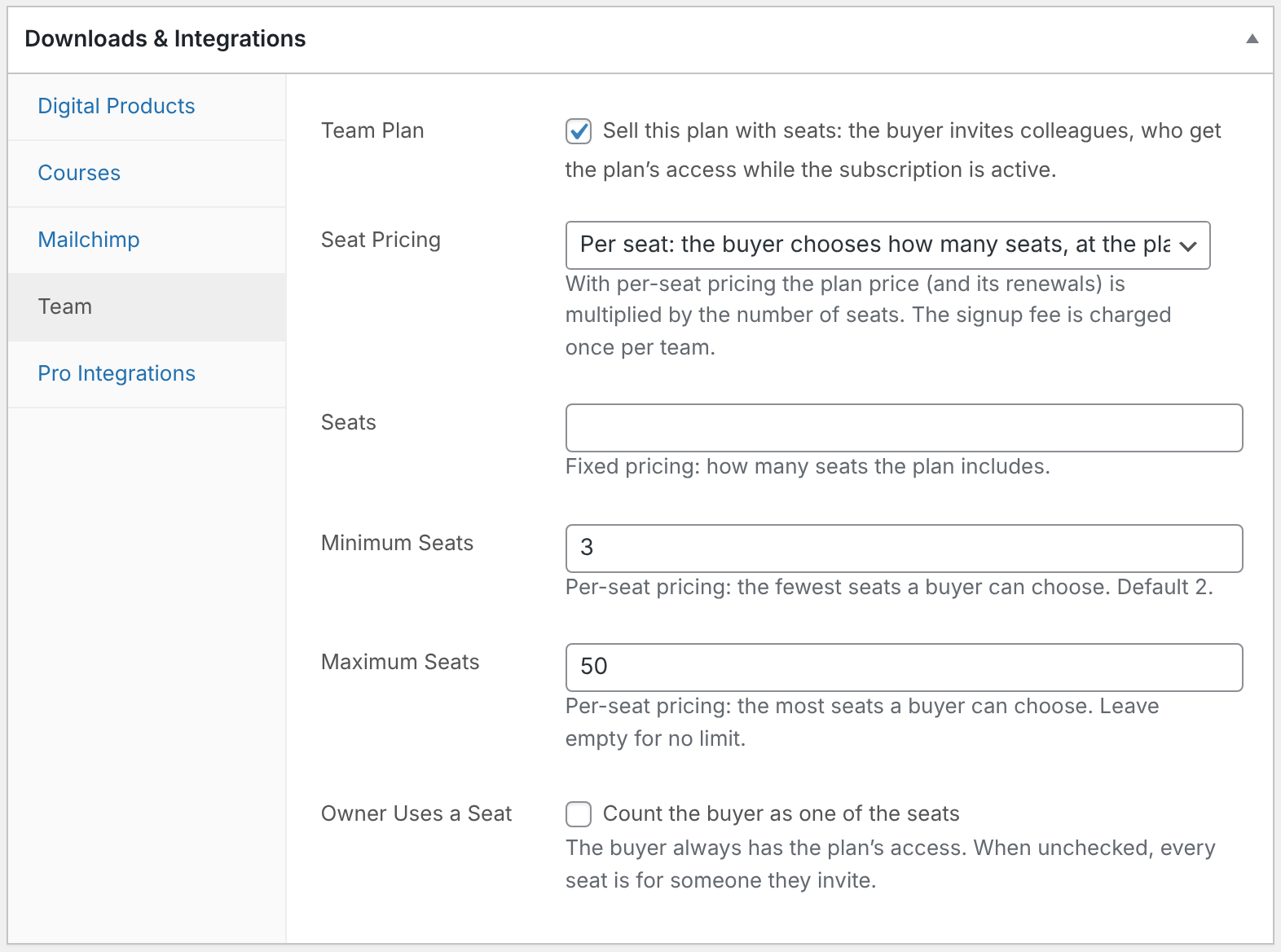
| Setting | What it does |
|---|---|
| Team Plan | Sells the plan with seats. |
| Seat Pricing | Fixed: the plan price buys a set number of seats. Per seat: the buyer chooses how many seats and pays the plan price for each. |
| Seats | Fixed pricing only. How many seats the plan includes. Empty means 5. |
| Minimum Seats | Per-seat pricing only. The fewest seats a buyer can choose. Default 2. |
| Maximum Seats | Per-seat pricing only. The most seats a buyer can choose. Leave it empty for no limit. |
| Owner Uses a Seat | Counts the buyer as one of the seats. When unchecked (the default), every seat is for someone they invite. |
With per-seat pricing, the plan price is multiplied by the number of seats, for the first payment and every renewal. The signup fee is charged once per team. Coupons and taxes apply to the team’s total.
What the buyer sees at checkout
- Fixed plans show a note such as “Includes 5 seats. After checkout, invite your team from your account.”
- Per seat plans show a Number of seats picker with the price per seat and the allowed range. The order summary updates as the buyer changes it.
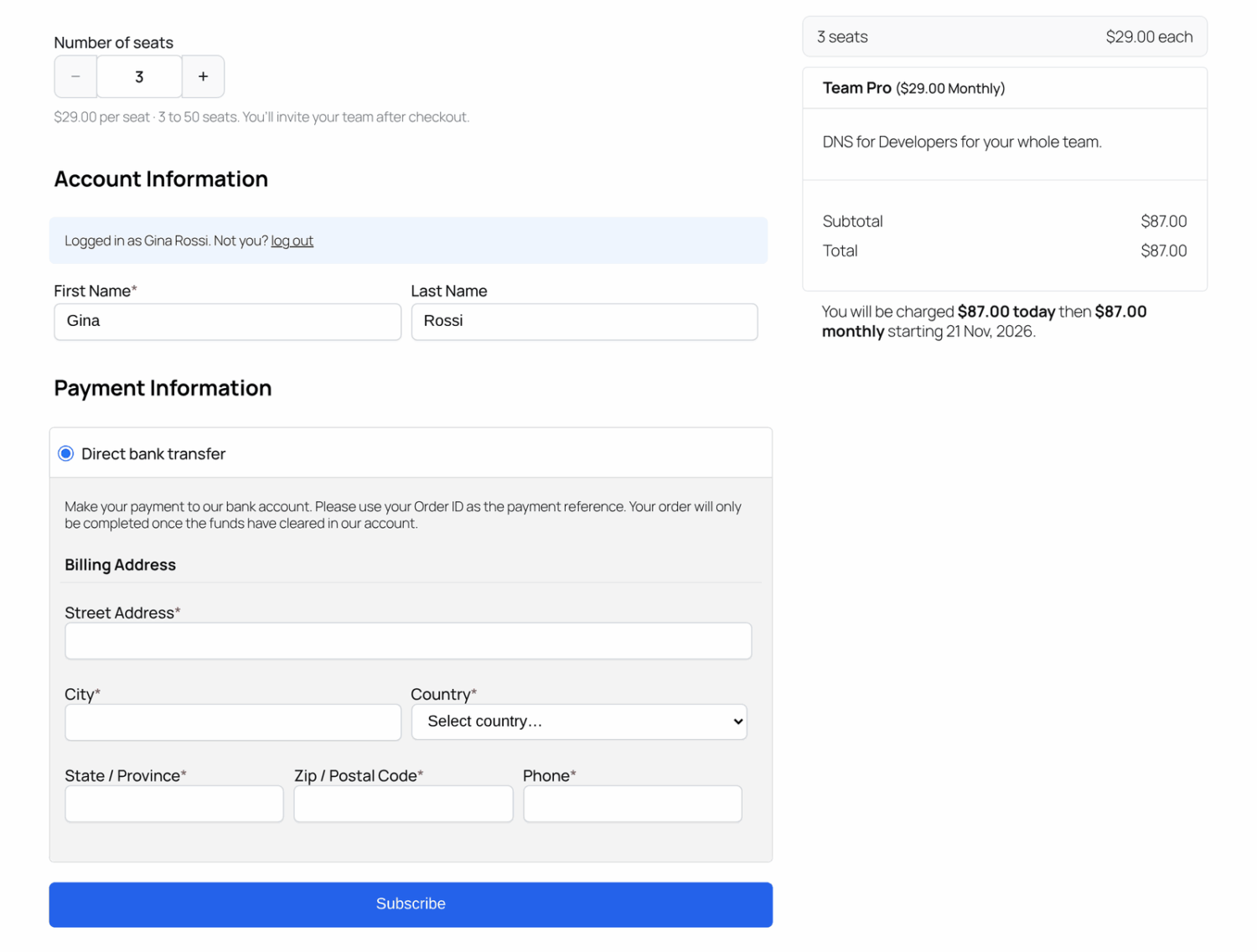
The team is created when the subscription becomes active. The buyer finds it under My Account » Teams.
What team members get
Joining a team gives a member what buying the plan would:
- access to everything the plan protects;
- the plan’s user role, if it has one;
- the plan’s email list in Mailchimp, Brevo, Campaign Monitor or MailerLite, if you set one;
- the plan’s ProfilePress courses, if you use the course builder;
- the courses, groups or spaces the plan gives in Tutor LMS, Academy LMS, LearnDash, LifterLMS, Sensei LMS, MasterStudy LMS and FluentCommunity.
With Content Dripping, a member’s drip schedule starts on the day they join, so latecomers don’t get everything at once.
When a member leaves or is removed, these are taken away. A role they already had, or still get another way, is kept. ProfilePress courses keep their progress for when they come back. In other course plugins they’re unenrolled, unless another plan they have still gives the course.
What happens when the subscription renews, lapses or changes
Whatever happens to the owner’s subscription applies to the whole team straight away.
- Renewal: members keep their access.
- Cancellation: members keep access until the end of the paid period, like the owner.
- Expiry, refund or pause: members lose access, but the team is kept. Members see Access paused on their Teams page, and the team can’t invite anyone.
- Renewed again later: every member gets their access back. Nobody needs a new invitation.
- Plan change: the team moves to the new team plan with its seat count. If there are more people than seats, the newest invitations are removed first, then the newest members. Members get what the new plan gives and lose what only the old plan gave, such as its user role.
If the owner switches to a plan that isn’t a team plan, the team stops giving access.
The owner counts as a student too: they’re enrolled in the plan’s courses, get course emails and show in course reports. Team access also needs Team Memberships to stay active, so if your ProfilePress Pro license expires, members lose access to the plan’s courses until you renew.
How owners change their seats
On per-seat plans, owners change their seat count from their account. Adding seats starts a new billing period today, less credit for the unused part of the current one. Removing seats lowers the price from the next renewal.
For fixed-seat plans, create team plans of different sizes and put them in one plan group. Owners then change size by changing plan.
How team orders show their seats
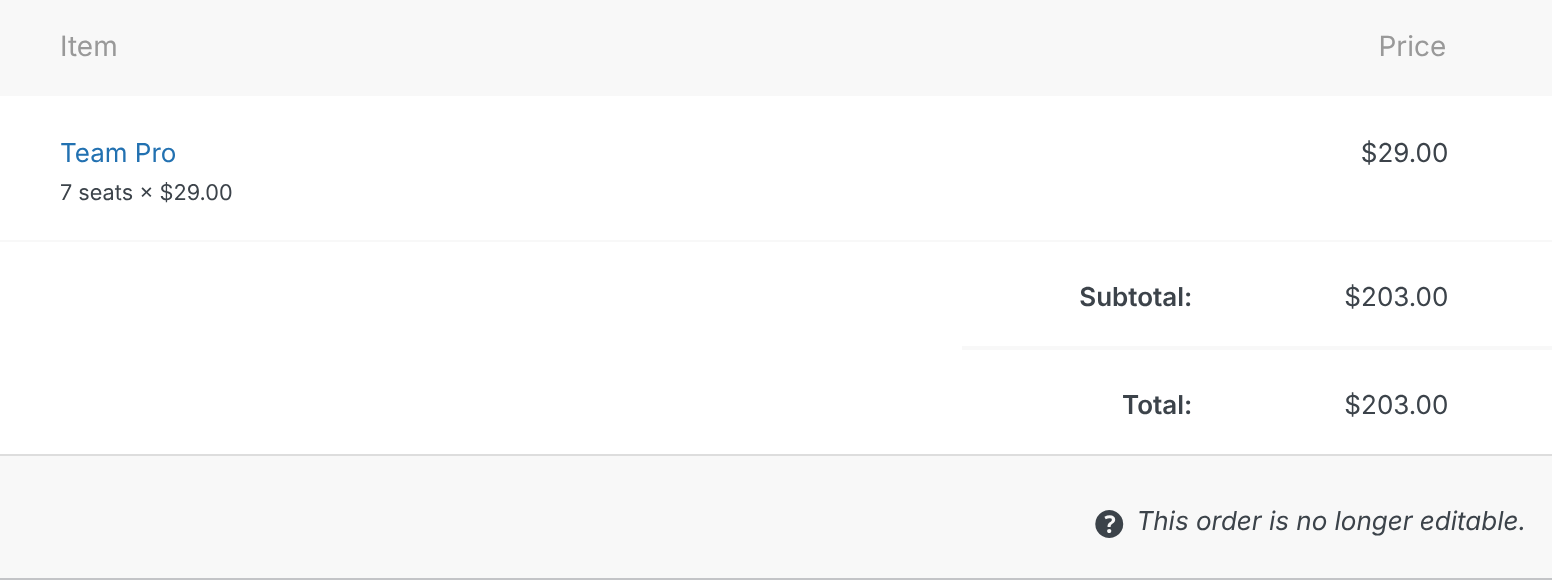
A team plan’s orders show the seats they paid for under the plan name, so the subtotal is clear at a glance. You’ll see it on the order screen under ProfilePress » Orders, and the buyer sees it on the payment confirmation page, the order in My Account and the receipt.
- Per seat plans: for example “3 seats × $20.00”.
- A change of seats or plan: for example “Changed to 7 seats, $20.00 each”. These orders are prorated, so the subtotal isn’t simply seats × price.
- Fixed plans: for example “Includes 5 seats”.
How to manage a team as an admin
- Go to ProfilePress » Subscriptions and open the owner’s subscription.
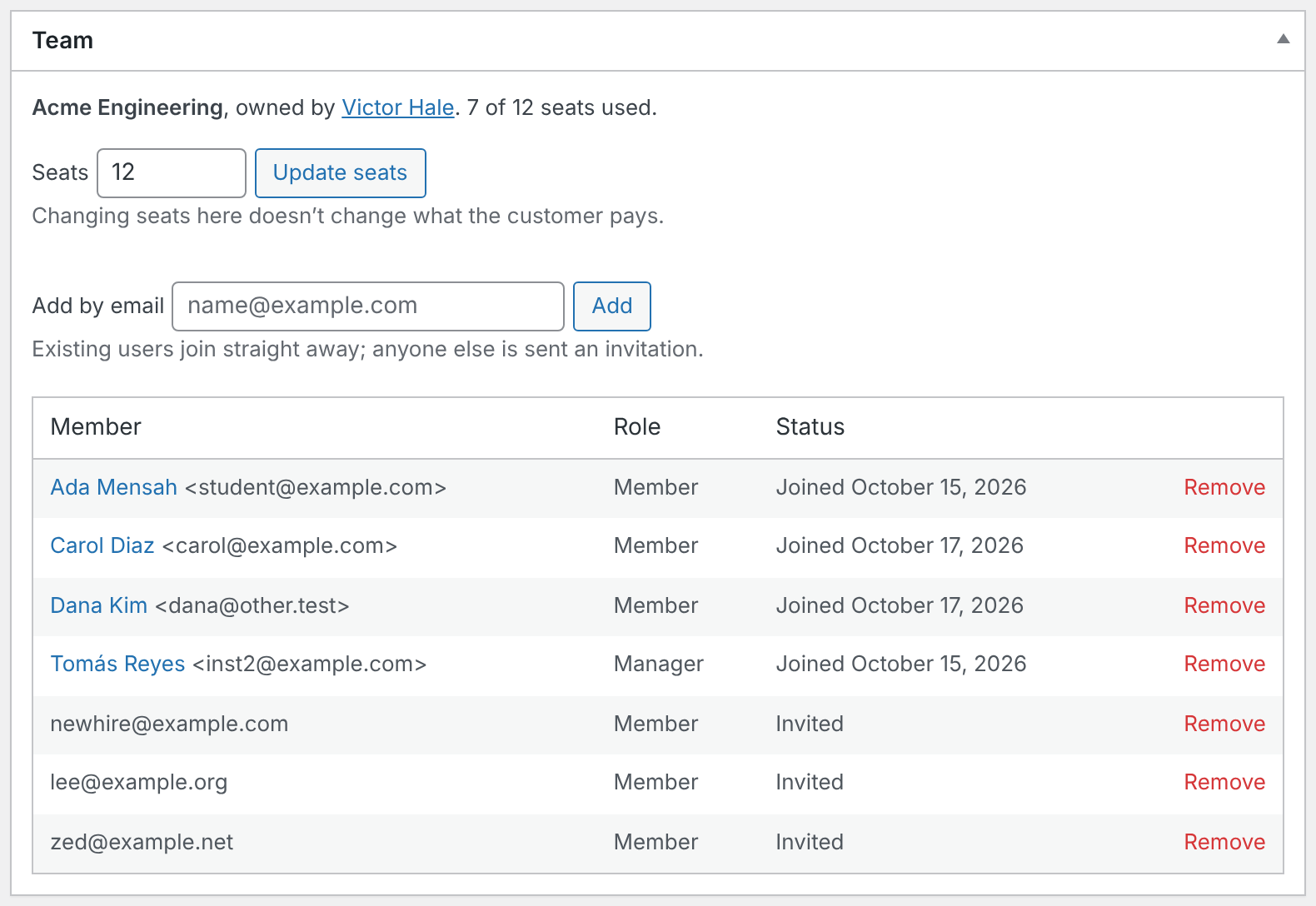
- Find the Team box. It shows the team name, owner and seats used, and warns when members have no access.
- To change the seat count, enter a number in Seats and click Update seats. This doesn’t change what the customer pays.
- To add someone, enter their email in Add by email and click Add. Existing users join straight away; anyone else gets an invitation.
- To remove a member or cancel an invitation, click Remove on its row.
Team emails
Go to ProfilePress » Settings » Emails to edit or turn off these emails.
| Sent to | When | |
|---|---|---|
| Team Invitation | Invited people | When someone is invited or an invitation is resent. |
| Team Invitation Reminder | Invited people | Once, if an invitation is still open after three days. |
| Team Member Joined | Team owners | When someone joins their team. |
| Removed From Team | Team members | When they’re removed. Not sent when they leave on their own. |
Each email’s editor lists its placeholders, such as {{team_name}}, {{accept_url}} and {{invite_expiry}}.
How to change the Teams page address
- Go to ProfilePress » Settings. On the General tab, open My Account.
- Change Teams Endpoint and save.
Invitation and join links already sent keep working.
Frequently asked questions
Do I need the course builder to sell team plans?
No. A team plan gives members whatever the plan gives. Courses are one more thing a team can get.
Why aren’t team members in the subscriptions list?
Members don’t have their own subscription; only the owner does. You’ll find members in the Team box on the owner’s subscription.
Can members see the plan’s downloads?
No. Downloads belong to the buyer, so members don’t see them under My Account » Downloads.
Can one owner have two teams?
Each subscription has one team. An owner who needs a second team buys the plan again.
Can someone be on more than one team?
Yes. A user can own, manage or be a member of several teams. Their Teams page in My Account lists the teams they manage and the teams they’re on, and they get the access of every team whose subscription is active.
What if I set fewer seats than are in use?
Nobody is removed. The team can’t invite anyone new until enough seats are free.
What happens if I delete the owner’s subscription?
The team is deleted too, and members lose the access it gave them.
What happens to teams if I delete ProfilePress?
Nothing, unless Remove Data on Uninstall is checked under ProfilePress » Settings » General » Global. If it is, deleting ProfilePress also removes all teams, members and invitations. The plans and subscriptions are removed with the rest of ProfilePress’s data.