
Pausing Stripe, PayPal, Razorpay or Paddle Subscription in WordPress
Do you want members to pause their Stripe, PayPal, Razorpay, or Paddle subscription on your WordPress site without you logging into the payment gateway every time?
Every payment gateway handles pausing differently. Stripe pauses payment collection, PayPal suspends the subscription, Razorpay won’t pause a subscription until its first renewal, and Paddle schedules the pause for the next billing date. If your membership plugin and your gateway get out of sync, members get charged while paused or lose access they’ve paid for.
In this article, you will learn how to let members pause their subscriptions with the ProfilePress Subscription Pausing addon, and exactly what happens in each payment gateway when a member pauses and resumes.
How Pausing Works Across Gateways
Whichever gateway a member pays with, the Subscription Pausing addon gives them the same experience:
- They pause from My Account → Subscriptions, choosing a date to pause until.
- They keep access until the end of the billing period they’ve already paid for.
- They aren’t charged while paused, and have no access to members-only content after their paid period ends.
- Billing restarts automatically when the pause ends, and their access comes back.
- They can resume early or cancel at any time.
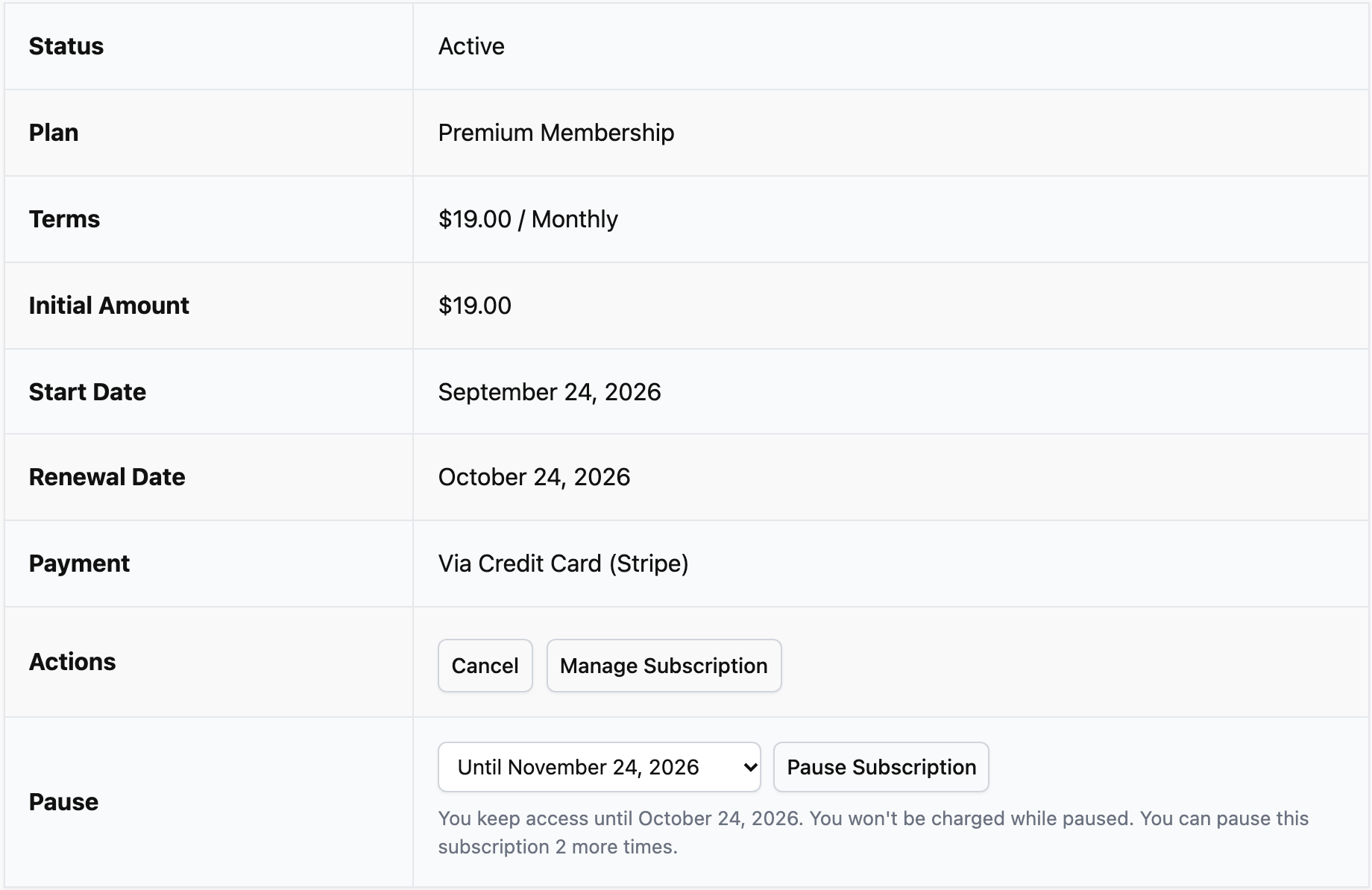
Behind the scenes, ProfilePress also pauses the subscription in the payment gateway, so the gateway stops charging the member. What happens next depends on the gateway, as explained below.
Setting Up Pausing
- Go to ProfilePress → Addons and activate the Subscription Pausing addon.
- Go to ProfilePress → Settings → Payments → Settings, tick Subscription Pausing, and set the Maximum Pause Length and Pause Limit.
- Set up the webhook events for your gateways, as listed in each gateway’s section below.
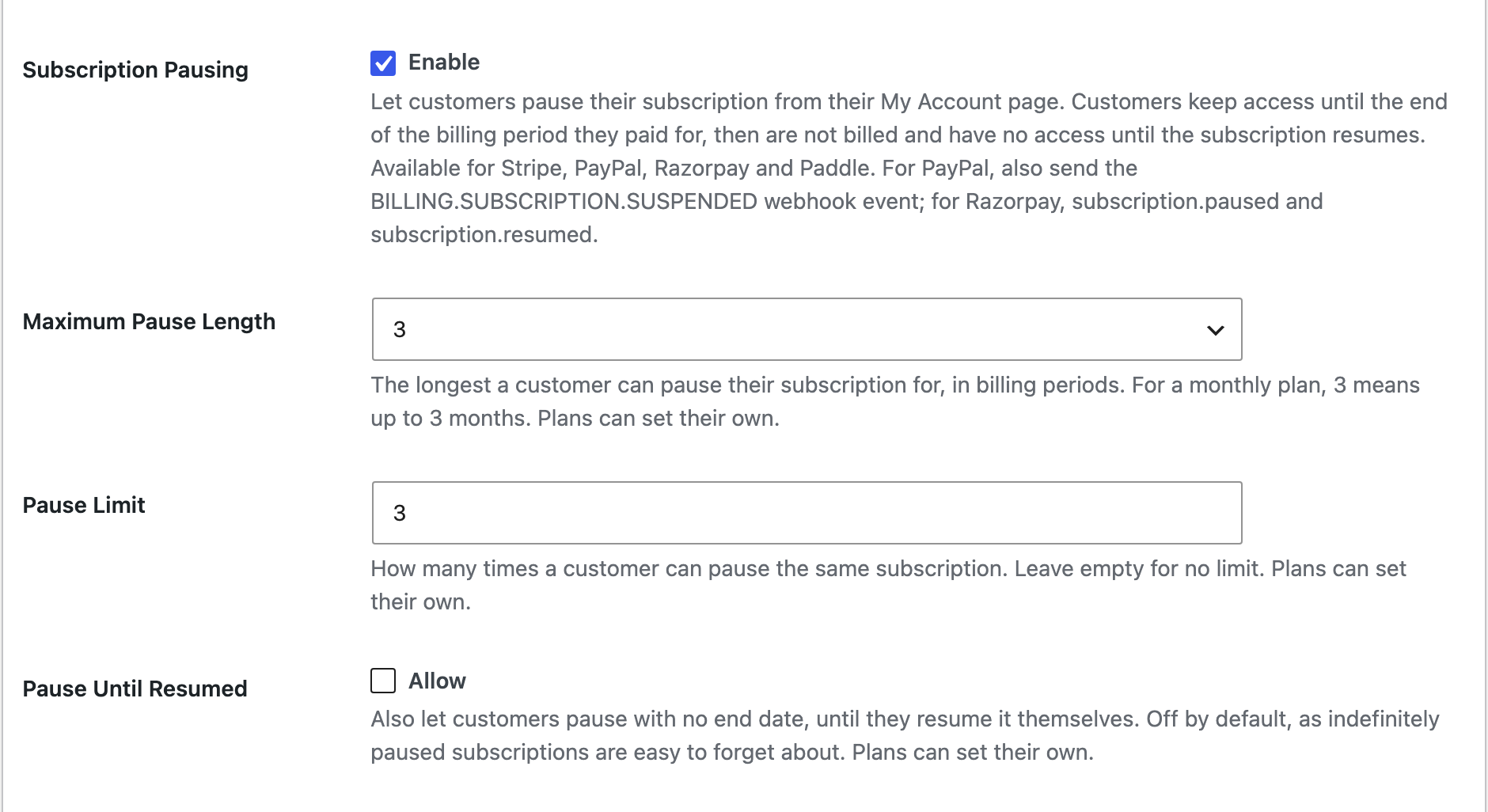
Our guide on how to let members pause their WordPress membership covers every setting, including per-plan rules and the pause emails.
Pausing Stripe Subscriptions
Stripe has the most complete pausing support and needs no extra setup.
When a member pauses: ProfilePress pauses payment collection on the Stripe subscription. Any invoice Stripe creates while the subscription is paused is voided, so the member isn’t charged. In your Stripe dashboard, the subscription shows payment collection as paused.
When the pause ends: Stripe resumes collection by itself. ProfilePress sets Stripe’s resume date one day before the pause ends, so Stripe charges the invoice at the end of the pause rather than voiding it.
When a member resumes early:
- Still within their paid period: collection resumes and billing continues from the date they’ve paid until. They aren’t charged early.
- After their paid period ends: Stripe charges them immediately, and their billing cycle restarts from today. If the charge fails, the subscription stays paused, so members never regain access without paying.
Pauses made in Stripe sync to ProfilePress. If you pause payment collection in the Stripe dashboard, or a member pauses through Stripe’s customer portal (when you’ve turned on pausing in your portal settings), ProfilePress marks the subscription as Paused and shows Stripe’s resume date. If there’s no resume date in Stripe, the member sees “When you resume it”.
Canceling while paused: a member can cancel a paused Stripe subscription from My Account, and it’s canceled in Stripe too.
Pausing PayPal Subscriptions
When a member pauses: ProfilePress suspends the subscription in PayPal. It shows as Suspended in your PayPal account, and PayPal doesn’t bill the member while it’s suspended.
When the pause ends: PayPal can’t reactivate a subscription on a set date, so ProfilePress does it. Its daily job reactivates the PayPal subscription a day before the pause ends, and the member is billed on PayPal’s schedule from there.
When a member resumes early, the subscription is reactivated in PayPal. Within the paid period, the subscription becomes active again straight away. After the paid period, the member gets access back once PayPal’s renewal payment arrives.
Pauses made in PayPal sync to ProfilePress. Suspending or reactivating a subscription in your PayPal account updates it in ProfilePress.
Webhook events: make sure your PayPal app’s webhook includes BILLING.SUBSCRIPTION.SUSPENDED and BILLING.SUBSCRIPTION.ACTIVATED.
Pausing Razorpay Subscriptions
Razorpay has one important rule: a subscription can only be paused after its first renewal payment.
When a member subscribes, ProfilePress takes the first payment up front, and Razorpay starts its own billing schedule at the end of that period. Until Razorpay makes its first scheduled charge, the subscription isn’t “active” in Razorpay, and Razorpay cancels a subscription that’s paused in that state.
To protect members from that, ProfilePress doesn’t offer the pause option until the first renewal payment has gone through. Until then, members see this message instead:
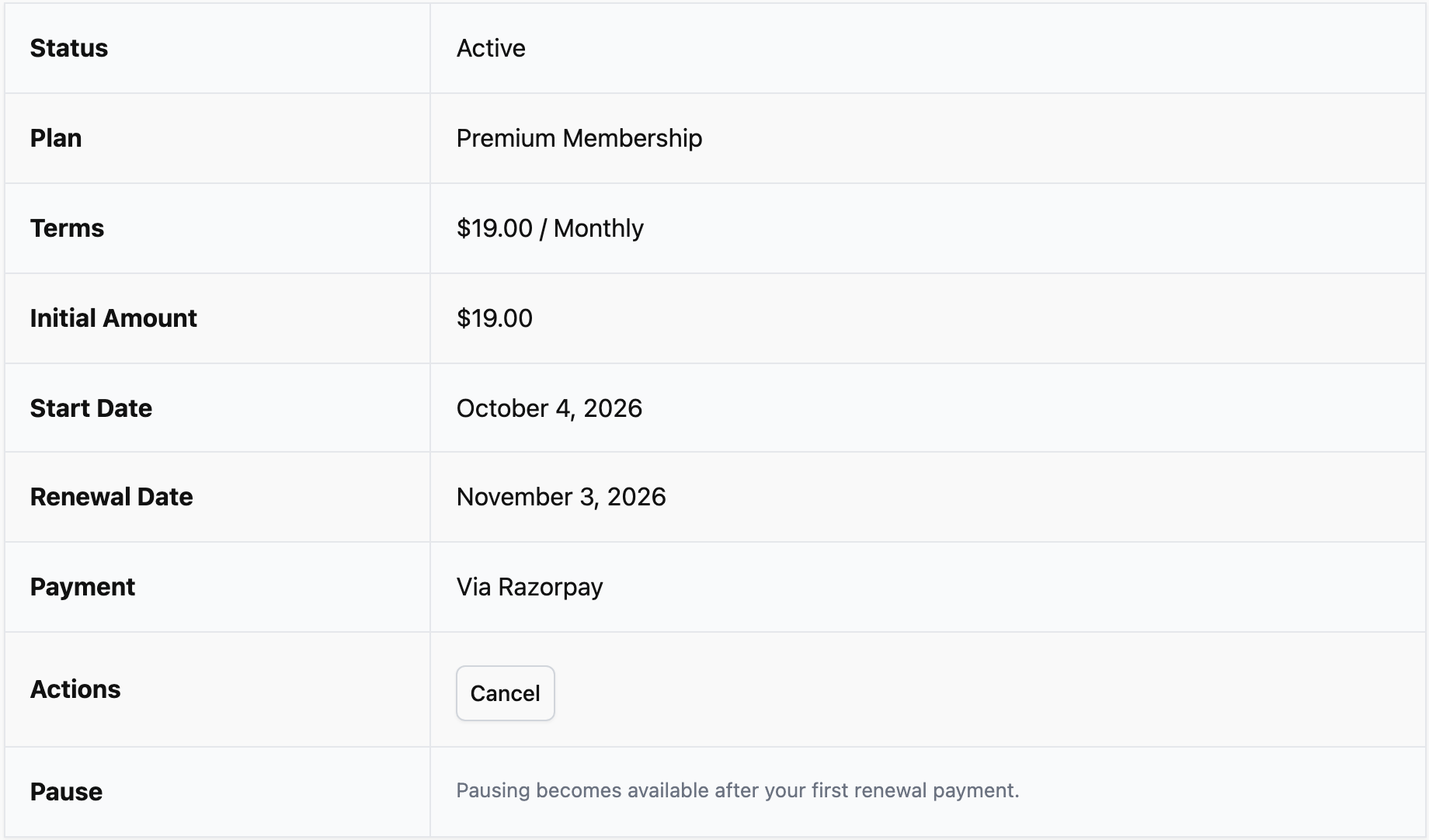
Admins can’t pause a Razorpay subscription in its first period either. If you try, the status stays the same, and a note on the subscription explains why.
When a member pauses: ProfilePress pauses the subscription in Razorpay straight away. The current period is already paid for, and Razorpay doesn’t attempt any charges while the subscription is paused.
When the pause ends: Razorpay can’t resume on a set date, so ProfilePress’s daily job resumes the subscription a day before the pause ends.
When a member resumes early: the subscription is resumed in Razorpay, and the next charge happens on the next scheduled billing date. Razorpay doesn’t charge straight away. If the member’s paid period has already ended, their access returns once that payment comes through.
Pauses made in Razorpay sync to ProfilePress. Pausing or resuming a subscription in your Razorpay dashboard updates it in ProfilePress.
Webhook events: add subscription.paused and subscription.resumed to your Razorpay webhook. See our Razorpay setup guide for the full list of events.
Pausing Paddle Subscriptions
When a member pauses: Paddle schedules the pause to start at the subscription’s next billing date, with a resume date. So the member keeps the period they’ve paid for. The subscription shows as Paused in ProfilePress straight away.
When the pause ends: Paddle resumes the subscription on the resume date, starts a new billing period, and charges the member.
When a member resumes early:
- Before the pause has started (before the next billing date): the scheduled pause is removed in Paddle and the subscription carries on as normal, with no extra charge.
- After the pause starts: Paddle starts a new billing period and charges the member immediately. The member sees “Billing has restarted. Your access returns once the payment is processed.” and regains access once Paddle confirms payment.
Pauses made in Paddle sync to ProfilePress. Pausing or resuming a subscription in your Paddle dashboard updates it in ProfilePress.
Webhook events: add subscription.paused and subscription.resumed to your Paddle notification destination. See our Paddle setup guide for the full list of events.
Gateways That Don’t Support Pausing
Members paying with Mollie, Paystack, or Direct Bank Transfer don’t see a pause option because ProfilePress can’t pause those subscriptions in the gateway.
As an admin, you can still pause a subscription that was added manually, with no payment gateway subscription ID. It’s paused in ProfilePress only. Go to ProfilePress → Subscriptions, edit the subscription, and set its status to Paused.
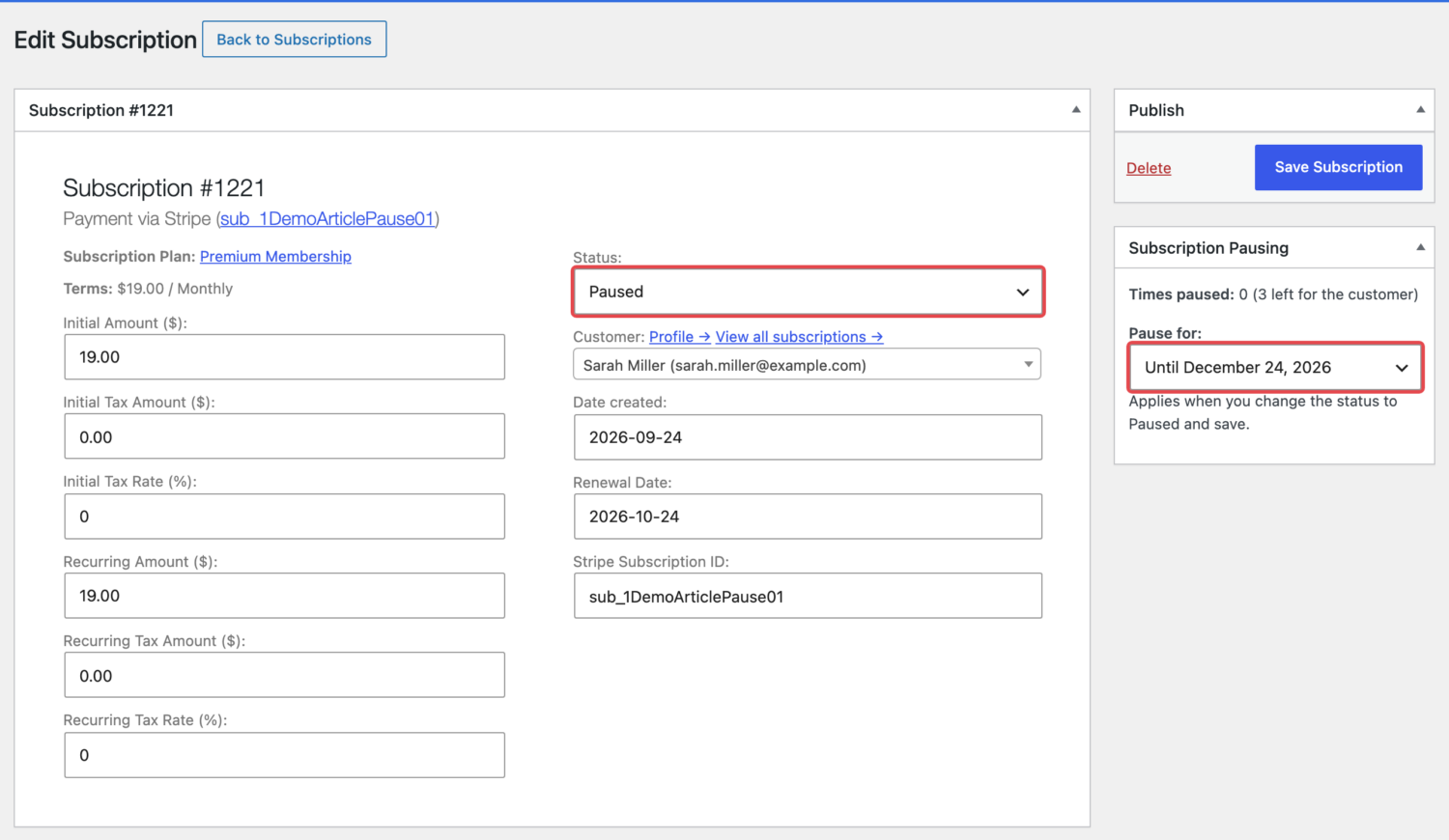
If you try to pause a subscription from a gateway that doesn’t support pausing, the status stays as it was, and a note on the subscription explains that its payment method doesn’t support pausing.
Gateway Comparison
| Stripe | PayPal | Razorpay | Paddle | |
|---|---|---|---|---|
| Pause in the gateway | Payment collection paused | Subscription suspended | Subscription paused | Pause scheduled from the next billing date |
| Resumes automatically | Yes, by Stripe | Yes, by ProfilePress | Yes, by ProfilePress | Yes, by Paddle |
| Early resume within the paid period | No charge | Reactivated | No charge | Scheduled pause removed, no charge |
| Early resume after the paid period | Charged now, new billing cycle | Access returns with PayPal’s next payment | Charged on the next scheduled date | Charged now, new billing period |
| Pause before first renewal | Yes | Yes | No | Yes |
| Gateway dashboard pauses sync | Yes | Yes | Yes | Yes |
| Webhook events to add | None | BILLING.SUBSCRIPTION.SUSPENDED |
subscription.paused, subscription.resumed |
subscription.paused, subscription.resumed |
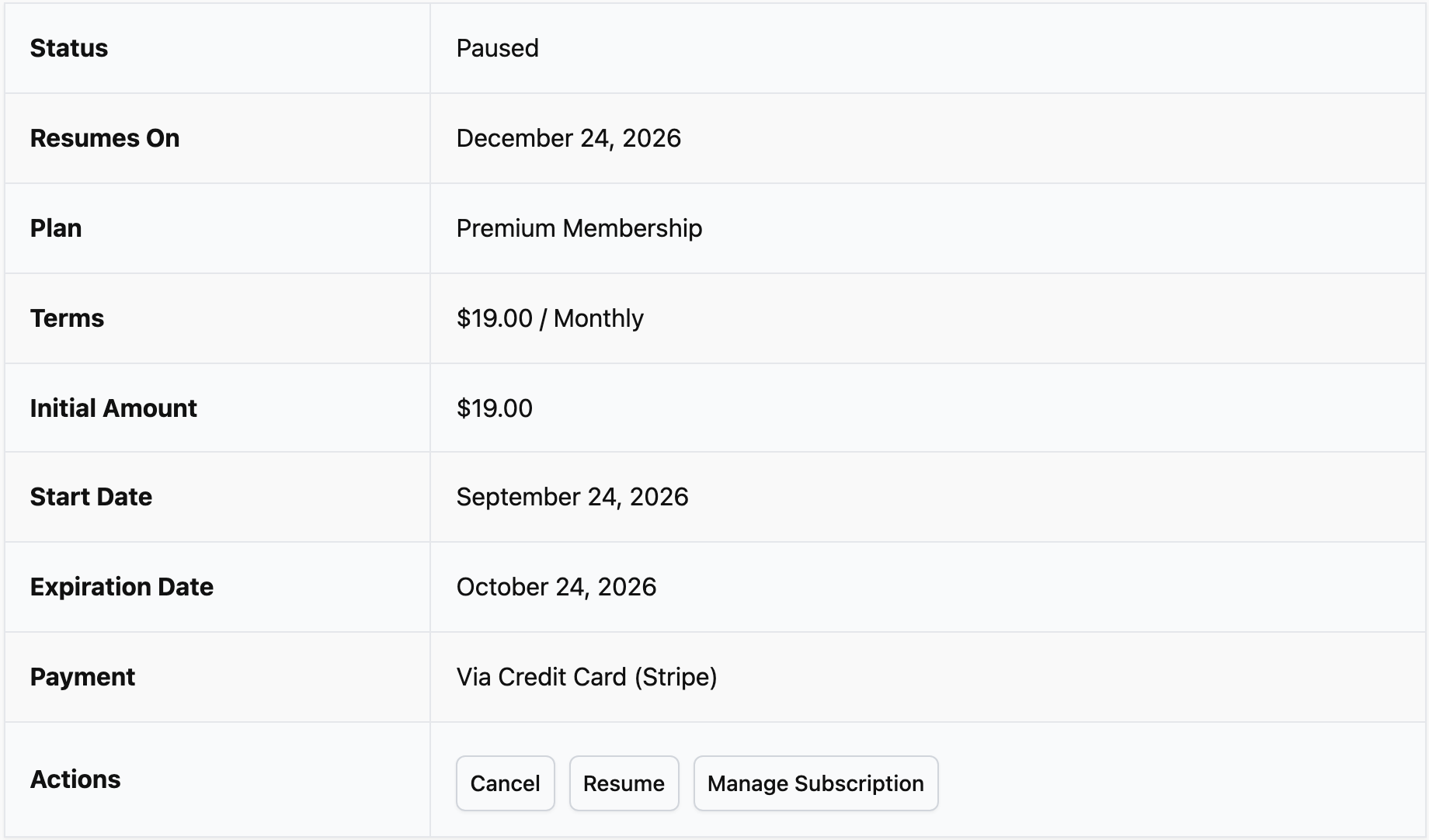
Whatever the gateway, a paused subscription looks the same to your member:
Frequently Asked Questions
Q: What if a webhook doesn’t reach my site when a pause ends? A: ProfilePress checks paused subscriptions once a day. If a pause has ended and the subscription is still paused, it resumes it, so members aren’t left stuck.
Q: Can members be charged while their subscription is paused? A: No. Stripe voids invoices created during the pause, PayPal and Razorpay don’t bill suspended or paused subscriptions, and Paddle doesn’t bill during the pause it has scheduled.
Q: Why can’t my Razorpay members pause straight after subscribing? A: Razorpay cancels subscriptions that are paused before their first scheduled charge. ProfilePress offers the pause option once the first renewal payment has been made, so a member’s subscription is never canceled by accident.
Q: Can I pause subscriptions in my gateway’s dashboard instead of in WordPress? A: Yes. Pausing and resuming in the Stripe, PayPal, Razorpay, or Paddle dashboard syncs to ProfilePress once the webhook events above are set up.
Q: Does pausing work with free trials? A: No. Only active subscriptions can be paused, so a member on a free trial sees the pause option once their trial has ended and their first payment has been made.
We hope this article helped you learn how to pause Stripe, PayPal, Razorpay, and Paddle subscriptions on your WordPress site.
Get the Subscription Pausing addon today so your members can take a break instead of canceling.