
Subscription Email Notifications
ProfilePress automatically emails your members at key moments in their subscription lifecycle — when a payment fails, when a subscription is about to renew or expire, and more. This article covers every subscription email, where to configure them, and which placeholders you can use in each.
Where to Configure Subscription Emails
Go to ProfilePress >> Settings >> Emails >> Subscription. You’ll see a list of every subscription email ProfilePress sends.
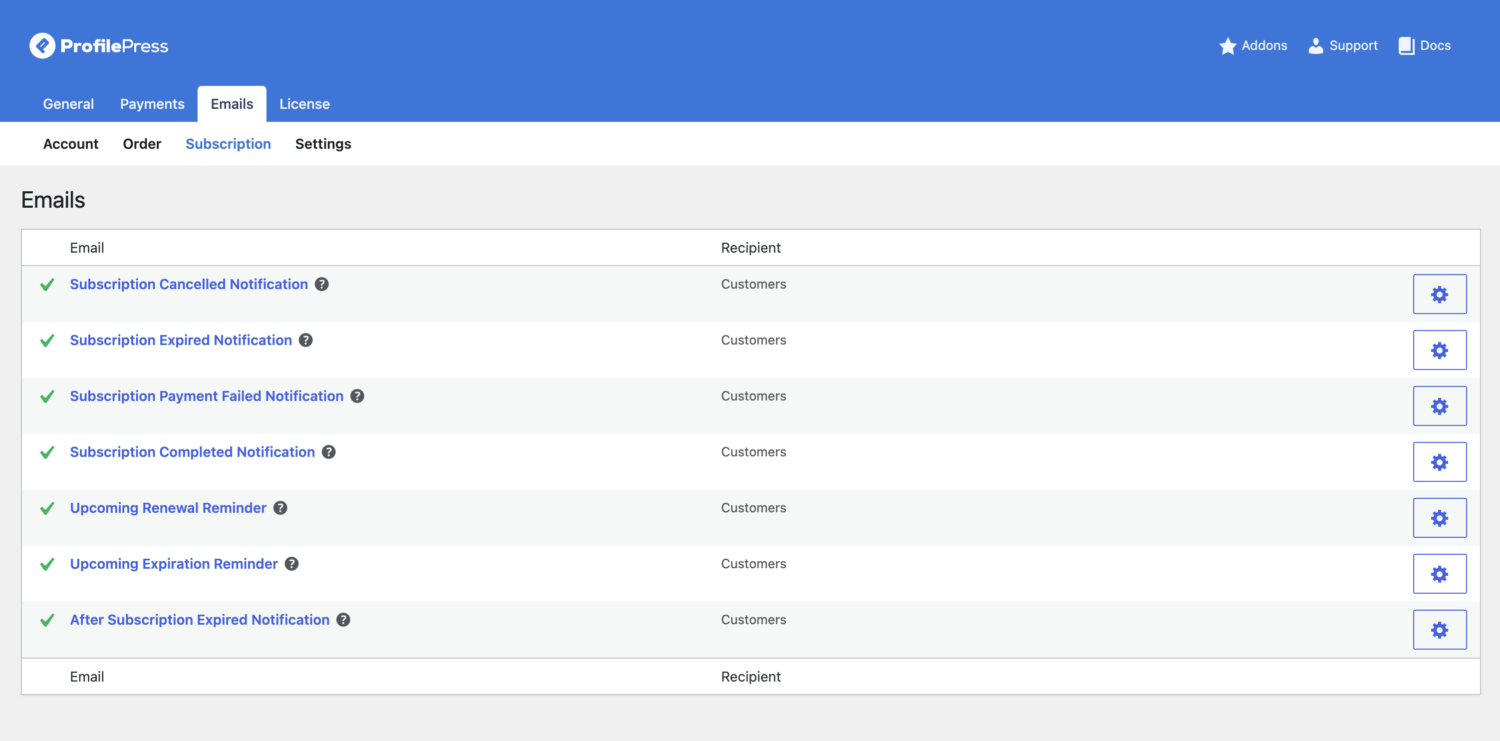
Click any email in the list to edit it. Each email has:
- Enable Notification — a checkbox to turn the email on or off. Uncheck it to stop that email from sending.
- Subject Line — the email’s subject, editable as plain text.
- Message Body — the email content, editable in the rich text editor. Use the placeholders listed below to pull in subscription and customer details.
- Preview — click Preview Email above the editor to open the email as it will look when sent, using sample data.
- Reminder Days — on the three reminder emails only (Upcoming Renewal Reminder, Upcoming Expiration Reminder, After Subscription Expired Notification), a number field that sets how many days before or after the trigger date the email goes out.
Changes save with the rest of your settings — click Save Changes after editing.
The Subscription Emails
| Default subject | Sent when | |
|---|---|---|
| Subscription Cancelled Notification | Your subscription has been cancelled. | A subscription is cancelled. |
| Subscription Expired Notification | Your subscription has expired. | A subscription expires. |
| Subscription Payment Failed Notification | Your subscription payment failed. | A recurring payment fails. The member keeps access while the gateway retries the charge. |
| Subscription Completed Notification | Your subscription is now complete. | All payments for the subscription are completed. |
| Upcoming Renewal Reminder | Your subscription is renewing soon. | A configurable number of days before renewal (defaults to 1 day before). |
| Upcoming Expiration Reminder | Your subscription is expiring soon. | A configurable number of days before expiration (defaults to 1 day before). |
| After Subscription Expired Notification | Your subscription has expired. | A configurable number of days after expiration (defaults to 2 days after). |
All seven are enabled by default.
Each Email in Detail
Subscription Canceled Notification
Sent when a subscription is cancelled — by the member from their account, by an admin, or automatically when the payment provider reports the subscription as cancelled. It confirms the cancellation and reassures the member that access continues until the end of the period they’ve already paid for.
Subscription Expired Notification
Sent when a subscription reaches the end of its term without being renewed, so the member has lost access. A good place to invite them back — include the {{renew_subscription_url}} placeholder so they can re-subscribe in one click.
Subscription Payment Failed Notification
The recovery step for a failed recurring payment — it gives a member the chance to fix their payment method before their subscription lapses, instead of losing access without warning.
- Enabled by default. No setup is required to turn it on.
- The member stays Active while it’s sent. A failed charge doesn’t cancel or expire the subscription immediately — the gateway retries automatically, and the subscription only moves to Cancelled or Expired if those retries are exhausted. See ProfilePress Subscriptions Status Guide for the full status flow.
- It depends on your payment gateway sending the right webhook event. ProfilePress listens for a failed-payment event from each gateway:
Subscription Completed Notification
Sent when a subscription with a fixed number of payments (an installment plan) takes its final payment. The member has now paid in full and keeps their access with no further charges.
Upcoming Renewal Reminder
Sent ahead of an auto-renewing subscription’s next payment to warn the member that a charge is coming. Use the Reminder Days field to set how many days before renewal it goes out (defaults to 1).
Upcoming Expiration Reminder
Sent ahead of a non-renewing subscription’s expiry date, so the member can renew manually before losing access. Reminder Days sets the lead time (defaults to 1).
After Subscription Expired Notification
A follow-up sent after a subscription has already expired — a second nudge to win back a lapsed member. Reminder Days sets how many days after expiry it sends (defaults to 2).
Available Placeholders
Use these placeholders in the subject or message body of any subscription email:
| Placeholder | Description |
|---|---|
{{email}} |
Email address of the customer. |
{{first_name}} |
First name of the customer. |
{{last_name}} |
Last name of the customer. |
{{subscription_id}} |
Subscription ID. |
{{subscription_url}} |
URL to view subscription. |
{{renew_subscription_url}} |
URL to re-subscribe to the membership plan. |
{{plan_name}} |
Name or title of membership plan. |
{{amount}} |
The recurring amount of the subscription. |
{{expiration_date}} |
The expiration or renewal date for the subscription. |
{{site_title}} |
Name or title of this website. |