
You charge $29 a month for your online course or membership site. One member signs up, then shares their login with a coworker, two friends and a private Facebook group. You’ve now got five people using one paid account, and you’re being paid for one.
Account sharing (also called password sharing or credential sharing) is one of the quietest ways membership sites lose revenue. It’s hard to see, because a shared login looks exactly like a real one: the right username, the right password, a successful sign-in.
The answer isn’t to treat every member like a suspect. It’s to make sharing visible, then make it inconvenient.
In this guide, you’ll learn the warning signs of account sharing, how to detect it in your WordPress membership site‘s login activity data, and how to stop it with ProfilePress without annoying your honest members.
Why Account Sharing Hurts Your Membership Site
- Lost revenue. Every person using a shared login is someone who could have been a paying member.
- Distorted data. Course completion rates, engagement, and content analytics stop reflecting real members when several people use one account.
- Security risk. The more people who know a password, the more likely it is to leak further, end up on a public forum, or get used by someone malicious.
- Support headaches. Shared accounts generate confusing tickets: “Someone changed my profile”, “My progress reset”, “I’m locked out”.
- Unfair to honest members. People who pay for their own access are subsidizing the ones who don’t.
Warning Signs of Account Sharing
No single login proves an account is shared. People own several devices, travel, and switch networks. Account sharing shows up as a pattern. Look for:
- Many different devices in a short time. A member who logs in from Chrome on Windows, Safari on iOS, Firefox on Linux, and Samsung Internet on Android in the same week is unusual.
- Several different IP addresses on the same day, especially ones that don’t follow a commute pattern (home, work, phone).
- Several active sessions at once. An account signed in on four devices at the same time is a strong signal.
- Logins at odd hours compared with the member’s usual pattern, which can mean someone in another time zone.
- A steady stream of “new device” logins rather than the occasional one you’d expect from a new phone or laptop.
- Odd profile changes or course progress that jumps around in ways one person wouldn’t cause.
To see any of these patterns, you need login activity data, and WordPress doesn’t keep any by default.
Step 1: Start Recording Login Activity
Install and activate ProfilePress. It starts recording every successful login immediately, with no configuration needed. For each login, it stores:
- The date and time
- The device, as a readable label like “Safari on iOS”
- The IP address
- Whether it came from a new device the account has never used before
ProfilePress identifies devices with a secure device cookie plus a hashed IP-and-browser fingerprint, so it can tell “the same laptop as last week” from “a browser this account has never used”. Learn more in our guide on how to track user login activity in WordPress.
Step 2: Review a Member’s Login History
Each member of your WordPress site can see their own recent logins in the Login Activity tab of their My Account page:
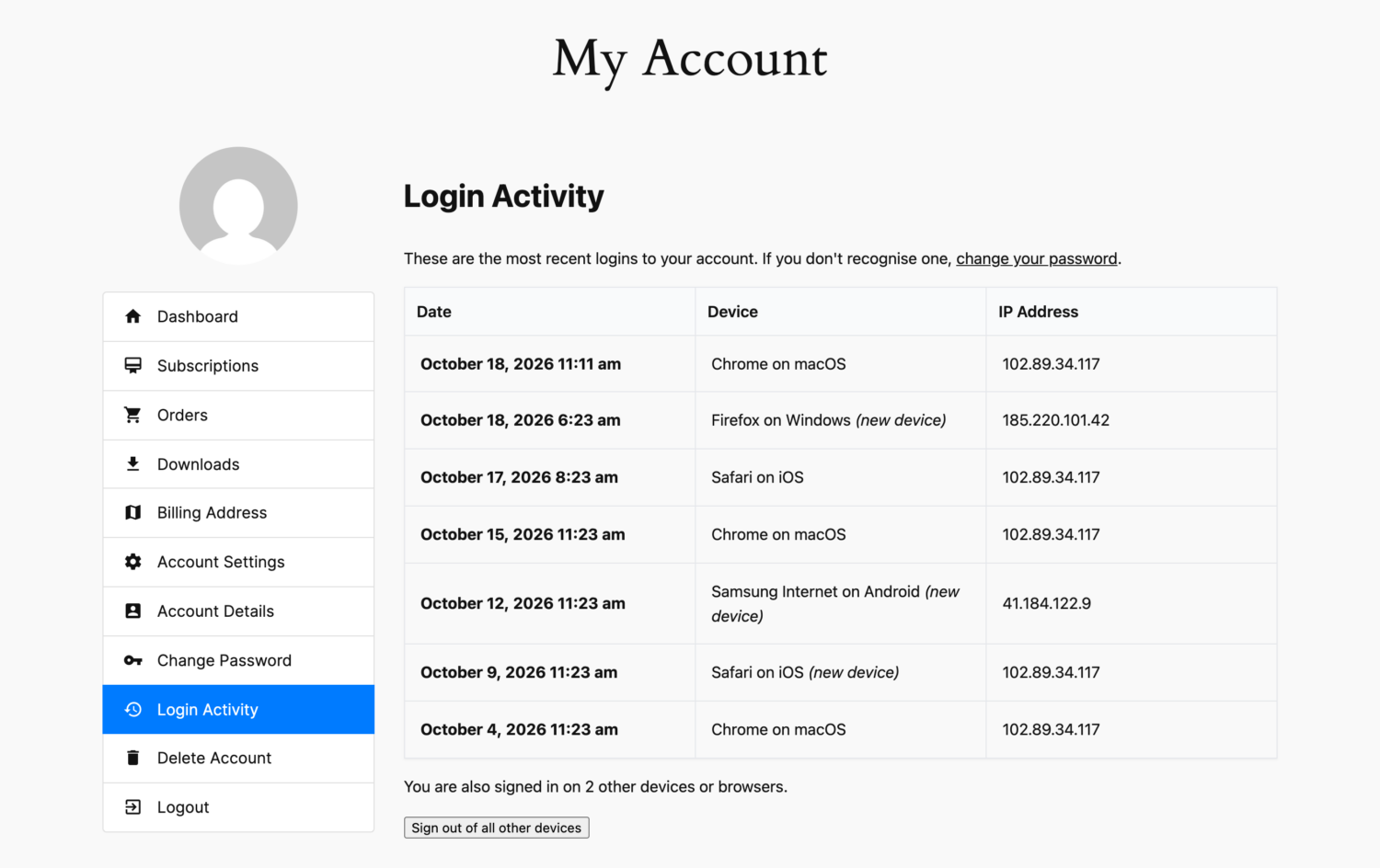
Look at the example above. In a little over two weeks, this account was used from Chrome on macOS, Safari on iOS, Firefox on Windows and Samsung Internet on Android, from three different IP addresses. Three of those logins are flagged as new devices, and the account is currently signed in on two other devices.
On its own, that could be one person with a laptop, a phone, a work PC, and a tablet. Combined with a third IP address and a Firefox login during hours the member doesn’t usually use the site, it’s worth a closer look.
See every member’s last login as an admin
If you want to scan your whole member base in WordPress instead of checking accounts one at a time, add this snippet to your theme’s functions.php or a code snippets plugin. It adds a Last Login column to Users > All Users showing each member’s most recent login date, device and IP:
add_filter('manage_users_columns', function ($columns) {
    $columns['ppress_last_login'] = 'Last Login';
    return $columns;
});

add_filter('manage_users_custom_column', function ($output, $column, $user_id) {
    if ($column !== 'ppress_last_login') return $output;

    $activity = \ProfilePress\Core\Classes\LoginActivity::get_login_activity($user_id);

    if (empty($activity)) return '—';

    $last = $activity[0];

    return sprintf(
        '%s<br><small>%s · %s</small>',
        esc_html(wp_date(get_option('date_format') . ' ' . get_option('time_format'), $last['time'])),
        esc_html(ppress_user_agent_label($last['user_agent'])),
        esc_html($last['ip'])
    );
}, 10, 3);
To keep a longer history per member, so patterns are easier to spot, raise the number of stored logins from the default 10:
add_filter('ppress_login_activity_max_entries', function () {
    return 30;
});
Step 3: Let the Account Owner Know
Here’s something that works surprisingly well: tell the account owner every time a new device logs in.
Turn on the WordPress login notification email under ProfilePress > Settings > Emails > Login Notification Email and keep Send For set to Logins from a new device.
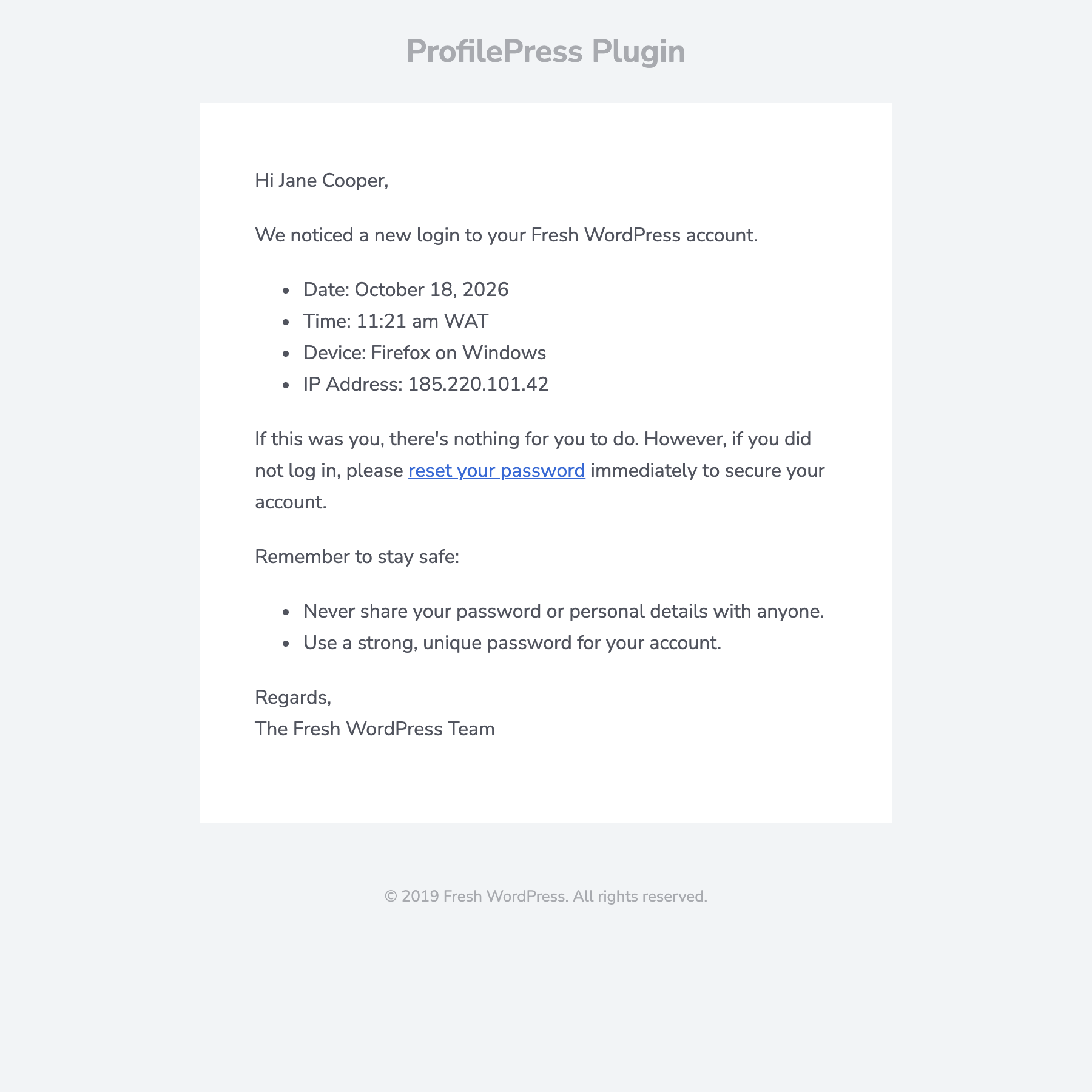
This helps in two ways:
- Casual sharing gets awkward. When the account owner gets “New login to your account” every time their friend signs in from a new device, sharing stops feeling invisible.
- Leaked credentials get caught. If the password spreads further than the member intended, for example, by being posted in a group chat, the member finds out and can reset it.
See our step-by-step guide on sending new device login alerts in WordPress for details.
Step 4: Block Simultaneous Logins
Visibility discourages sharing. Blocking simultaneous logins makes it impractical. ProfilePress includes a Disable Concurrent Logins setting that stops one account from staying signed in from several places at once.
To turn it on:
- Go to ProfilePress > Settings > General.
- Click the Login tab.
- Tick Disable Concurrent Logins.
- Click Save Changes.
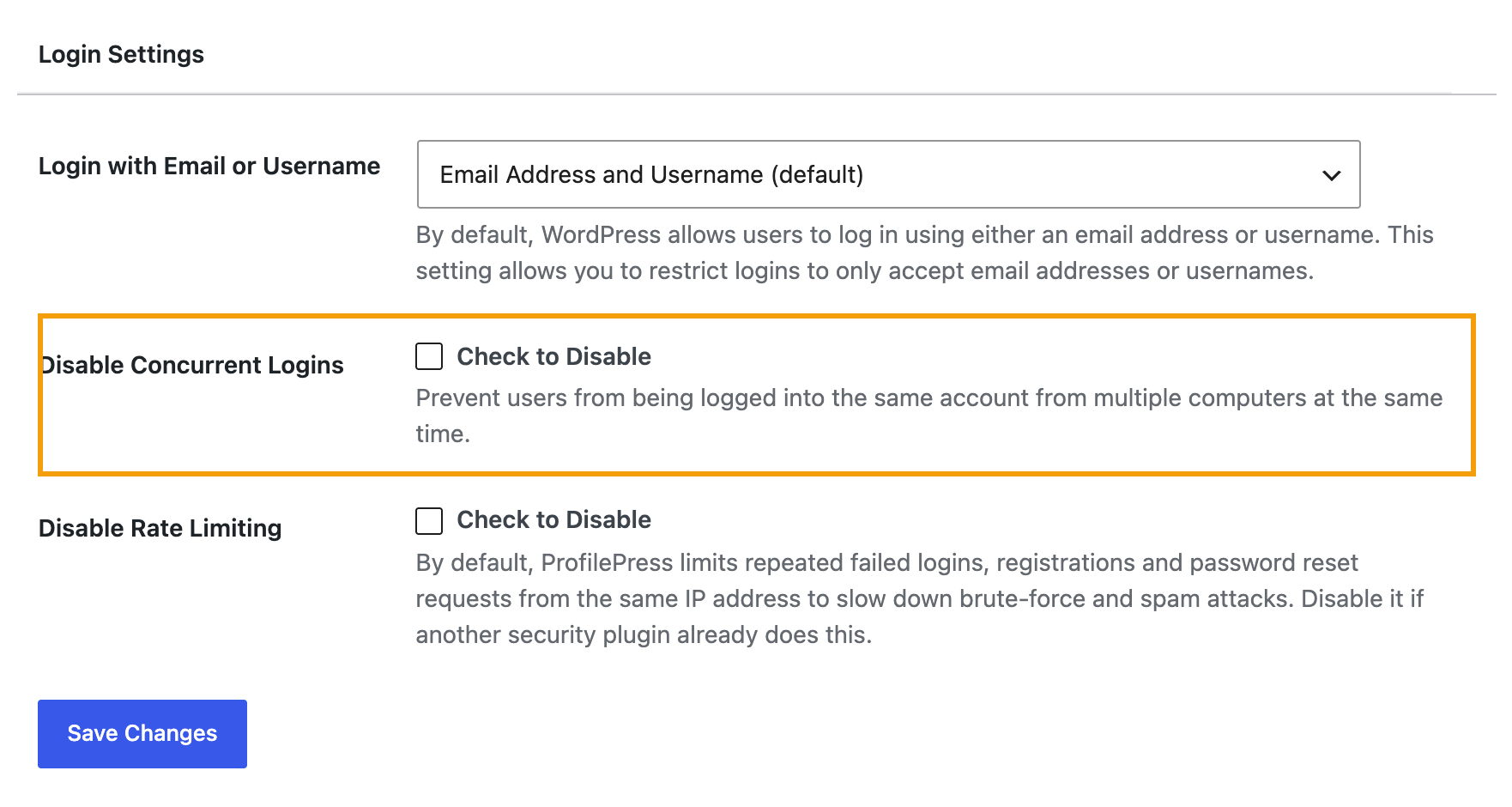
When it’s enabled, and a member logs in to WordPress, ProfilePress checks for any of their active sessions from a different IP address. If it finds any, it signs those sessions out, so the newest login wins. When two people share an account from different locations, they keep kicking each other out, which quickly makes sharing more trouble than it’s worth.
Because the check is based on IP address, someone using a laptop and a phone on the same home Wi-Fi isn’t affected. Honest members aren’t punished for having two devices at home.
Step 5: Give Members a Way to Take Back Their Account
Sometimes a member shared their password once with a former colleague or an ex, and now regrets it. Or their password leaked without them knowing. Either way, they need an easy way to lock everyone else out.
The ProfilePress Login Activity tab includes a Sign out of all other devices button whenever the account is signed in elsewhere. One click ends every other session and keeps the member logged in where they are.
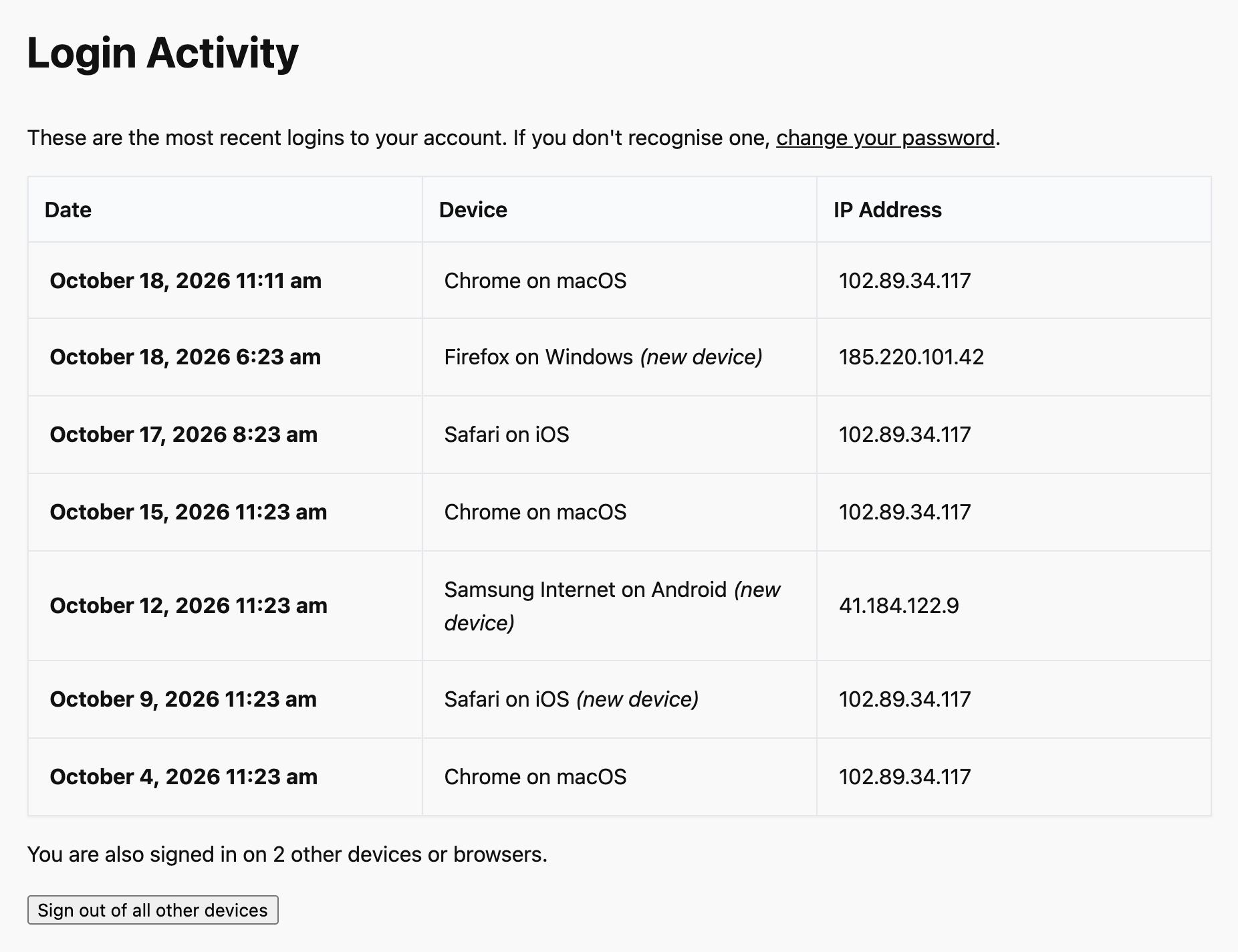
Follow that with a password change, and anyone who had the old password is locked out.
How to Handle Suspected Sharing Without Losing Good Members
Once you suspect an account is being shared, how you respond matters. A heavy-handed approach can drive away a legitimate customer who just has a lot of devices.
- Start with a friendly email. Something like: “We noticed your account has been used from several new devices recently. If that wasn’t you, we recommend resetting your password.” It gives an honest member a security heads-up and a sharer a polite nudge.
- Make your terms clear. State in your terms of service that memberships are for one person. Members can’t follow a rule they’ve never seen.
- Offer a legitimate alternative. If people share because they want access for their team or family, give them a way to pay for it, such as a team or group plan. Sharers often turn into customers when the right option exists.
- Force a password reset for persistent cases. As an admin, you can send a password reset from the user’s profile in Users. Combined with Disable Concurrent Logins, that resets the situation.
- Suspend only as a last resort, and only for clear, repeated abuse.
A Quick Account Sharing Prevention Checklist
- ProfilePress installed and recording login activity
- Login Notification Email enabled, set to Logins from a new device
- Disable Concurrent Logins turned on
- Members know about the Login Activity tab and the Sign out of all other devices button
- Terms of service say memberships are for one person
- A team or group option available for people who need shared access
- Optional: Last Login column added to the Users screen for admin review
Frequently Asked Questions
Can I completely prevent account sharing?
No tool can stop a determined person from handing over their password. You can make sharing visible to the account owner, make simultaneous use from different locations impractical, and give people a legitimate way to pay for multiple users. Together, those remove most of the reasons to share.
Will Disable Concurrent Logins annoy my members?
Rarely. It only signs out sessions from a different IP address, so devices on the same network keep working. The most common case is a member who logs in at work and then at home. Their work session ends, which is usually what they want anyway.
Do I need ProfilePress Premium for this?
Login activity tracking, new device detection, login notification emails, sign out of all other devices, and Disable Concurrent Logins are all in the free plugin. ProfilePress Premium adds features for running a paid membership business, such as subscription payments, content protection, and more.
Protect Your Revenue Without Policing Your Members
Account sharing thrives when nobody can see it. With ProfilePress, every login is recorded, every new device is flagged, account owners are notified, and simultaneous logins from different locations can be blocked, all without adding friction for your honest members.
Install ProfilePress and start seeing who’s really using your membership accounts today.