
How to Build a Cancellation Flow That Keeps Members
Every membership business loses members. Some leave because they no longer need what you offer. But many leave for reasons that have nothing to do with your content: money is tight this month, they’re travelling, they’re too busy right now, or the plan they’re on doesn’t quite fit any more.
Those members don’t need to be lost. They need a better option than “Cancel”. A good cancellation flow gives them that option at the moment they’re about to leave, and turns a goodbye into a “see you soon”.
In this guide you’ll learn what a cancellation flow is, the retention options that work best, and how to build them into a WordPress membership site with ProfilePress.
What Is a Cancellation Flow?
A cancellation flow is everything a member experiences between deciding to cancel and actually leaving. A bad flow is either a single “Cancel” button with no alternatives, or the opposite: a maze of hidden links and guilt trips designed to make cancelling impossible.
A good flow sits in between. It’s easy to cancel, but it also offers genuine alternatives to members who would rather stay if the circumstances were right.
Why Your Cancellation Flow Matters
- It’s your last chance to keep a member. Everything before this moment is about engagement. This is about the decision itself.
- Many cancellations are temporary problems. Budget, time and travel are short-term issues. A permanent cancellation is the wrong answer to a temporary problem.
- Win-back is harder than keeping. Persuading a former member to sign up again usually takes more effort and more discounting than keeping them in the first place.
- Treating people well builds trust. Members who can leave easily, and are offered fair alternatives, are much more likely to come back later.
Rule One: Never Make Cancelling Hard
Before talking about retention offers, a warning. Hiding the cancel button, forcing members to phone or email you, or burying cancellation under multiple screens damages trust, generates chargebacks and angry reviews, and in many countries can break consumer protection rules.
The goal isn’t to stop people leaving. It’s to make sure members who would have stayed, given the right option, can see that option before they go.
The 5 Retention Options That Work
1. Pause instead of cancel
Pausing is the most powerful retention option because it matches the most common reasons people leave: “I can’t afford it right now” and “I don’t have time right now”. A paused member isn’t charged, keeps their account, and comes back automatically when the pause ends, without signing up again.
2. Switch to a cheaper plan
Some members leave because they’ve outgrown, or never used, part of what they pay for. A lower-priced plan with less included keeps them as paying members instead of losing them completely.
3. Offer a discount
A time-limited discount, such as 30% off the next three months, can tip the balance for members who are leaving over price. Use it sparingly, and don’t make it the first thing you offer every time, or members learn that threatening to cancel gets them a discount.
4. Ask why they’re leaving
Even when you can’t keep someone, their reason is valuable. A one-question survey, “What’s the main reason you’re cancelling?”, shows you patterns you can fix. We cover this in depth in Subscription Cancellation Survey: Questions & Best Practices.
5. Make leaving gracious, and coming back easy
When a member does cancel, thank them, tell them exactly when their access ends, and leave the door open. A friendly cancellation email with an easy way to rejoin is the start of your win-back campaign.
How to Build a Cancellation Flow in WordPress With ProfilePress
ProfilePress gives members a self-service subscription page under My Account > Subscriptions, where they can view and manage each subscription. That page is the heart of your cancellation flow, because it’s where members go to cancel.
Step 1: Give members a Pause option next to Cancel
The ProfilePress Subscription Pausing addon adds a Pause option to the subscription page, right alongside the Cancel button. Members choose how long to pause for and confirm. Nothing else to fill in.
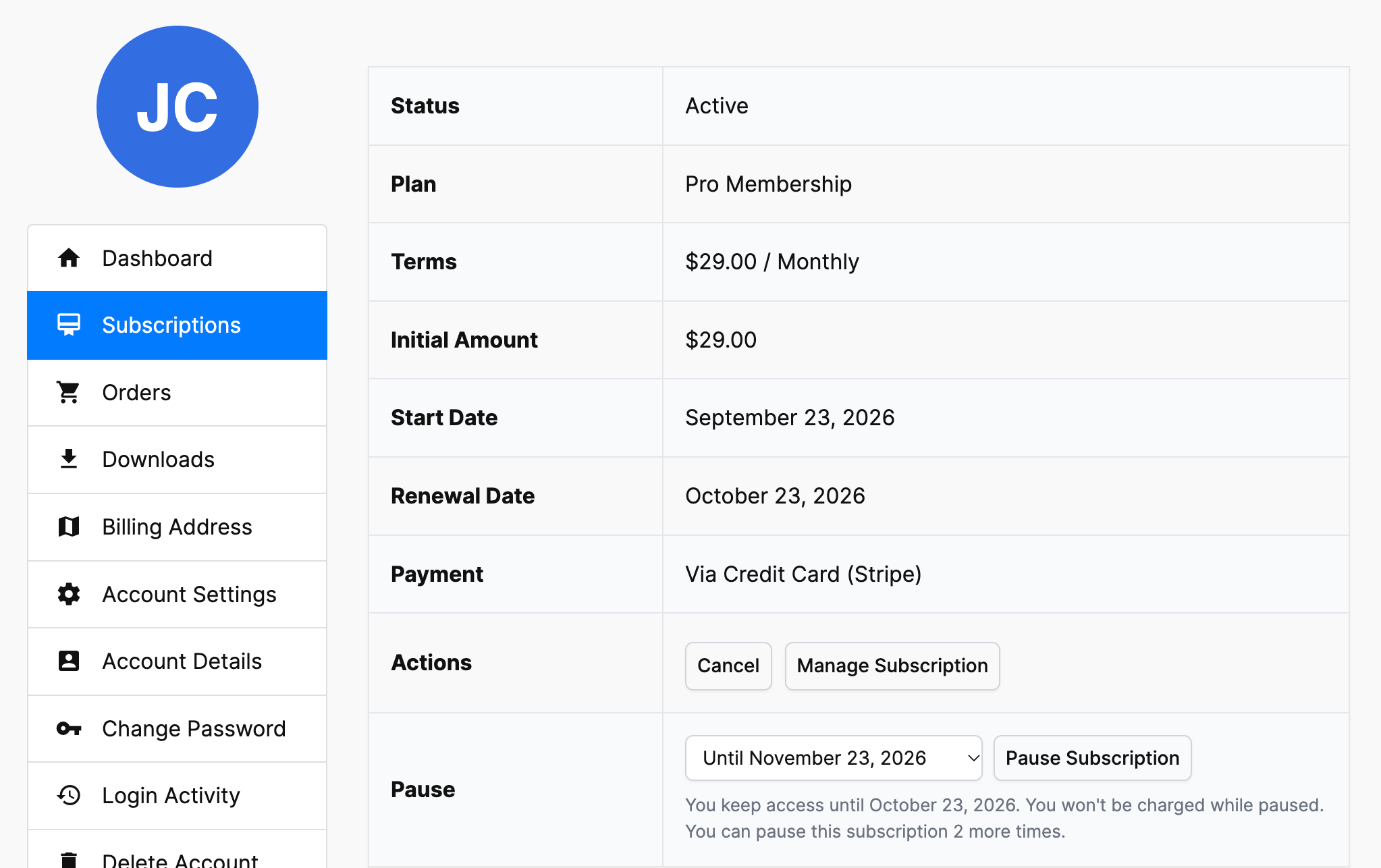
To set it up:
- Enable Subscription Pausing under ProfilePress > Addons.
- Go to ProfilePress > Settings > Payments > Settings and turn on Subscription Pausing.
- Set the Maximum Pause Length (how many billing periods a member can pause for; the default is 3) and, optionally, a Pause Limit for how many times a subscription can be paused.
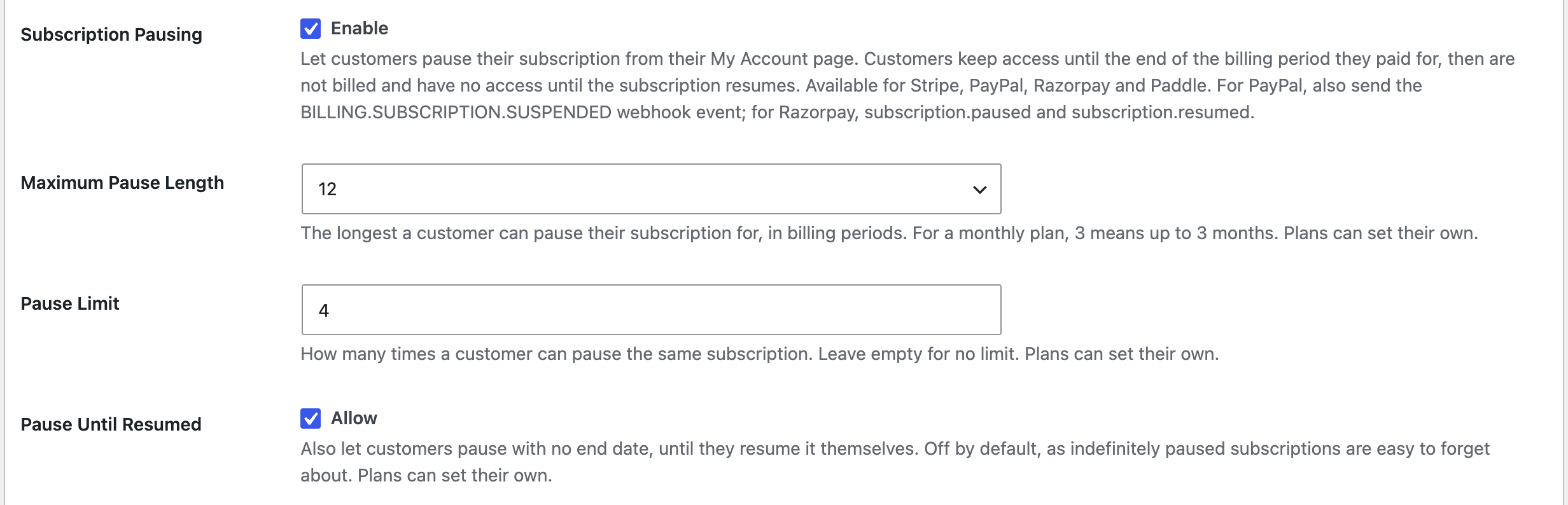
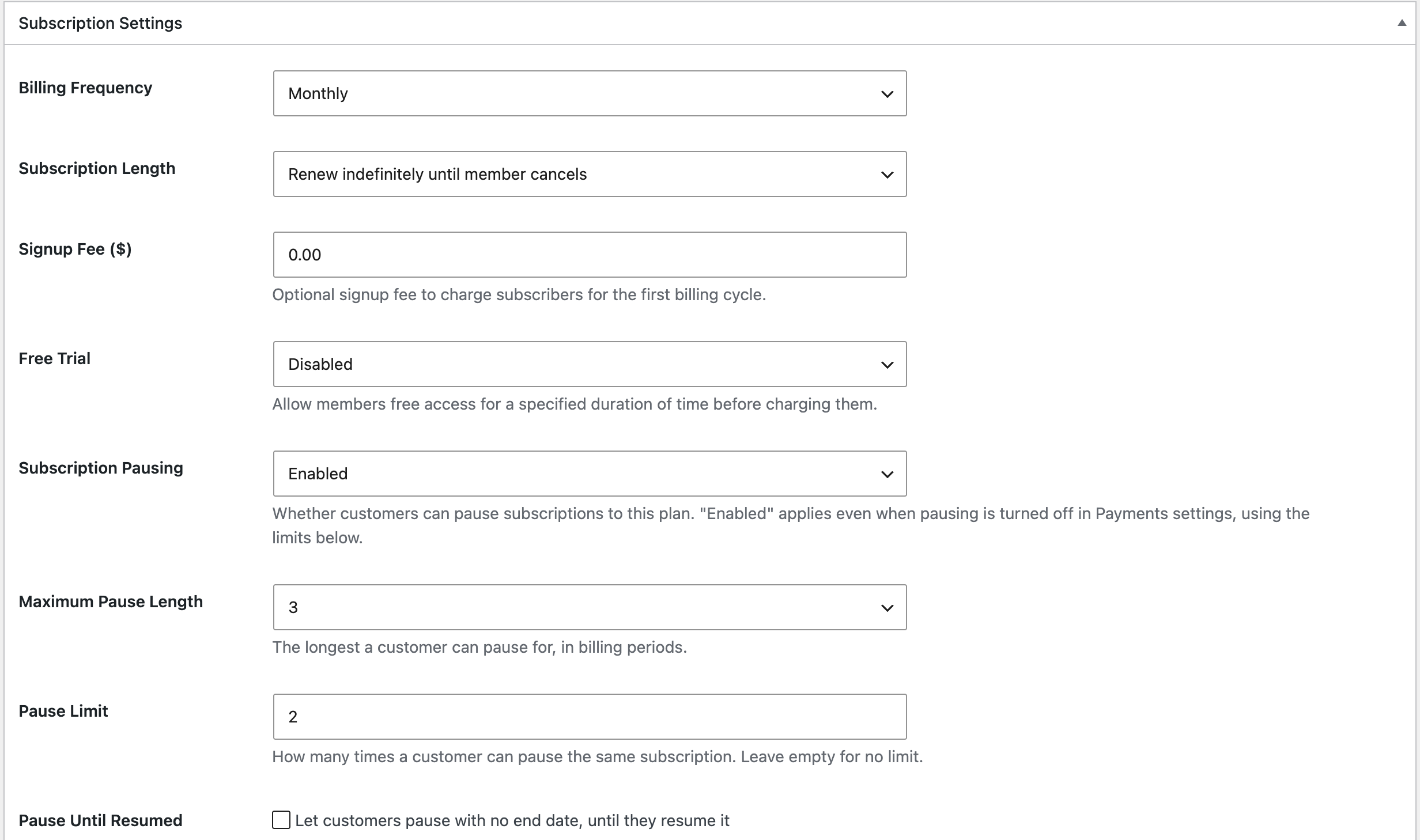
You can also allow open-ended pauses with Pause Until Resumed, and set different rules for each membership plan in the plan’s settings.
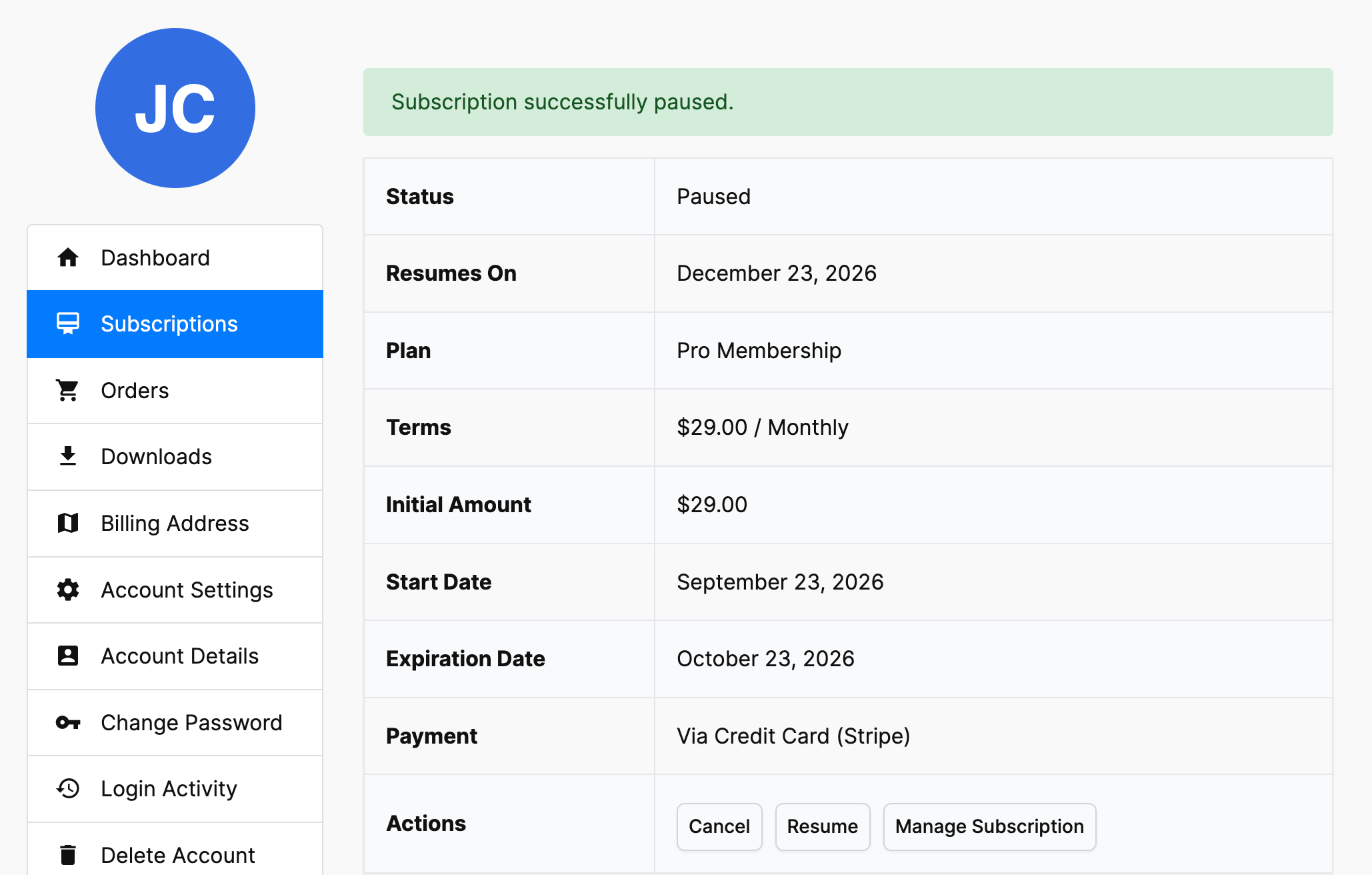
A paused member keeps access until the end of the period they’ve already paid for, then access stops until the subscription resumes. Members can resume early at any time, and the subscription resumes automatically at the end of the pause.
ProfilePress also emails members when their subscription is paused and reminds them a few days before it resumes, so there are no surprise charges. Pausing works with Stripe, PayPal, Razorpay and Paddle subscriptions. See the documentation on how to let members pause their subscriptions for the full setup, including the webhook events each gateway needs.
Step 2: Let members switch to a cheaper plan
Put your plans in a plan group, and members can switch between them from their subscription page. Upgrades are prorated, so members only pay the difference.
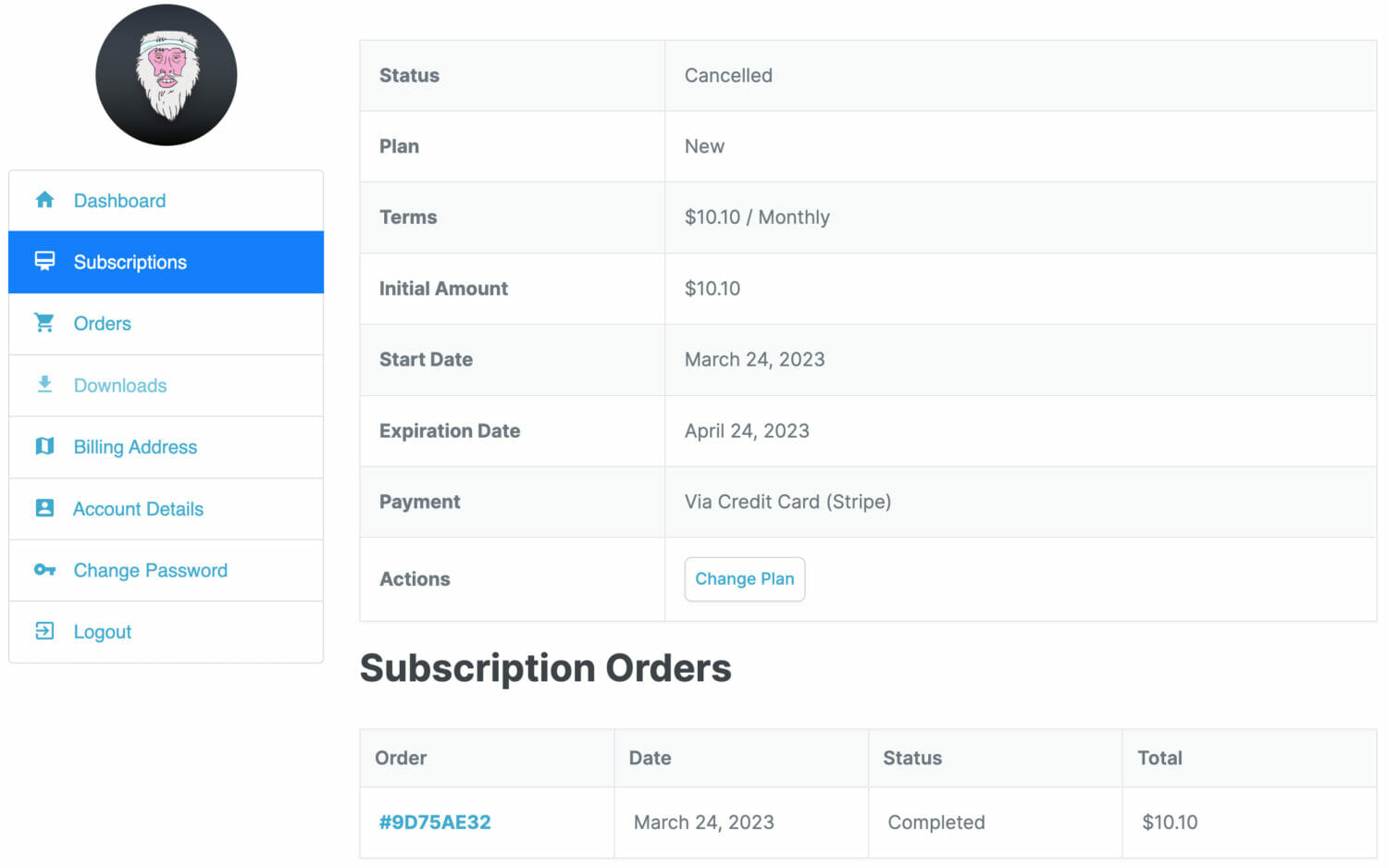
A good downgrade option is a lighter plan that keeps what members value most, such as community access or the content library, at a lower price.
Step 3: Prepare a retention coupon
Create a coupon under ProfilePress > Membership Plans > Coupons for members you want to win back, such as a percentage off for a limited number of renewals. Use it in your cancellation email or win-back campaign rather than showing it to everyone. Here’s how to create coupons for your membership site.
Step 4: Write a cancellation email that leaves the door open
When a member cancels, ProfilePress sends the Subscription Cancelled Notification email, which you can edit under ProfilePress > Settings > Emails > Subscription. Use it to:
- Confirm the cancellation and say exactly when access ends. In most cases, canceled subscriptions stay active until the end of the period already paid for.
- Remind them they can pause instead next time.
- Include a link to rejoin, and your retention coupon if you use one.
- Ask one question about why they left, with a link to your survey.
Step 5: Tell members what they’d miss
Members who are about to cancel often don’t realise what’s coming next. If you drip content, a course outline page shows them exactly which modules unlock soon. “Module 4 unlocks for you in 6 days” is a powerful reason to stay.
What a Complete Flow Looks Like
- A member opens My Account > Subscriptions and views their subscription.
- Next to Cancel, they see the option to Pause for one to three billing periods, and the option to change plan.
- If they pause, they keep access until their paid period ends, get a confirmation email, and a reminder before it resumes.
- If they cancel, their access continues until the end of the paid period, and they get a friendly email with a way to rejoin and a short survey.
- A few weeks later, your win-back campaign offers them a reason to come back.
Match the Offer to the Reason
| Why they’re leaving | Best offer |
|---|---|
| “It’s too expensive right now” | Pause, or a cheaper plan |
| “I don’t have time at the moment” | Pause |
| “I’m travelling or taking a break” | Pause until they’re back |
| “I don’t use all of it” | Switch to a lighter plan |
| “I didn’t get the results I wanted” | A personal follow-up, and point them to the content most likely to help |
| “I’ve finished what I needed” | Let them go gracefully, and invite them back when you release something new |
How to Measure Your Cancellation Flow
- Save rate: of the members who opened the subscription page intending to cancel, how many paused or downgraded instead?
- Pause return rate: how many paused members resumed and kept paying?
- Cancellation reasons: what do survey answers say, and are they changing over time?
- Win-back rate: how many cancelled members rejoined within 90 days?
Frequently Asked Questions
Will offering a pause reduce my revenue?
A paused member pays nothing for a while, but a cancelled member pays nothing forever. Most members who pause would otherwise have cancelled, so pausing usually protects revenue rather than reducing it.
Can I limit how often members pause?
Yes. Set a Pause Limit globally or per plan. Admins can still pause a subscription past the limit from the WordPress dashboard.
Which payment gateways support pausing?
ProfilePress Subscription Pausing supports Stripe, PayPal, Razorpay and Paddle subscriptions.
Turn Cancellations Into “See You Soon”
The best cancellation flow is honest and easy, and it gives members real alternatives: pause, switch plans, or leave with the door open. With ProfilePress Subscription Pausing, plan groups, coupons and customizable emails, you can build every part of it into the subscription page members already use.
Learn more about the Subscription Pausing addon, and find more ideas in 20 Retention Ideas to Reduce Membership Churn Rate.