
How to Show Members What’s Coming Next With a Course Outline Page

There’s a difference between content that’s locked and content that’s coming.
Locked content is a closed door. Members don’t know what’s behind it, when it will open, or whether it’s worth waiting for. Coming content is a promise: “Module 3 unlocks for you on October 29.” One frustrates people. The other gives them something to look forward to.
If you drip content on your membership site, the best way to turn locked content into coming content is a course outline page: one page that shows each member what they can open today and exactly when the rest unlocks for them.
In this tutorial you’ll learn how to build that page in WordPress with the [ppress_content_dripping] shortcode from ProfilePress Content Dripping, including how to combine several drip rules into one schedule, what different visitors see, and how to preview the page as a member.
What a Drip Content Outline Page Looks Like
Here’s the outline for a four-module course, as seen by a member on day 11 of their membership:
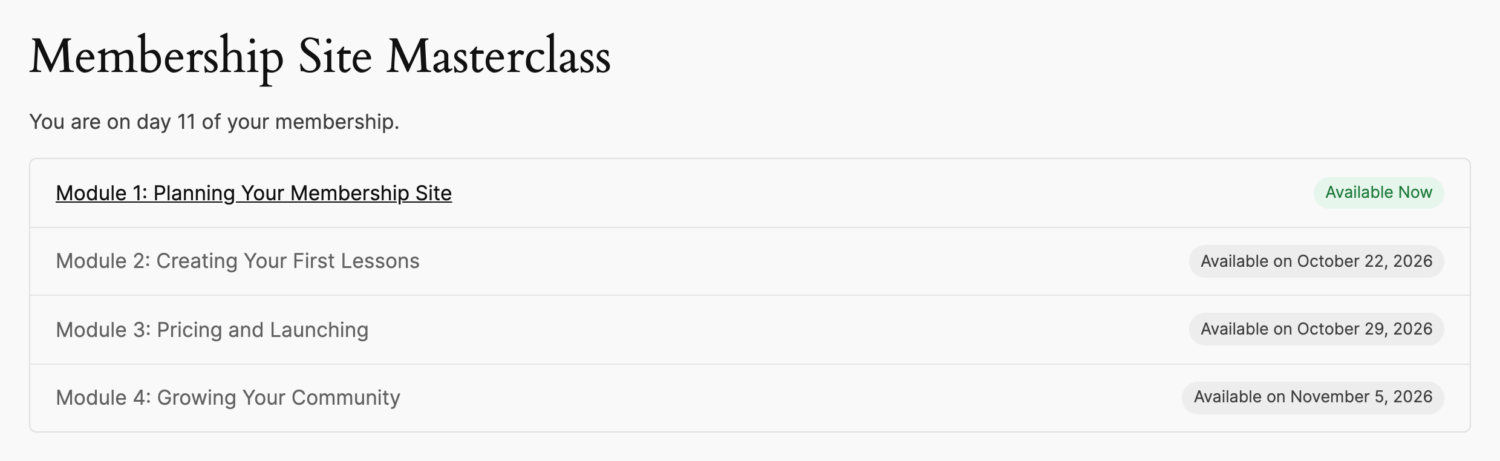
- A heading, here “Membership Site Masterclass”.
- A line telling the member where they are: “You are on day 11 of your membership.”
- Every item in the series, sorted by release date.
- Content they can open is linked and labelled Available Now.
- Content that’s still locked shows the date it unlocks for this member, for example Available on October 22, 2026.
Every member sees their own dates, because each member’s schedule starts on the day they subscribed or registered.
Why Every Drip Content Site Needs an Outline Page
- It sets expectations. Members know from day one that the program unfolds over time, so a locked lesson doesn’t feel like a mistake.
- It builds anticipation. A visible “next up” date gives members a reason to come back.
- It shows the value of staying. A member thinking about cancelling can see everything they’d be leaving behind.
- It reduces support requests. “Why can’t I see Module 3?” stops being a question when the answer is right there on the page.
- It’s the perfect landing page. Use it as the “My Course” link in your menu, the redirect after login, or the link in your unlock emails.
Before You Start
You’ll need ProfilePress Premium with the Content Dripping addon enabled, and at least one drip rule. The shortcode only lists a rule when the rule:
- is active,
- has Drip this content turned on with a delay greater than zero, and
- is restricted to Logged in users under Who can access the content? (optionally limited to membership plans, roles or users).
New to dripping? Start with our documentation on how to drip content in WordPress.
Step 1: Create One Drip Rule per Release
A drip rule has one delay, so everything in a rule unlocks on the same day. To release a course in stages, create a separate content protection rule for each stage. For example:
- Module 1: available 7 days after subscribing
- Module 2: available 14 days after subscribing
- Module 3: available 21 days after subscribing
- Module 4: available 28 days after subscribing
Under ProfilePress > Content Protection, the rules list shows each rule’s schedule, so you can check the whole program at a glance:
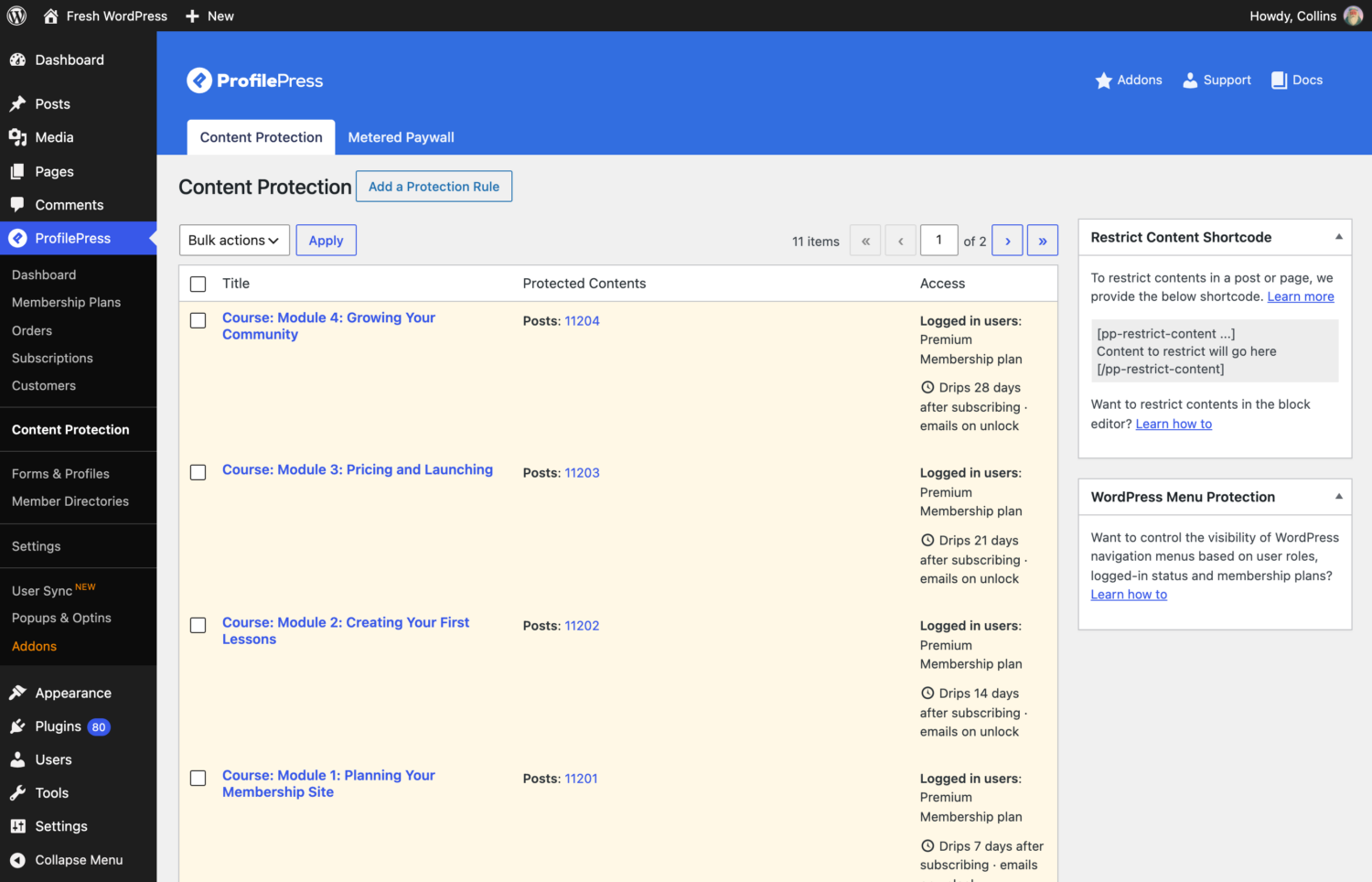
A rule can protect a single lesson or a whole group of posts and pages. Everything it protects appears in the outline.
Step 2: Copy Each Rule’s Shortcode
Open a drip rule. Once it’s saved with dripping turned on, the Content Dripping box shows its shortcode, ready to copy. Click the field to select it.
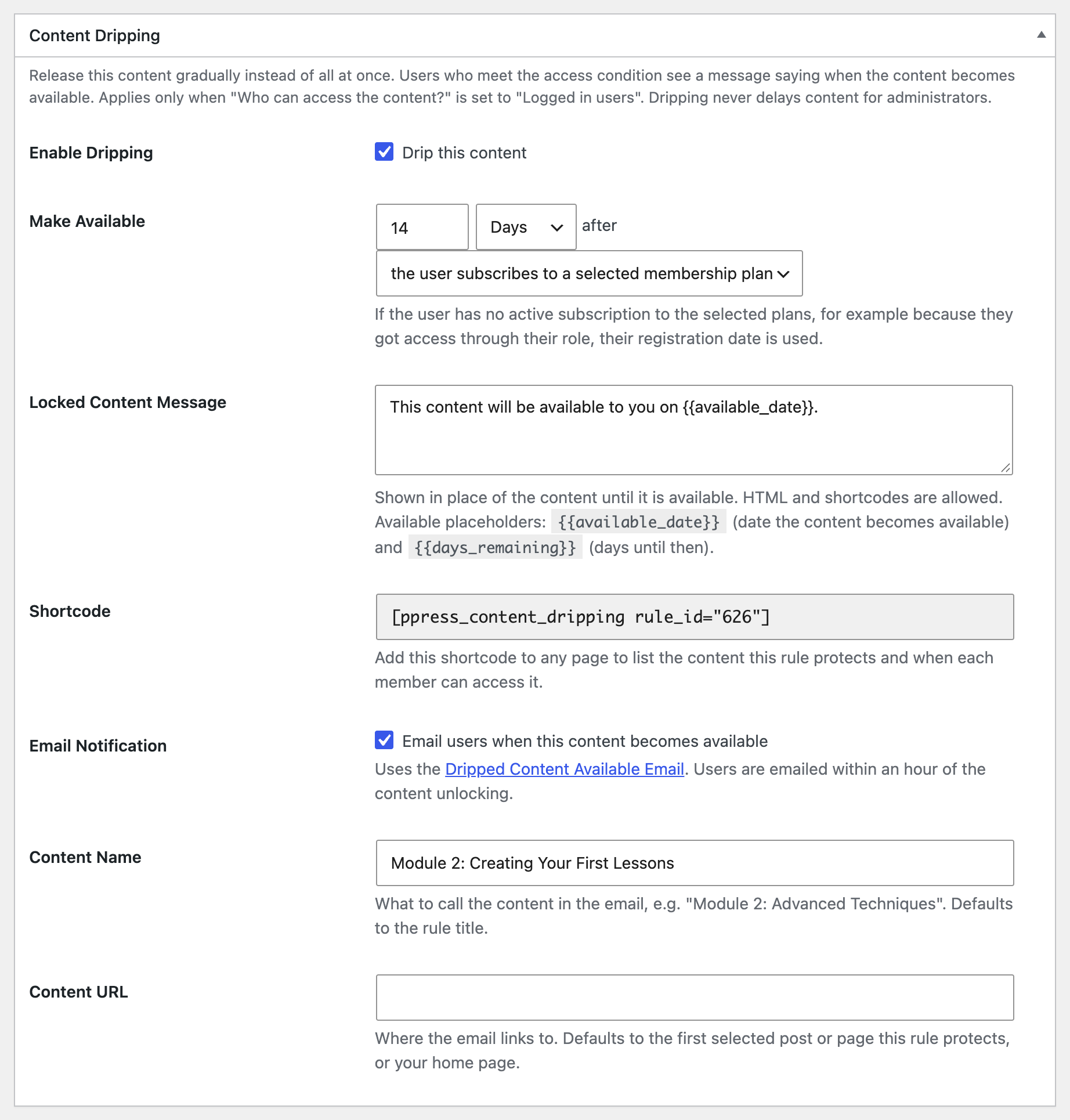
It looks like this:
[ppress_content_dripping rule_id="626"]Note the rule ID of each rule you want in the outline.
Step 3: Combine the Rules in One Outline
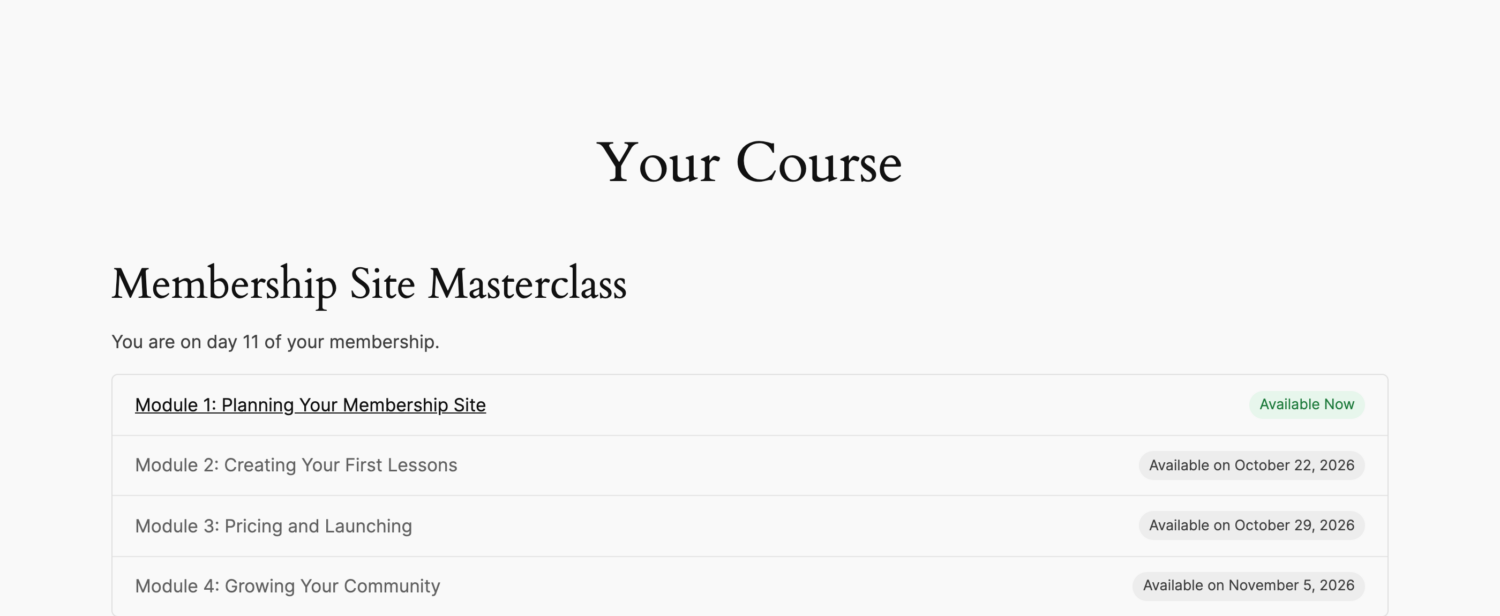
Create a new page, for example “Your Course”, and add the shortcode with all your rule IDs separated by commas:
[ppress_content_dripping rule_id="625,626,627,628" title="Membership Site Masterclass"]ProfilePress merges the rules into one list and sorts it by release date, soonest first. If a post belongs to more than one of the rules, it shows the latest of their dates, because that’s when the member can actually open it. The page the shortcode is on is never listed in its own outline.
Publish the page, and you’ve got a personal course schedule for every member:
Shortcode options
| Attribute | Default | What it does |
|---|---|---|
rule_id |
Required | One rule ID, or several separated by commas. |
title |
Content in This Series | The heading above the list. Use title="" to hide it. |
show_intro |
yes | Set show_intro="no" to hide the “You are on day N of your membership.” line. |
For example, to show a plain list with no heading or intro:
[ppress_content_dripping rule_id="625,626,627,628" title="" show_intro="no"]What Different Visitors See
The outline adapts to whoever is looking at it:
- Logged-out visitors see “Please log in to view the content in this series.” with a link to your login page. After logging in, they come back to the same page.
- Logged-in users without access, for example someone with no active subscription, see “You do not have access to the content in this series.”
- Members with access see the heading, the day line and their personal list. Only rules they have access to are included.
- If a rule has no published content yet, members see “There is no content in this series yet. Please check back later.”

Step 4: Preview the Outline as a Member
Administrators skip drip delays, so when you view the page as an admin, every item shows as Available Now. A note above the list says so and links to a preview. To check what members actually see:
- Add
?ppress_drip_preview=1to the page URL to see the outline as a member who joined today. - Add
?ppress_drip_preview_user=42to see it with the dates of user #42. - Click Exit preview to go back to the normal view.
If something’s wrong with a rule, for example it’s inactive, dripping is off, or it isn’t restricted to logged-in users, administrators see a short explanation on the page. Members and visitors never see these setup messages, and any other rules in the shortcode still display.
Step 5: Put the Outline Where Members Will Find It
An outline page only helps if members land on it. A few good places to link it from:
- Your main menu, as “My Course” or “Your Program”. You can show the menu item only to logged-in members with ProfilePress menu protection.
- Your login redirect, so members land on their schedule every time they log in.
- The unlock email. Set a drip rule’s Content URL to the outline page, so the Dripped Content Available Email takes members straight to their schedule. See how to notify members when new content unlocks.
- The locked content message. The message members see on a locked lesson supports HTML, so add a link such as “See your full course schedule”.
Caching: What You Need to Know
Every member sees different dates, so the outline must never be served from a shared page cache. ProfilePress handles this for you: pages where the outline is shown to a logged-in member are marked “do not cache”, which WP Rocket, W3 Total Cache, WP Super Cache and LiteSpeed Cache all respect. The logged-out “please log in” version is the same for everyone and can be cached normally.
If you use server-level or CDN page caching, such as Cloudflare APO, Varnish or your host’s built-in cache, make sure it bypasses logged-in users. Most do by default.
For Developers: Customizing the Outline
The outline uses simple CSS classes, so it’s easy to style to match your theme: .ppress-content-dripping for the wrapper, .ppress-content-dripping-item for each row (plus .is-available or .is-locked), and .ppress-content-dripping-badge for the “Available Now” and date labels.
Filters let you change the text too. For example, to replace the day line with your own wording:
add_filter('ppress_content_dripping_shortcode_intro', function ($intro, $membership_day) {
    return sprintf('Day %d of your course', $membership_day);
}, 10, 2);
Or to change the message for members without access into a sales prompt:
add_filter('ppress_content_dripping_shortcode_notice', function ($message, $context) {
    return $context === 'no-access' ? 'Join a plan to unlock this course.' : $message;
}, 10, 2);
Frequently Asked Questions
Can I show several courses on one page?
Yes. Add one shortcode per course, each with its own rule_id list and title.
Does the outline show content the member can’t access?
Only rules the member has access to are included. If they don’t meet any of the listed rules’ access conditions, they see the no-access message instead of the list.
Why does everything show as Available Now for me?
You’re logged in as an administrator, and administrators skip drip delays. Add ?ppress_drip_preview=1 to the URL to see the page as a new member.
Give Members Something to Look Forward To
A drip schedule members can’t see feels like a wall. A schedule they can see feels like a plan. With one shortcode, ProfilePress turns your drip rules into a personal course outline for every member, showing what’s ready today and what’s coming next.
Learn more about the Content Dripping addon, or read why drip content is the secret to a successful membership site.