
How to Notify Members When New Content Unlocks in WordPress
You’ve set up drip content on your membership site. Module 2 unlocks 14 days after each member joins. The schedule is perfect, the lessons are ready, and on day 14 the content quietly becomes available.
And then nothing happens. Half your members don’t notice. They were busy, they forgot about the course, or they assumed nothing had changed since the last time they checked. The unlock you carefully planned turns into a missed chance to bring them back.
Drip content works best when members know something new is waiting for them. In this guide, you’ll learn how to automatically email members the moment dripped content unlocks on your WordPress site, using the Dripped Content Available Email in ProfilePress Content Dripping.
Why Unlock Notifications Matter
A drip schedule only works if members come back to your WordPress site for each release. An email at the right moment does a lot of the work:
- It brings members back. “Module 2 is now available” is one of the few emails people are genuinely glad to get from a membership site. It’s about something they’ve already paid for.
- It keeps momentum. Members who finish Module 1 and then hear nothing for two weeks lose the thread. A timely nudge picks it back up.
- It reduces churn. Members who keep engaging with new content are far less likely to cancel than members who drift away.
- It removes the guesswork. Without notifications, members have to remember to check. With them, your site tells them.
- It’s personal. Every member has their own schedule, so the email arrives exactly when their content unlocks. You couldn’t do that with a newsletter blast.
Why You Can’t Just Use Your Email Marketing Tool
You might think to set up an automation in your email marketing platform: “send email 14 days after signup.” It sounds simple, but it quickly gets messy:
- Your email tool doesn’t know when a member’s subscription actually started, or whether it’s still active.
- If you change the drip delay in WordPress, you have to remember to change the automation too.
- Members who canceled or never had access can still get “your content is ready” emails, pointing to content they can’t open.
- You end up maintaining two schedules that drift apart over time.
The simplest and most reliable option is to send the notification from the same place that controls the unlock: your membership plugin.
How the Dripped Content Available Email Works
When you turn on notifications for a drip rule, ProfilePress checks every hour for members whose content has just unlocked, and emails them. A few details make it reliable:
- Only members with access are emailed. Members who no longer meet the rule’s access condition, for example because their subscription expired, don’t get an email.
- No duplicates. Each member is emailed once per unlock, even if the check runs more than once.
- No surprise backlog. Only content that unlocked since the previous check triggers an email. Turning notifications on for an existing rule won’t suddenly email every member whose content unlocked weeks ago.
- Each member’s own schedule. The email goes out when the content unlocks for that member, based on when they subscribed or registered.
Here’s what members receive with the default template:
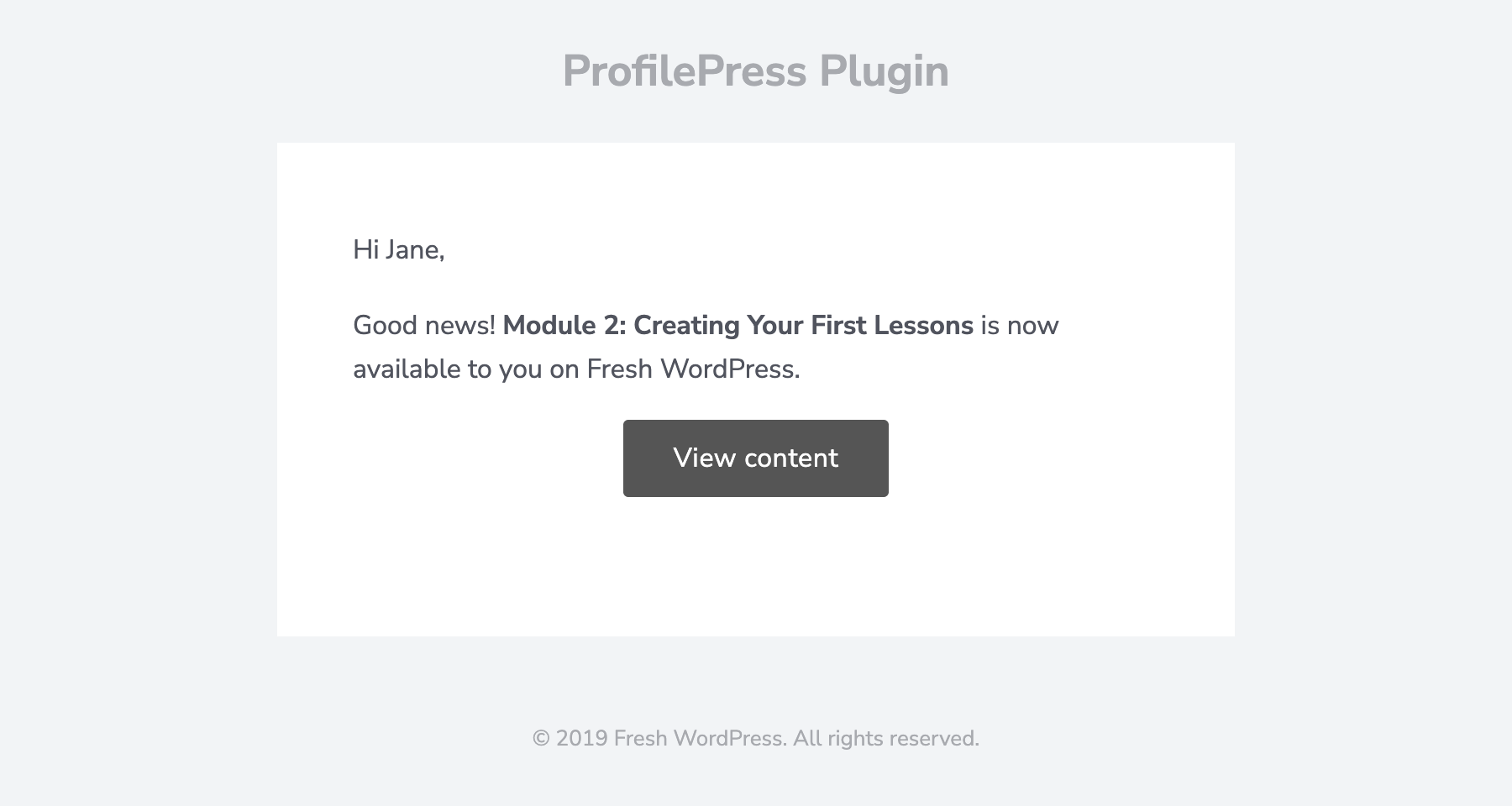
The default subject line is New content is available: {{content_title}}, for example, “New content is available: Module 2: Creating Your First Lessons”.
How to Set Up Drip Content Unlock Notifications
Step 1: Install the Content Dripping Addon
Content Dripping is a premium ProfilePress addon. With ProfilePress Premium installed, go to ProfilePress > Addons and make sure Content Dripping is enabled.
Step 2: Set Up a Drip Rule
If you haven’t already, go to ProfilePress > Content Protection, create a rule that protects your content for logged-in members, and tick Drip this content in its Content Dripping box. Then choose when the content becomes available, such as 14 Days after the user subscribes to a selected membership plan.
Our documentation explains this step in detail: how to drip content in WordPress.
Step 3: Turn On the Email Notification
In the rule’s Content Dripping box, tick Email users when this content becomes available. It’s off by default, so you choose which unlocks deserve an email.
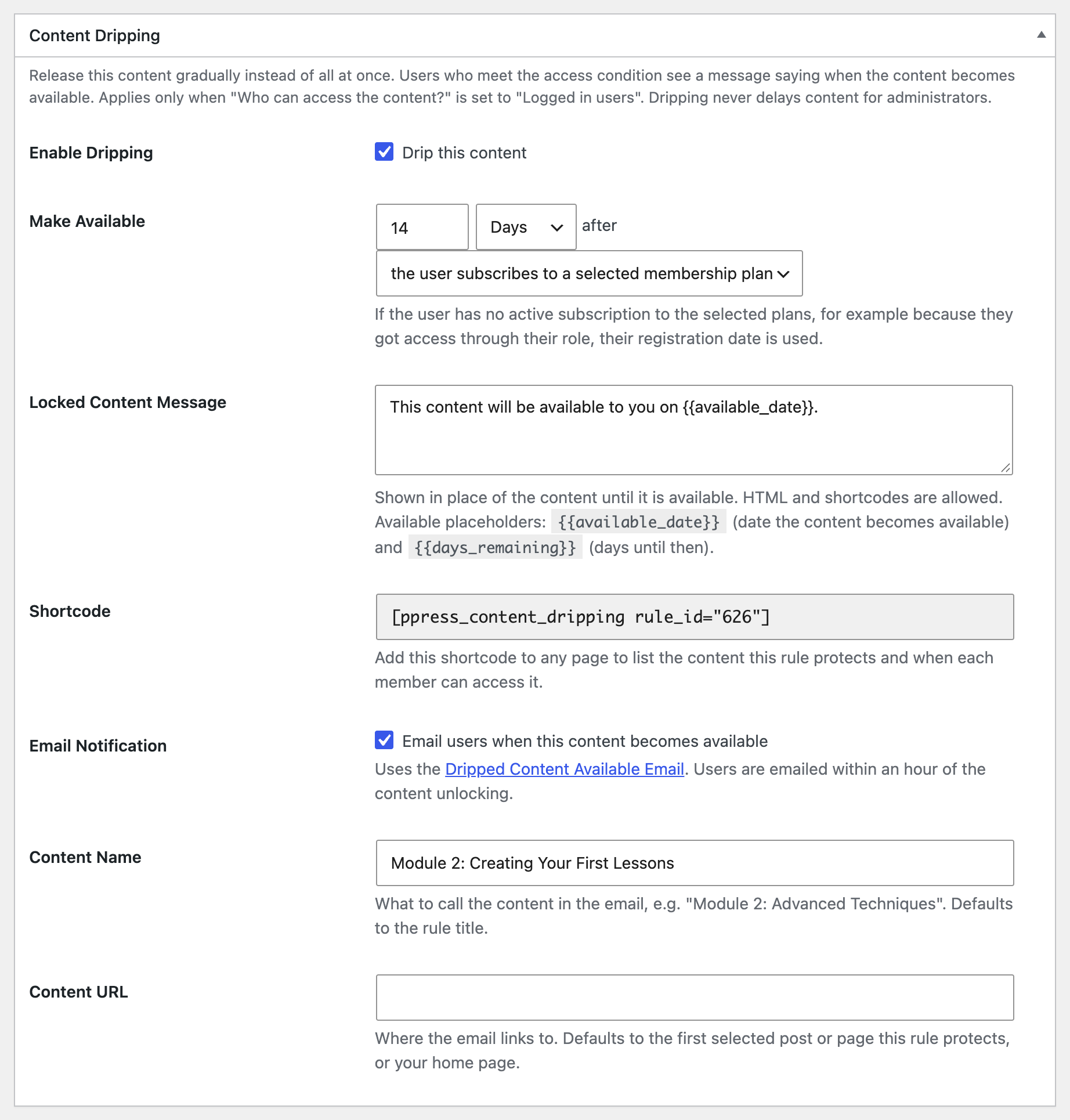
Two more fields appear:
- Content Name: what to call the content in the email, for example “Module 2: Creating Your First Lessons”. If you leave it empty, ProfilePress uses the rule title. Since rule titles are often internal labels like “Course: Module 2”, it’s worth filling this in.
- Content URL: where the email’s button links to. If you leave it empty, ProfilePress links to the first post or page the rule protects, or to your home page if there isn’t one. Set it when you want to send members to a course outline page or a specific lesson instead.
Click Save Changes. Repeat this for each drip rule you want to send notifications for.
Step 4: Customize the Email
Go to ProfilePress > Settings > Emails. Under the Account tab, you’ll find Dripped Content Available Email.
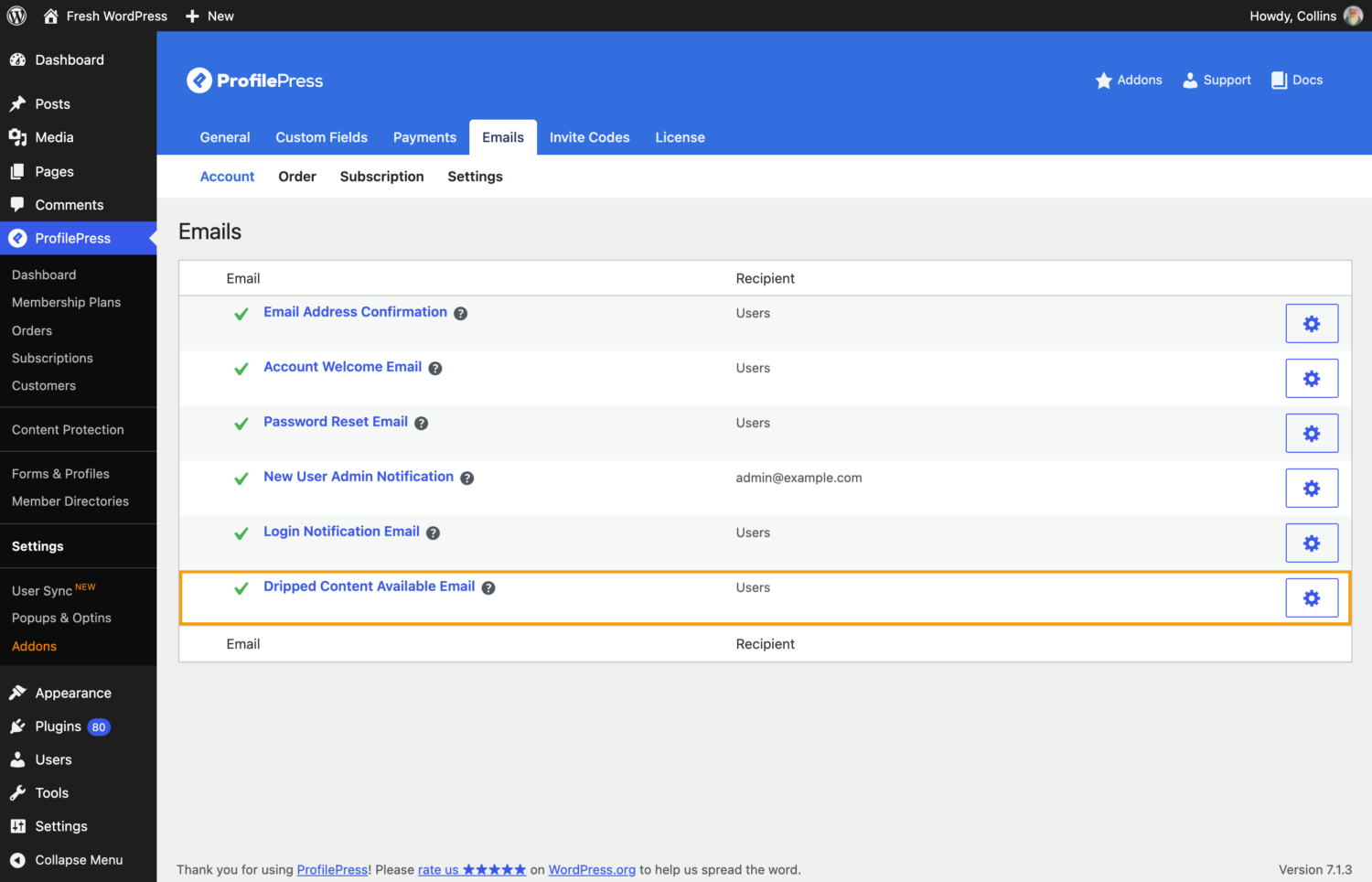
Click it to edit the subject line and message. One template is shared by all your drip rules. The placeholders fill in the details for each unlock and each member.
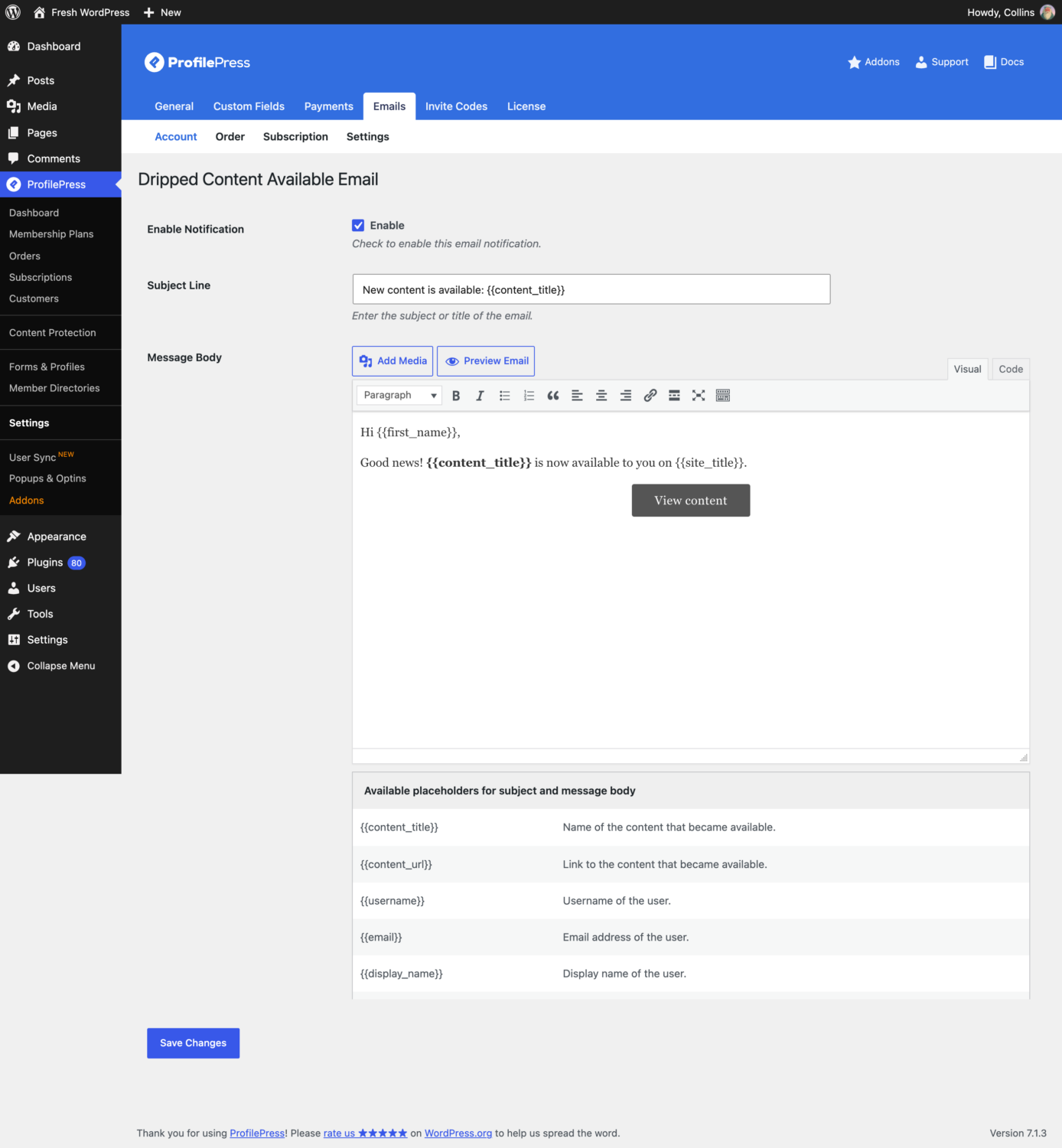
Available placeholders:
| Placeholder | What it shows |
|---|---|
{{content_title}} |
Name of the content that became available |
{{content_url}} |
Link to the content that became available |
{{first_name}} / {{last_name}} |
The member’s first and last name |
{{display_name}} |
The member’s display name |
{{username}} |
The member’s username |
{{email}} |
The member’s email address |
{{site_title}} |
Your site name |
{{login_link}} |
URL of your login page |
Custom profile fields work too: use {{field_key}}, replacing “field_key” with the field’s key.
If you ever want to pause all unlock emails at once, untick Enable on this template. No dripped content emails are sent while it’s disabled, even for rules with notifications ticked.
Writing Unlock Emails Members Actually Click
The default email is short and clear. If you’d like to make it more compelling, here are a few ideas.
Make the subject line about them
{{first_name}}, {{content_title}} is ready for youTell them what they’ll get
A generic “new content is available” works, but a hint at the payoff works better. Since one template is shared by all rules, keep the message general and let {{content_title}} do the specific work:
<p>Hi {{first_name}},</p>
<p>Your next step is unlocked: <strong>{{content_title}}</strong>.</p>
<p>Set aside 20 minutes this week to work through it. Members who keep pace with the program get the best results.</p>
<p><a href="{{content_url}}">Start the next lesson</a></p>
<p>See you inside,<br>The {{site_title}} team</p>
Paste this into the Code tab of the message editor, then style the link as a button if you like.
Keep one clear button
The default template already has a single View content button linking to {{content_url}}. Resist adding lots of other links. The goal of this email is one click.
Point to the course outline
If you have a course outline page that lists every module and its unlock date, consider setting the rule’s Content URL to that page. Members then see what they just unlocked and what’s coming next. Here’s how to build a course outline page for drip content.
Make Sure the Emails Arrive on Time
ProfilePress checks for unlocks every hour using WordPress’s built-in scheduler, WP-Cron. Two things help it run smoothly:
- Use a real cron job on low-traffic sites. WP-Cron only runs when someone visits your site. If your site gets few visitors at night, emails may arrive later than expected. Most hosts let you set up a server cron job that calls
wp-cron.phpevery few minutes. - Use a proper email sending service. Set up an SMTP plugin with a transactional email provider, and configure SPF, DKIM and DMARC for your domain, so unlock emails land in the inbox rather than spam.
Frequently Asked Questions
How quickly are members emailed after content unlocks?
Within an hour of the content unlocking for them, as long as WP-Cron is running normally on your site.
Can I send a different email for each module?
There’s one email template for all drip rules, but each rule has its own Content Name and Content URL. Using {{content_title}} and {{content_url}} in the template makes each email specific to the module that unlocked.
Will members who canceled get the email?
Only members who still meet the rule’s access condition are emailed. A canceled subscription that hasn’t reached its end date still counts as active, so those members are still emailed until their access ends.
I turned on notifications for an existing rule. Will old unlocks trigger emails?
No. Emails are only sent for content that unlocks after the previous hourly check, so existing members whose content unlocked long ago won’t be flooded with emails.
Turn Every Unlock Into a Visit
Drip content gives members a reason to come back. Unlock notifications make sure they actually do. With ProfilePress, it takes one checkbox per rule and a template you write once.
Learn more about the Content Dripping addon, or read our guide on why drip content is the secret to a successful membership site. For ideas on how often to release content, see our drip content schedule examples.