
Do you want to release your articles, posts, course lessons, or member content gradually in WordPress instead of giving new members everything on day one?
Using ProfilePress Courses? Course lessons have their own drip settings in the course builder, so you don’t need this addon to drip lessons. See Course Access Rules: Prerequisites, Drip and Start Dates.
Content dripping keeps members engaged, gives them a reason to come back, and stops people from downloading everything in the first week and canceling. It’s common on online courses, coaching, and membership sites.
In this article, you will learn how to drip content in WordPress with the ProfilePress Content Dripping addon, show members their release schedule, and email them when new content unlocks.
What Is Content Dripping?
Content dripping releases protected content on a membership website to each member on a schedule, starting from when they join. For example, Module 1 is available straight away, Module 2 one week after the member subscribes, and Module 3 two weeks after.
Every member moves through the content at their own pace. Someone who subscribes today and someone who subscribed last month see different content until the newer member catches up.
Common use cases include:
- Online courses: release one module or lesson each week.
- Coaching programs: unlock the next step after the member has had time to finish the last one.
- Newsletters and member content: give new members a steady stream of your back catalog.
- Onboarding: introduce features or resources over a member’s first few weeks.
How Content Dripping Works
Content Dripping is built into ProfilePress content protection rules. You turn on dripping for a rule, and the content that rule protects is held back until the drip delay has passed for each member.
- The drip clock starts when the member subscribes to one of the rule’s membership plans, or when they register on your WordPress website. You choose which for each rule.
- Before the content unlocks, members who meet the rule’s access condition see a message telling them when it becomes available, instead of the content.
- Members without access to the rule at all, such as visitors without the right plan, still get the rule’s normal no-access treatment.
- Administrators always see dripped content immediately.
Activating the Content Dripping Addon
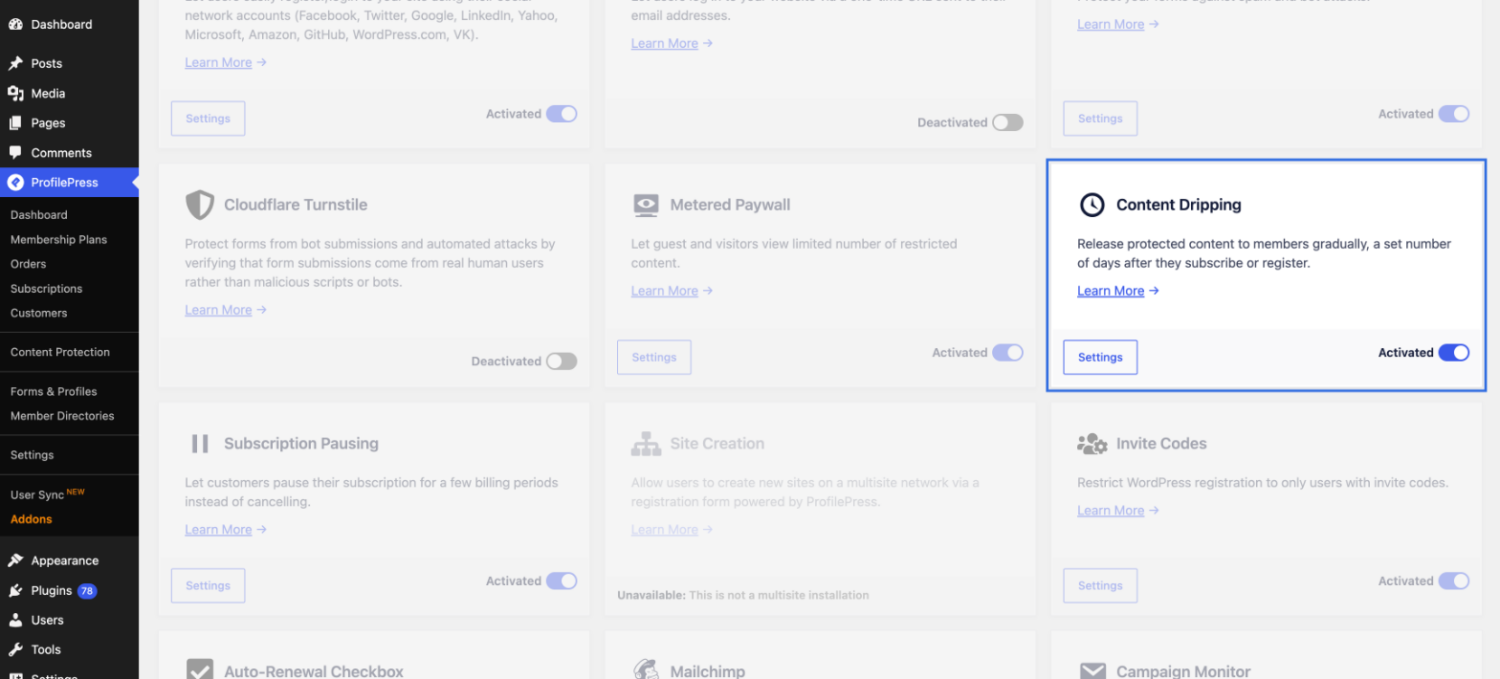
First, make sure you’ve installed and activated the ProfilePress plugin on your WordPress site. Next, go to ProfilePress → Addons and activate the Content Dripping addon.
Setting Up a Drip Schedule
Follow the steps below to set up the Drip Schedule, which is integral to sto how to drip content in WordPress.
Step 1: Create a content protection rule
Go to ProfilePress → Content Protection and click Add a Protection Rule, or edit an existing rule.
- In Content to Protect, choose the content to drip, for example, a post, page, course lesson, or category.
- In Access Condition, set Who can access the content? to Logged in users, and select the membership plans that can access it.

Note: Dripping only applies to rules restricted to Logged in users. Drip settings on rules set to “Everyone” or “Logged out users” have no effect.
Step 2: Configure the Content Dripping settings
Scroll down to the Content Dripping box on the same screen and tick Drip this content.
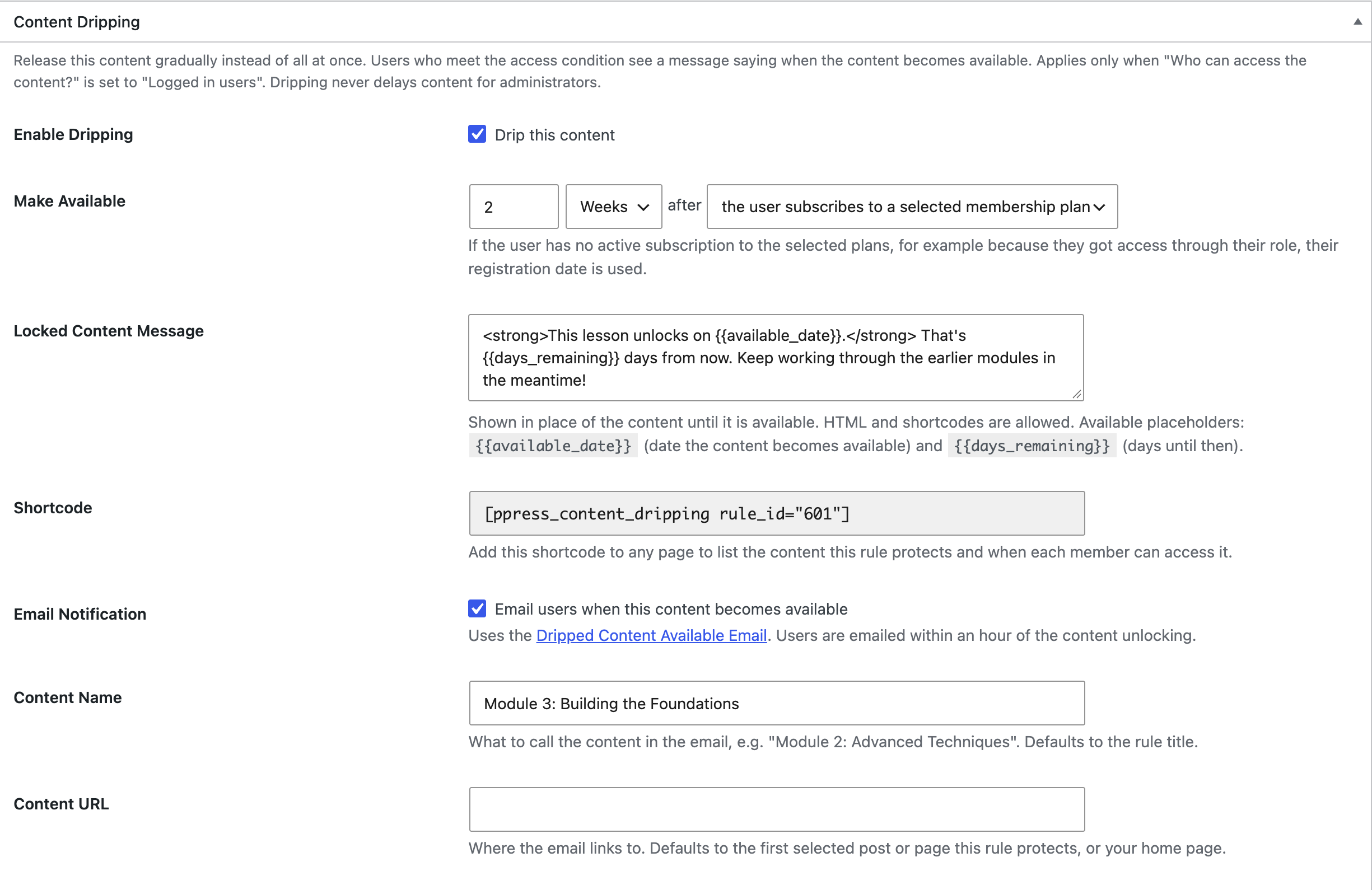
- Make Available: how long after the member joins the content unlocks, in days, weeks, or months. Then choose when the clock starts:
- the user subscribes to a selected membership plan: counts from the date the member subscribed to one of the plans in the rule’s access condition.
- the user registers: counts from the date the member registered on your site.
- Locked Content Message: the message members see until the content unlocks. HTML and shortcodes are allowed. You can use these placeholders:
| Placeholder | Replaced with |
|---|---|
{{available_date}} |
The date the content becomes available to the member, in your site’s date format. |
{{days_remaining}} |
The number of days until then. |
The remaining settings, Shortcode and Email Notification, are explained below.
Click Save Rule when you’re done.
Step 3: Check your drip schedule
Back on the Content Protection screen, each rule’s drip schedule is shown under its access condition, for example, “Drips 2 weeks after subscribing”.
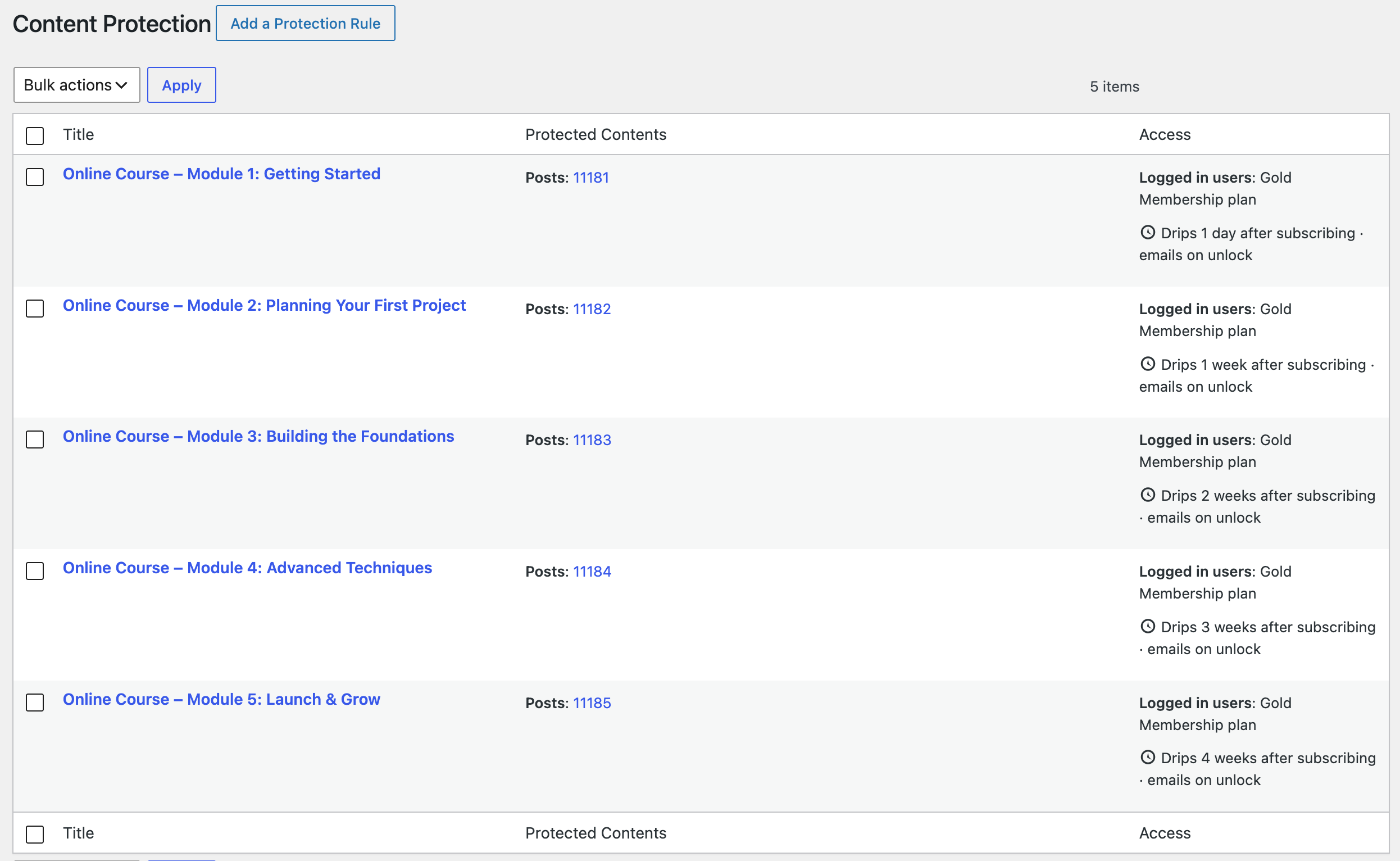
Tip: To drip a course one module at a time, create a rule for each module and give each one a longer delay. For example, Module 1 after 1 day, Module 2 after 1 week, Module 3 after 2 weeks, and so on.
What Members See
When a member opens content that hasn’t dripped yet in your WordPress membership website, they see your Locked Content Message in place of the content, typically with the unlock date filled in.
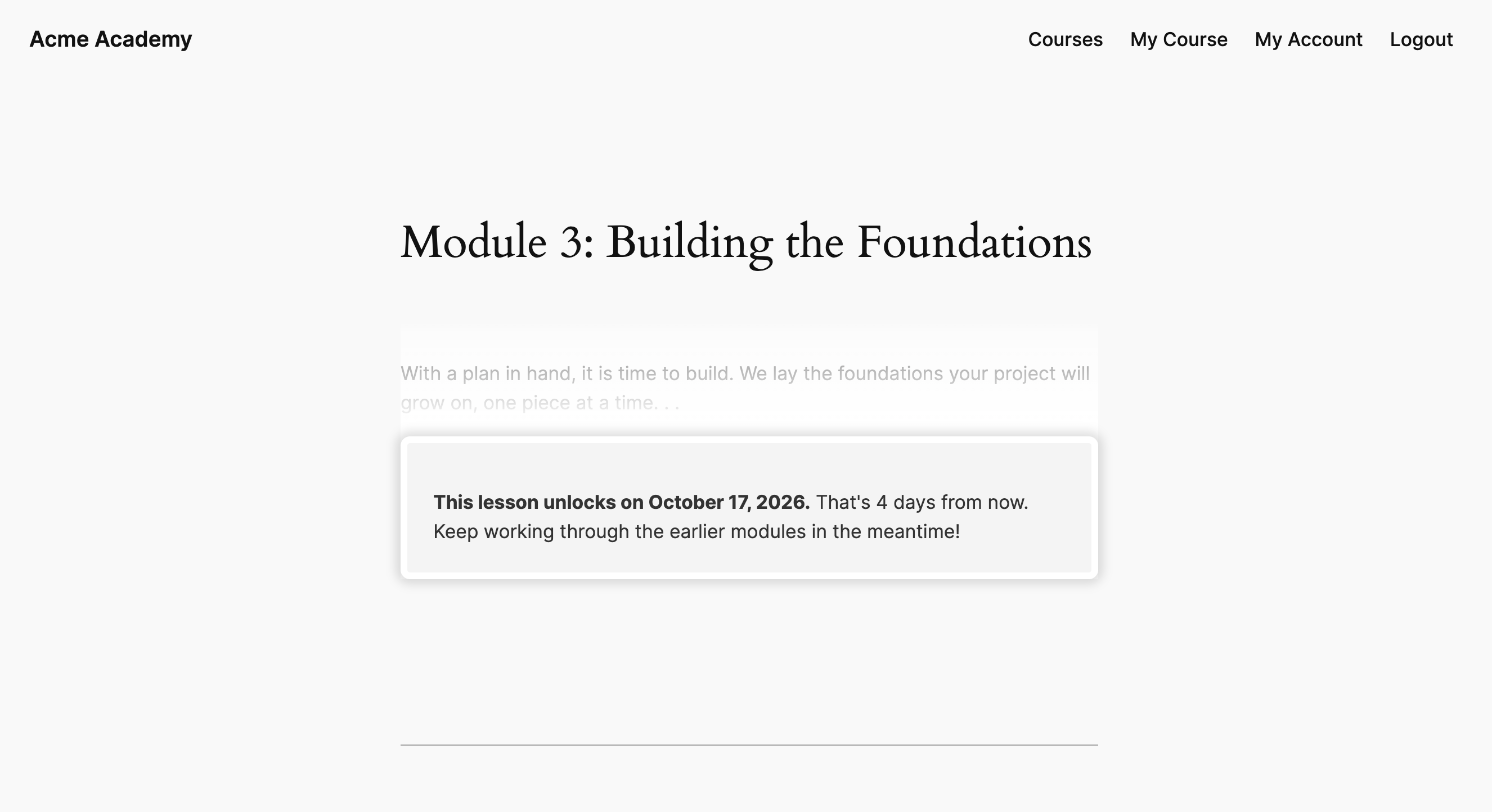
- Message style: the message uses the same styling as the rule’s no-access message.
- Post excerpt: if the rule is set to show the post excerpt to users without access, the excerpt is kept as a teaser above the drip message.
- No redirects: members waiting for dripped content are never redirected away from it, even if the rule’s no-access action is a redirect. They see when it unlocks instead.
- Search results: content that hasn’t dripped for a member is hidden from their search results until it unlocks.
Once the drip delay has passed, the member sees the full content on your WordPress site.
Showing Members Their Content Schedule
Use the [ppress_content_dripping] shortcode to show members everything in a series on one page: what they can open now, and the date each upcoming item unlocks for them.
You’ll find the shortcode for a rule in its Content Dripping box once the rule is saved. Add it to any page:
[ppress_content_dripping rule_id="123"]
To show a whole course, list several rule IDs separated by commas. Their content is combined into one schedule sorted by release date:
[ppress_content_dripping rule_id="12,15,18" title="Your Course Schedule"]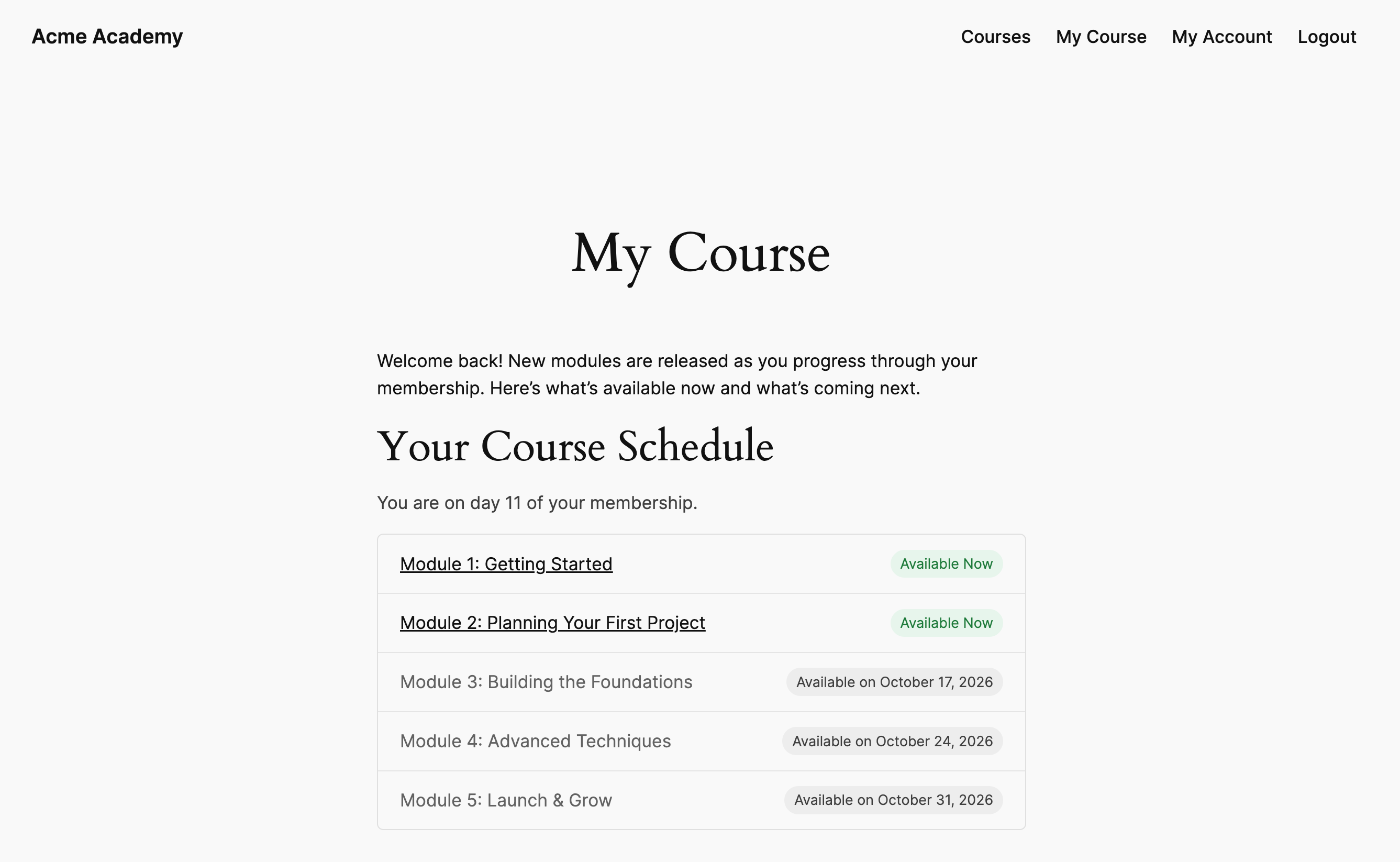
The shortcode accepts these attributes:
| Attribute | Description |
|---|---|
rule_id |
One or more content protection rule IDs, separated by commas. Required. |
title |
The heading above the list. Defaults to “Content in This Series”. Use title="" to hide it. |
show_intro |
Set to no to hide the “You are on day N of your membership.” line. |
A few things to know:
- Available items link to the content. Upcoming items show the date they unlock.
- The list includes all published content the rules protect, so it updates automatically when you publish new content.
- If an item is protected by more than one of the listed rules, it unlocks when the last of them releases it.
- Logged-out visitors see a prompt to log in. Members who don’t meet the rules’ access condition see a message that they don’t have access.
Previewing the schedule as a member
As an administrator, you see every item as available. To check what members will see on your WordPress membership website, the shortcode shows administrators a link to Preview as a new member. You can also preview the schedule as a specific user by adding ?ppress_drip_preview_user=USER_ID to the page URL.
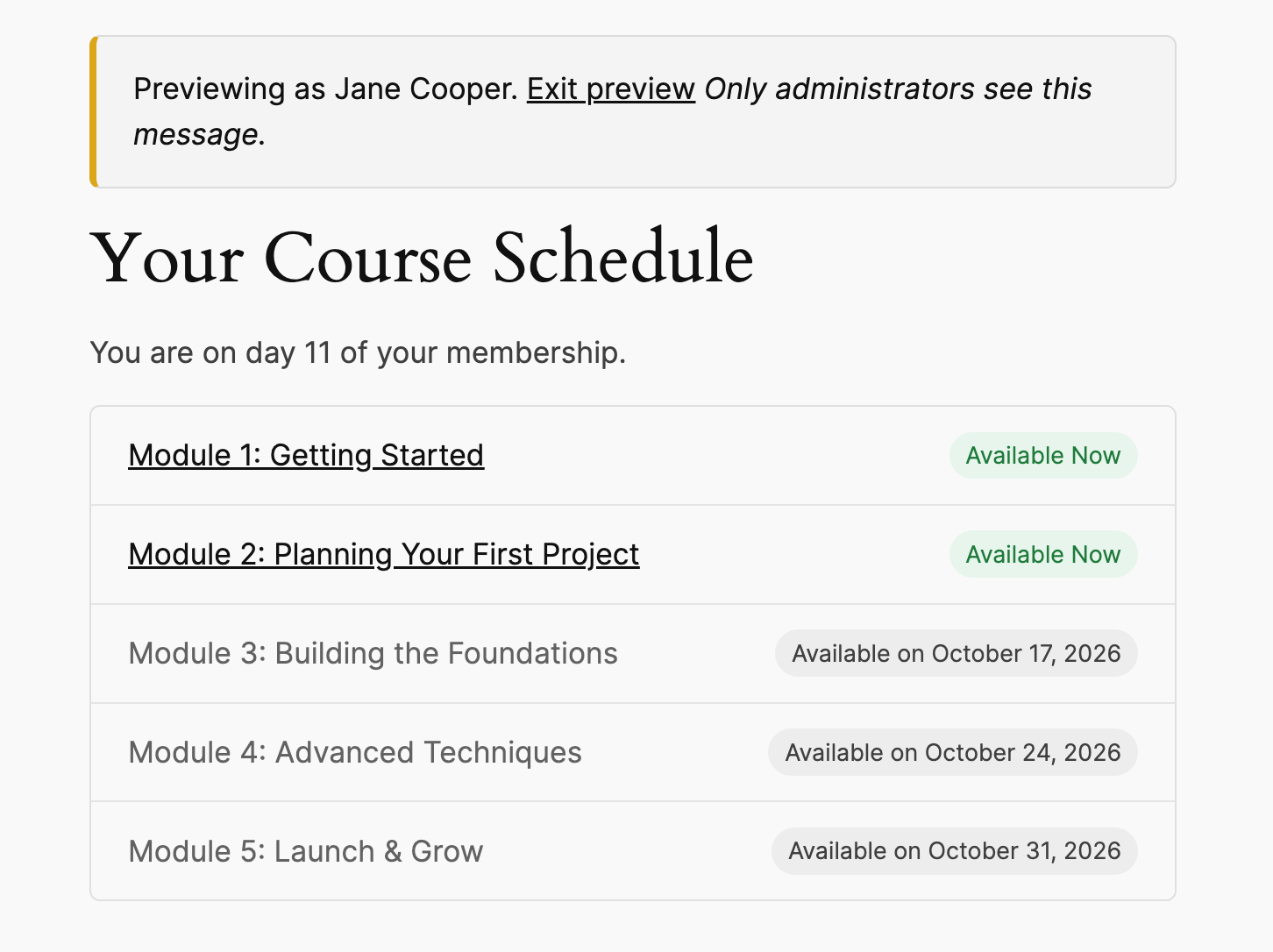
Only administrators see the preview bar.
Emailing Members When Content Unlocks
ProfilePress can email members as soon as dripped content becomes available to them on your WordPress website.
In the rule’s Content Dripping box, tick Email users when this content becomes available.
Optionally, fill in:
-
- Content Name: what to call the content in the email, for example “Module 2: Advanced Techniques”. Defaults to the rule title.
- Content URL: where the email links to. Defaults to the first published post or page the rule protects, or your home page.
Don’t forget to save the rule.
Members are emailed within an hour of the content unlocking for them, and only once for each unlock.
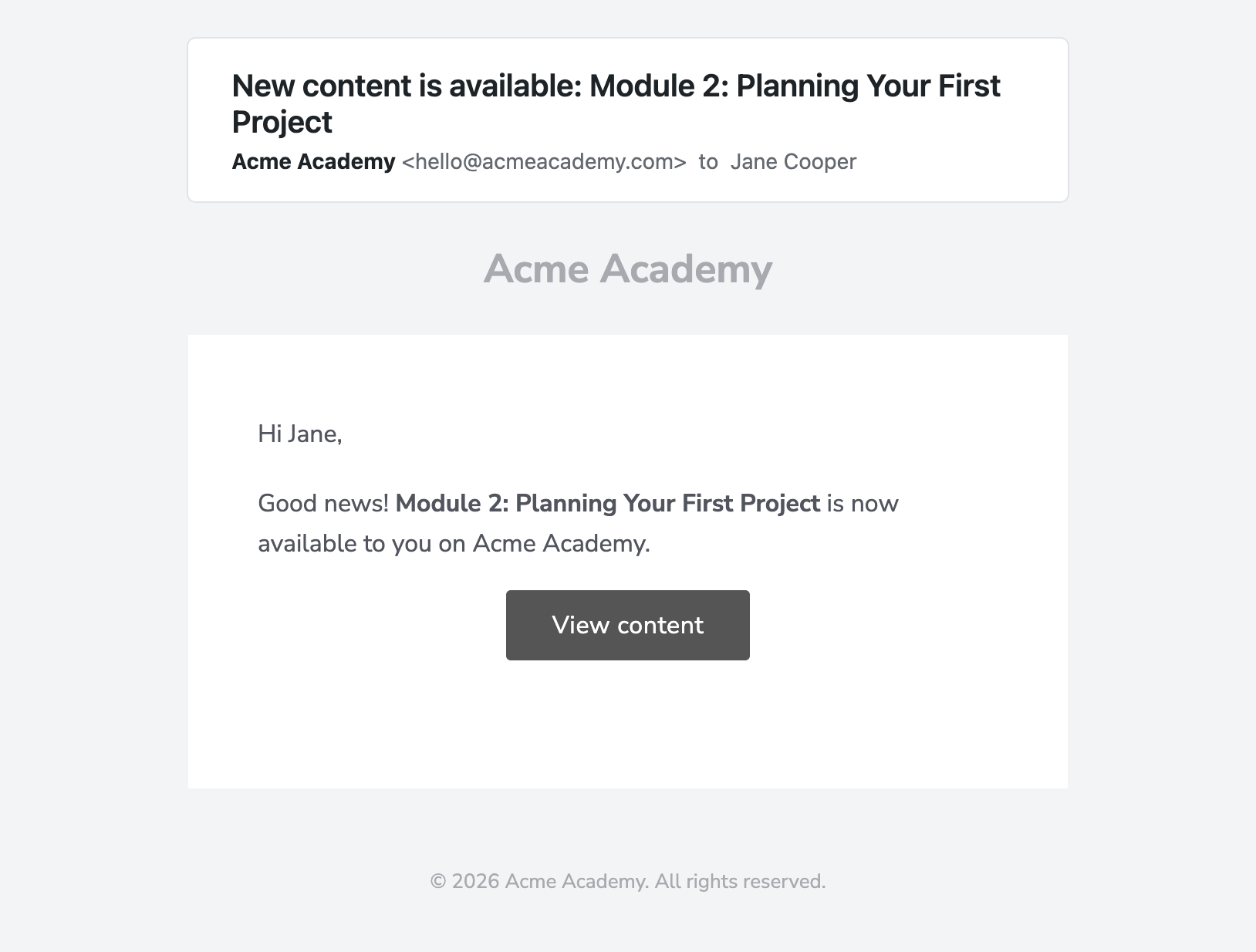
Customizing the email
To edit the email, go to ProfilePress → Settings → Emails → Account and click Dripped Content Available Email. You can change its subject and message, or turn it off for all rules.
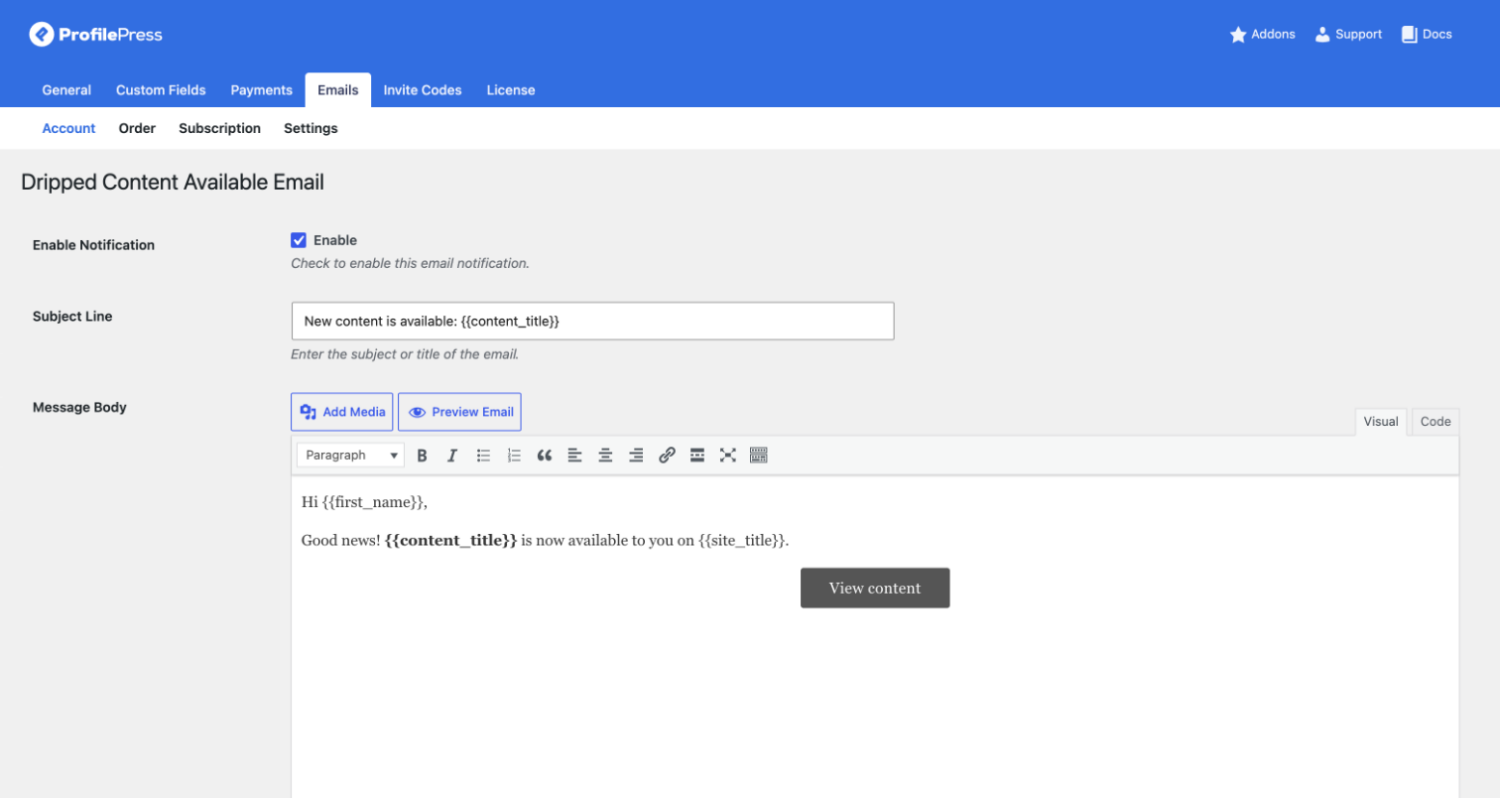
The email supports these placeholders:
| Placeholder | Replaced with |
|---|---|
{{content_title}} |
Name of the content that became available. |
{{content_url}} |
Link to the content that became available. |
{{username}} |
Username of the member. |
{{email}} |
Email address of the member. |
{{display_name}} |
Display name of the member. |
{{first_name}} |
First name of the member. |
{{last_name}} |
Last name of the member. |
{{site_title}} |
Your website title. |
{{login_link}} |
URL to log in. |
How the Drip Start Date Is Worked Out
For rules that drip from the user subscribes to a selected membership plan:
- The clock starts when the member’s earliest active subscription to one of the rule’s plans started. Buying a second plan later doesn’t lock content again.
- A canceled subscription that hasn’t expired yet still counts, so canceling doesn’t reset the clock while the member still has access.
- If the member has no active subscription to the rule’s plans, for example because they got access through their user role, their registration date is used instead.
- Upgrading or downgrading to another plan creates a new subscription, so the clock restarts from the new subscription.
For rules that drip from the user’s registration, the clock always starts on the member’s registration date.
Frequently Asked Questions
Q: Do administrators have to wait for dripped content? A: No. Administrators always see dripped content in WordPress immediately. Use the shortcode’s preview mode to see what members see.
Q: Can I drip content to members who get access through a user role instead of a membership plan? A: Yes. Members without a matching subscription have the drip counted from their registration date.
Q: Can I drip content by days, weeks, or months? A: Yes. A month is a calendar month, so content dripped 1 month after January 15 unlocks on February 15.
Q: When I turn on email notifications, will members get emails about content that unlocked in the past? A: No. Only content that unlocks from around the time you turn notifications on is emailed, so members aren’t flooded with emails about older content.
Q: What happens to dripped content if a member’s subscription expires? A: They lose access to it, as with any protected content. If they subscribe again, the drip clock starts from their new subscription.
For Developers
Content Dripping provides these filters:
| Filter | Use it to |
|---|---|
ppress_content_dripping_bypass |
Decide who skips dripping. Defaults to administrators. |
ppress_content_dripping_start_timestamp |
Change when a member’s drip clock starts. |
ppress_content_dripping_available_timestamp |
Change when content becomes available to a member. |
ppress_content_dripping_message |
Change the locked content message. |
ppress_content_dripping_content_title |
Change the content name used in the email. |
ppress_content_dripping_content_url |
Change the content link used in the email. |
ppress_content_dripping_send_notification |
Stop the unlock email for some members or rules. |
ppress_content_dripping_shortcode_posts |
Change the items listed by the shortcode. |
ppress_content_dripping_shortcode_heading |
Change the shortcode heading. |
ppress_content_dripping_shortcode_intro |
Change the “You are on day N” line. |
ppress_content_dripping_shortcode_styles |
Return false to remove the shortcode’s default styles. |
For example, to let editors see dripped content immediately too:
add_filter('ppress_content_dripping_bypass', function ($bypass) {
 return $bypass || current_user_can('edit_others_posts');
});
We hope this article helped you learn how to drip content on your WordPress website using the ProfilePress Content Dripping addon.
Purchase the Content Dripping addon today to start releasing your courses and premium content on your WordPress website to members on a schedule.