
Adding WordPress Users to Brevo Lists After Registration
Do you want to automatically add new WordPress users to your Brevo (formerly Sendinblue) email marketing lists the moment they register on your site?
Building and nurturing an email list is an effective strategy for growing your online business, increasing engagement, and maintaining long-term relationships with your audience.
For WordPress site owners, manually adding every new registered user to an email list is time-consuming, error-prone, and simply not scalable. By automating this process, you ensure that every new user is instantly subscribed to the right Brevo email list. This means faster onboarding, more consistent communication, and higher email marketing ROI from day one.
In this article, you’ll learn how to integrate WordPress with Brevo using our ProfilePress membership plugin and its dedicated Brevo addon to automatically subscribe users to your Brevo marketing lists after user registration.
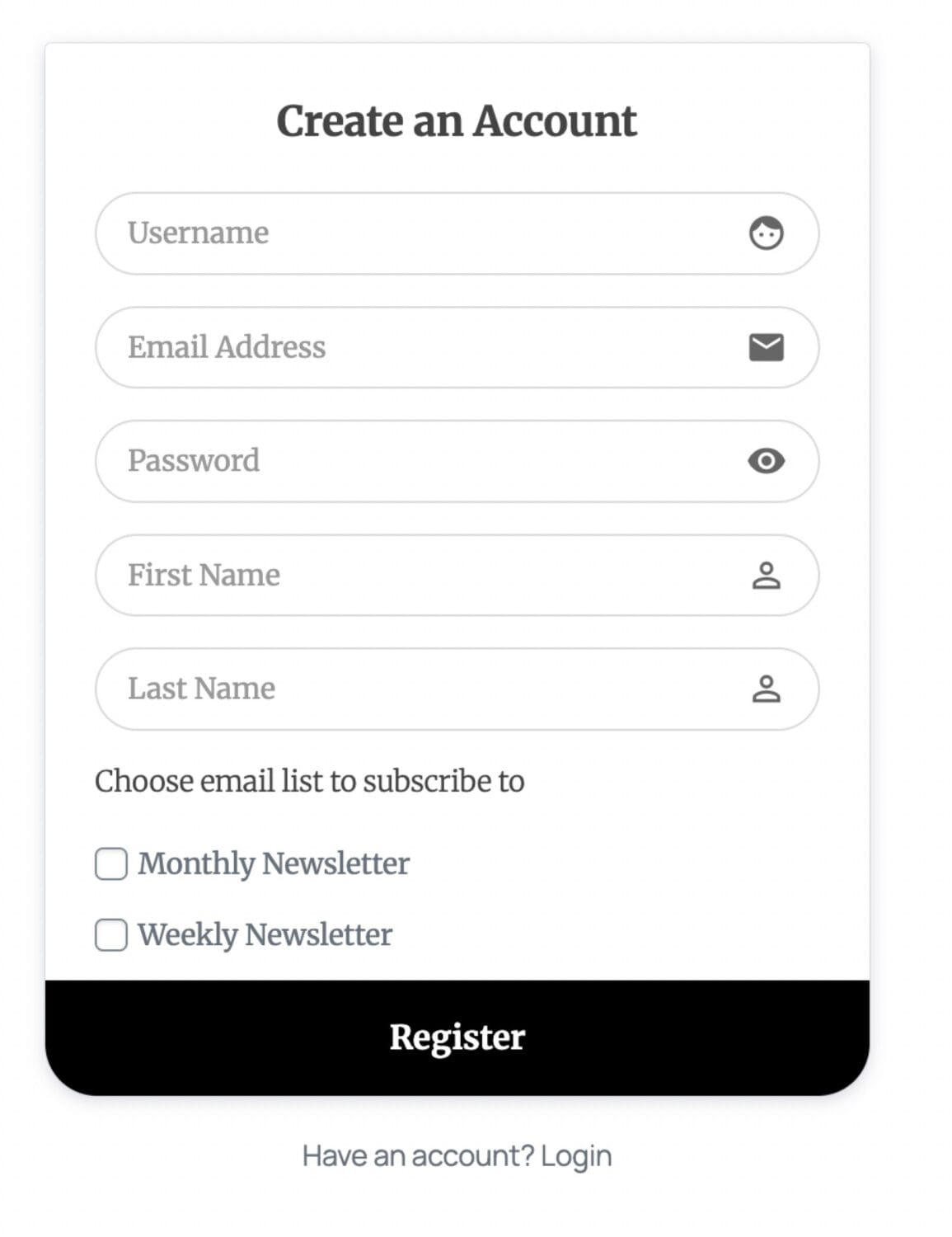
Why Integrate WordPress Registration With Brevo?
- Save time with automation: New users in WordPress are added to your Brevo lists automatically — no manual CSV imports or copy-pasting email addresses.
- Improve email deliverability: Subscribers are added with confirmed, valid email addresses directly from your WordPress registration form.
- Segment your audience: Allow users to self-select which email lists to join during registration, enabling more targeted campaigns from the very first touchpoint.
- Reduce subscriber churn: By capturing opt-in preferences at registration, you respect user intent, leading to higher open rates and fewer unsubscribes.
- Stay GDPR-compliant: Giving users explicit control over which lists they join helps you meet consent requirements under GDPR and other privacy regulations.
Subscribing WordPress Users to Brevo Marketing List
To automatically add WordPress users to specific Brevo email lists after user registration, you’ll need to activate the Brevo addon on your WordPress site. Follow our guide to set up the integration between Brevo and WordPress.
Once you have enabled the Brevo addon in ProfilePress, the next step is to set up your Brevo email lists.
Setting up Brevo Lists Selection
To allow users to select the Brevo email list they want to join, add the Brevo block or shortcode to your registration form. You can do this using the drag-and-drop builder or the shortcode builder.
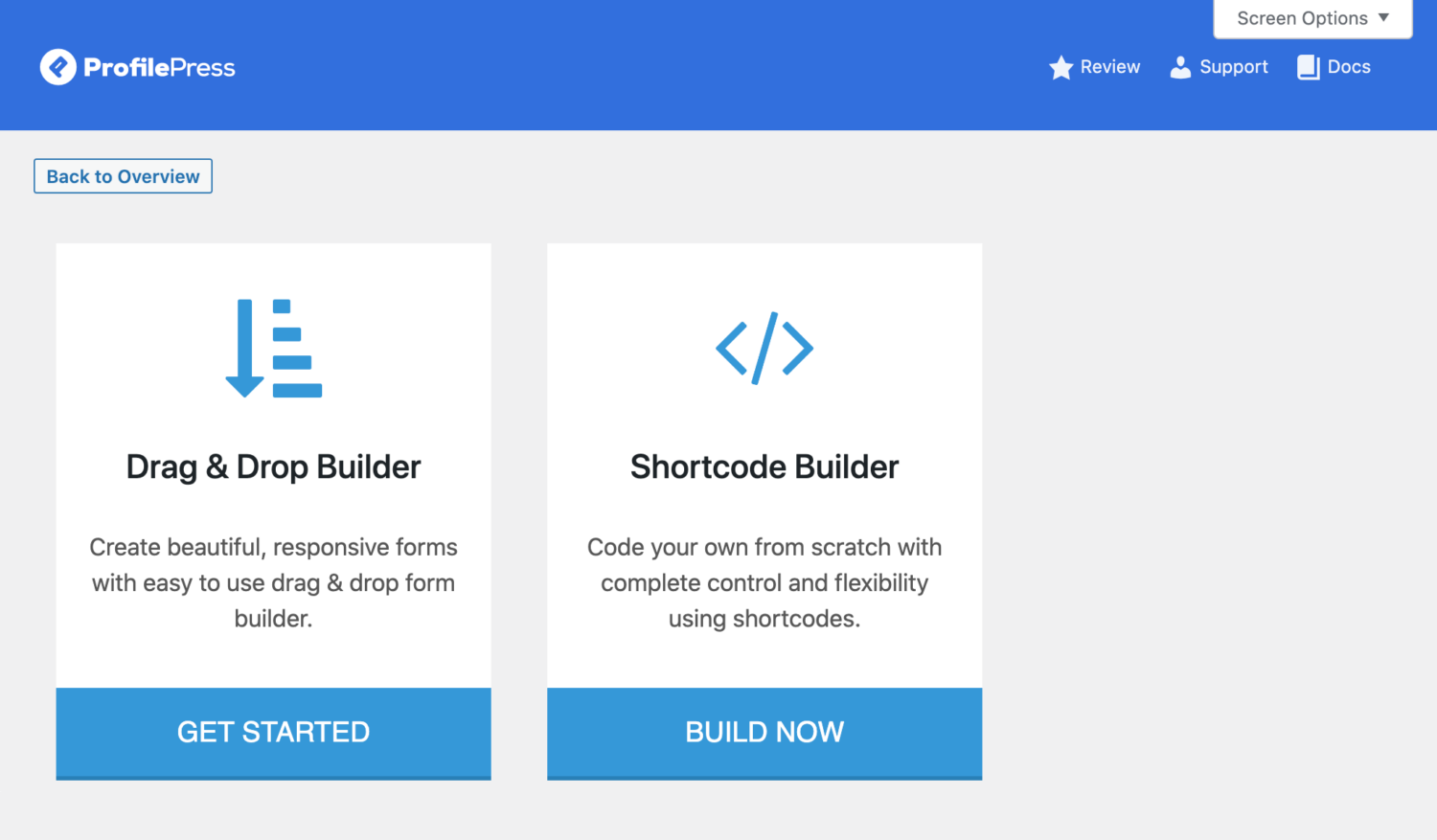
Drag & Drop Builder
To add the Brevo list selection field to your WordPress registration form created using our Drag-and-drop builder, open your registration form builder or create a new form.
Drag and drop the Custom HTML field to where you want to add the “list selection” field.
Click on the gear icon, type a description for the lists (such as “Choose email list to subscribe to”), and apply when done.
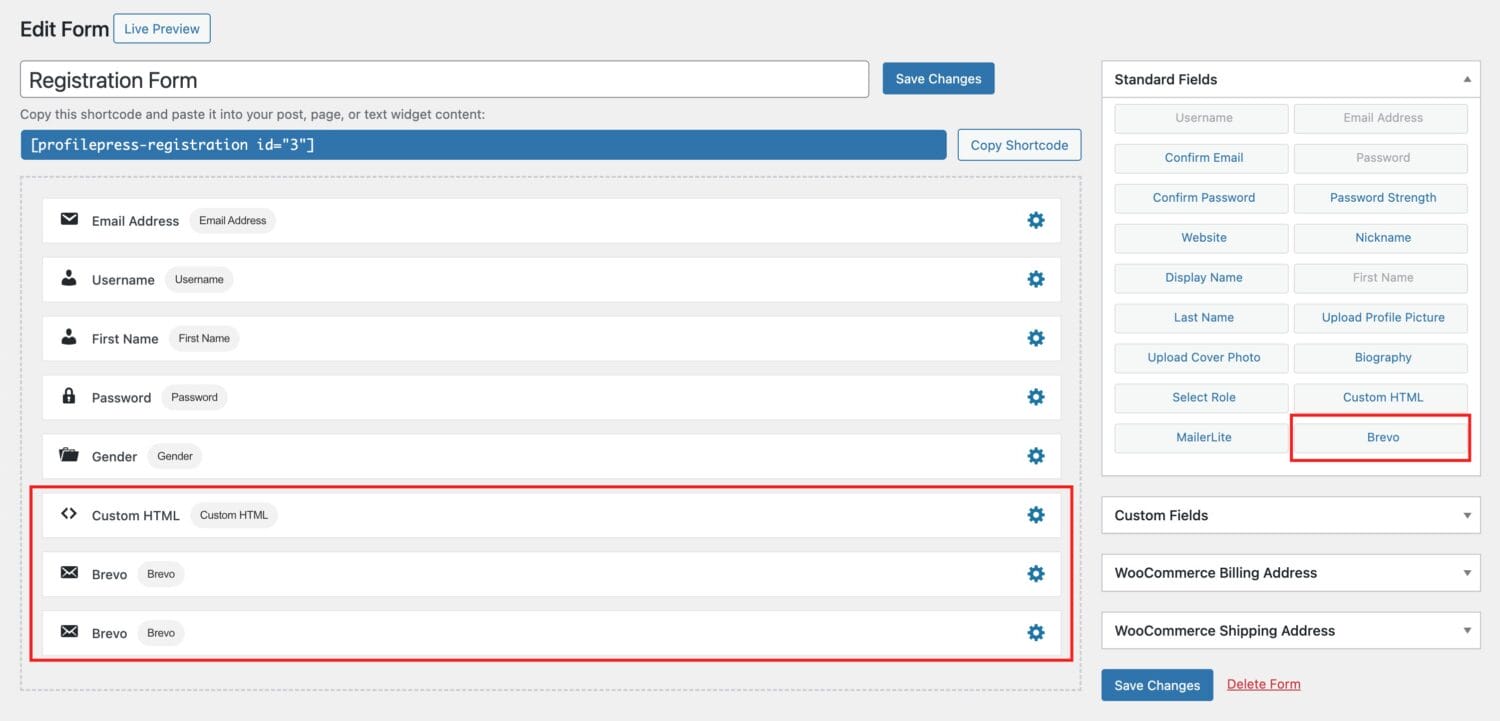
Next, drag and drop the Brevo field, and click the gear icon to select the list and enter a label for the checkbox field (or leave it empty to use the list title).
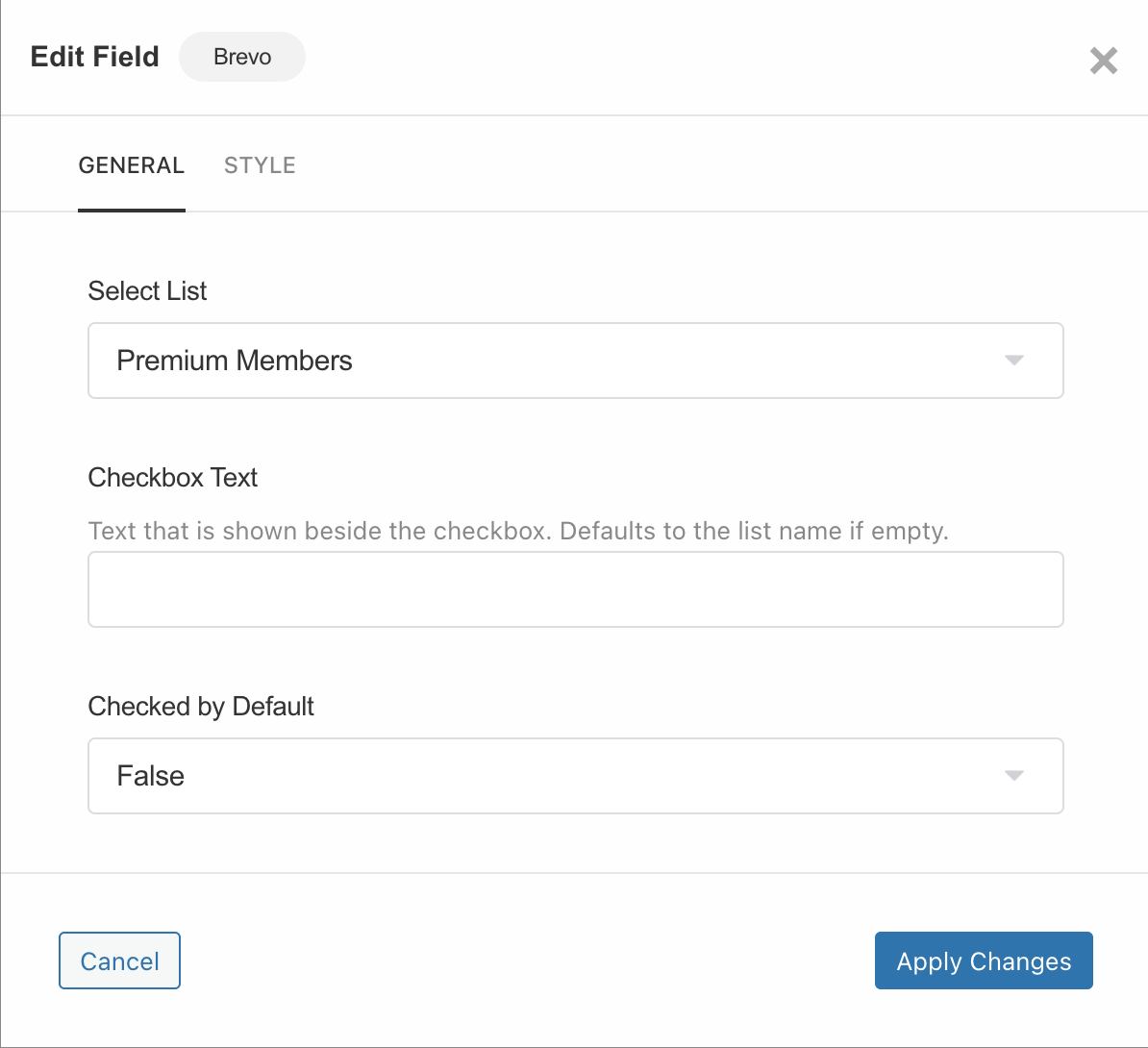
You can also choose to make the field checked by default.
Repeat the steps above for each list you want to display on your registration form.
Don’t forget to save your changes.
Shortcode Builder
If your registration form is created using the Shortcode builder, open the form in the builder.
Write the description for the lists wrapped in, say, a paragraph tag (e.g. <p>Select a list to join</p>)
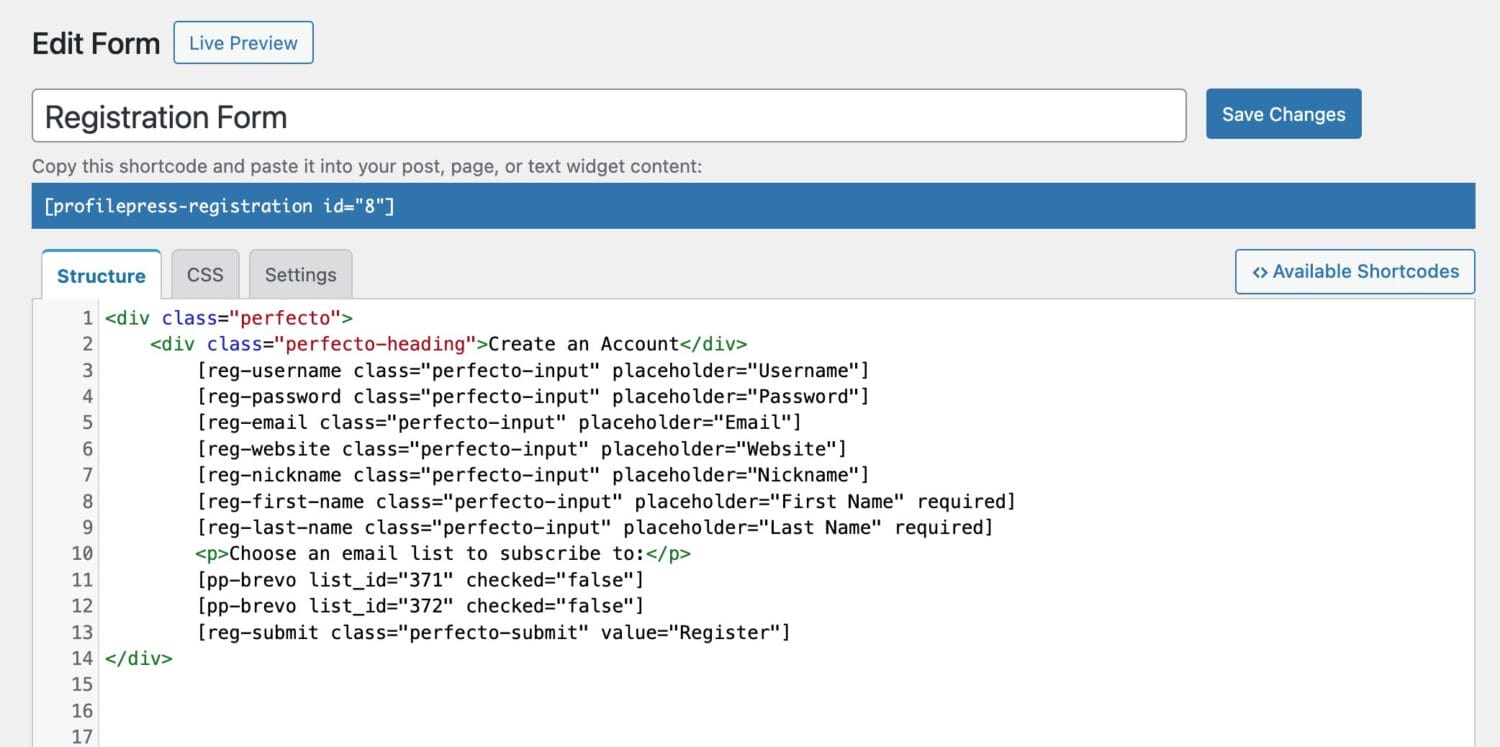
To add the Brevo shortcode that will display the subscription checkbox on your form:
- Click on Available Shortcodes and scroll to and select pp-brevo
- Select a Brevo list.
- Enter a checkbox text or leave it empty to use the list title.
- Choose whether to select this option by default
- Click on “Copy to Clipboard“
- Paste the code right below your list description in step 2
- Repeat steps 3-8 for each Brevo email list you want to display on your form.
- Save changes
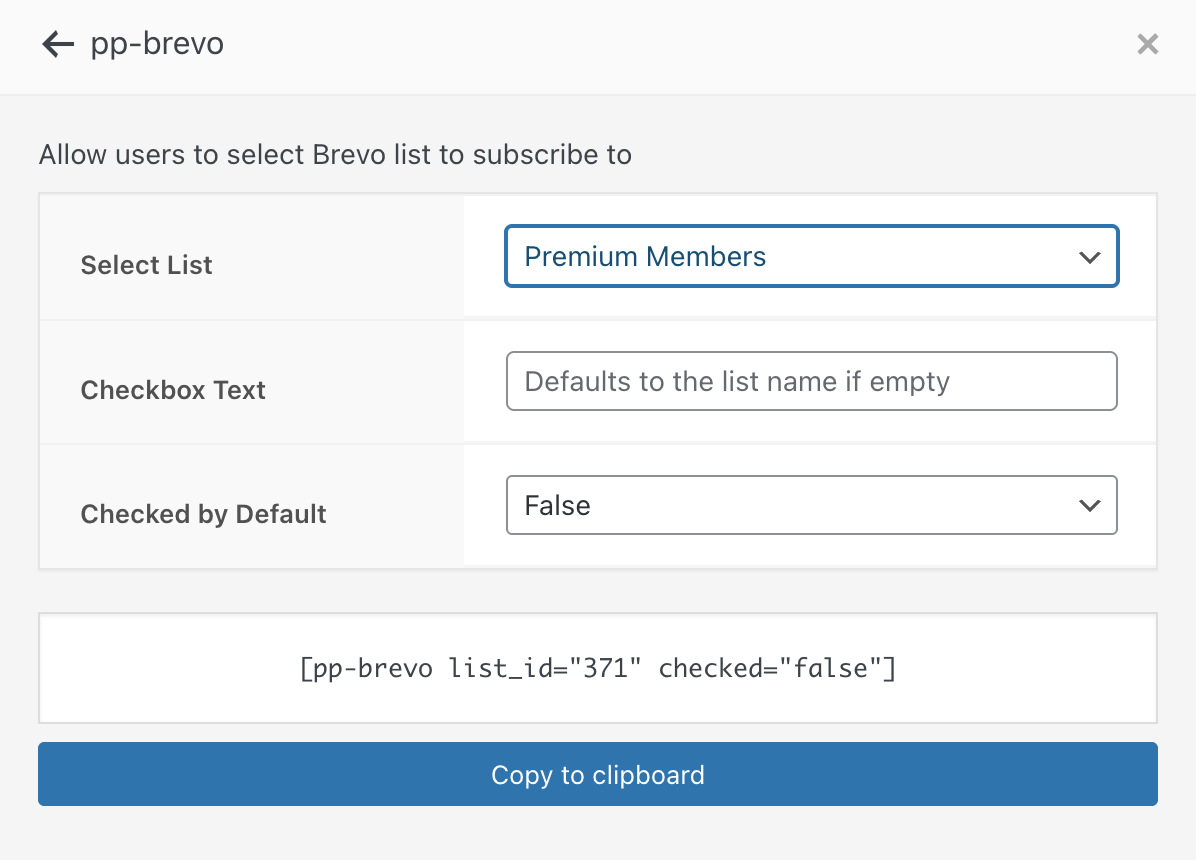
Note: Each list must have been created on the settings page. See Setting Up Brevo Addon
Conclusion
Automatically subscribing WordPress users to your Brevo email lists after registration is one of the simplest ways to grow your email marketing efforts.
By using the ProfilePress Brevo addon, you eliminate manual work, capture subscribers the moment they sign up to your WordPress website, and give users the freedom to choose the content they want to receive.
We hope this article has helped you understand how to subscribe WordPress users to your Brevo account list after they register.
If you have any questions or need further assistance with the setup, don’t hesitate to contact our support team.