
How to Sync/Export WordPress Users to Brevo Contact Lists
Do you want to sync and export your WordPress users to your Brevo account?
Whether you’re growing a newsletter audience, running a membership site, or managing an online community, keeping your WordPress user database and your email marketing platform in sync is essential. Manual exports are tedious, error-prone, and quickly outdated the moment a new user registers or an existing member updates their profile.
With our Brevo addon, you can automatically export WordPress users to Brevo contact lists and keep them continuously synchronized. You can select specific WordPress users to export, either by role or by those subscribed to specific membership plans.
Additionally, the Sync Tool goes beyond just adding users; it monitors changes in your WordPress user base and automatically updates your Brevo email lists whenever new users sign up or existing users modify their profile information.
Getting Started
To sync and export your WordPress site users to your Brevo account, you’ll need to install the ProfilePress plugin and activate the Brevo addon.
Activating the Addon
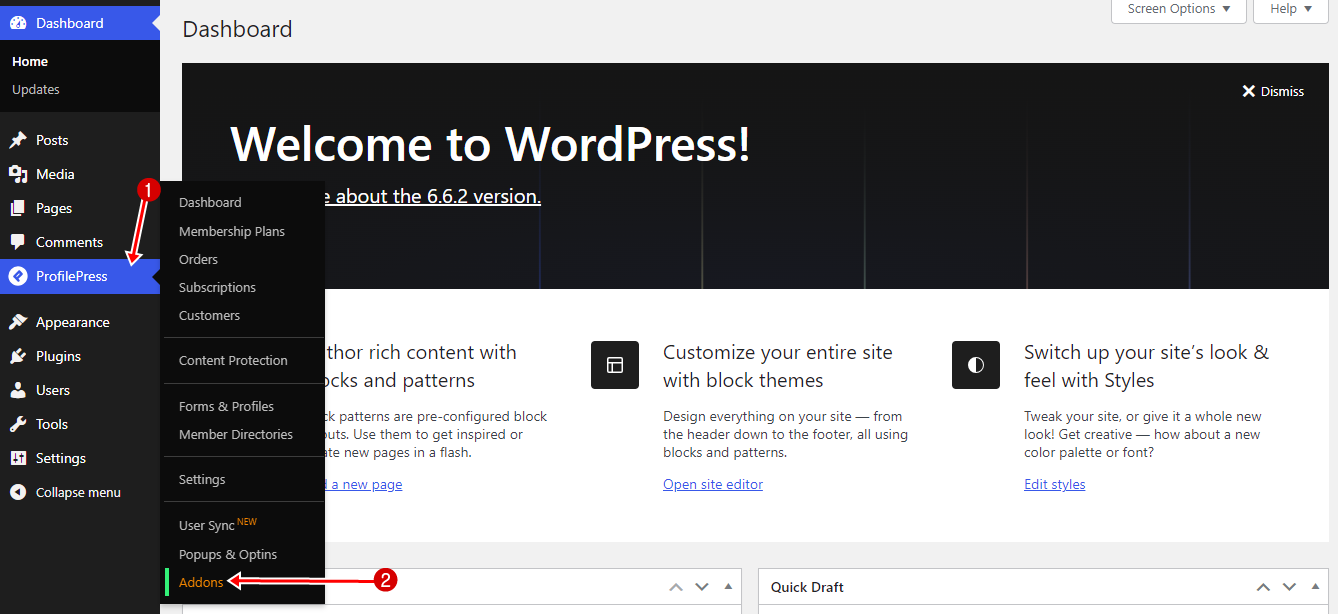
To activate the Brevo addon, navigate to ProfilePress > Addons in your WordPress dashboard. Here, you’ll find a list of available ProfilePress addons.
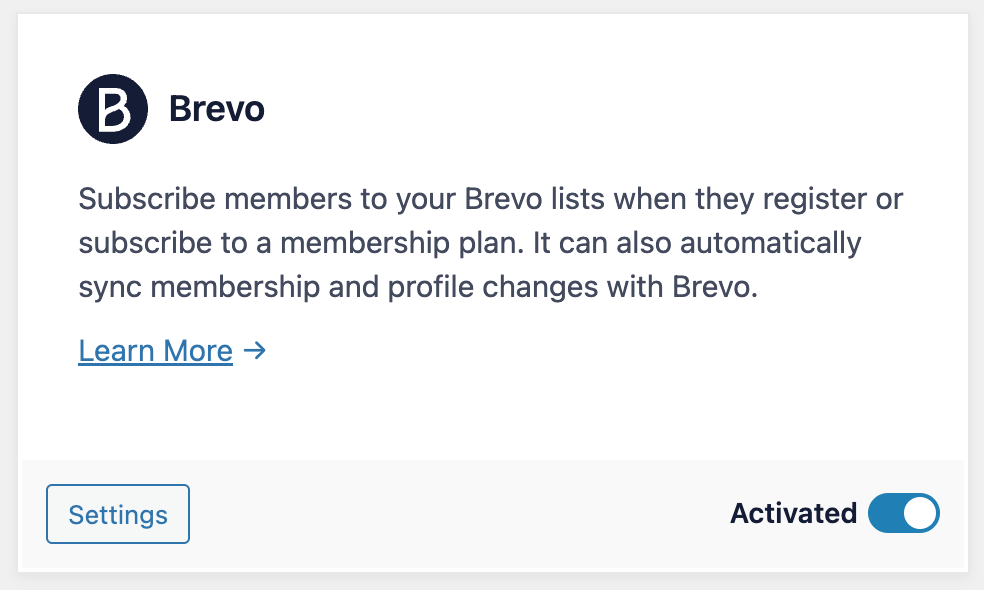
Scroll to the Brevo section and enable the addon.
Synchronizing WordPress with Brevo
Before syncing your WordPress users with Brevo, ensure that you have set up a Brevo email list in ProfilePress to receive users as subscribers.
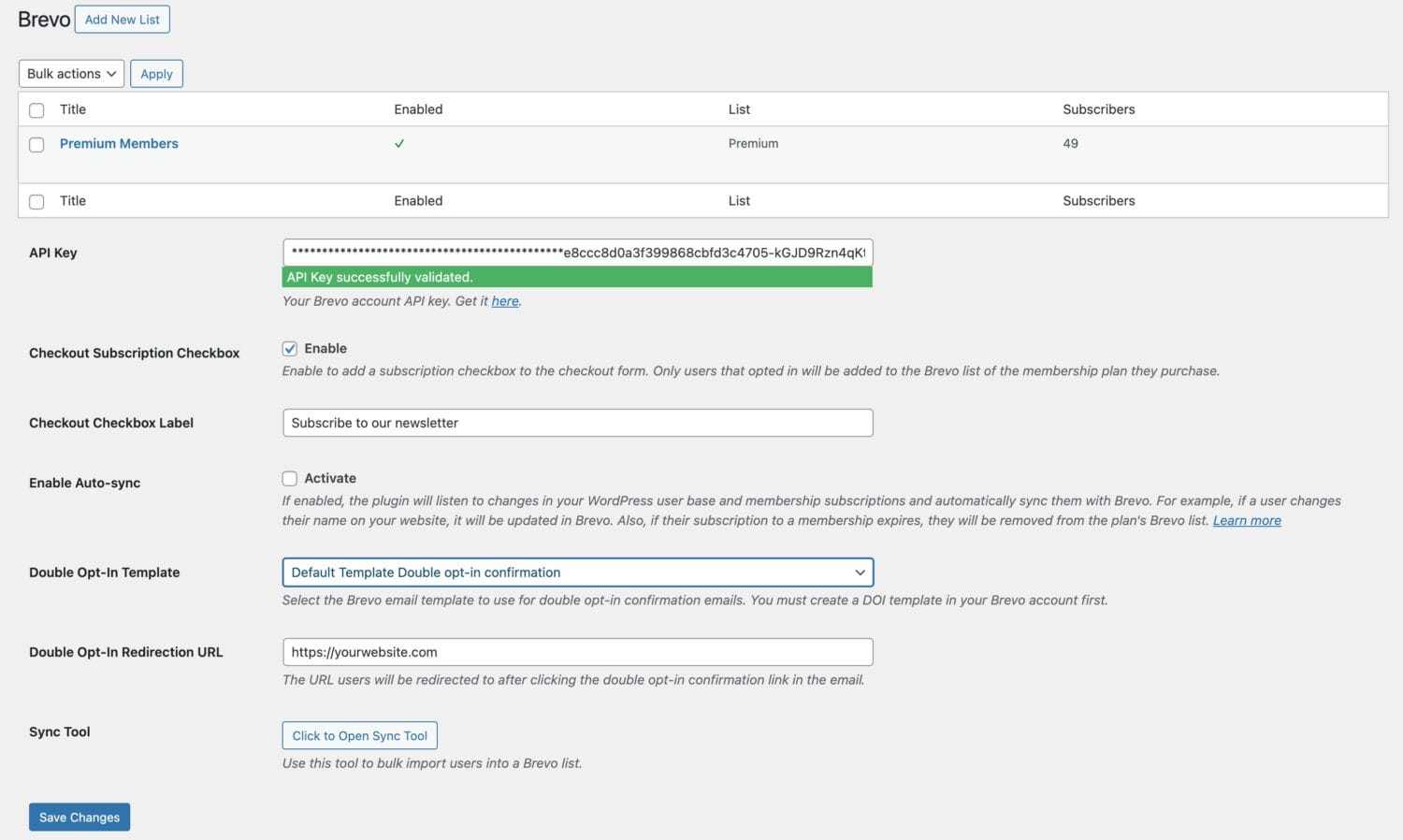
Once that’s in place, go to ProfilePress >> Settings >> Integrations >> Brevo.
Auto Sync
Enabling auto-sync allows the plugin to monitor changes in your WordPress user base and membership subscriptions, and automatically sync them with your Brevo account.
For example, when users update their profile or change their email address on your site, their information in Brevo is automatically updated. If you’ve connected each membership plan to a specific Brevo email list, members will be added to the corresponding list when they subscribe. When their subscription expires, they’ll be automatically removed from that list.
Manual Sync
Use this to import a bulk number of WordPress users to a Brevo email list. For example, with a few clicks, you can import a specific user role or users subscribed to a particular membership plan to a Brevo list.
Still on the Brevo settings page. Scroll down to the Sync Tool section.

Click the “Click to Open Sync Tool” button, select a user role or Membership plan, and then choose the list to sync the users to. Finally, click the “Sync Users” button to start the process.
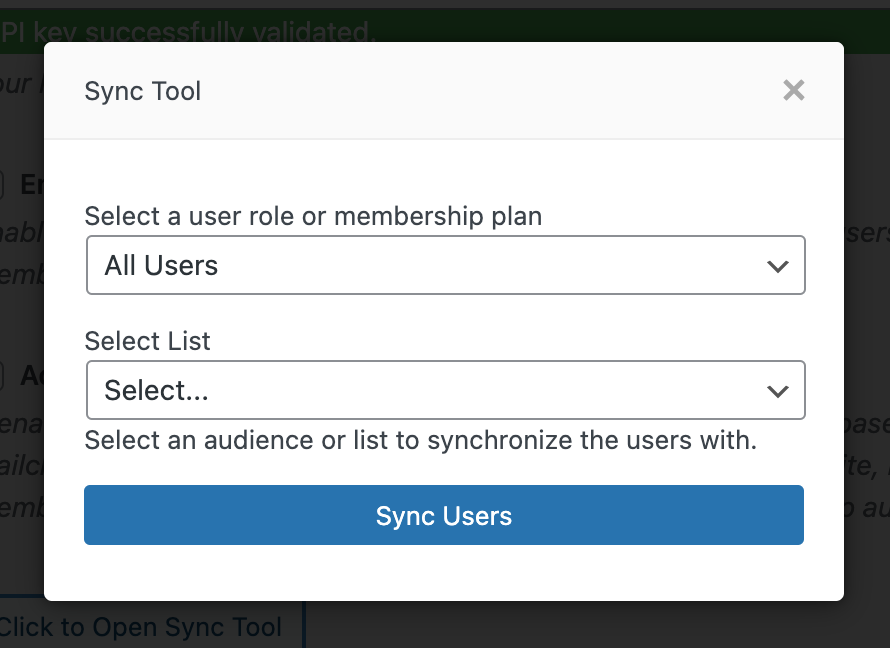
Wait for the syncing process to finish before closing the popup or modal.
We hope this article has helped you learn how to sync and export your WordPress site users to Brevo using our ProfilePress plugin.