
How to Show Membership Plans on Any Page (Pricing Table Shortcode)
The [profilepress-plans] shortcode shows your membership plans as pricing cards on any page. Use it for a pricing page, a landing page, or a sidebar. It uses the same cards as the checkout page, and each card’s button opens that plan’s checkout.
Each card shows:
- the plan name;
- the price with its billing period, such as “$29.00 / month” or “Free”;
- its terms: free trial, number of payments, one-time payment or sign-up fee;
- the plan’s Description.
The cards are built from your plans, so when you change a plan’s price, the pricing page changes with it. Write a description for each plan that says what it includes. See Creating Membership Plans.
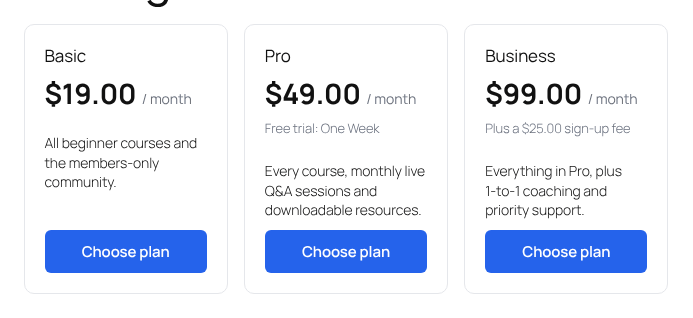
Show a Plan Group’s Plans
To compare tiers side by side, such as Basic, Pro, and Business, put the plans in a plan group and use the group’s shortcode:
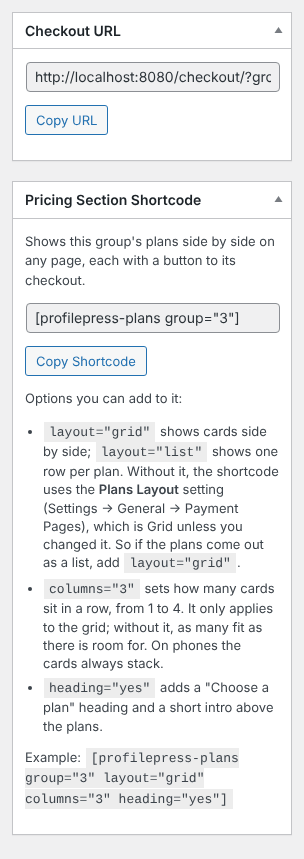
[profilepress-plans group="2"]Each plan in the group gets its own card, in the group’s order.
You’ll find the shortcode for a group, ready to copy, on its edit screen. Go to ProfilePress » Membership Plans » Plan Groups, edit the group, and click Copy Shortcode in the Pricing Section Shortcode box. The box lists the options below too.
Show Specific Plans
To show only some plans, list their IDs in the order you want them:
[profilepress-plans plans="8,3,1"]The plans option is ignored when group is set.
Show All Plans
[profilepress-plans] with no options shows all your active plans, like the checkout page does: newest first, with the plans of each plan group sharing one card.
Options
| Option | What it does |
|---|---|
layout="grid" or layout="list" |
Grid shows cards side by side. List shows one row per plan, which is easier to compare when you have many plans. Without it, the shortcode uses the Plans Layout setting, which is Grid unless you changed it. |
columns="3" |
How many cards sit in a row, from 1 to 4. It only applies to the grid. Without it, as many fit as there’s room for. On phones, the cards always stack in one column. |
heading="yes" |
Adds a “Choose a plan” heading and a short intro above the plans. It’s off by default because your page usually has its own heading. |
For example:
[profilepress-plans group="2" layout="grid" columns="3" heading="yes"]Adding the Shortcode to a Page
- Go to Pages » Add New, or open the page you want to add the plans to.
- Add a Shortcode block (or a Shortcode widget in your page builder).
- Paste the shortcode and publish the page.
What Signed-In Members See
Members see their current plan marked as Your current plan. Other plans in the same group show a Switch to {Plan} button. It opens the plan change checkout with that plan selected, so the member gets prorated pricing instead of a second subscription.
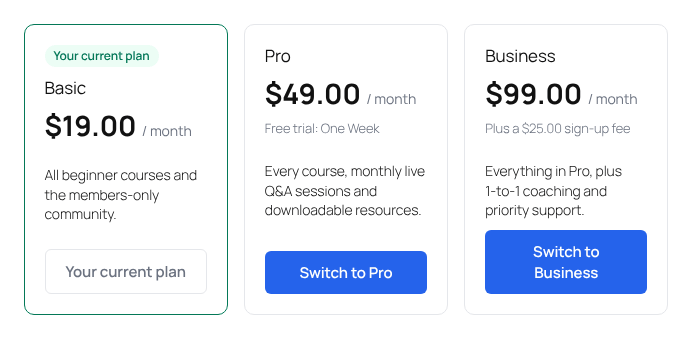
If their subscription can’t change plan yet, for example, while it’s waiting for its first payment, the button is disabled and hovering over it explains why.
Because these cards are different for each member, ProfilePress tells caching plugins not to cache pages that use the shortcode.
Good to Know
- Inactive plans never show, even if you list their IDs.
- With the Team Memberships addon, team plans show their seats: a per-seat plan reads like “$29.00 / seat / month” with “From 3 seats”, and a fixed-seat plan shows “Includes 5 seats”.
- If there’s nothing to show, visitors see nothing, and admins see a short notice explaining why.
- Your checkout page shows the same cards when someone opens it without choosing a plan. See Pages Settings.
If you have any questions, let us know.