
Course Access Rules: Prerequisites, Drip and Start Dates
Access rules control when students can open a course’s lessons, on top of the course’s access type. Use them to require another course first, limit how long access lasts, or run a course as a cohort. You can also release lessons over time, or make students go in order.
Most of these settings are in the Access rules card on the Pricing & Access tab of the course builder. Go to ProfilePress » Courses and open a course.
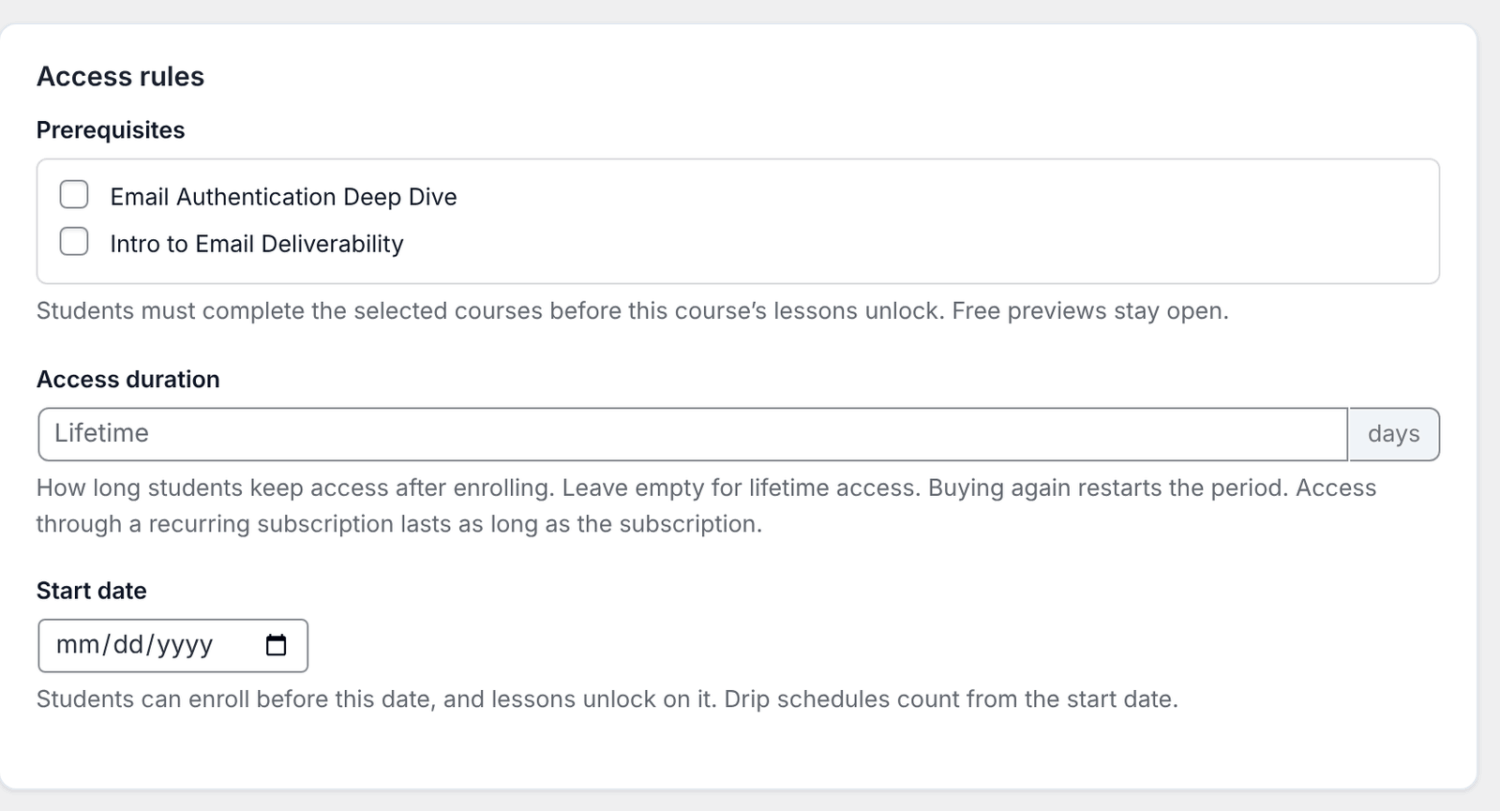
How to require a prerequisite course
- On the Pricing & Access tab, find Prerequisites in the Access rules card.
- Tick the courses a student must complete before this course’s lessons unlock.
- Click Save.
The course page shows “Requires completing” with links to the required courses. For students who already have access to the course, the main button becomes Go to the required course and links to the first course they still need to complete.
If a student opens a locked lesson, they see “Complete the prerequisites first” with a button to go to the required course. Lessons marked as a free preview stay open.
How to limit access duration
- In the Access rules card, enter a number in Access duration (days).
- Click Save.
Leave the field empty for lifetime access. Here is what students see:
- Before enrolling, the enroll card shows how many days of access they get, such as “90 days of access”.
- Once enrolled, it shows “Access until” a date.
- When access ends, lessons show “Your access to this course has ended”, with the date it ended. Their progress is saved.
Access through a recurring subscription isn’t cut short. It lasts as long as the subscription. The access duration applies to one-time purchases, manual enrollments and free courses.
How students renew access
- Paid course: the student clicks Renew access, which takes them to checkout for the course’s plan. Buying again restarts the access period, even for a one-time plan they bought before.
- Free course: once access has ended, the student can click Renew access to start a new access period.
- Manual enrollment: enrolling a student again from the Students tab restarts their access period.
A student whose expired access came from a manual enrollment, on a course that isn’t sold with a plan, sees “Access expired”. You need to enroll them again.
How to set a course start date
A start date lets you run the course as a cohort. Students can enroll before the date, and lessons unlock on it.
- In the Access rules card, pick a Start date.
- Click Save.
Before the start date:
- Signed-in students who haven’t enrolled in a free course see an Enroll button, so they can secure their place.
- Paid courses keep their normal Enroll now button, so students can buy early.
- Enrolled students see a “Starts” button with the date.
- Lessons show “This course hasn’t started yet” and the date they unlock. Free previews stay open.
The course unlocks at midnight on the start date, in your site’s timezone. You set the timezone under Settings » General in WordPress.
For students who enroll before the start date, drip schedules and the access duration count from the start date, not from the day they enrolled.
Recurring plans bill from the day of purchase, even if the course hasn’t started. To avoid charging students for weeks they can’t use, give the plan a free trial that ends around the start date, or open enrollment close to it.
The start date applies to every student of the course. If you move it to a later date, students who are already taking the course are locked out until then too. To run a new cohort, duplicate the course and give the copy its own start date. See Duplicate, export and import courses.
How to drip lessons
Drip releases lessons over time instead of all at once. You set it on each lesson.
- On the Curriculum tab, click a lesson to open the lesson editor.
- Enter a number in Drip (days).
- Click Save lesson.
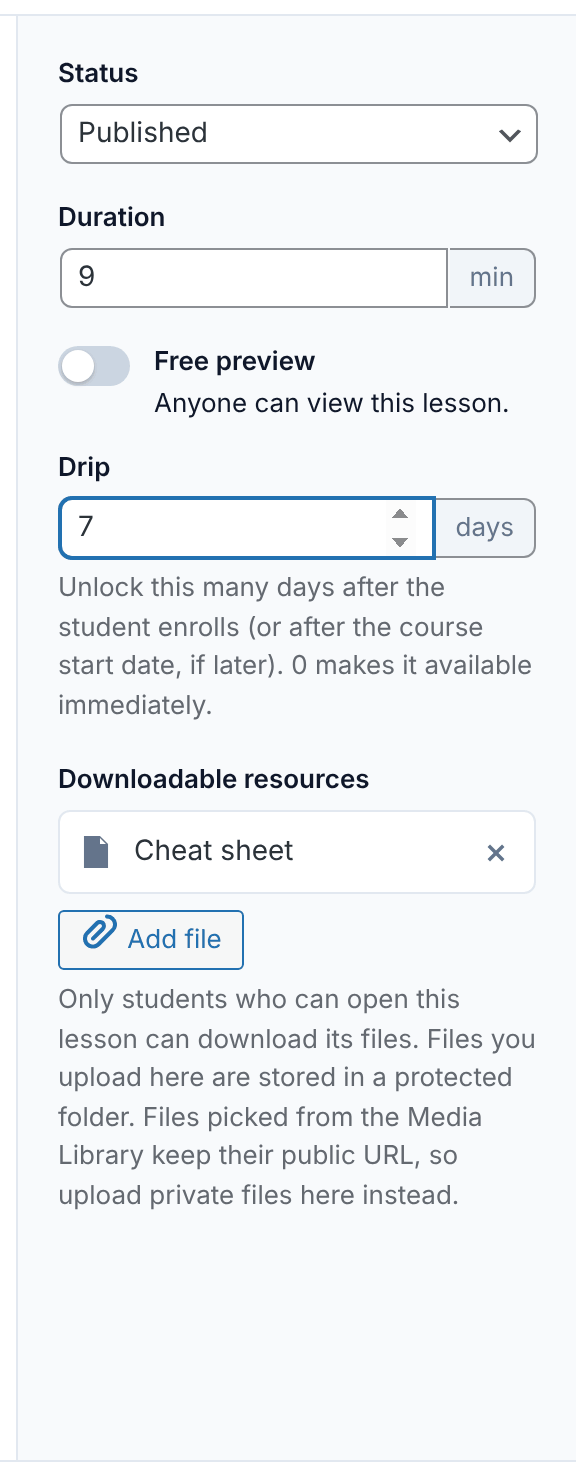
The lesson unlocks that many days after the student enrolls, or after the course start date if that’s later. Enter 0 to make it available immediately.
Lessons with a schedule show a badge such as “Unlocks day 7” in the curriculum. In the course outline, students see “Available” with the date. If they open a locked lesson, they see “This lesson isn’t available yet” and the date it unlocks.
You can also email students when a dripped lesson unlocks. See Course emails.
How to require lessons in order
- On the Pricing & Access tab, find the Learning experience card.
- Turn on Require lessons to be completed in order.
- Click Save.
Students must complete each lesson, and pass each quiz, before moving to the next. A student who skips ahead sees “Complete the previous lessons first” with a Go to my next lesson button.
With the Advanced Courses addon, assignments can let students move on once they’ve submitted, instead of waiting for a grade. See Assignments.
In what order the rules apply
A lesson is open to a student only if every rule allows it. ProfilePress checks the rules in this order and shows the message for the first one that blocks the student:
- The course and the lesson are published.
- The student has access to the course. A free preview lesson skips the rules below.
- Their access period hasn’t ended.
- They’ve completed the prerequisite courses.
- The course has started.
- The lesson’s drip days have passed.
- In a course that requires order, the earlier lessons are complete.
Content Protection rules apply after all of these. See Using Content Protection with courses.
Frequently asked questions
Why can I open every lesson when I test my course?
Administrators and the course’s instructors always see every lesson unlocked. Click Preview as student in the course builder to see the course with drip and order locks applied.
When exactly does a dripped lesson unlock?
It unlocks the set number of days after the moment the student enrolled. If the course has a start date and the student enrolled before it, the days count from midnight on the start date.
Why are visitors asked to sign in on a “Free & open” course?
Drip schedules and lessons-in-order depend on each student’s enrollment and progress. So visitors must sign in to open dripped lessons, or any lesson in a course that requires order.
A prerequisite course was deleted. Are students still blocked?
No. Prerequisite courses that are deleted or unpublished no longer block anyone.
Does a student lose their progress when access ends?
No. Progress is saved. When they renew, they pick up where they left off.
Can students renew a one-time purchase?
Yes. Checkout normally won’t sell a plan someone already has. When their access to one of the plan’s courses has ended, it lets them buy it again.
Can I drip lessons on a fixed date?
Lesson drip is based on days after enrolling. To unlock the whole course on a date, use Start date, then drip lessons a number of days after it.
Can students enroll in a course that has started?
Yes. A start date only holds lessons back until that day. Students who enroll later get their drip schedule from the day they enroll.