
Course Lessons in ProfilePress: Video, Text and Quizzes
Lessons are the steps of your course. Each lesson can be a video, written content or a quiz, with optional files students can download.
This article covers the lesson types, every lesson setting, and what your students see when they take a lesson.
How to open the lesson editor
- Go to ProfilePress » Courses and open your course.
- On the Curriculum tab, click a lesson’s title or its edit icon.
- The lesson editor opens in a panel on the right.
- Make your changes and click Save lesson.
If you close the panel with unsaved changes, you’re asked whether to discard them. To add lessons first, see How to create a course.
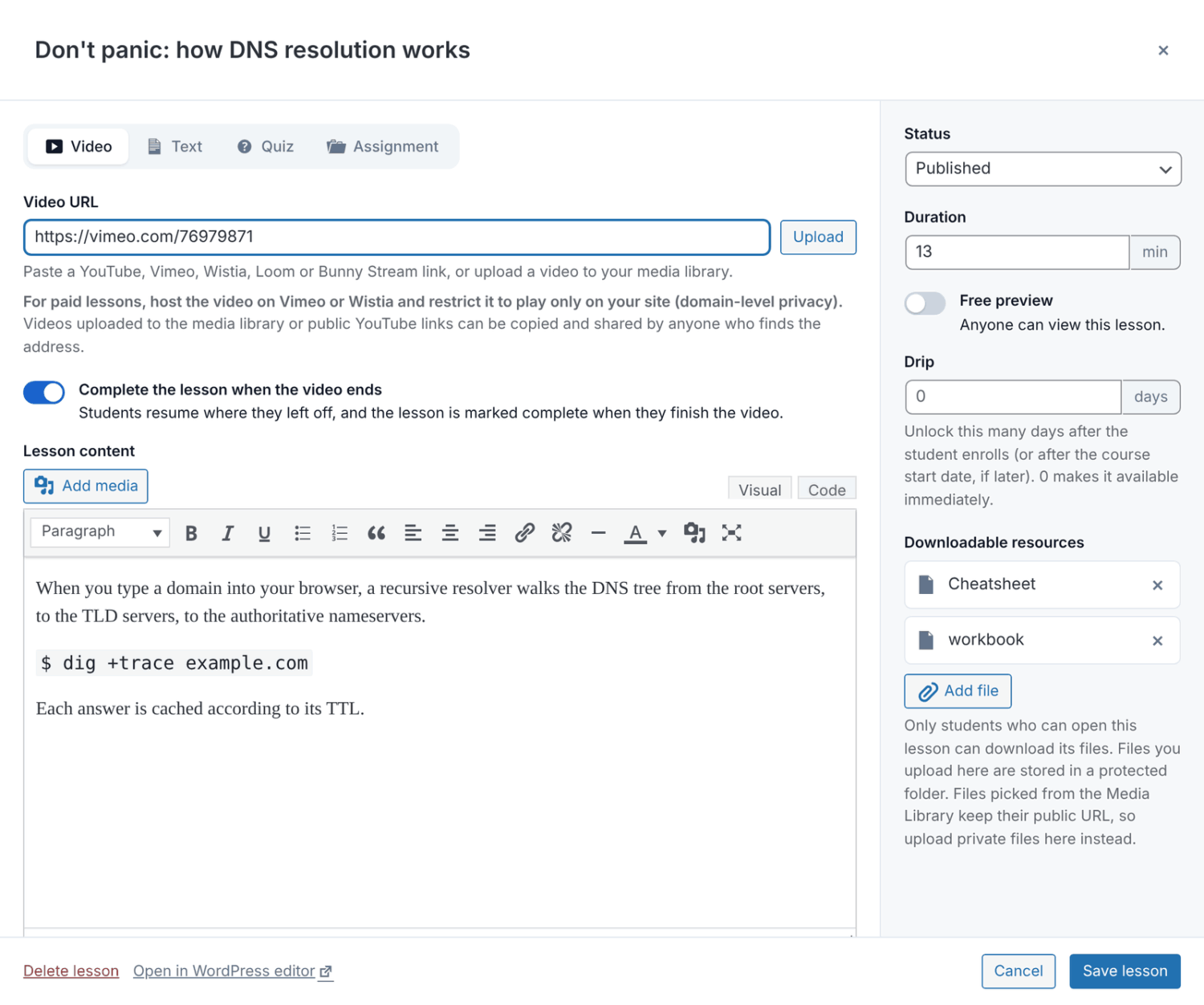
Lesson types
Choose the type with the buttons at the top of the lesson editor.
- Video: a video, with optional notes or a transcript below it.
- Text: written content, images and embeds.
- Quiz: questions students answer. See How to add quizzes to a course.
With the Advanced Courses addon, you can also add assignment lessons. See Course assignments.
How to add a video lesson
- Click Video at the top of the lesson editor.
- In Video URL, paste a YouTube, Vimeo, Wistia, Loom or Bunny Stream link. Or click Upload to use a video from your Media Library.
- Leave Complete the lesson when the video ends on if the lesson should be marked complete when the student finishes the video.
- Add any notes or a transcript under Lesson content.
- Click Save lesson.
When you upload a video and Duration is empty, the duration is filled in for you.
ProfilePress doesn’t stream or protect video files. For paid lessons, host the video on Vimeo or Wistia and restrict it to play only on your site. Videos in your Media Library, and public YouTube links, can be shared by anyone who finds the address.
Video resume and auto-complete
When a student comes back to a video, it picks up where they stopped. A note says “Resumed from” and the time, with a Start over button. When they finish the video, the lesson is marked complete and a Next lesson link appears.
Resume and auto-complete work with YouTube, Vimeo and videos hosted on your own site. Other video services play normally, and students use the complete button instead.
How to add a text lesson
Click Text and write the lesson in Lesson content. It’s a standard WordPress editor, so you can add images, links and embeds.
To write the content in the full WordPress editor instead (the block editor, or the classic editor if your site uses it), click Open in WordPress editor at the bottom of the panel. The lesson’s type, duration, free preview, drip and downloadable files stay in the course builder.
Lesson settings
The right-hand column of the lesson editor holds these settings.
| Setting | What it does |
|---|---|
| Status | Published or Draft. Draft lessons are hidden from students and show a “Draft” badge in the curriculum. |
| Duration | The lesson length in minutes. Durations add up to the course length shown on the course page. |
| Free preview | Anyone can view this lesson, even without access to the course. |
| Drip | Unlocks the lesson this many days after the student enrolls (or after the course start date, if later). 0 makes it available immediately. |
| Downloadable resources | Files students can download from the lesson. Click Add file to attach them. |
In the curriculum, a dripped lesson shows an “Unlocks day” badge, and a free preview shows a “Free preview” badge. For more on drip, see Course access rules.
How free previews work
Use free previews to let visitors sample a course before they enroll. In the course outline, they’re marked “Preview” for anyone who doesn’t have access yet.
- A free preview is always open. Drip, prerequisites and the “in order” rule don’t lock it.
- Visitors can read or watch it, but can’t mark it complete until they have access to the course.
- Visitors can open a quiz marked as a free preview, but only students with access can take it.
How to add lesson files
- In the lesson editor, click Add file under Downloadable resources.
- Upload files, or choose them from your Media Library, and click Use this file.
- Edit the file name students see, if you like.
- Click Save lesson.
Only students who can open the lesson can download its files. Files you upload here are stored in a protected folder. Files picked from the Media Library keep their public address, so upload private files here instead.
Students see the files under Resources, below the lesson content.
What students see
By default, lessons open in focus mode. This is a distraction-free page with:
- the course outline in a sidebar, with a check mark on completed lessons and a lock on locked ones;
- the student’s progress at the top, such as “3 of 10 lessons complete”;
- an Exit button back to the course page;
- a moon button to switch between a light and a dark theme.
You can turn focus mode off in the course settings. Lessons then show inside your theme’s layout. See Course settings.
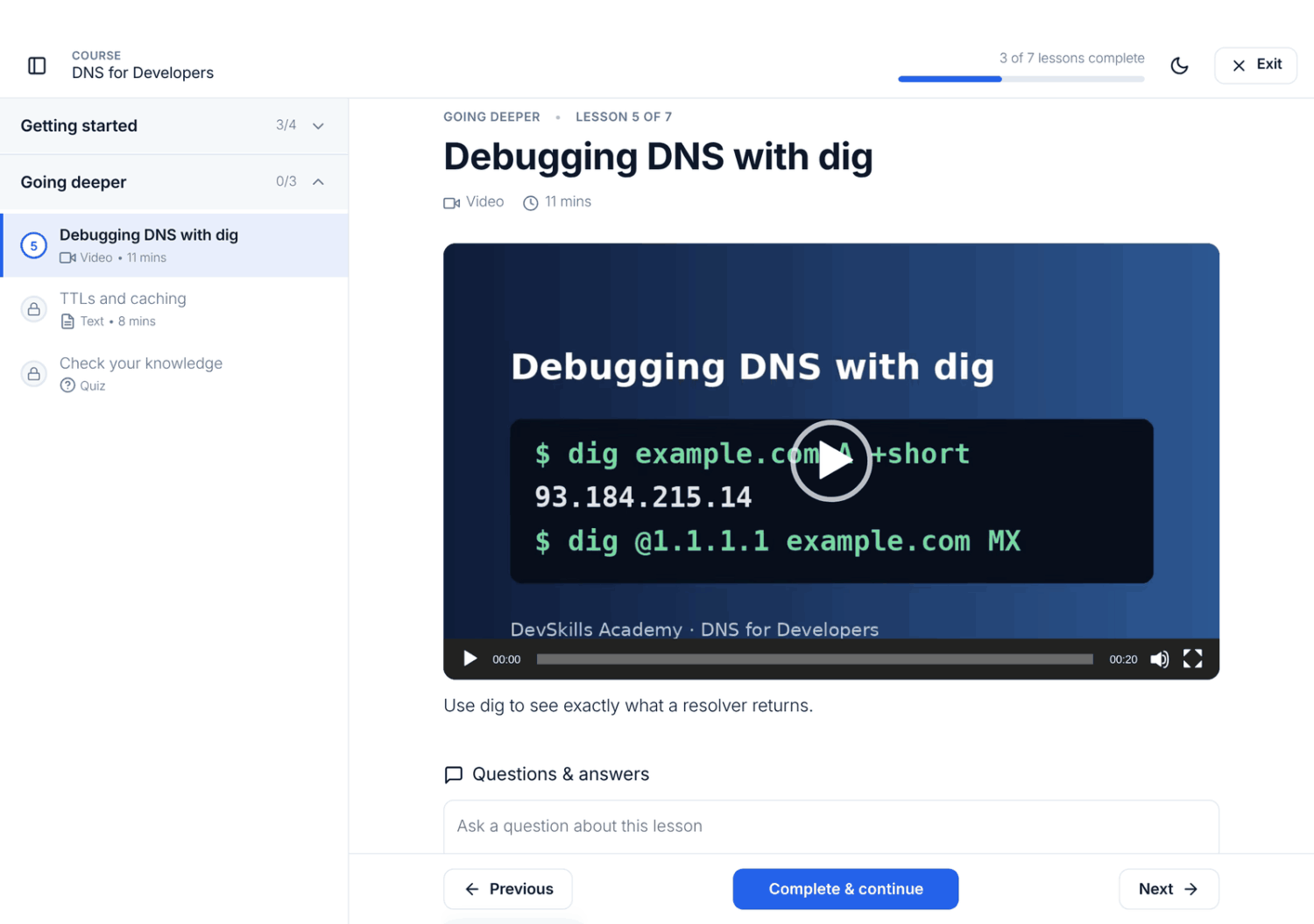
How students mark a lesson complete
Below each lesson are Previous and Next buttons, and a complete button:
- Complete & continue marks the lesson complete and opens the next lesson.
- Mark as complete appears on the last lesson. Next becomes Finish, which goes back to the course page.
- Completed shows on a completed lesson. Clicking it marks the lesson incomplete again.
Quizzes have no complete button. Students complete a quiz by passing it.
Frequently asked questions
Why can’t a student see a lesson?
Check that the lesson’s Status is Published and that the course is published. A quiz with no questions is also hidden. Drip and the “in order” rule can lock a lesson too; students see why on the lesson page.
Why doesn’t my video resume where the student left off?
Resume works for YouTube, Vimeo and videos on your own site, for signed-in students with access to the course. It doesn’t run for visitors watching a free preview.
What happens to progress when I delete a lesson?
Deleting a lesson is permanent, and every student’s progress for it is lost. To hide a lesson for now, set its Status to Draft instead.
Can I password-protect a single lesson?
Yes. Open it with Open in WordPress editor and set its visibility to password protected. The password also guards the lesson’s files, quiz and completion.
Related articles
- How to Create a Course in WordPress with ProfilePress
- How to Add Quizzes to a WordPress Course with ProfilePress
- Course Access Rules: Prerequisites, Drip and Start Dates
- ProfilePress Course Settings: A Complete Reference
- How to Create and Grade Course Assignments in ProfilePress
- Getting Started with ProfilePress Courses for WordPress