
Course Emails: Enrollment, Drip and Reminder Notifications
Course emails keep your students informed and coming back. ProfilePress emails them when they’re enrolled, when a dripped lesson opens and when they complete a course. If you turn it on, it also reminds students who haven’t been back for a while.
You can turn each email on or off and change its subject and text. They use the same sender and template as your other ProfilePress emails.
The course emails
All four emails go to the student. Find them under ProfilePress » Settings » Emails » Courses.
| When it’s sent | On by default | |
|---|---|---|
| Course Enrollment | When a student is enrolled: by buying a plan, starting a free course, or being enrolled by you. | Yes |
| Lesson Unlocked | When a dripped lesson becomes available to the student. | Yes |
| Course Completed | When the student completes a course. It includes a link to their certificate. | Yes |
| Inactive Student Reminder | When the student hasn’t opened an unfinished course for a number of days. | No |
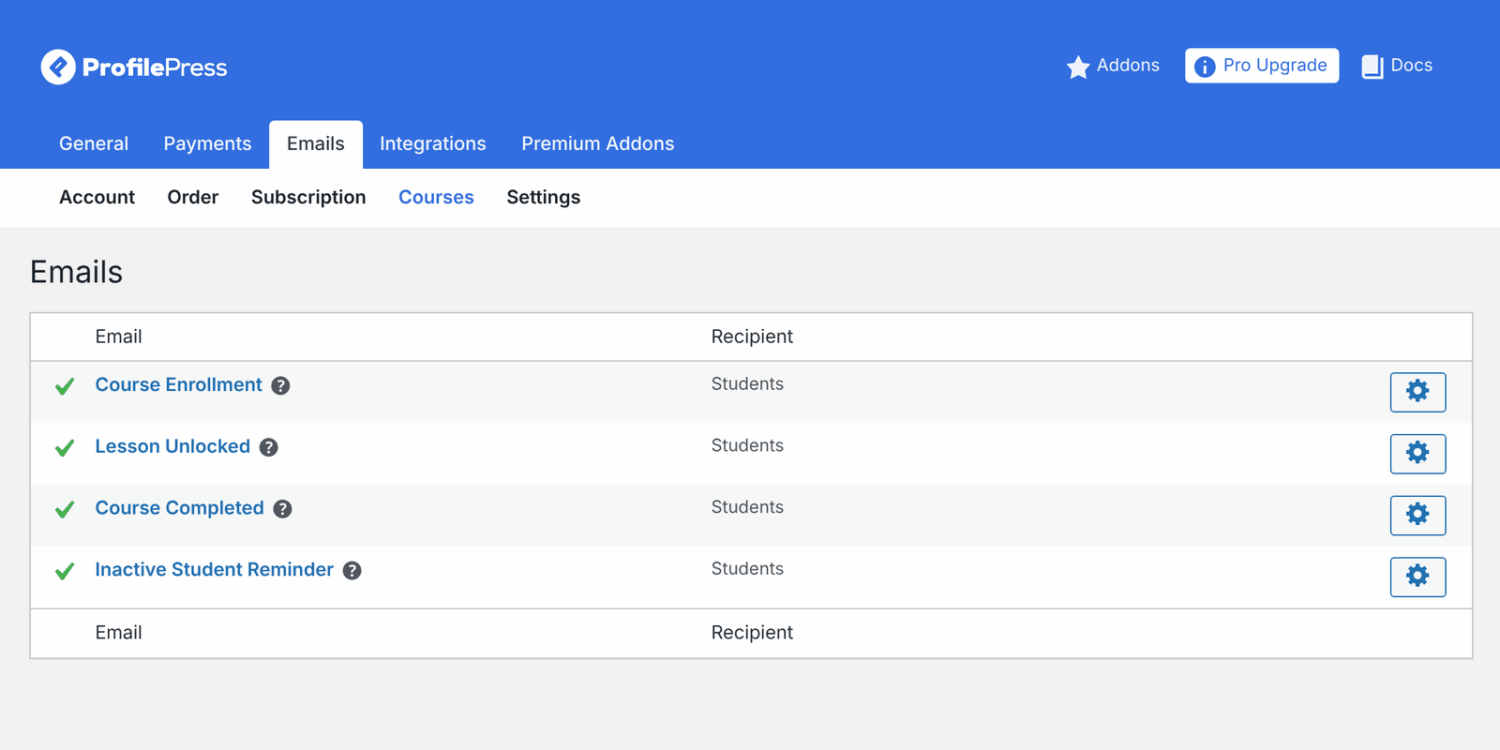
A check mark next to an email means it is turned on. Hover over the question mark icon to see what the email is for.
How to edit a course email
- Go to ProfilePress » Settings » Emails and click the Courses tab.
- Click the name of the email you want to change.
- Check Enable Notification to send the email, or uncheck it to stop it.
- Change the Subject Line.
- Change the text in Message Body. The placeholders you can use are listed under the editor.
- To see how it looks, click Preview Email above the editor. This button shows when you use the default email template.
- Save your changes.
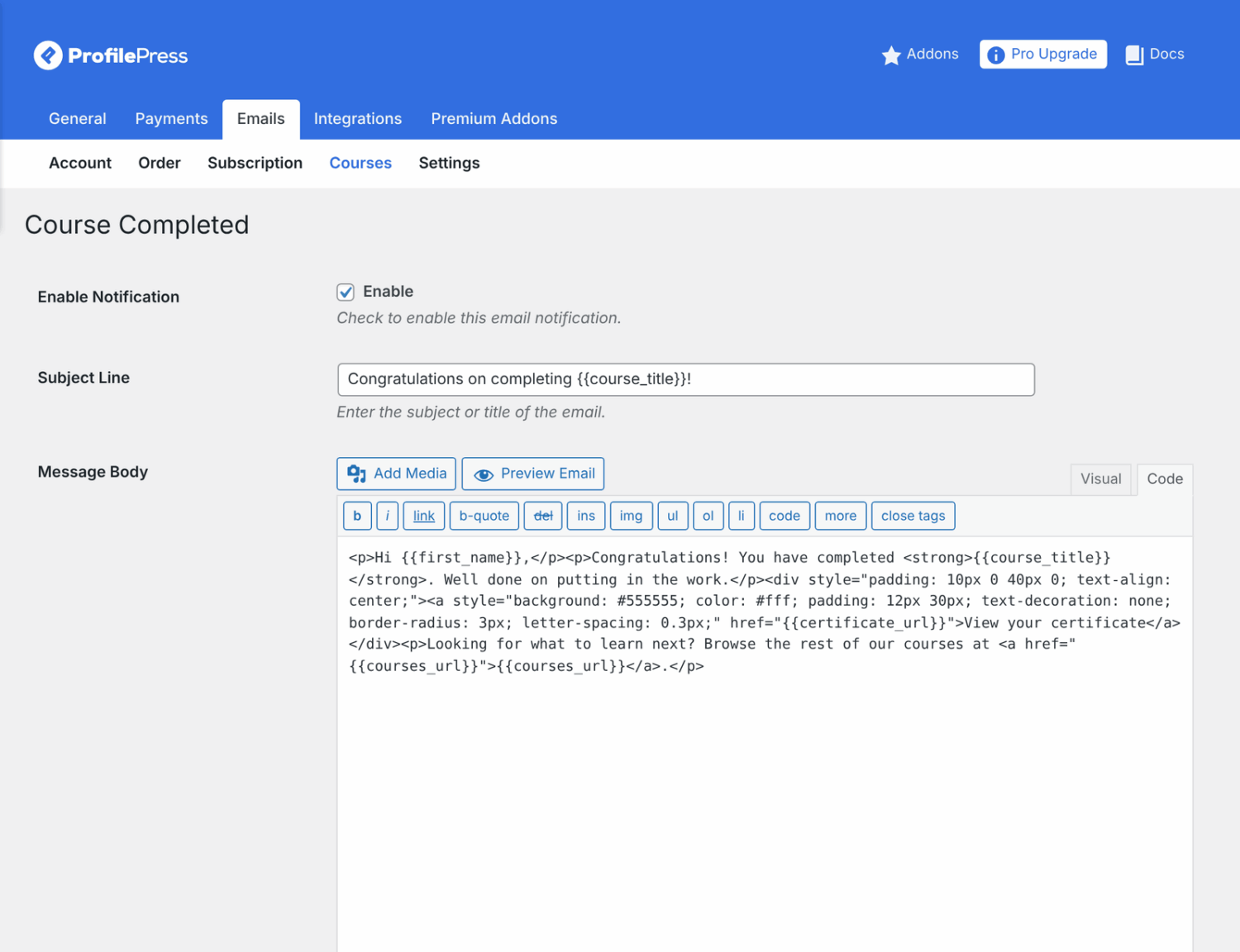
The sender name, sender address and email template are shared with your other ProfilePress emails. Change them under ProfilePress » Settings » Emails » Settings with Sender Name, Sender Email Address, Content Type and Email Template.
How to set up inactive student reminders
The Inactive Student Reminder nudges students who stopped partway through a course. It is off by default.
- Go to ProfilePress » Settings » Emails » Courses and click Inactive Student Reminder.
- Check Enable Notification.
- Set Reminder Days: how many days without course activity before the student is reminded. The default is 7.
- Edit the subject and message if you like. The default message includes the student’s progress and a Continue learning button.
- Save your changes.
Each student is reminded once per period of inactivity. If they come back and then stop again, they get another reminder after the same number of days. Students who have finished the course, or no longer have access, aren’t reminded.
Placeholders
Placeholders are replaced with the student’s details when the email is sent. All four emails can use:
| Placeholder | Replaced with |
|---|---|
{{first_name}}, {{last_name}}, {{display_name}}, {{email}} |
The student’s details. {{first_name}} uses the display name when the first name is empty. |
{{course_title}}, {{course_url}} |
The course title and the link to its page. |
{{resume_url}} |
The lesson the student should continue from. |
{{progress_percent}} |
How much of the course they’ve completed, as a number. Add the % sign yourself. |
{{my_courses_url}} |
The My Courses page in their account. |
{{site_title}} |
Your site name. |
Two emails have extra placeholders:
- Lesson Unlocked:
{{lesson_title}}and{{lesson_url}}. If several lessons unlock on the same day, their titles are listed together in one email and the link goes to the first. - Course Completed:
{{certificate_url}}and{{courses_url}}(your course catalog). When certificates are off, or the student’s certificate is held during a free trial,{{certificate_url}}links to the course page instead.
When the scheduled emails go out
Course Enrollment and Course Completed are sent straight away. Lesson Unlocked and Inactive Student Reminder are sent by a daily scheduled task, so they can arrive up to a day after the lesson unlocks.
WordPress runs scheduled tasks when someone visits your site. On a site with little traffic, ask your host to set up a real server cron job so these emails go out on time.
Lesson Unlocked follows each lesson’s drip days and the course start date. It isn’t sent for free preview lessons. It also isn’t sent to students whose access has ended or expired, or who haven’t completed the course’s prerequisites. See Course access rules.
Who doesn’t get course emails
- Site managers and the course’s instructors, for that course.
- Anyone using Preview as student.
- Students enrolled in a course that isn’t published yet (no enrollment email).
Other emails about courses
These emails are sent automatically. They aren’t listed on the Emails screen, and their text can’t be changed there.
| Who gets it | |
|---|---|
| New lesson question | The course’s instructors, when a student asks a question in lesson Q&A. |
| Question answered | The student who asked, when someone answers their question. |
| Assignment submitted and graded (Advanced Courses) | Instructors when work is handed in; the student when it’s graded. |
| Written answers to grade and graded (Advanced Courses) | Instructors when a quiz with written answers is submitted; the student when it’s graded. |
| Announcements (Advanced Courses) | Enrolled students, when you choose to email an announcement. |
| Course submitted for review and course published (Advanced Courses) | Your site’s administration email address when an instructor submits a course; the instructor when it’s published. |
A course’s instructors are the person who created it plus any co-instructors. On a site without the Advanced Courses addon, that is the course’s author.
Frequently asked questions
Why did a new student get several emails at once?
A purchase sends your membership emails (such as the welcome email and the order receipt) plus one Course Enrollment email for each course the plan unlocks. A plan with many courses means many emails. If that’s too much, turn off Course Enrollment and mention the courses in your plan’s welcome email instead.
A student bought the course again. Why didn’t they get the enrollment email?
A student whose subscription ended keeps their enrollment, so buying again doesn’t send the email a second time. It is sent again only if you removed the student and they’re enrolled anew.
I turned on the reminders. Why didn’t old inactive students get one?
The first run only looks back one day, so turning the email on doesn’t send a burst of reminders to everyone who has ever stopped. The same applies after your site has been offline for more than a week.
How do I test an email?
Use Preview Email on the edit screen to see it, if you use the default email template. To receive a real one, enroll a test user account in a published course. Your own administrator account doesn’t get course emails.
Can I get an email when someone enrolls?
There’s no course email for site owners. When a student buys a plan, the New Order Admin Notification under ProfilePress » Settings » Emails » Order tells you about the order.
How do I go back to the default text?
There’s no reset button, so copy the default text somewhere safe before you make big changes.
Related articles
- How to Award Course Certificates of Completion in WordPress
- Course Access Rules: Prerequisites, Drip and Start Dates
- Course Reviews and Lesson Q&A in ProfilePress Courses
- How to Post Course Announcements and Email Your Students
- How to Create and Grade Course Assignments in ProfilePress
- How to Sell Team Memberships in WordPress with ProfilePress