
ProfilePress Course Settings: A Complete Reference
The course settings screen controls how course and lesson pages look and work across your whole site. This article lists every setting, what it does, its default, and how lesson files are protected.
Settings for a single course, such as its price, access rules, and lessons, are in the course builder instead. See Creating a course.
How to open the course settings
- Go to ProfilePress » Settings.
- Open the General tab.
- Click Courses in the side menu.
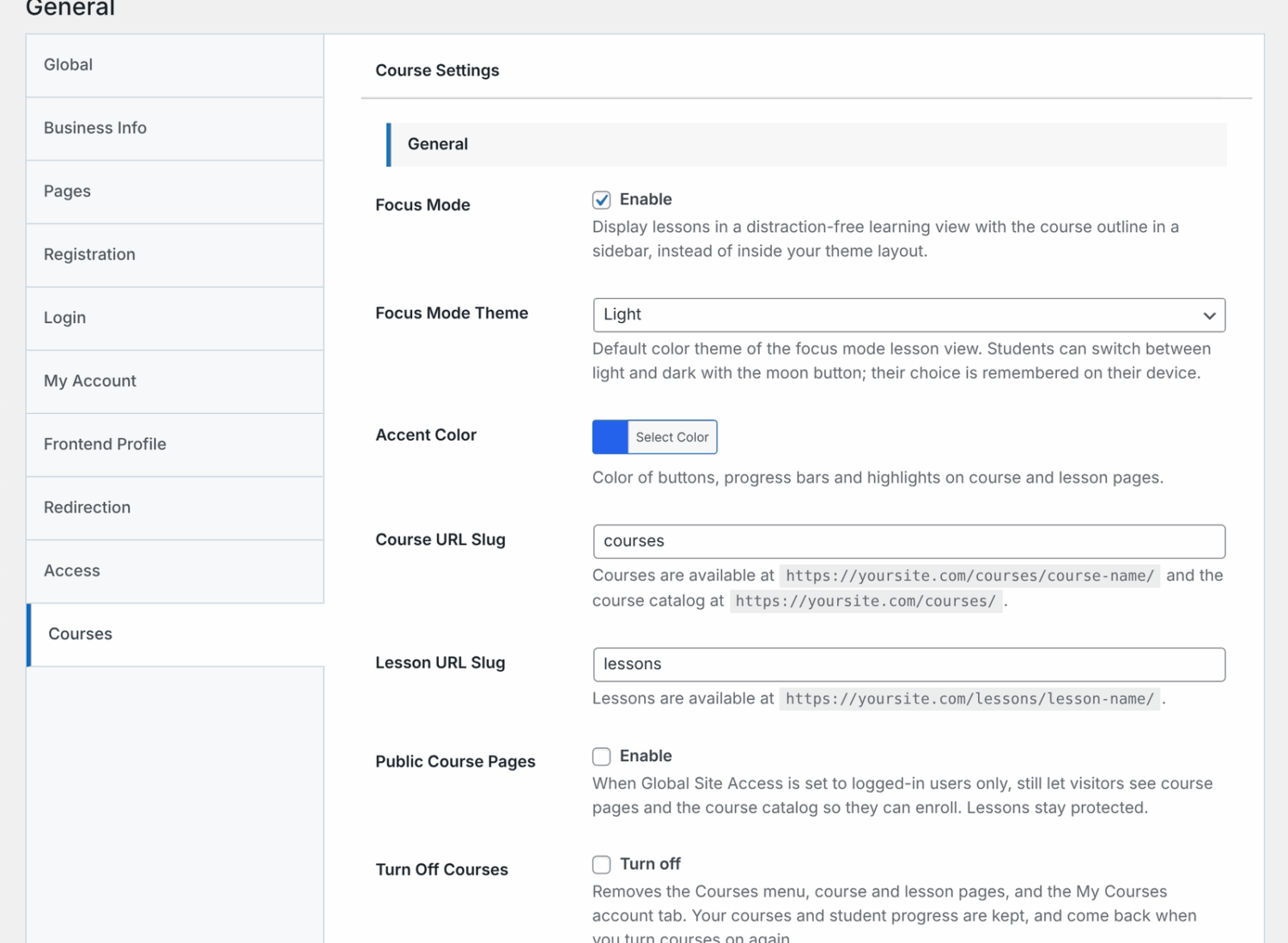
You can also click the Settings tab at the top of ProfilePress » Courses. The section is titled Course Settings, and its settings are grouped under the headings General, Certificates, Instructors (with the Advanced Courses addon) and Reviews.
Click Save Changes after you change a setting.
Lesson view and appearance
| Setting | What it does |
|---|---|
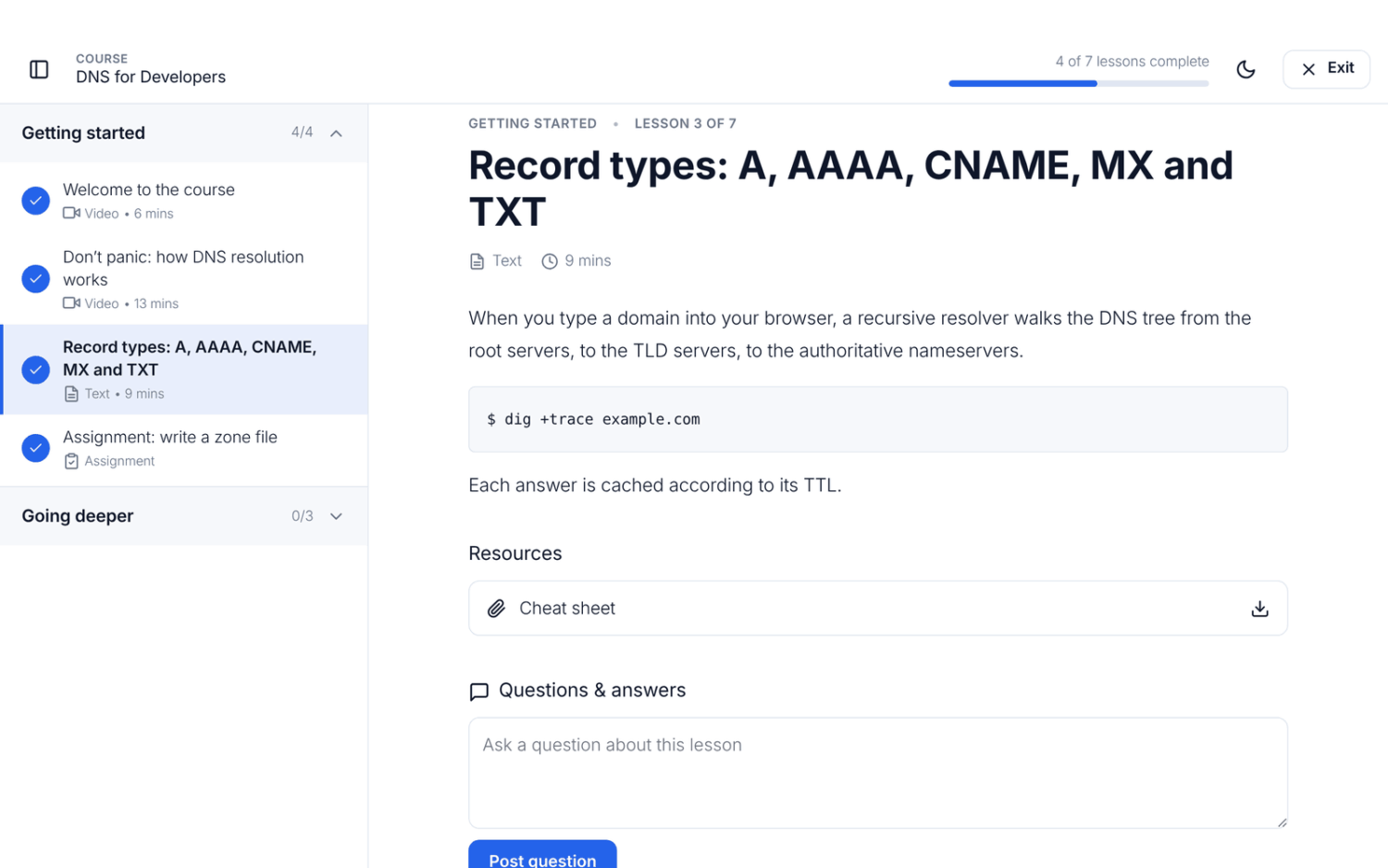
| Focus Mode | On by default. Shows lessons in a distraction-free view with the course outline in a sidebar, instead of inside your theme’s layout. |
| Focus Mode Theme | The default color theme of focus mode: Light (the default), Dark or Match the student’s device. Students can switch between light and dark with the moon button, and their choice is remembered on their device. |
| Accent Color | The color of buttons, progress bars and highlights on course and lesson pages. The default is blue. |
With Focus Mode turned off, lessons display inside your theme. Students see the lesson, its resources, the previous, complete and next buttons, and the course content below.
Course and lesson addresses
| Setting | What it does |
|---|---|
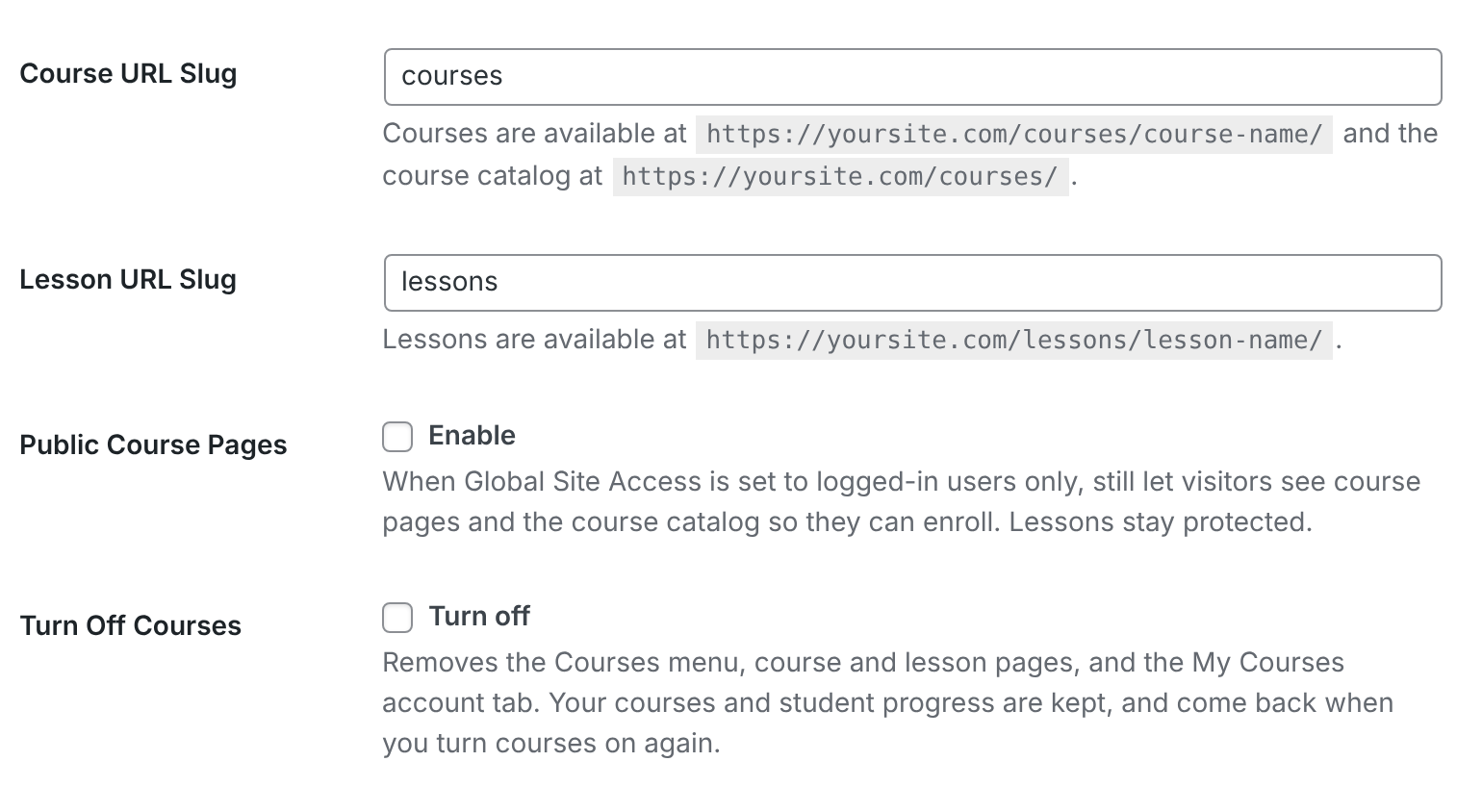
| Course URL Slug | The courses part of course addresses, such as yoursite.com/courses/course-name/. It also sets the catalog address (yoursite.com/courses/) and the start of course category addresses. |
| Lesson URL Slug | The lessons part of lesson addresses, such as yoursite.com/lessons/lesson-name/. |
When you change a slug, the new addresses work straight away. Links to the old addresses stop working, so update any menus or links you’ve added by hand.
If another course plugin, such as LearnDash, Tutor LMS or LifterLMS, is active when ProfilePress first sets up courses, the slugs start as pp-courses and pp-lessons so your existing pages keep working. If only a page at /courses/ or /lessons/ is in the way, just that slug changes. If your course addresses clash with a page or another plugin later, a warning appears at the top of the ProfilePress settings and Courses screens, explaining what clashes.
Members-only sites
| Setting | What it does |
|---|---|
| Public Course Pages | When Global Site Access (under General » Access) is set so only logged-in users can see your site, this still lets visitors see course pages, the course catalog and course categories, so they can learn about a course and enroll. Lessons stay protected by the course’s access settings. Off by default. |
Certificate links always stay public, so anyone can verify a certificate.
Turning courses off
If you don’t use courses, for example because you use another course plugin, tick Turn Off Courses and save. The Courses menu, course and lesson pages, the course blocks and the My Courses account tab are removed, and the /courses/ address is freed for other pages and plugins. Your courses and student progress are kept, and come back when you untick it.
Page caching
Course pages, lessons, and My Courses look different for each signed-in student, so ProfilePress tells caching plugins and your host not to cache them for signed-in users. Most caching plugins follow this automatically. If you use a cache that ignores it, such as Cloudflare’s “Cache Everything” rule, set it to bypass the cache for signed-in users (WordPress login cookies), or students may see someone else’s page.
Certificates
| Setting | What it does |
|---|---|
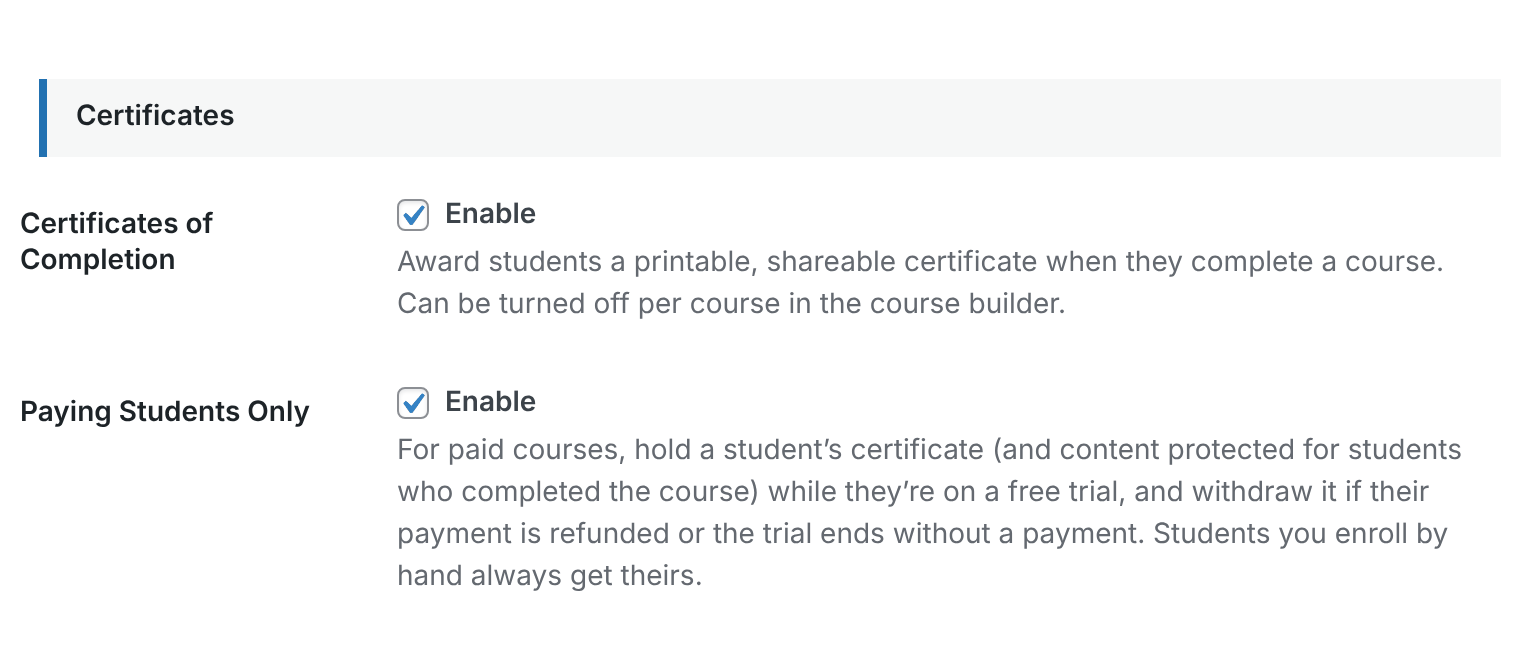
| Certificates of Completion | On by default. Awards students a printable, shareable certificate when they complete a course. You can turn it off for a single course in the course builder. |
| Paying Students Only | On by default. On paid courses, holds a student’s certificate while they’re on a free trial, and withdraws it if their payment is refunded or the trial ends without a payment. Students you enroll yourself always get theirs. See Course certificates. |
| Certificate Heading | The heading at the top of the certificate. Default: “Certificate of Completion”. |
| Certificate Text | The text shown below the student’s name. You can use the placeholders {student_name}, {course_title}, {completion_date}, {instructor_name} and {site_name}. |
| Signed By | The name on the signature line, such as the instructor or your company. Leave it empty to hide the signature. |
| Signer Title | Shown under the signature, such as “Lead Instructor”. |
| Logo URL | An optional logo at the top of the certificate. If you leave it empty, your site icon is used. |
For how students get and share certificates, see Certificates.
Reviews
| Setting | What it does |
|---|---|
| Course Reviews | On by default. Enrolled students can rate and review courses. You moderate reviews under Comments in WordPress. Turning it on also adds a Top rated sort to the catalog. |
Instructors (Advanced Courses addon)
With ProfilePress Pro and the Advanced Courses addon active, the screen also shows an Instructors note and one more setting.
| Setting | What it does |
|---|---|
| Instructor Dashboard Page | The page that holds the instructor dashboard shortcode. Instructors find it in their account menu and are sent there after logging in. |
See Instructors.
Settings found elsewhere
- Course emails are set up under ProfilePress » Settings » Emails » Courses. See Course emails.
- Course categories are managed on the Categories tab of ProfilePress » Courses.
- The plans that sell a course are set on its Pricing & Access tab. See Selling courses.
Protected downloads
Files you attach to a lesson under Downloadable resources can only be downloaded by students who can open that lesson. ProfilePress checks the student’s access before each download.
Visitors who aren’t signed in are sent to the login page. Signed-in students without access see “You don’t have access to this file.” with a Go to the lesson link.
Where the file is stored matters:
- Files you upload from the course builder are stored in a protected folder. Their direct address doesn’t work, so students can only get them through the lesson.
- Files you pick from the Media Library are still checked when downloaded from the lesson, but their Media Library address stays public. Anyone who has that address can download the file. To keep a file private, upload it from the course builder instead.
- Links to other websites, such as a Google Drive file, open after the access check. ProfilePress can’t protect the file itself.
If your site runs on Nginx
On Apache servers, ProfilePress blocks direct access to the protected folder automatically. Nginx servers need one extra rule. Ask your host to add this to your site’s server configuration:
location ^~ /wp-content/uploads/ppress_uploads/ { deny all; return 403; }
Downloads from lessons keep working after you add it. The same folder holds assignment submissions and digital product files, so the rule protects them too. If ProfilePress finds that the folder can be browsed from the web, it may show a warning in your WordPress dashboard.
Customizing the course templates
Developers can change the HTML of course pages from a theme, without editing the plugin:
- In your theme (ideally a child theme, so updates don’t overwrite it), create the folder
profilepress/lms/. - Copy the template you want to change from
wp-content/plugins/wp-user-avatar/src/LMS/templates/into that folder, keeping its file name. - Edit the copy. ProfilePress uses it instead of its own.
The main templates are course.php (the course page), enroll-card.php, curriculum.php (the course content list), focus-mode.php and lesson-body.php (lessons), quiz.php, courses.php and course-card.php (the catalog), my-courses.php and bundle.php. After a ProfilePress update, compare your copies with the new originals, since the plugin’s templates can change.
Plugins can swap any template with the ppress_lms_template filter, which receives the template path and its name.
The certificate page is the exception: it can’t be overridden from the theme folder. Use the ppress_lms_certificate_template filter to point it to your own file.
For the actions and filters you can use to change how courses work, see ProfilePress Courses developer hooks.
Frequently asked questions
I changed the course slug and now my course links give a 404 error. Why?
Old addresses stop working when you change a slug. Update your menus and links to use the new addresses. If the new addresses don’t work either, go to Settings » Permalinks in WordPress and click Save Changes.
I see “Your course URLs clash with other content”. What should I do?
The warning lists what clashes, such as a page at the same address as the course catalog, or another plugin using the same slug. Change the Course URL Slug or Lesson URL Slug to something unique, then save. If you have a page called Courses, you can also delete it and use the built-in catalog instead.

Does it work on WordPress multisite?
Yes. Each site in the network has its own courses, students and progress. A student who takes courses on two sites has separate progress, quiz attempts and certificates on each.
What happens to course data if I delete ProfilePress?
Nothing, unless Remove Data on Uninstall is checked under ProfilePress » Settings » General » Global. If it is, deleting the plugin also removes student enrollments, progress, quiz attempts, video positions, certificates and course settings, plus the Advanced Courses addon’s assignment submissions, written answers, completion action records and the Course Instructor role. Your course and lesson pages and course categories stay in the WordPress database. To stop using courses but keep everything, use Turn Off Courses instead.
Can students choose dark mode?
Yes, in focus mode. Students switch between light and dark with the moon button, and their choice is remembered on their device.
Can I turn certificates off for one course only?
Yes. Leave Certificates of Completion on here and turn certificates off in that course’s builder.
Why don’t I see the Instructor Dashboard Page setting?
It needs ProfilePress Pro with the Advanced Courses addon. See Advanced Courses addon.
Are lesson videos protected like downloads?
No. ProfilePress doesn’t protect video files. For paid lessons, host videos on Vimeo or Wistia and restrict them to play only on your site (domain-level privacy).
Related articles
- Course Catalog, My Courses, Shortcodes and Blocks Guide
- Course Lessons in ProfilePress: Video, Text and Quizzes
- How to Award Course Certificates of Completion in WordPress
- Course Emails: Enrollment, Drip and Reminder Notifications
- Course Reviews and Lesson Q&A in ProfilePress Courses
- How to Add Course Instructors in WordPress with ProfilePress