
How to Fix Slow WordPress Admin Dashboard
Do you want to fix your slow WordPress admin dashboard and get it running fast again?
A slow WordPress dashboard can make even the simplest task frustrating. You click, you wait, you refresh… and before you know it, something that should take seconds starts dragging on for minutes. It breaks your focus, slows your workflow, and makes managing your site feel stressful.
The good news is that you don’t have to put up with it. In this guide, we’ll explain what causes a slow WordPress admin dashboard and share tips to speed it up.
By the end, you’ll know exactly what to check, what to change, and how to keep your WordPress admin running at its best.
What’s Causing Your Slow WordPress Admin Dashboard?
A slow WordPress admin dashboard is usually caused by multiple factors. Every website is different, so it’s not always easy to point to a single reason. Understanding the common causes can help you figure out what’s slowing things down.
Here are the most frequent reasons your WordPress dashboard might be running slowly:
1. Outdated PHP Version: Using an old PHP version can make your dashboard sluggish. Updating to the latest stable version can improve speed and overall performance.
2. Outdated WordPress Version: Older WordPress versions may have inefficient code or compatibility issues that affect performance. Keeping WordPress up to date ensures everything runs smoothly.
3. Admin toolbar and widgets: The WordPress admin toolbar and dashboard widgets can add extra load, especially if they pull a lot of data in real time.
4. Too Many or Poorly Coded Plugins: Some plugins use a lot of server resources or run background processes that slow down your admin area.
5. WordPress Heartbeat API Overuse: Autosave and real-time updates rely on the Heartbeat API. If it sends requests too often, it can overload your server and slow things down.
6. Bloated database: Over time, your database can fill up with revisions, expired sessions, and unused data, which slows queries and affects dashboard speed. WooCommerce sites are especially prone to this.
7. Lack of Object Caching: Without caching, your server has to process the same requests repeatedly, which increases load time.
8. Low WordPress Memory Limit: If your site doesn’t have enough memory, it can struggle to handle admin tasks efficiently, making the dashboard lag or even crash during heavy operations
Now that you know the main reasons your WordPress admin might be slow, it’s time to move on to practical fixes to make your dashboard fast, smooth, and easy to use again.
Fix 1: Update to the Latest PHP Version
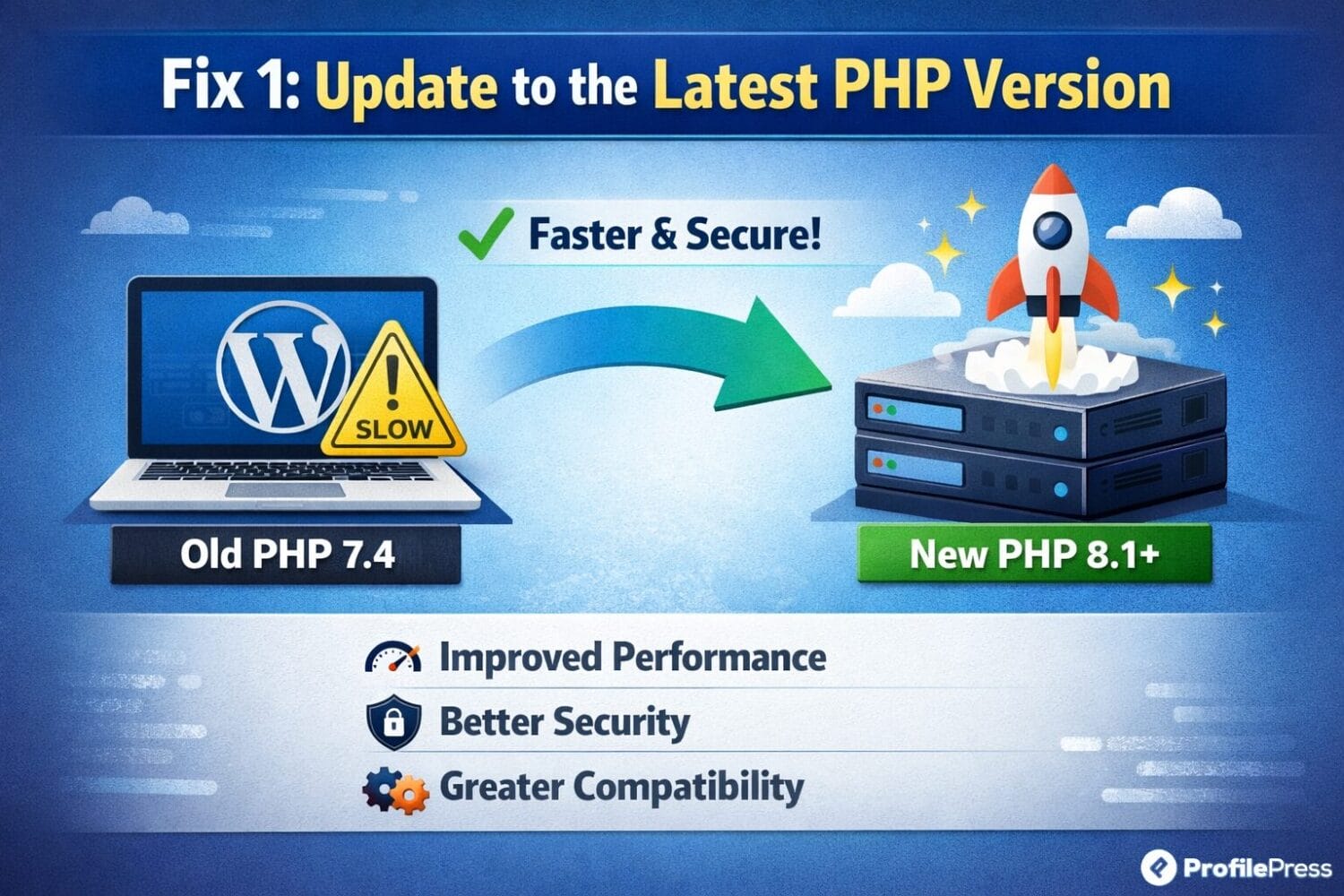
One of the main reasons your WordPress admin dashboard might be slow is an outdated PHP version. PHP is the language WordPress runs on, and older versions are slower and less efficient. This can make your site lag, especially in the dashboard, where multiple processes run simultaneously.
Updating PHP can make your WordPress admin feel much faster. Most hosts now support newer versions, such as PHP 8.1 or 8.2, which are faster and more secure than older versions.
To update PHP, log in to your hosting control panel, such as cPanel or Plesk, and find the PHP version manager or a section labeled “Select PHP Version.”
From there, choose the latest stable version supported by your host and save your changes. Keep in mind that some older plugins or themes might not be compatible with the newest PHP, so it’s a good idea to check compatibility or create a backup before updating.
Once your PHP is updated, you’ll notice your WordPress backend speeds up, making your dashboard feel faster and more responsive.
Fix 2: Update Your WordPress Version
Running an outdated version of WordPress is another common reason your admin dashboard feels slow and unresponsive.
It might not seem like a big deal at first, especially if your site appears to be working fine on the surface. But behind the scenes, older WordPress versions often include inefficient code, unresolved bugs, and performance limitations that can slow your dashboard.
Every new WordPress update isn’t just about adding features. A large part of it focuses on performance improvements, bug fixes, and better compatibility with modern PHP versions, plugins, and themes.
When you delay updates, you miss out on these improvements. Over time, this creates a gap between your site and the optimized environment WordPress is designed to run in.
Another issue with outdated WordPress versions is compatibility. As plugin and theme developers release updates, they optimize their products for newer WordPress versions. If your site is still running an older version, it can lead to conflicts. These conflicts often show up as slow loading times, laggy admin pages, or even unexpected errors when performing simple tasks.
Updating your WordPress version is usually quick. Before you begin, it’s always a good idea to back up your website. This gives you a safety net in case anything doesn’t go as planned.
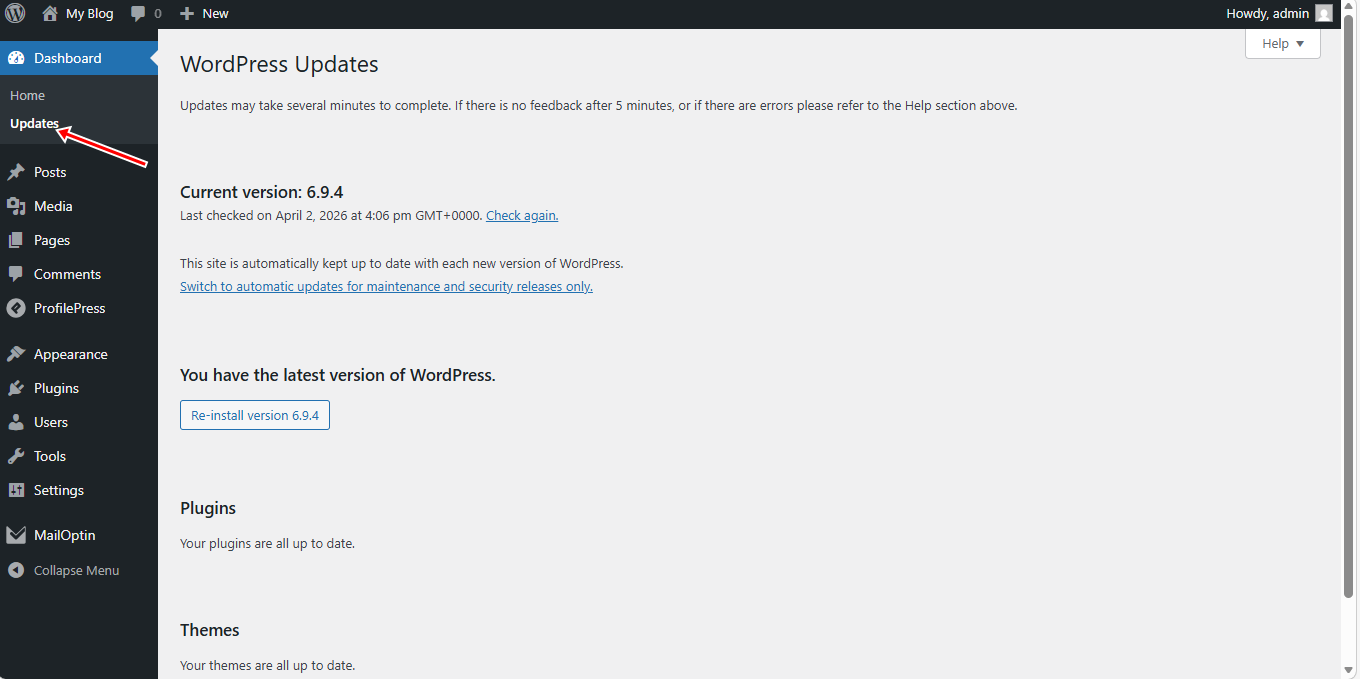
Once you’ve done that, you can update WordPress directly from your dashboard by navigating to the Dashboard > Updates section and clicking the update button.
Fix 3: Remove the WordPress Admin Bar
The WordPress admin toolbar, also known as the admin bar, is that horizontal menu you see at the top of your screen when you’re logged in. It gives you quick access to things like editing posts, viewing updates, and navigating between the frontend and backend of your site.
While it’s useful, it can also contribute to a slower WordPress admin dashboard, especially on sites already dealing with performance issues.
If you don’t rely heavily on the admin toolbar, disabling it can help reduce unnecessary activity and make your dashboard feel faster and cleaner.
Using ProfilePress to Disable the Admin Toolbar
ProfilePress is an excellent WordPress user management plugin that lets you control who can see the WordPress admin bar without writing any code.
To set it up, install and activate ProfilePress on your WordPress site. Once that’s done, go to your dashboard and navigate to ProfilePress > Settings > General > Admin Bar & Dashboard.
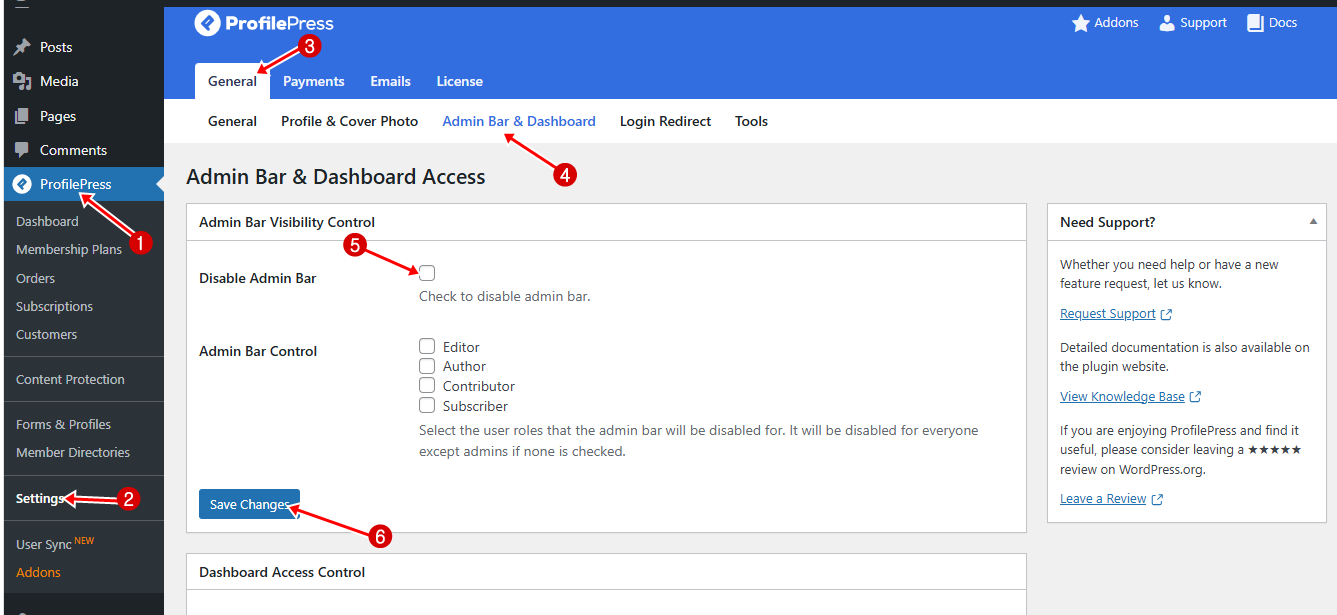
Next, click on Disable Admin Bar, then click Save Changes.
By removing the admin toolbar, you reduce the number of extra elements loading in the background. This helps improve your WordPress admin dashboard speed and makes it feel faster and more responsive.
Fix 4: Limit WordPress Dashboard Content
This is one of those simple tweaks that many people overlook, yet it can make a noticeable difference in how fast your WordPress admin dashboard feels. The more content WordPress tries to load at once, the more work your server has to do behind the scenes. If you’re displaying too many posts, pages, or products on a single screen, it can slow things down without you even realizing it.
By default, WordPress shows a set number of items per page in sections like Posts, Pages, and even custom post types such as WooCommerce products or orders. While the default number (usually around 20 items) works fine for most sites, increasing it can quickly lead to performance issues.
Imagine trying to load 100 or more items at once. Each one requires database queries, processing, and rendering, which adds up and slows your dashboard.
The good part is that WordPress gives you full control over this through a built-in feature called Screen Options, so you don’t need any extra plugins.
To access it, go to any page in your WordPress dashboard, like Posts or Pages, and look at the top-right corner of the screen. Click on the Screen Options tab, and you’ll see settings that let you adjust how many items are displayed per page.
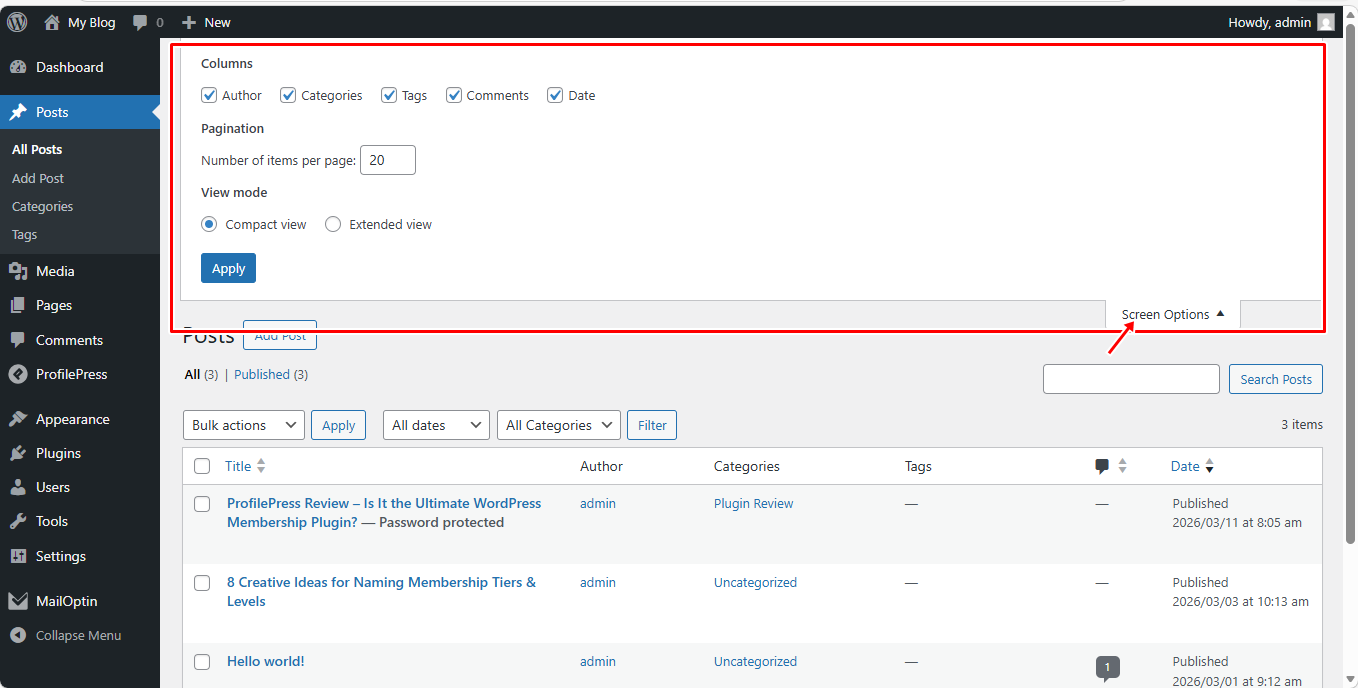
If the number is set too high, reduce it to a more reasonable value, like 10 or 15, and see how your dashboard responds. You’ll likely notice that pages load faster and feel smoother when navigating.
At the same time, you can also uncheck any columns or elements you don’t use. For example, if you don’t need to see author names, tags, or comments in your post list, disabling them reduces the amount of data WordPress has to process.
Each section of your dashboard has its own Screen Options settings, so it’s worth checking multiple areas, such as Posts, Pages, Media, and Products. Think of it as decluttering your workspace. The less unnecessary information your dashboard has to handle, the faster and cleaner it becomes.
This adjustment might seem minor, but when combined with other fixes, it contributes to a noticeably faster and more efficient WordPress admin experience.
Fix 5: Disable Unnecessary Dashboard Widgets
Your WordPress dashboard comes packed with several widgets by default, but you probably don’t use most of them.
Things like WordPress news, quick drafts, activity logs, and welcome panels often sit there untouched. The problem isn’t just visual clutter. These widgets can quietly affect your dashboard speed because some of them load data from external sources or run background processes every time you open the dashboard.
Take the WordPress News and Events widget as an example. Even if you never read it, it still fetches updates from WordPress servers in the background. That means extra HTTP requests, more processing, and ultimately, a slower dashboard.
Now imagine combining that with widgets added by plugins like WooCommerce, security tools, or analytics plugins. Each one adds its own load, and over time, your dashboard becomes heavier than it needs to be.
The quick way to deal with this is to remove anything you don’t actually use. You can start by clicking the Screen Options tab at the top-right corner of your dashboard and unchecking widgets you don’t need. This is a quick fix and works well if you just want to clean things up visually.
For a more thorough approach, you can use a plugin like Widget Disable.
Once installed and activated, go to Appearance > Disable Widgets, and you’ll get full control over which widgets load on your site. This includes not just default WordPress widgets but also those added by plugins.
So if WooCommerce or any other plugin has added extra dashboard elements, you can disable them from loading entirely.
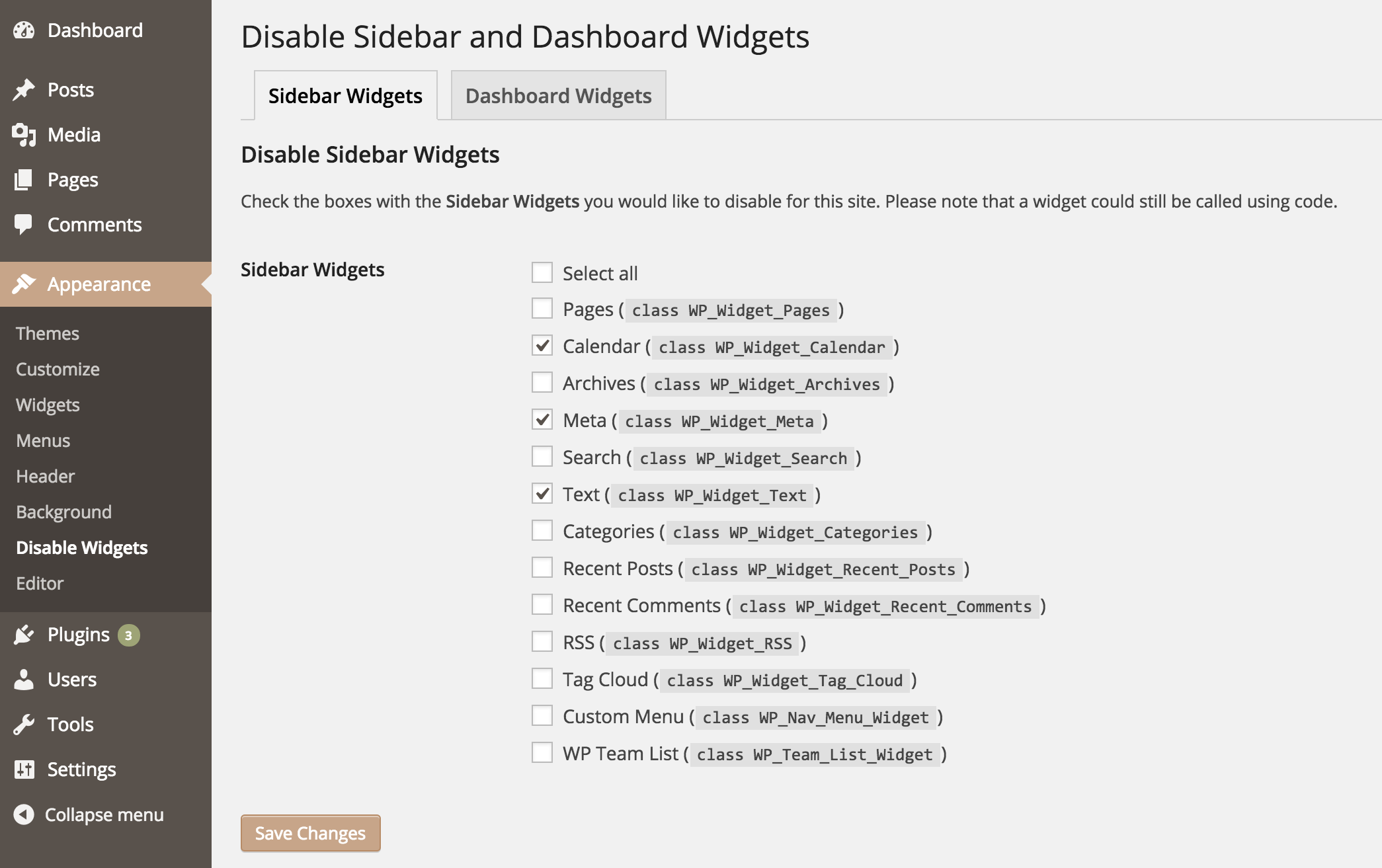
The advantage of using a plugin is that it doesn’t just hide widgets; it prevents them from loading altogether. This means fewer background requests and less strain on your server. Think of it as deleting unused apps on your phone, rather than just moving them out of sight.
Cleaning up your dashboard widgets can make your WordPress admin dashboard noticeably faster.
Fix 6: Identify Slow Plugins Using Query Monitor
When you first set up WordPress, everything probably felt fast and responsive. Pages loaded instantly, and navigating the dashboard was smooth. But as you started adding plugins to extend your site’s functionality, things likely began to slow down.
That’s completely normal, but here’s something important to understand: it’s not the number of plugins that slows your site down, it’s how those plugins are built.
A few well-coded plugins can run smoothly without affecting performance, while just one poorly optimized plugin can slow your entire dashboard.
Some plugins constantly run background processes, execute heavy database queries, or load scripts on every admin page. These are the ones that usually cause the problem.
So how do you figure out which plugin is responsible? This is where the Query Monitor plugin becomes useful. It’s a plugin that gives you a clear view of what’s happening behind the scenes in your WordPress dashboard.
Once you install and activate it, you’ll notice a new menu added to your admin toolbar.
Click on it and navigate to the Queries by Component section.
Next, you’ll see a breakdown of how much load each plugin is adding to your site. If a plugin is taking too long to execute queries or using too many resources, it will be clearly noticeable. This makes it much easier to pinpoint exactly what’s slowing your dashboard down instead of guessing.
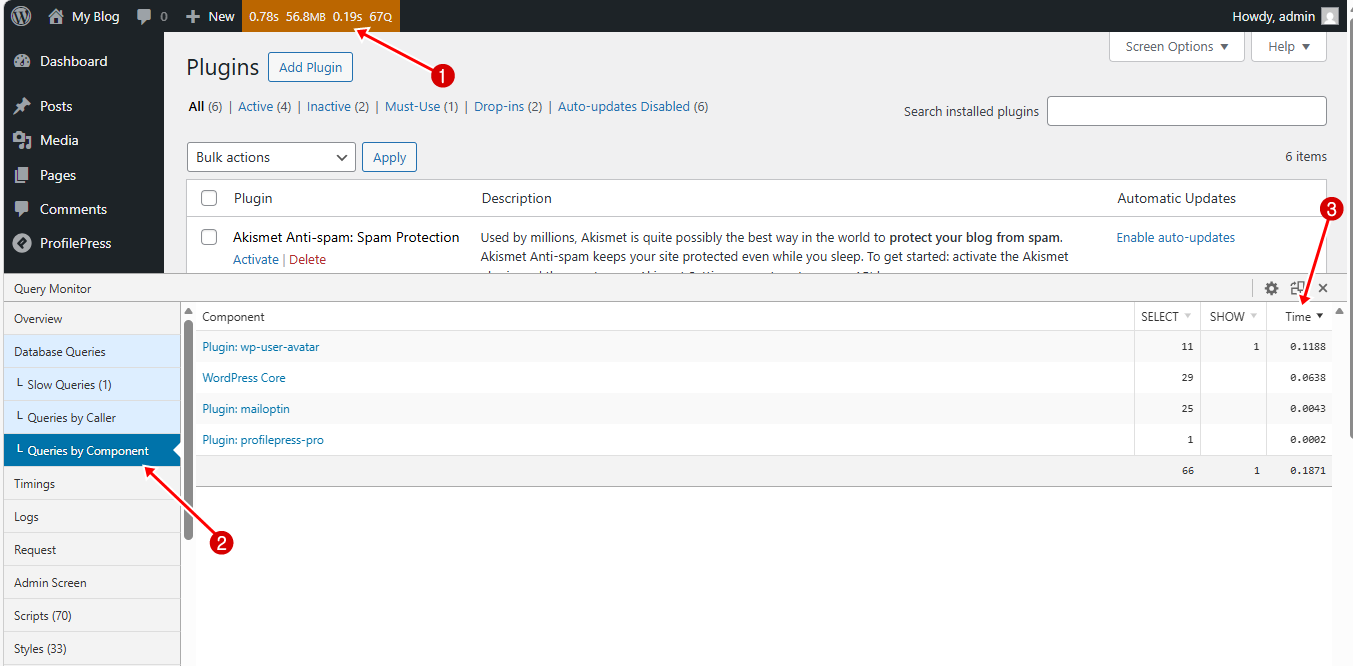
Once you identify a slow plugin, you have a few options. If it’s not essential, the best choice is to disable and remove it. If you still need its functionality, consider finding a lighter alternative that performs the same task more efficiently.
By identifying and removing resource-heavy plugins, you can noticeably speed up your WordPress backend and make your dashboard feel much more responsive.
Fix 7: Clean Out Your Database (Especially WooCommerce Stores)
Over time, your WordPress database can become cluttered with unnecessary data, revisions, transients, and logs. This is especially true for sites running WooCommerce, where orders, product revisions, and session data can accumulate quickly.
A bloated database can slow your WordPress admin and increase dashboard page load times.
Let’s go through the different ways to solve it.
1. Use a Database Optimization Plugin: Plugins like WP-Optimize or Advanced Database Cleaner make it easy to clean and optimize your database without manual queries. With these plugins, you can:
- Remove post revisions, drafts, and trashed posts
- Delete spam or unapproved comments
- Clear expired transients and WooCommerce session data
- Optimize database tables for faster queries
To optimize your database, first install and activate your chosen plugin. Then, navigate to the plugin’s dashboard (for example, WP-Optimize > Database) and select the cleanup tasks you want to perform.
For WooCommerce stores, be sure to include post revisions, WooCommerce logs, and session data. Once you’ve selected the tasks, click Run Optimization and allow the plugin to complete the process.
2. Schedule Regular Database Maintenance: Cleaning your database once helps, but without regular maintenance, it can quickly become cluttered again. Many optimization plugins, like WP-Optimize, allow you to schedule weekly or monthly cleanups automatically.
By setting up regular maintenance, your database stays lean, queries run faster, and issues like a slow WordPress admin or WordPress backend slow are much less likely to occur.
Fix 8: Increase the WordPress Memory Limit
Sometimes, a slow WordPress admin dashboard is caused by a low PHP memory limit on your site.
WordPress relies on PHP memory to perform tasks like loading plugins, processing requests, and handling admin actions. When the memory limit is too low, your dashboard can become sluggish or even crash during heavy operations.
By default, many hosting providers set a relatively low PHP memory limit, often around 32MB or 64MB. While this may be enough for small sites, it’s usually not sufficient for sites running multiple plugins, complex themes, or WooCommerce stores. When your site runs out of memory, it struggles to process tasks efficiently, leading to a slow WordPress backend, delays, or even error messages.
Below, we’ll show you different ways to increase your memory limit.
1. Edit the wp-config.php File: This is the most common method. Access your site files via FTP or your hosting file manager and locate the wp-config.php file.
Then add the following line;
define('WP_MEMORY_LIMIT', '256M');This increases the memory available to WordPress and can significantly improve performance.
2. Update the php.ini File: If your host allows it, you can increase the memory limit by editing your php.ini file:
memory_limit = 256MSave the file and restart your server if required.
3. Contact Your Hosting Provider: If you’re unable to change the memory limit manually, reach out to your hosting provider and request an increase. Many hosts can adjust this for you quickly.
Frequently Asked Questions About a Slow WordPress Dashboard
After implementing all fixes, you may still have questions about why your dashboard was slow and how to maintain speed.
Below, we answer the most common concerns to help you keep your WordPress admin running smoothly.
Q1. Why is my WordPress dashboard so slow?
A slow WordPress dashboard is usually caused by a combination of factors, such as outdated PHP or WordPress versions, heavy or poorly coded plugins, a bloated database, too many dashboard widgets, or a low PHP memory limit. Fixing these areas typically solves most speed issues.
Q2. How do I speed up my WordPress admin dashboard?
To speed up your WordPress admin dashboard, update your PHP and WordPress version, remove unnecessary plugins and widgets, limit the Heartbeat API, clean your database, and use a performance plugin. Increasing your PHP memory limit can also help.
Q3. Can plugins make WordPress admin slow?
Yes. Poorly coded or resource-heavy plugins can significantly impact the speed of your WordPress backend. Using lightweight, optimized plugins like ProfilePress, MailOptin, and FuseWP can help maintain a fast admin dashboard.
Q4. How much PHP memory does WordPress need?
While WordPress can run on 64MB, most modern sites require at least 128MB or 256MB for smooth performance, especially if you’re using multiple plugins or WooCommerce.
Q5. How often should I clean my WordPress database?
For most sites, cleaning your database once a month is enough. For WooCommerce stores or high-traffic sites, weekly optimization may be better to prevent performance issues.
Q6. Does hosting really affect admin speed?
Yes, hosting plays a major role. Poor server performance can slow down your entire dashboard.
That’s how to fix a slow WordPress admin dashboard!
A slow WordPress admin dashboard can make managing your website frustrating, but with the right steps, you can get it running fast again.
By applying the fixes we covered, from updating PHP and WordPress to cleaning your database, limiting the Heartbeat API, and increasing your memory limit, you can dramatically improve the speed and responsiveness of your WordPress backend.
Start with the fixes that are easiest to apply and work your way up to the more advanced optimizations. With these strategies in place, your WordPress dashboard slow days will be gone, letting you focus on growing your website instead of waiting for pages and settings to load.