Advanced Courses for WordPress

Our Advanced Courses addon gives the ProfilePress course builder everything you need to run your WordPress courses like a school: instructors, graded assignments, written-answer quiz questions, completion actions and course announcements.

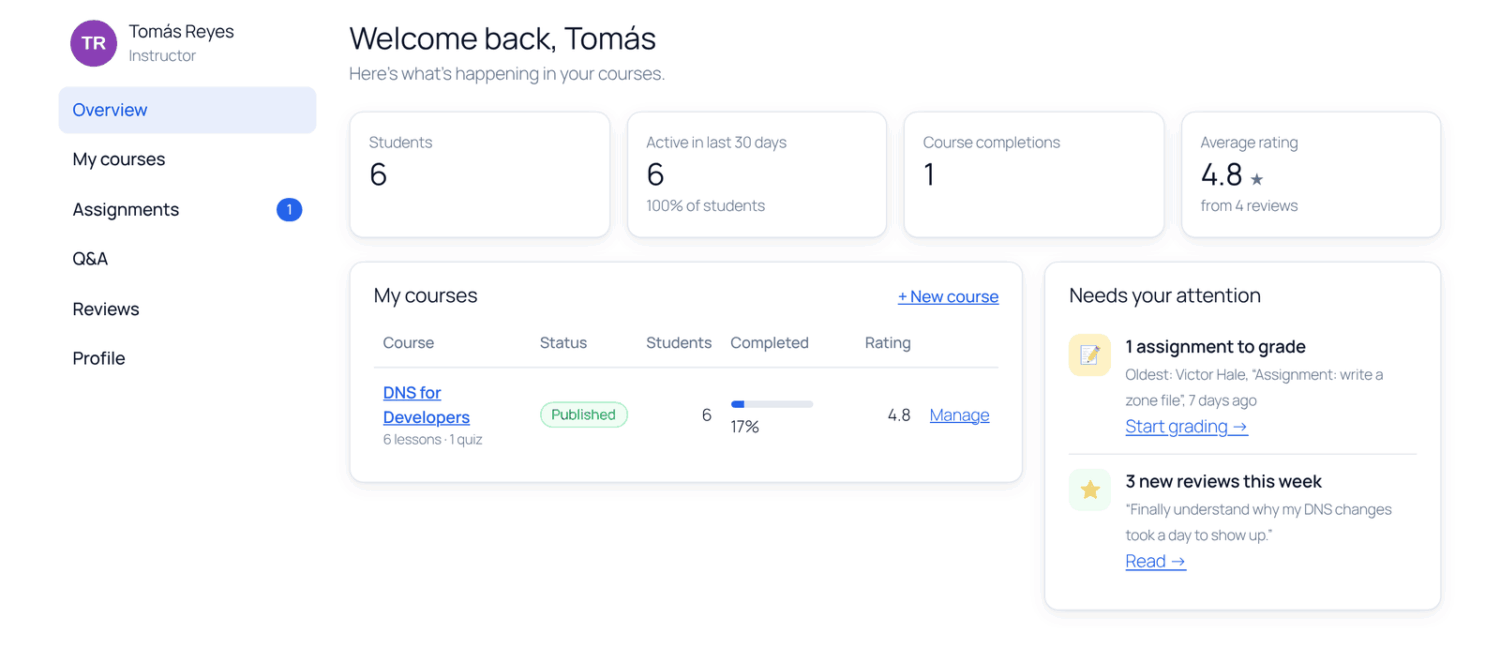
The instructor dashboard Overview section

The free ProfilePress course builder lets you create courses, sell them with your membership plans, and award certificates. Advanced Courses builds on that with the tools you need as your online school grows: other people can teach, students can submit work for you to grade, and finishing one course can unlock what comes next.

All five features come together in one addon, so you simply use the ones you need. Activate it under ProfilePress » Addons, and its features appear right where you build your courses.

Turning the addon off never deletes anything. Your assignments, grades, instructors, and announcements are kept, and each feature picks up where it left off when you turn it back on.
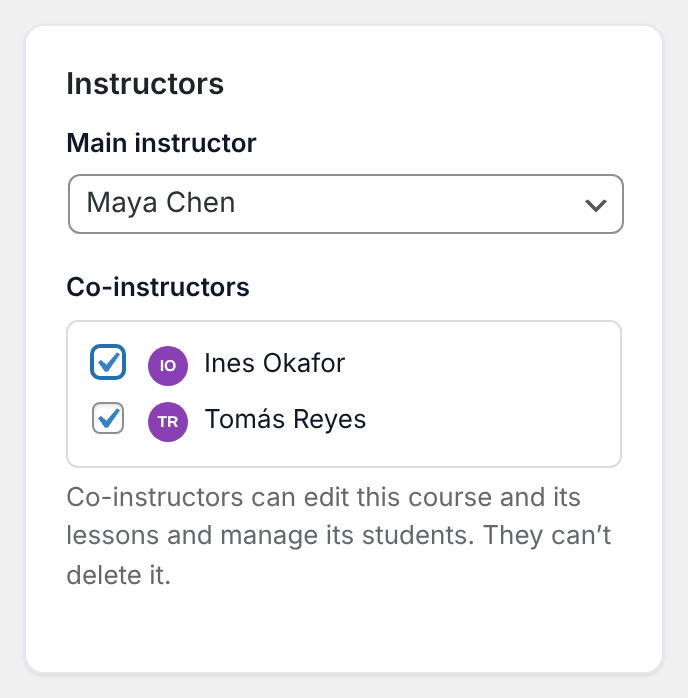
The Instructors card on the Details tab with two co-instructors ticked

Let Other Instructors Teach Your Courses

Give anyone the new Course Instructor role, or let people sign up as instructors through a ProfilePress registration form. Instructors create and edit their own courses in the course builder, manage their students, answer lesson questions, and view course reports.

  • Review before publishing: new courses from instructors are submitted for review, and you approve each one before students see it.
  • Co-instructors: add several instructors to a course and show them all on the course page.
  • Instructor dashboard: instructors can teach from a dashboard on your site, without visiting the WordPress admin.

Instructors only see their own courses and media, and they can’t change your plans, pricing, or site settings. Learn more about course instructors.

Grade Assignments with Points and Feedback

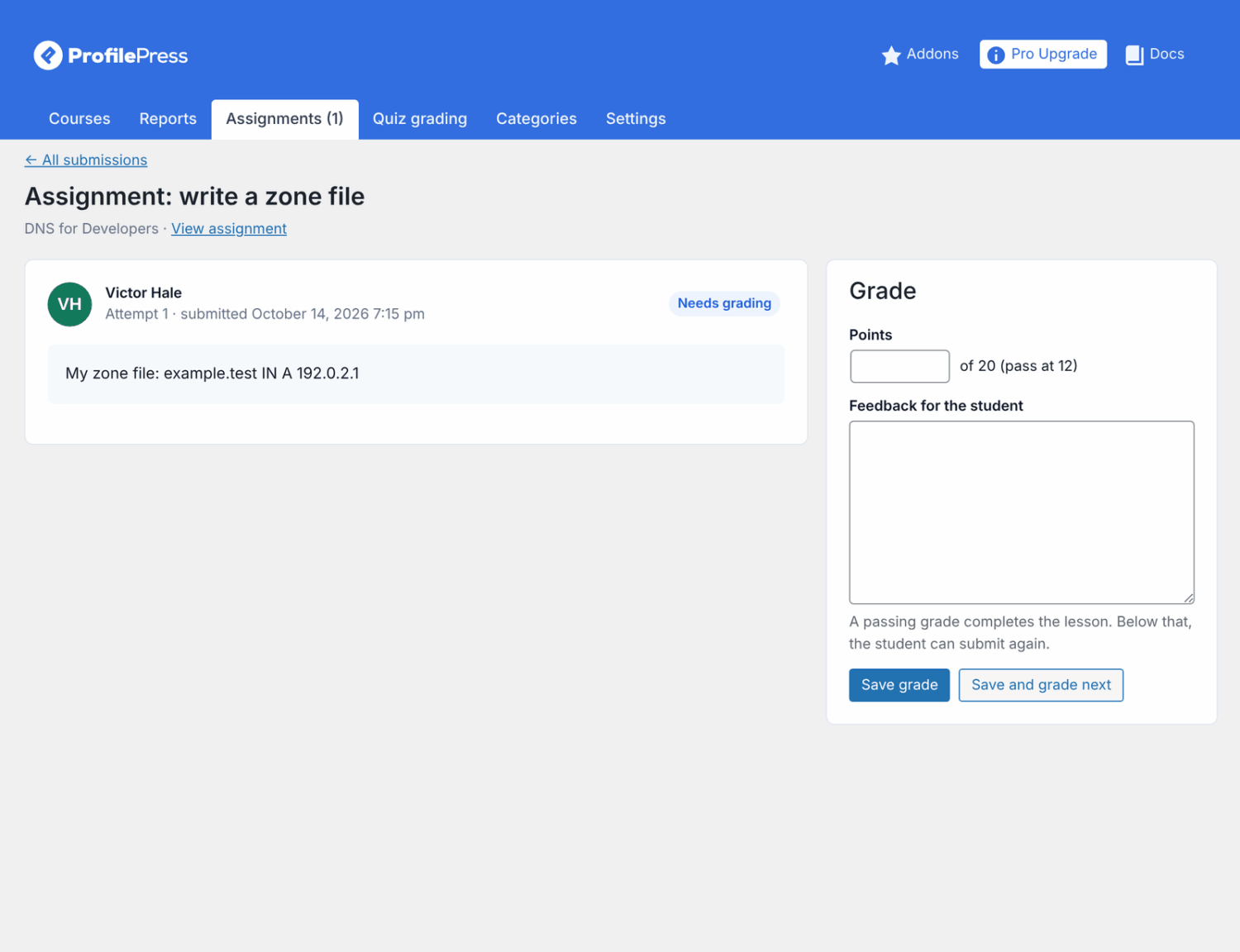
Add an Assignment lesson to any course. Students submit their work as text, files, or both, and you grade it with points and written feedback.

  • Set the total points, passing grade, due date, and the file types and sizes students can upload.
  • A passing grade completes the lesson. Below that, students can revise their work and submit it again.
  • Work through every submission across your courses with Save and grade next. Students are emailed their grade and feedback.

In courses taken in order, the next lessons stay locked until the work passes, or open as soon as it’s submitted if you prefer. Learn more about assignments.

The grading screen with points, feedback and the Save and grade next button
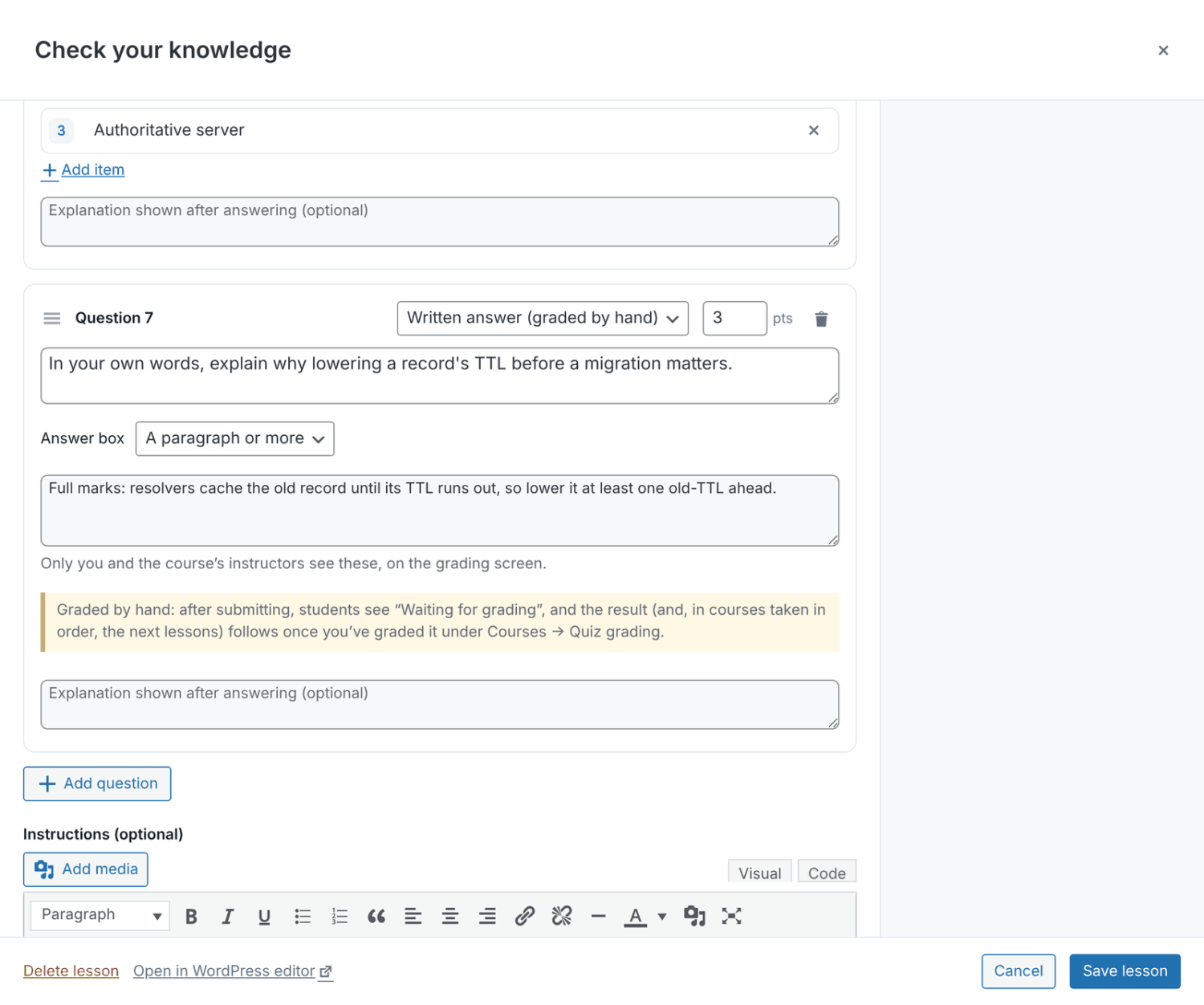
The quiz editor with a Written answer (graded by hand) question and grading notes

Ask Questions Students Answer in Their Own Words

Add written-answer questions to any quiz and grade them by hand, while the rest of the quiz is still graded automatically. Add private grading notes so you and your instructors know what a full-marks answer covers.

Students see that their answers are waiting to be graded, and they’re emailed their score and your feedback as soon as you grade them. The grading screen even tells you how many points each student needs to pass.

Learn more about written-answer questions.

Do More When a Student Completes a Course

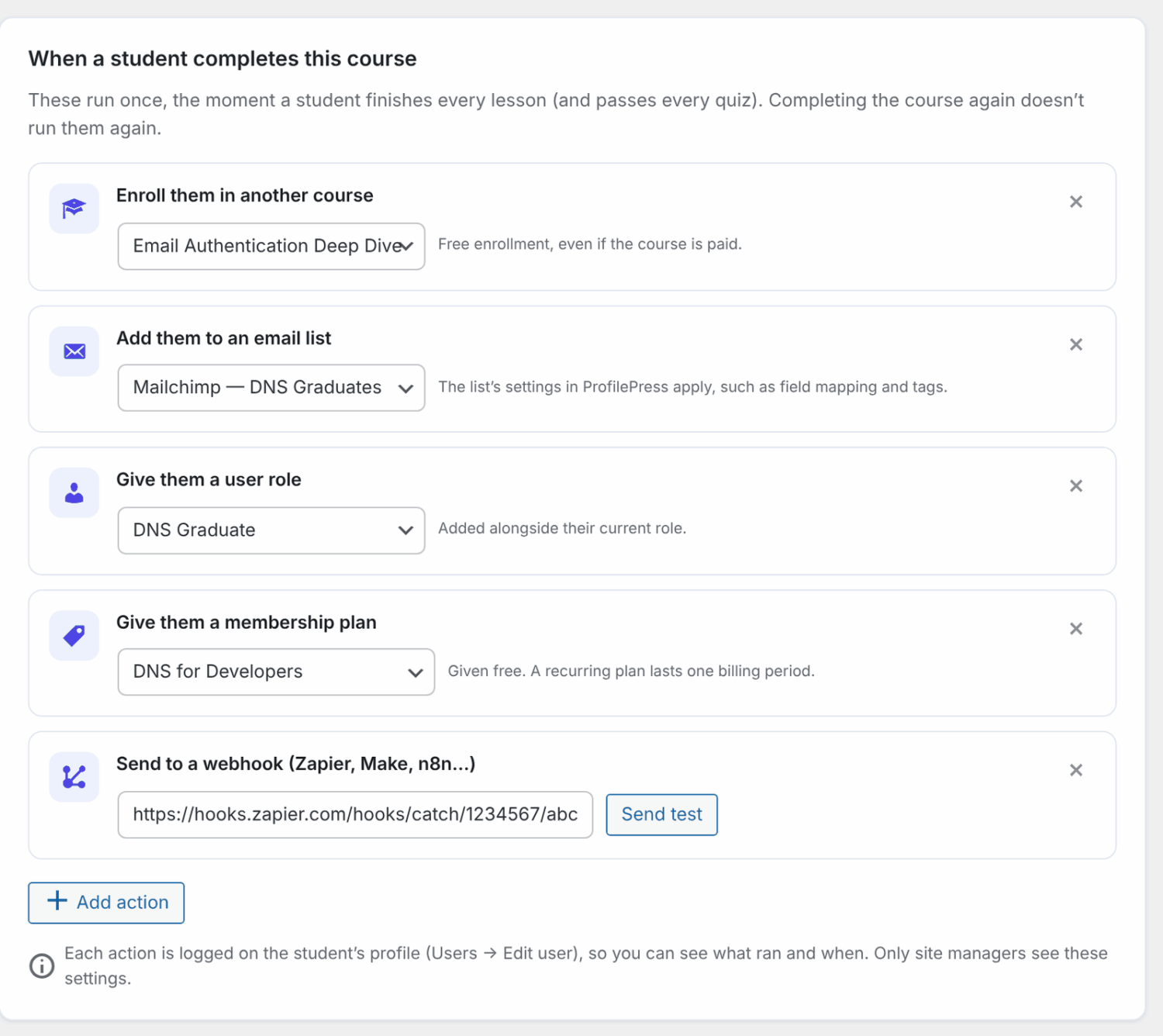
Completion actions run automatically the moment a student finishes a course. Add up to 20 per course:

  • Enroll in another course to unlock the next course in a series.
  • Add to an email list in Mailchimp, Brevo, Campaign Monitor, or MailerLite.
  • Give a user role, for example, a “Graduate” role for alumni content.
  • Give a membership plan, such as access to an alumni community.
  • Send to a webhook to connect Zapier, Make, n8n, or your own app.

Each student gets a course’s actions only once, so you can build learning paths that run on their own. Learn more about completion actions.

The When a student completes this course card with five actions
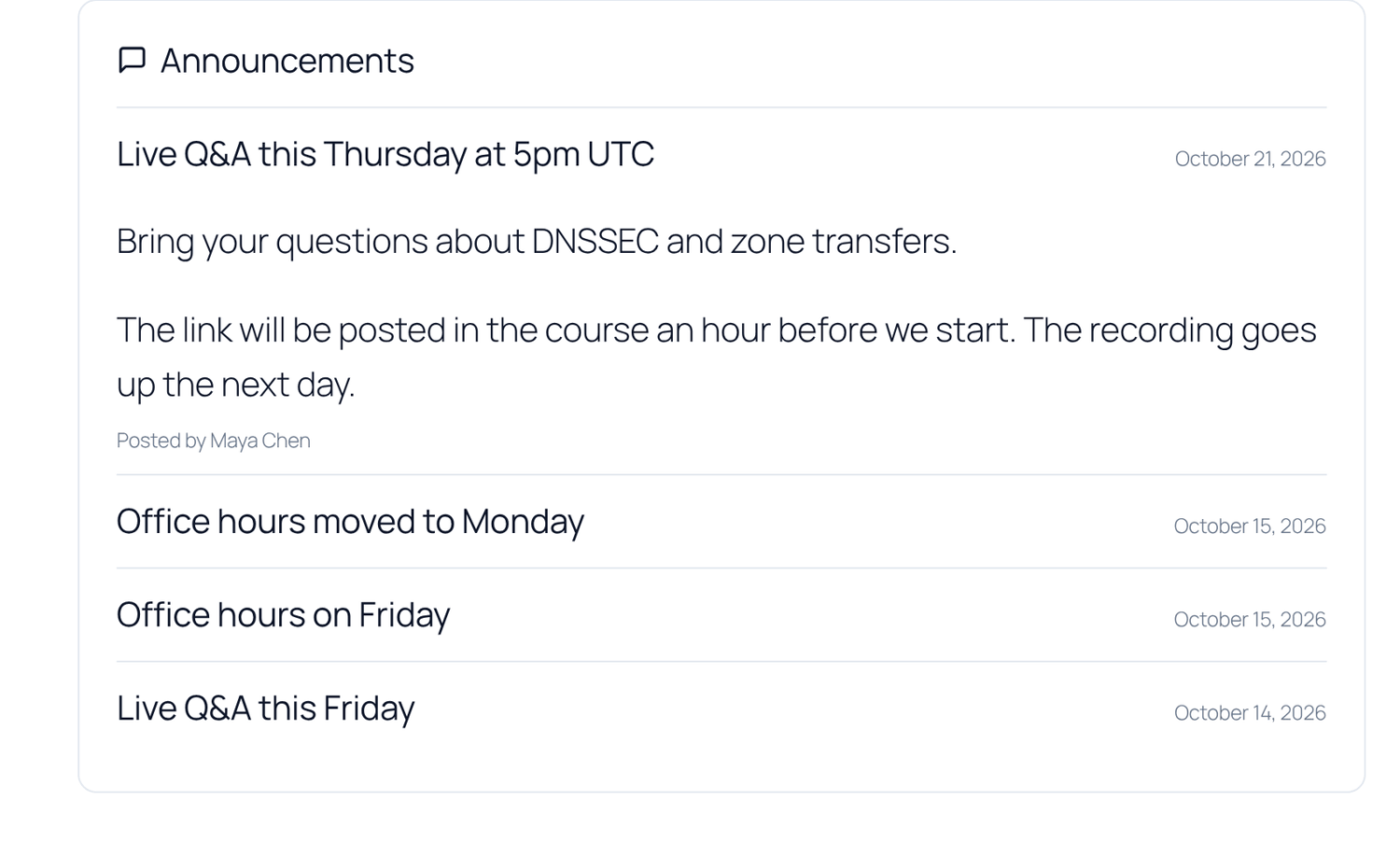
The Announcements box on a course page

Keep Students Updated with Announcements

Post updates for course students, such as a new module or a live session. Announcements appear on the course page, and you can email them to everyone enrolled with one click.

Emails go out in the background, so even large courses are handled without slowing your site. Only students who still have access are emailed, and instructors can post from the course builder or their instructor dashboard. Learn more about announcements.

Get ProfilePress with all Addons Today!

Start building your online school with ProfilePress, and let your instructors teach, grade and grow your WordPress courses.