
How to Create and Grade Course Assignments in ProfilePress
An assignment is a lesson where students hand in work, as text, files, or both, and you grade it with points and feedback. A passing grade completes the lesson. Below that, the student can revise their work and submit it again.
Note: This feature requires ProfilePress Pro with the Advanced Courses addon. Learn how to activate addons.
For questions that can be marked automatically, use a quiz instead.
How to add an assignment
- Go to ProfilePress » Courses and open your course in the course builder.
- On the Curriculum tab, click Lesson at the bottom of a section, type the title, and press Enter.
- Click the lesson’s Edit button (the pencil icon) to open the lesson editor.
- At the top of the editor, choose Assignment.
- In the Instructions field, write the brief: what students should do and hand in.
- Fill in the assignment settings (below).
- Click Save lesson.
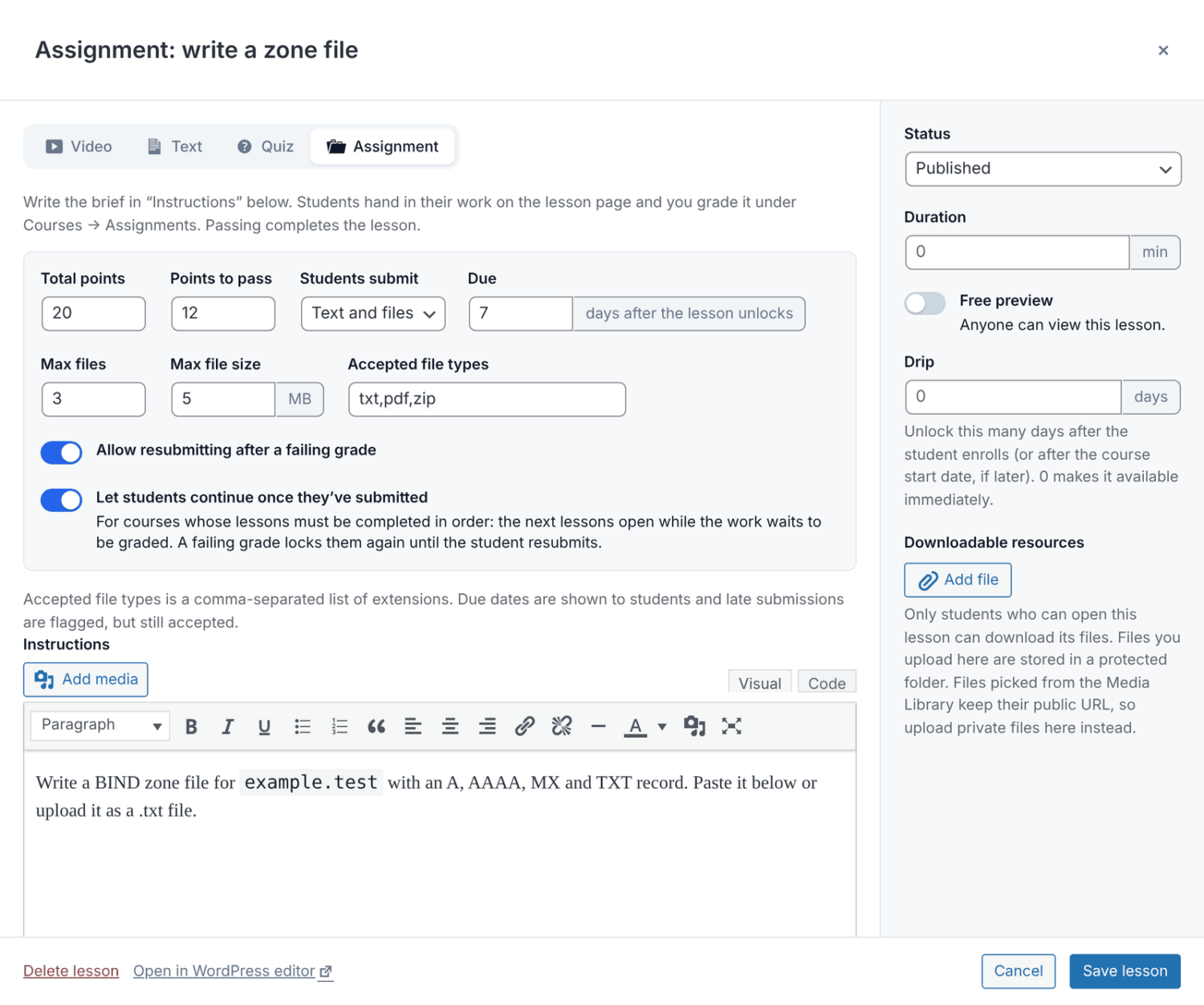
Assignment settings
| Setting | What it does |
|---|---|
| Total points | The maximum grade. Default 10. |
| Points to pass | The grade that passes and completes the lesson. Default 6. It can’t be higher than the total. |
| Students submit | Text and files, Text only or Files only. |
| Due | Days after the lesson unlocks that the work is due. Leave it empty (None) for no due date. |
| Max files | How many files a student can attach to one submission (1 to 10). Default 3. |
| Max file size | The size limit for each file, in MB. Default 5. It can’t be more than your server’s upload limit. |
| Accepted file types | A comma-separated list of extensions, for example pdf,docx,zip. Default pdf,doc,docx,txt,zip,jpg,jpeg,png. |
| Allow resubmitting after a failing grade | Lets students submit again when their work fails. On by default. When it’s off, a failing grade is final. |
| Let students continue once they’ve submitted | For courses whose lessons must be completed in order: the next lessons open while the work waits to be graded. |
Due dates
The days count from when the lesson became available to the student. Late work is still accepted, and it’s marked Late when you grade it.
Courses taken in order
A course can have Require lessons to be completed in order turned on (on the Pricing & Access tab). Then the lessons after an assignment stay locked until the work passes. With Let students continue once they’ve submitted on, they open on submitting, and lock again if the work fails.
What students see
Students see your instructions, the passing grade, the due date (if any), the file limits, and the submission form.
- They write their answer in the text box, or click Attach files, or both.
- They click Submit for grading. The form warns “You can’t change your work after submitting.”
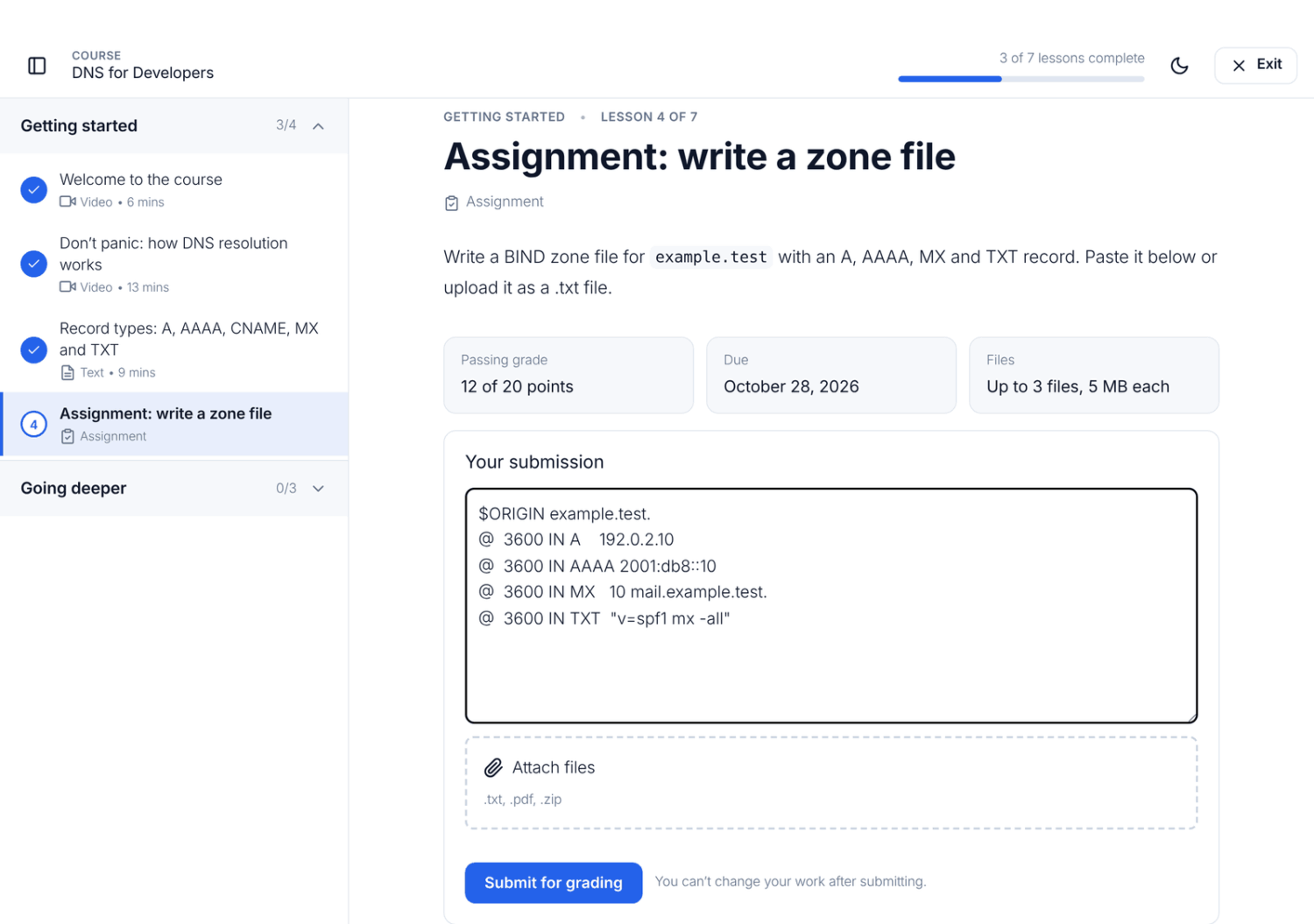
While they wait, the lesson shows Waiting to be graded and tells them they’ll get an email when it’s graded. If they can continue, it says they can carry on with the next lesson.
After grading, the lesson shows Passed or Needs another try, the points, and your Instructor feedback. When resubmitting is allowed, a failed assignment shows a Submit again form.
Assignment lessons have no Mark as complete button. The only way to complete one is a passing grade.
Only enrolled students can submit, so a free preview isn’t enough. Others see “Enroll in this course to submit this assignment.”
How to grade submissions
- Go to ProfilePress » Courses and click the Assignments tab. It shows how many submissions are waiting, for example Assignments (3).
- The list opens on Needs grading, oldest first. Use Passed, Failed and All to see the others, and the course drop-down to show one course.
- Click Grade next to a submission.
- Read the student’s text and open their files from the Files list.
- Enter the Points. Half points are allowed.
- Write your Feedback for the student.
- Click Save grade, or Save and grade next.
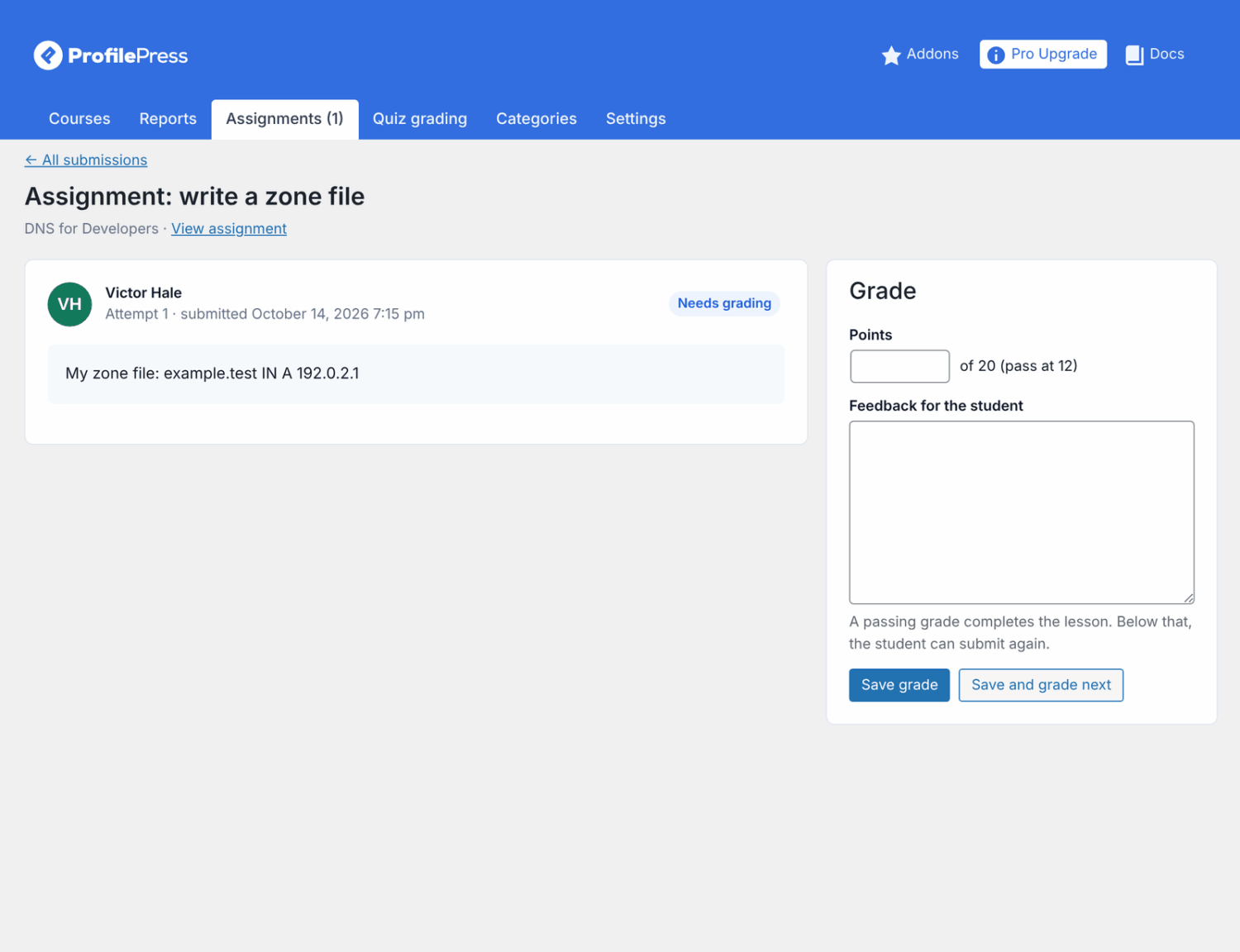
The student is emailed their grade and feedback. Reaching Points to pass completes the lesson.
Grading quickly
- Use Save and grade next. It saves the grade and opens the submission that has waited longest, across all your courses.
- Click Grade it in the “submitted” email to open that submission.
- Instructors can click Start grading on the front-end instructor dashboard. See Course instructors.
Changing a grade
Open the submission from the list and click Update grade. The student is emailed the new grade.
Lowering the latest attempt below the pass mark marks the lesson incomplete again. If the student had finished the course, it’s marked incomplete too, and their certificate link stops working until they complete it again.
Site admins grade every course. Instructors and co-instructors grade the courses they teach.
Resubmissions
- Each resubmission is a new attempt. The list shows each student’s latest one.
- On the grading screen, Earlier attempts lists the previous attempts. Click Open to see one.
- Only the latest attempt decides whether the lesson is complete. Regrading an older attempt doesn’t change it.
- When resubmitting is off, a failing grade is final, and the student is asked to contact you.
Emails
- When a student submits, the course’s instructors (the main instructor and any co-instructors) get an email with a Grade it link.
- When you save or update a grade, the student gets their points, your feedback and a link to the assignment.
You can’t edit these emails under ProfilePress » Settings » Emails. They use your general email settings, such as the sender name.
File privacy
Uploaded files are stored in a protected folder, not the Media Library. Only the student who uploaded a file and the people who can edit the course can open it. On Nginx servers, add the protection rule described in Course settings.
Frequently asked questions
Can a student edit or withdraw a submission?
No. If they made a mistake, give a failing grade with feedback so they can resubmit (with resubmitting allowed).
Why can’t I submit the assignment while previewing the course?
Submissions are turned off while you preview the course as a student.
Why are some file types refused even though I listed them?
For security, we never accept file types that could run code, such as PHP, HTML, JavaScript, SVG, and EXE.
A student says their files are too large, but each file is under the limit. Why?
Your server also limits the total size of one upload. Ask your host to raise the upload limit, or lower Max files.
What happens to submissions if I delete the lesson?
Deleting an assignment lesson deletes all its submissions and files. Duplicating or exporting a course copies the settings, not the submissions.
What happens if I turn off Advanced Courses?
Assignments and submissions are kept, but students see “This lesson isn’t available right now” until the addon is back. See Advanced Courses addon.