
How to Add Written-Answer Quiz Questions in ProfilePress
A written-answer question lets students answer a quiz question in their own words, and you grade it by hand. The rest of the quiz is still graded automatically. The quiz is passed or failed once you’ve graded the written answers.
Note: This feature requires ProfilePress Pro with the Advanced Courses addon. Learn how to activate addons.
Use written answers for short explanations inside a quiz. For longer work, or work handed in as files, use an assignment instead.
How to add a written-answer question
- Open your course in the course builder and click the quiz’s Edit button (the pencil icon). To create a quiz first, see Course quizzes.
- Click Add question.
- In the drop-down next to the question number, choose Written answer (graded by hand).
- Type the question in the Type your question box.
- Set how many points it’s worth in the pts box.
- Under Answer box, choose A paragraph or more or A sentence or two.
- Optionally, add grading notes, for example what a full-marks answer covers.
- Click Save lesson.
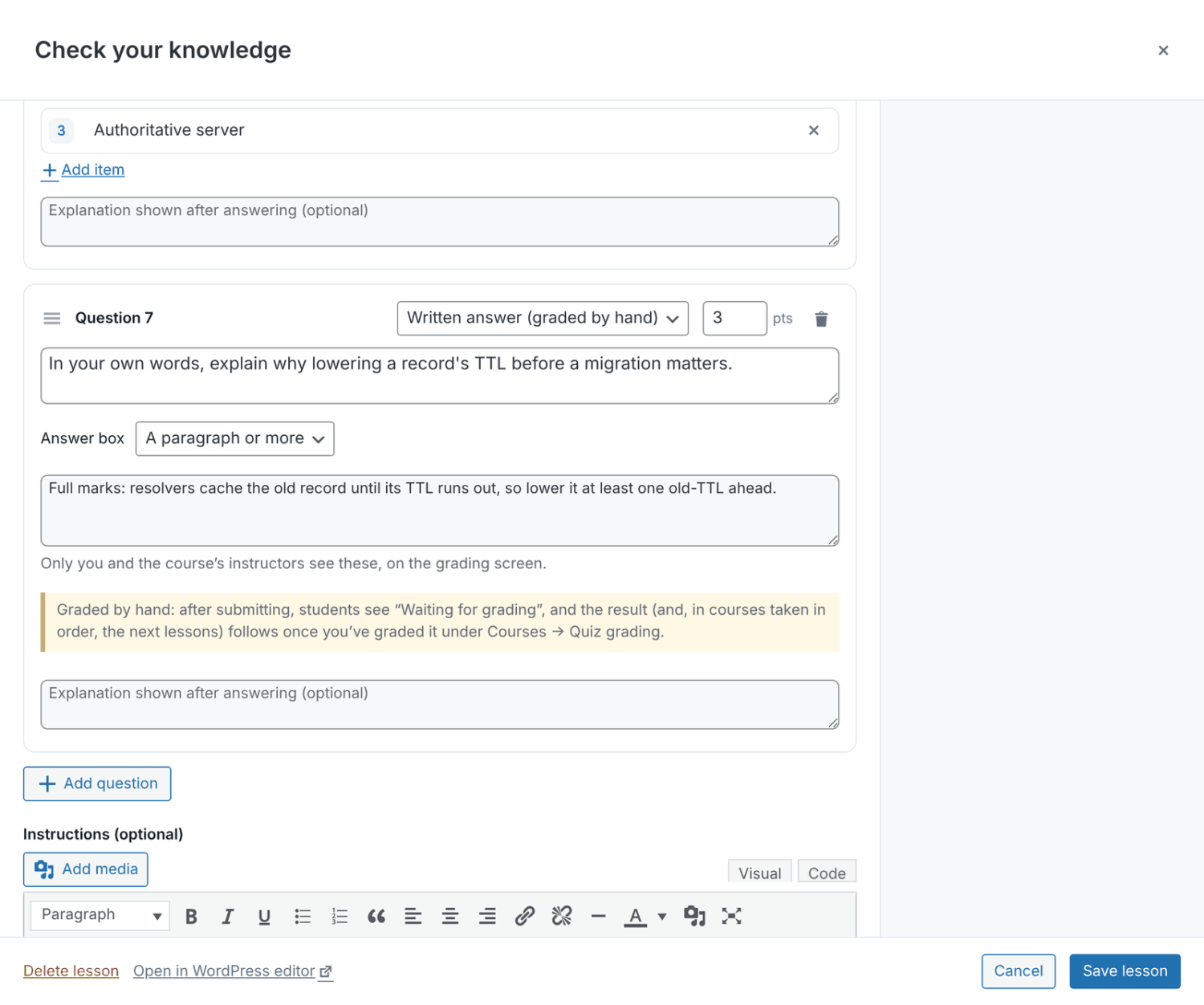
Only you and the course’s instructors see the grading notes, on the grading screen. They’re never sent to students’ browsers.
You can mix written answers with any other question type in the same quiz.
What students see
Students see a text box with a word count and the hint “Answer in your own words. Your instructor grades this question.” Answers can be up to 10,000 characters.
After they submit the quiz, they see Waiting for grading. It says how many of the automatically graded questions they got right, and that their instructor will grade the rest. They don’t see a score yet.
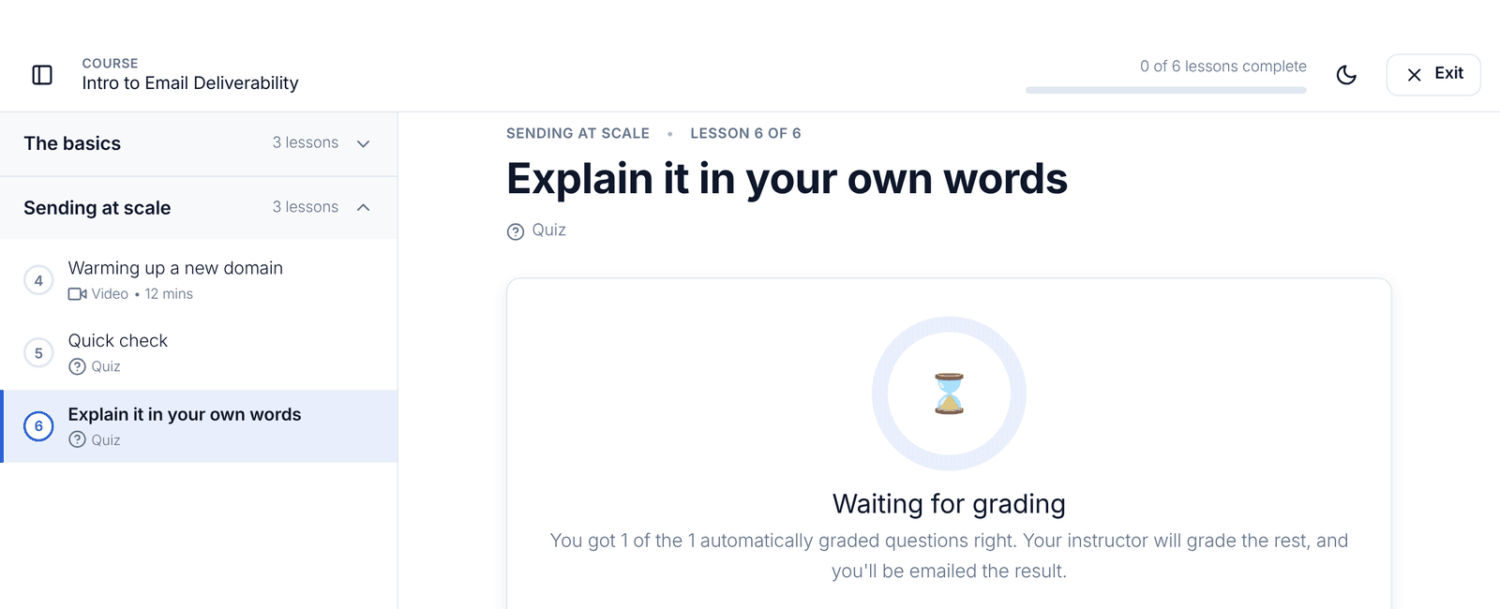
Until you grade it:
- the quiz intro says “Your answers are waiting to be graded. You’ll be emailed when they are.”;
- the quiz can’t be retaken;
- in courses whose lessons must be completed in order, the lessons after the quiz stay locked.
A written answer left empty scores 0 straight away. If every written answer is empty, the quiz is graded at once without waiting for you.
After grading, the quiz intro shows “Your written answers were graded” with the points, and your feedback below it.
How to grade written answers
You and the course’s other instructors are emailed when a quiz has answers to grade. The email has a Grade it link.
- Go to ProfilePress » Courses and click the Quiz grading tab. It shows how many quizzes are waiting, for example Quiz grading (2).
- The list opens on Needs grading, oldest first. Use the course drop-down to show one course.
- Click Grade next to a submission.
- Read the automatic result at the top, then each written answer with your grading notes.
- Enter the Points for each answer. Half points are allowed, up to the question’s points.
- Optionally, write Feedback for the student.
- Click Save grade, or Save and grade next to go straight to the next quiz waiting.
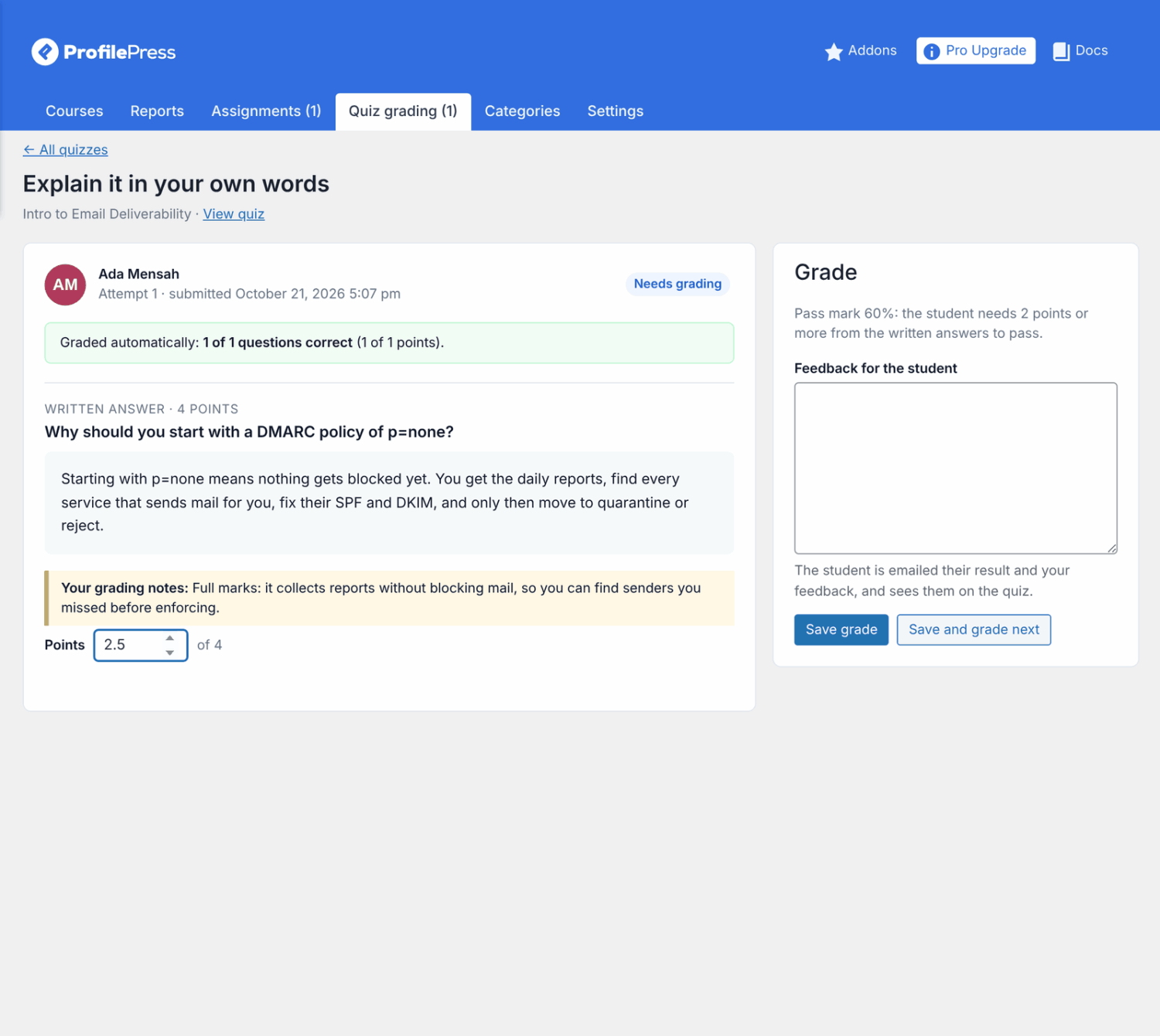
The grading screen tells you how many points the student needs from the written answers to pass. It also tells you when they’ll pass whatever you give, or can’t pass even with full marks.
How the score works
The score is the points from the automatic questions plus the points you give, as a share of the quiz’s total points.
- If it reaches the quiz’s Passing score, the quiz is passed. The lesson is complete and the next lessons open.
- If not, it’s failed. The student can retake it, within the Attempts allowed.
The student is emailed their score and your feedback, with a link to the quiz.
How to change a grade
- On the Quiz grading tab, click Passed, Failed or All.
- Click View next to the submission.
- Change the points or feedback and click Update grade.
The screen shows who graded it last and when. The student is emailed the new result.
- If a pass is regraded below the passing score, the quiz becomes failed again.
- A pass from an earlier attempt is never taken away, as with any quiz that’s retaken.
- Only the student’s latest attempt changes the quiz’s result. Earlier attempts are listed under Other attempts.
- Grades for a student who’s no longer enrolled are saved, but they don’t change the quiz’s result.
Frequently asked questions
Can I grade written answers from the instructor dashboard?
Not on the dashboard itself. Use the Quiz grading tab under Courses in the WordPress admin. Instructors see the quizzes of the courses they teach there.
Who can grade?
Site admins can grade every course. Instructors and co-instructors can grade the courses they teach. See Course instructors.
A student is stuck on “Waiting for grading”. What do I do?
Their quiz has a written answer you haven’t graded yet. Grade it under Quiz grading, and the quiz is passed or failed straight away.
What if I edit a question after students answered it?
The grading screen shows each question as it was when the student answered it, with the points and notes from then.
Do written answers count toward the attempt limit?
Yes. Each submitted quiz is one attempt, whether or not it has written answers.
What happens if I turn off Advanced Courses?
Quizzes with written-answer questions are closed to students until the addon is back. The questions are kept, and quizzes waiting for a grade stay waiting, so grade them first. See Advanced Courses addon.
Are written answers included in personal data exports?
Yes. WordPress’s personal data export includes them, and erasing a user’s personal data removes them.