
How to Add Course Instructors in WordPress with ProfilePress
Instructors let people other than site administrators create and teach courses on your site. You decide who can teach, and you approve each new course before students see it.
Note: This feature requires ProfilePress Pro with the Advanced Courses addon. Learn how to activate addons.
In this article, “site admin” means a WordPress administrator. Site admins can always teach and edit every course, and their own changes go live straight away.
What instructors can and can’t do
ProfilePress adds a WordPress user role called Course Instructor. Users with this role can:
- create new courses and edit the courses they teach, with their lessons, in the course builder;
- see the Courses and Reports screens for their own courses (for them, the ProfilePress menu is simply called Courses);
- enroll and remove students, and answer lesson Q&A;
- grade assignments and written quiz answers, and post announcements, for their courses;
- upload images and files, and see only the media they uploaded themselves.
Instructors can’t:
- publish a new course (they submit it for review instead);
- unpublish or delete a course that’s published, private or scheduled, because it has students (they can delete their own drafts);
- choose which membership plans sell a course (they see the plans on the Pricing & Access tab, read-only);
- make a published paid course free (only a site admin can; they can still choose the access type of a course they’re setting up);
- see or change a course’s completion actions;
- see other instructors’ courses or media;
- change site settings or course categories.
How to make someone an instructor
- Go to Users and edit the user.
- Set their Role to Course Instructor.
- Click Update User.
They can now log in, go to Courses in their admin menu and click Add New Course.
How to let people sign up as instructors
You can give the instructor role to everyone who registers through a particular ProfilePress registration form.
- Go to ProfilePress » Forms & Profiles and create a registration form, or edit one.
- In the form’s settings, set New User Role to Course Instructor.
- Save the form.
- Add the form to a page, for example an “Apply to teach” page, and publish it.
Use a separate form from your normal student sign-up form. Everyone who registers through this one becomes an instructor straight away. If you want to vet applicants first, collect applications another way and give the role by hand.
How to add co-instructors to a course
A course’s author is its main instructor. You can add co-instructors who teach the course with them.
- Open the course in the course builder and go to the Details tab.
- Find the Instructors card.
- If you’re a site admin, you can change the Main instructor.
- Under Co-instructors, tick the users who should teach the course.
- Save the course.
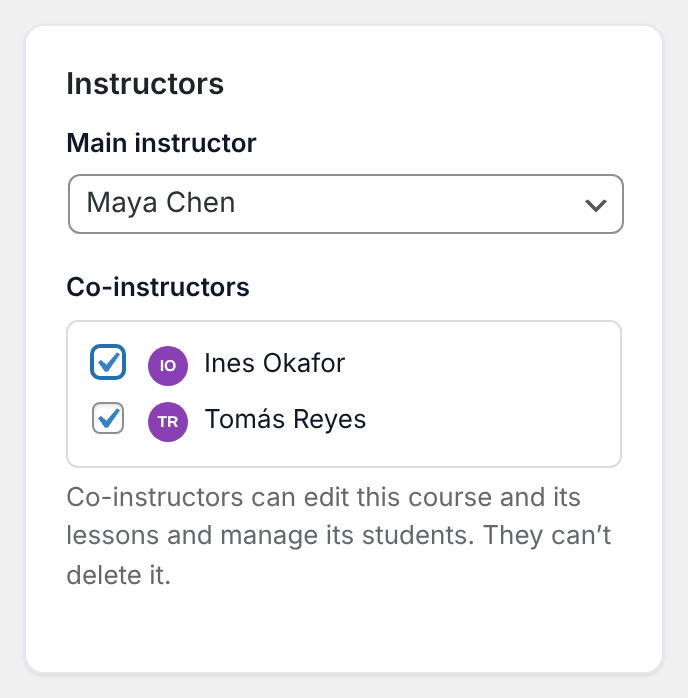
Only Course Instructors and administrators are listed.
Co-instructors can edit the course and its lessons and manage its students, but they can’t delete the course. Only the main instructor or a site admin can change who teaches a course. Everyone else sees the list read-only. All instructors are shown on the course page.
How instructors publish a new course
- The instructor builds the course and clicks Submit for review. (Site admins see Publish there instead.)
- The course’s status becomes Pending review. A “Course submitted for review” email goes to the admin email address under Settings » General.
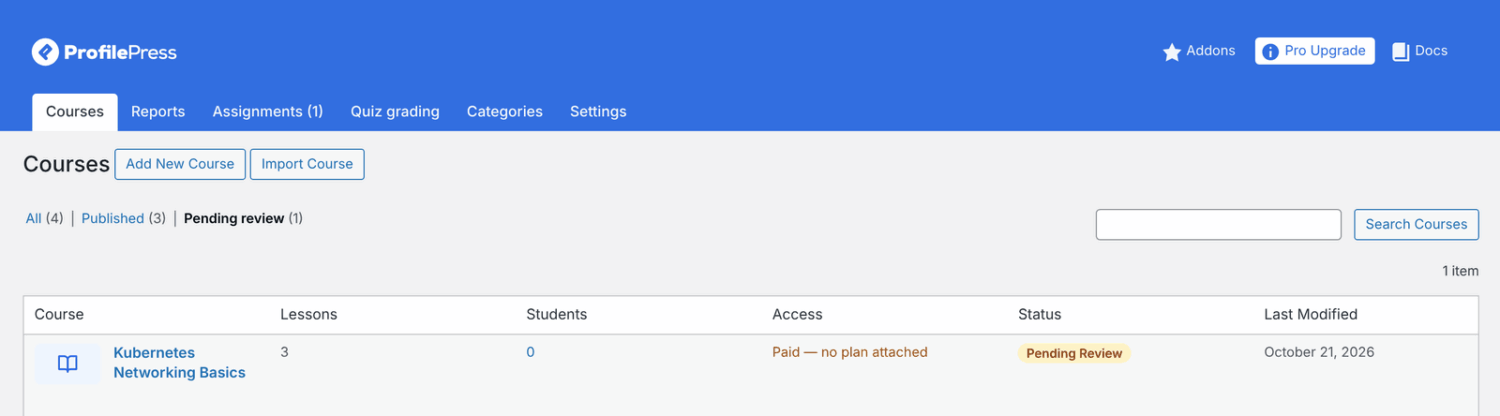
- Go to ProfilePress » Courses, click Pending review above the list, and open the course.
- Check it, then click Publish.
The main instructor gets a “Your course is live” email with a link to the course. Co-instructors aren’t emailed.
To send a course back, click Save draft instead of Publish. The instructor isn’t emailed, so tell them what to change.
Editing a published course
Once a course is published, there’s no second review. Its instructors’ changes to the course and its lessons go live as soon as they’re saved, as for an editor in WordPress.
Only site admins can take a live course offline. Instructors don’t see the Unpublish button, and a scheduled course keeps its date when they save it.
How to set up the instructor dashboard
The instructor dashboard lets instructors do their day-to-day teaching from a page on your site instead of the WordPress admin.
- Create a page, for example “Instructor dashboard”.
- Add the shortcode
[profilepress-instructor-dashboard]to the page. - Publish the page.
- Go to ProfilePress » Courses » Settings.
- In Instructor Dashboard Page, choose your page.
- Save the settings.
Only published pages are listed, so publish the page first.
Once the page is chosen, instructors get an Instructor Dashboard link in their My Account menu. They’re also sent to the dashboard after logging in, unless the login was already sending them somewhere else.
Visitors who aren’t logged in are asked to log in, and users who can’t teach see a message that the dashboard is for course instructors.
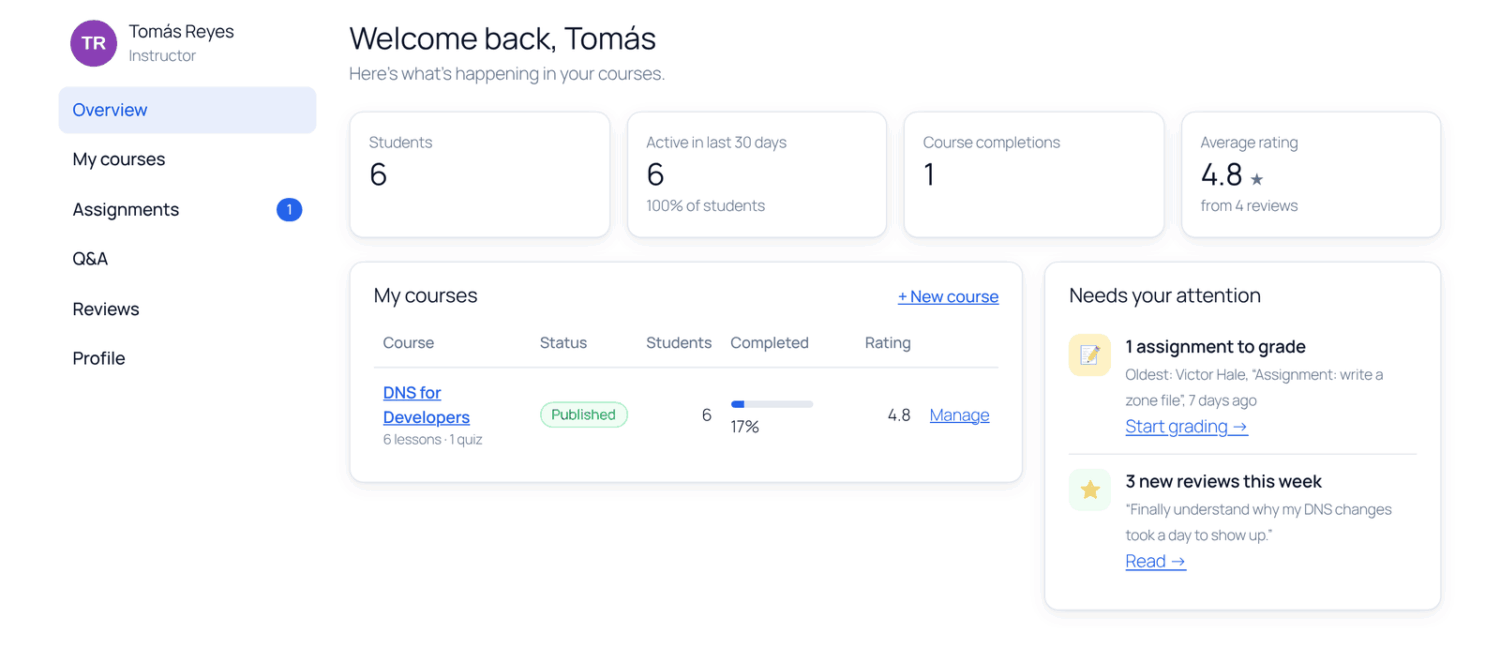
What’s on the instructor dashboard
| Section | What it does |
|---|---|
| Overview | Totals for students, completions and ratings, and the instructor’s courses. The Needs your attention list shows assignments to grade, unanswered questions, new reviews and courses waiting for review. |
| My courses | Each course they teach, with its status and student count. Manage opens a course with Students, Announcements and Reviews tabs and a Progress report link. |
| Assignments | Submissions waiting to be graded, oldest first. Grade opens the grading screen. |
| Q&A | Questions from all their lessons, answered right there. |
| Reviews | What students said about their courses. |
| Profile | A link to their ProfilePress edit profile page. |
On a course’s Students tab, instructors can Enroll a student by email (they need an account already), Remove a student and Export CSV.
Building and editing courses stays in the course builder. The dashboard’s Edit course and New course links open it.
Frequently asked questions
Do instructors need access to the WordPress admin?
Yes, for building courses and for grading. The course builder and the grading screens are in the admin area. Instructors only see their courses, reports and media there.
If you block dashboard access under ProfilePress » Settings » Admin Bar & Dashboard, instructors can still open the Courses screens and upload media, but nothing else in the admin. Other plugins that block the admin area, such as WooCommerce, may still keep instructors out; check their settings.
What happens to an instructor’s courses when I delete their account?
The courses and lessons stay, even if you choose “Delete all content” when deleting the user, so students keep their progress. Choose Attribute all content to another user to give the courses a new owner.
Can instructors set the price of their course?
No. Only site admins choose which plans sell a course. The dashboard says “Pricing and plans are set by the site administrator.” See Selling courses.
What happens when I remove an instructor from a course?
They can no longer edit the course, including the lessons they wrote for it.
What happens when an instructor duplicates or imports a course?
The copy belongs to them. It has no plans, prerequisites, co-instructors or completion actions.
Why can’t my instructor open the Courses screen anymore?
Check that the Advanced Courses addon is still active and your license is current. Without the addon, instructors keep the role but can’t work on courses. See Advanced Courses addon.
Related articles
- Advanced Courses Addon: Instructors, Assignments and More
- How to Create a Course in WordPress with ProfilePress
- How to Manage Course Students and Progress in ProfilePress
- How to Create and Grade Course Assignments in ProfilePress
- How to Post Course Announcements and Email Your Students
- Course Reviews and Lesson Q&A in ProfilePress Courses