
How to Set Up Course Completion Actions in ProfilePress
Completion actions happen automatically when a student completes a course. You can enroll them in the next course or add them to an email list. You can also give them a role or a plan, or send their details to another app.
Note: This feature requires ProfilePress Pro with the Advanced Courses addon. Learn how to activate addons.
Only site admins can see and set completion actions, because they can hand out roles and plans. Instructors don’t see them.
How to add completion actions to a course
- Go to ProfilePress » Courses and open the course in the course builder.
- Go to the Pricing & Access tab.
- Find the When a student completes this course card.
- Click Add action and choose the kind of action.
- Choose its setting, for example which course or which plan.
- Add more actions if you want. To take one out, click its Remove button.
- Save the course.
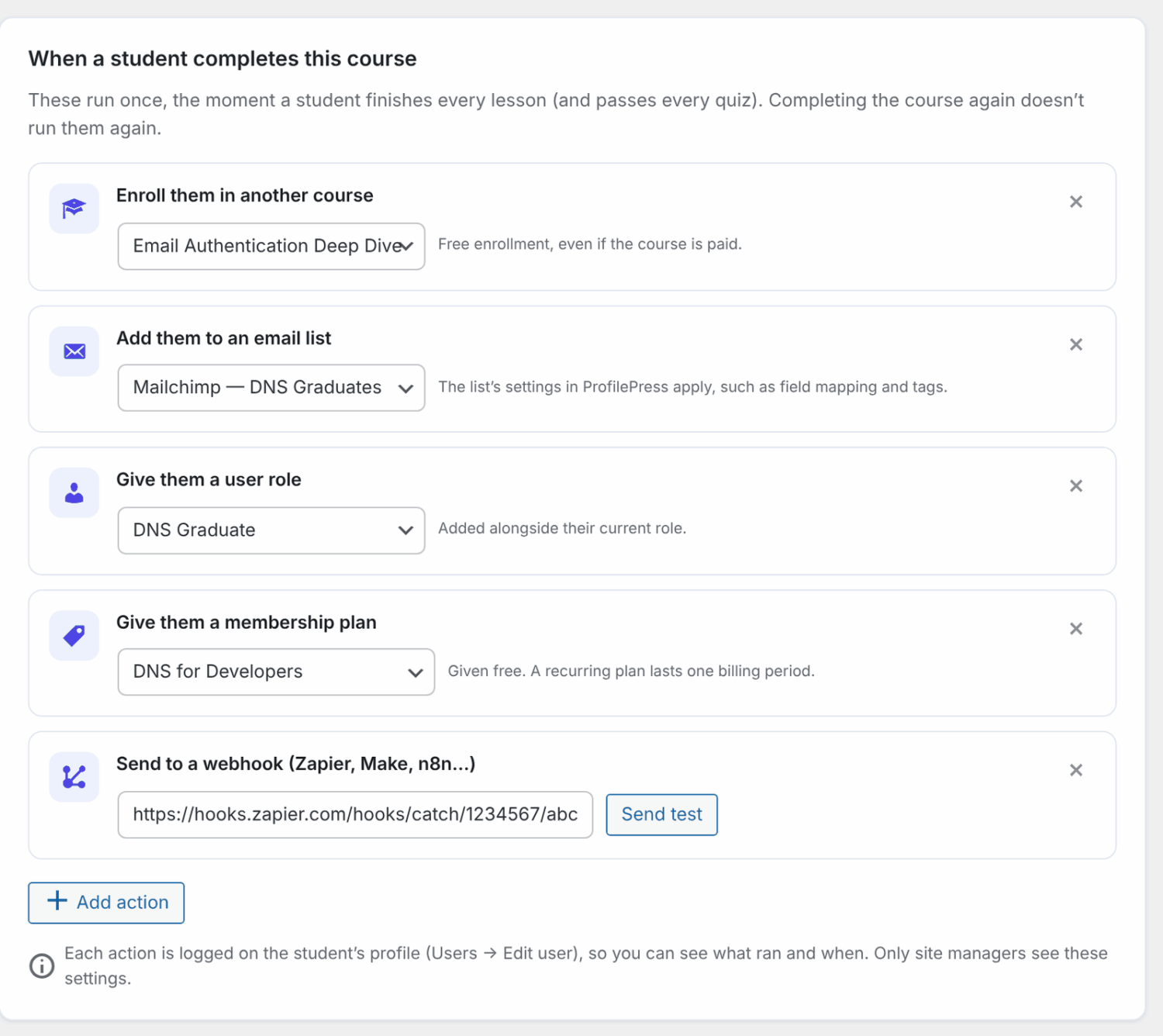
The actions run once, the moment a student finishes every lesson and passes every quiz. Completing the course again later doesn’t run them again. A course can have up to 20 actions.
If an action has no valid setting, the builder won’t save. It shows “Choose a setting for each action, or remove it, before saving.” and highlights the action. This happens, for example, with a webhook that has no URL, or a plan that has since been deleted.
The actions
| Action | What it does |
|---|---|
| Enroll in another course | Enrolls the student in another course for free, even if it’s paid. Use it to unlock the next course in a series. |
| Add to an email list | Subscribes the student to a Mailchimp, Brevo, Campaign Monitor or MailerLite list. |
| Give a user role | Adds a WordPress user role, for example a “Graduate” role you use to protect alumni content. |
| Give a membership plan | Gives the student a membership plan for free, for example access to an alumni community. |
| Send to a webhook | Sends the completion to Zapier, Make, n8n or your own app. |
An action you can’t use yet is greyed out in the Add action menu, with the reason, for example “Create another course first.”
Enroll in another course
- The enrollment doesn’t depend on a plan. If the student was already enrolled through a plan, their enrollment no longer ends when the plan ends.
- If they were already enrolled without a plan, the action is logged as skipped.
- Draft courses are listed too, but students can’t take a course until it’s published.
Add to an email list
- First activate the email marketing addon you use (for example Mailchimp), and set up a list under ProfilePress » Settings » Integrations.
- The list’s own settings in ProfilePress apply, such as field mapping and Mailchimp tags.
- This action runs in the background, usually within about a minute of the student completing the course.
Give a user role
- The role is added alongside the student’s current role. It doesn’t replace it.
- Roles that can manage the site or its users are never offered.
Give a membership plan
- It’s recorded as a completed order for $0.
- A recurring plan lasts one billing period.
- If the student already has an active subscription to the plan, the action is skipped.
- Inactive plans are listed with “(inactive)”.
Send to a webhook
- Paste the webhook URL your app gives you, for example a Zapier “Catch Hook” URL.
- Click Send test to send a sample. It uses you as the student and marks the data as a test.
- Check the result: Test sent or Test failed, with the reason.
- Save the course.
Each completion sends the course’s ID, title and address, and the student’s ID, email, username, names and display name. It also sends when they completed it and their certificate link, if any.
- This action runs in the background, usually within about a minute.
- Your app must answer with a success within a few seconds. Anything else is logged as failed, with the status code.
- Redirects aren’t followed, and local or private network addresses are refused.
Who actions run for
- Each student gets a course’s actions only once.
- Actions don’t run for the course’s own instructors or for site admins, or while you preview the course as a student.
- Students who completed the course before you added its first action don’t get them. Actions apply to completions from then on.
- If one action fails, the others still run.
- If a course instructor enrolled the student by hand, the actions wait until a site admin enrolls them or they pay, so instructors can’t hand out your other courses, roles or plans.
- On paid courses, students who finish during a free trial get the actions once their first payment goes through, so a trial can’t unlock your next paid course. Students who were refunded, or whose trial ended unpaid, don’t get them unless they pay later. The student’s profile lists courses still waiting for a payment. This follows the Paying Students Only certificate setting.
How to check what ran for a student
- Go to Users and edit the student.
- Scroll to Course completion actions.
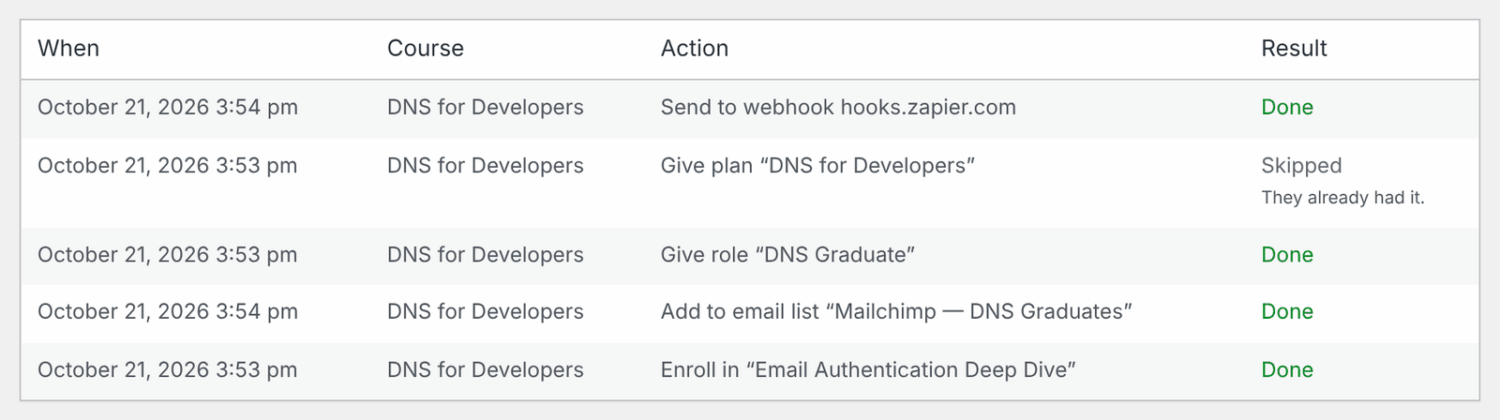
The table lists the last 100 actions, newest first, with When, Course, Action and Result. Each result is one of these:
- Done: the action ran.
- Skipped: there was nothing to do, because they already had it.
- Failed: it didn’t work, with the reason (for example, the email list was turned off).
The section appears once at least one action has run for that student, or while a course’s actions are waiting for a payment or a site admin. Only site admins see it.
What students see
When a student who completed a course opens its course page, they see a banner saying “You completed” and the course name. It shows:
- “Your certificate is ready.” with a View certificate link, if the course has a certificate;
- under Unlocked for you, each course the completion enrolled them in, with a Start course button.
The banner shows for every student who completed the course, with or without completion actions. Unlocked courses are listed once they’re published and the student has access.
Frequently asked questions
Can I give past graduates the new actions?
No. Actions only run for students who complete the course after you add them. For past graduates, enroll them or give them the role or plan by hand.
If I remove an action, do students lose what it gave them?
No. Enrollments, roles and plans that actions gave stay with the student.
Why didn’t my email list or webhook action run?
These two run through WordPress’s scheduled tasks (WP-Cron). If your host has turned WP-Cron off, make sure a real cron job runs, as ProfilePress already needs for subscription renewals. Also check the student’s log for a Failed result.
Are completion actions copied when I export or duplicate a course?
They aren’t part of export files, so re-add them after importing. When a site admin duplicates a course, the copy keeps its actions. When an instructor duplicates it, it doesn’t.
What happens if I turn off Advanced Courses?
Your actions are kept but don’t run. Students who complete a course while the addon is off don’t get them later. The completion banner is hidden too.
Is the log included in personal data exports?
Yes. WordPress’s personal data export includes it, and the eraser removes it. The record of which courses’ actions already ran is kept, so they don’t run again.