
How to Post Course Announcements and Email Your Students
Announcements are updates you post for the students of a course, such as a new module or a live session. They appear on the course page, and you can also email them to everyone enrolled.
Note: This feature requires ProfilePress Pro with the Advanced Courses addon. Learn how to activate addons.
How to post an announcement from the course builder
- Go to ProfilePress » Courses and open the course in the course builder.
- Go to the Students tab.
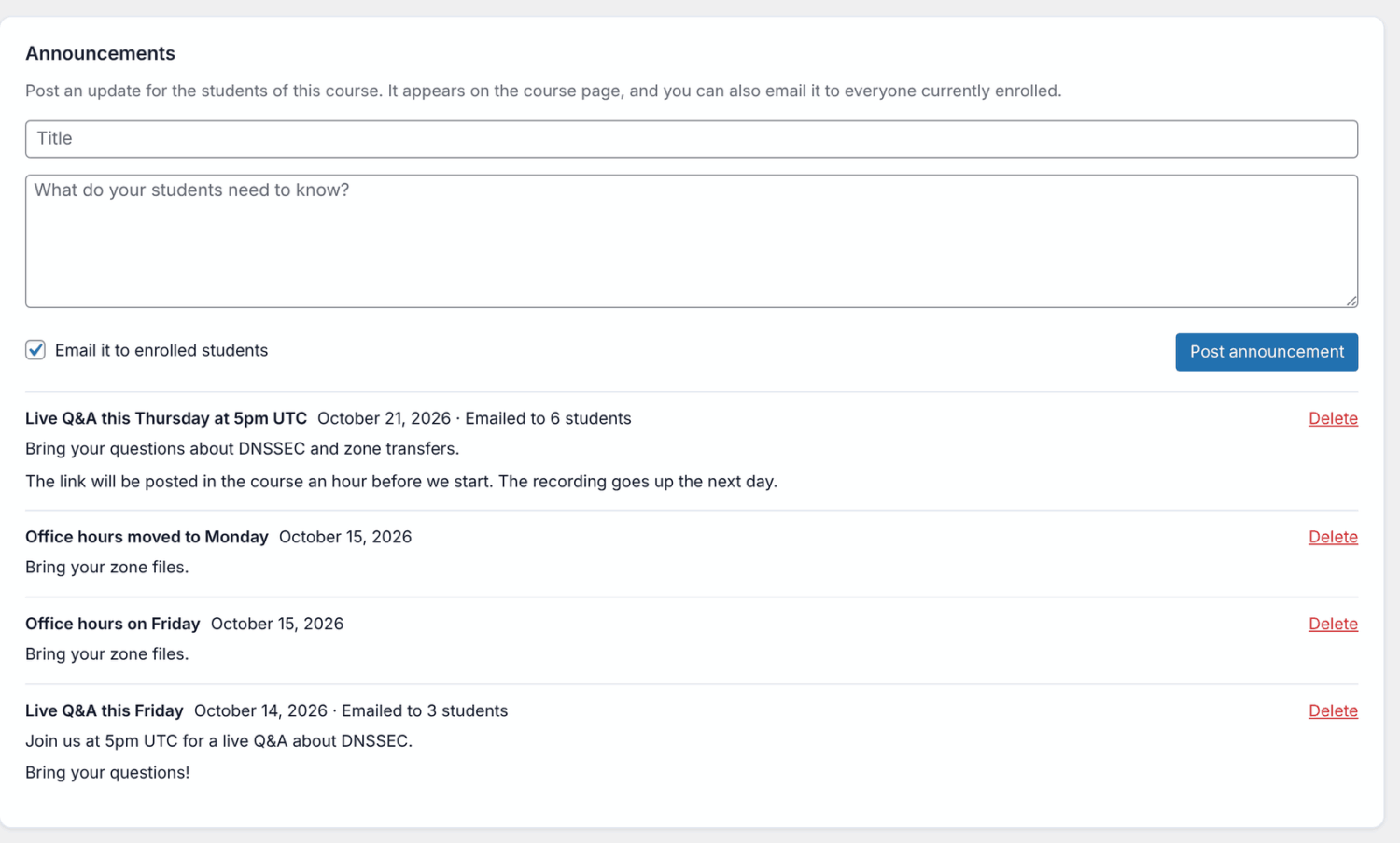
- In the Announcements card, enter a Title and the message.
- Leave Email it to enrolled students ticked to email it, or untick it to only show it on the course page.
- Click Post announcement.
You’ll see “Announcement posted. Students are being emailed in the background.” or, without email, “Announcement posted. Students see it on the course page.”
Site admins can post announcements on any course. Instructors and co-instructors can post on the courses they teach.
How to post an announcement from the instructor dashboard
Instructors can also post from the front-end instructor dashboard. See Course instructors to set it up.
- Open the instructor dashboard and click My courses.
- Click Manage next to the course.
- Click the Announcements tab.
- Under New announcement, enter a Title and a Message.
- Tick Also email it to enrolled students if you want to email it.
- Click Post announcement.
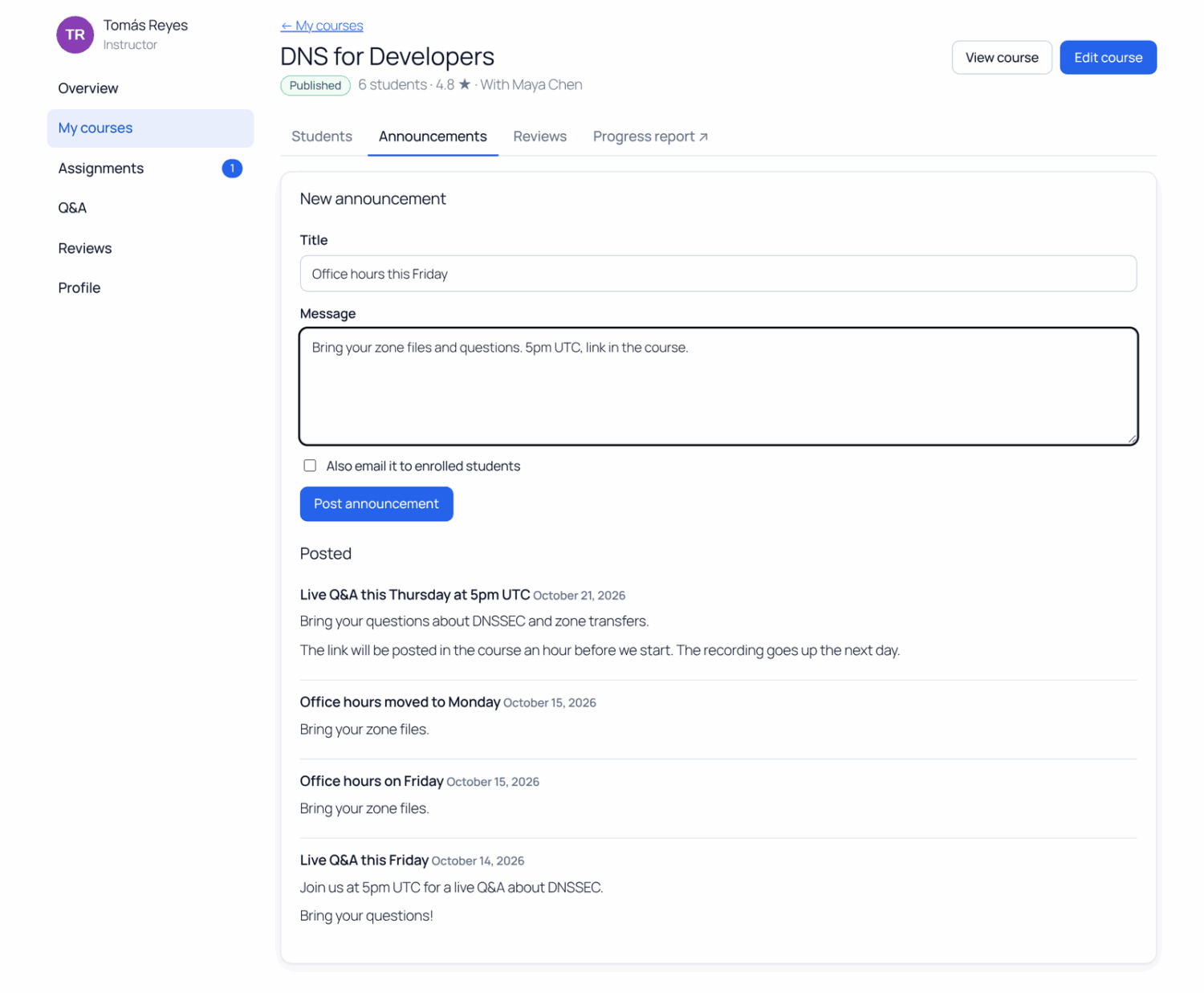
Note the difference: in the course builder the email box is ticked by default, while on the dashboard it isn’t. The dashboard lists the latest 20 announcements under Posted.
What students see
The latest 10 announcements appear in an Announcements box on the course page. The newest one is open, and older ones are collapsed. Each shows its title, date, message and who posted it.
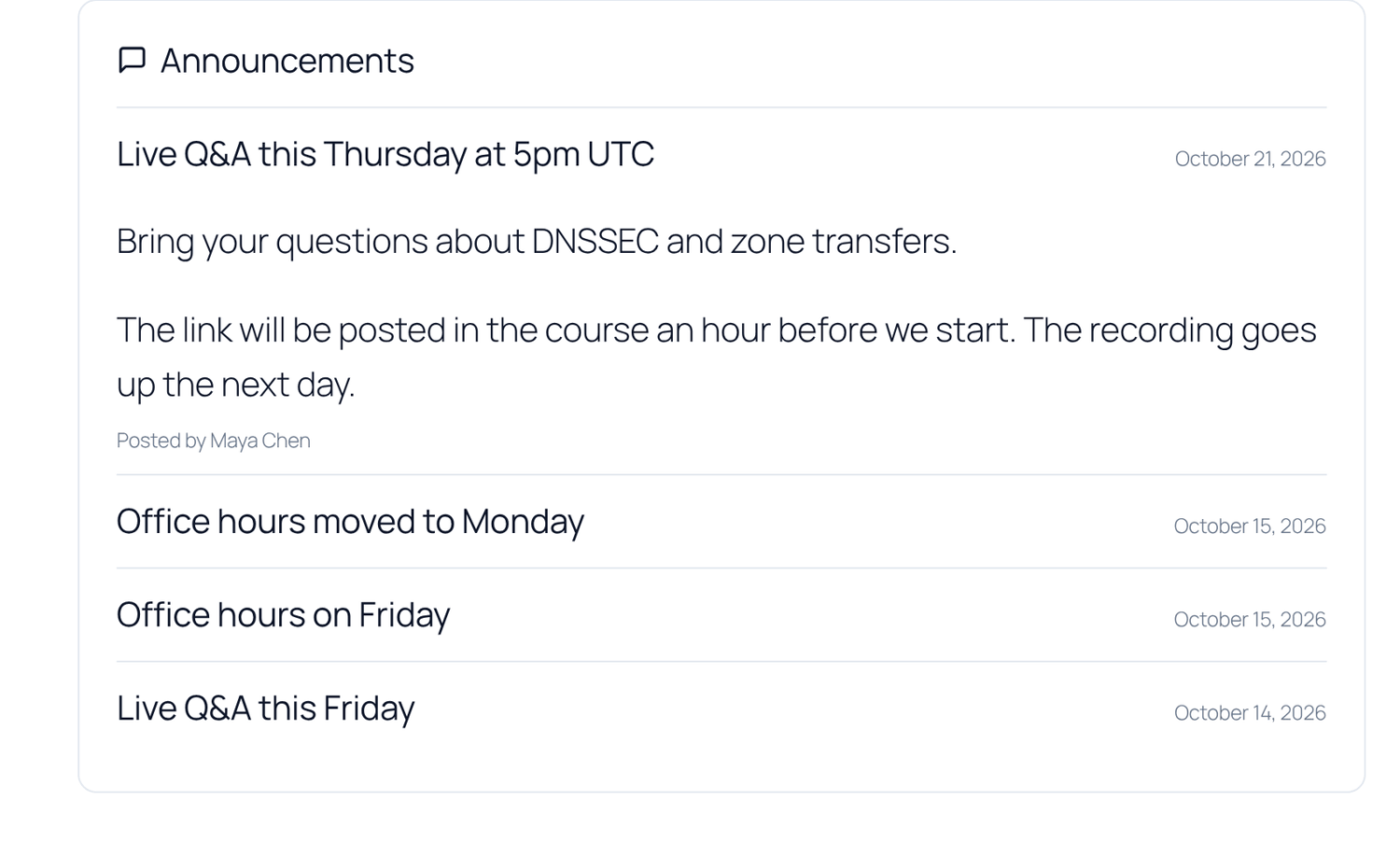
Only signed-in students who have access to the course see announcements, along with the course’s instructors. Visitors and students whose access has ended don’t.
Students who enroll later see earlier announcements on the course page, but they aren’t emailed them.
How announcement emails work
- The email’s subject is the course name in square brackets followed by the announcement title. It ends with a Go to the course link.
- Only students who are enrolled and still have access are emailed. Students whose subscription has ended are skipped.
- Emails go out in the background, 50 at a time, so large courses take a few minutes.
- In the builder, each announcement shows its progress, for example “Emailing… 120 sent so far”, then “Emailed to 340 students”.
- Emails use your general ProfilePress email settings, such as the sender name and address.
How to delete an announcement
- Open the course in the course builder and go to the Students tab.
- In the Announcements card, click Delete next to the announcement.
- Confirm with OK.
The announcement is removed from the course page straight away. If its emails were still going out, the rest aren’t sent. Emails already sent can’t be recalled.
Deleting is only available in the course builder, not on the instructor dashboard.
Frequently asked questions
Can I edit an announcement after posting it?
No. Delete it and post a corrected one. If you email the new one, students get a second email.
Why didn’t my students get the email?
Announcement emails are sent through WordPress’s scheduled tasks (WP-Cron), which run when someone visits your site. If your host has turned WP-Cron off, make sure a real cron job runs. Also check that the students still have access to the course.
Can I schedule an announcement for later?
No. Announcements are posted and emailed as soon as you click Post announcement.
What happens to announcements when I delete a course?
They’re deleted with the course.
What happens if I turn off Advanced Courses?
Your announcements are kept but hidden from course pages, and no announcement emails are sent. They show again when you turn the addon back on. See Advanced Courses addon.