
Advanced Courses Addon: Instructors, Assignments and More
The Advanced Courses addon adds the tools you need to run your courses like a school. Other people can teach, students can hand in work for you to grade, and finishing a course can unlock what comes next.
Note: This feature requires ProfilePress Pro with the Advanced Courses addon. Learn how to activate addons.
The addon builds on the free ProfilePress course builder. Without it, your courses still work, and site administrators build and teach every course.
What’s in Advanced Courses
| Feature | What it does |
|---|---|
| Instructors | A Course Instructor user role, co-instructors, review of new courses before they go live, and a front-end instructor dashboard. |
| Assignments | A lesson type where students hand in text or files, and you grade the work with points and feedback. |
| Written-answer quiz questions | A quiz question students answer in their own words. You grade it by hand, and the quiz waits for your grade. |
| Completion actions | Things that happen once when a student completes a course. For example, enroll them in another course or add them to an email list. |
| Announcements | Updates you post on a course page, and can also email to enrolled students. |
All five features come together. There’s no switch for each one, so simply don’t use the ones you don’t need.
How to activate Advanced Courses
- Make sure the course builder is turned on. See Getting started with ProfilePress Courses.
- Go to ProfilePress » Addons.
- Find the Advanced Courses card.
- Click the card’s switch. The page saves, and the card shows Activated.
- Click Settings on the card to go to your courses.
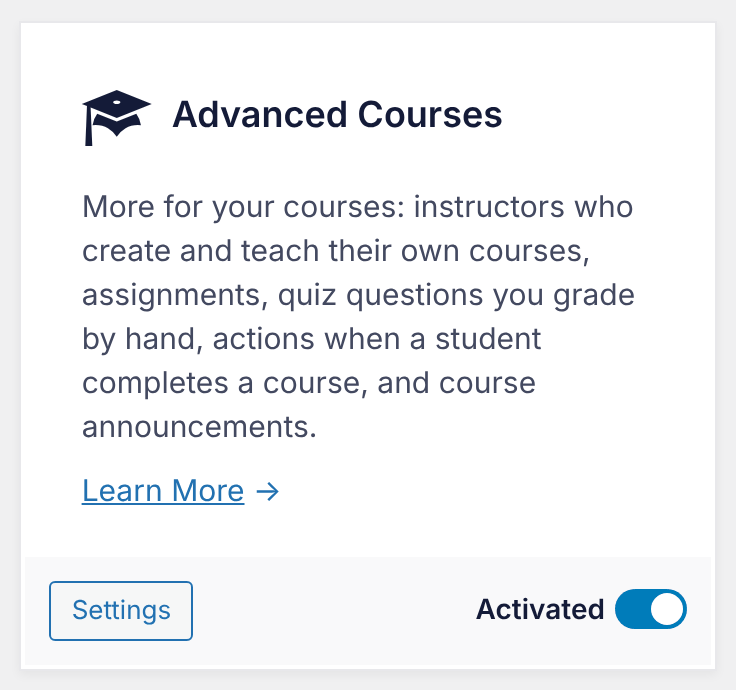
If the card says “Unavailable: The course builder is turned off”, turn on the course builder first, then come back.
Where to find each feature
Once the addon is active, you’ll find its features in these places:
- Instructors: the Course Instructor role when you edit a user, and the Instructors card on the course builder’s Details tab. The Instructor Dashboard Page setting is under ProfilePress » Courses » Settings.
- Assignments: the Assignment type at the top of the lesson editor, and the Assignments tab under ProfilePress » Courses.
- Written answers: the Written answer (graded by hand) question type in the quiz editor, and the Quiz grading tab under ProfilePress » Courses.
- Completion actions: the When a student completes this course card on the course builder’s Pricing & Access tab.
- Announcements: the Announcements card on the course builder’s Students tab.

What happens if you turn it off or your license expires
Turning the addon off doesn’t delete anything. The same applies when your ProfilePress Pro license expires. Your content is kept, and each feature stops until the addon is back.
- Assignment lessons are kept, with all submissions, grades and files. Students see “This lesson isn’t available right now” and can’t open or complete them, so nobody can skip the work. In the course builder, these lessons are marked “Needs an add-on that’s off — hidden from students”.
- Quizzes with written-answer questions are closed to students in the same way, including their other questions. The quiz editor marks each written question “(add-on turned off)” and keeps it when you save. Quizzes waiting for a grade stay waiting.
- Instructors keep the Course Instructor role, but they can’t open the Courses screens or the instructor dashboard. Their courses stay published, and students keep their access. Until the addon is back, only site administrators can work on courses.
- Completion actions are kept but don’t run. Students who complete a course while the addon is off don’t get them later, even after you turn it back on.
- Announcements are kept but no longer show on course pages, and no announcement emails are sent.
- Grading screens (the Assignments and Quiz grading tabs) and the grading emails are gone until the addon is back.
In a course whose lessons must be completed in order, a closed assignment or quiz also blocks the lessons after it. Students can’t finish a course with a closed lesson in it.
Everything works again as soon as you turn the addon back on or renew your license. Students pick up where they left off.
Before you turn it off
- Grade any work waiting under the Assignments and Quiz grading tabs.
- Check which courses have assignment lessons or written-answer questions. Remove them, or replace them with other lessons, if students should keep going.
- Tell your instructors that they won’t be able to edit their courses for a while.
Frequently asked questions
Do I need Advanced Courses to sell courses?
No. Building, selling and delivering courses is part of the free course builder. Advanced Courses adds instructors, grading and the other features above.
Will turning the addon off delete my assignments or student work?
No. Assignments, submissions, uploaded files, grades, written answers, completion actions and announcements are all kept.
Why does the Advanced Courses card say “Unavailable”?
The addon needs the course builder. Turn the course builder on, and the card’s switch appears.
My instructors can’t see the Courses menu anymore. Why?
The addon is probably turned off, or your license has expired. Instructors need the addon to work on courses. Turn it back on under ProfilePress » Addons.
A student says a lesson “isn’t available right now”. What’s wrong?
That lesson is an assignment or a quiz with written answers, and the addon is off. Turn the addon back on, and the lesson opens again.
Related articles
- Getting Started with ProfilePress Courses for WordPress
- How to Add Course Instructors in WordPress with ProfilePress
- How to Create and Grade Course Assignments in ProfilePress
- How to Add Written-Answer Quiz Questions in ProfilePress
- How to Set Up Course Completion Actions in ProfilePress
- How to Post Course Announcements and Email Your Students