
How to Manage a Team Membership: Invites, Seats and Members
When someone buys a team plan, they run their team from their account on your site. They invite people, choose managers, change seats and follow progress, without any help from you.
This article is for team owners, managers and members. You can share it with your customers.
Note: This feature requires ProfilePress Pro with the Team Memberships addon. Learn how to activate addons.
Team roles
- Owner: the person who bought the plan. They can do everything below, and always have the plan’s access.
- Manager: can invite and remove members and manage the join link. Only the owner can change roles, remove managers or change seats.
- Member: gets the plan’s access and can leave the team.
How to open your team
- Go to My Account » Teams.
- Click Manage team next to the team.
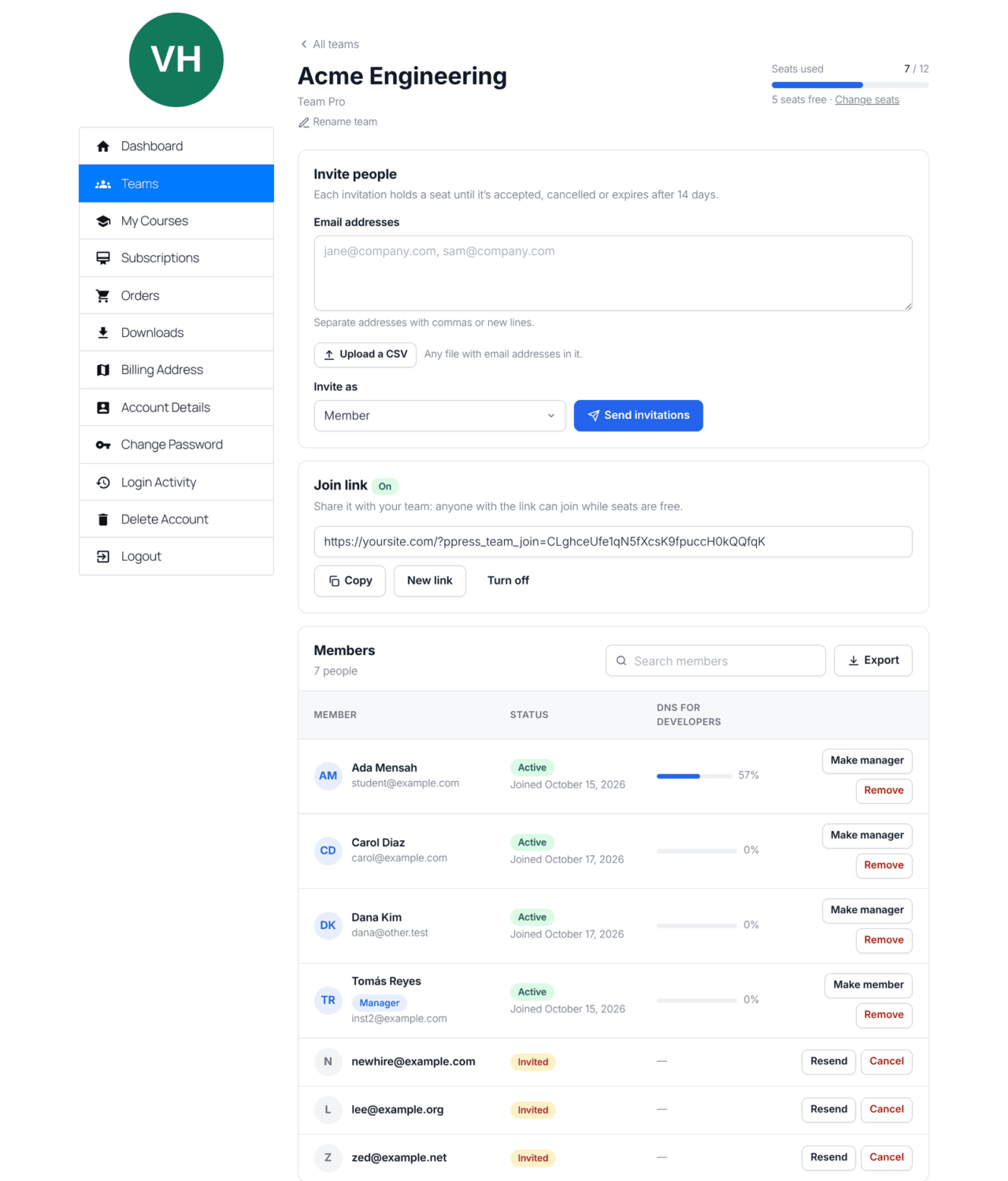
The team page shows the plan, Seats used and how many seats are free. To give the team a name, click Rename team, type the name and click Save.
How to invite people by email
- Under Invite people, enter the Email addresses, separated by commas or new lines.
- Or click Upload a CSV and choose a
.csvor.txtfile under 1 MB, such as a column of addresses exported from a spreadsheet. Every email address in the file is invited. In Excel, save as CSV UTF-8. - If you’re the owner, choose Invite as: Member or Manager — can invite and remove members.
- Click Send invitations.
Each person gets an email with an Accept invitation button. They appear in the members list as Invited.
- An invitation holds a seat until it’s accepted, cancelled or expires after 14 days.
- If it isn’t accepted after three days, the person gets one reminder email.
- Click Resend to send it again with a new 14 days. You can resend to the same person once every 10 minutes. The old link stops working.
- A team can send up to 50 invitations a day, or twice its number of seats if that’s more. Resent invitations count too. Once the limit is reached, the page says “This team has sent as many invitations as it can today. Try again tomorrow.”
- Click Cancel to withdraw an invitation and free its seat.
- An expired invitation shows Invitation expired and no longer holds a seat.
When every seat is used, the page says All seats are taken. Remove a member, cancel an invitation, or add seats.
How to share a join link
Instead of inviting people one by one, you can share one link with your whole team.
- Under Join link, click Turn on join link.
- Click Copy and share the link.
Anyone with the link can join while seats are free. To stop it working, click Turn off. If the link has been shared too widely, click New link; the old one stops working.
How to manage members
The Members list shows everyone on the team and every open invitation. Use Search members to find someone by name or email.
- Remove takes someone off the team and frees their seat. They lose the access the team gave them and get an email saying so.
- Make manager and Make member change a member’s role. Only the owner sees these buttons.
If your plan includes courses, the list has a column for each course with every member’s progress.
How to export your team
Click Export above the members list. You get a CSV file with each person’s name, email, role, status and joining date, plus their progress in each course.
How to change the number of seats
On plans priced per seat, the owner can add or remove seats.
- On the team page, click Change seats under the seat meter. When the team is full, you can click Add seats instead.
- On the checkout, choose the new Number of seats.
- Complete the checkout.
You can also click Change Seats on the subscription under My Account » Subscriptions. If your plan is in a plan group, that button reads Change Plan.
- More seats start a new billing period today. You pay the new team price, less credit for the unused part of your current period.
- Fewer seats keep your renewal date. The lower price applies from your next renewal.
- You can’t go below the seats in use (members plus open invitations). Remove members or cancel invitations first.
Members keep their access while you change seats. On fixed-seat plans, you change size by switching to a bigger or smaller plan.
When your subscription isn’t active
If your subscription expires, is refunded or is paused, your team page says that members don’t have access right now. Members see Access paused. You can’t send invitations, and the join link stops working.
Renew the subscription and every member gets their access back. You don’t need to invite anyone again.
How to accept an invitation
Open the invitation email and click Accept invitation.
- If you’re logged in, you join straight away.
- If you have an account but aren’t logged in, you’re asked to log in. You join as soon as you do.
- If you don’t have an account yet, you’re sent to the registration page. You join as soon as you register.
The invitation joins the account you’re logged in with, even if it uses a different email address.
What you see after joining
You land on My Account » Teams with a welcome message. Your team shows the plan, who manages it and Access active.
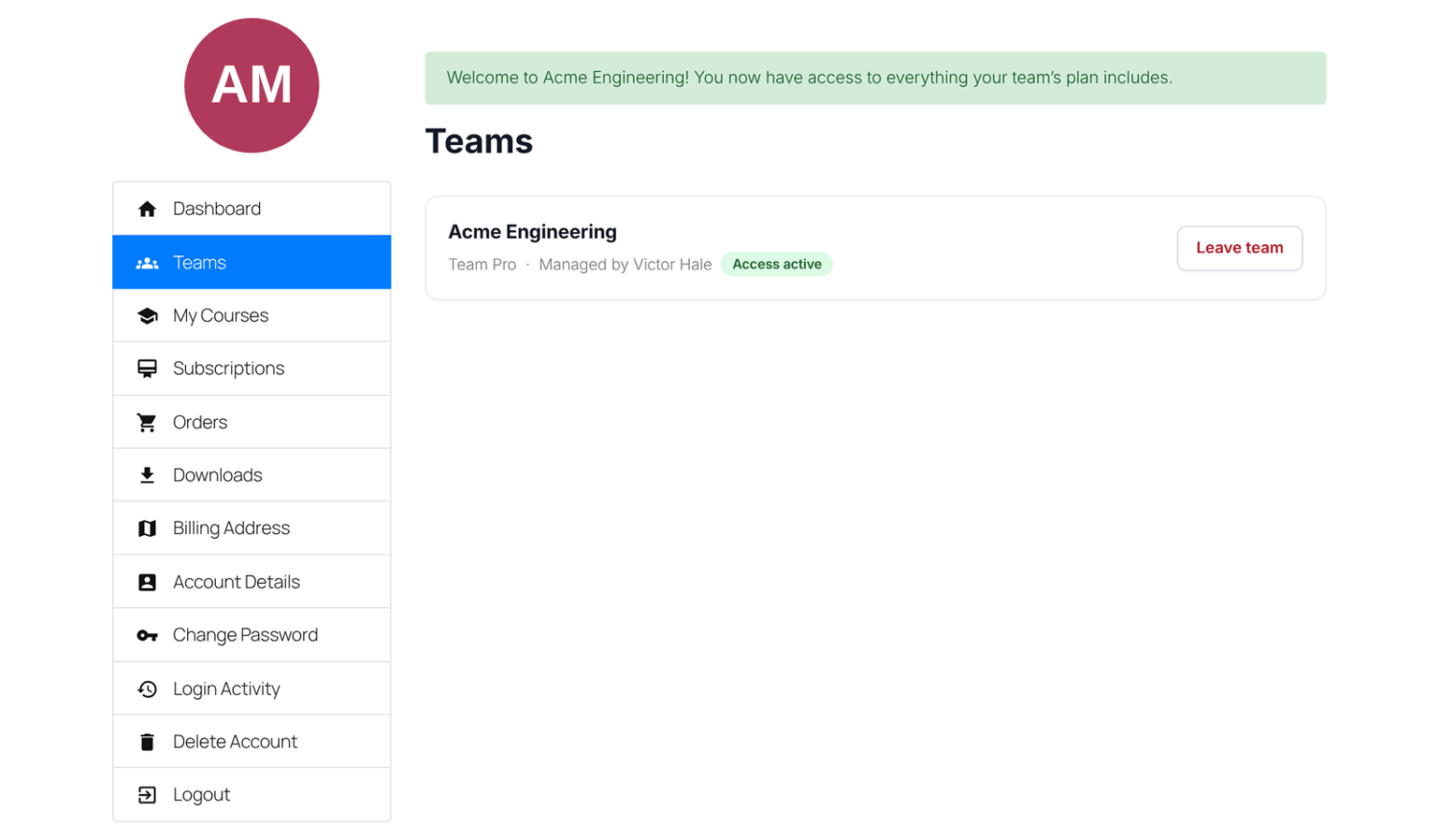
You now have everything the team’s plan includes. If it includes courses, you’re enrolled and can start right away.
The team’s owner and managers can see your name, email address and progress in the team’s courses.
How to join with a join link
- Open the link. If you’re not logged in, log in first. If you don’t have an account, register, then open the link again.
- Read the Join …? message, which says what the team can see.
- Click Join team, or Not now to leave without joining.
How to leave a team
- Go to My Account » Teams.
- Click Leave team next to the team, and confirm.
Your seat is freed and you lose the access the team gave you.
Managers don’t have a Leave team button. Ask the owner to click Make member for you first, or to remove you.
Frequently asked questions
Why does my invitation link say it’s no longer valid?
It has been used, cancelled, or resent. A resent invitation has a new link, so use the newest email.
My invitation expired. Can I still join?
Yes, if the team has a free seat. If it doesn’t, ask the team for a new invitation.
Can I be on more than one team?
Yes. If you manage a team and are also a member of someone else’s, your Teams page lists them under Teams you manage and Teams you’re on. You get the access of each team whose subscription is active.
I don’t see Teams in My Account.
The Teams menu item only appears once you own or are on a team. Invitation links still work before that.
Why can’t I see a Change seats link?
It only appears for the owner, on plans priced per seat, while the subscription is active.
What happens to members if the owner changes plan?
The team moves to the new plan. If it has fewer seats than people, the newest invitations are removed first, then the newest members.
What is my team called?
Until you rename it, the team is named after the plan and its owner, such as “Pro Plan — Jane Smith”.