
Course Catalog, My Courses, Shortcodes and Blocks Guide
ProfilePress creates the pages students need to find and take your courses: a course catalog, a page for each course, and a My Courses list. You can also place the catalog, enroll cards, progress and more on any page with shortcodes, Gutenberg blocks or Elementor widgets.
This article covers each of those pages and lists every shortcode option, so you can find the one you need in one place.
The course catalog
Your courses get a catalog page automatically at yoursite.com/courses/. Each course category also gets its own page, such as yoursite.com/courses-category/marketing/, that lists only that category’s courses.
Both pages show 12 courses per page, inside your theme’s header and footer. This works with classic and block themes.
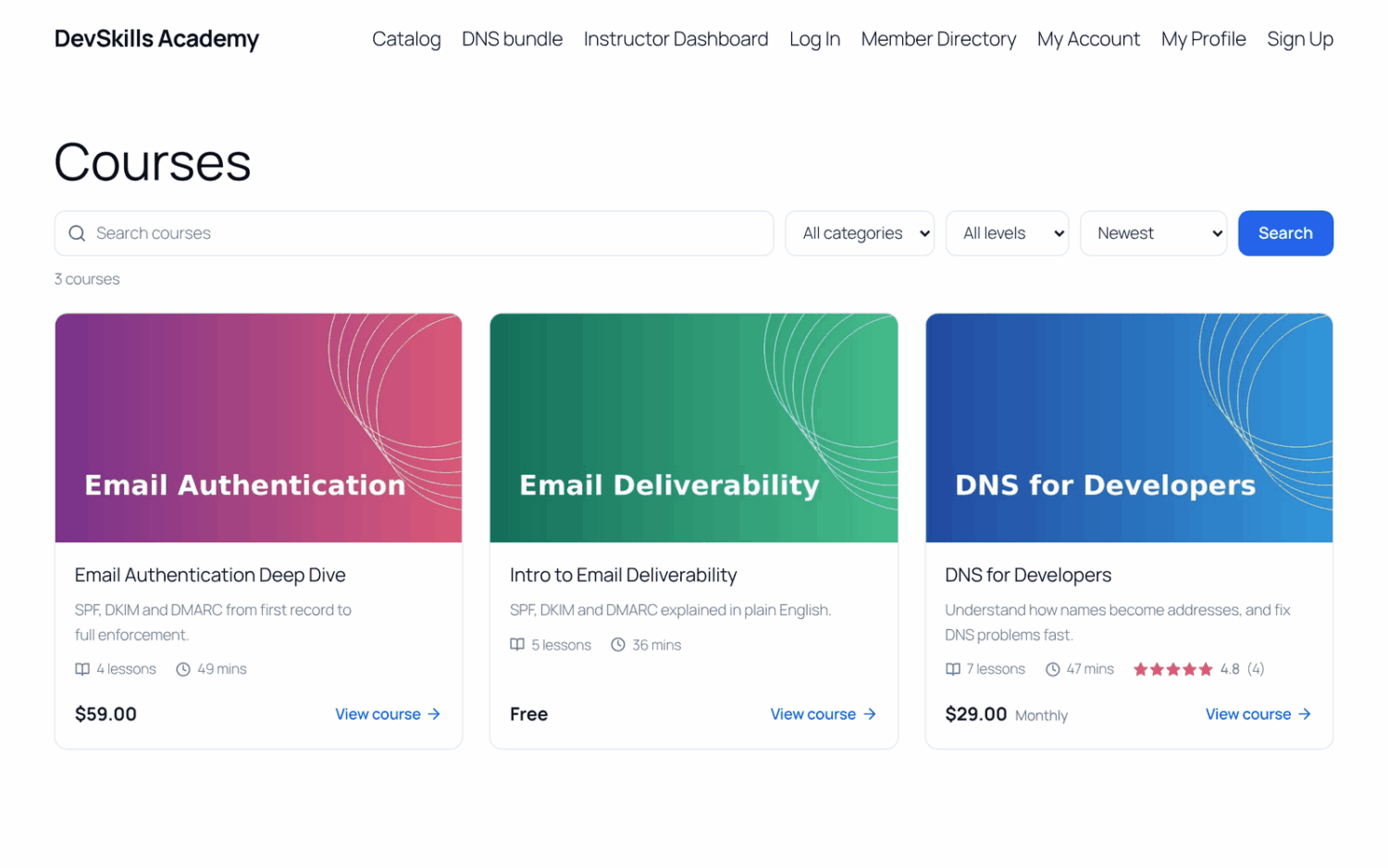
Each published course gets a card with its image, title, short description, number of lessons, total duration and price. Students who are enrolled see their progress on the card instead of the price.
Above the courses, students can:
- search courses by keyword;
- filter by category (shown when you have course categories);
- filter by level (shown when your courses use more than one level);
- sort by Newest, Most popular, Title (A–Z) or Oldest, plus Top rated when course reviews are turned on.
Filtered catalog pages have their own web address, so students can bookmark or share them.
To change the courses part of the address, change Course URL Slug in Course settings. You manage categories under ProfilePress » Courses, on the Categories tab.
How to put the catalog on any page
Use the Course Catalog block, the Course Catalog Elementor widget, or this shortcode:
[profilepress-courses]
| Shortcode option | What it does |
|---|---|
columns |
Number of columns, from 1 to 4. Default: 3. |
limit |
Courses per page. The catalog adds page links when there are more. Default: all courses on one page. |
category |
Only show courses in these categories. Use category slugs, separated by commas. Default: all categories. |
ids |
Only show these courses. Use course IDs, separated by commas. This also hides the search and filters. |
filters |
no hides the search, category, level and sort controls. Default: yes. |
orderby |
date, title, menu_order or modified. Default: date. |
order |
ASC or DESC. Default: DESC. |
Example: [profilepress-courses category="marketing" limit="9" columns="3"]
Course pages
Each course has its own page at yoursite.com/courses/course-name/. It shows the course details, “What you’ll learn” and “About this course”. It also shows the course content with each lesson’s status, and the enroll card with the price and button.
What the enroll card shows depends on the course’s access type and on the student. See Selling courses.
When students click a Sign in link on a course page, they come back to the course after signing in, even if you’ve set up Login Redirect rules. Create a free account brings new users back to the course too, when Auto-login after registration is on.
If you turn off focus mode on a block theme, lessons use your theme’s post layout. Some themes add previous and next post links there, which can point to lessons in other courses; turn those off in the theme’s single post template if they appear.
My Courses
My Courses lists the courses a signed-in student is enrolled in or can take through their active plans. Each shows their progress and a button to continue. Students with no courses see “You are not enrolled in any course yet.” and a Browse courses button that goes to the catalog.
It appears in three places:
- My Account: ProfilePress adds a My Courses tab to the My Account page once you’ve published a course. To remove it, select it under Disable My Account Tabs in ProfilePress » Settings » General » My Account.
- Any page: with the My Courses block, the My Courses Elementor widget, or the shortcode
[profilepress-my-courses]. Addcolumns="2"to change the number of columns, from 1 to 4. The default is 3. - Course emails: links to My Courses in emails go to the My Account tab.
Visitors who aren’t signed in see a message asking them to sign in.
Course bundle pages
A bundle is a membership plan that unlocks two or more published courses. To show one, add the Course Bundle block or Elementor widget to a page, or use this shortcode:
[profilepress-course-bundle plan="123"]
| Shortcode option | What it does |
|---|---|
plan |
The ID of the bundle’s membership plan. Required. |
columns |
Number of columns for the course cards, from 1 to 4. Default: 3. |
For how to set up a bundle and how savings are shown, see Course bundles.
Gutenberg blocks
All course blocks are in the ProfilePress Courses category of the block inserter. They always show current course data, and they work in the site editor of block themes.
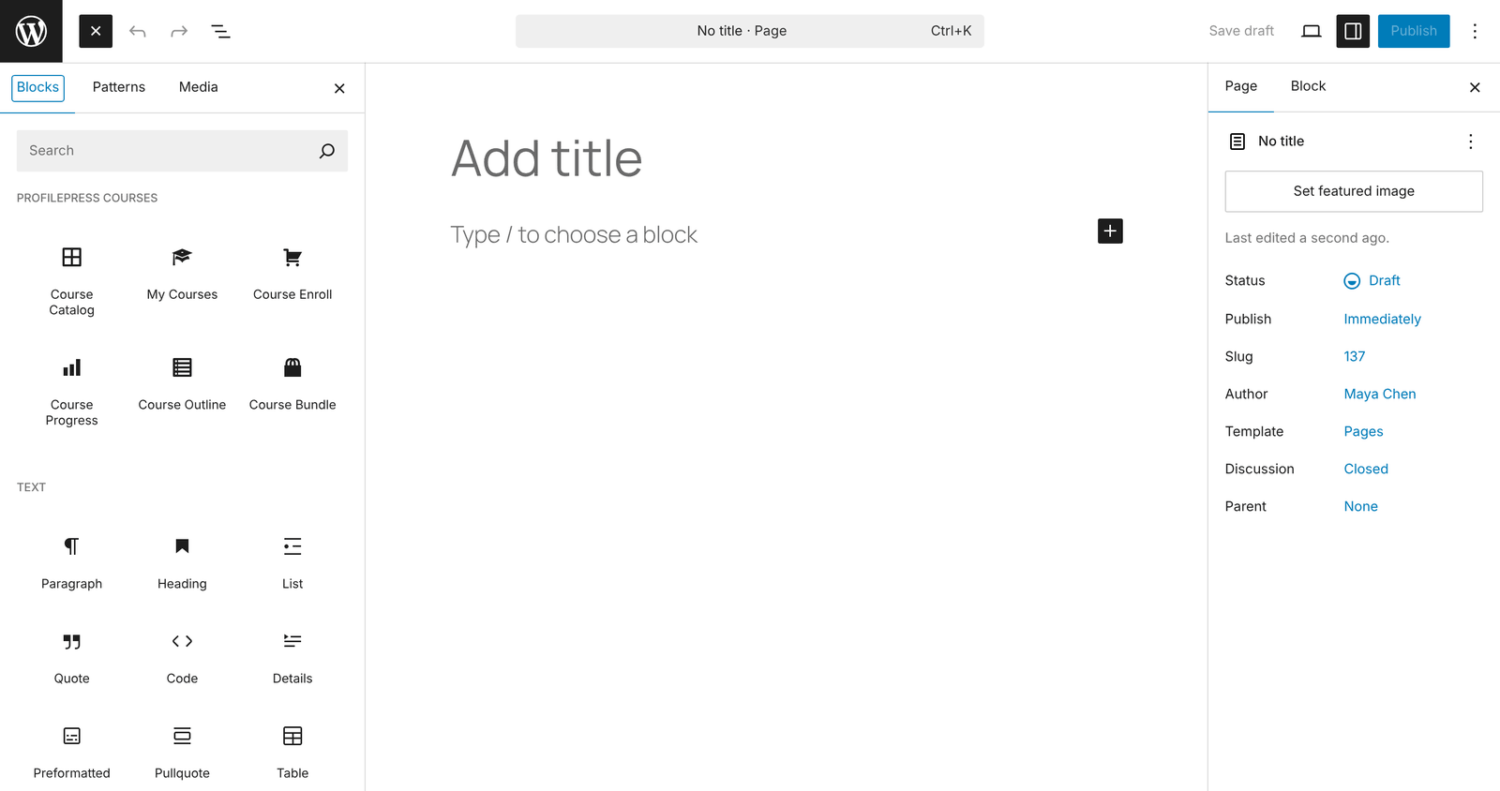
| Block | What it shows | Settings |
|---|---|---|
| Course Catalog | A grid of your courses with prices and progress. | Columns, Courses per page, Category, Show search and filters, Order by (Newest first, Title, Recently updated, Custom order). Defaults: 3 columns, 12 courses per page, newest first. |
| My Courses | The signed-in student’s courses with progress and a continue button. | Columns |
| Course Enroll | The price and enroll button for a course. Once the student is enrolled, it shows their progress and a continue button. Useful on sales pages. | Course, Show course image |
| Course Progress | The signed-in student’s progress in a course, with a continue button. Shown only to students with access. | Course |
| Course Outline | A course’s sections and lessons, with each lesson’s status for the student. | Course |
| Course Bundle | A bundle with its price, savings and courses. | Bundle, Columns |
For Course Enroll, Course Progress and Course Outline, you can set Course to Current course (in course templates). Use it when you design the course page template in a block theme, so the block shows whichever course is being viewed.
Elementor widgets
When Elementor is active, the same features are available as widgets in the ProfilePress Courses category: Course Catalog, My Courses, Course Enroll, Course Progress, Course Outline and Course Bundle.
They have the same settings as the blocks and show the same output. For Course Enroll, Course Progress and Course Outline, choose a course, or Current course (on course pages) when you build a course page template.
Frequently asked questions
Is there a shortcode for the enroll card, progress or outline?
No. Course Enroll, Course Progress and Course Outline are available as blocks and Elementor widgets only. The shortcodes are [profilepress-courses], [profilepress-my-courses] and [profilepress-course-bundle].
Where do I find a course or category ID or slug?
A course’s ID is the number after id= in the web address when you open it in the course builder. Category slugs are on the Categories tab under ProfilePress » Courses.
Why doesn’t a course show in the catalog?
The catalog and My Courses only list published courses. Draft lessons and quizzes with no questions are hidden from students too.
Why is the Course Progress block empty on my page?
It shows nothing to visitors who don’t have access to the course, so it’s safe on pages everyone can see. Sign in as a student of the course to see it.
Why does My Courses show a course the student hasn’t started?
My Courses includes every course a student can take through an active plan, even before they open it.
Can I show unpublished courses in a block?
Unpublished courses only show in blocks for people who can manage them. Students won’t see them.
Can I change how course pages look?
You can change the accent color and the lesson view in Course settings. Developers can also override the course templates from a theme.
Related articles
- ProfilePress Course Settings: A Complete Reference
- How to Sell Course Bundles in WordPress with ProfilePress
- How to Sell Courses in WordPress with ProfilePress
- Course Reviews and Lesson Q&A in ProfilePress Courses
- Getting Started with ProfilePress Courses for WordPress
- ProfilePress Courses Developer Hooks: Actions and Filters