
How to Manage Course Students and Progress in ProfilePress
Every course has a Students tab in the course builder. From there you can see who is enrolled, how far each student has got, enroll someone by hand and remove a student.
This article also covers Preview as student, which shows you the course the way your students see it. It ends with how to export or erase a student’s course data for privacy requests.
The Students tab
- Go to ProfilePress » Courses and click the course to open it in the builder.
- Click the Students tab. The number next to it is how many students are enrolled.
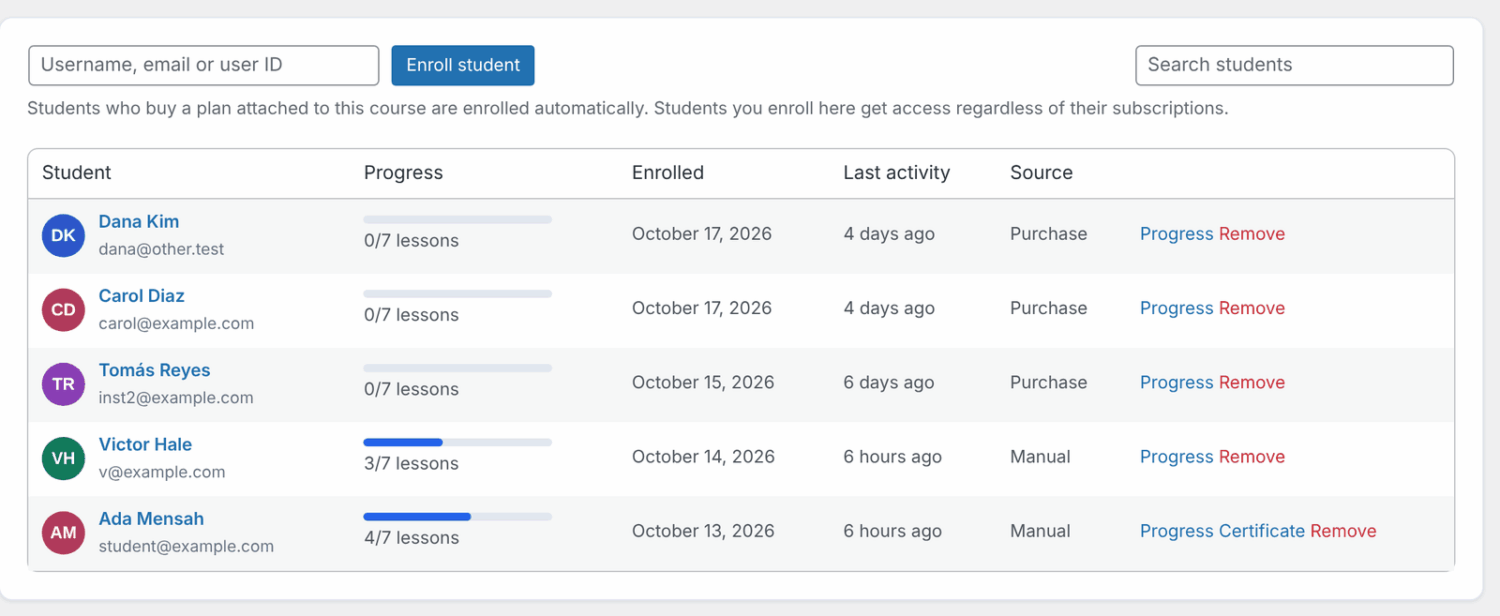
The list shows 50 students per page. Use Previous and Next to move between pages, or type in Search students and press Enter to find someone.
| Column | What it shows |
|---|---|
| Student | The student’s name and email. Click the name to open their WordPress profile. |
| Progress | A progress bar and the lessons completed, for example “3/10 lessons”. Once they finish, it shows “Completed” and the date. |
| Enrolled | The date they were enrolled. |
| Last activity | How long ago they last did something in the course. |
| Source | How they were enrolled: Purchase (bought a plan), Manual (enrolled by you) or Free (started a free or members-only course). |
Each row also has these links:
- Progress opens the student’s report, lesson by lesson. See Course reports.
- Certificate appears once the student has completed the course and certificates are on.
- Remove takes the student out of the course.
How to enroll a student
Students who buy a plan attached to the course are enrolled automatically. You only need to do this to give someone access yourself, for example a free seat on a paid course.
- Make sure the person has a user account on your site. If not, add them under Users first.
- On the course’s Students tab, type their username, email address or user ID in the Username, email or user ID field.
- Click Enroll student.
Students you enroll here get access whatever their subscriptions. They also get the Course Enrollment email if it is turned on and the course is published. See Course emails.
How to remove a student
- On the course’s Students tab, find the student.
- Click Remove in their row.
- Click OK in the confirmation box.
Removing a student deletes their enrollment and their certificate. It does not delete their lesson progress, so their progress comes back if they are enrolled again.
Removing a student does not always end their access. Students who still have access are enrolled again the next time they open a lesson:
- Students with an active subscription to one of the course’s plans keep their access. To end it, cancel their subscription under ProfilePress » Subscriptions.
- On a Free for members or Free & open course, anyone who can take the course can start it again.
How to preview a course as a student
As a course manager, every lesson is open to you, so you don’t see drip schedules, lesson order locks or quiz limits. Preview as student shows you the course the way an enrolled student sees it.
- Open the course in the builder.
- Click Preview as student in the top bar. The course opens in a new browser tab.
- Go through the course. A bar at the bottom of the page reads “You’re previewing [course] as a student.”
- Click Exit preview in that bar when you’re done. You return to the course builder.
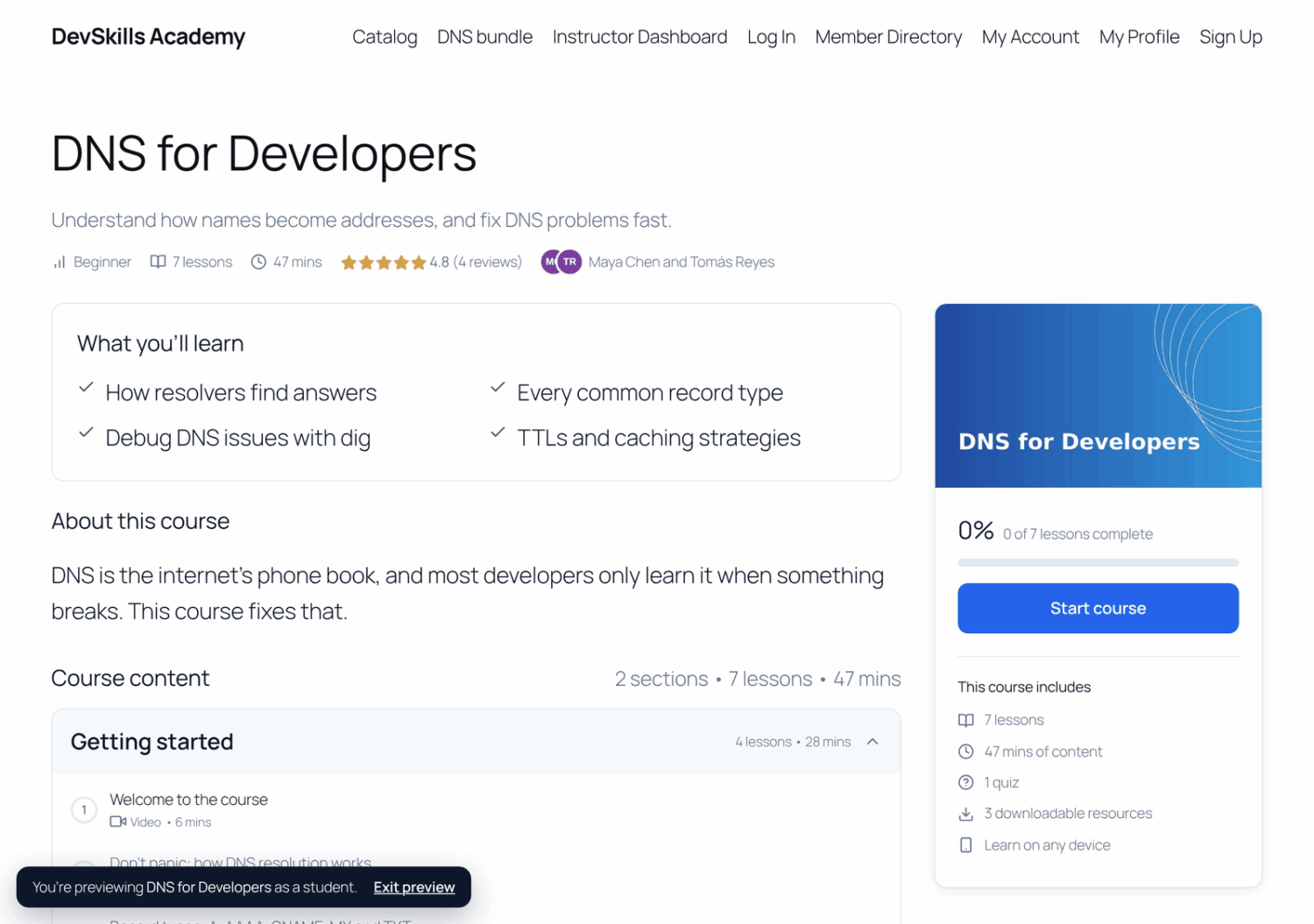
While you preview:
- You count as a student of that one course, even if it isn’t published yet.
- No course emails are sent to you, and you can’t post a review.
- Assignment submissions and completion actions are turned off (these are Advanced Courses features).
When the preview ends, the enrollment, progress, quiz attempts and certificate it created are removed, so your test doesn’t show up in reports. If you were already enrolled in the course before the preview, nothing is removed. A preview ends on its own after 12 hours.
How to export or erase a student’s course data
ProfilePress adds course data to the WordPress personal data tools, so you can answer privacy (GDPR) requests the usual way.
- Go to Tools » Export Personal Data or Tools » Erase Personal Data.
- Enter the student’s username or email address and send the request as you normally would.
The export has a Course Enrollments section: each course, its status, how they enrolled, the dates and the certificate link. It also has a Course Progress section: each lesson, with quiz scores and answers. With the Advanced Courses addon, it adds assignments, written quiz answers and the completion actions log.
Erasing removes the student’s enrollments, lesson progress, quiz attempts, saved video positions, certificates and access renewals. With Advanced Courses, it also removes their assignment work, written answers and completion actions log. Reviews and lesson questions are WordPress comments, so WordPress’s own comment tools handle them.
ProfilePress also adds suggested text about course data to the WordPress privacy policy guide under Settings » Privacy.
Frequently asked questions
Why do I get “No user found with that username, email or ID.”?
The person doesn’t have an account on your site yet, or there is a typo. Create the user first, then enroll them. Instructors who aren’t site managers must enter the student’s exact email address.
What happens if I enroll a student who bought the course?
Their Source changes to Manual. From then on they keep access even if their subscription ends, until you remove them. The same happens when a course’s instructor enrolls them, so instructors can give anyone access to a paid course they teach.
How do I reset one student’s progress?
There’s no button for that. Removing a student keeps their progress. Erasing their personal data resets their progress in every course, not just one. To let a student retake a quiz, see Course quizzes.
Does erasing a student’s data remove their access?
No. A student with an active plan can still open a paid course after an erase, but starts again from zero.
What happens to course data when I delete a user?
Deleting a WordPress user also deletes their course enrollments and progress.
Why does a student who finished the course show a lesson count again?
You added lessons after they finished. The Progress column then shows their lesson count, such as “10/12 lessons”, instead of “Completed”. This tells you they have new lessons to take.
Can I see students who joined through a team plan?
Yes. Team members are enrolled when they get access through the team’s plan, and their Source shows Purchase. See Team memberships.