
A company wants your course for its whole team. Your courses already live in LearnDash, LifterLMS or Tutor LMS, and they work well for one student at a time.
Now you need to sell 20 seats in one order, let the manager add their team, and remove access when someone leaves. Doing that by hand quickly eats your week.
In this guide, we’ll show you what LearnDash group licensing and team sales involve, and how to sell team access with ProfilePress while your courses stay in the LMS you already use.
Quick Answer: To sell group licenses for LearnDash, LifterLMS or Tutor LMS courses, create a ProfilePress team plan that lists your LMS courses. The buyer picks their seats at checkout and invites their team. Each member is enrolled in your LMS courses when they join and unenrolled when they leave, so your courses never have to move.
What Is LearnDash Group Licensing?
LearnDash group licensing means selling access to your courses as a block of seats instead of one student at a time. A company buys a number of seats, a manager adds their staff, and each person gets access to the courses. When someone leaves, or the company stops paying, their access ends.
With ProfilePress, the same idea works for LearnDash and for other LMS plugins. For example, a compliance trainer can sell a yearly 20-seat plan that enrolls each employee in two LearnDash courses and a LearnDash group.
Why Sell Your Courses to Groups?
Selling to teams is one of the fastest ways to grow course revenue. Here’s why.
- Bigger orders: One purchase covers a whole team instead of one student.
- Less manual work: Managers add and remove people themselves, so you don’t edit enrollments by hand.
- Steady renewals: One budget holder renews for everyone at once.
- No migration: Your courses, lessons and quizzes stay in the LMS you already use.
Whatever tools you use, selling to a team needs five things:
- A checkout that sells seats: The buyer chooses the team size, or picks a package, and pays once.
- Self-serve invitations: The manager adds their colleagues without emailing you a list.
- Automatic enrollment: Each person who joins is enrolled in the right courses in your LMS.
- Automatic removal: People who leave the team, or whose company stops paying, lose access.
- One subscription for the team: Renewals, cancellations and refunds apply to everyone at once.
Here’s what we’ll cover in this guide:
- How ProfilePress Gives Access to Courses in Your LMS
- How Team Plans Work
- How to Sell Team Access to Your LMS Courses
- What Team Members Get, Lose and Keep
- Things to Know Before You Start
- Frequently Asked Questions About Selling LMS Courses to Teams
How ProfilePress Gives Access to Courses in Your LMS
ProfilePress sells membership plans. A plan can give access to protected content, a user role and email lists.
With an LMS integration, a plan also lists courses (and in some plugins groups, memberships or spaces) in your LMS. When someone buys the plan, ProfilePress enrolls them in those items. When their subscription ends, it unenrolls them.
| LMS or community plugin | What a plan can give | Integration included in |
|---|---|---|
| Tutor LMS | Courses | ProfilePress (free) |
| Academy LMS | Courses | ProfilePress (free) |
| LearnDash | Courses and groups | ProfilePress Premium |
| LifterLMS | Courses and memberships | ProfilePress Premium |
| Sensei LMS | Courses, and groups when Sensei Pro’s student groups are active | ProfilePress Premium |
| MasterStudy LMS | Courses | ProfilePress Premium |
| FluentCommunity | Spaces and courses | ProfilePress Premium |
Selling to teams needs the Team Memberships add-on, which is included in the ProfilePress Pro Plus and Agency plans.
Note: Even if your courses are in Tutor LMS or Academy LMS, you need one of those plans for team plans. The LearnDash, LifterLMS, Sensei, MasterStudy and FluentCommunity integrations are included in every Pro plan.
How Team Plans Work
A team plan is a normal membership plan sold with seats. You choose one of two pricing types:
- Per seat: The buyer chooses how many seats, between a minimum and maximum you set, and pays the plan price for each.
- Fixed: The plan price buys a set number of seats, such as 10.
The buyer owns the team. After checkout, they invite people by email, by pasting a list or uploading a CSV, or by sharing a join link. They can also make trusted colleagues managers, who can invite and remove people too.
For the full feature tour, see how to sell group and team memberships in WordPress. To choose your seat prices, read per-seat pricing for WordPress memberships, explained.
How to Sell Team Access to Your LMS Courses
Follow these steps to set up LearnDash group licensing, or team access for another LMS, with ProfilePress.
Before You Start: You’ll need ProfilePress Pro with the Team Memberships add-on (Plus or Agency plan), and your LMS plugin installed and active. Our team memberships documentation covers every setting.
Step 1: Turn On the Add-Ons
With ProfilePress Pro installed, go to ProfilePress » Addons. Activate Team Memberships and the integration for your LMS, such as LearnDash, LifterLMS or Tutor LMS.
Your LMS plugin must be active for its integration to be available.
Step 2: Create the Team Plan
Next, go to ProfilePress » Membership Plans and add a plan. Set its name, price and billing.
Yearly billing is common for business training, but monthly and one-time plans work too. See how to create membership plans for every plan option.
Step 3: Choose the Courses the Plan Gives
In the plan’s Downloads & Integrations box, open your LMS’s tab and select the courses.
Depending on the LMS, you can also select groups (LearnDash, Sensei), memberships (LifterLMS) or spaces (FluentCommunity).
Step 4: Make It a Team Plan
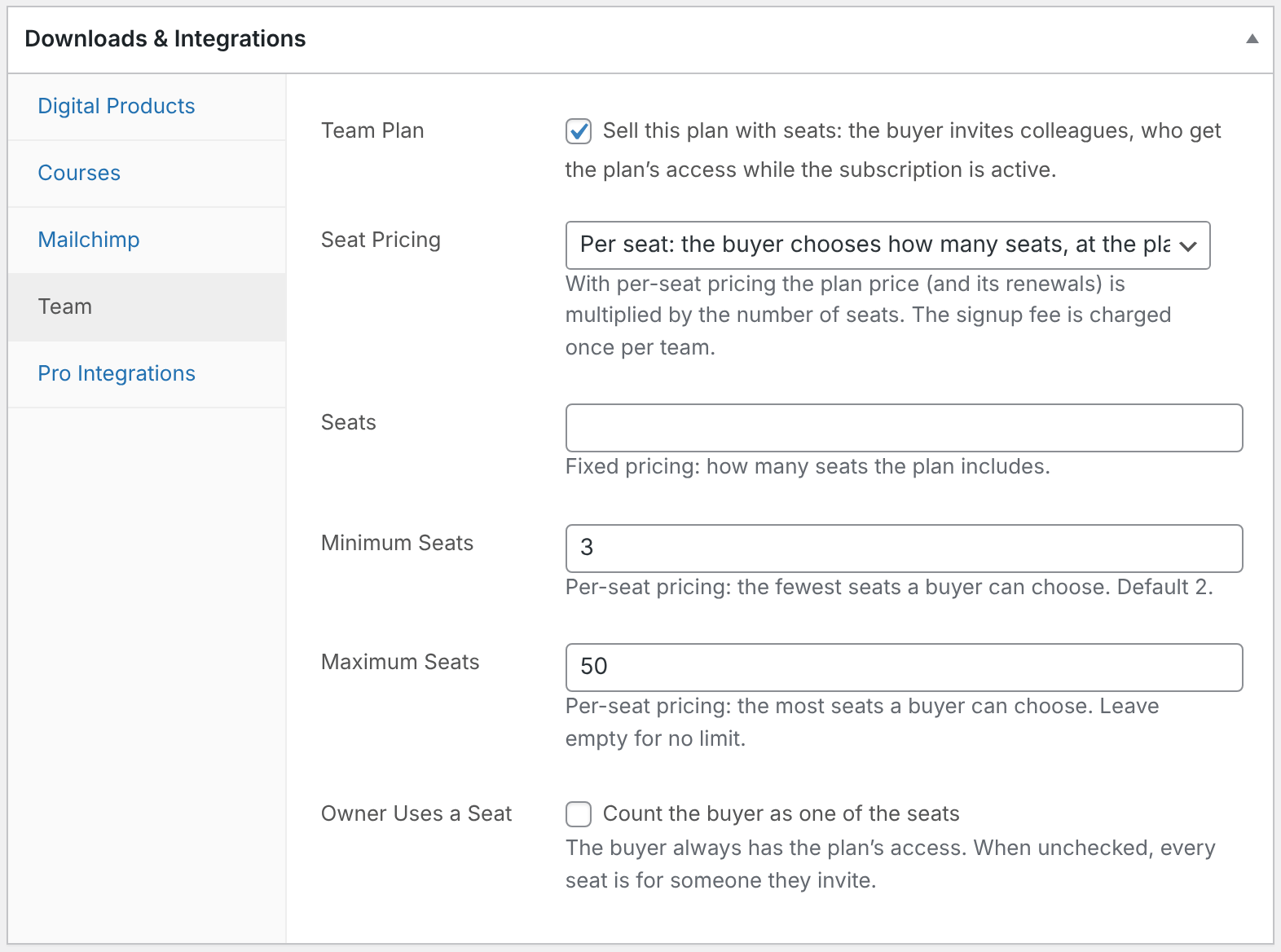
In the same box, open the Team tab and check Team Plan. Choose Per seat or Fixed seat pricing, set the seat limits, and decide whether the owner uses a seat. Then save the plan.
Step 5: Link to the Checkout
Add the plan’s checkout link to your pricing page or a “For teams” page. You can also show your plans as pricing cards with the profilepress-plans shortcode, which shows per-seat plans as “$29.00 / seat / month” with their minimum seats.
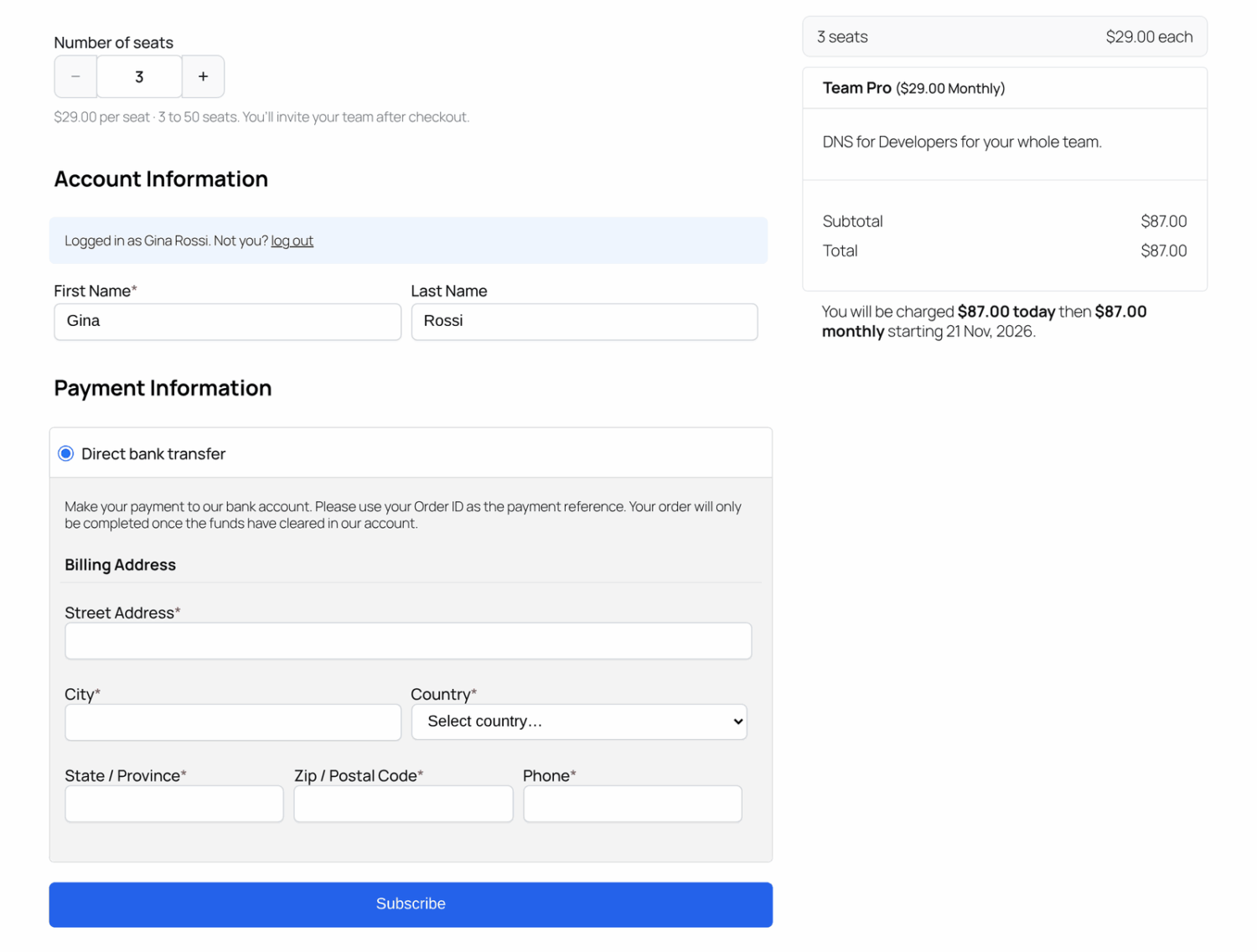
Per-seat plans show a Number of seats picker at checkout, and the order summary updates as the buyer changes it.
Pro Tip: If you use Tutor LMS, you can choose ProfilePress as its monetization option, so Tutor’s course pages link to the checkout of a plan that gives the course. When several plans give it, that link uses only one of them, so put your team plan’s link on a page of its own too.
Step 6: Test It With a Dummy Team
Finally, buy the plan with a test account and invite a second account. Check that the second account is enrolled in your LMS.
Then remove it from the team and check that it’s unenrolled. Now you know the whole flow works before a real company buys.
What Team Members Get, Lose and Keep
Joining a team gives a member what buying the plan would. If the plan lists LearnDash courses and a LearnDash group, the member is enrolled in those courses and added to that group the moment they join. The same goes for LifterLMS courses and memberships, Tutor LMS courses, FluentCommunity spaces, and so on.
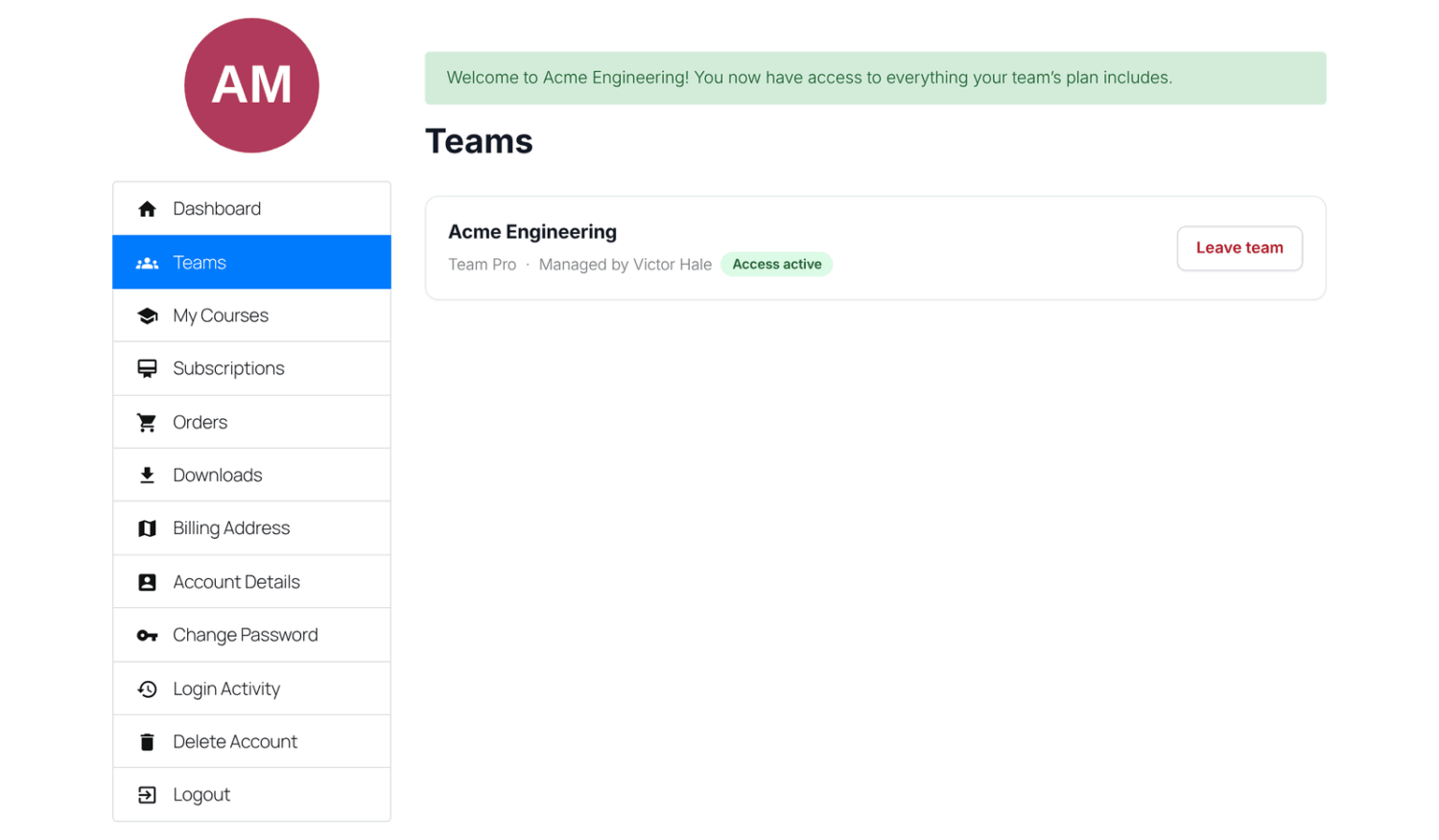
Members don’t get a subscription of their own. Their access comes from the owner’s subscription, so:
- When it renews: Members keep their access.
- When it’s cancelled: Members keep access until the end of the paid period.
- When it expires or is refunded: Members lose access, but the team is kept.
- When it’s paused: Members keep access until the end of the period already paid for, then lose it until the subscription resumes.
- When it’s renewed again later: Every member gets their access back without a new invitation.
The owner counts as a student too and is enrolled in the plan’s courses, whether or not you count them as one of the seats.
What Members Lose When They Leave
When a member leaves the team or the owner removes them, ProfilePress takes away what the team gave them. That includes protected content, the plan’s user role, and their enrollment in the plan’s LMS courses, groups, memberships or spaces. Their seat is freed for someone else.
There’s one important exception: if another plan still gives the item, it stays. ProfilePress checks every plan the person still has, including their own subscriptions and any other team they’re on, before unenrolling them. For example:
- Sam joins his company’s team, which gives a LearnDash course. He also bought that course himself last year on an individual plan that’s still active. When he leaves the team, he stays enrolled.
- Priya is on two client teams that both include the same Tutor LMS course. If one team removes her, she keeps the course through the other.
The same check protects roles. A role the person had before joining, or still gets another way, isn’t removed. What happens to their progress after being unenrolled depends on your LMS.
Drip Schedules Start When Each Member Joins
Teams grow over time. Someone who joins in month six shouldn’t get everything at once if your content is released week by week.
Each member is enrolled in the plan’s courses on the day they join, not the day the team was bought. If you drip protected content with the Content Dripping add-on, each member’s drip schedule also starts on the day they join.
Things to Know Before You Start
- Progress reports stay in your LMS: The team page shows each member’s progress only for courses built with the ProfilePress course builder. For LearnDash, LifterLMS or Tutor LMS courses, use your LMS’s reports.
- Downloads belong to the buyer: If the plan includes digital product files, members don’t see them.
Expert Tip: Write a short “For teams” page that explains how seats, invitations and renewals work. Managers often need to show it to their finance team before they can buy.
Frequently Asked Questions About Selling LMS Courses to Teams
Do I need to move my courses out of LearnDash, LifterLMS or Tutor LMS?
No. Your courses, lessons and quizzes stay where they are. ProfilePress handles checkout, the team and enrollment.
Can I sell individual and team access to the same course?
Yes. Create two plans that list the same course: one for individuals and one team plan. Someone who has both keeps the course as long as either is active.
Can a team plan include courses from two LMS plugins?
Yes. A plan can list items in every integration you have active. For example, one team plan can give Tutor LMS courses and FluentCommunity spaces.
What happens if the company stops paying?
When the owner’s subscription expires or is refunded, every member loses the access it gave. If the company renews later, everyone gets it back without being invited again.
Is the Tutor LMS integration enough to sell team seats on the free plugin?
No. The Tutor LMS and Academy LMS integrations are free, but team plans need the Team Memberships add-on, included in the ProfilePress Pro Plus and Agency plans.
Conclusion
We hope this article helped you learn how to set up LearnDash group licensing, and team access for LifterLMS and Tutor LMS, with ProfilePress. You don’t need to rebuild your courses to sell them to companies.
Keep them in your LMS, sell a team plan with ProfilePress, and let each team manage its own seats while enrollment follows automatically. Get ProfilePress Pro to get started.