
How to Use Content Protection with Your WordPress Courses
ProfilePress Content Protection works together with your courses in two ways. You can use protection rules to add extra restrictions to courses and lessons. You can also offer bonus pages, posts or downloads to the students of a course, or to those who completed it.
You manage rules under ProfilePress » Content Protection. For most courses you don’t need a rule at all: the course’s own Pricing & Access settings already control who can open its lessons.
How Content Protection rules affect courses and lessons
- Rules only restrict. A rule can lock a lesson that the course would otherwise open. It can’t give anyone access to a course they don’t have.
- Rules win when they clash. If a rule blocks a lesson, the student can’t open it, even when the course’s settings would let them in.
- A rule on a course covers its lessons. If a rule protects a course, every lesson of that course is checked against it too.
- The rule’s message is shown. In place of the locked lesson, the student sees the restricted message you set in the rule, instead of the course’s own lock message.
- A rule on a course replaces the course page. Visitors outside the rule’s audience see the restricted message instead of the course page, including its enroll button, so they can’t buy it. A rule on a course also overrides the course’s own plans: if the rule requires plan A but the course is sold with plan B, plan B buyers are blocked. To sell a course, use its Pricing & Access tab and protect lessons, not the course page.
Rules are checked after the course’s own access rules, such as prerequisites and drip. See Course access rules.
How to restrict a course or lessons with a rule
For example, you might want a course to be open only to users with a certain role, on top of the plan that sells it.
- Go to ProfilePress » Content Protection and click Add a Protection Rule.
- Give the rule a title.
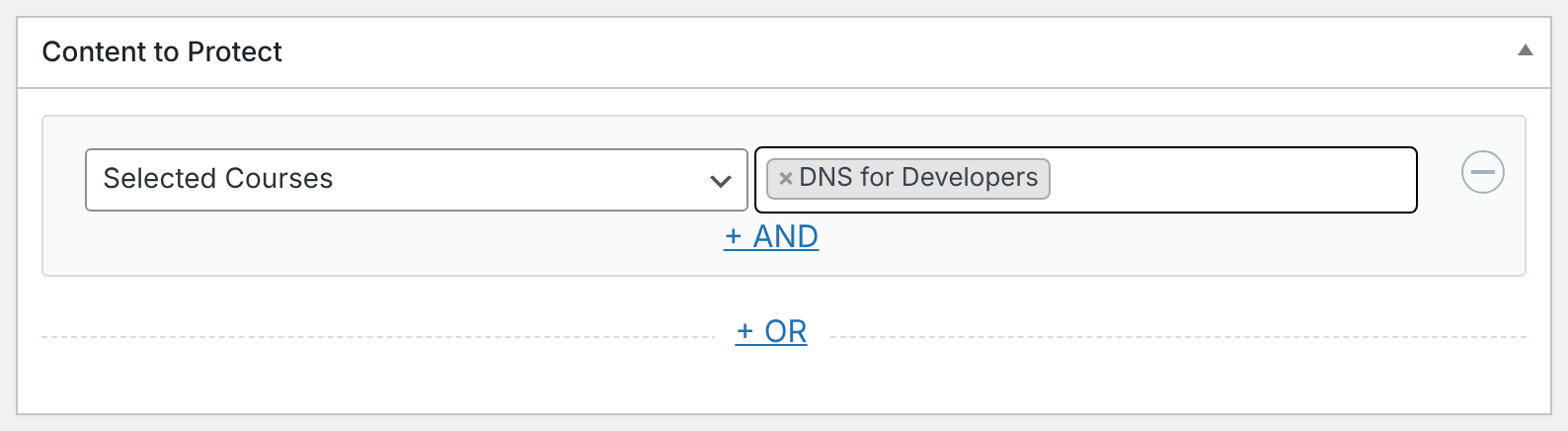
- Under Content to Protect, choose the content. Courses and lessons appear in their own groups, such as Selected Courses, All Lessons or Selected Lessons.
- Under Access Condition, set Who can access the content? and the plans, roles or users who should get in.
- Under What happens when users without access try to view the content?, choose Show access restricted message and set the message.
- Click Save Rule.
How to give course students access to other content
You can make any page, post or other protected content available to the students of selected courses. This works well for bonus pages, downloads or a community area.
- Go to ProfilePress » Content Protection and click Add a Protection Rule.
- Under Content to Protect, choose the page or content you want to offer.
- Under Access Condition, set Who can access the content? to Logged in users.
- In Select courses whose students can access content, choose one or more courses.
- Choose Students currently enrolled or Students who completed the course.
- Set what happens for users without access, then click Save Rule.
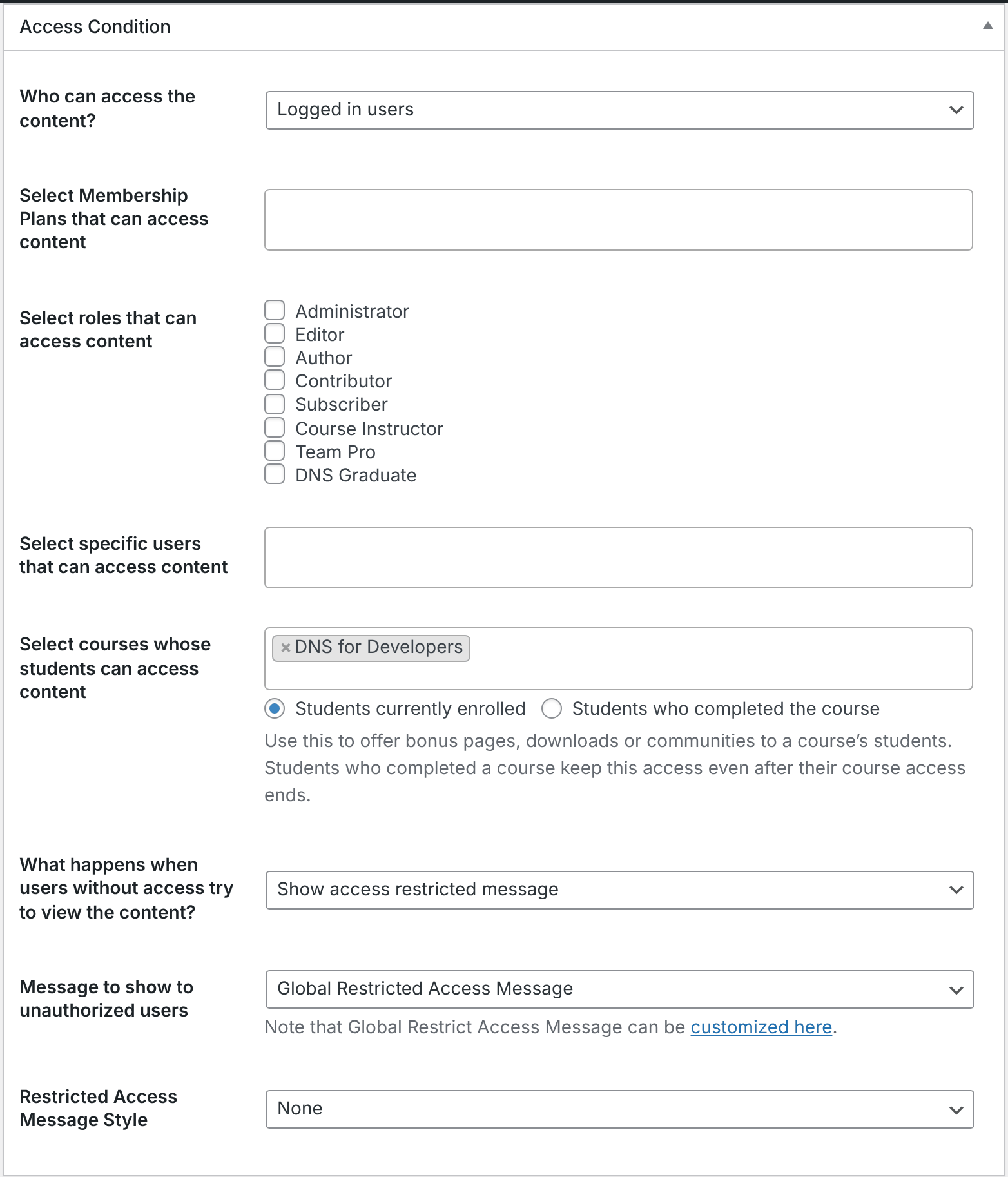
The course field only appears after you choose Logged in users.
Course student audiences
| Option | Who gets access |
|---|---|
| Students currently enrolled | Students who are enrolled and still have access to the course. They lose this access when their course access ends, for example when their subscription expires or their access duration runs out. |
| Students who completed the course | Students who completed the course. They keep this access even after their course access ends. Like certificates, this waits for a payment on paid courses: not during a free trial, nor after a refund (setting Paying Students Only). |
A student only needs to match one of the selected courses. The course audience also works alongside the rule’s plans, roles and users: matching any of them is enough.
Examples
A bonus page for graduates
Create a page with your bonus material, such as a templates pack or a discount code. Add a rule that protects the page, set Who can access the content? to Logged in users, pick the course and choose Students who completed the course.
Graduates can open the page any time. Everyone else sees your restricted message.
A members area for current students
Protect a page or a category of posts and choose Students currently enrolled for your course. Students can use it while they’re taking the course and lose it when their access ends.
One resource page for several courses
Select several courses in the same rule. A student enrolled in any of them can open the page.
Frequently asked questions
Can a Content Protection rule unlock a paid course for a plan?
No. Rules only restrict. To sell a course with a plan, tick the plan under Plans that unlock this course on the Pricing & Access tab. See Selling courses.
Why is a lesson locked for me even though I’m an administrator?
Course managers normally see every lesson. A Content Protection rule still applies to you, though, unless you match its audience. The same goes for the course’s instructors. Add your role (and the Course Instructor role) to the rule, or exclude the lesson from it.
Why do my students see a different locked message than usual?
A Content Protection rule is blocking the lesson. When that happens, the rule’s restricted message is shown instead of the course’s message. Check your rules under ProfilePress » Content Protection.
Are lesson files protected?
Yes. Files attached to a lesson can only be downloaded by students who can open that lesson. Files picked from the Media Library keep a public address, though. See Course settings for how protected downloads work.
Are videos protected?
ProfilePress doesn’t protect video files themselves. For paid lessons, host the video on Vimeo or Wistia and restrict it to play only on your site (domain-level privacy).
Is lesson content hidden from search and feeds?
Yes. For students without access, lesson content is kept out of site search, feeds, excerpts and the WordPress REST API.