
How to Sell Courses in WordPress with ProfilePress
ProfilePress lets you offer a course free to everyone, free to anyone with an account, or sell it with your membership plans. This article shows you how to set the access type and connect plans. It also explains what students see when they buy, cancel or get a refund.
All of these settings are on the Pricing & Access tab of the course builder. Go to ProfilePress » Courses and open a course.
Access types
Under Who can take this course?, choose one of these options, then click Save (or Publish).
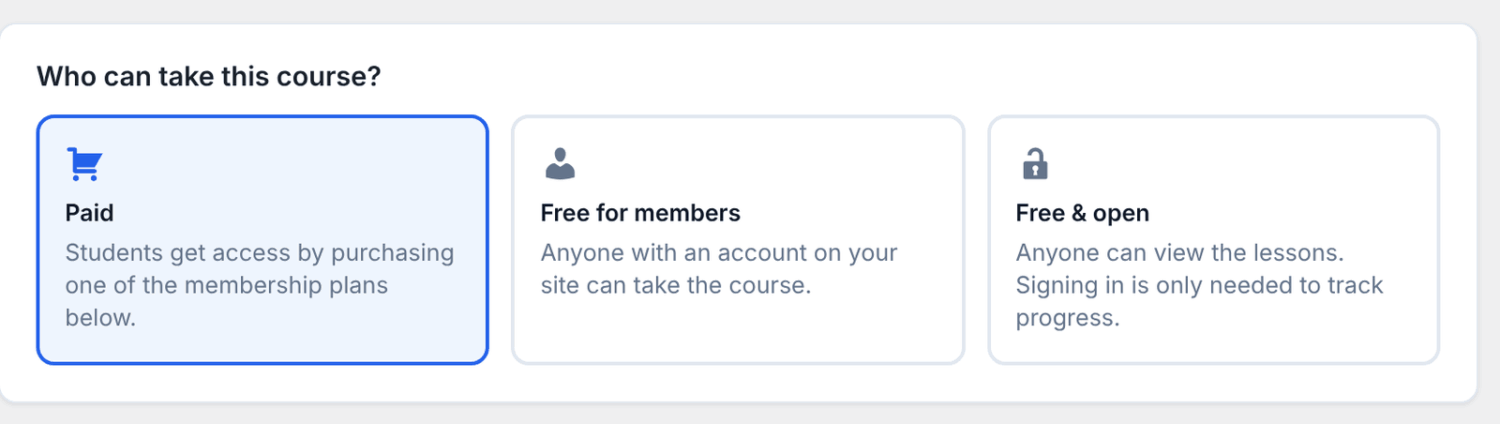
| Access type | Who can take the course |
|---|---|
| Paid | Students who buy one of the membership plans you select. This is the default for new courses. |
| Free for members | Anyone with an account on your site, whether or not they’ve bought a plan. Visitors must sign in or register first. If anyone can register on your site, the course is effectively free. |
| Free & open | Anyone, even without an account. Signing in is only needed to track progress. |
What students see for each access type
The enroll card on the course page changes with the access type and with who is looking.
- Paid course, student without a plan: the price and an Enroll now button that goes to checkout (Enroll for free for a free plan). When the course has two or more plans, they’re all listed under “Or choose a plan”, bundles included. Visitors also see an Already enrolled? Sign in link. A locked lesson says “This lesson is part of a paid course” with the price and the enroll button.
- Free for members, visitor: the price shows as “Free”, with a Sign in to start button and a Create a free account link. A locked lesson says “Sign in to continue” with a Sign in button.
- Free & open, visitor: a Start course button that opens the first lesson. Visitors can read the lessons, but their progress isn’t saved.
- Any student with access: Start course, then Continue course once they’ve made progress, and Review course when they’ve finished.
On free courses, a signed-in student is enrolled when they click Start course or first open a lesson.
How to sell a course with an existing plan
A paid course is unlocked by one or more ProfilePress membership plans. Anyone with an active subscription to any of the selected plans can take the course.
- On the Pricing & Access tab, choose Paid.
- Under Plans that unlock this course, tick one or more plans. Each plan shows its price and billing, and inactive plans are marked “(inactive)”.
- Click Save or Publish.
The icon next to a plan opens it for editing in a new tab. To limit how long students keep access, see Course access rules.
How to create a plan from the course builder
If you don’t have a suitable plan yet, you can create one without leaving the builder.
- Under Plans that unlock this course, open Create a plan for this course. It’s already open if you have no plans.
- Enter a Plan name. If you leave it empty, the course title is used.
- Enter a Price.
- Under Payment, choose One-time payment or one of the subscription options.
- Click Create plan.
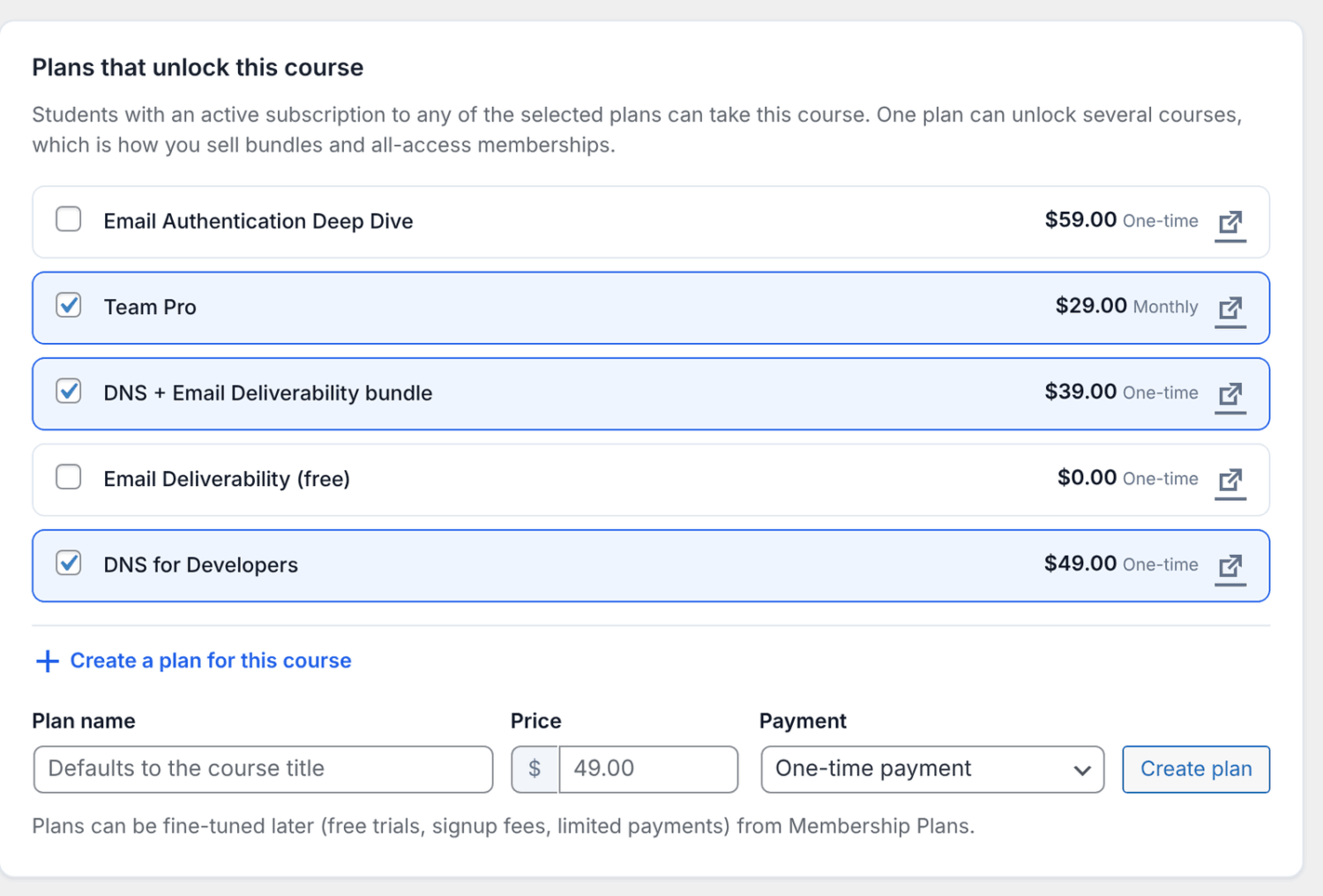
The plan is created, activated and attached to the course straight away. You can add free trials, signup fees or limited payments later under ProfilePress » Membership Plans. The plan’s edit screen has a Courses tab that lists the courses it unlocks.
Only site administrators can choose or create the plans that sell a course. Instructors see the plans but can’t change them.
Selling one course with several plans
You can attach more than one plan to a course, for example a one-time price and a monthly subscription. The enroll card shows the cheapest of the course’s own plans as the main price and button. All the plans, including any bundle that contains the course, are listed under “Or choose a plan”.
To sell several courses together, attach one plan to all of them. See Course bundles.
Changing a free course to Paid
When you switch a Free for members or Free & open course to Paid, students who already joined keep their access, so nobody is locked out of a course they’ve started. The save message tells you how many. To remove one of them, use the Students tab.
What happens when a student buys or cancels
- Purchase. When the order completes, the subscription activates or a free trial starts. The student is enrolled in every published course the plan unlocks and can start right away.
- Cancellation or expiry. Access is checked live, so it ends when the subscription expires. A cancelled recurring subscription keeps its course access until the end of the period the student already paid for. A cancelled one-time purchase loses access right away.
- Coming back. Progress is kept. If the student subscribes again, they pick up where they left off.
- Plan changes. When a customer upgrades or downgrades, they get the courses of their new plan straight away, and lose courses that only the old plan unlocked, even mid-period.
- Free trials. A free trial unlocks the whole course. Students who finish it during the trial get their certificate, and any completion actions, once their first payment goes through. If they cancel before paying, they don’t get them. See Course certificates.
- Failed renewals. When a renewal payment fails, access continues for about two days past the expiry date while the payment is retried.
- Plans that never expire. Plans with a limited number of payments, and recurring plans bought with a 100%-off-forever coupon, never expire. Their students keep access unless the course has an access duration.
- Draft courses. Buying a plan doesn’t enroll the student in courses that are still drafts. Once you publish the course, plan holders are enrolled when they first open a lesson.
What happens when you refund an order
When you refund an order in full with Refund Order on the order screen (ProfilePress » Orders), ProfilePress cancels the subscription. The student loses access to the plan’s courses right away, even if the paid period hasn’t ended. Certificates they earned in those courses are withdrawn too, unless you turned off Paying Students Only.
A full refund made in your Stripe dashboard has the same effect. A partial refund doesn’t change the student’s access. Deleting an order doesn’t change access either; refund it or cancel the subscription instead.
The student’s progress is kept, and students you enrolled manually keep their access. To remove a manual enrollment too, remove the student from the Students tab.
How to enroll students manually
You can give someone access without a purchase, for example a guest speaker or a customer you’re compensating. The person must already have an account on your site.
- Open the course and go to the Students tab.
- Enter a username, email or user ID.
- Click Enroll student.
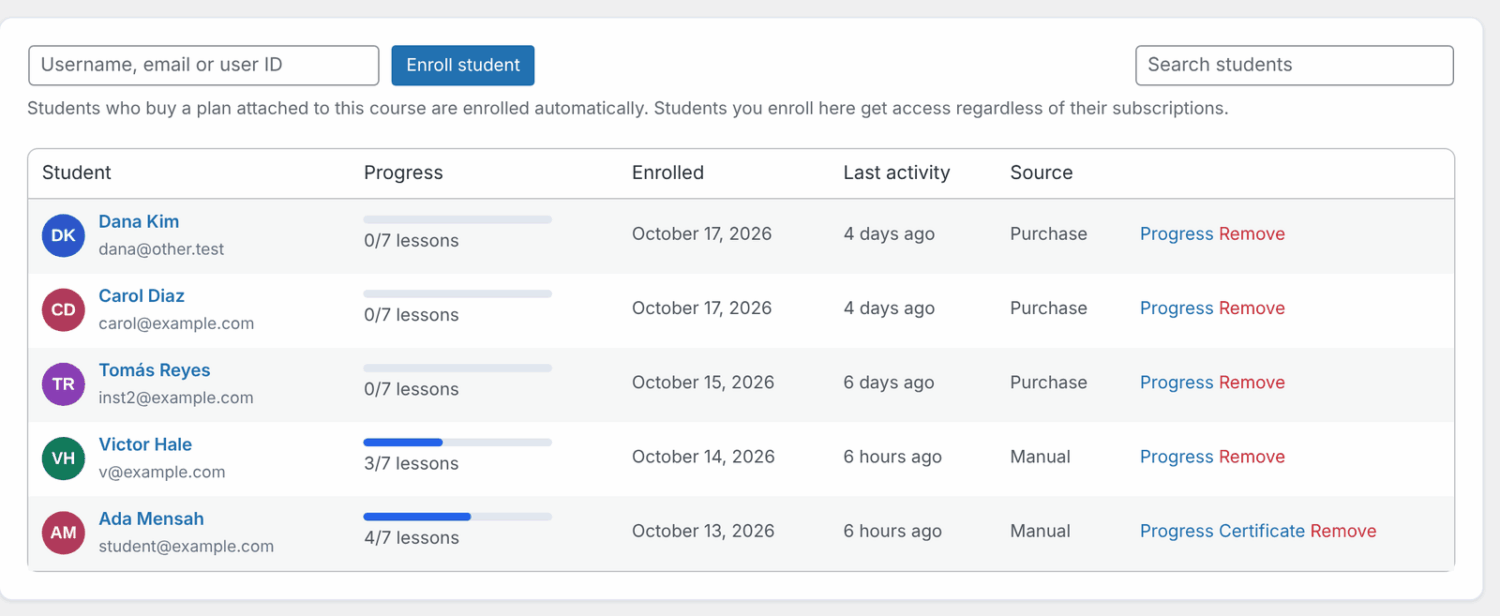
Students you enroll here get access no matter what their subscriptions are. Their source shows as “Manual” in the list. Students who bought a plan show “Purchase”, and students of free courses show “Free”.
Instructors who aren’t administrators can only enroll people by their exact email address. See Managing students.
How to remove a student
- Open the course and go to the Students tab.
- Click Remove on the student’s row and confirm.
Their progress is kept. Students with an active subscription to one of the course’s plans keep their access, because it comes from their subscription. To stop their access right away, open the subscription under ProfilePress » Subscriptions and change its status to Expired.
Frequently asked questions
Why does my course page say “Enrollment closed”?
The course is set to Paid but has no active plan attached. In the course list, its Access column shows “Paid — no plan attached”. Tick an active plan on the Pricing & Access tab, or create one there.
What happens to existing students if I deactivate a plan?
New customers can no longer buy it, and it stops showing on the enroll card. Students with an active subscription to that plan keep their access to the course.
What happens if I untick a plan from a course?
Subscribers to that plan lose access to the course, unless you enrolled them manually or another ticked plan covers them. Their progress is kept if you attach the plan again later. When you save, the builder warns you first and shows how many active subscriptions each unticked plan has.
The enroll card shows a higher price than my bundle. Why?
A course’s price comes from its own cheapest plan, even when a bundle that includes it costs less. The bundle is listed under “Or choose a plan” on the enroll card, so visitors still see it. See Course bundles.
I removed a student from a “Free for members” course, but they can still take it. Why?
On a Free for members course, every signed-in user has access. Removing them only clears their enrollment record. To limit who can take a course, make it Paid.
Why can I open every lesson, but my students can’t?
Administrators and the course’s instructors always see every lesson unlocked. Click Preview as student in the course builder to see the course the way a student does.
Where do buyers land after checkout?
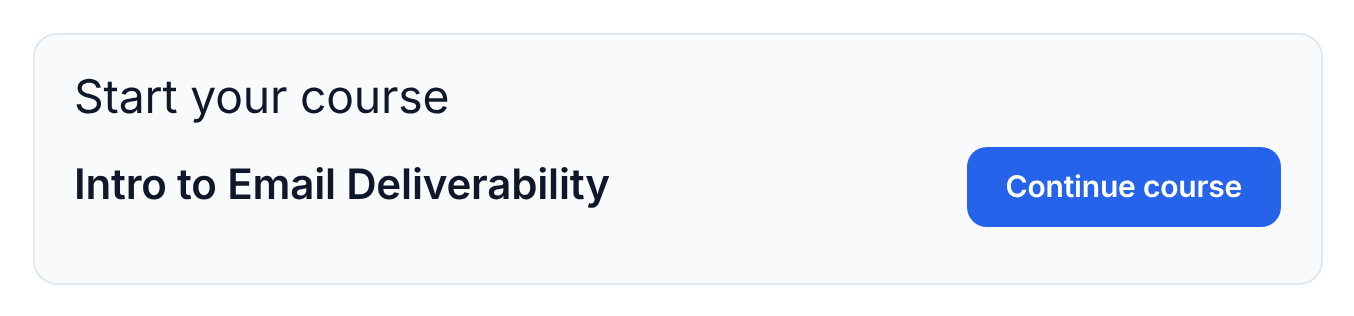
On your payment success page. Above the order details, it shows the courses the purchase unlocked, each with a Start course button (Continue course once they’ve started). The same list appears when the student views the order in My Account. Students can also find their courses under My Account » My Courses.
Why does my bundle plan show on each course’s enroll card?
Any plan attached to two or more courses counts as a bundle. It’s listed under “Or choose a plan” on each course it unlocks, next to the course’s own plans. See Course bundles.
Can I sell a course to a whole team?
Yes, with ProfilePress Pro and the Team Memberships addon. Every member of the team gets the courses the plan unlocks. See Selling team plans.
Related articles
- Getting Started with ProfilePress Courses for WordPress
- How to Sell Course Bundles in WordPress with ProfilePress
- Course Access Rules: Prerequisites, Drip and Start Dates
- How to Use Content Protection with Your WordPress Courses
- How to Manage Course Students and Progress in ProfilePress
- How to Sell Team Memberships in WordPress with ProfilePress