
How to Sell Course Bundles in WordPress with ProfilePress
A course bundle sells several courses together for one price. In ProfilePress, a bundle is simply a membership plan that unlocks two or more published courses. Buying it enrolls the student in all of those courses at once.
You don’t create bundles in a separate screen. Any active plan attached to two or more published courses counts as a bundle. The same approach gives you an all-access membership: attach one plan to every course.
How to create a bundle
- Create a membership plan for the bundle under ProfilePress » Membership Plans, or with Create a plan for this course in the course builder of one of the courses.
- In the plan, add a Plan Description. It’s shown on the bundle page and at checkout.
- Go to ProfilePress » Courses and open the first course for the bundle.
- On the Pricing & Access tab, make sure Paid is selected.
- Under Plans that unlock this course, tick the bundle plan. Keep the course’s own plan ticked too if you also sell it on its own.
- Click Save.
- Repeat steps 3 to 6 for each course in the bundle.
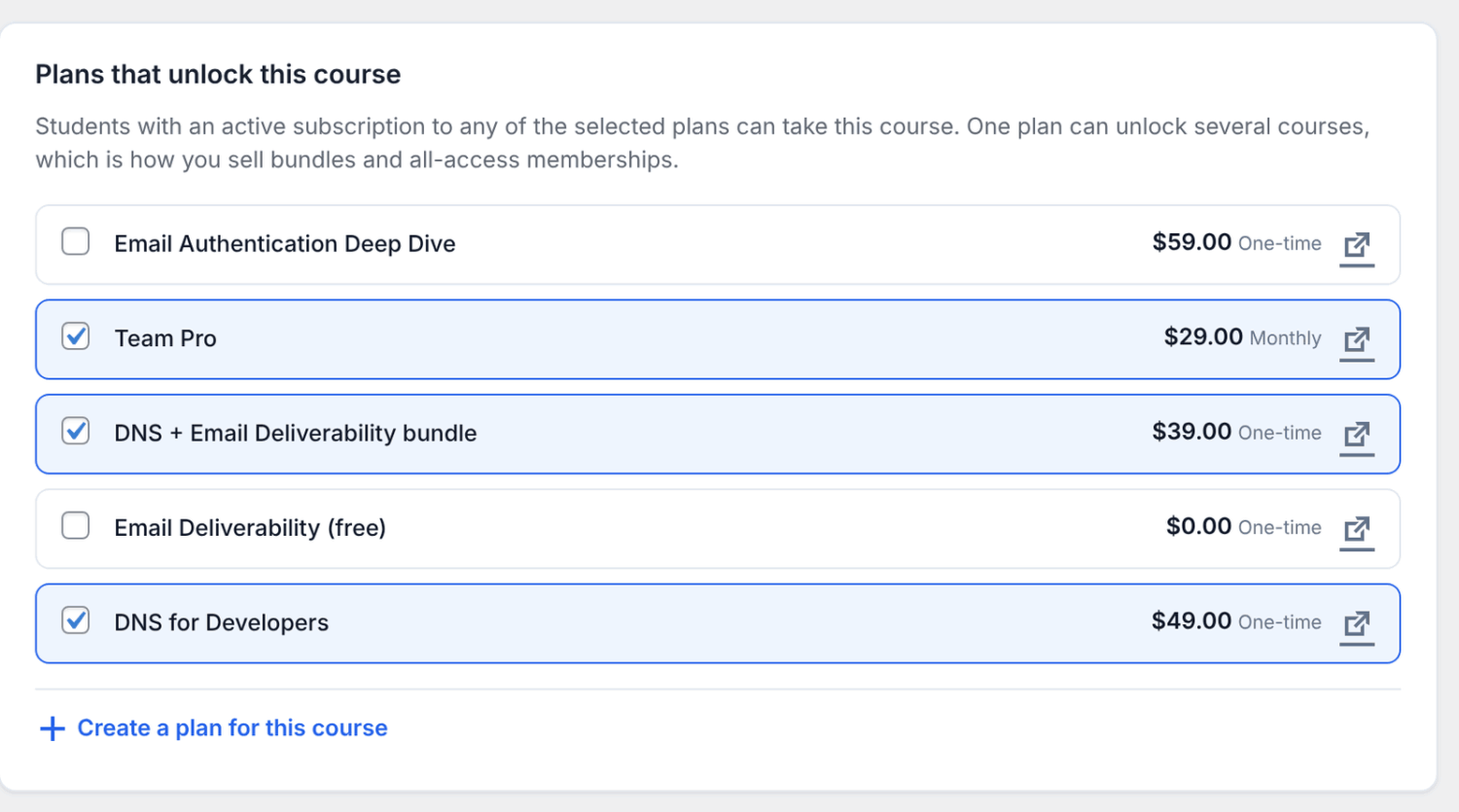
To check which courses a plan unlocks, open the plan under ProfilePress » Membership Plans and click its Courses tab.
How to add a bundle page
Create a WordPress page for the bundle and add one of these:
- The Course Bundle block. Add it from the ProfilePress Courses category of the block inserter, then choose the bundle under Bundle in the block settings.
- The Course Bundle Elementor widget. Choose the bundle under Bundle.
- The shortcode
[profilepress-course-bundle plan="123"], where 123 is the plan’s ID (id="123"works too). The plan’s Courses tab, under Downloads & Integrations on its edit screen, shows the shortcode ready to copy.
The block and the widget also have a Columns setting. With the shortcode, add columns="2" to change the number of columns, from 1 to 4. The default is 3.
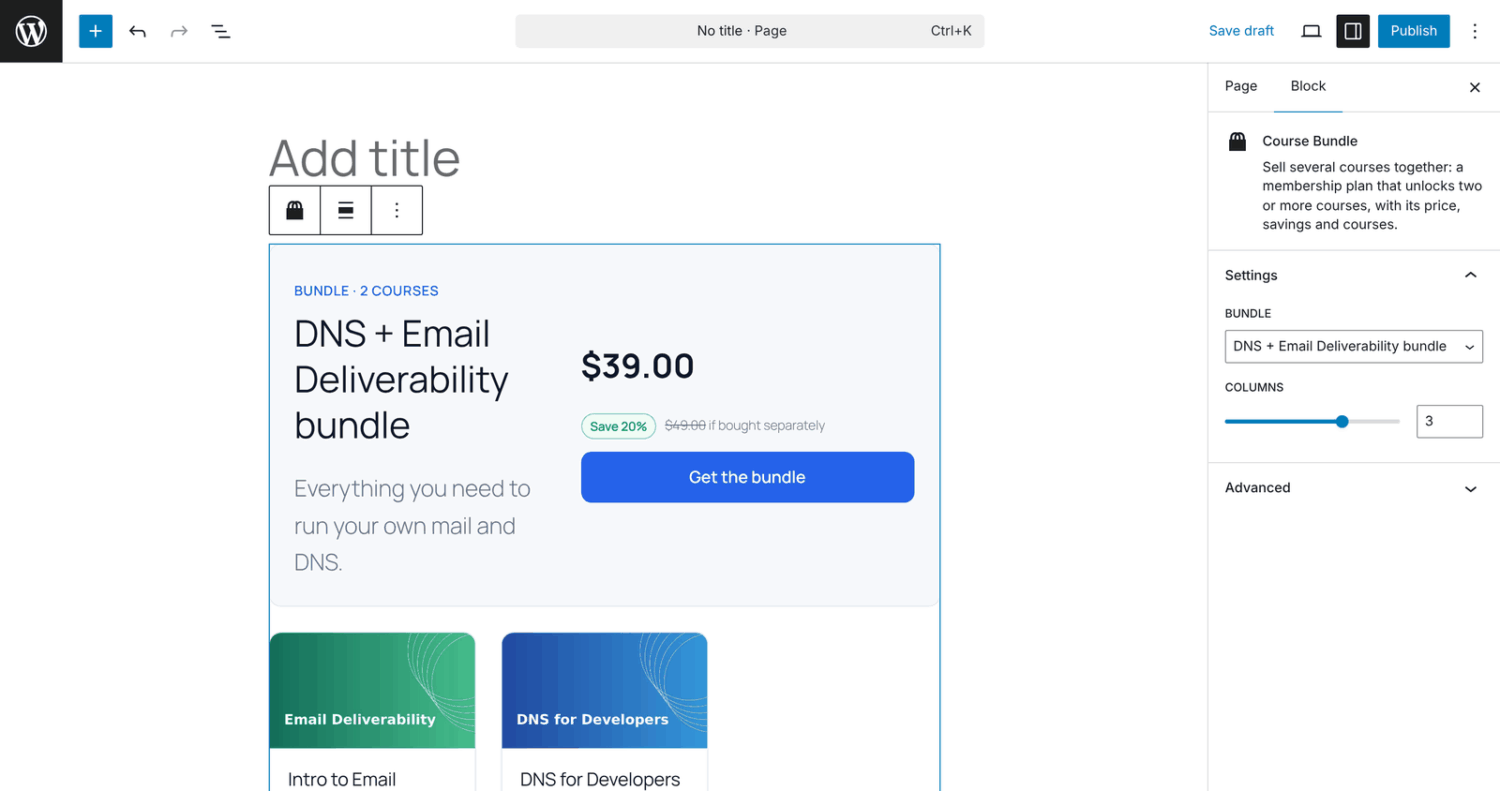
To find a plan’s ID, go to ProfilePress » Membership Plans and open the plan. The ID is the number at the end of the web address in your browser (for example id=123).
What students see on the bundle page
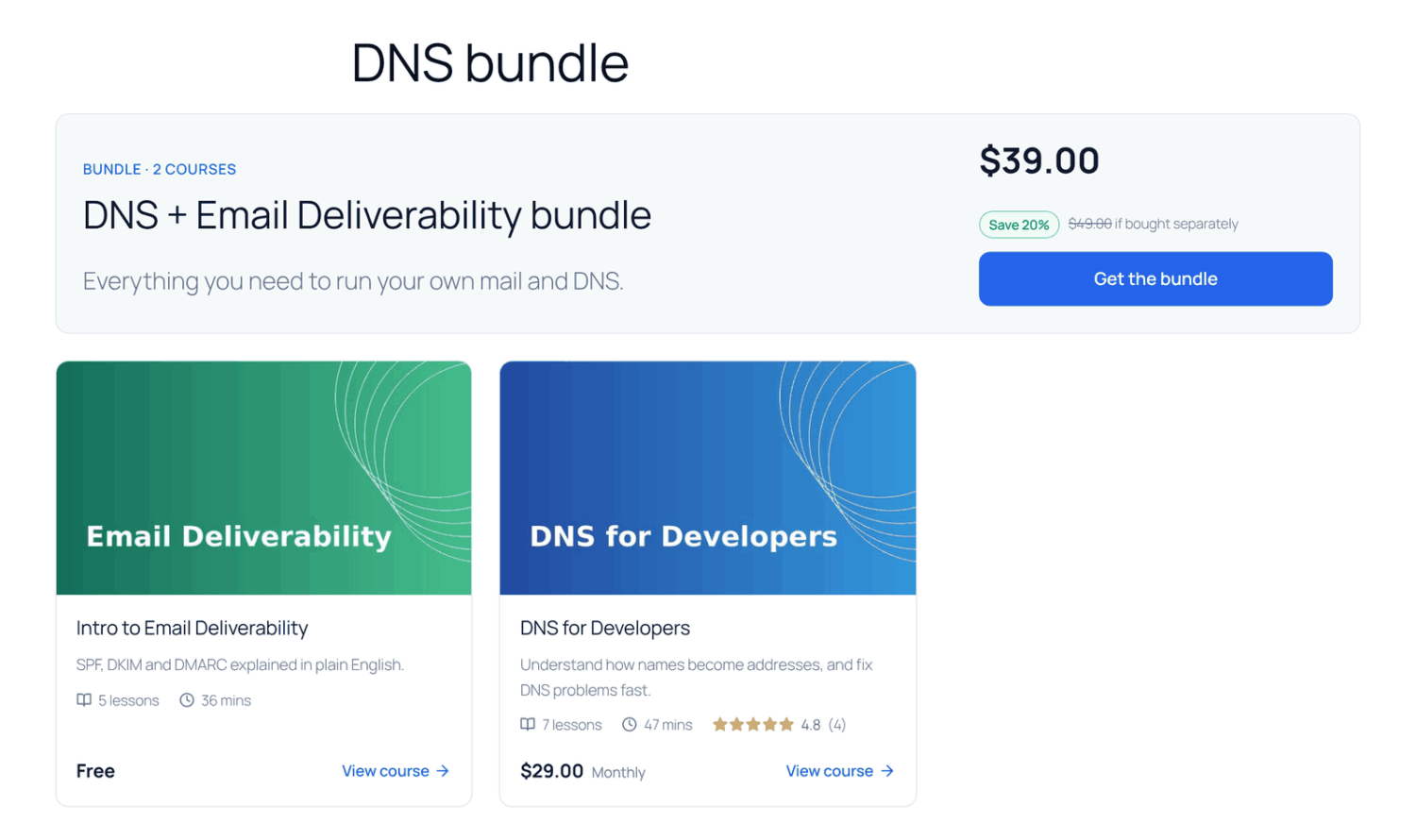
The bundle page shows:
- the number of courses, the plan name and its description;
- the price, with the billing period for a subscription;
- the savings, when ProfilePress can work them out (see below);
- a card for each course in the bundle;
- a Get the bundle button that goes to checkout.
Students who already have access to every course in the bundle see “You have all these courses” instead of the button.
How bundle savings are shown
The bundle shows how much the student saves, such as “Save 30%”, with the separate total struck through (“if bought separately”).
Savings only appear when ProfilePress can make a fair comparison. Every course in the bundle must also be sold on its own with an active plan that:
- unlocks only that one course; and
- bills the same way as the bundle (for example, all one-time payments, or all monthly).
ProfilePress uses each course’s cheapest matching plan. If any course can’t be bought on its own that way, or the bundle isn’t cheaper, no savings are shown.
Bundles on the course page
On each course in a bundle, the bundle is one of the plans listed under Or choose a plan on the enroll card, next to the course’s own plans. (The list shows when a course has two or more plans; a course sold only through one bundle shows the bundle’s price and button instead.) Give the bundle’s plan a name that says what it includes, such as “Email Marketing bundle (3 courses)”, because that name is what visitors see there. The bundle page shows every course in it and the savings.
The course’s price and Enroll now button use its own cheapest plan, even if a bundle costs less. If the course is only sold in bundles, they use the cheapest bundle.
Frequently asked questions
The Course Bundle block says “No bundles yet”. Why?
The block only lists active plans attached to two or more published courses. Attach one plan to at least two courses under Pricing & Access, and publish those courses.
Why is my bundle page empty?
The plan may be inactive, the ID may be wrong, or none of its courses are published. A bundle page only shows published courses.
Why doesn’t my bundle show any savings?
At least one course isn’t sold on its own with a plan that bills the same way as the bundle. For example, a one-time bundle can’t be compared with monthly course plans.
Why does the course price show the single-course plan, not the cheaper bundle?
A course’s price and Enroll now button use its own cheapest plan. The bundle is listed with the course’s other plans under “Or choose a plan”. If a course is only sold in a bundle, the bundle plan is used as its price.
What happens when a student cancels a bundle?
It works like any other plan. When the subscription ends, the student loses access to all the bundle’s courses, unless they have another plan or a manual enrollment for a course. See Selling courses.
If I add a course to the bundle later, do existing buyers get it?
Yes. Access is checked against the student’s active plans, so anyone with an active bundle subscription can take the new course once it’s published. It also appears in their My Courses list.
As an administrator, why do I see the Get the bundle button?
Administrators see the bundle page the way customers do, even though they can open every course.