
How to Award Course Certificates of Completion in WordPress
Certificates give students printable, shareable proof that they finished a course. Each certificate is a page on your site with its own link, which students can print, save as a PDF or send to an employer.
The same link also works as a verification page, so anyone who receives it can confirm the certificate is genuine. Certificates are on by default.
When students earn a certificate
A student earns a certificate when they complete every lesson in the course. That includes passing every quiz and, with the Advanced Courses addon, every assignment.
The certificate is issued as soon as the course is complete. Students who completed a course before you turned certificates on get theirs the first time they, or you, open the link.
How to turn certificates on or off for your whole site
- Go to ProfilePress » Courses and click the Settings tab.
- Under Certificates, check or uncheck Enable next to Certificates of Completion.
- Save your changes.
How to turn certificates on or off for one course
- Go to ProfilePress » Courses and open the course in the builder.
- Click the Pricing & Access tab.
- Under Learning experience, turn Award a certificate of completion on or off.
- Save the course.
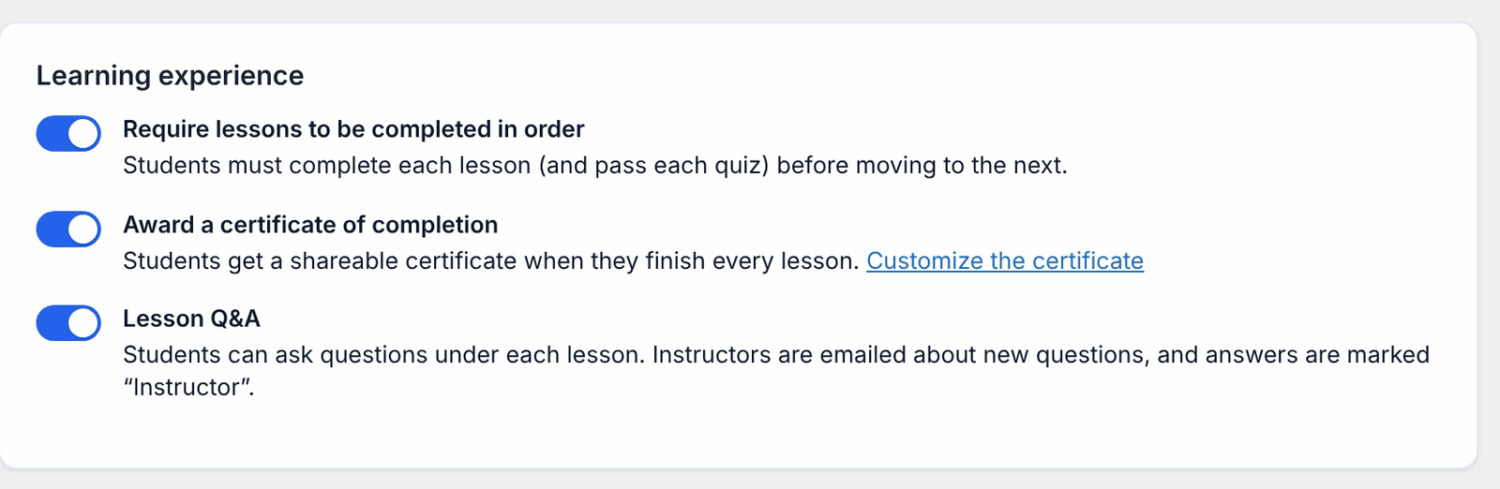
The option is on for new courses. You only see it when certificates are turned on for the whole site.
How to customize the certificate
All courses share one certificate design. You can change its wording, signature and logo.
- Go to ProfilePress » Courses and click the Settings tab.
- Scroll to Certificates and fill in the fields below.
- Save your changes.
- Open any certificate link to check the result. Changes apply to every certificate, including ones already issued.
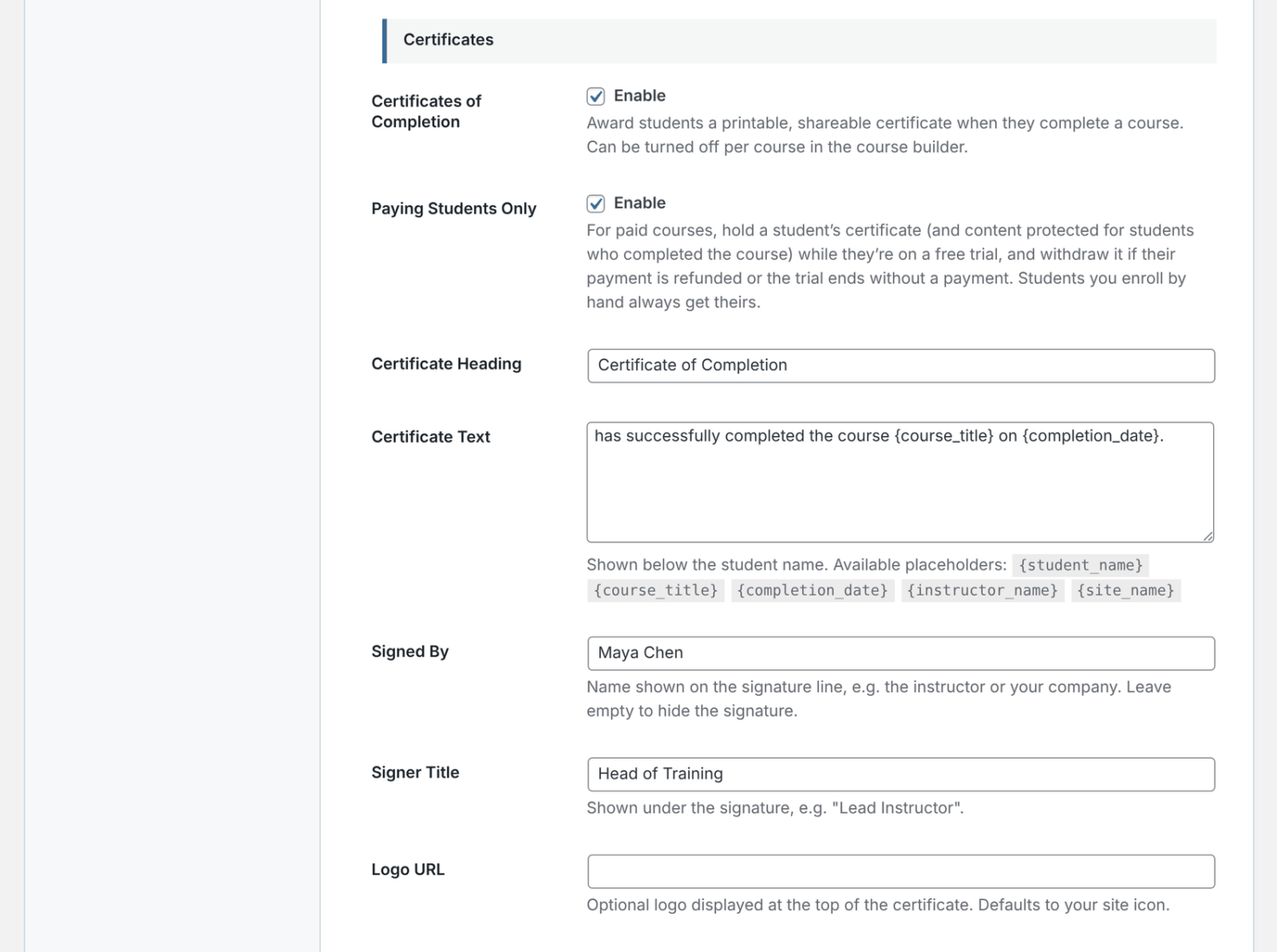
| Setting | What it does |
|---|---|
| Certificate Heading | The title at the top. The default is “Certificate of Completion”. |
| Certificate Text | The sentence under the student’s name. The default is “has successfully completed the course {course_title} on {completion_date}.” |
| Signed By | The name on the signature line, such as the instructor or your company. Leave it empty to hide the signature. |
| Signer Title | Shown under the signature, such as “Lead Instructor”. |
| Logo URL | A logo at the top of the certificate. When it’s empty, your site icon is used. |
To get a logo URL, upload the image to your Media library, open it and click Copy URL to clipboard, then paste it into Logo URL.
You can use these placeholders in Certificate Text:
| Placeholder | Replaced with |
|---|---|
{student_name} |
The student’s first and last name, or their display name if those are empty. |
{course_title} |
The course title. |
{completion_date} |
The date they completed the course. |
{instructor_name} |
The course’s main instructor (the person who created it). |
{site_name} |
Your site name. |
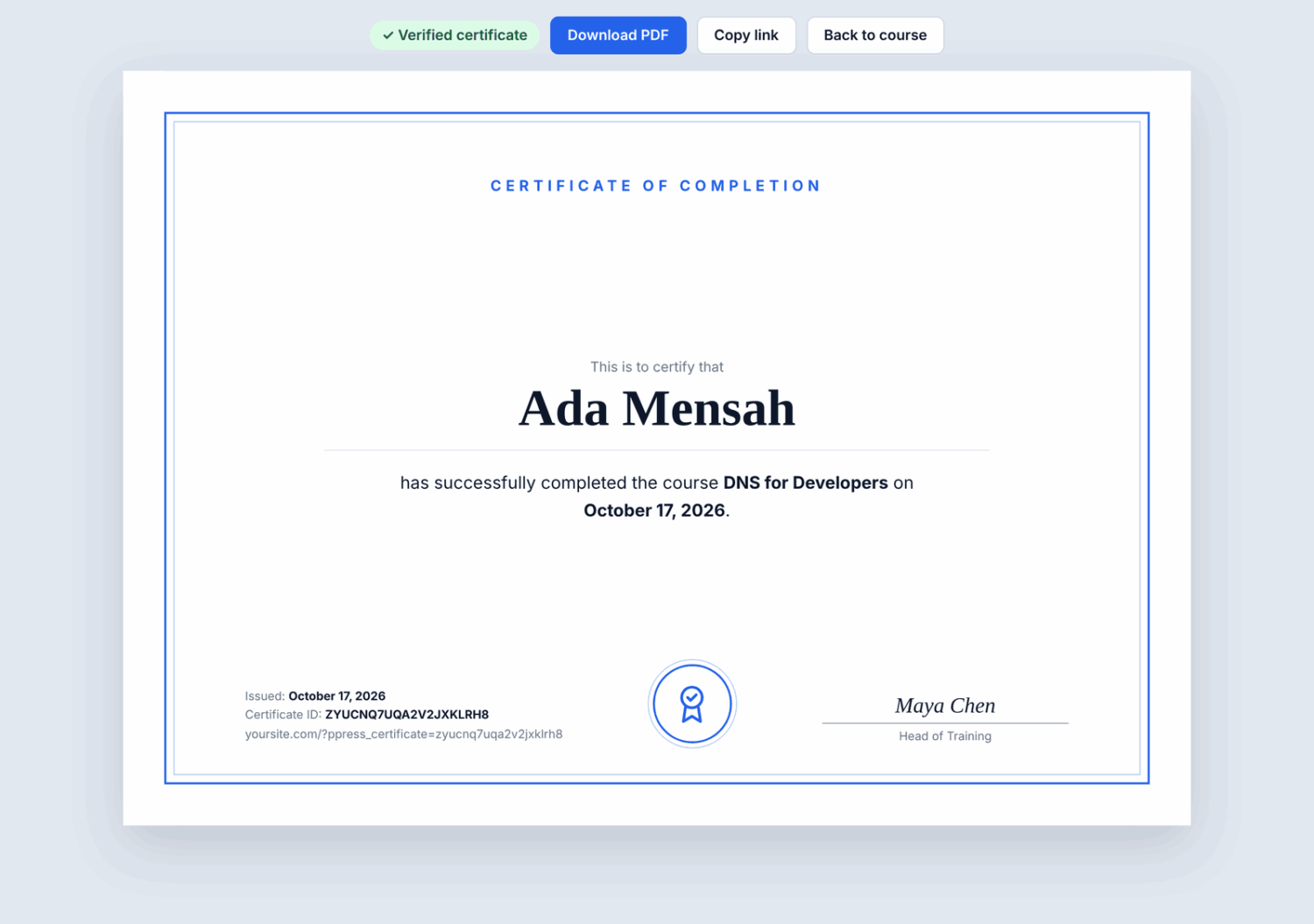
The frame, heading, and seal use the Accent Color on the same settings screen. Every certificate also shows “This is to certify that”, the student’s name, the issue date, a certificate ID, and the certificate’s web address.
Where students find their certificate
- On the course page, a View your certificate link under the main button once they’ve completed the course.
- On the course card in My Courses, a View certificate link.
- In the Course Completed email, through its View your certificate button. See Course emails.
- In the completion message on the course page, if you use the Advanced Courses addon. See Course completion actions.
On the certificate page, students can:
- Click Download PDF. This opens the browser’s print window, where they can print it or choose “Save as PDF”. It prints on one A4 landscape page.
- Click Copy link to copy the certificate’s address and share it.
- Click Back to course to return to the course page. Only the student sees this button on their own certificate.
How to find a student’s certificate
- Open the course in the builder and click the Students tab.
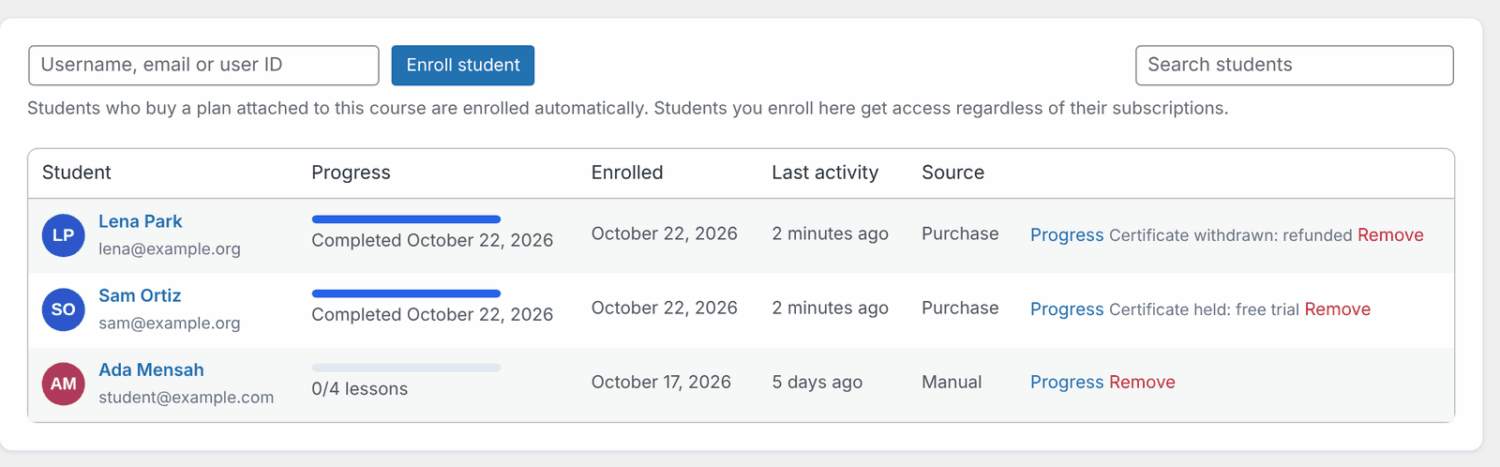
- Find the student. Students who completed the course have a Certificate link in their row.
- Click it to open the certificate in a new tab.
Certificates for paying students only
On paid courses, a free trial opens the whole course, so a student could finish it and cancel before paying. To prevent that, ProfilePress issues certificates only to students who’ve paid. This is on by default.
- During a free trial: the certificate is held. The course page tells the student it will be ready once the trial ends and the first payment goes through, and the certificate appears then, without anything for you to do.
- After a full refund: the certificate is withdrawn. Its link stops working for everyone else, and the student sees why.
- When a trial ends without a payment: the certificate is withdrawn the same way.
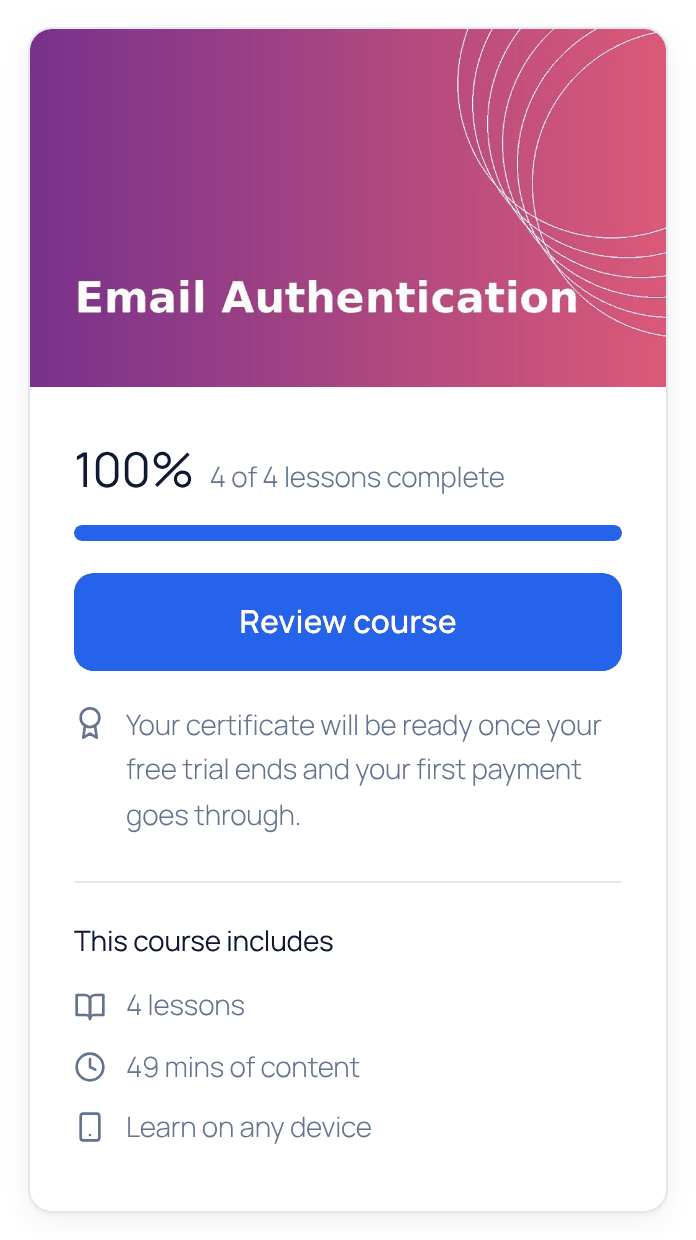
Students you enroll yourself, students of free courses, and team members whose team owner has paid always get their certificate. On the course’s Students tab, a held or withdrawn certificate shows as “Certificate held: free trial”, “Certificate withdrawn: refunded” or “Certificate withdrawn: trial ended unpaid”.
To give certificates on completion whatever the payment, uncheck Paying Students Only under Certificates in the course settings.
How someone else can verify a certificate
Anyone who opens a certificate link sees it marked Verified certificate. The page shows the student’s name, the course, the issue date and the certificate ID. They don’t need an account on your site.
The certificate’s address is printed at the bottom of the certificate, so it can be checked from a printed copy too. If someone only has the certificate ID, they can go to yoursite.com/?ppress_certificate= followed by the ID.
If the page shows “This certificate could not be found.”, the certificate isn’t valid any more. That happens when:
- the student was removed from the course;
- certificates were turned off for the site or for that course (the link works again when you turn them back on);
- the course is no longer complete for the student, for example because you lowered an assignment grade below the pass mark.
Certificate pages ask search engines not to index them, so they don’t show up in search results.
Frequently asked questions
The student’s name is wrong on the certificate. How do I fix it?
The certificate uses the first and last name in the student’s WordPress profile. Edit them under Users, or ask the student to update their account. The certificate updates straight away.
How do I change the date format?
The certificate uses your site’s date format under Settings » General.
Can each course have its own certificate design?
No. All courses share one design. Use the {course_title} and {instructor_name} placeholders to make each certificate specific. Developers can replace the certificate template; see our developer docs.
What happens to a certificate if I remove the student?
The link stops working. If they are enrolled again and complete the course, they get a new certificate with a new link.
Why did the completion date change?
The student’s completion was undone, for example, by a lower assignment grade, and they completed the course again. The certificate shows the new date.
Who can see a certificate?
Anyone with the link. That is what makes it shareable and verifiable. The suggested privacy policy text ProfilePress adds under Settings » Privacy says so.
Can a student keep a certificate after a refund or a canceled trial?
Not with Paying Students Only on (the default). See Certificates for paying students only. If the student pays later, for example by subscribing again, the certificate comes back.
My site is for logged-in users only. Can others still verify a certificate?
Yes. Certificate links stay public when Global Site Access is set to logged-in users only, so employers can open them without an account.
Does erasing a student’s personal data delete their certificates?
Yes. Their certificate links stop working.