
How to Duplicate, Export and Import Courses in ProfilePress
You can copy a course on your site with one click, or export it to a file and import it elsewhere. Use this to start a new course from an existing one, move a course to another site, or keep a backup.
Copies and imports are always saved as drafts, so nothing goes live until you publish it.
How to duplicate a course
From the course builder:
- Go to ProfilePress » Courses and open the course.
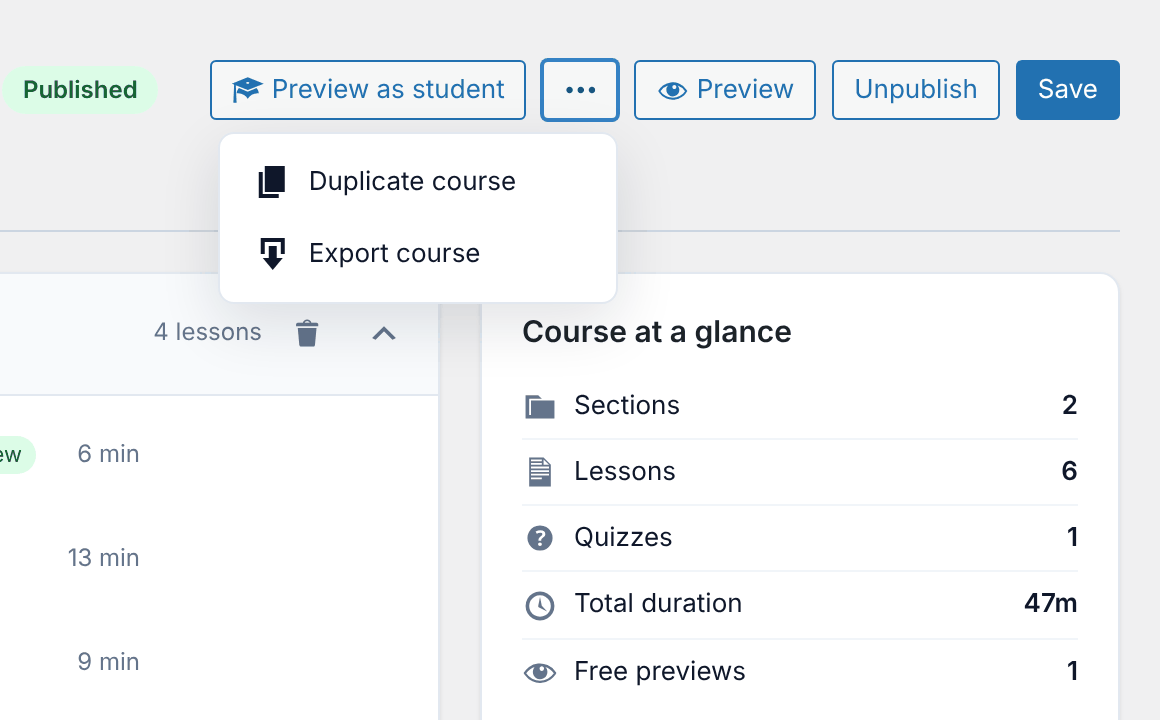
- Click the More actions button (the “…” button in the top bar).
- Click Duplicate course.
From the course list:
- Go to ProfilePress » Courses.
- Hover over the course and click Duplicate.
The copy opens in the builder, with “(copy)” after its title and a new URL slug. A notice confirms that you’re now editing the copy.
When a site administrator makes the copy, it’s sold with the same membership plans as the original. An instructor’s copy has no plans. Either way, check the plans on the Pricing & Access tab before you publish.
How to export a course
- Open the course in the builder.
- Click the More actions button (the “…” button in the top bar).
- Click Export course.
You can also hover over a course in the course list and click Export. Your browser downloads a file named after the course and the date, for example my-course-2026-10-21.json. Keep it to import later, on this site or another one.
How to import a course
- Go to ProfilePress » Courses.
- Click Import Course next to Add New Course.
- Choose the exported course file.
- Click Import.
The course is added as a draft and opens in the builder. A notice reminds you to review its pricing before publishing. The file can be up to 20 MB.

What’s copied
| Item | Duplicate | Import, same site | Import, another site |
|---|---|---|---|
| Sections, lessons, quizzes and lesson settings | Yes | Yes | Yes |
| Course details, access type and “in order” setting | Yes | Yes | Yes |
| Certificate setting, access duration and start date | Yes | Yes | Yes |
| Lesson Q&A setting | Yes | Yes | Yes |
| Categories | Yes | Yes | Matched by name; missing ones are created |
| Membership plans and prerequisites | Yes | Yes | No |
| Course image | Yes | Yes | No, add it again |
| Students, progress, quiz attempts and reviews | No | No | No |
Each lesson keeps its status, so draft lessons stay drafts. Plans and prerequisites are only copied when a site administrator duplicates or imports the course.
How to bulk add lessons
If you’re starting a course from an outline rather than a copy, you can add every lesson at once. On the Curriculum tab, click Bulk add lessons and enter one title per line. See How to create a course for the details.
Frequently asked questions
Why does the import say the file isn’t a ProfilePress course export?
The import only accepts files made with Export course. Check that you chose the right file and that it wasn’t edited or saved in another format.
Why is my imported course missing its plans?
Plans belong to the site they were made on. When you import on another site, create or attach plans on the Pricing & Access tab. Until then, a paid course shows “Paid — no plan attached”.
Do lesson files move with the course?
The lessons keep their list of files, but the files themselves aren’t in the export. After importing on another site, each file still links to its address on the original site. To host the files on the new site, open each lesson and add them again under Downloadable resources.
Are Lesson Q&A and completion actions copied?
The Lesson Q&A setting is copied, but not the questions and answers students posted. With the Advanced Courses addon, completion actions are copied when an administrator duplicates a course, but not when importing.
Who is the instructor of a copied course?
You are. With the Advanced Courses addon, co-instructors aren’t copied. Add them on the copy’s Details tab.