
How to Create a Course in WordPress with ProfilePress
The course builder is where you create a course and everything in it: sections, lessons, course details and pricing. It saves your curriculum as you work, so you can build a course in one sitting or over several days.
This article walks through each part of the builder, from an empty draft to a published course.
How to create a course
- Go to ProfilePress » Courses.
- Click Add New Course.
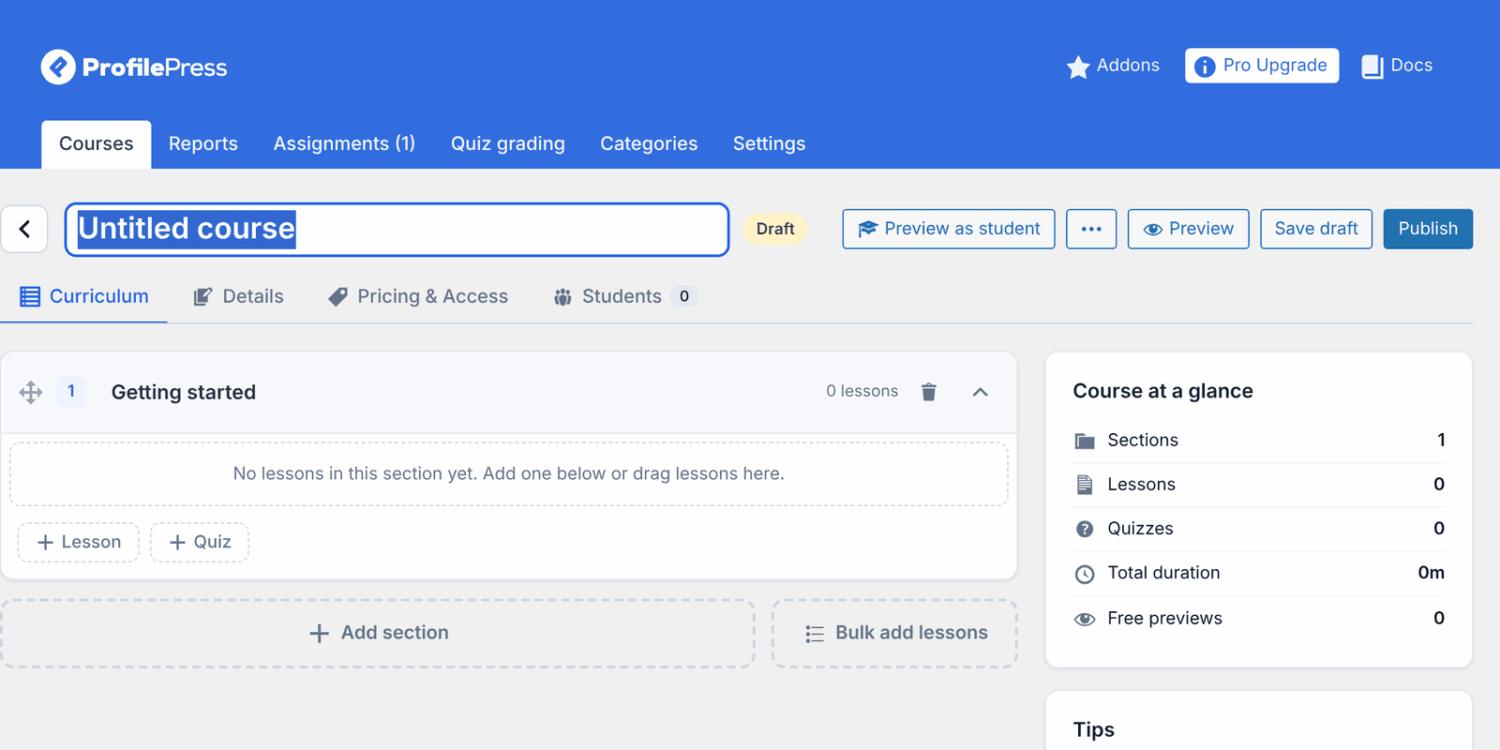
- A draft course opens in the course builder, with one empty section called “Getting started”.
- Click the title at the top (“Untitled course”) and type your course title.
The builder has four tabs: Curriculum, Details, Pricing & Access and Students. The arrow at the top left takes you back to all your courses.
How to add sections
Sections group your lessons into chapters, for example “Week 1” or “The basics”. Students see them in the course outline, with their progress in each section.
- On the Curriculum tab, click Add section below your sections.
- Type the section title in the field at the top of the new section.
- To reorder sections, drag the handle on the left of a section.
To delete a section, click its trash icon. Its lessons aren’t deleted: they move to the previous section. Click the arrow on the right of a section to collapse or expand it.
The curriculum saves automatically. You’ll see “All changes saved” in the top bar.
How to add lessons
- At the bottom of a section, click Lesson (or Quiz to add a quiz).
- Type the lesson title and press Enter. The field stays open, so you can type the next title straight away.
- Press Escape or click Cancel when you’re done.
- Click a lesson’s title to open the lesson editor and add its content.
New lessons are added as text lessons (or quizzes) with the status Published. They’re visible to students once the course is published. If the course is already live, set a lesson’s Status to Draft while you work on it.
Each lesson row has icons to edit, duplicate, view and delete the lesson. A duplicate is added below the original as a draft, with “(copy)” after its title. Deleting a lesson is permanent, and student progress for it is lost.
To learn about lesson types and settings, see Course lessons.
How to bulk add lessons
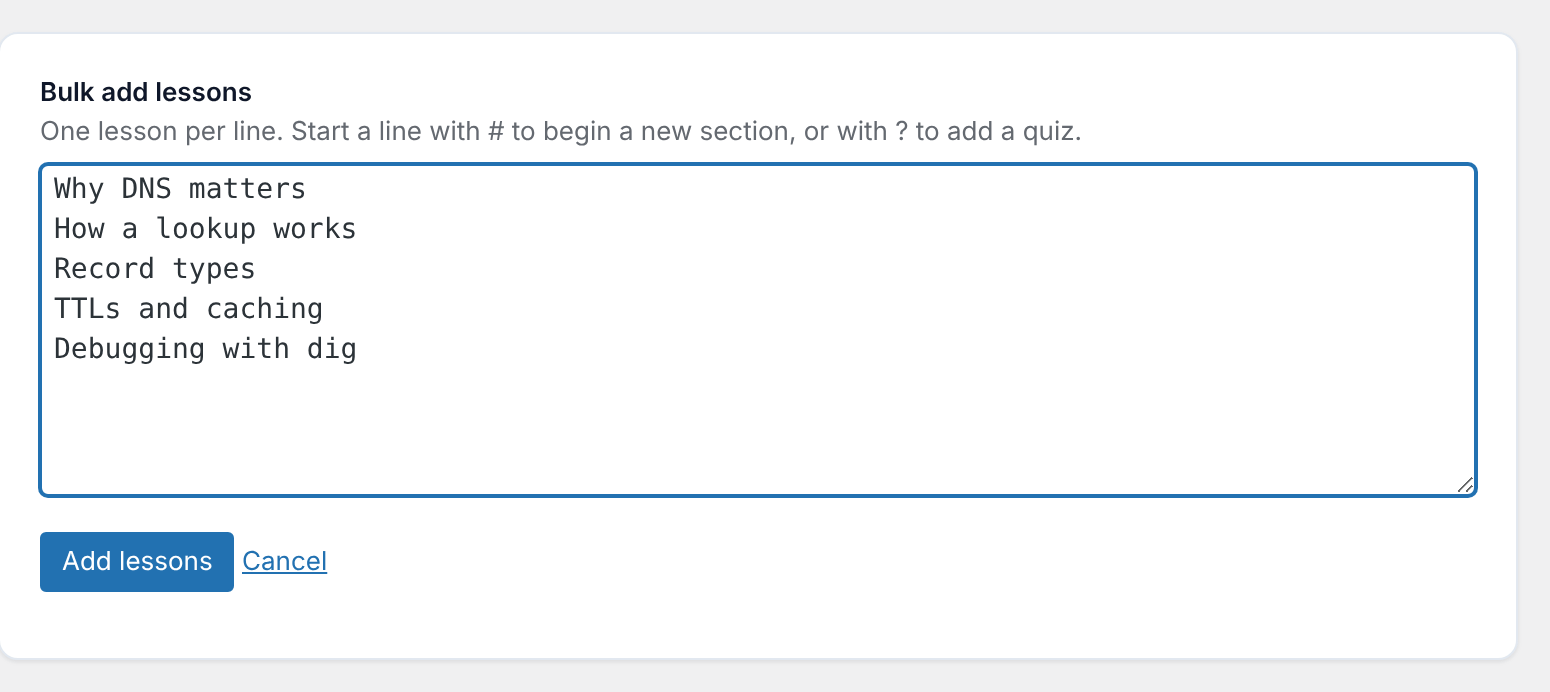
If you already have an outline, you can add all your sections and lessons at once.
- On the Curriculum tab, click Bulk add lessons.
- Enter one lesson title per line. Start a line with
#to begin a new section, or with?to add a quiz. - Click Add lessons.
For example:
# Getting started
Welcome to the course
Setting up
? Check your knowledge
Lessons listed before the first # line go into the last section of the course. You can add up to 200 lines at a time. Bulk-added lessons have no content yet, so open each one to fill it in.
How to reorder lessons
Drag a lesson by the handle on its left. You can drop it anywhere in the same section or in another section. The new order saves automatically and is the order students follow.
The Course at a glance card next to the curriculum shows the number of sections, lessons, quizzes and free previews, and the total duration.
How to fill in the course details
Open the Details tab. These fields control what visitors see on the course page and in your course catalog.
| Field | What it does |
|---|---|
| Subtitle | A one-line promise of what students will achieve, shown under the title. |
| Description | The full course description, shown under “About this course”. |
| What students will learn | One learning outcome per line, shown as a checklist under “What you’ll learn”. |
| Short description | Used on course cards in the catalog. |
| Course image | Click Upload image. The recommended size is 1280×720 pixels. |
| Promo video URL | A YouTube, Vimeo, Wistia or video file URL. It replaces the image on the course page. |
| Level | All levels, Beginner, Intermediate or Advanced. |
| URL slug | The last part of the course’s web address. |
| Categories | Shown once you’ve created a category on the Categories tab of ProfilePress » Courses. |
Changes on the Details and Pricing & Access tabs aren’t saved automatically. Click Save draft, Publish or, on a published course, Save.
How to choose who can take the course
On the Pricing & Access tab, under Who can take this course?, choose Paid, Free for members (anyone with an account) or Free & open. For a paid course, attach one or more plans. If you later switch a free course to Paid, students who already joined keep their access. See How to sell courses.
The same tab has Require lessons to be completed in order and the access rules. See Course access rules.
How to preview a course
- Preview opens the course page in a new tab. It works for drafts too.
- Preview as student shows the course the way an enrolled student sees it, with drip and order locks applied.
While you preview as a student, a bar at the bottom of the page says you’re previewing the course. Click Exit preview to go back. Progress and quiz attempts you make in the preview are removed when you exit (unless you were already enrolled in the course), and no course emails are sent. A preview ends on its own after 12 hours.
How to publish or unpublish a course
- Check that the course has at least one published lesson and, for a paid course, at least one plan.
- Click Publish in the top bar.
Once published, the buttons change to Unpublish and Save. Unpublish turns the course back into a draft, which hides it and its lessons from students. The status label next to the title shows Published, Draft or Pending review.
Instructors who can’t publish courses see Submit for review instead. See Course instructors.
Frequently asked questions
What happens to the lessons when I trash a course?
Move a course to the Trash from the course list (hover over it and click Trash). Its lessons go to the Trash with it. Click Restore in the Trash view to bring both back. The course returns as a draft, so publish it again.
Can I undo a permanent delete?
No. Delete Permanently removes the course, its lessons, and every student’s enrollment and progress in it. Export the course first if you might need it again.
My browser warned me about unsaved changes. What wasn’t saved?
The curriculum saves itself, but the course details, pricing and an open lesson don’t. Click Save draft, Save or Save lesson before you leave.
Can I use the block editor or classic editor for a lesson?
Yes, for its content. In the lesson editor, click Open in WordPress editor. The lesson’s other settings (type, duration, free preview, drip and files) stay in the course builder, and a notice on that screen links back to it.
Related articles
- Getting Started with ProfilePress Courses for WordPress
- Course Lessons in ProfilePress: Video, Text and Quizzes
- How to Add Quizzes to a WordPress Course with ProfilePress
- How to Duplicate, Export and Import Courses in ProfilePress
- How to Sell Courses in WordPress with ProfilePress
- How to Manage Course Students and Progress in ProfilePress