
Getting Started with ProfilePress Courses for WordPress
ProfilePress includes a course builder for creating online courses on your WordPress site. You can build courses with video lessons, text lessons, and quizzes, then give them away for free or sell them through membership plans.
This article explains where courses live, the main ideas behind them, and how to publish your first course in five steps.
Where to find courses
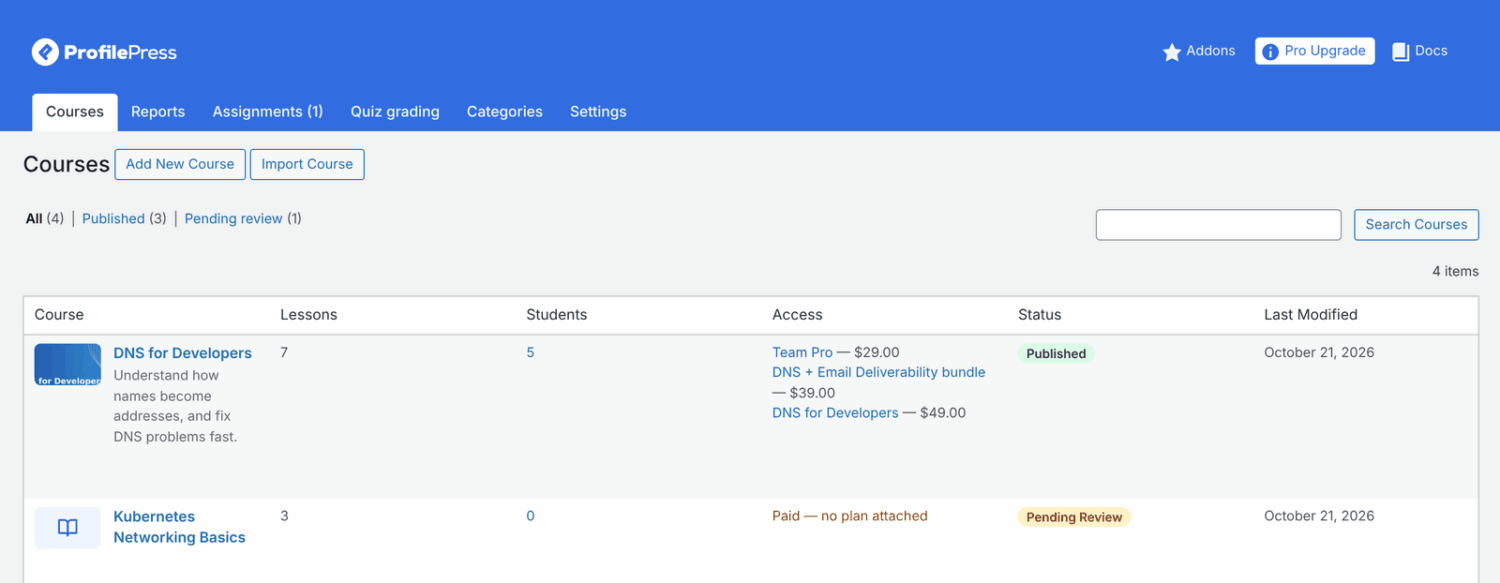
Courses are part of ProfilePress, so you don’t need to install or switch anything extra. In your WordPress dashboard, go to ProfilePress » Courses. You’ll find it in the ProfilePress menu, just below Customers.
The Courses screen has these tabs:
- Courses: all your courses, with their lessons, students, access type, status and last modified date.
- Reports: progress and quiz results for each course and student.
- Categories: the categories you use to group courses in your course catalog.
- Settings: site-wide course settings, such as focus mode, accent color, and URL slugs.
With the Advanced Courses addon, you’ll also see tabs for grading assignments and written quiz answers.
The main ideas
- Course: the thing students enroll in. It has a course page with a description, an image or promo video, and an enroll button.
- Section: a group of lessons inside a course, such as “Week 1” or “The basics”. Students see sections as chapters in the course outline.
- Lesson: one step of the course. A lesson can be a video, text or a quiz.
- Access type: who can take the course. Choose Paid, Free for members or Free & open.
- Plan: a ProfilePress membership plan. For a paid course, students get access by buying a plan attached to the course. One plan can unlock several courses.
How to create your first course
- Go to ProfilePress » Courses and click Add New Course. A draft course opens in the course builder, with one section called “Getting started”.
- Click the title at the top (“Untitled course”) and type your course title.
- On the Curriculum tab, click Lesson at the bottom of the section, type a lesson title, and press Enter. Click the lesson to add its content, then click Save lesson.
- Open the Pricing & Access tab and choose who can take the course. For a paid course, tick a plan under Plans that unlock this course. Or click Create a plan for this course.
- Click Publish in the top bar.
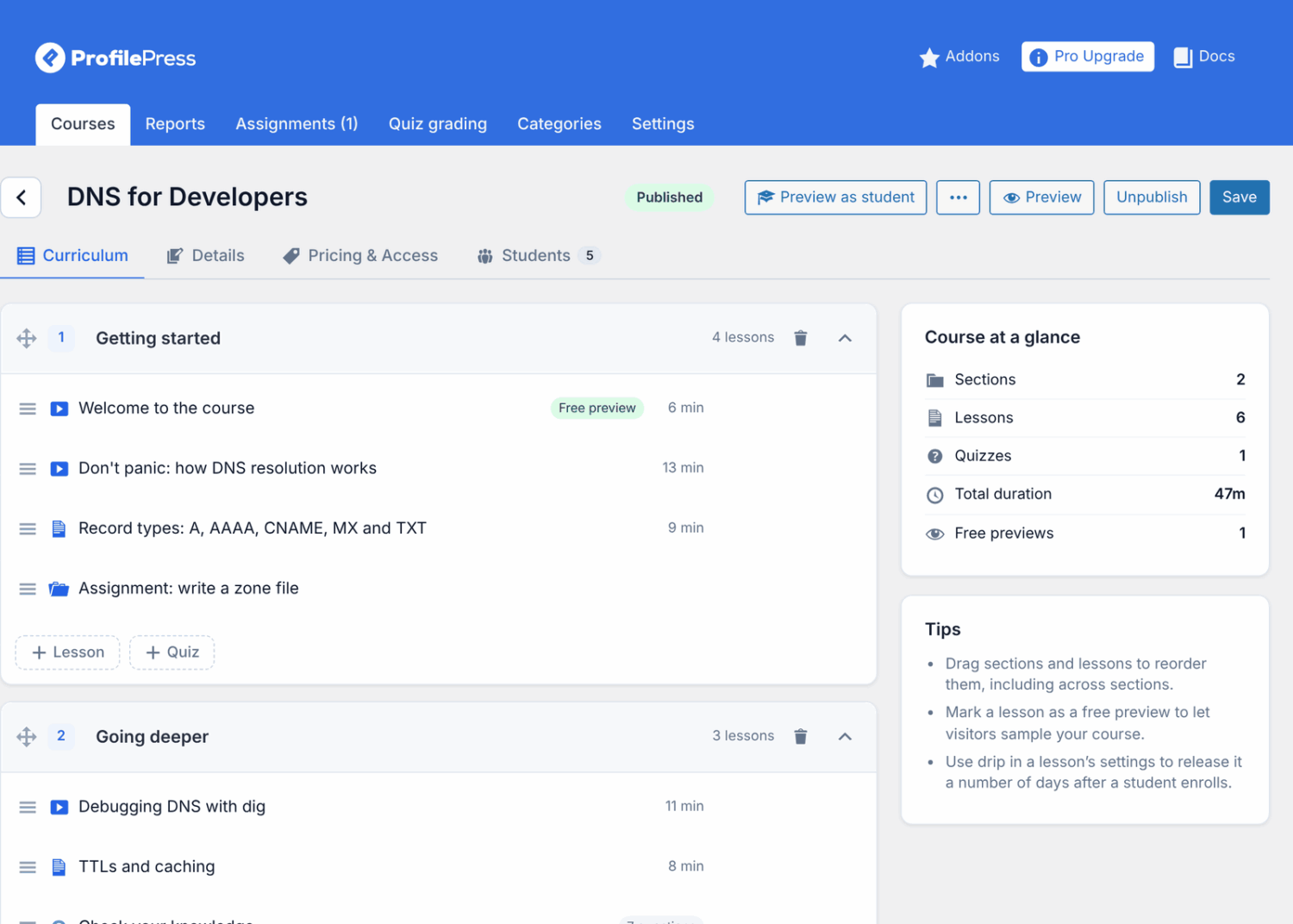
For every option in the builder, see How to create a course in the course builder.
Where students take your courses
Each course has its own page. By default, course pages are at yoursite.com/courses/course-name/ and lessons at yoursite.com/lessons/lesson-name/. You can change both in the course settings.
The course page shows the course details, the course outline, and an enroll card. The button on the card changes with the student’s situation, for example Enroll now, Start course, Continue course or Review course.
Lessons open in focus mode by default. This is a distraction-free page with the course outline in a sidebar and the student’s progress at the top. Students move through the course with the Previous, Complete & continue and Next buttons.
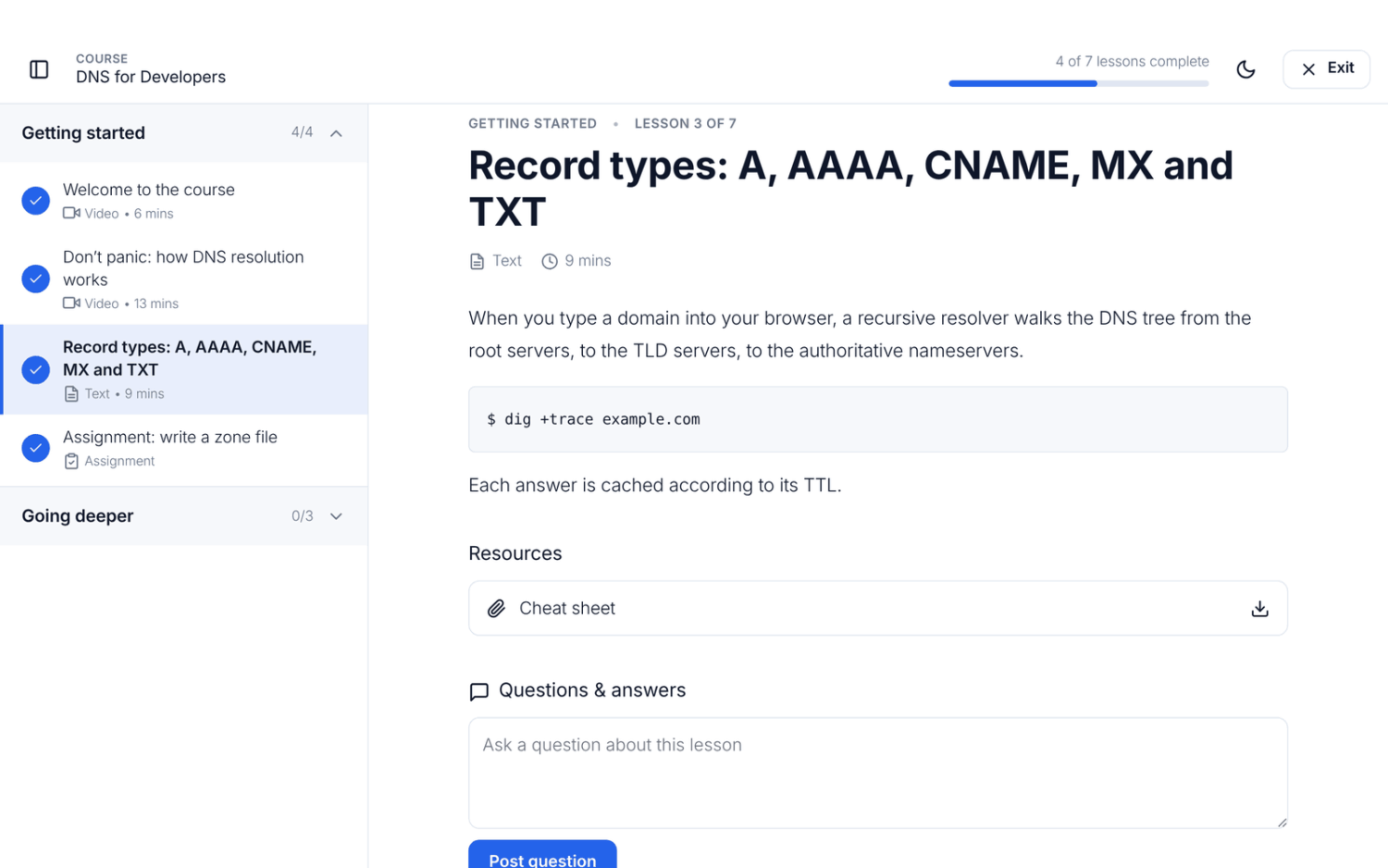
To list your courses on a page, or show students the courses they’re enrolled in, use the course catalog and My Courses pages. See Course pages, shortcodes and blocks.
How students pick up where they left off
ProfilePress remembers each student’s progress. When a student comes back, the Continue course button on the course page takes them to the first lesson they haven’t completed.
Video lessons on YouTube, Vimeo or your own site also resume from where the student stopped watching. A quiz they started but didn’t submit shows a Resume quiz button.
Frequently asked questions
Do I need ProfilePress Pro to create courses?
No. Courses, lessons, quizzes, certificates and selling through plans are included in ProfilePress. The Advanced Courses addon adds extras such as instructors, assignments and written-answer quiz questions.
I don’t use courses. Can I turn them off?
Yes. Go to ProfilePress » Settings » General » Courses, tick Turn Off Courses and save. The My Courses account tab only appears once you’ve published a course, so sites without courses don’t show it anyway. See Course settings.
I already use LearnDash, Tutor LMS or another course plugin. Will ProfilePress courses clash with it?
No. When another course plugin is active, ProfilePress uses /pp-courses/ and /pp-lessons/ addresses so your existing course pages keep working. If you don’t plan to use ProfilePress courses, turn them off as described above.
Can I import my courses from LearnDash, Tutor LMS or another course plugin?
Not automatically. The course export and import tool moves courses between ProfilePress sites only. To move a course from another plugin, create it in the course builder and use Bulk add lessons to add its outline in one go, then paste in each lesson’s content. See Duplicating, exporting and importing courses.
Why can’t anyone enroll in my new course?
New courses start with the Paid access type and no plan. The course list shows “Paid — no plan attached” for such courses, and the course page shows Enrollment closed. Attach a plan, or choose a free access type, on the Pricing & Access tab.
Why does my course page say “Coming soon”?
The course has no published lessons that students can see yet. Check that your lessons are set to Published and that any quizzes have at least one question.
Why do I see every lesson unlocked when my students don’t?
Administrators and a course’s instructors see every lesson unlocked. To check drip and order rules, use Preview as student in the course builder.
Related articles
- How to Create a Course in WordPress with ProfilePress
- Course Lessons in ProfilePress: Video, Text and Quizzes
- How to Add Quizzes to a WordPress Course with ProfilePress
- How to Sell Courses in WordPress with ProfilePress
- Course Access Rules: Prerequisites, Drip and Start Dates
- ProfilePress Course Settings: A Complete Reference
- How to Duplicate, Export and Import Courses in ProfilePress