
Course Reports: Track Student Progress and Quiz Results
Course reports show how your courses are doing: how many students you have, who is active, who finishes and how they score on quizzes. Use them to spot the lesson where students give up, check on one student, or export a course’s students to a spreadsheet.
How to open the reports
- Go to ProfilePress » Courses.
- Click the Reports tab at the top of the screen.
Site managers see every course. Instructors see reports only for the courses they can edit.
The Course Reports overview
The overview opens first. At the top are three totals for all your courses:
- Students: the number of different students, with the total number of enrollments below it. A student in three courses counts once as a student and three times as an enrollment.
- Active in the last 30 days: students who opened a lesson in the past 30 days.
- Course completions: how many enrollments ended in a completed course, and their share of all enrollments.
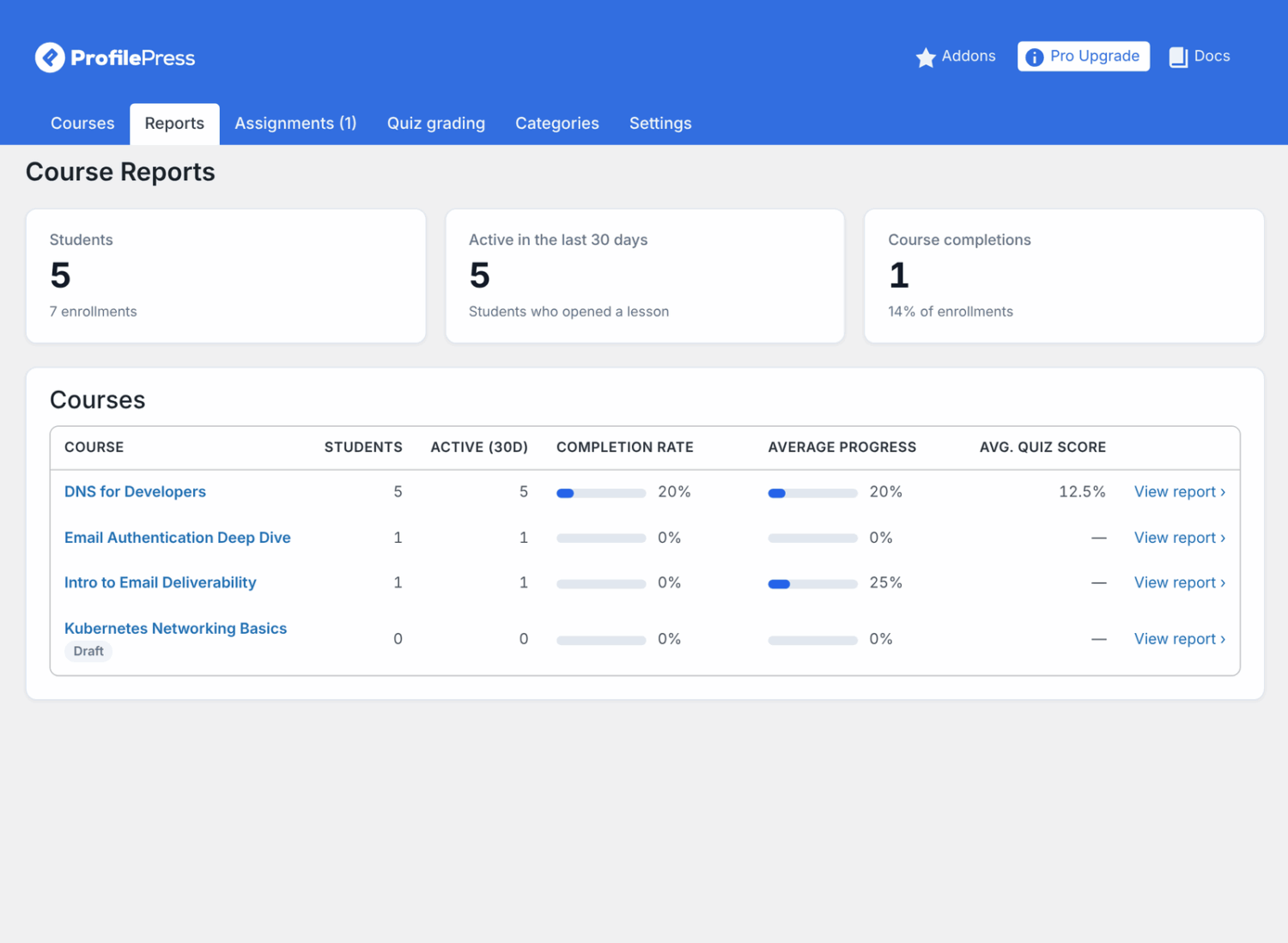
Below is the Courses table, with the courses that have the most students first. Draft courses are marked Draft.
| Column | What it shows |
|---|---|
| Students | Students enrolled in the course. |
| Active (30d) | Students who were active in the course in the past 30 days. |
| Completion rate | The share of enrolled students who completed the course. |
| Average progress | How far through the course students are on average. |
| Avg. quiz score | The average score across the course’s quizzes. |
Click View report next to a course to open its report.
The course report
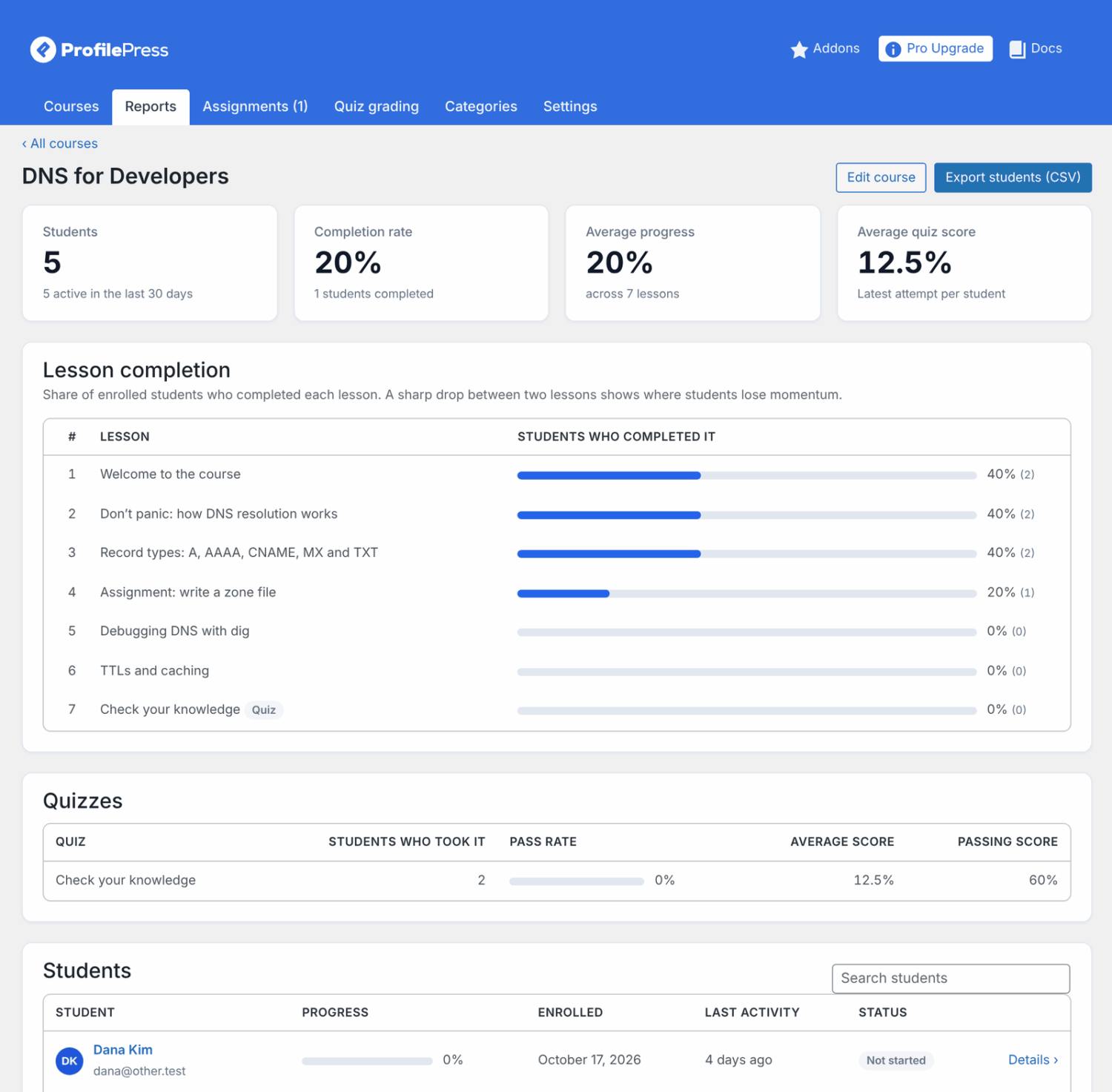
A course report starts with four totals: Students, Completion rate, Average progress and Average quiz score. Students also shows how many were active in the last 30 days. The quiz score uses each student’s latest attempt.
Use Edit course to go to the course builder, or All courses to go back to the overview.
Lesson completion (where students drop off)
The Lesson completion section lists every published lesson in order, with the share of enrolled students who completed it. A sharp drop between two lessons shows where students lose momentum.
When you see a big drop, look at the lesson just before it. It may be too long, unclear, or a quiz that is too hard. Splitting it up or adding a short video often helps.
Quizzes
The Quizzes table lists each quiz in the course with:
- Students who took it: students who have submitted it at least once.
- Pass rate: how many of them passed.
- Average score: their average score.
- Passing score: the pass mark you set for the quiz.
A low pass rate with a high passing score can mean the pass mark is set too high. To change it, see Course quizzes.
Students
The Students table lists everyone enrolled in the course, 50 per page, with their Progress, Enrolled date, Last activity and Status:
- Completed: they finished every lesson.
- In progress: they completed at least one lesson.
- Not started: they haven’t completed a lesson yet.
Type a name or email in Search students to find someone. Click Details to open that student’s report.
The student report
A student report shows one student’s progress in one course. It lists every lesson, section by section, with:
- Type: the kind of lesson, such as a video or a quiz.
- Status: Completed, Passed or Not passed (for quizzes), or Not started.
- Quiz score: the student’s score on a quiz.
- Date: when they completed or last submitted it.
The top of the report shows when they enrolled and when they were last active. Click Edit user to open their WordPress profile.
You can also open a student report from the Progress link on the course builder’s Students tab. See Managing course students.
How to export students to CSV
- Open the course report from ProfilePress » Courses » Reports.
- Click Export students (CSV).
- Open the downloaded file in Excel, Google Sheets or Numbers.
The file has one row per enrolled student with these columns: Name, Email, Enrolled, Source, Last activity, Lessons completed, Progress (%) and Completed on. Each quiz gets its own score column, named after the quiz.
Frequently asked questions
Why are the dates in the CSV different from the screen?
Dates in the CSV are in UTC, not your site’s time zone. The reports on screen use your site’s date settings.
What do “plan”, “manual” and “free” mean in the CSV Source column?
They match the Source column on the Students tab. plan is a purchase and manual means you enrolled the student. free means they started a free or members-only course.
Why did a student disappear from the report?
Reports only include students who are enrolled. If you remove a student from the course, or their data is erased, they no longer appear.
Why don’t my own test runs show up?
When you use Preview as student, the progress it creates is removed when the preview ends. See Managing course students.
Can I reset a student’s quiz attempts from the report?
No. Reports are read-only. See Course quizzes for what you can do instead.
Can instructors export students?
Yes, for the courses they can edit. They see the same reports and export button, limited to their own courses.