
How to Add Quizzes to a WordPress Course with ProfilePress
A quiz is a lesson that checks what students learned. Students answer the questions on the lesson page, the quiz is graded straight away, and a passing score completes the lesson.
How to add a quiz
- Go to ProfilePress » Courses and open your course.
- On the Curriculum tab, click Quiz at the bottom of the section where the quiz belongs.
- Type the quiz title and press Enter.
- Click the quiz’s title to open the lesson editor.
- Add your questions and choose the settings, as described below.
- Click Save lesson.
You can also turn an existing lesson into a quiz: open it and click Quiz at the top of the lesson editor. With Bulk add lessons, start a line with ? to add it as a quiz.
Use the Instructions (optional) box at the bottom of the quiz editor to tell students what the quiz covers. It’s shown above the quiz.
How to add questions
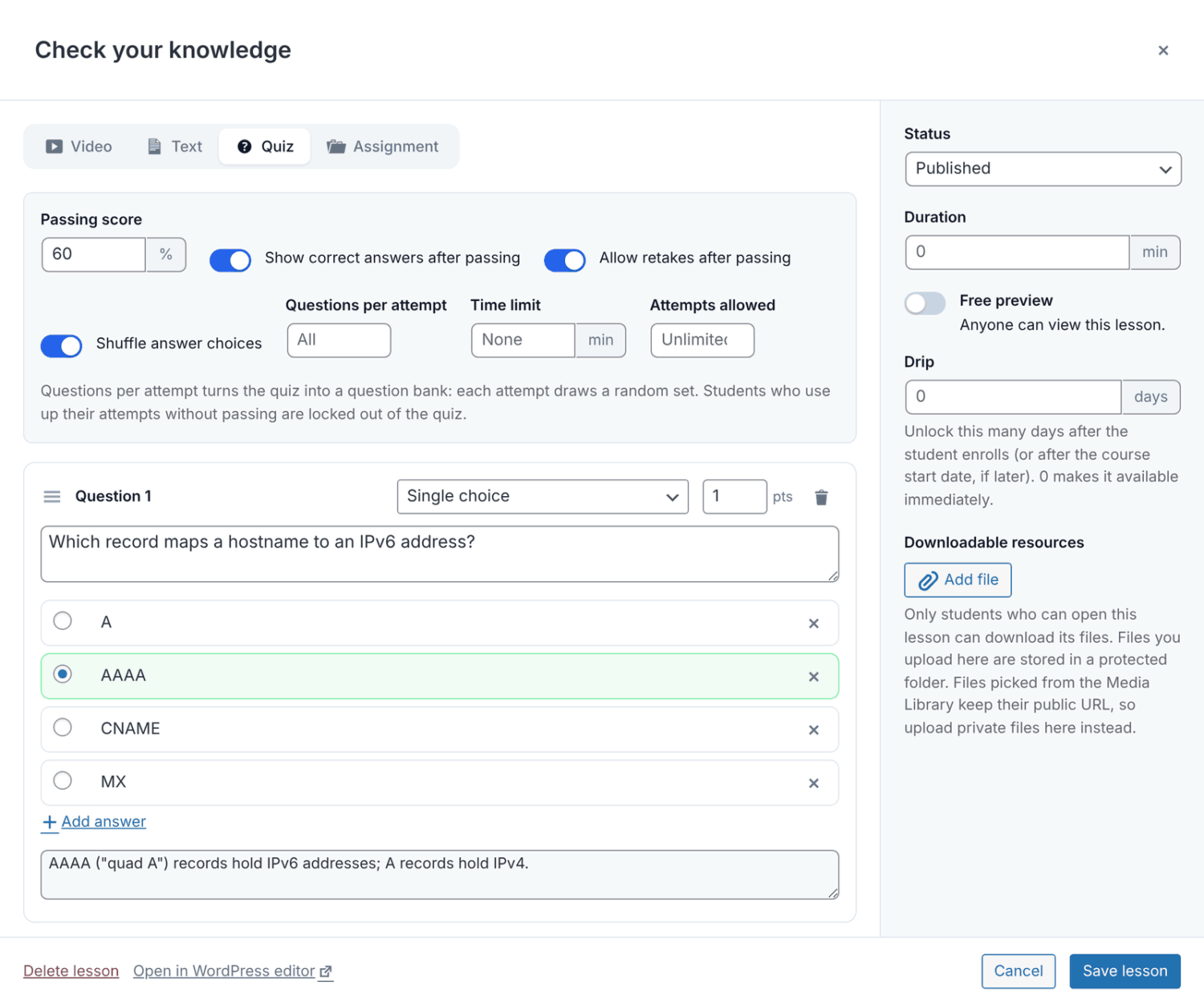
- In the quiz editor, click Add question.
- Choose the question type from the drop-down next to the question number.
- Type the question in the Type your question box.
- Add the answers. Each type works a little differently (see the table below).
- Optionally, set the points in the pts box (1 to 100; the default is 1).
- Optionally, add an explanation under the answers.
Drag questions by their handle to reorder them. Click a question’s trash icon to remove it.
When you click Save lesson, the builder checks each question. It tells you which one needs fixing, for example “Question 3: mark at least one correct answer.” Questions with an empty question box are left out when you save.
Question types
| Type | How you set it up | How it’s graded |
|---|---|---|
| Single choice | Add options with Add answer and mark the correct one with Mark as correct. | Correct when the student picks the correct option. |
| Multiple choice | Add options and mark every correct one. | Correct only when the student picks all the correct options and nothing else. There’s no partial credit. |
| True / False | Choose whether True or False is correct. | Correct when the student picks the right one. |
| Fill in the blank | Add each answer you accept with Add accepted answer. | Correct when the typed answer matches one you accept. Capitalization and extra spaces are ignored. |
| Matching | Add at least two pairs with Add pair: an item and its matching answer. | Students see the answers shuffled. Correct only when every pair is matched. |
| Ordering | Add at least two items with Add item, in the correct order. | Students see the items shuffled. Correct only when the whole order is right. |
How the score works
Each question is worth its points. The score is the share of points the student earned, as a percentage.
For example, a student who only gets the 2-point question right in a 1, 1 and 2-point quiz scores 50%.
Quiz settings
| Setting | What it does |
|---|---|
| Passing score | The percentage needed to pass (0–100). New quizzes start at 70%. |
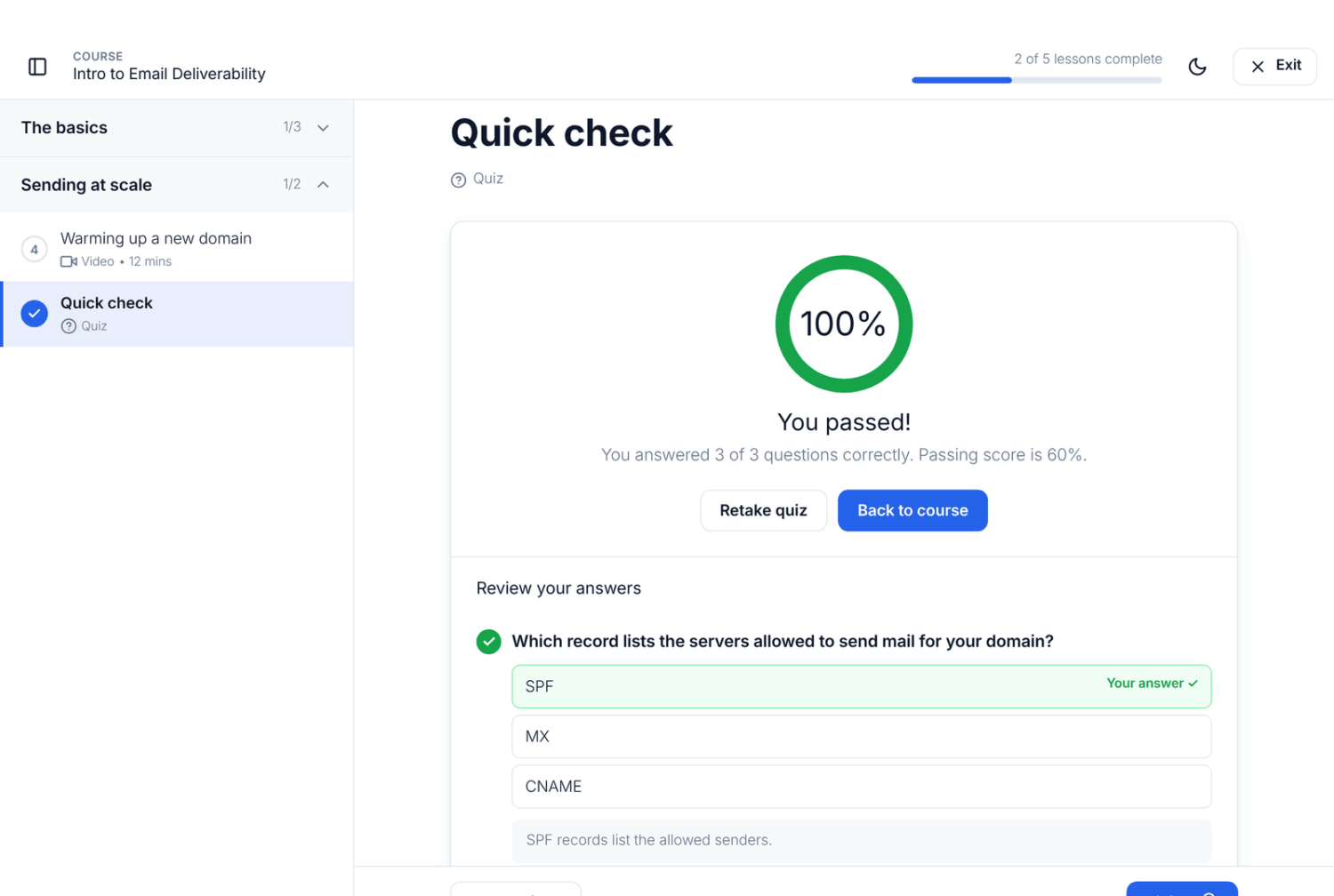
| Show correct answers after passing | After a pass, students can review each question with their answer, the correct answer and your explanation. On by default. |
| Allow retakes after passing | Lets students take the quiz again after passing. When it’s off, a passed quiz can’t be retaken. On by default. |
| Shuffle answer choices | Shows single and multiple choice options in a random order for each attempt. |
| Questions per attempt | Draws this many random questions for each attempt. Leave it empty (All) to use every question. |
| Time limit | Minutes allowed for an attempt, up to 600. Leave it empty (None) for no limit. |
| Attempts allowed | How many times a student can take the quiz. Leave it empty (Unlimited) for no limit. |
How to use a question bank
A question bank is a quiz with more questions than each student answers. Each attempt draws a different random set.
- Add every question you want in the pool, for example 40.
- Set Questions per attempt to the number each student answers, for example 10.
- Click Save lesson.
The questions are picked when the student starts an attempt, and reloading the page doesn’t change them.
What students see
- The quiz intro shows the number of questions, the passing score, any time limit and attempts left, and their last score. The button reads Start quiz, Resume quiz or Retake quiz.
- One question at a time, with “Question 1 of 10” and Previous and Next buttons. A countdown shows when there’s a time limit.
- Submit quiz on the last question.
- The result: “You passed!” or “Not quite there yet”, with how many questions they got right and the passing score.
After a pass, students can click Review your answers when Show correct answers after passing is on. Visitors who aren’t signed in see Sign in to take the quiz.
Time limits and attempts
- The countdown keeps running if the student leaves the page. Resume quiz continues the same attempt with the time left.
- When time runs out, the quiz submits itself: “Time is up. Your answers were submitted automatically.”
- An attempt counts when it’s submitted, or when a timed attempt runs out.
- When a student has used every attempt without passing, they see “You have used all your attempts for this quiz.”
- Retaking a passed quiz never undoes the pass. The best score is kept.
Written-answer questions
With ProfilePress Pro and the Advanced Courses addon, you can add a Written answer (graded by hand) question. Students answer in their own words and you grade the answer. See Written-answer quiz questions.
Quiz results
To see how students did, go to ProfilePress » Courses, open the Reports tab and choose the course. The Quizzes table shows each quiz’s pass rate and average score. See Course reports.
Frequently asked questions
Why don’t students see my quiz?
A quiz with no questions is hidden from students. The curriculum marks it “No questions — hidden from students”. Add a question and save the lesson.
Why can’t a student see which answers they got wrong?
Per-question results only appear after a pass, so students can’t work out the answers by resubmitting. Your explanations only appear in that review too.
How do I give a student another attempt?
There’s no reset button. Raise Attempts allowed, or clear it for unlimited attempts. This applies to every student taking the quiz.
Do failed quizzes count toward course progress?
No. A quiz counts as complete only when it’s passed. When Require lessons to be completed in order is on, students must pass each quiz before the next lesson opens.
How do I test a quiz without using up attempts?
Attempt limits apply to you too. Click Preview as student in the builder. Attempts you make there are removed when you exit the preview, unless you were already enrolled in the course.