
Course Reviews and Lesson Q&A in ProfilePress Courses
Course reviews let enrolled students rate a course from 1 to 5 stars and say what they thought. Ratings show on the course page and course cards, which helps new visitors choose a course.
Lesson Q&A adds a questions and answers section under each lesson. Students ask about the lesson, and you or other students answer. Both are built on WordPress comments, so you moderate them on the familiar Comments screen.
How course reviews work
- Any enrolled student of a published course can leave a review, whether or not they’ve finished it. The review form is in the Student reviews section at the bottom of the course page, under the course content.
- Each student has one review. They can come back and change their rating or text with Update review.
- The written part is optional. A star rating on its own is fine.
- The average rating and number of reviews show on the course page and on course cards in the catalog.
- The course page has a Student reviews section with the average, a breakdown by stars and the latest reviews, 10 per page.
- The course catalog gets a Top rated sort option.
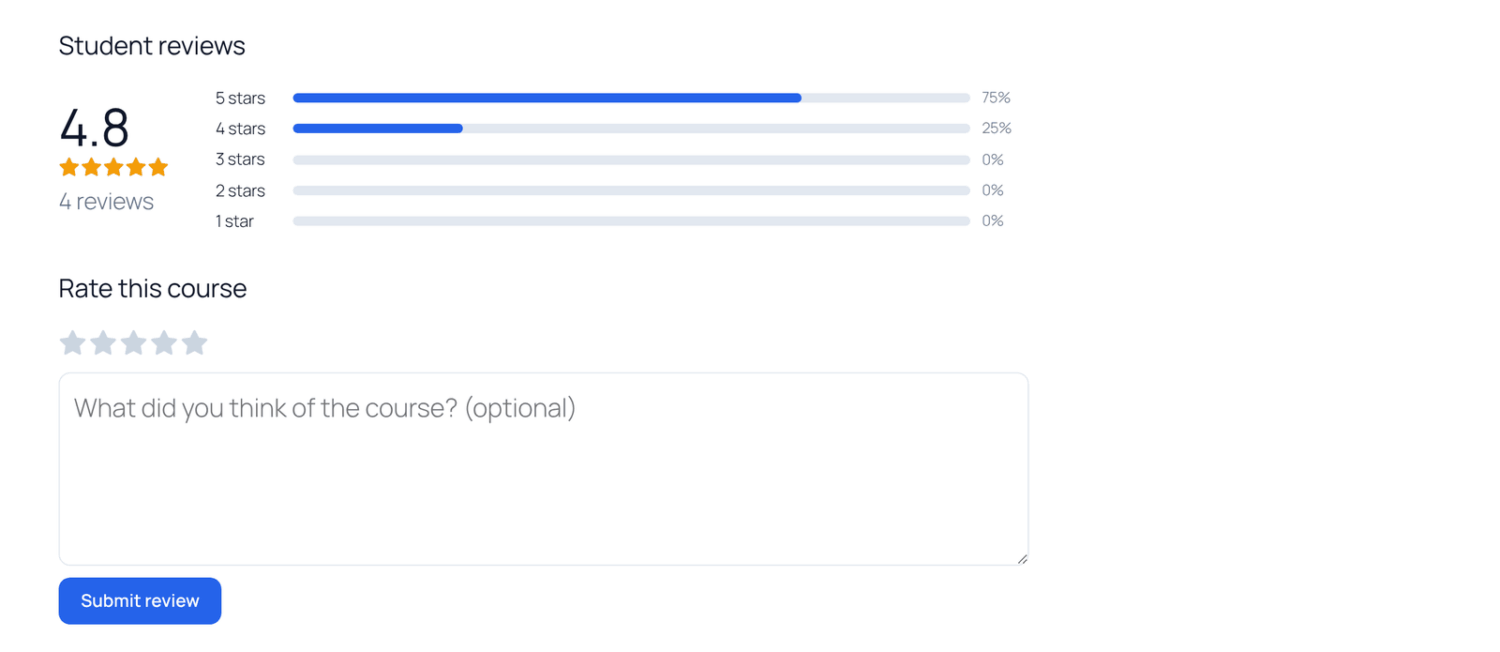
Admins and the course’s instructors can’t review a course they manage, so they don’t see the form. Instead, the Student reviews section tells them that enrolled students review the course there. Users who can moderate comments, such as administrators, also get a Moderate reviews link to the course’s reviews under Comments. To see the form as a student does, sign in with a student account that’s enrolled in the course.
How to turn course reviews on or off
Reviews are on by default for every course.
- Go to ProfilePress » Courses and click the Settings tab.
- Under the Reviews heading, check or uncheck Enable next to Course Reviews.
- Save your changes.
Turning reviews off hides the reviews section, the star ratings and the Top rated sort. Existing reviews are kept and come back if you turn reviews on again.
How to moderate reviews
Reviews are published straight away. A review that contains one of the words in Disallowed Comment Keys under Settings » Discussion is held for moderation instead.
- Go to Comments in your WordPress dashboard.
- In the comment type dropdown above the list, choose Course reviews and click Filter.
- Hover over a review to Approve, Unapprove, Edit, mark it as Spam or move it to Trash.
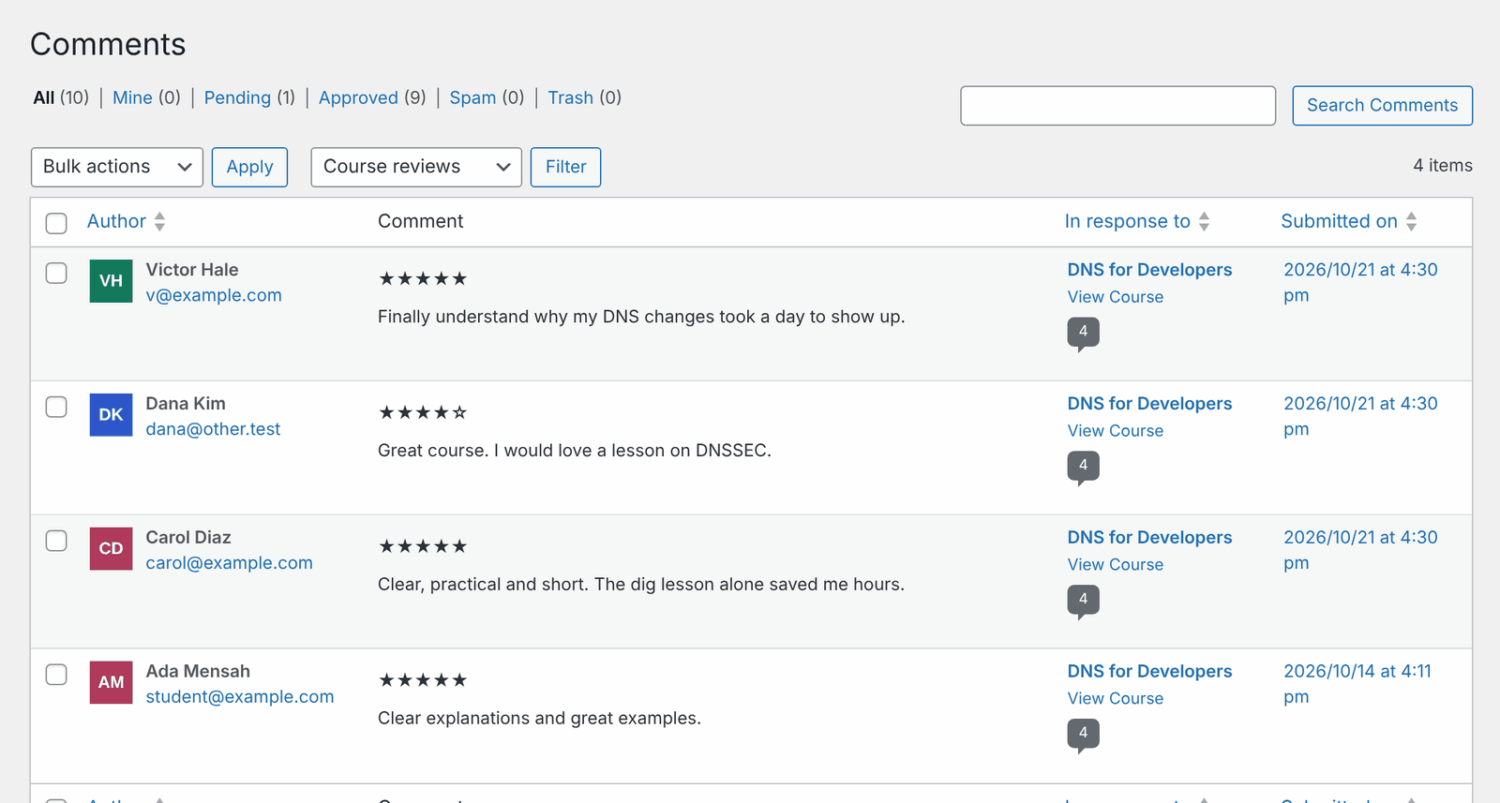
Each review shows its star rating above the text. Only approved reviews count toward the course’s average rating.
A review you mark as spam or move to the trash can’t be posted again by that student. If you change your mind, restore it, or delete it permanently so the student can write a new one.
How to turn on lesson Q&A
Q&A is off by default. You turn it on for each course.
- Go to ProfilePress » Courses and open the course in the builder.
- Click the Pricing & Access tab.
- Under Learning experience, turn on Lesson Q&A.
- Save the course.
A Questions & answers section now appears under every lesson in the course.
How lesson Q&A works for students
- Only signed-in students who can open the lesson can read or post. This applies even on free courses and free preview lessons.
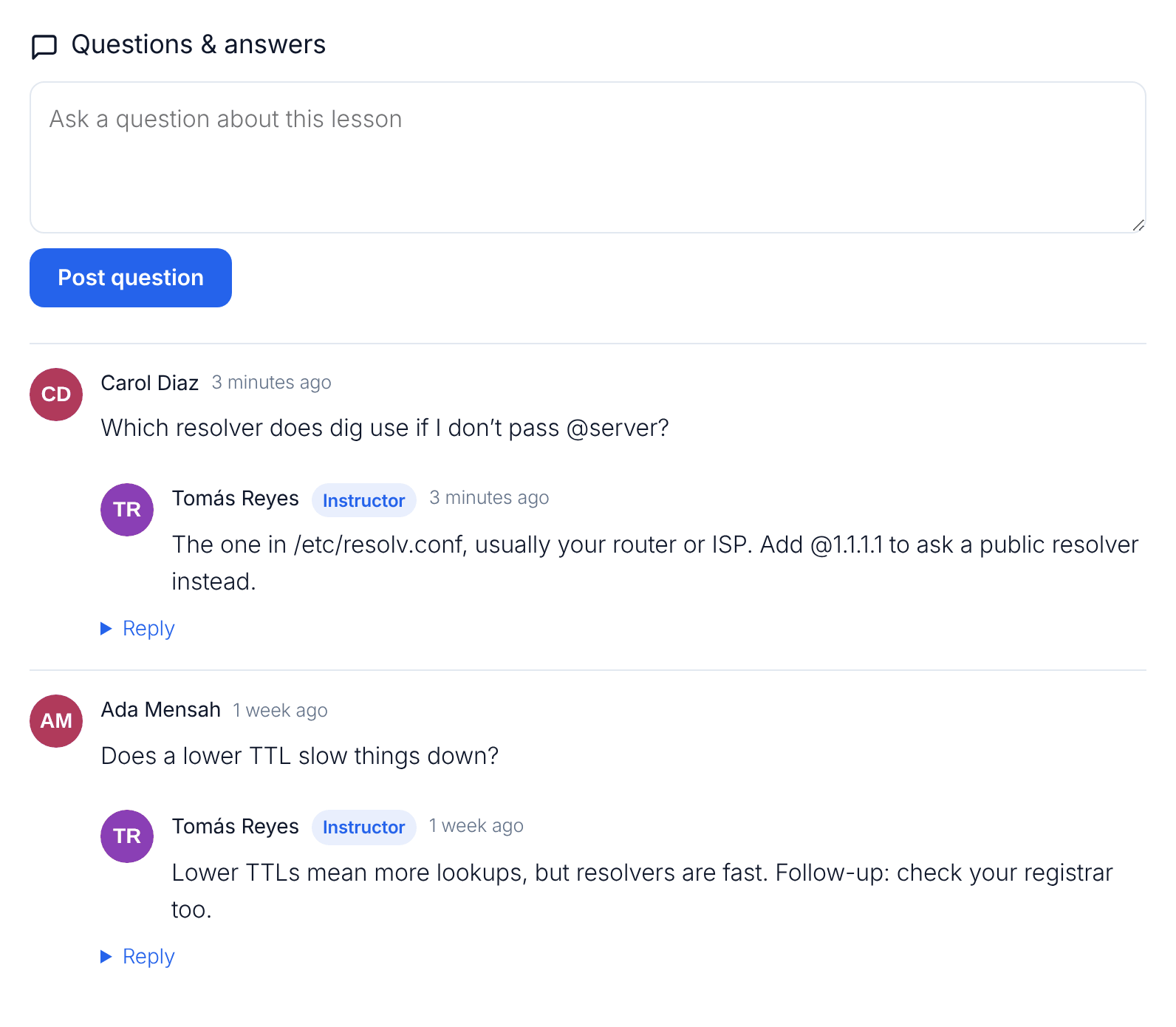
- Students type in Ask a question about this lesson and click Post question.
- To answer, anyone who can post clicks Reply under a question and then Post answer.
- Answers from the course’s instructors are marked Instructor.
- A question waiting for moderation is visible only to the student who asked it, marked Awaiting approval.
How to answer and moderate questions
Your usual WordPress comment moderation applies to questions and answers. For example, if Comment must be manually approved is checked under Settings » Discussion, every question waits for your approval.
Answers from the course’s instructors skip moderation, unless they’re caught as spam.
You can answer and moderate questions in three places:
- On the lesson page itself, with Reply.
- On the WordPress Comments screen. Questions show as regular comments, and the In response to column names the lesson. You can approve, reply, edit, mark as spam or trash them there.
- In the Q&A section of the front-end instructor dashboard, which lists questions from all of an instructor’s lessons (Advanced Courses addon). See Course instructors.
Q&A email notifications
- The course’s instructors are emailed about each new question, with a View the conversation link.
- A student is emailed when someone else answers their question.
- Questions and answers held for moderation are emailed once you approve them.
A course’s instructors are the person who created it plus any co-instructors. These emails aren’t listed on the Emails screen, and their text can’t be changed there. See Course emails.
Frequently asked questions
Reviews are turned on, but I can’t find where to leave one. Why?
You’re probably signed in as an admin or an instructor of the course, who can’t review it. The form shows only to enrolled students, at the bottom of the course page. Sign in as an enrolled student to see it.
Which name shows on a review or question?
The student’s display name, which they can change in their profile. WordPress sets a new user’s display name to their username, so while it still is, the student’s first name and last initial show instead (for example, “Ada L.”), or their username if their profile has no name.
Why can’t a student leave a review?
They must be signed in and enrolled, and the course must be published. Students you removed from a course can’t post or update a review. If they see “Your review couldn’t be saved. Choose a rating and try again.” after choosing a rating, their earlier review was marked as spam or moved to the trash.
A student’s review doesn’t show on the course page. Why?
It was probably held because it contained a disallowed word, or you unapproved it. Find it on the Comments screen and approve it. If the student edits a held review, it stays held until you approve it.
Can I reply to a review?
Replies aren’t shown on the course page. To respond to a student, contact them directly.
Why doesn’t my answer have the Instructor badge?
The badge is only for the course’s instructors. A site administrator who didn’t create the course and isn’t a co-instructor answers without it.
The Questions & answers section doesn’t appear. What’s wrong?
Check that Lesson Q&A is turned on for the course and that you’re signed in as someone who can open the lesson. The section is part of the focus mode lesson view. With Focus Mode turned off in the course settings, lessons show your theme’s own comment area instead.
What happens to questions if I turn Q&A off?
The section disappears from the lessons, but the questions stay on the Comments screen. They appear again if you turn Q&A back on.
Are reviews and questions included in a privacy export or erase?
They are WordPress comments, so WordPress’s own personal data tools handle them, not the course data tools. See Managing course students.