
ProfilePress Update 4.18.0 – Course Builder, Advanced Courses, Team Memberships & More
We are excited to announce the release of ProfilePress 4.18.0, featuring ProfilePress Courses, a complete course builder built right into ProfilePress. You can now create online courses, sell them with your membership plans, and manage your students from one plugin, without installing a separate LMS plugin.
Until now, selling courses with ProfilePress meant pairing it with an LMS plugin like LearnDash, Tutor LMS, or Sensei LMS.
Those integrations aren’t going anywhere, but you no longer need them. ProfilePress includes courses, lessons, quizzes, certificates, and selling through plans, so you don’t need to install or enable anything extra.
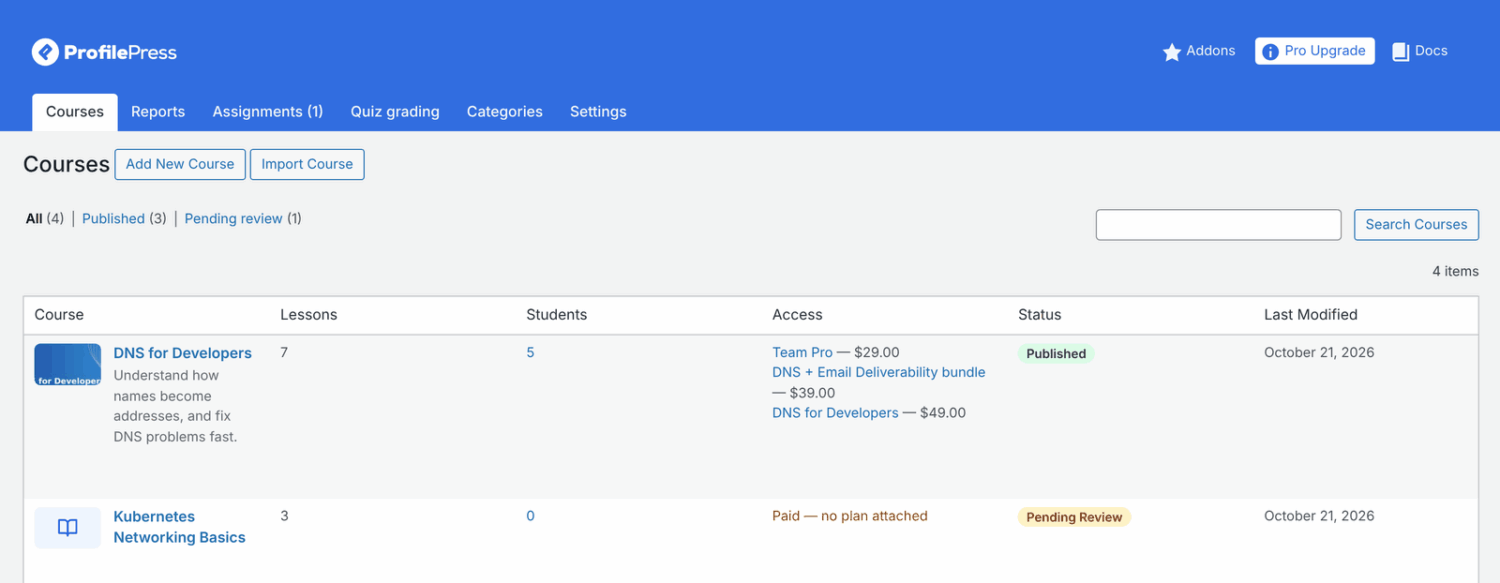
Here’s everything new.
New features
Course builder
Go to ProfilePress » Courses and click Add New Course to open the course builder. Organize your course into sections like “Week 1” or “The basics”, add lessons to each one, and drag them into the order you want. The curriculum saves automatically as you work.
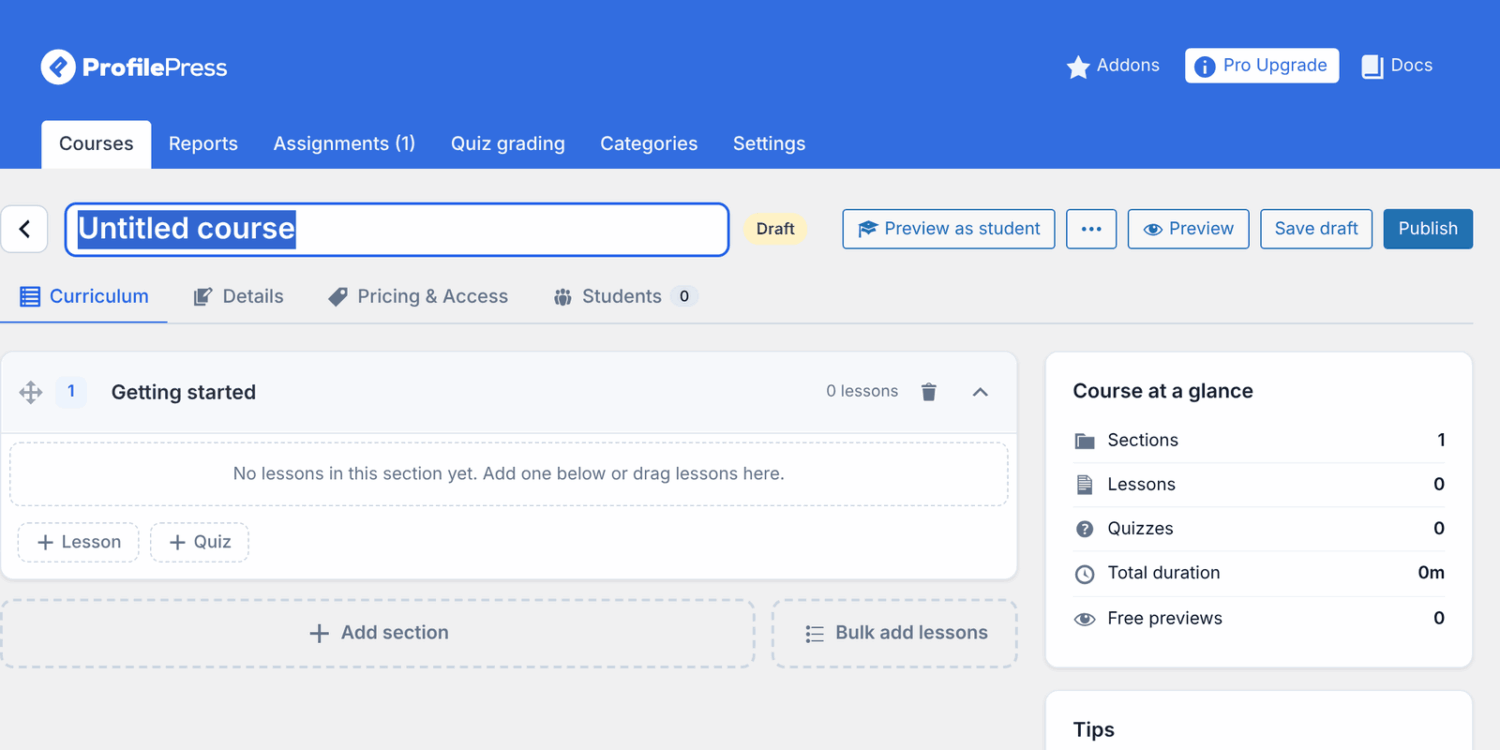
Already have your course outline? Click Bulk add lessons and paste it in, one lesson per line, to build the whole curriculum in seconds. You can also duplicate courses and export and import them between ProfilePress sites.
Learn more: How to Create a Course in WordPress with ProfilePress.
Video, text and quiz lessons
Each lesson can be a video, written content, or a quiz. Video lessons work with YouTube, Vimeo, Wistia, Loom, Bunny Stream, and your Media Library, and they resume where the student left off. You can also attach downloadable files and offer visitors free preview lessons.
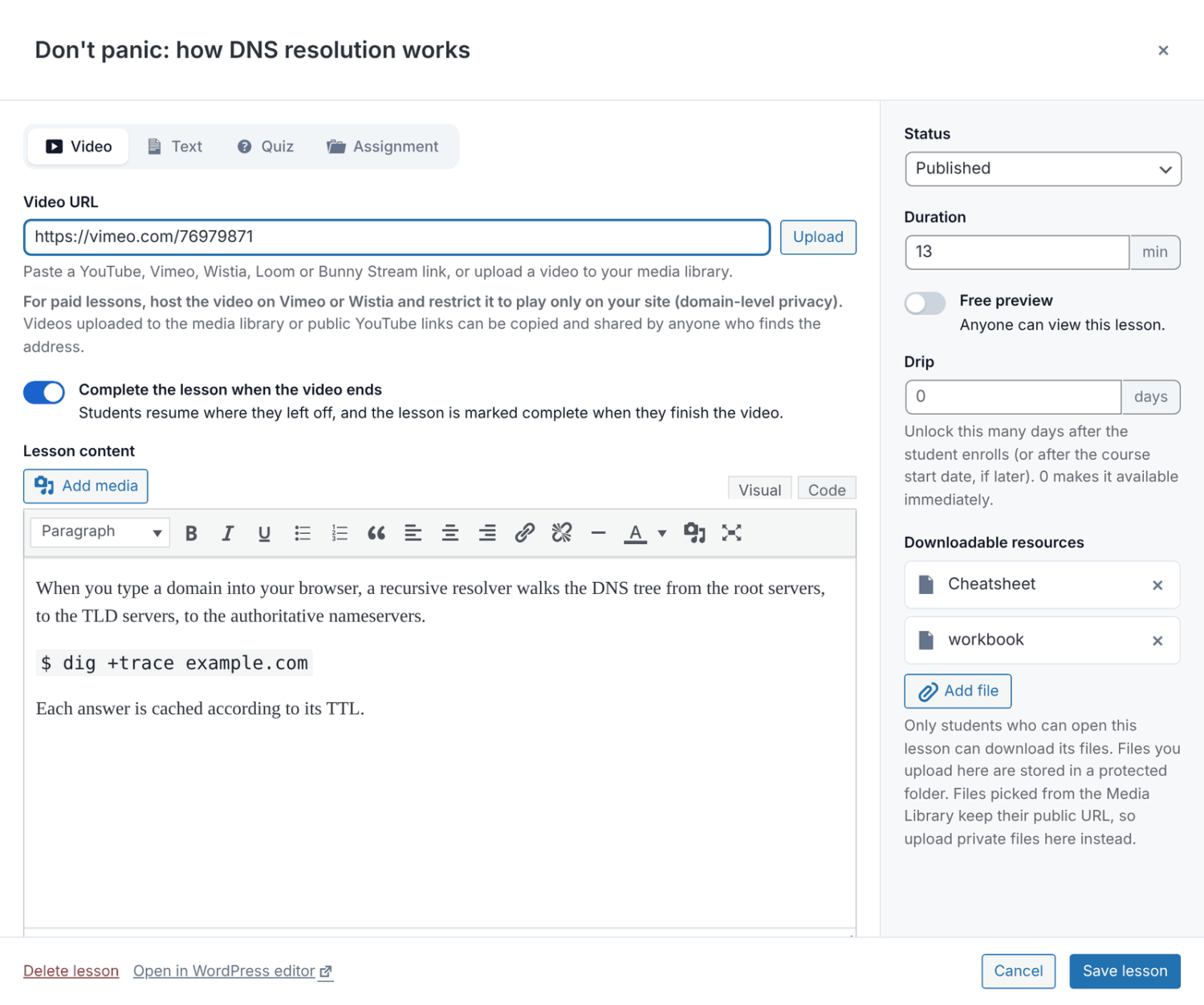
Quizzes support single choice, multiple-choice, true/false, and fill-in-the-blank questions, with a question bank, and they’re graded straight away. See Course Lessons and How to Add Quizzes to a WordPress Course.
Focus mode for students
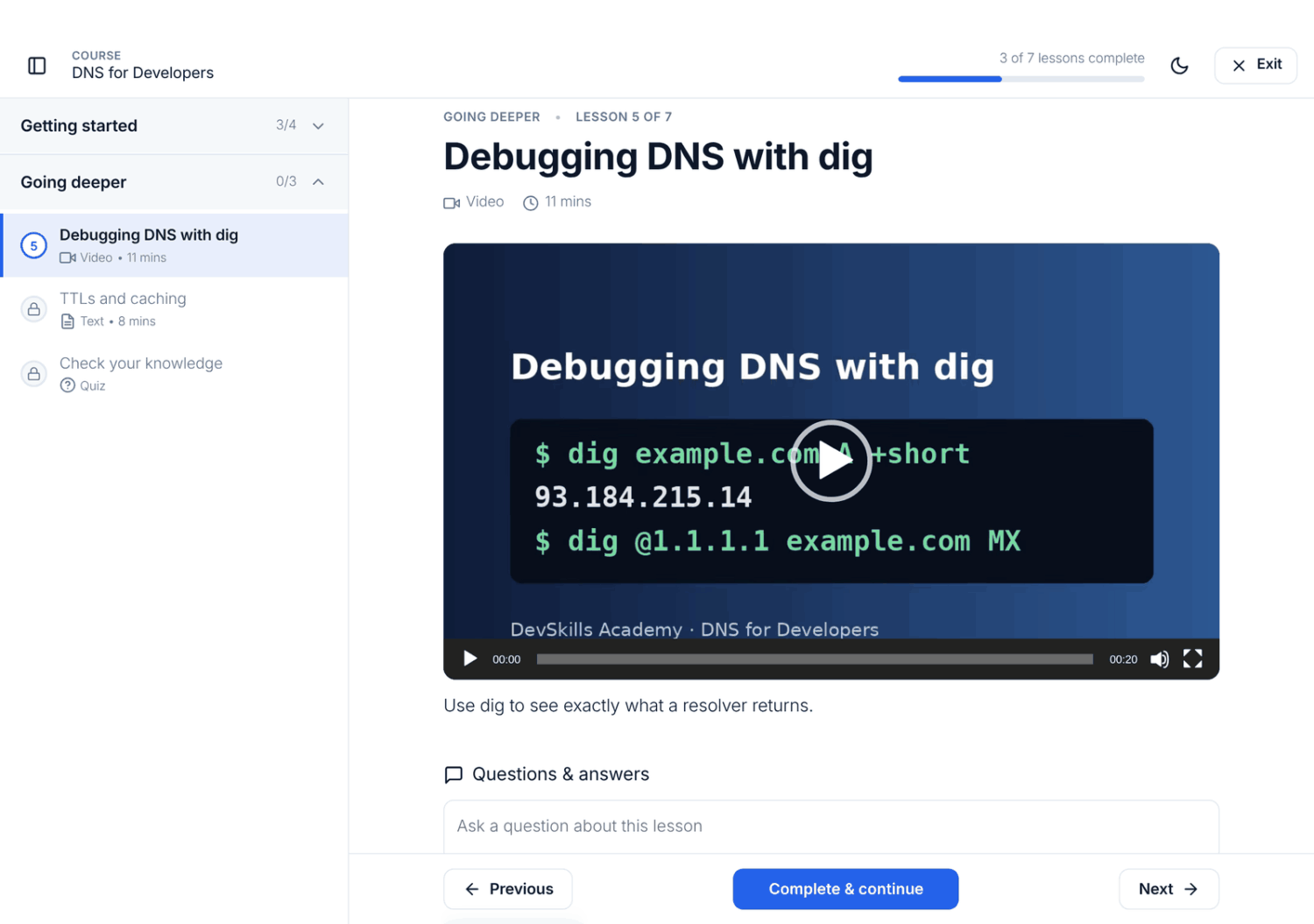
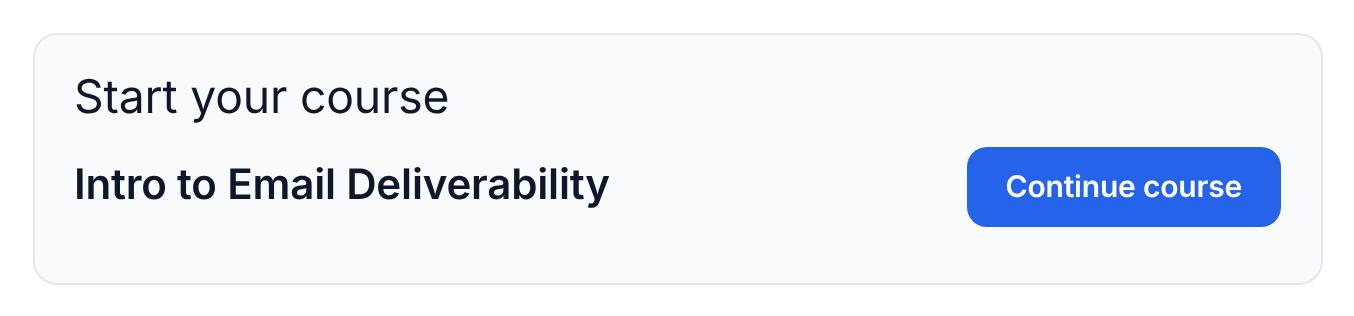
Lessons open in focus mode, a distraction-free page with the course outline in a sidebar and the student’s progress at the top. ProfilePress remembers where every student left off, so the Continue course button always takes them straight to their next lesson.
Sell courses with your membership plans
Every course has three access types: Paid, Free for members, and Free & open. For a paid course, tick the membership plans that unlock it, or create a new plan right from the course builder. One-time payments, subscriptions, free trials, and coupons work the same way as they do for your other plans.
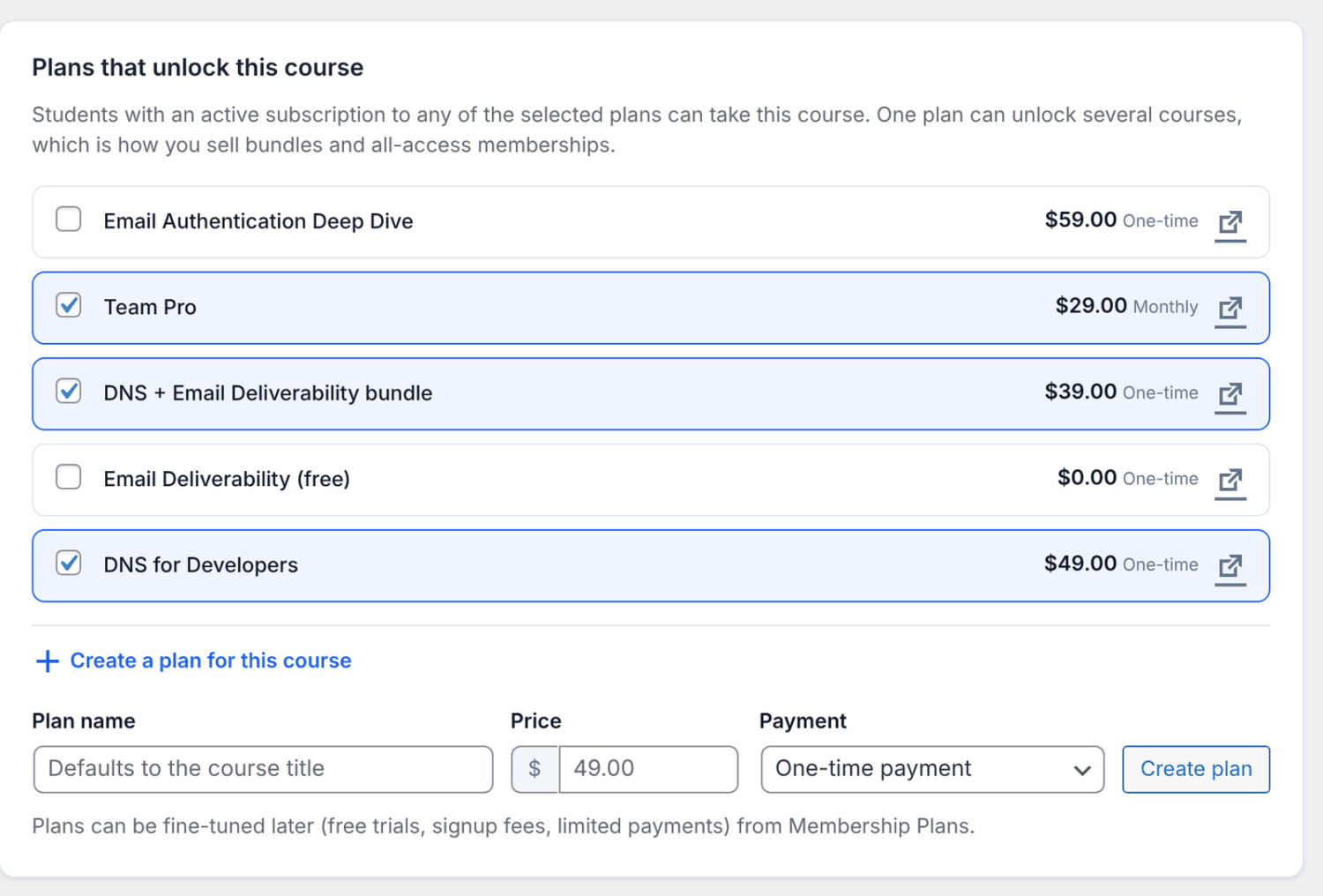
Students are enrolled as soon as their order completes, and after checkout they see a Start course button on the payment success page. When a subscription is canceled, or an order is refunded, access ends automatically. Read: How to Sell Courses in WordPress with ProfilePress.
Course bundles and all-access memberships
Attach one plan to several courses to create a bundle. Attach it to every course to create an all-access membership. Add a bundle page with the Course Bundle block to show the bundle price, how much students save, and the courses included. See How to Sell Course Bundles.
Drip, prerequisites and start dates
Control when students can open each lesson. Drip lessons a set number of days after enrollment, require students to complete another course first, require lessons in order, limit how long access lasts, or run your course as a cohort with a start date. See Course Access Rules.
You can also use content protection rules to give a course’s students, or those who completed it, access to bonus pages, posts,s and downloads. See How to Use Content Protection with Your WordPress Courses.
Certificates of completion
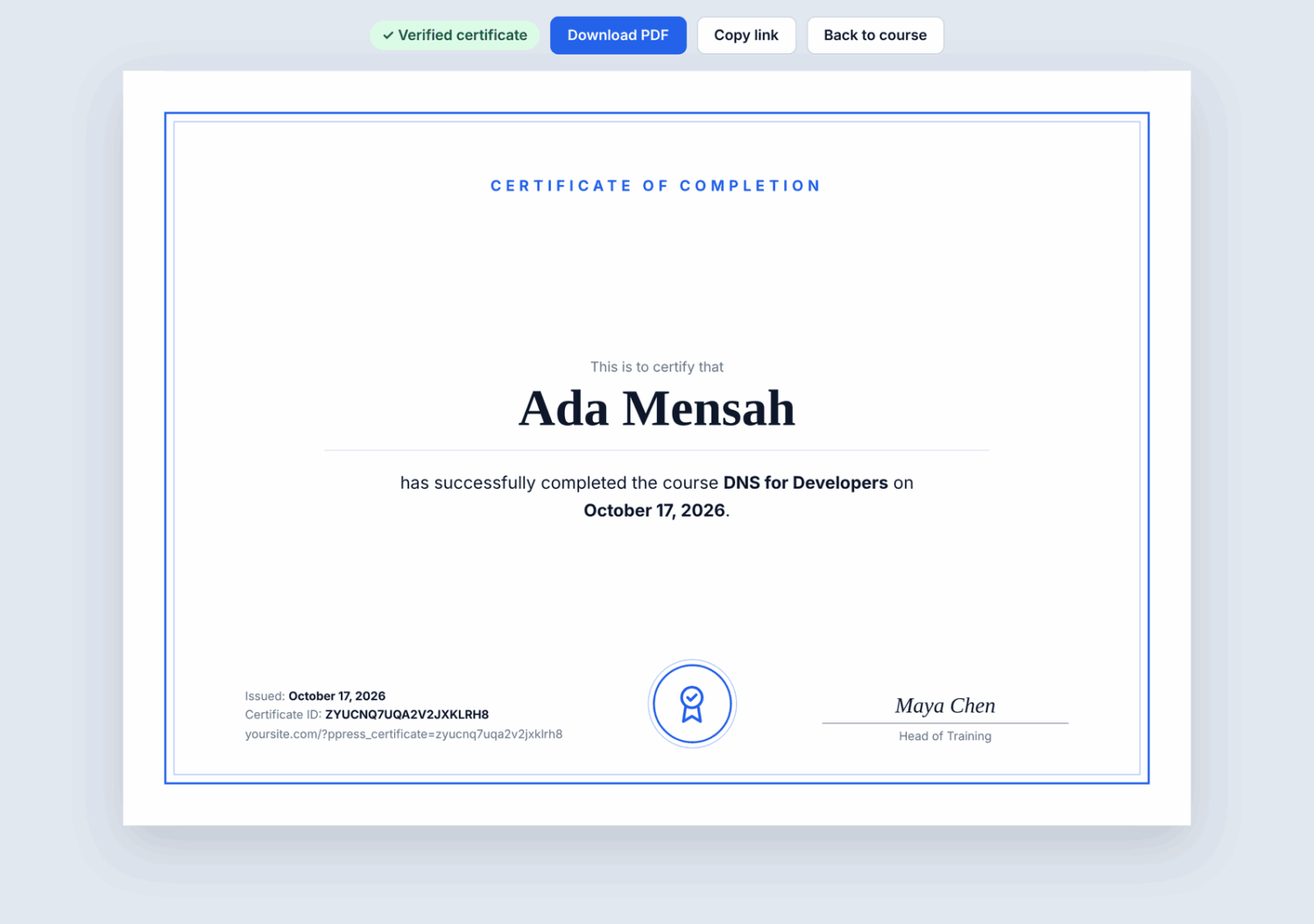
Students get a certificate when they complete a course. Each certificate is a page on your site that students can print, save as a P, DF or share, and the same link lets an employer verify it’s genuine. Customize the heading, text, signature, and logo under the course settings. See How to Award Course Certificates of Completion.
Course emails
Four new emails keep students engaged: Course Enrollment, Lesson Unlocked, Course Completed, and an optional Inactive Student Reminder for students who haven’t been back in a while. Find them under ProfilePress » Settings » Emails » Courses. See Course Emails.
Course reviews and lesson Q&A
Students can rate and review your courses, and ask questions on each lesson, with your answers marked as from the instructor. See Course Reviews and Lesson Q&A.
Course catalog, My Courses, blocks and shortcodes
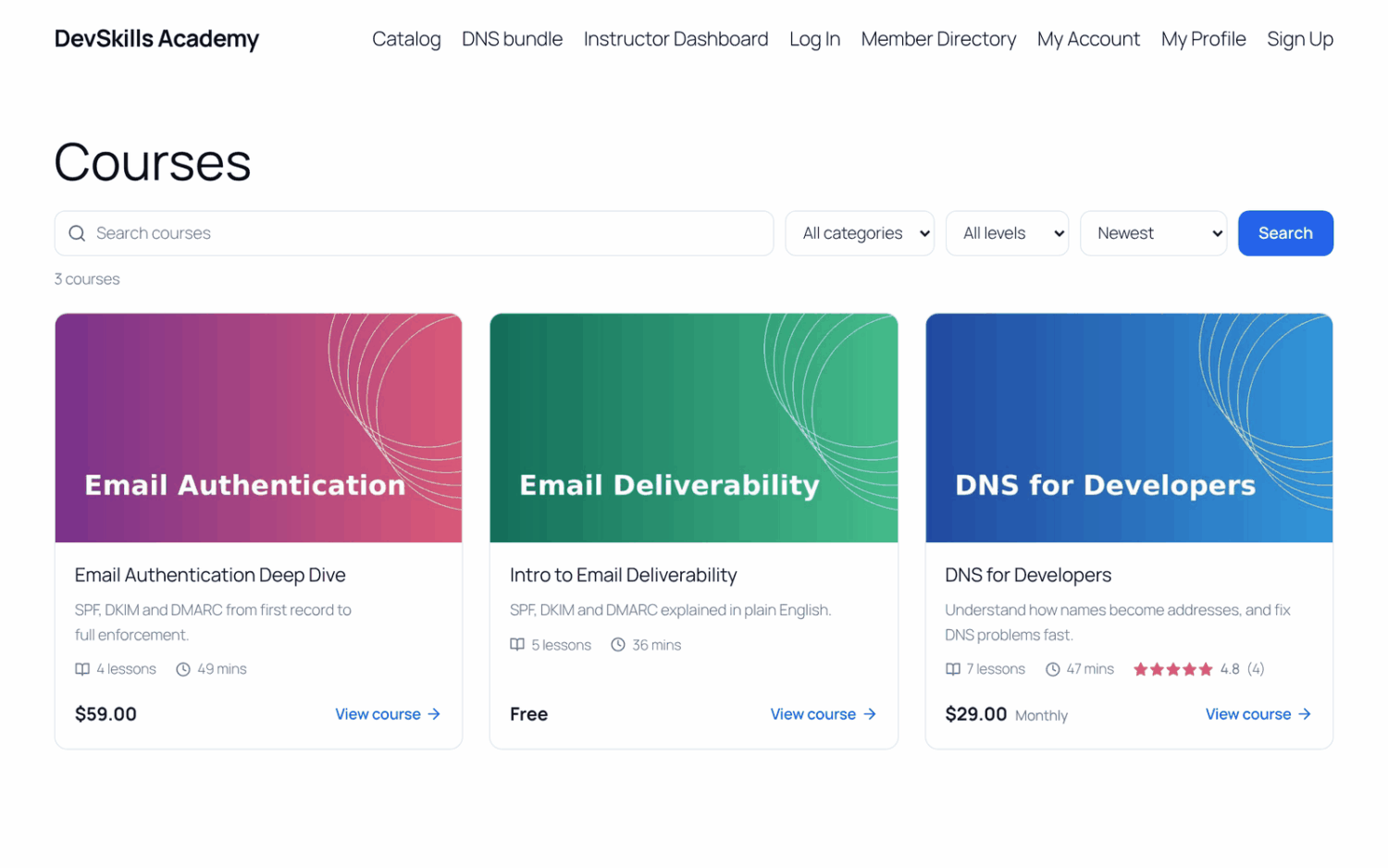
Your courses get a catalog page at yoursite.com/courses/ with search and filters, and students get a My Courses tab in My Account. Place the catalog, enroll cards, progress, and more anywhere with shortcodes, Gutenberg blocks,s or Elementor widgets. See Course Catalog, My Courses, Shortcodes and Blocks Guide and Course Settings.
Students, progress and reports
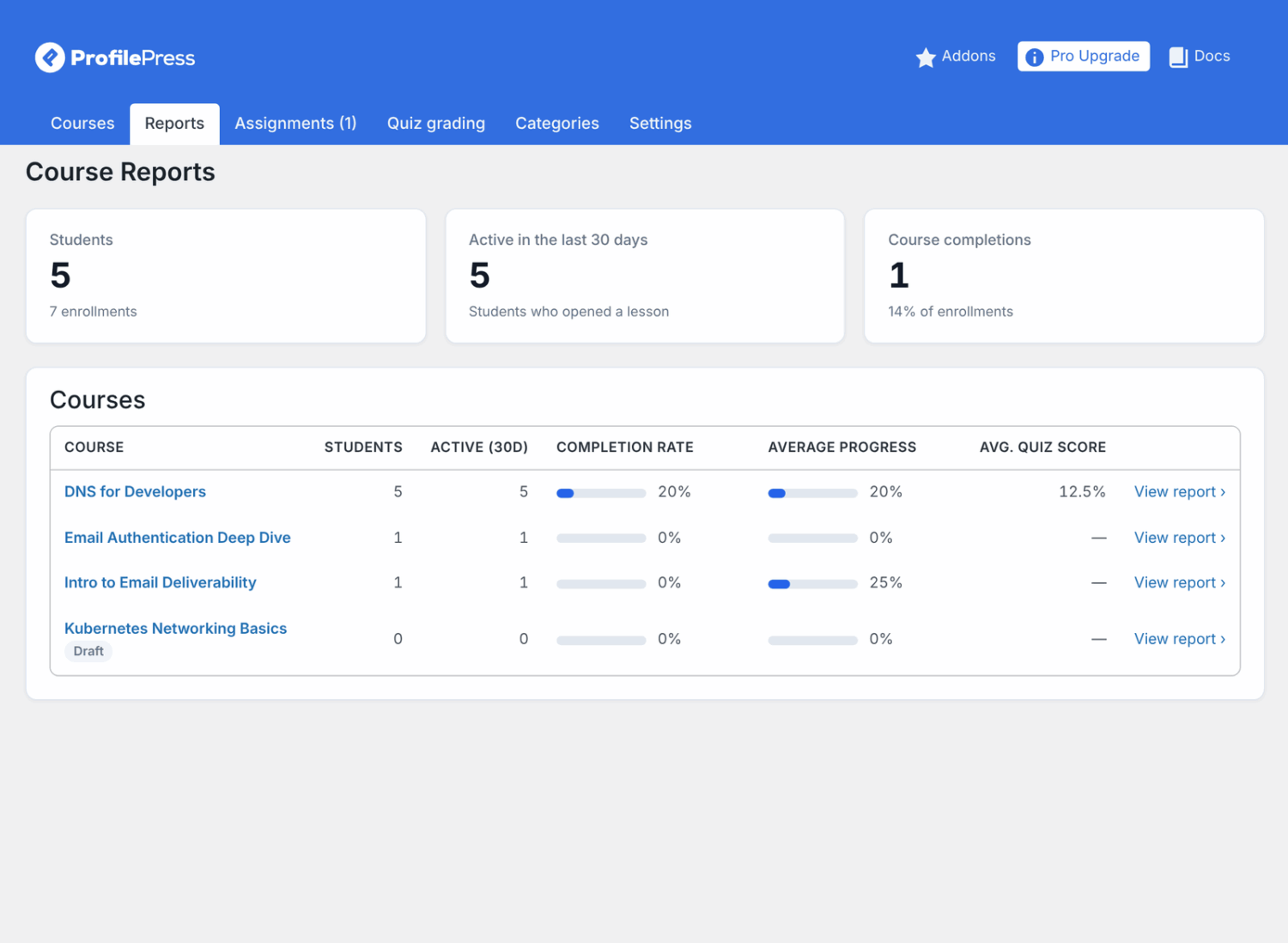
Enroll students manually, see each student’s progress, and preview any course as a student from the course builder. The new Reports tab shows how many students are active, who finishes, how they score on quizzes, and where they give up, with CSV export. See Managing Students and Progress and Course Reports.
For developers: the course builder has actions and filters for student events, access, templates, emails, certificates and more. See ProfilePress Courses Developer Hooks.
Plans to choose from on the checkout page
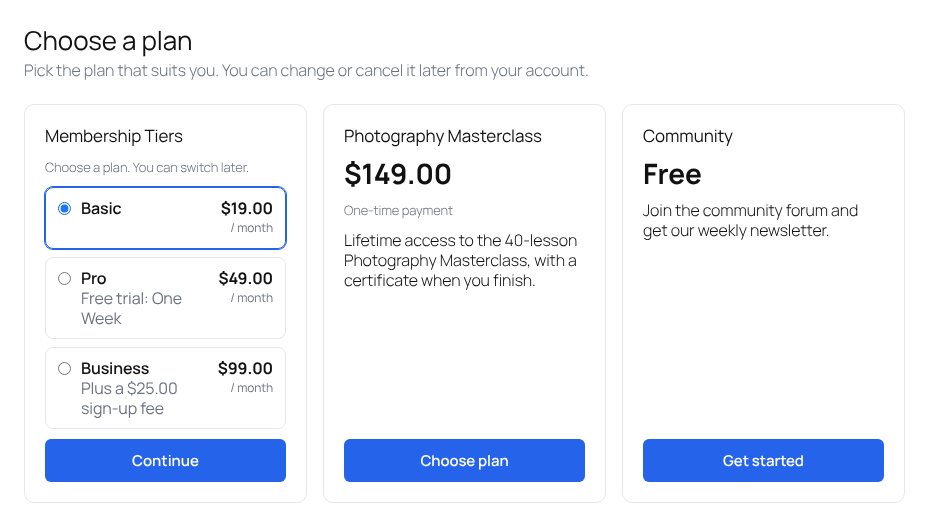
When someone opens your checkout page without choosing a plan first, for example from a “Pricing” or “Join” link in your menu, it now shows your plans as cards instead of “Your cart is currently empty”. Each card shows the price, billing, any free trial or sign-up fee, and the plan’s description, with a button to its checkout. Plans in a plan group share one card, and signed-in members see their current plan and can switch. Choose a grid or a list, and which plans to show, in Pages Settings.
A pricing table shortcode
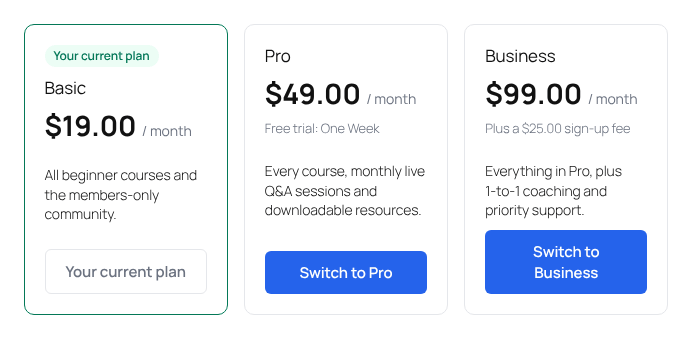
The new [profilepress-plans] shortcode shows the same plan cards on any page, so you can build a pricing page without a separate pricing table plugin. Show a plan group with [profilepress-plans group="2"] or pick plans with [profilepress-plans plans="8,3,1"], and choose a grid or list, the number of columns and an optional heading. Each plan group’s edit screen has its shortcode ready to copy. Members see their current plan marked and a Switch to button for the group’s other plans. See How to Show Membership Plans on Any Page.
Updating an existing site: what changes
If you don’t create a course, very little does. Here’s what to expect.
Nothing appears to your members until you publish a course
The My Courses tab only shows in My Account once your site has a published course, or for someone enrolled in one. Members of a site without courses see no difference.
Course addresses won’t take over existing pages
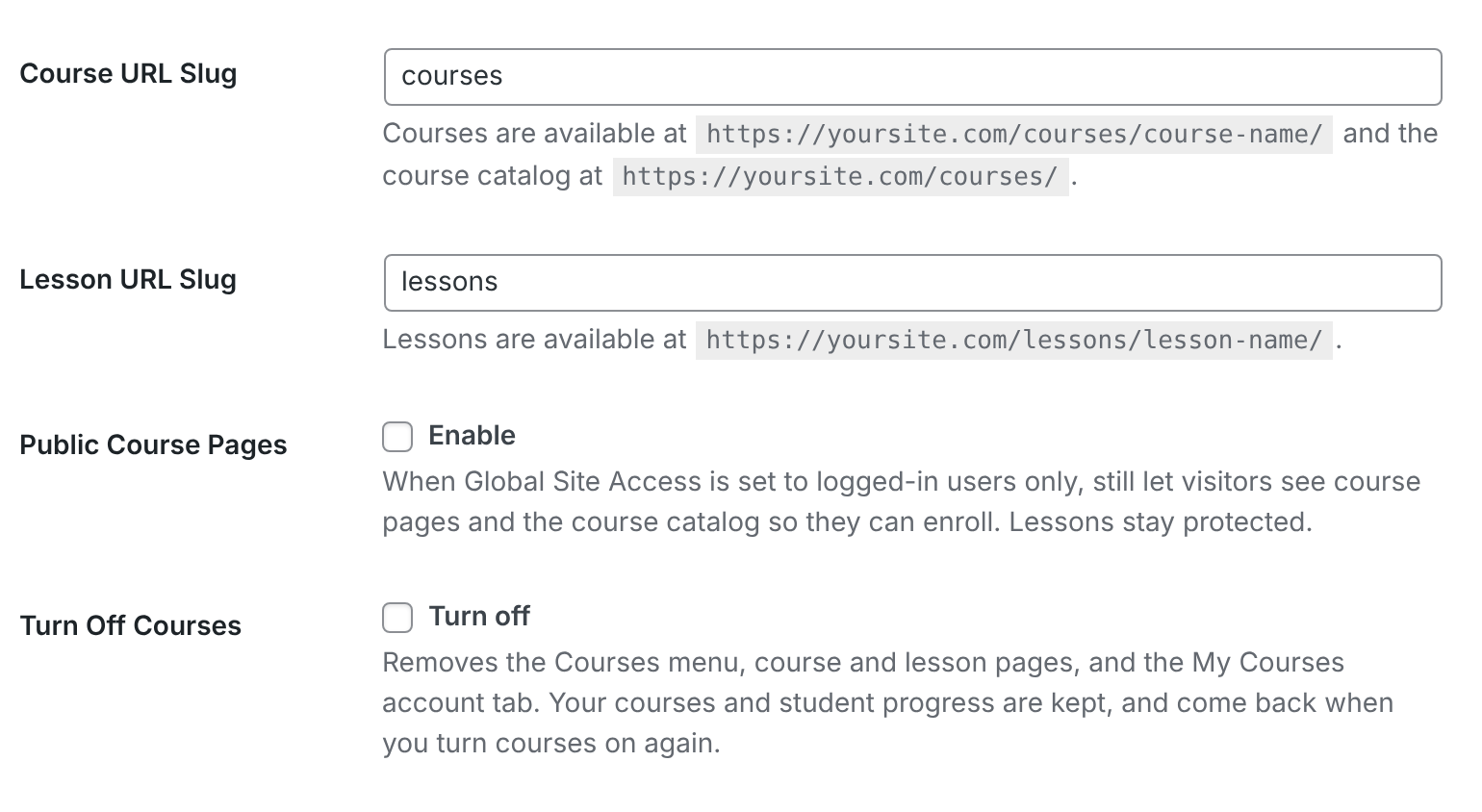
Courses live at /courses/ and lessons at /lessons/. If another course plugin is active, or a page already uses one of those addresses, ProfilePress uses /pp-courses/ and /pp-lessons/ instead, so your existing pages keep working. If a clash comes up later, the settings screen tells you.

You can turn courses off
Using another course plugin, or simply don’t need courses? Go to ProfilePress » Settings » General » Courses and tick Turn Off Courses. The Courses menu, course pages, blocks and the My Courses tab are removed and the course addresses are freed. Anything you’d already created is kept for when you turn it back on.
Members-only sites can keep course pages public
If Global Site Access limits your site to logged-in users, turn on Public Course Pages in the same settings so visitors can read about a course before they buy it. Lessons stay protected.
Page caching
Course pages look different for each signed-in student, so ProfilePress tells caching plugins not to cache them for signed-in users. Most caching plugins follow this. If you use a cache that ignores it, such as Cloudflare’s “Cache Everything” rule, bypass the cache for signed-in users.
Your checkout page lists your plans
If your menu or emails link to the checkout page without a plan, visitors now see your active plans to choose from instead of an empty cart. To show only some plans, or keep the old message, change Checkout Without a Plan under ProfilePress » Settings » General, in the Payment Pages section. Each card uses the plan’s Description, so check that your plans have one.
Improvements to features you already use
- Login redirects. When a login link asks to bring someone back to a page, like “Sign in to start” on a course, Login Redirect rules no longer send them elsewhere. Logins without such a request follow your rules as before.
- My Account tabs. “Disable My Account Tabs” can now hide tabs added by add-ons and integrations, not only the built-in ones.
- Payment receipts. When a purchase unlocks courses, the payment confirmation page and the order in My Account link straight to them.
- Tutor LMS and Academy LMS. Access given by add-ons, such as a seat on a team, now counts in these integrations.
New addon: Advanced Courses (Premium)
The new Advanced Courses addon adds the tools you need to run your courses like a school:
- Instructors: a Course Instructor role, co-instructors, review of new courses before they go live, and a front-end instructor dashboard.
- Assignments: a lesson type where students hand in text or files, and you grade the work with points and feedback.
- Written-answer quiz questions: questions students answer in their own words, graded by hand.
- Completion actions: enroll students in the next course, add them to an email list, and more when they finish a course.
- Announcements: post updates on a course page and email them to your students.
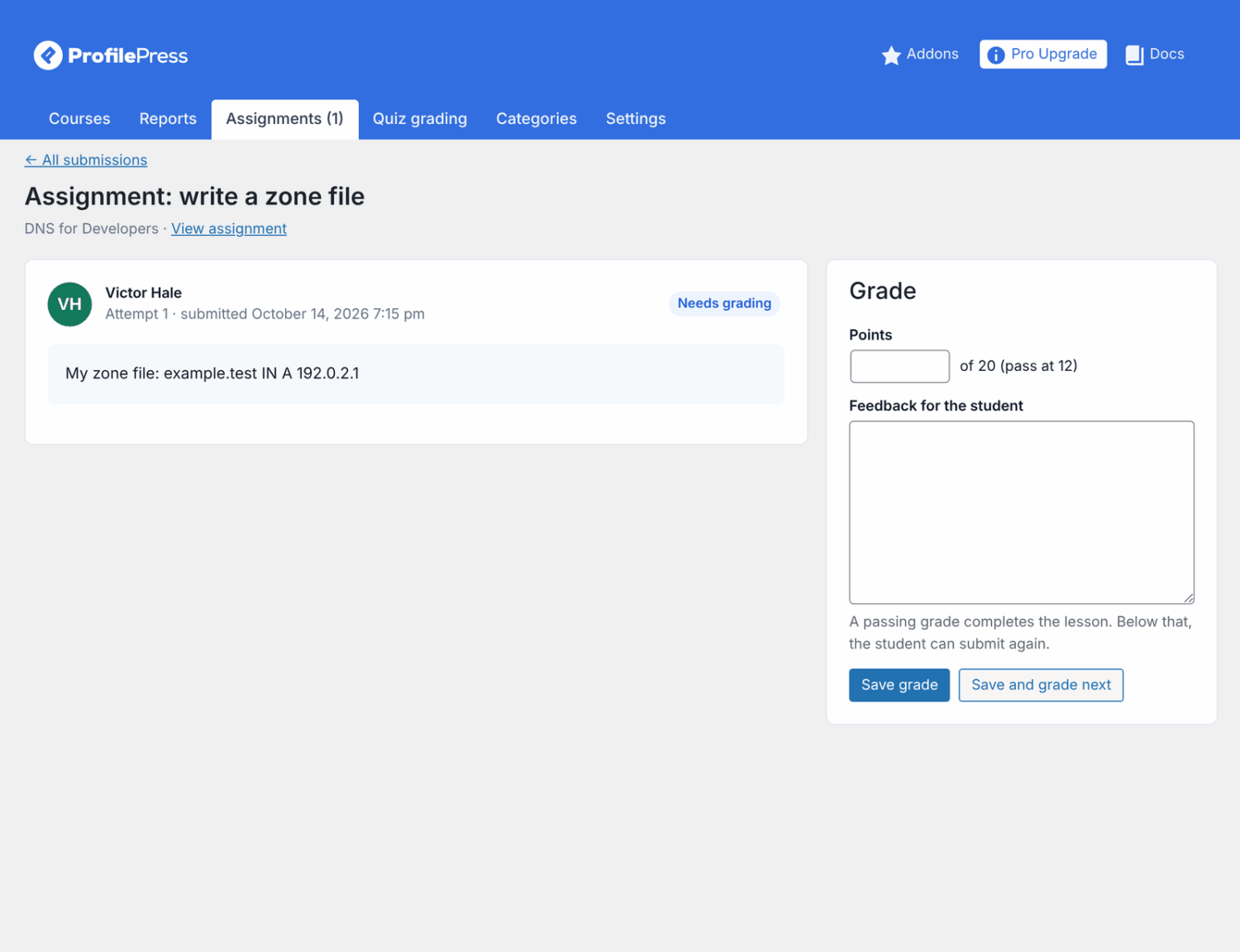
Advanced Courses is included in the ProfilePress Plus and Agency plans. Activate it under ProfilePress » Addons.
New to courses? Start with Getting Started with ProfilePress Courses, or follow our step-by-step guide to create and sell online courses in WordPress with ProfilePress.
New addon: Team Memberships (Premium)
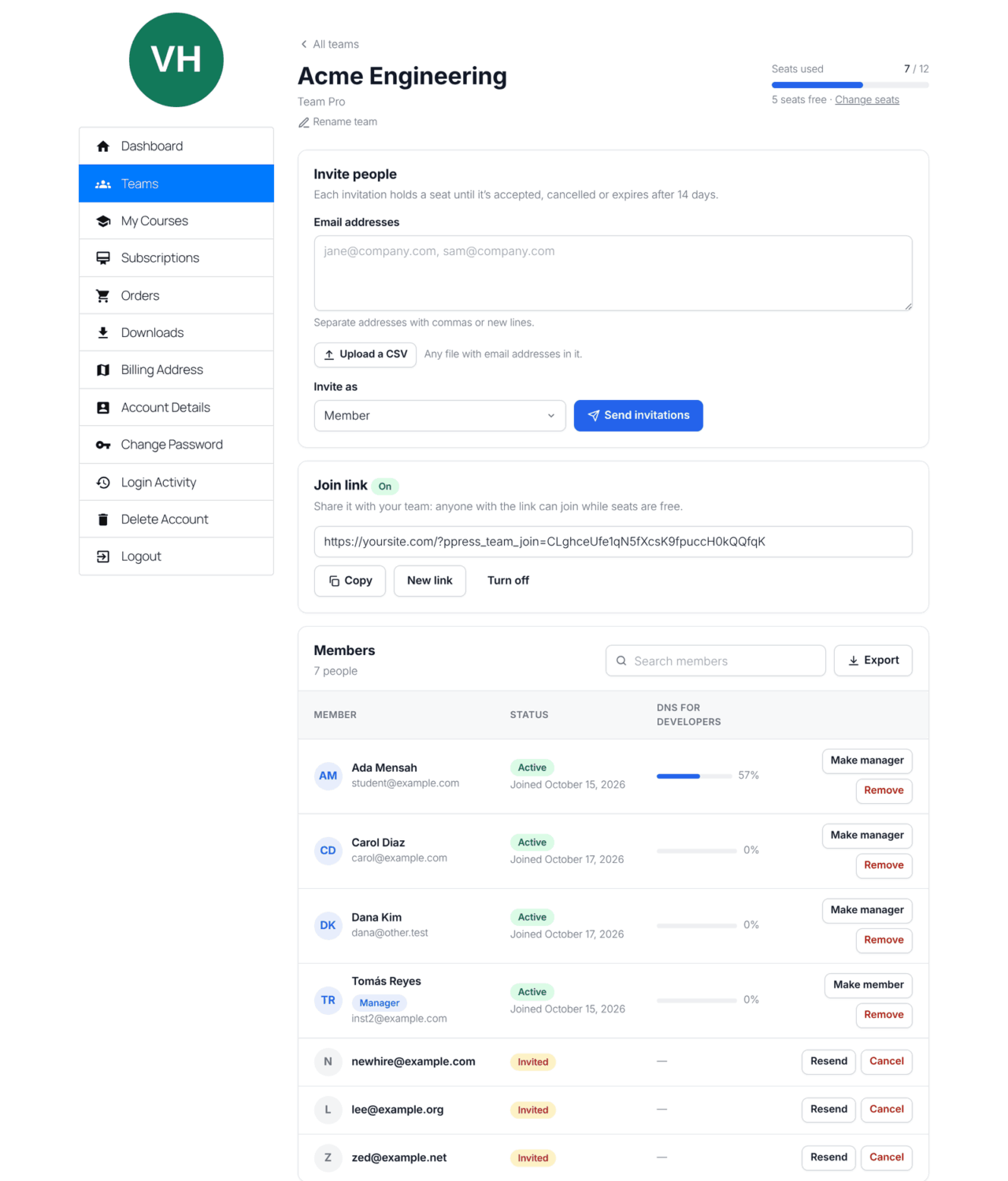
Want to sell your courses to companies, schools,s and groups? The new Team Memberships addon lets you sell any membership plan with seats. One person buys the plan and invites colleagues, and everyone on the team gets what the plan includes, including its courses, protected content, and user roles. Members don’t need their own subscription; their access comes from the owner’s.
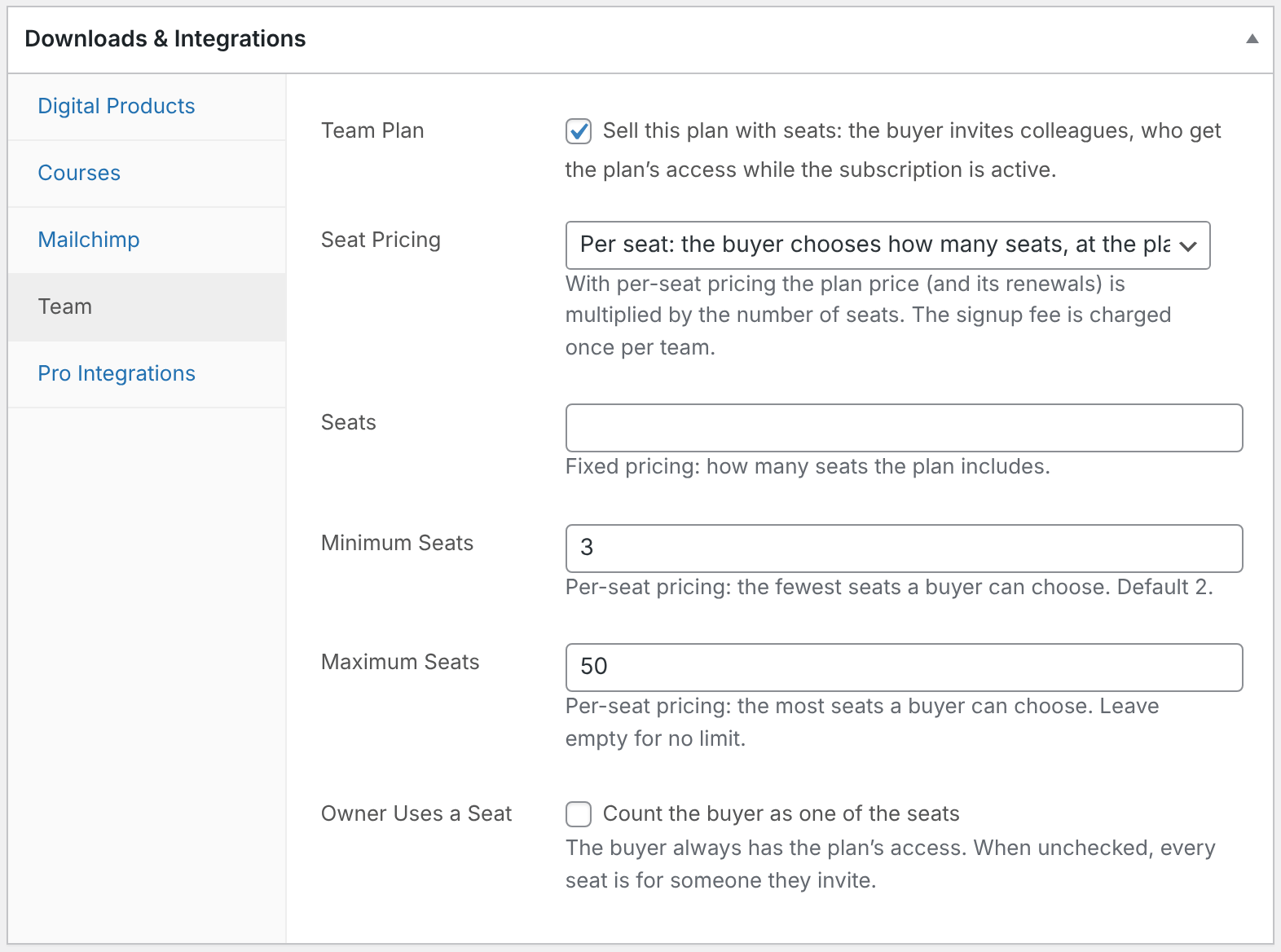
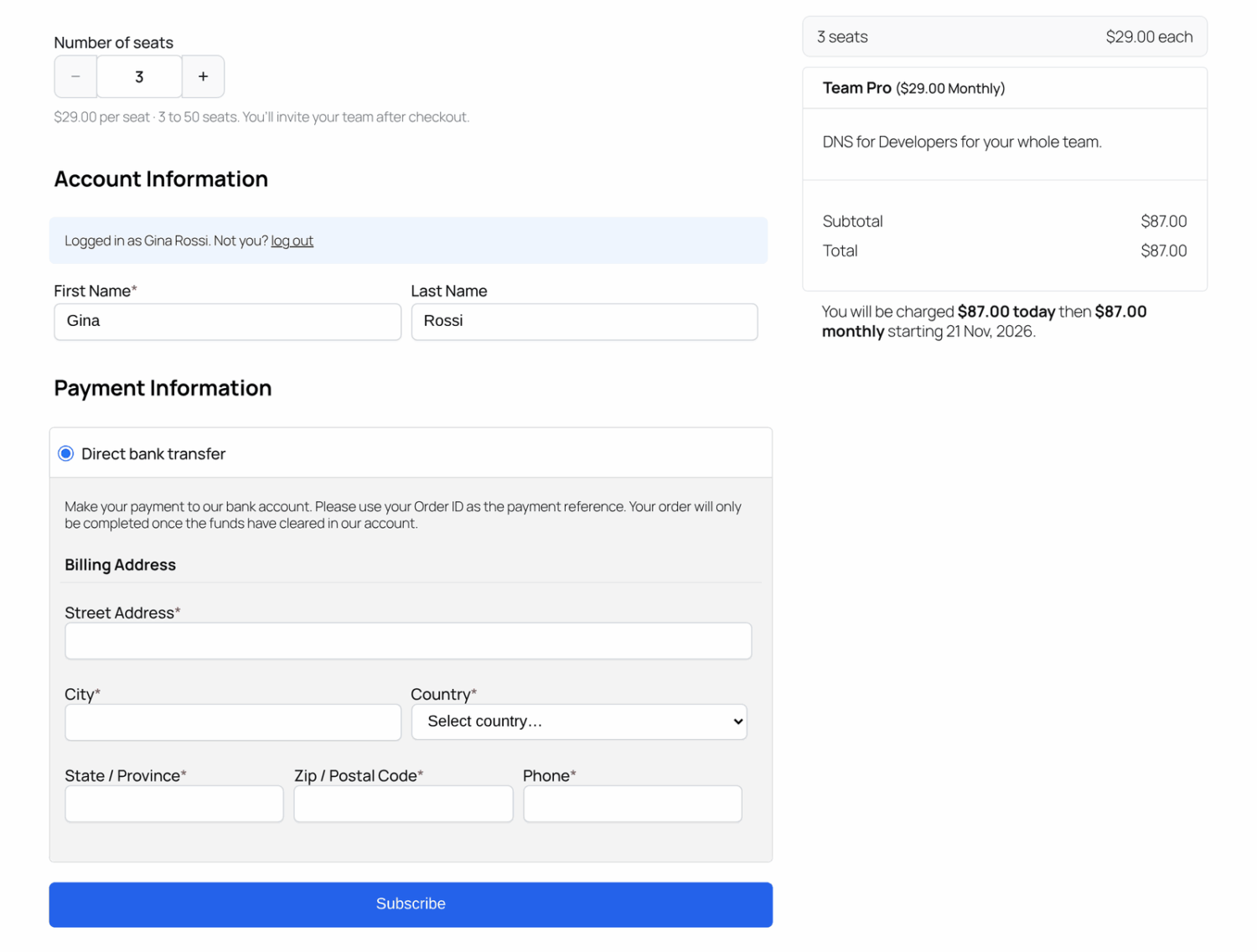
Turn any plan into a team plan from the new Team tab in the plan’s Downloads & Integrations box. Choose Fixed pricing, where the plan price buys a set number of seats, or Per seat pricing, where buyers pick how many seats they need at checkout and pay the plan price for each.
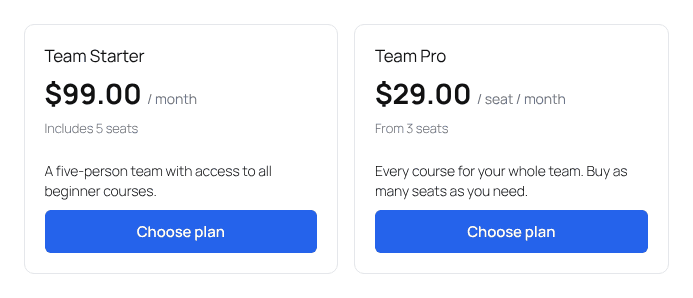
On the plan cards that ProfilePress shows on the checkout page and with the [profilepress-plans] shortcode, a per-seat plan reads like “$29.00 / seat / month” with its minimum, such as “From 3 seats”, and a fixed-seat plan shows how many seats it includes, such as “Includes 5 seats”.
Team owners, and the managers they choose, run the team themselves from My Account » Teams: they invite people by email or share a join link, track seats, and remove members, so you don’t have to. Whatever happens to the owner’s subscription, renewal, cancellation, or expiry, applies to the whole team automatically. Team Memberships also works with the LearnDash, Tutor LMS, Sensei LMS, LifterLMS, Academy LMS, MasterStudy LMS, and FluentCommunity integrations.
Team Memberships is included in the ProfilePress Plus and Agency plans. Learn how to set it up in How to Sell Team Memberships in WordPress and How to Manage a Team Membership, then upgrade to Plus or Agency to start selling seats.